

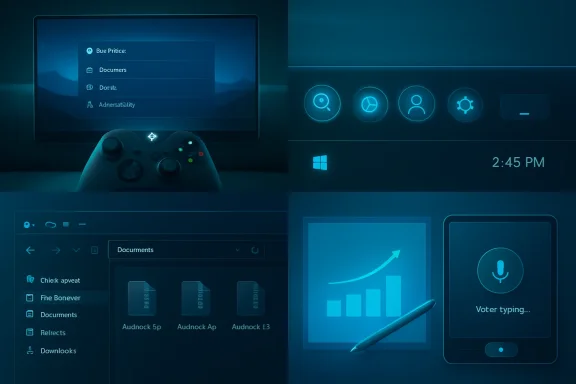
Microsoft released KB5083631 on April 30, 2026, as an optional non-security preview update for Windows 11 versions 24H2 and 25H2, bringing Xbox Mode, taskbar monitoring for AI agents, File Explorer archive additions, haptic pen feedback, and reliability fixes ahead of broader Patch Tuesday delivery. That is the plain accounting. The more interesting story is that Microsoft is using an ordinary preview patch to normalize a less ordinary idea: Windows is becoming a place where games, AI assistants, device sensors, and enterprise controls all surface through the shell. This update is not a revolution, but it is a useful map of where Windows is headed.
The optional Windows preview update used to be easy to explain. It was the patch for people who wanted fixes early, administrators who needed to validate next month’s payload, and enthusiasts who enjoyed living one reboot closer to the edge. KB5083631 still plays that role, but it also carries a marketing load that would once have been reserved for a feature update.
That is the quiet change. Microsoft’s “continuous innovation” model has made the monthly cumulative update feel less like maintenance and more like a rolling product launch. Features arrive in phases, gated by region, hardware, app version, account type, and Microsoft’s own confidence telemetry. The result is that two users can install the same KB number and experience different versions of Windows.
This is not necessarily bad engineering. Staged rollouts are how large platforms avoid turning every new feature into a global incident. But it does make the Windows update channel harder to read, especially for IT pros who are trying to distinguish between what is installed, what is enabled, what is merely seeded, and what Microsoft can light up later.
KB5083631 is a particularly good example because it contains both highly visible consumer changes and unglamorous platform work. Xbox Mode is the headline that photographs well. AI agents on the taskbar are the strategic tell. Explorer reliability, archive format support, Store install fixes, and input improvements are the things that determine whether users actually trust the machine after the update lands.
This matters because the Windows gaming ecosystem is powerful but messy. Steam, Xbox, Epic, Battle.net, Discord, overlays, drivers, anti-cheat systems, capture tools, and RGB utilities all compete for attention before the game even starts. Consoles win not because they are more capable, but because they reduce the number of decisions between the couch and the first loading screen.
Microsoft has tried versions of this argument before. Big Picture-style interfaces, Game Bar refinements, handheld optimizations, and Xbox app redesigns have all circled the same problem: Windows is excellent at being general-purpose and mediocre at disappearing. Xbox Mode is another attempt to make the operating system recede when the user’s intent is obvious.
The risk is that “console-like” can become a thin skin over a desktop that still behaves like a desktop. If notifications, update prompts, driver panels, sign-in nags, and launcher authentication flows continue to interrupt the experience, users will see the mode as theater. If Microsoft can actually reduce background noise and make controller navigation feel first-class, Xbox Mode could become more than a checkbox for handheld OEMs.
For WindowsForum readers, the question is less whether Xbox Mode looks slick on a demo machine and more whether it survives contact with real gaming PCs. The machines most likely to benefit from it are also the ones most likely to be customized, debloated, overclocked, dual-booted, docked, and attached to odd displays. A console-like shell has to handle the chaos of PC gaming without pretending that chaos does not exist.
That sounds small until you consider what it implies. Microsoft is preparing Windows for a world in which applications delegate work to agents that continue after the user has looked away. Research, summarization, document preparation, spreadsheet cleanup, ticket triage, inbox processing, and compliance review all become background tasks that need visibility, progress, interruption, and perhaps approval.
The taskbar is valuable real estate because it is the place Windows users already trust for persistence. If something is pinned, glowing, flashing, downloading, muted, sharing, or demanding attention, the taskbar is where the operating system says so. Putting agents there elevates them from app features to platform citizens.
That is also why the move will make some users uneasy. Microsoft has spent the past several years inserting Copilot surfaces into Windows, Microsoft 365, Edge, Teams, and developer tools, sometimes faster than customers can build policy around them. A taskbar agent indicator could be genuinely useful, but only if users understand what the agent is doing, where the data is going, and how to stop it.
The first implementation being tied to Microsoft 365 Copilot is no accident. Enterprise Copilot is where Microsoft can make the strongest argument for agents as productivity infrastructure rather than novelty. But the Windows shell is broader than Microsoft 365, and the long-term question is whether this becomes a general model for apps or another privileged lane for Microsoft’s own services.
Windows has been slowly absorbing file-management tasks that were once delegated to utilities. Native archive support has become broader, tabs have become ordinary, context menus have been reworked, and performance fixes arrive in a steady trickle. The pattern is not glamorous, but it reflects a real correction: File Explorer is not merely an app; it is the operating system’s front desk.
Reliability fixes around explorer.exe are therefore more consequential than they sound. When Explorer stumbles, users do not say a component crashed; they say Windows froze. Taskbar flyouts, Quick Access, Task View, login behavior, and shell responsiveness are all parts of the same perceived system health.
That is why this patch’s Explorer work may matter more in daily use than Xbox Mode or AI taskbar previews. A faster, less fragile shell buys Microsoft goodwill for its more ambitious experiments. A flaky shell makes every new feature look like misplaced priorities.
There is a lesson here Microsoft sometimes forgets. Users will tolerate change when the basics feel cared for. They are much less forgiving when AI banners and new modes arrive on top of a desktop that still hesitates, redraws, or loses its place.
Haptics are easy to dismiss until they are done well. A small vibration when an object aligns or a window snaps can make digital manipulation feel less approximate. Designers, note-takers, students, and tablet users benefit most, but the broader signal is that Microsoft still sees pen and touch as part of Windows’ identity rather than Surface-era leftovers.
The touch keyboard’s redesigned voice typing experience follows the same logic. By removing the full-screen overlay and moving voice typing animation directly to the dictation key, Microsoft is making dictation feel less like a mode switch and more like a normal input method. That matters on tablets, handhelds, convertibles, and compact PCs where typing is not always the best first option.
Then there is Drop Tray, the renamed and refined version of Drag Tray. The smaller peek view and relocated settings under System > Multitasking suggest Microsoft is trying to make sharing and drag-target workflows feel more like window management than a Nearby Sharing side quest. The naming change is minor; the placement change is more revealing.
Taken together, these features say that Microsoft is optimizing Windows for more postures than the classic laptop. A Windows PC might be a handheld gaming device, a pen tablet, a docked Arm laptop, a voice-driven accessibility device, or a managed enterprise endpoint. KB5083631 is one patch trying to serve all of those identities at once.
For years, Microsoft has wanted the Store to be a safer and more manageable way to deliver Windows software. That goal has always been constrained by the Win32 reality: Windows users expect to get software from anywhere. The Store cannot become the only front door, but it can become a better one if it is predictable.
Unexpected install failures are especially damaging because they make the platform feel arbitrary. Users rarely know whether the problem is licensing, cache corruption, package identity, network state, servicing stack behavior, or Microsoft’s backend. They just know the Store failed again.
For administrators, Store reliability is not merely a consumer convenience. Many organizations now have to think about Store-delivered components, inbox app updates, Company Portal behavior, winget dependencies, and policy-controlled app availability. A Store that fails noisily becomes one more support queue.
This is the recurring theme of KB5083631: Microsoft is building toward more dynamic, service-connected Windows experiences, but the foundation has to be boringly dependable. Every Copilot surface, agent workflow, and Store-delivered component depends on servicing machinery that users mostly notice only when it breaks.
That distinction is important and easily misunderstood. Most Windows 11 users on 24H2 or 25H2 are looking toward 26H2 as the broad annual feature update path. 26H1 exists for a narrower hardware wave, especially Arm-powered systems and other new platforms that need support not present in the current mainstream branch.
The existence of 26H1 shows how much Windows has changed under the pressure of specialized silicon. For decades, Windows succeeded by abstracting hardware differences behind a broad compatibility promise. That promise still matters, but AI accelerators, new Arm platforms, power-management requirements, and device-specific capabilities are pushing Microsoft toward more targeted enablement.
This is where the Surface speculation becomes plausible but should be treated carefully. New Surface Pro and Surface Laptop hardware would be natural candidates for Microsoft’s latest platform work, especially if refreshed around newer Arm silicon. But the servicing fact is broader than any one product line: Windows is being shaped around hardware capability tiers in a way that users and IT departments will increasingly have to track.
The practical outcome is a more fragmented story. Windows 11 is still Windows 11, but the version number, silicon generation, Copilot+ classification, AI component eligibility, and staged feature rollout can all affect what a user actually gets. That is manageable for enthusiasts. It is a documentation and support challenge for everyone else.
The AI taskbar agent model deserves particular scrutiny. Organizations that have already approved Microsoft 365 Copilot may welcome better visibility into long-running agent work. Organizations still evaluating data boundaries, retention, auditability, and user training may see another shell-level Copilot touchpoint arriving before their governance model is mature.
Xbox Mode is less likely to matter on managed office fleets, but it may matter in education, shared devices, creative studios, labs, and any environment where Windows endpoints are not traditional cubicle machines. Even if the feature can be ignored, administrators will want to know whether it can be disabled, hidden, or left dormant through policy.
Explorer and Store changes are more broadly relevant. Anything that improves shell reliability and reduces installation failures lowers support friction. Anything that expands file handling or changes input behavior can also create help-desk surprises if users suddenly see new associations, previews, or workflows.
The larger enterprise concern is cadence. Microsoft’s Windows servicing model asks organizations to absorb a steady stream of small changes rather than a single annual shock. That is better for security and quality in theory, but it requires stronger change communication in practice.
The challenge is that ambient computing becomes annoying the moment it misreads intent. A gaming mode that interrupts, an AI agent that feels opaque, a taskbar that becomes crowded, a sharing surface that appears unexpectedly, or a Store that still throws cryptic errors will not feel intelligent. It will feel like Windows trying too hard.
Microsoft has an advantage here because Windows remains the default productivity platform for a vast part of the world. It can introduce new shell patterns gradually and rely on familiarity to soften the transition. But that same installed base is also why changes provoke backlash: Windows users include gamers, accountants, developers, teachers, students, government workers, designers, factory operators, and retirees, all with different tolerance for novelty.
The most successful parts of this update are likely to be the least ideological. Explorer gets better. Store installs fail less often. Voice typing becomes less intrusive. Pens feel a little more precise. Those improvements make Windows feel maintained, which is the precondition for convincing users to accept more ambitious platform changes.
The most contested parts will be the ones that change the relationship between Windows and Microsoft’s services. AI agents on the taskbar may become genuinely useful, but they also make the shell feel more like an extension of Microsoft 365. For some users, that is integration. For others, it is encroachment.
Source: Thurrott.com Optional April Update for Windows 11 Brings AI Agents on Taskbar, More
 Microsoft Turns the Optional Patch Into a Product Roadmap
The optional Windows preview update used to be easy to explain. It was the patch for people who wanted fixes early, administrators who needed to validate next month’s payload, and enthusiasts who enjoyed living one reboot closer to the edge. KB5083631 still plays that role, but it also carries a marketing load that would once have been reserved for a feature update.That is the quiet change. Microsoft’s “continuous innovation” model has made the monthly cumulative update feel less like maintenance and more like a rolling product launch. Features arrive in phases, gated by region, hardware, app version, account type, and Microsoft’s own confidence telemetry. The result is that two users can install the same KB number and experience different versions of Windows.
This is not necessarily bad engineering. Staged rollouts are how large platforms avoid turning every new feature into a global incident. But it does make the Windows update channel harder to read, especially for IT pros who are trying to distinguish between what is installed, what is enabled, what is merely seeded, and what Microsoft can light up later.
KB5083631 is a particularly good example because it contains both highly visible consumer changes and unglamorous platform work. Xbox Mode is the headline that photographs well. AI agents on the taskbar are the strategic tell. Explorer reliability, archive format support, Store install fixes, and input improvements are the things that determine whether users actually trust the machine after the update lands.
Xbox Mode Is Microsoft’s Latest Attempt to Make the PC Behave Like a Console
The most eye-catching addition is Xbox Mode, formerly discussed as the Xbox full-screen experience. It gives Windows a controller-first, console-like surface for PC gaming, accessible through the Xbox app, Game Bar settings, or the Win + F11 shortcut. The pitch is obvious: less desktop clutter, less launcher friction, and a way for Windows handhelds and living-room PCs to feel less like repurposed laptops.This matters because the Windows gaming ecosystem is powerful but messy. Steam, Xbox, Epic, Battle.net, Discord, overlays, drivers, anti-cheat systems, capture tools, and RGB utilities all compete for attention before the game even starts. Consoles win not because they are more capable, but because they reduce the number of decisions between the couch and the first loading screen.
Microsoft has tried versions of this argument before. Big Picture-style interfaces, Game Bar refinements, handheld optimizations, and Xbox app redesigns have all circled the same problem: Windows is excellent at being general-purpose and mediocre at disappearing. Xbox Mode is another attempt to make the operating system recede when the user’s intent is obvious.
The risk is that “console-like” can become a thin skin over a desktop that still behaves like a desktop. If notifications, update prompts, driver panels, sign-in nags, and launcher authentication flows continue to interrupt the experience, users will see the mode as theater. If Microsoft can actually reduce background noise and make controller navigation feel first-class, Xbox Mode could become more than a checkbox for handheld OEMs.
For WindowsForum readers, the question is less whether Xbox Mode looks slick on a demo machine and more whether it survives contact with real gaming PCs. The machines most likely to benefit from it are also the ones most likely to be customized, debloated, overclocked, dual-booted, docked, and attached to odd displays. A console-like shell has to handle the chaos of PC gaming without pretending that chaos does not exist.
The Taskbar Becomes a Status Board for AI Labor
The more strategically important change is taskbar support for AI agents, starting with the Researcher agent in the Microsoft 365 Copilot app. Microsoft’s idea is that a long-running AI task should not vanish into a chat window. It should have presence in the shell, much like a file copy, download, print job, or Teams call.That sounds small until you consider what it implies. Microsoft is preparing Windows for a world in which applications delegate work to agents that continue after the user has looked away. Research, summarization, document preparation, spreadsheet cleanup, ticket triage, inbox processing, and compliance review all become background tasks that need visibility, progress, interruption, and perhaps approval.
The taskbar is valuable real estate because it is the place Windows users already trust for persistence. If something is pinned, glowing, flashing, downloading, muted, sharing, or demanding attention, the taskbar is where the operating system says so. Putting agents there elevates them from app features to platform citizens.
That is also why the move will make some users uneasy. Microsoft has spent the past several years inserting Copilot surfaces into Windows, Microsoft 365, Edge, Teams, and developer tools, sometimes faster than customers can build policy around them. A taskbar agent indicator could be genuinely useful, but only if users understand what the agent is doing, where the data is going, and how to stop it.
The first implementation being tied to Microsoft 365 Copilot is no accident. Enterprise Copilot is where Microsoft can make the strongest argument for agents as productivity infrastructure rather than novelty. But the Windows shell is broader than Microsoft 365, and the long-term question is whether this becomes a general model for apps or another privileged lane for Microsoft’s own services.
Explorer Gets the Kind of Update Users Notice Only When It Fails Less
File Explorer improvements rarely inspire launch videos, but they define the texture of Windows more than most marquee features. KB5083631 expands archive support to formats including uu, cpio, xar, and NuGet packages. That is not a mainstream consumer headline, but it is exactly the kind of practical expansion that helps developers, administrators, and power users avoid reaching for another tool in routine workflows.Windows has been slowly absorbing file-management tasks that were once delegated to utilities. Native archive support has become broader, tabs have become ordinary, context menus have been reworked, and performance fixes arrive in a steady trickle. The pattern is not glamorous, but it reflects a real correction: File Explorer is not merely an app; it is the operating system’s front desk.
Reliability fixes around explorer.exe are therefore more consequential than they sound. When Explorer stumbles, users do not say a component crashed; they say Windows froze. Taskbar flyouts, Quick Access, Task View, login behavior, and shell responsiveness are all parts of the same perceived system health.
That is why this patch’s Explorer work may matter more in daily use than Xbox Mode or AI taskbar previews. A faster, less fragile shell buys Microsoft goodwill for its more ambitious experiments. A flaky shell makes every new feature look like misplaced priorities.
There is a lesson here Microsoft sometimes forgets. Users will tolerate change when the basics feel cared for. They are much less forgiving when AI banners and new modes arrive on top of a desktop that still hesitates, redraws, or loses its place.
Pen, Touch, Voice, and Sharing Changes Reveal the Hybrid-PC Assumption
The update also brings new haptic feedback effects for supported pens, including Surface Slim Pen 2 and certain ASUS and MSI pens. These effects can respond to actions such as aligning objects in PowerPoint, snapping, or resizing windows. That is a narrow hardware audience, but it points to Microsoft’s continuing belief that Windows should feel physical on devices that support it.Haptics are easy to dismiss until they are done well. A small vibration when an object aligns or a window snaps can make digital manipulation feel less approximate. Designers, note-takers, students, and tablet users benefit most, but the broader signal is that Microsoft still sees pen and touch as part of Windows’ identity rather than Surface-era leftovers.
The touch keyboard’s redesigned voice typing experience follows the same logic. By removing the full-screen overlay and moving voice typing animation directly to the dictation key, Microsoft is making dictation feel less like a mode switch and more like a normal input method. That matters on tablets, handhelds, convertibles, and compact PCs where typing is not always the best first option.
Then there is Drop Tray, the renamed and refined version of Drag Tray. The smaller peek view and relocated settings under System > Multitasking suggest Microsoft is trying to make sharing and drag-target workflows feel more like window management than a Nearby Sharing side quest. The naming change is minor; the placement change is more revealing.
Taken together, these features say that Microsoft is optimizing Windows for more postures than the classic laptop. A Windows PC might be a handheld gaming device, a pen tablet, a docked Arm laptop, a voice-driven accessibility device, or a managed enterprise endpoint. KB5083631 is one patch trying to serve all of those identities at once.
The Store Fixes Tell a Less Glamorous Truth About Trust
Microsoft Store improvements in this update target unexpected errors including 0x80070057, 0x80240008, and 0x80073d28 during app downloads and installations. Error-code reduction will never compete with an AI demo, but it is central to Microsoft’s modern Windows strategy. If the Store is unreliable, app distribution, inbox app updates, enterprise packaging, and consumer trust all suffer.For years, Microsoft has wanted the Store to be a safer and more manageable way to deliver Windows software. That goal has always been constrained by the Win32 reality: Windows users expect to get software from anywhere. The Store cannot become the only front door, but it can become a better one if it is predictable.
Unexpected install failures are especially damaging because they make the platform feel arbitrary. Users rarely know whether the problem is licensing, cache corruption, package identity, network state, servicing stack behavior, or Microsoft’s backend. They just know the Store failed again.
For administrators, Store reliability is not merely a consumer convenience. Many organizations now have to think about Store-delivered components, inbox app updates, Company Portal behavior, winget dependencies, and policy-controlled app availability. A Store that fails noisily becomes one more support queue.
This is the recurring theme of KB5083631: Microsoft is building toward more dynamic, service-connected Windows experiences, but the foundation has to be boringly dependable. Every Copilot surface, agent workflow, and Store-delivered component depends on servicing machinery that users mostly notice only when it breaks.
26H1 Is the Parallel Track That Explains the Hardware Story
Alongside KB5083631, Microsoft also released KB5083806 for Windows 11 version 26H1, moving that branch forward with its own preview update. This matters because 26H1 is not the normal next feature update for existing PCs. It is a targeted Windows release for new devices with select new silicon.That distinction is important and easily misunderstood. Most Windows 11 users on 24H2 or 25H2 are looking toward 26H2 as the broad annual feature update path. 26H1 exists for a narrower hardware wave, especially Arm-powered systems and other new platforms that need support not present in the current mainstream branch.
The existence of 26H1 shows how much Windows has changed under the pressure of specialized silicon. For decades, Windows succeeded by abstracting hardware differences behind a broad compatibility promise. That promise still matters, but AI accelerators, new Arm platforms, power-management requirements, and device-specific capabilities are pushing Microsoft toward more targeted enablement.
This is where the Surface speculation becomes plausible but should be treated carefully. New Surface Pro and Surface Laptop hardware would be natural candidates for Microsoft’s latest platform work, especially if refreshed around newer Arm silicon. But the servicing fact is broader than any one product line: Windows is being shaped around hardware capability tiers in a way that users and IT departments will increasingly have to track.
The practical outcome is a more fragmented story. Windows 11 is still Windows 11, but the version number, silicon generation, Copilot+ classification, AI component eligibility, and staged feature rollout can all affect what a user actually gets. That is manageable for enthusiasts. It is a documentation and support challenge for everyone else.
The Enterprise Reading Is Control, Not Novelty
For enterprise IT, the obvious response to KB5083631 is not excitement about Xbox Mode. It is a sober review of what the update changes, what policies apply, what features are phased, and what users might suddenly see after the next Patch Tuesday. Optional previews are useful because they give administrators a rehearsal window before the same payload becomes harder to avoid.The AI taskbar agent model deserves particular scrutiny. Organizations that have already approved Microsoft 365 Copilot may welcome better visibility into long-running agent work. Organizations still evaluating data boundaries, retention, auditability, and user training may see another shell-level Copilot touchpoint arriving before their governance model is mature.
Xbox Mode is less likely to matter on managed office fleets, but it may matter in education, shared devices, creative studios, labs, and any environment where Windows endpoints are not traditional cubicle machines. Even if the feature can be ignored, administrators will want to know whether it can be disabled, hidden, or left dormant through policy.
Explorer and Store changes are more broadly relevant. Anything that improves shell reliability and reduces installation failures lowers support friction. Anything that expands file handling or changes input behavior can also create help-desk surprises if users suddenly see new associations, previews, or workflows.
The larger enterprise concern is cadence. Microsoft’s Windows servicing model asks organizations to absorb a steady stream of small changes rather than a single annual shock. That is better for security and quality in theory, but it requires stronger change communication in practice.
Microsoft’s Real Bet Is That Windows Can Become Ambient Without Becoming Annoying
The through line in KB5083631 is not one feature. It is Microsoft’s belief that Windows should become more ambient: more aware of tasks, more connected to cloud services, more adaptive to hardware, and more capable of surfacing background work without demanding full-screen attention. Xbox Mode, taskbar agents, haptic feedback, voice typing, Drop Tray, and Store reliability all fit that agenda.The challenge is that ambient computing becomes annoying the moment it misreads intent. A gaming mode that interrupts, an AI agent that feels opaque, a taskbar that becomes crowded, a sharing surface that appears unexpectedly, or a Store that still throws cryptic errors will not feel intelligent. It will feel like Windows trying too hard.
Microsoft has an advantage here because Windows remains the default productivity platform for a vast part of the world. It can introduce new shell patterns gradually and rely on familiarity to soften the transition. But that same installed base is also why changes provoke backlash: Windows users include gamers, accountants, developers, teachers, students, government workers, designers, factory operators, and retirees, all with different tolerance for novelty.
The most successful parts of this update are likely to be the least ideological. Explorer gets better. Store installs fail less often. Voice typing becomes less intrusive. Pens feel a little more precise. Those improvements make Windows feel maintained, which is the precondition for convincing users to accept more ambitious platform changes.
The most contested parts will be the ones that change the relationship between Windows and Microsoft’s services. AI agents on the taskbar may become genuinely useful, but they also make the shell feel more like an extension of Microsoft 365. For some users, that is integration. For others, it is encroachment.
The April Preview Leaves IT With a May Checklist
KB5083631 is worth treating as a preview of Microsoft’s priorities, not just a preview of next month’s fixes. It shows where the company wants attention, where it is repairing old pain points, and where staged rollout ambiguity will continue to complicate support.- KB5083631 is an optional non-security preview for Windows 11 versions 24H2 and 25H2, released on April 30, 2026, with broader delivery expected through the normal cumulative update channel.
- Xbox Mode is the most visible consumer feature, but its success will depend on whether Microsoft can make Windows genuinely controller-first rather than merely full-screen.
- Taskbar AI agent monitoring is the strategic feature, because it gives long-running Copilot-style work a persistent place in the Windows shell.
- File Explorer archive support, explorer.exe reliability work, and Store error reductions may produce more day-to-day value than the headline features.
- Windows 11 version 26H1 remains a targeted track for new hardware with select silicon, not the mainstream upgrade path for existing Windows 11 PCs.
- Administrators should validate not only whether the update installs cleanly, but also which phased features appear, which policies control them, and what user-facing changes arrive after enablement.
Source: Thurrott.com Optional April Update for Windows 11 Brings AI Agents on Taskbar, More
