

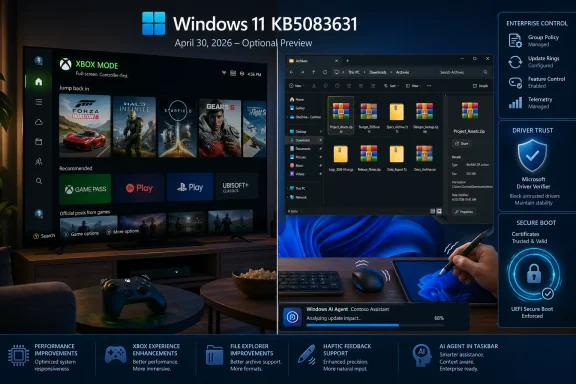
Microsoft released KB5083631 on April 30, 2026, as the optional non-security preview update for Windows 11 versions 25H2 and 24H2, bringing Xbox mode, File Explorer upgrades, haptic input support, enterprise policy changes, security hardening, and reliability fixes. The headline is gaming, but the real story is broader: Microsoft is using its monthly preview channel as a staging lane for a more opinionated Windows. This is not merely a patch; it is a preview of where Windows 11 is being pulled next — toward consoles, copilots, managed defaults, and tighter kernel trust.
The old rhythm of Windows updates was easier to explain. Patch Tuesday fixed security holes, the optional preview tested next month’s quality fixes, and feature releases arrived as named milestones. KB5083631 blurs that model further, because the April 2026 C-update carries a surprisingly large cargo of user-visible changes.
That is not accidental. Windows 11 has spent the last few years moving away from the idea that a “version” is the natural unit of change. Microsoft now treats supported Windows builds as living channels, with features arriving through controlled rollouts, app updates, cloud configuration, enablement packages, and cumulative updates that behave more like product drops than maintenance bundles.
For home users, that means the operating system can feel freshly rearranged after an update that was technically optional. For IT departments, it means the preview update deserves the same scrutiny once reserved for annual feature upgrades. Optional no longer means trivial.
KB5083631 lands for Windows 11 25H2 and 24H2 as OS builds 26200.8328 and 26100.8328. It follows the April 14 security baseline, KB5083769, and it previews changes that Microsoft intends to carry into the next security update cycle. Anyone installing it from Windows Update must choose to download and install it manually, but the word manual should not lull administrators into ignoring it. Today’s optional preview is often tomorrow’s required baseline.
Windows has always been the dominant PC gaming platform, but it has rarely been the best appliance gaming platform. A tower under the television, a handheld PC, or a docked gaming laptop can run an enormous game library, but the operating system still behaves like a desktop first. Controller navigation is inconsistent, background clutter is visible, and the user is never far from a dialog box that assumes a keyboard and mouse are nearby.
Xbox mode is Microsoft’s attempt to hide some of that awkwardness without giving up the openness of Windows. It gives players a lean-back interface for browsing games, launching titles, using Game Bar, and switching between apps. It also signals that Microsoft understands SteamOS and Steam Big Picture are not just UI experiments; they are arguments about what a gaming PC should feel like when the keyboard is out of reach.
The timing matters. Handheld gaming PCs have exposed Windows’ weakest consumer interface habits. Devices built around controllers and small screens do not tolerate desktop-era friction well. If Microsoft wants Windows to remain the default operating system for PC gaming beyond the desk, it needs a mode that makes the machine feel less like a work PC temporarily running a game and more like a gaming device that happens to be a PC.
That does not mean Xbox mode magically turns a Windows machine into an Xbox console. It does not make console-only games playable on PC, it does not erase storefront fragmentation, and it does not solve every annoyance of the Xbox app. The value is narrower but still important: Microsoft is acknowledging that form factor now shapes operating system design.
That history gives Xbox mode a higher burden than a normal Windows feature. It must be fast, resilient, controller-friendly, and unobtrusive. It must not become another layer users disable because it inserts itself between them and Steam, Battle.net, Epic, GOG, or a folder full of modded executables.
Microsoft’s best path is to make Xbox mode boringly competent. If it launches quickly, respects non-Microsoft games, minimizes background churn, and exits cleanly, it will earn a place on handhelds and living-room PCs. If it behaves like an ad funnel for Game Pass, users will treat it like every other unwanted shell.
The company’s language around “minimizing background distractions” is interesting because it implies more than visual polish. PC gamers care about background services, startup overhead, shader compilation, overlay conflicts, and input latency. Xbox mode will be judged less by its screenshots than by whether the PC feels calmer when the mode is active.
The more telling change is that View and Sort preferences should now be preserved in folders such as Downloads and Documents when apps launch File Explorer directly into those locations. This sounds like a tiny quality-of-life improvement, but it addresses a class of Windows irritation that makes users feel as if the system is ignoring them. People notice when their file manager forgets how they like to see their files.
Dark mode also gets a small but welcome fix: Microsoft says it has removed a white flash that could appear when opening This PC or resizing the Details pane. The white flash problem has become a symbol of Windows 11’s uneven modernization. It is not catastrophic, but it reminds users that the interface is still a stack of old and new components struggling to agree on a theme.
Explorer.exe reliability improvements may matter most. Microsoft says the update includes underlying changes to improve reliability at sign-in, when interacting with taskbar menus and Task View, and when unpinning items from Quick Access. It also improves the reliability of relevant explorer.exe processes so they stop after File Explorer windows close.
That last point is classic Windows plumbing. Users may never describe the issue in those terms, but they feel it when memory usage drifts, shell responsiveness decays, or Explorer restart rituals become part of troubleshooting. A better File Explorer is not a luxury feature. It is the difference between Windows feeling composed and Windows feeling haunted.
This is a small feature with a bigger implication. Windows has traditionally treated most desktop input as visual and mechanical: move the pointer, click the thing, watch the result. Haptic feedback adds a physical confirmation layer, the sort of subtle cue that can make precision tasks feel more natural when implemented well.
Device support is still narrow. Microsoft lists Surface Slim Pen 2, ASUS Pen 3.0, and MSI Pen 2 with haptic feedback, with possible support for additional devices, including select mice such as Logitech’s MX Master 4, as hardware partners release updates. That caveat matters because haptics only become a platform feature when enough devices implement them consistently.
There is an enterprise angle, too. Accessibility and productivity features often start as premium-device flourishes, then become expected behavior across hardware classes. If haptics can help users align objects, snap windows, or confirm interface boundaries without relying solely on vision, Microsoft has a path to make Windows feel more responsive without simply adding more animations.
The risk is fragmentation. If every device delivers different effects, delays, or intensity, haptics become a novelty rather than a language. Microsoft will need hardware partners to treat this as a shared interaction model, not a checklist feature on spec sheets.
This is the kind of feature that sounds small until you consider what it normalizes. Microsoft expects AI agents to become long-running background workers, not just chat boxes. The operating system therefore needs a way to show that an agent is doing something, how far along it is, and where the user should return when the work is complete.
That is a sensible design problem. If agents are going to draft reports, search corporate material, summarize meetings, or perform multi-step tasks, users need visibility. The taskbar is the obvious place to put that visibility because it already acts as Windows’ map of open work.
But this also deepens the operating system’s relationship with Copilot-era workflows. Windows is no longer just launching applications; it is mediating background labor performed by software agents. That makes the taskbar less like a row of app icons and more like a status board for delegated work.
For developers, Microsoft points to Windows.UI.Shell.Tasks as the API path. The interesting question is whether this becomes a general-purpose, well-governed system for asynchronous app activity or another Windows surface that mostly benefits Microsoft 365. The answer will determine whether users see it as useful infrastructure or platform favoritism.
More consequential is the expanded policy-based removal of preinstalled Microsoft apps. Windows Enterprise and Education administrators can now use a dynamic app removal list with the “Remove Default Microsoft Store packages” policy, specifying MSIX or APPX package family names through Group Policy. Microsoft notes that the dynamic list is not currently available in the Intune Settings Catalog, so validation requires Group Policy or a custom OMA-URI.
That is a very Microsoft sentence: a useful capability arrives, but the management story is split across tools. Still, the underlying change is welcome. Organizations have long wanted cleaner control over in-box apps, especially in education, shared-device, kiosk, and regulated environments where consumer-facing defaults can become helpdesk noise.
The policy is also part of a larger Windows trend. Microsoft keeps adding experiences to the base OS, while enterprise customers keep asking for ways to remove or suppress them. The compromise is not a smaller Windows image; it is a more policy-driven Windows image.
There is a philosophical tension here. Microsoft wants Windows to be a rich consumer platform, an AI endpoint, a gaming environment, and a managed enterprise client. IT wants predictability, minimal distractions, and fewer surprise tiles, apps, prompts, and integrations. KB5083631 does not resolve that tension, but it gives administrators another wrench.
That staged enforcement is important because driver policy is one of the most dangerous places to move quickly. Kernel drivers sit at the boundary where compatibility and security collide. Too much trust invites abuse; too little trust breaks old hardware, specialized peripherals, and business-critical software stacks.
The move away from default cross-signed driver trust is part of the long campaign to harden Windows against kernel-level attacks. Attackers love legitimate driver pathways because they can provide privileged access under the cover of software that once looked acceptable to the OS. Microsoft has spent years tightening driver signing, vulnerable driver blocklists, and hardware-backed security requirements.
Still, the phrase “a small number of cross-signed drivers might be blocked” will make some admins pause. In consumer environments, that may mean an old utility or niche device stops behaving. In industrial, medical, lab, or manufacturing environments, one old driver can be attached to an expensive piece of equipment no one wants to replace.
Microsoft’s audit period gives organizations a window, but it also creates homework. Driver inventory is not glamorous, yet it is becoming part of baseline Windows security hygiene. The devices most likely to complain are often the devices least likely to be well documented.
This is not a mainstream user feature, but it addresses a real class of risk. Batch files are old, powerful, and still everywhere. They are used in deployment scripts, logon routines, maintenance tasks, build processes, and the accumulated automation that keeps many Windows estates running.
The problem is that old scripting surfaces were designed for a more trusting world. If a batch file can be modified while it is executing, defenders have another avenue to worry about and attackers have another seam to pry open. Locking batch files while in use is a pragmatic hardening step rather than a flashy security overhaul.
It also shows how Windows security work increasingly happens in small layers. Secure Boot certificate rollouts, driver trust tightening, smart card logging improvements, batch-file locking, protected print indicators — none of these alone remakes the platform. Together, they show Microsoft trying to reduce the number of legacy assumptions that attackers can exploit.
The update does not simply blast certificates at every eligible machine. Microsoft says devices receive the new certificates only after demonstrating sufficient successful update signals. That cautious approach reflects the stakes: Secure Boot problems can become boot problems, and boot problems are the kind users remember forever.
This also explains part of the known BitLocker issue. Some managed devices with an unrecommended BitLocker Group Policy configuration may be required to enter their BitLocker recovery key on the first restart after installing the update. Microsoft says the issue is unlikely on personal PCs and applies only when several specific conditions line up, including BitLocker on the OS drive, explicit PCR7 inclusion in the validation profile, PCR7 binding reported as not possible, presence of the Windows UEFI CA 2023 certificate, and a device not already running the 2023-signed Windows Boot Manager.
That is a mouthful, but admins should not ignore it. BitLocker recovery prompts are among the most disruptive “technically expected” events in Windows management. They strand users, flood helpdesks, and expose gaps in recovery-key escrow processes.
The workaround is equally administrative: audit the BitLocker policy, remove the explicit configuration before installing where appropriate, force Group Policy update, suspend and resume BitLocker protectors to update bindings, then proceed. The fact that this is manageable does not make it harmless. It means the update belongs in a pilot ring before broad deployment.
Storage settings should perform better when viewing information for large volumes under Disks & Volumes. Command-line FAT32 formatting now supports volumes up to 2TB, a change that will please anyone who has had to dance around Windows’ long-standing format UI limitations. Delivery Optimization should use memory more predictably, reducing the chance that it consumes an unexpectedly large amount.
Display and graphics handling gets improvements around color profile persistence and availability for supported monitors. Printing gains an icon to show when a printer supports Windows Protected Print Mode. Kiosk mode configuration becomes simpler when Microsoft Edge is one of the allowed packaged apps.
There are also targeted fixes for Remote Desktop and authentication. Kerberos authentication in Remote Desktop sessions using Remote Credential Guard gets a fix for error 0xc000009a. A Remote Desktop Connection security warning dialog rendering issue in multi-monitor setups with different scaling values is addressed after appearing with the April security update.
These are the fixes that do not trend on social media but matter inside real Windows fleets. A system tray that reliably loads, a fingerprint credential that survives upgrade, a Remote Desktop dialog that renders correctly, and a storage page that does not crawl on large volumes all contribute to the feeling that the OS is under control.
For enthusiasts, gradual rollout is an annoyance: one machine gets the feature, another waits. For administrators, it is a variable. Two devices on the same build may not behave identically if feature flags differ. That makes documentation, support, screenshots, and user training messier.
The optional preview channel is therefore both useful and dangerous. It gives IT a look at what is coming before the next mandatory security update, but it also carries real feature surface area. Installing it broadly just to “get current” is increasingly hard to justify in managed environments.
Home users face a simpler choice. If they want Xbox mode early, improved File Explorer behavior, haptic input support, and the latest reliability fixes, KB5083631 is tempting. If the machine is mission critical, encrypted, or behaving fine, waiting for the next security update is the conservative path.
Microsoft’s challenge is communication. The company now uses monthly updates to deliver features, fixes, security hardening, and platform experiments in one package. That may be efficient engineering, but it makes the public label “non-security preview update” feel too narrow for what the package actually does.
Microsoft is making Windows more mode-aware. Xbox mode is a mode for gaming. Kiosk policy is a mode for locked-down usage. Taskbar agents support a mode of delegated background work. Haptics and File Explorer refinements make the desktop mode less abrasive. Enterprise app removal policies let admins strip Windows down for organizational modes of use.
The company is also making Windows more conditional. Features roll out gradually. Secure Boot certificates depend on device signals. Driver enforcement waits for audit windows. App removal depends on edition and policy path. AI components install only where the hardware class makes them applicable.
That conditionality is modern Windows in miniature. The OS is no longer one thing delivered to everyone at once. It is a mesh of build numbers, feature flags, hardware capabilities, regional availability, licensing states, management policies, and cloud-controlled experiences.
This is powerful when it works and maddening when it does not. It lets Microsoft move faster without waiting for monolithic releases. It also means the answer to “Do I have this feature?” is increasingly: it depends.
Against SteamOS and console-style gaming devices, it offers Xbox mode. Against macOS polish complaints, it fixes dark-mode flashes, haptics, and Explorer behavior. Against enterprise frustration, it expands policy controls for in-box apps and state roaming. Against attackers, it tightens driver trust, improves Secure Boot certificate targeting, and hardens old scripting surfaces. Against the uncertainty of AI workflows, it gives agents a place in the taskbar.
That breadth is impressive, but it is also the source of Windows’ eternal problem. The platform must satisfy gamers, office workers, sysadmins, developers, OEMs, accessibility users, security teams, and consumers who just want the Start menu to stop changing. Every update is a negotiation among constituencies.
KB5083631 leans into that complexity rather than pretending it can be simplified. It is a gaming update and an enterprise update. It is a UI update and a kernel trust update. It is a Copilot-era platform update and a batch-file hardening update. That is very Windows.
Source: Neowin Windows 11 gets big feature update with Xbox mode, new File Explorer features, and more
 Microsoft Turns the Optional Update Into a Feature Delivery Truck
The old rhythm of Windows updates was easier to explain. Patch Tuesday fixed security holes, the optional preview tested next month’s quality fixes, and feature releases arrived as named milestones. KB5083631 blurs that model further, because the April 2026 C-update carries a surprisingly large cargo of user-visible changes.That is not accidental. Windows 11 has spent the last few years moving away from the idea that a “version” is the natural unit of change. Microsoft now treats supported Windows builds as living channels, with features arriving through controlled rollouts, app updates, cloud configuration, enablement packages, and cumulative updates that behave more like product drops than maintenance bundles.
For home users, that means the operating system can feel freshly rearranged after an update that was technically optional. For IT departments, it means the preview update deserves the same scrutiny once reserved for annual feature upgrades. Optional no longer means trivial.
KB5083631 lands for Windows 11 25H2 and 24H2 as OS builds 26200.8328 and 26100.8328. It follows the April 14 security baseline, KB5083769, and it previews changes that Microsoft intends to carry into the next security update cycle. Anyone installing it from Windows Update must choose to download and install it manually, but the word manual should not lull administrators into ignoring it. Today’s optional preview is often tomorrow’s required baseline.
Xbox Mode Is Microsoft’s Living-Room Bet, Not Just a Skin
The most visible addition is Xbox mode, a full-screen Windows 11 gaming interface inspired by the console experience. Microsoft says it is available on PCs, laptops, desktops, and tablets, with entry points through the Xbox app, Game Bar settings, or the Windows logo key + F11 shortcut. That sounds modest until you remember what Microsoft is really trying to solve.Windows has always been the dominant PC gaming platform, but it has rarely been the best appliance gaming platform. A tower under the television, a handheld PC, or a docked gaming laptop can run an enormous game library, but the operating system still behaves like a desktop first. Controller navigation is inconsistent, background clutter is visible, and the user is never far from a dialog box that assumes a keyboard and mouse are nearby.
Xbox mode is Microsoft’s attempt to hide some of that awkwardness without giving up the openness of Windows. It gives players a lean-back interface for browsing games, launching titles, using Game Bar, and switching between apps. It also signals that Microsoft understands SteamOS and Steam Big Picture are not just UI experiments; they are arguments about what a gaming PC should feel like when the keyboard is out of reach.
The timing matters. Handheld gaming PCs have exposed Windows’ weakest consumer interface habits. Devices built around controllers and small screens do not tolerate desktop-era friction well. If Microsoft wants Windows to remain the default operating system for PC gaming beyond the desk, it needs a mode that makes the machine feel less like a work PC temporarily running a game and more like a gaming device that happens to be a PC.
That does not mean Xbox mode magically turns a Windows machine into an Xbox console. It does not make console-only games playable on PC, it does not erase storefront fragmentation, and it does not solve every annoyance of the Xbox app. The value is narrower but still important: Microsoft is acknowledging that form factor now shapes operating system design.
The Console Dream Still Has a Windows Problem
The challenge for Xbox mode is trust. PC gamers are not short of launchers, overlays, full-screen shells, storefronts, and performance promises. Many have watched Microsoft launch gaming features before, only to see them arrive half-integrated, inconsistently maintained, or tied too closely to services they did not ask for.That history gives Xbox mode a higher burden than a normal Windows feature. It must be fast, resilient, controller-friendly, and unobtrusive. It must not become another layer users disable because it inserts itself between them and Steam, Battle.net, Epic, GOG, or a folder full of modded executables.
Microsoft’s best path is to make Xbox mode boringly competent. If it launches quickly, respects non-Microsoft games, minimizes background churn, and exits cleanly, it will earn a place on handhelds and living-room PCs. If it behaves like an ad funnel for Game Pass, users will treat it like every other unwanted shell.
The company’s language around “minimizing background distractions” is interesting because it implies more than visual polish. PC gamers care about background services, startup overhead, shader compilation, overlay conflicts, and input latency. Xbox mode will be judged less by its screenshots than by whether the PC feels calmer when the mode is active.
File Explorer Gets the Kind of Fixes Users Actually Notice
File Explorer does not have the glamour of Xbox mode, but KB5083631 gives it a practical tune-up. Microsoft is expanding File Explorer’s archive support to include uu, cpio, xar, and NuGet packages. The last one is particularly useful for developers and administrators who frequently inspect package contents without wanting to reach for a separate utility.The more telling change is that View and Sort preferences should now be preserved in folders such as Downloads and Documents when apps launch File Explorer directly into those locations. This sounds like a tiny quality-of-life improvement, but it addresses a class of Windows irritation that makes users feel as if the system is ignoring them. People notice when their file manager forgets how they like to see their files.
Dark mode also gets a small but welcome fix: Microsoft says it has removed a white flash that could appear when opening This PC or resizing the Details pane. The white flash problem has become a symbol of Windows 11’s uneven modernization. It is not catastrophic, but it reminds users that the interface is still a stack of old and new components struggling to agree on a theme.
Explorer.exe reliability improvements may matter most. Microsoft says the update includes underlying changes to improve reliability at sign-in, when interacting with taskbar menus and Task View, and when unpinning items from Quick Access. It also improves the reliability of relevant explorer.exe processes so they stop after File Explorer windows close.
That last point is classic Windows plumbing. Users may never describe the issue in those terms, but they feel it when memory usage drifts, shell responsiveness decays, or Explorer restart rituals become part of troubleshooting. A better File Explorer is not a luxury feature. It is the difference between Windows feeling composed and Windows feeling haunted.
Haptics Push Windows Toward a More Tactile Desktop
KB5083631 also expands haptic feedback for compatible input devices. Microsoft says users can feel haptic signals during actions such as aligning objects in PowerPoint, snapping windows, or resizing windows. The setting lives under Bluetooth and devices for mouse, touchpad, or pen haptic signals.This is a small feature with a bigger implication. Windows has traditionally treated most desktop input as visual and mechanical: move the pointer, click the thing, watch the result. Haptic feedback adds a physical confirmation layer, the sort of subtle cue that can make precision tasks feel more natural when implemented well.
Device support is still narrow. Microsoft lists Surface Slim Pen 2, ASUS Pen 3.0, and MSI Pen 2 with haptic feedback, with possible support for additional devices, including select mice such as Logitech’s MX Master 4, as hardware partners release updates. That caveat matters because haptics only become a platform feature when enough devices implement them consistently.
There is an enterprise angle, too. Accessibility and productivity features often start as premium-device flourishes, then become expected behavior across hardware classes. If haptics can help users align objects, snap windows, or confirm interface boundaries without relying solely on vision, Microsoft has a path to make Windows feel more responsive without simply adding more animations.
The risk is fragmentation. If every device delivers different effects, delays, or intensity, haptics become a novelty rather than a language. Microsoft will need hardware partners to treat this as a shared interaction model, not a checklist feature on spec sheets.
The Taskbar Becomes a Status Board for AI Work
One of the more revealing additions is “agents on taskbar.” Microsoft is adding a way for Windows to show progress for first- and third-party agents, with Researcher in the Microsoft 365 Copilot app as the first adopter. When Researcher works on a report, Windows can display progress through the taskbar, show updates on hover, and notify the user when the result is ready.This is the kind of feature that sounds small until you consider what it normalizes. Microsoft expects AI agents to become long-running background workers, not just chat boxes. The operating system therefore needs a way to show that an agent is doing something, how far along it is, and where the user should return when the work is complete.
That is a sensible design problem. If agents are going to draft reports, search corporate material, summarize meetings, or perform multi-step tasks, users need visibility. The taskbar is the obvious place to put that visibility because it already acts as Windows’ map of open work.
But this also deepens the operating system’s relationship with Copilot-era workflows. Windows is no longer just launching applications; it is mediating background labor performed by software agents. That makes the taskbar less like a row of app icons and more like a status board for delegated work.
For developers, Microsoft points to Windows.UI.Shell.Tasks as the API path. The interesting question is whether this becomes a general-purpose, well-governed system for asynchronous app activity or another Windows surface that mostly benefits Microsoft 365. The answer will determine whether users see it as useful infrastructure or platform favoritism.
IT Gets More Control Over the Stuff Users Complain About
KB5083631 contains several changes aimed squarely at managed environments. Enterprise State Roaming can now be managed through Windows Backup for Organizations policies, which should simplify setup for administrators already trying to align user-state continuity with organizational backup controls.More consequential is the expanded policy-based removal of preinstalled Microsoft apps. Windows Enterprise and Education administrators can now use a dynamic app removal list with the “Remove Default Microsoft Store packages” policy, specifying MSIX or APPX package family names through Group Policy. Microsoft notes that the dynamic list is not currently available in the Intune Settings Catalog, so validation requires Group Policy or a custom OMA-URI.
That is a very Microsoft sentence: a useful capability arrives, but the management story is split across tools. Still, the underlying change is welcome. Organizations have long wanted cleaner control over in-box apps, especially in education, shared-device, kiosk, and regulated environments where consumer-facing defaults can become helpdesk noise.
The policy is also part of a larger Windows trend. Microsoft keeps adding experiences to the base OS, while enterprise customers keep asking for ways to remove or suppress them. The compromise is not a smaller Windows image; it is a more policy-driven Windows image.
There is a philosophical tension here. Microsoft wants Windows to be a rich consumer platform, an AI endpoint, a gaming environment, and a managed enterprise client. IT wants predictability, minimal distractions, and fewer surprise tiles, apps, prompts, and integrations. KB5083631 does not resolve that tension, but it gives administrators another wrench.
Driver Trust Tightens, and Legacy Hardware Feels the Squeeze
The Windows driver policy change may be the most important security item in the update. Microsoft says the Windows kernel is changing how it trusts third-party drivers: default trust for cross-signed drivers is removed, while drivers from the Windows Hardware Compatibility Program and an allow list of trusted legacy drivers remain allowed. Windows audits driver compatibility for at least 100 hours and three reboots before enabling enforcement.That staged enforcement is important because driver policy is one of the most dangerous places to move quickly. Kernel drivers sit at the boundary where compatibility and security collide. Too much trust invites abuse; too little trust breaks old hardware, specialized peripherals, and business-critical software stacks.
The move away from default cross-signed driver trust is part of the long campaign to harden Windows against kernel-level attacks. Attackers love legitimate driver pathways because they can provide privileged access under the cover of software that once looked acceptable to the OS. Microsoft has spent years tightening driver signing, vulnerable driver blocklists, and hardware-backed security requirements.
Still, the phrase “a small number of cross-signed drivers might be blocked” will make some admins pause. In consumer environments, that may mean an old utility or niche device stops behaving. In industrial, medical, lab, or manufacturing environments, one old driver can be attached to an expensive piece of equipment no one wants to replace.
Microsoft’s audit period gives organizations a window, but it also creates homework. Driver inventory is not glamorous, yet it is becoming part of baseline Windows security hygiene. The devices most likely to complain are often the devices least likely to be well documented.
Batch Files Get a Quiet but Sensible Hardening Switch
The update also adds a more secure processing mode for batch files and Command Prompt scripts. Administrators and Application Control for Business policy authors can enable a mode that prevents batch files from changing during execution. The registry value is LockBatchFilesWhenInUse under the Command Processor key.This is not a mainstream user feature, but it addresses a real class of risk. Batch files are old, powerful, and still everywhere. They are used in deployment scripts, logon routines, maintenance tasks, build processes, and the accumulated automation that keeps many Windows estates running.
The problem is that old scripting surfaces were designed for a more trusting world. If a batch file can be modified while it is executing, defenders have another avenue to worry about and attackers have another seam to pry open. Locking batch files while in use is a pragmatic hardening step rather than a flashy security overhaul.
It also shows how Windows security work increasingly happens in small layers. Secure Boot certificate rollouts, driver trust tightening, smart card logging improvements, batch-file locking, protected print indicators — none of these alone remakes the platform. Together, they show Microsoft trying to reduce the number of legacy assumptions that attackers can exploit.
Secure Boot Is the Clock Ticking Beneath the Update
KB5083631 includes additional targeting data to expand the rollout of new Secure Boot certificates. That may sound bureaucratic, but it matters because Secure Boot certificates used by many Windows devices are set to expire beginning in June 2026. Microsoft is trying to move devices to updated certificates through a controlled, signal-based rollout rather than a last-minute cliff.The update does not simply blast certificates at every eligible machine. Microsoft says devices receive the new certificates only after demonstrating sufficient successful update signals. That cautious approach reflects the stakes: Secure Boot problems can become boot problems, and boot problems are the kind users remember forever.
This also explains part of the known BitLocker issue. Some managed devices with an unrecommended BitLocker Group Policy configuration may be required to enter their BitLocker recovery key on the first restart after installing the update. Microsoft says the issue is unlikely on personal PCs and applies only when several specific conditions line up, including BitLocker on the OS drive, explicit PCR7 inclusion in the validation profile, PCR7 binding reported as not possible, presence of the Windows UEFI CA 2023 certificate, and a device not already running the 2023-signed Windows Boot Manager.
That is a mouthful, but admins should not ignore it. BitLocker recovery prompts are among the most disruptive “technically expected” events in Windows management. They strand users, flood helpdesks, and expose gaps in recovery-key escrow processes.
The workaround is equally administrative: audit the BitLocker policy, remove the explicit configuration before installing where appropriate, force Group Policy update, suspend and resume BitLocker protectors to update bindings, then proceed. The fact that this is manageable does not make it harmless. It means the update belongs in a pilot ring before broad deployment.
The Reliability Fixes Are the Update’s Insurance Policy
Beyond the headline features, KB5083631 is dense with fixes. Microsoft says it improves Microsoft Store download and installation errors, including 0x80070057, 0x80240008, and 0x80073d28. It improves system tray loading reliability, Windows Hello Face reliability, and Windows Hello Fingerprint persistence across upgrades.Storage settings should perform better when viewing information for large volumes under Disks & Volumes. Command-line FAT32 formatting now supports volumes up to 2TB, a change that will please anyone who has had to dance around Windows’ long-standing format UI limitations. Delivery Optimization should use memory more predictably, reducing the chance that it consumes an unexpectedly large amount.
Display and graphics handling gets improvements around color profile persistence and availability for supported monitors. Printing gains an icon to show when a printer supports Windows Protected Print Mode. Kiosk mode configuration becomes simpler when Microsoft Edge is one of the allowed packaged apps.
There are also targeted fixes for Remote Desktop and authentication. Kerberos authentication in Remote Desktop sessions using Remote Credential Guard gets a fix for error 0xc000009a. A Remote Desktop Connection security warning dialog rendering issue in multi-monitor setups with different scaling values is addressed after appearing with the April security update.
These are the fixes that do not trend on social media but matter inside real Windows fleets. A system tray that reliably loads, a fingerprint credential that survives upgrade, a Remote Desktop dialog that renders correctly, and a storage page that does not crawl on large volumes all contribute to the feeling that the OS is under control.
The April Preview Asks Admins to Treat “Optional” as a Warning Label
The rollout model is crucial. Many of the new experiences are gradual, meaning not every device that installs KB5083631 will immediately see every feature. That includes Xbox mode and other controlled changes. Microsoft can light features up over time, which gives the company telemetry and rollback flexibility but complicates testing.For enthusiasts, gradual rollout is an annoyance: one machine gets the feature, another waits. For administrators, it is a variable. Two devices on the same build may not behave identically if feature flags differ. That makes documentation, support, screenshots, and user training messier.
The optional preview channel is therefore both useful and dangerous. It gives IT a look at what is coming before the next mandatory security update, but it also carries real feature surface area. Installing it broadly just to “get current” is increasingly hard to justify in managed environments.
Home users face a simpler choice. If they want Xbox mode early, improved File Explorer behavior, haptic input support, and the latest reliability fixes, KB5083631 is tempting. If the machine is mission critical, encrypted, or behaving fine, waiting for the next security update is the conservative path.
Microsoft’s challenge is communication. The company now uses monthly updates to deliver features, fixes, security hardening, and platform experiments in one package. That may be efficient engineering, but it makes the public label “non-security preview update” feel too narrow for what the package actually does.
The Pieces Fit Together Better Than They First Appear
At first glance, KB5083631 looks like a grab bag: Xbox mode, File Explorer archive formats, haptics, taskbar agents, driver policy, BitLocker caveats, Store fixes, fonts, MIDI compatibility, and kiosk improvements. But there is a coherent direction beneath the sprawl.Microsoft is making Windows more mode-aware. Xbox mode is a mode for gaming. Kiosk policy is a mode for locked-down usage. Taskbar agents support a mode of delegated background work. Haptics and File Explorer refinements make the desktop mode less abrasive. Enterprise app removal policies let admins strip Windows down for organizational modes of use.
The company is also making Windows more conditional. Features roll out gradually. Secure Boot certificates depend on device signals. Driver enforcement waits for audit windows. App removal depends on edition and policy path. AI components install only where the hardware class makes them applicable.
That conditionality is modern Windows in miniature. The OS is no longer one thing delivered to everyone at once. It is a mesh of build numbers, feature flags, hardware capabilities, regional availability, licensing states, management policies, and cloud-controlled experiences.
This is powerful when it works and maddening when it does not. It lets Microsoft move faster without waiting for monolithic releases. It also means the answer to “Do I have this feature?” is increasingly: it depends.
The Update’s Most Concrete Signal Is Where Microsoft Wants Windows to Compete
The most strategically important part of KB5083631 is not any single fix. It is the competitive posture. Microsoft is defending Windows on multiple fronts at once.Against SteamOS and console-style gaming devices, it offers Xbox mode. Against macOS polish complaints, it fixes dark-mode flashes, haptics, and Explorer behavior. Against enterprise frustration, it expands policy controls for in-box apps and state roaming. Against attackers, it tightens driver trust, improves Secure Boot certificate targeting, and hardens old scripting surfaces. Against the uncertainty of AI workflows, it gives agents a place in the taskbar.
That breadth is impressive, but it is also the source of Windows’ eternal problem. The platform must satisfy gamers, office workers, sysadmins, developers, OEMs, accessibility users, security teams, and consumers who just want the Start menu to stop changing. Every update is a negotiation among constituencies.
KB5083631 leans into that complexity rather than pretending it can be simplified. It is a gaming update and an enterprise update. It is a UI update and a kernel trust update. It is a Copilot-era platform update and a batch-file hardening update. That is very Windows.
The April Payload in Plain Operational Terms
KB5083631 is worth testing because it carries both visible feature changes and under-the-hood policy shifts. The update is optional today, but its contents are a preview of the direction Windows 11 is already taking.- Xbox mode begins bringing a console-style, full-screen gaming interface to Windows 11 PCs, with access through the Xbox app, Game Bar settings, or Windows logo key + F11.
- File Explorer gains more archive support, better preservation of View and Sort preferences, dark-mode polish, and reliability fixes around explorer.exe.
- Managed environments should review the new in-box app removal capabilities, Enterprise State Roaming policy path, driver trust changes, and batch-file locking option.
- Secure Boot certificate preparation is becoming urgent as June 2026 approaches, and BitLocker policy misconfiguration can trigger a one-time recovery-key prompt on some managed devices.
- The update is a non-security preview release for Windows 11 25H2 and 24H2, so broad deployment should follow pilot testing rather than enthusiasm.
Source: Neowin Windows 11 gets big feature update with Xbox mode, new File Explorer features, and more
