

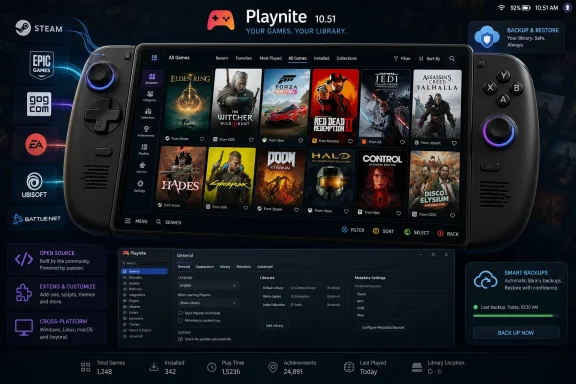
Playnite 10.51, released in February 2026 for Windows 10 and Windows 11, lets PC gamers consolidate Steam, Epic, GOG, EA, Ubisoft Connect, Battle.net, Xbox, Amazon, manual installs, and emulated games into one local, open-source launcher with Desktop and Fullscreen interfaces. That makes it less a novelty utility than a quiet answer to the launcher sprawl that now defines Windows gaming. The setup is not hard, but it rewards a deliberate sequence: install cleanly, connect stores one at a time, download metadata, then build the handheld-friendly interface last. The prize is a PC game library that finally behaves like a library instead of a scavenger hunt.
The modern Windows gaming PC is powerful, flexible, and absurdly fragmented. A single player can own games across Steam, Epic Games Store, GOG, the EA app, Ubisoft Connect, Battle.net, Xbox, Amazon Games, itch.io, Humble, and a drawer full of ROMs or DRM-free installers. Each service wants to be the front door, yet none of them can credibly claim to show the whole house.
That fragmentation used to be an annoyance on desktops and a deal-breaker in the living room. On a handheld, it becomes existential. The ROG Ally, Legion Go, Windows-booted Steam Deck, and similar devices all inherit the openness of Windows, but also its desktop-first assumptions: pop-up launchers, tray apps, update prompts, account tokens, and tiny window controls on seven-inch screens.
Playnite succeeds because it does not try to replace the stores. It indexes them. It keeps your ownership, installation state, metadata, emulator profiles, manual games, categories, and artwork in a single local interface, while still handing launch and authentication back to the official clients when needed.
That distinction matters. Playnite is not a pirate launcher, a gray-market downloader, or a storefront with ambitions. It is closer to Plex for games: a user-controlled catalog layer that turns scattered ownership into something navigable.
The installer places the program under the user profile, while the working library data lives under the roaming AppData path. That split is useful later, because your real investment is not the executable. It is the database, extensions, authentication data, cover art, themes, metadata choices, and manual edits that accumulate after setup.
Windows SmartScreen may complain because Playnite is a smaller open-source application rather than a giant commercial installer. That warning should not be ignored blindly, but it also should not be treated as proof of malware. Verify that the file came from the official project, then proceed.
The first launch wizard may tempt you to import everything immediately. Resist it. Bulk importing every store at once is how new users create a mess they cannot diagnose. The better workflow is slower and saner: open Desktop mode, confirm the basic settings, then connect each storefront individually.
Fullscreen mode is the payoff. It is the couch and handheld interface: large tiles, controller navigation, console-style browsing, and enough visual customization to make a Windows machine feel less like a repurposed laptop and more like a dedicated gaming device.
The mistake is trying to live in Fullscreen mode before the library is ready. Do the messy work first. Configure stores, clean metadata, prune duplicates, build categories, and test launch behavior from Desktop mode. Then switch the default startup behavior once the system is stable.
This is especially important on handhelds. A Windows handheld that boots straight into a broken or half-populated front end feels worse than the desktop it is trying to hide. A Windows handheld that boots into a polished Playnite Fullscreen library can feel surprisingly close to a console.
Once Steam imports correctly, the rest of the setup becomes conceptually simple. Playnite does not replace Steam’s DRM or installation logic. Installed Steam games get a Play button. Uninstalled Steam games can hand off to Steam for installation. Multi-drive Steam libraries are read from Steam’s own configuration.
That is the Playnite model in miniature. It does not win by pretending the store clients do not exist. It wins by making them less visible until they are actually needed.
Testing Steam first also gives you a baseline. If Steam imports, launches, and tracks playtime correctly, then later problems with Epic, GOG, or Xbox are likely plugin-specific authentication issues rather than a broken Playnite installation.
Install one library plugin. Authenticate it. Update the game library. Confirm that the imported games look plausible. Launch one installed title. Then move to the next service.
The most common failure mode is not exotic. It is expired authentication. Epic in particular has long been known for token-based sign-ins that can lapse, requiring the user to authenticate again before the library updates cleanly. That is annoying, but it is not mysterious.
The Xbox and Microsoft Store side of Windows gaming can be more opaque because Microsoft’s own app ecosystem has historically mixed Store entitlements, Game Pass availability, encrypted install locations, and account state. Playnite can make Xbox PC titles visible in the same catalog, but the underlying Microsoft client still governs installation and launch behavior.
The broader point is that Playnite cannot eliminate the business decisions that created launcher fragmentation. It can only reduce their day-to-day cost. That is still a big deal.
Playnite’s metadata tools are therefore central, not cosmetic. IGDB-style game data gives the library structure: descriptions, genres, developers, publishers, release dates, and related fields. SteamGridDB-style artwork gives it visual coherence: covers, heroes, icons, logos, and backgrounds that make Fullscreen mode feel intentional.
The key setting during the first bulk metadata pass is to update only empty fields. That protects whatever good data already came from a storefront and avoids overwriting artwork you may prefer. Once the first pass completes, handle bad matches manually rather than repeatedly running broad updates and hoping for a different result.
This is the step that separates a “working” Playnite setup from one you will actually use. People underestimate how much friction bad artwork creates. On a handheld or TV, a beautiful grid is not vanity; it is usability.
The cleanest approach is to maintain a dedicated games folder with each title in its own directory. Pointing an automatic scanner at Program Files is a recipe for importing uninstallers, crash reporters, redistributable installers, configuration utilities, and everything else that happens to end in .exe. A tidy folder tree is not just neatness; it is a defensive measure.
Manual entries can still receive metadata, categories, artwork, playtime tracking, and custom launch actions. That means a DRM-free copy of a game can sit beside its Steam and GOG cousins without feeling bolted on.
This is also where Playnite’s open-endedness beats storefront-centric tools. A launcher made by a store has little incentive to elevate games that were not bought there. Playnite’s incentive is simpler: if you can launch it, catalog it.
The important discipline is to organize ROMs by platform before scanning. A directory tree with separate folders for SNES, Genesis, Game Boy Advance, Nintendo 64, PlayStation, and other systems produces cleaner imports and fewer mismatches. A giant mixed ROM dump produces cleanup work.
Emulator configuration also forces a truth that console front ends usually hide: PC launching is messy. Some emulators need command-line flags. Some need per-platform profiles. Some need fullscreen arguments or no-GUI launch modes. Playnite gives you the place to encode that logic, but it cannot make every emulator behave identically.
Still, once configured, the experience is compelling. A handheld that can show Hades II, Halo Infinite, Diablo IV, Super Metroid, and Burnout 3 in one controller-driven interface is doing something no individual store launcher was designed to do.
But every extension is also a dependency. It can add startup time, break after an update, conflict with another add-on, or create a troubleshooting path that casual users will not enjoy. The best Playnite setups are not the ones with the most plugins; they are the ones with the fewest plugins needed to solve the user’s actual problems.
Themes deserve similar restraint. Desktop and Fullscreen themes are configured separately, and a theme that looks impressive in screenshots may be heavy on animations, videos, or background effects that do not suit a low-power handheld. Visual polish is worth having, but not at the cost of launch speed and input responsiveness.
For power users, scripts are the quiet killer feature. Pre-launch and post-exit actions can close overlays, stop wallpaper engines, change audio devices, launch capture tools, or restore utilities after a game exits. This turns Playnite from a static catalog into an automation layer for the whole gaming session.
The trick is to build shelves around how you actually choose games. “Installed” is useful, but insufficient. “Couch co-op,” “controller-friendly,” “short sessions,” “handheld,” “finished,” “backlog,” “kids,” “streaming,” and “benchmark” are more meaningful because they reflect decisions rather than database fields.
Bulk editing makes this manageable. Select groups of games, apply categories, tag by genre or device suitability, hide duplicate launchers, and save filters as views. Do not attempt perfection. The goal is to reduce decision friction, not to build a museum-grade taxonomy.
On a handheld, this work becomes immediately visible. The difference between a random grid of 800 covers and a front page organized around “Continue Playing,” “Installed,” “Handheld Favorites,” and “Short Sessions” is the difference between browsing and playing.
The built-in backup feature should be configured before deep curation begins. A backup to OneDrive, a NAS, an external SSD, or another protected location is cheap insurance. Manual copying of the AppData Playnite folder also works, provided Playnite is closed first.
Restoration is straightforward in principle: install Playnite, close it, restore the data folder, relaunch. Store authentication may need to be repeated, and that is a security feature rather than a failure. Tokens should not be assumed to survive every machine migration.
This is one area where open-source local-first software cuts both ways. You control the data, which is excellent. You are also responsible for preserving it, which is less glamorous but essential.
Playnite does not fix Windows power management, driver weirdness, shader compilation, or sleep behavior. It does not make every store controller-friendly. It cannot turn Windows into SteamOS. But it can give the user a convincing first screen.
The ideal handheld workflow is simple: Windows logs in, Playnite opens directly into Fullscreen mode, the controller works, the user selects a game, and the underlying store stays out of sight unless it needs to authenticate, update, or install. That is not the same as a console, but it is closer than Windows gets on its own.
Steam Deck owners should note the boundary. Playnite is a Windows application. On a Steam Deck running SteamOS, it can be attempted through Wine or Proton-style compatibility layers, but that is not the clean path and storefront authentication may be fragile. The most reliable Playnite-on-Deck setup remains Windows.
If you reverse it, the experience gets messy. Installing themes before metadata means admiring empty tiles. Configuring Fullscreen mode before controllers and categories means navigating clutter from the couch. Adding every plugin before testing authentication means debugging without a baseline.
The better approach is boring in the way good systems administration is boring. Make one change, validate it, document the important paths, and move on. Playnite is friendly enough for enthusiasts, but it rewards the habits of IT pros.
That may be why it resonates with WindowsForum readers. Under the glossy covers and console dashboards, this is fundamentally a configuration-management problem. The user is building a front end that abstracts multiple vendors without surrendering local control.
That is not a unique weakness. GOG Galaxy integrations have had similar fragility, and store-owned launchers are often worse precisely because they do not prioritize competitors’ libraries. The difference is that Playnite’s open model gives the community more room to repair, extend, and work around problems.
There is also the matter of trust. Playnite is open source, local-first, and MIT-licensed, and it does not need to run as a social network or advertising surface. For users tired of launchers that exist partly to sell, upsell, notify, and collect, that restraint is part of the appeal.
But open source is not magic dust. Users should still install extensions selectively, verify sources, keep backups, and avoid treating every add-on as equally maintained. A secure Playnite setup is not just “download Playnite”; it is download carefully, authenticate deliberately, and keep the library recoverable.
 Launcher Sprawl Has Become a Windows Problem, Not a Gamer Problem
The modern Windows gaming PC is powerful, flexible, and absurdly fragmented. A single player can own games across Steam, Epic Games Store, GOG, the EA app, Ubisoft Connect, Battle.net, Xbox, Amazon Games, itch.io, Humble, and a drawer full of ROMs or DRM-free installers. Each service wants to be the front door, yet none of them can credibly claim to show the whole house.That fragmentation used to be an annoyance on desktops and a deal-breaker in the living room. On a handheld, it becomes existential. The ROG Ally, Legion Go, Windows-booted Steam Deck, and similar devices all inherit the openness of Windows, but also its desktop-first assumptions: pop-up launchers, tray apps, update prompts, account tokens, and tiny window controls on seven-inch screens.
Playnite succeeds because it does not try to replace the stores. It indexes them. It keeps your ownership, installation state, metadata, emulator profiles, manual games, categories, and artwork in a single local interface, while still handing launch and authentication back to the official clients when needed.
That distinction matters. Playnite is not a pirate launcher, a gray-market downloader, or a storefront with ambitions. It is closer to Plex for games: a user-controlled catalog layer that turns scattered ownership into something navigable.
The First Rule Is to Install Less Than You Think
The cleanest Playnite setup starts with restraint. Download the installer from the official Playnite site or the project’s GitHub release page, not from a repackaged download portal, and choose the standard installer unless you specifically need a portable USB deployment. The current stable branch, Playnite 10.51, is small by modern gaming standards and stores user data separately from the application itself.The installer places the program under the user profile, while the working library data lives under the roaming AppData path. That split is useful later, because your real investment is not the executable. It is the database, extensions, authentication data, cover art, themes, metadata choices, and manual edits that accumulate after setup.
Windows SmartScreen may complain because Playnite is a smaller open-source application rather than a giant commercial installer. That warning should not be ignored blindly, but it also should not be treated as proof of malware. Verify that the file came from the official project, then proceed.
The first launch wizard may tempt you to import everything immediately. Resist it. Bulk importing every store at once is how new users create a mess they cannot diagnose. The better workflow is slower and saner: open Desktop mode, confirm the basic settings, then connect each storefront individually.
Desktop Mode Is the Workshop; Fullscreen Mode Is the Console
Playnite’s two-interface design is one of its smartest decisions. Desktop mode is where configuration happens. It gives you the detailed library view, menus, add-on browser, emulator configuration, metadata tools, filters, and bulk-editing controls that would be painful to operate with a controller.Fullscreen mode is the payoff. It is the couch and handheld interface: large tiles, controller navigation, console-style browsing, and enough visual customization to make a Windows machine feel less like a repurposed laptop and more like a dedicated gaming device.
The mistake is trying to live in Fullscreen mode before the library is ready. Do the messy work first. Configure stores, clean metadata, prune duplicates, build categories, and test launch behavior from Desktop mode. Then switch the default startup behavior once the system is stable.
This is especially important on handhelds. A Windows handheld that boots straight into a broken or half-populated front end feels worse than the desktop it is trying to hide. A Windows handheld that boots into a polished Playnite Fullscreen library can feel surprisingly close to a console.
Steam Should Be the First Store Because It Proves the Pattern
Steam remains the best first integration because it is mature, predictable, and usually the largest part of a PC gamer’s library. Playnite can import installed games and owned games, and with the right Steam profile or API configuration it can show more than just what is currently on disk. That matters because a unified launcher is not merely a launcher; it is also an ownership map.Once Steam imports correctly, the rest of the setup becomes conceptually simple. Playnite does not replace Steam’s DRM or installation logic. Installed Steam games get a Play button. Uninstalled Steam games can hand off to Steam for installation. Multi-drive Steam libraries are read from Steam’s own configuration.
That is the Playnite model in miniature. It does not win by pretending the store clients do not exist. It wins by making them less visible until they are actually needed.
Testing Steam first also gives you a baseline. If Steam imports, launches, and tracks playtime correctly, then later problems with Epic, GOG, or Xbox are likely plugin-specific authentication issues rather than a broken Playnite installation.
The Other Stores Are Where Patience Beats Wizardry
Epic, GOG, EA, Ubisoft Connect, Battle.net, Xbox, Amazon Games, itch.io, and Humble rely on library plugins. Most are installed from Playnite’s built-in add-on browser, after which Playnite usually needs a restart and a separate authentication step. This is where the methodical approach pays off.Install one library plugin. Authenticate it. Update the game library. Confirm that the imported games look plausible. Launch one installed title. Then move to the next service.
The most common failure mode is not exotic. It is expired authentication. Epic in particular has long been known for token-based sign-ins that can lapse, requiring the user to authenticate again before the library updates cleanly. That is annoying, but it is not mysterious.
The Xbox and Microsoft Store side of Windows gaming can be more opaque because Microsoft’s own app ecosystem has historically mixed Store entitlements, Game Pass availability, encrypted install locations, and account state. Playnite can make Xbox PC titles visible in the same catalog, but the underlying Microsoft client still governs installation and launch behavior.
The broader point is that Playnite cannot eliminate the business decisions that created launcher fragmentation. It can only reduce their day-to-day cost. That is still a big deal.
Metadata Is the Difference Between a Dump and a Library
A raw import is not the end of the setup. It is the beginning of the curation process. Without metadata, a unified launcher can become a larger version of the same mess: hundreds or thousands of names with missing covers, generic icons, inconsistent release years, and duplicate entries.Playnite’s metadata tools are therefore central, not cosmetic. IGDB-style game data gives the library structure: descriptions, genres, developers, publishers, release dates, and related fields. SteamGridDB-style artwork gives it visual coherence: covers, heroes, icons, logos, and backgrounds that make Fullscreen mode feel intentional.
The key setting during the first bulk metadata pass is to update only empty fields. That protects whatever good data already came from a storefront and avoids overwriting artwork you may prefer. Once the first pass completes, handle bad matches manually rather than repeatedly running broad updates and hoping for a different result.
This is the step that separates a “working” Playnite setup from one you will actually use. People underestimate how much friction bad artwork creates. On a handheld or TV, a beautiful grid is not vanity; it is usability.
Manual Games Still Matter in an Era of Storefronts
A serious Windows game library usually includes more than store purchases. There are DRM-free installers, old discs, fan games, mods, private builds, source ports, portable executables, and utilities that launch games indirectly. Playnite’s manual game support is what keeps those from becoming second-class citizens.The cleanest approach is to maintain a dedicated games folder with each title in its own directory. Pointing an automatic scanner at Program Files is a recipe for importing uninstallers, crash reporters, redistributable installers, configuration utilities, and everything else that happens to end in .exe. A tidy folder tree is not just neatness; it is a defensive measure.
Manual entries can still receive metadata, categories, artwork, playtime tracking, and custom launch actions. That means a DRM-free copy of a game can sit beside its Steam and GOG cousins without feeling bolted on.
This is also where Playnite’s open-endedness beats storefront-centric tools. A launcher made by a store has little incentive to elevate games that were not bought there. Playnite’s incentive is simpler: if you can launch it, catalog it.
Emulation Is the Feature That Turns Playnite Into a Front End
Playnite’s emulator support changes the scope of the product. Once RetroArch, Dolphin, PCSX2, or other emulators are configured, ROMs can live beside PC titles in the same library, with platform information, box art, metadata, and direct launch actions. For players with both modern and retro collections, that is transformative.The important discipline is to organize ROMs by platform before scanning. A directory tree with separate folders for SNES, Genesis, Game Boy Advance, Nintendo 64, PlayStation, and other systems produces cleaner imports and fewer mismatches. A giant mixed ROM dump produces cleanup work.
Emulator configuration also forces a truth that console front ends usually hide: PC launching is messy. Some emulators need command-line flags. Some need per-platform profiles. Some need fullscreen arguments or no-GUI launch modes. Playnite gives you the place to encode that logic, but it cannot make every emulator behave identically.
Still, once configured, the experience is compelling. A handheld that can show Hades II, Halo Infinite, Diablo IV, Super Metroid, and Burnout 3 in one controller-driven interface is doing something no individual store launcher was designed to do.
Themes and Extensions Are Power Tools, Not Collectibles
The Playnite add-on ecosystem is one of the project’s great strengths and one of the easiest ways to ruin a setup. Themes can make Fullscreen mode feel like a console dashboard. Metadata extensions can enrich fields and artwork. Generic extensions can add automation, tracking, scripting, and integrations with niche services.But every extension is also a dependency. It can add startup time, break after an update, conflict with another add-on, or create a troubleshooting path that casual users will not enjoy. The best Playnite setups are not the ones with the most plugins; they are the ones with the fewest plugins needed to solve the user’s actual problems.
Themes deserve similar restraint. Desktop and Fullscreen themes are configured separately, and a theme that looks impressive in screenshots may be heavy on animations, videos, or background effects that do not suit a low-power handheld. Visual polish is worth having, but not at the cost of launch speed and input responsiveness.
For power users, scripts are the quiet killer feature. Pre-launch and post-exit actions can close overlays, stop wallpaper engines, change audio devices, launch capture tools, or restore utilities after a game exits. This turns Playnite from a static catalog into an automation layer for the whole gaming session.
Categories Are Where the Library Becomes Yours
Once store imports and metadata are complete, organization becomes the long-term value of Playnite. Categories, tags, features, filters, sources, platforms, completion status, favorites, hidden flags, and custom views all overlap, and that overlap is useful.The trick is to build shelves around how you actually choose games. “Installed” is useful, but insufficient. “Couch co-op,” “controller-friendly,” “short sessions,” “handheld,” “finished,” “backlog,” “kids,” “streaming,” and “benchmark” are more meaningful because they reflect decisions rather than database fields.
Bulk editing makes this manageable. Select groups of games, apply categories, tag by genre or device suitability, hide duplicate launchers, and save filters as views. Do not attempt perfection. The goal is to reduce decision friction, not to build a museum-grade taxonomy.
On a handheld, this work becomes immediately visible. The difference between a random grid of 800 covers and a front page organized around “Continue Playing,” “Installed,” “Handheld Favorites,” and “Short Sessions” is the difference between browsing and playing.
Backups Are Not Optional Once You Start Caring
Playnite’s data folder becomes valuable quickly. It contains the work no storefront can recreate: hand-picked art, manual games, categories, emulator profiles, custom scripts, filters, installed themes, plugin configuration, and sometimes years of playtime history. Losing that folder can hurt more than reinstalling the games themselves.The built-in backup feature should be configured before deep curation begins. A backup to OneDrive, a NAS, an external SSD, or another protected location is cheap insurance. Manual copying of the AppData Playnite folder also works, provided Playnite is closed first.
Restoration is straightforward in principle: install Playnite, close it, restore the data folder, relaunch. Store authentication may need to be repeated, and that is a security feature rather than a failure. Tokens should not be assumed to survive every machine migration.
This is one area where open-source local-first software cuts both ways. You control the data, which is excellent. You are also responsible for preserving it, which is less glamorous but essential.
The Windows Handheld Is Playnite’s Best Argument
Playnite’s rise makes the most sense in the context of Windows handhelds. Devices like the ROG Ally and Lenovo Legion Go expose both the strengths and weaknesses of Windows gaming. You get broad compatibility, Game Pass, anti-cheat support, non-Steam stores, modding, and normal desktop freedom. You also get a desktop OS that was not born for seven-inch touchscreens and gamepad-only navigation.Playnite does not fix Windows power management, driver weirdness, shader compilation, or sleep behavior. It does not make every store controller-friendly. It cannot turn Windows into SteamOS. But it can give the user a convincing first screen.
The ideal handheld workflow is simple: Windows logs in, Playnite opens directly into Fullscreen mode, the controller works, the user selects a game, and the underlying store stays out of sight unless it needs to authenticate, update, or install. That is not the same as a console, but it is closer than Windows gets on its own.
Steam Deck owners should note the boundary. Playnite is a Windows application. On a Steam Deck running SteamOS, it can be attempted through Wine or Proton-style compatibility layers, but that is not the clean path and storefront authentication may be fragile. The most reliable Playnite-on-Deck setup remains Windows.
The 13-Step Setup Is Really a Philosophy of Control
The practical setup can be compressed into 13 steps: install Playnite, configure first launch, connect Steam, add the other stores, download metadata, add manual games, configure emulators, install themes and extensions, organize categories, create backups, tune handheld mode, automate startup, and prune for performance. That sequence matters because each layer depends on the previous one being stable.If you reverse it, the experience gets messy. Installing themes before metadata means admiring empty tiles. Configuring Fullscreen mode before controllers and categories means navigating clutter from the couch. Adding every plugin before testing authentication means debugging without a baseline.
The better approach is boring in the way good systems administration is boring. Make one change, validate it, document the important paths, and move on. Playnite is friendly enough for enthusiasts, but it rewards the habits of IT pros.
That may be why it resonates with WindowsForum readers. Under the glossy covers and console dashboards, this is fundamentally a configuration-management problem. The user is building a front end that abstracts multiple vendors without surrendering local control.
The Cost of Openness Is Occasional Maintenance
Playnite’s biggest compromise is that it sits downstream of other companies’ launchers and login systems. If Epic changes an authentication flow, if Microsoft changes Xbox app behavior, if a plugin maintainer falls behind, or if a storefront client breaks command-line launching, Playnite users feel it.That is not a unique weakness. GOG Galaxy integrations have had similar fragility, and store-owned launchers are often worse precisely because they do not prioritize competitors’ libraries. The difference is that Playnite’s open model gives the community more room to repair, extend, and work around problems.
There is also the matter of trust. Playnite is open source, local-first, and MIT-licensed, and it does not need to run as a social network or advertising surface. For users tired of launchers that exist partly to sell, upsell, notify, and collect, that restraint is part of the appeal.
But open source is not magic dust. Users should still install extensions selectively, verify sources, keep backups, and avoid treating every add-on as equally maintained. A secure Playnite setup is not just “download Playnite”; it is download carefully, authenticate deliberately, and keep the library recoverable.
The Setup That Actually Survives the First Month
A good Playnite installation is not the one with every possible add-on installed on day one. It is the one that still feels fast, understandable, and recoverable after a month of real use. That means accepting a little upfront discipline in exchange for fewer broken evenings later.- Install Playnite from the official project source and use the standard installer unless you have a specific reason to run portable.
- Connect storefronts one at a time, authenticate each plugin, and test at least one launch before moving to the next service.
- Run metadata downloads after importing libraries, but protect existing fields during the first pass so good art and store data are not overwritten.
- Keep manual games and ROMs in clean folder structures before scanning, because Playnite can organize a library far better than it can guess your intent from chaos.
- Configure Fullscreen mode only after the Desktop-mode library is clean, categorized, backed up, and tested.
- Prune unused extensions and heavy themes on handhelds, where responsiveness matters more than animated polish.
References
- Primary source: tech-insider.org
Published: 2026-06-15T16:20:12.143922
Playnite Setup 2026: Unify 8 Game Stores [Guide]
Playnite setup tutorial for 2026: install, connect Steam, Epic, GOG, Xbox & more, add emulators, themes, and a Steam Deck Fullscreen workflow in 13 steps.tech-insider.org - Related coverage: playnite.net
Playnite - Free Download for Windows PC
Download Playnite free. Open-source game library manager that unifies Steam, Epic, GOG, and emulators into one interface.playnite.net - Related coverage: playnite.link
Playnite - video game library manager
Video game library manager with one simple goal: To provide a unified interface for all of your games.playnite.link
- Related coverage: api.playnite.link
Playnite Fullscreen Mode
api.playnite.link
- Related coverage: playnite.id.uptodown.com

Versi lama Playnite (Windows) | Uptodown
Unduh versi lama Playnite untuk Windows. Semua versi lama Playnite gratis dan bebas virus di Uptodown.
playnite.id.uptodown.com
- Related coverage: playnite.en.uptodown.com
Older versions of Playnite (Windows) | Uptodown
Download older versions of Playnite for Windows. All of the older versions of Playnite have no viruses and are totally free on Uptodown.
playnite.en.uptodown.com
- Related coverage: filehorse.com
Playnite - Versión Previas para Windows
 www.filehorse.com
- Related coverage: wingetgui.com

Playnite.Playnite 10.55 download
Playnite is an open source video game library manager with one simple goal: To provide a unified interface for all of your games.
www.wingetgui.com
- Related coverage: gitee.com
Login - Gitee
Gitee.com(码云) 是 OSCHINA.NET 推出的代码托管平台,支持 Git 和 SVN,提供免费的私有仓库托管。目前已有超过 1400万的开发者选择 Gitee。gitee.com
