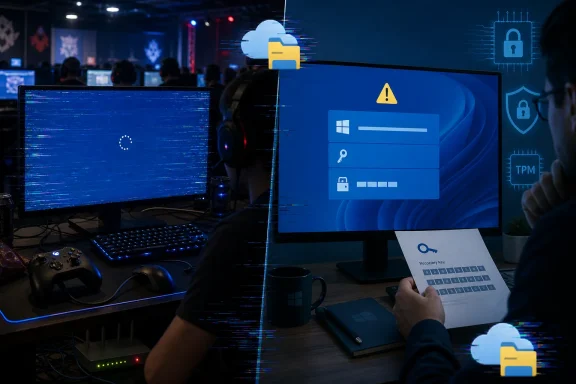
Microsoft released Windows 11 KB5094126 for versions 24H2 and 25H2 and KB5093998 for version 23H2 on June 9, 2026, and early user reports now describe blue screens, freezes, BitLocker recovery prompts, and cloud-sync oddities after installation. The important caveat is that Microsoft’s public documentation still says it is not aware of any issues with KB5094126. That gap between official calm and administrator anxiety is the real story. June’s Patch Tuesday is not just another cumulative update; it is colliding with Secure Boot certificate work that touches the most sensitive part of the Windows startup chain.
Patch Tuesday is supposed to be boring. A cumulative update lands, Windows Update does its work, machines reboot, and administrators spend the rest of the week watching dashboards for the small percentage of devices that inevitably misbehave. KB5094126 does not fit neatly into that muscle memory because it arrives at the same moment Microsoft is pushing Secure Boot certificate modernization across the Windows fleet.
That matters because Secure Boot is not a desktop feature. It is part of the trust chain that decides whether Windows is allowed to start at all. When something goes wrong there, the symptom is not a broken Settings page or a missing icon; it can be a blue screen before the user ever reaches the sign-in screen.
Microsoft’s own release notes for KB5094126 frame the update as a normal security and quality release for Windows 11 24H2 and 25H2, with OS builds 26100.8655 and 26200.8655. The companion KB5093998 update serves Windows 11 23H2, now in its later support phase. But buried in the deployment guidance is the detail that explains why admins are suddenly talking about
If installation media has been updated without including the correct
That distinction is important. A blue screen during normal Windows operation usually sends troubleshooting toward drivers, memory, virtualization, graphics, or storage. A blue screen tied to Secure Boot validation sends the investigation much earlier in the startup sequence. At that point, Windows is not merely loading an operating system; firmware, boot manager, certificates, and platform trust settings are all part of the same decision.
The
That guidance also helps explain why the issue may look scattered rather than universal. A consumer laptop receiving KB5094126 through Windows Update is not the same scenario as a managed fleet using customized installation media, offline servicing, task sequences, or recovery USB drives that have accumulated months of partial maintenance. The same cumulative update can behave very differently depending on the age of the image used to deploy or repair the system.
HP may be overrepresented because of hardware population, firmware behavior, enterprise fleet composition, or simply because more administrators with HP devices are comparing notes. Without Microsoft or HP publishing a confirmed defect statement, it would be irresponsible to declare a single root cause. But the pattern is serious enough that administrators should treat HP boot failures after KB5094126 as more than anecdotal noise.
That is not a contradiction so much as a window into how Microsoft categorizes problems. A known issue usually means Microsoft has confirmed a defect or compatibility problem in the shipped update affecting a defined set of devices or scenarios. A deployment warning can describe a real failure mode without conceding that the cumulative update itself is defective.
For users, that distinction may feel academic. A machine that will not boot after Patch Tuesday is a broken machine, no matter which bucket Redmond puts it in. But for IT teams, the distinction matters because it changes the remediation path. If the problem is a bad update, you wait for a rollback, out-of-band patch, or vendor advisory. If the problem is stale deployment media, the fix may be in your imaging pipeline.
Microsoft recommends using the Update WinPE script to update existing Windows images so the required Secure Boot files are included. The manual alternative is to copy
The result is a predictable split. Large enterprises with mature imaging processes will verify boot media, refresh WinPE, and test representative models. Small businesses and power users may discover the issue only when their “known good” USB recovery drive fails at the worst possible moment. That is where Microsoft’s technically accurate note still feels operationally thin.
That is exactly why Secure Boot certificate changes are so sensitive. The Windows boot path is measured through hardware and firmware components, including TPM validation. If the boot manager, Secure Boot database, firmware behavior, or partition state changes in an unexpected way, BitLocker can shift from transparent protection to recovery mode.
Microsoft has been warning for months that devices still relying on older Secure Boot certificates need to be moved toward the 2023 certificate chain. Certificates used by most Windows devices begin expiring in 2026, and Microsoft has been staging certificate updates through Windows Update. The company’s stated strategy is cautious: devices should receive new certificates only after telemetry and targeting signals indicate sufficient confidence.
That cautious language is reassuring until you are the administrator holding a recovery key printout over a fleet of laptops. BitLocker loops are operationally brutal because they turn a security control into a help-desk storm. Even when no data is lost, users lose time, support teams lose capacity, and administrators lose confidence in the update cadence.
The practical answer is not to disable BitLocker or Secure Boot as a blanket policy. That would be an overreaction and, in many environments, a compliance problem. The better answer is to assume firmware, TPM state, Secure Boot certificates, and recovery-key escrow are now part of monthly patch readiness, not annual platform hygiene.
A cumulative update can expose a latent driver bug without being the sole cause. It can change timing, memory pressure, graphics behavior, virtualization code paths, storage filters, or security hooks in ways that only certain configurations notice. The June update also includes a fix for earlier virtualization-related stop errors, which is a reminder that one month’s mitigation can intersect with another month’s hardware stack in unexpected ways.
Lenovo systems are common in business environments, so even a modest defect can look large when viewed through forum posts. But the current evidence does not support treating every Lenovo freeze as part of the same Secure Boot story. Boot validation failures and desktop freezes live in different phases of system operation, and conflating them would make troubleshooting worse.
For now, Lenovo administrators should separate the reports into buckets: machines that fail before Windows loads, machines that boot but freeze shortly after sign-in, and machines that freeze only under specific workloads. That classification is not glamorous, but it is the difference between chasing a boot-chain problem and chasing a driver or application conflict.
The most important discipline is to preserve logs before uninstalling or reimaging whenever possible. Event Viewer, reliability history, dump files, firmware versions, driver versions, and Windows Update history are the breadcrumbs that determine whether a forum anecdote becomes a confirmed issue. Without them, every freeze becomes folklore.
UAC has been culturally misunderstood for years as a mere annoyance prompt. In modern Windows, it is part of the boundary between standard user operations, elevated administrative actions, shell extensions, token filtering, and app integration. File Explorer cloud providers live inside that ecosystem. Change the token model, and strange things can happen.
That does not absolve KB5094126 of every possible shell-side regression. The June update includes a notable hardening change around
Cloud sync tools depend heavily on Explorer integration, overlay icons, namespace extensions, and background services. A security hardening change, a UAC configuration change, or a local administrator token quirk can all look to users like “OneDrive broke.” The fix may be as simple as re-enabling UAC, but the lesson is broader: unsupported security tweaks are becoming more likely to collide with Windows’ hardened shell.
For administrators, that means cloud-sync tickets after KB5094126 should start with configuration sanity checks. Is UAC enabled? Is the user running as a local admin? Are shell extensions loading? Are OneDrive and Dropbox current? Is the problem with sync itself, or only with File Explorer presentation? Those questions matter more than uninstalling the cumulative update on instinct.
That is necessary work. Secure Boot exists because the pre-OS environment is a high-value target. If attackers can compromise boot components, the operating system may start from a position of defeat. Updating the trust anchors is not optional theater; it is the maintenance cost of a security model that begins before Windows itself is fully alive.
The problem is that boot trust is unforgiving. A misconfigured shell extension can be disabled. A bad printer driver can be removed. A botched boot chain can lock a user out of the machine entirely. That makes the Secure Boot transition one of those rare Windows changes where the security benefit is real and the operational blast radius is equally real.
Microsoft’s staged targeting approach is designed to reduce that blast radius. Devices receive certificate updates after confidence signals suggest they are likely to survive the change. But enterprise devices are not always pristine telemetry subjects. They have custom images, vendor BIOS settings, disk encryption policies, recovery partitions, dual-boot remnants, old WinPE media, and years of “just make it work” exceptions.
That is why the KB5094126 reports should not be dismissed merely because Microsoft has not confirmed a widespread issue. The absence of a known issue is not the same as the absence of risk. It may simply mean the failure modes are fragmented across OEM firmware, deployment media, Secure Boot state, and local configuration.
June 2026 is especially awkward because the update reportedly addresses a large set of vulnerabilities, including serious flaws. Delaying deployment indefinitely is not a serious security strategy. At the same time, pushing KB5094126 immediately across every model, every branch office, and every unmanaged edge case may be reckless if your fleet includes hardware already showing signs of Secure Boot friction.
This is the central tension of modern Windows administration. Microsoft wants Windows to be continuously serviced, continuously hardened, and continuously refreshed. IT departments want predictability, rollback paths, and enough warning to avoid turning security maintenance into an outage. Both sides are right, which is why neither side gets the easy answer.
Consumers have fewer levers. They can pause updates briefly, make sure recovery keys are backed up, update firmware, and avoid exotic security tweaks. They usually cannot test KB5094126 on a pilot ring of representative hardware. When a consumer PC blue-screens before boot, the sophistication of Microsoft’s servicing model is not much comfort.
Enterprises at least have process. They can stage deployments, monitor failure rates, refresh installation media, verify BitLocker key escrow, and hold back specific OEM models if early signals look bad. The question is whether they actually do those things before Patch Tuesday, or only after the first executive laptop lands in recovery.
That audit should include installation media, not just live endpoints. Microsoft’s
Administrators should also resist the temptation to normalize disabling Secure Boot as a workaround. It may get a device booting in a pinch, and in an emergency that may be necessary to recover data or restore service. But treating it as a standing fix undermines the security model that Microsoft is trying to preserve.
The better emergency path is controlled exception handling. Document the affected model, firmware version, Windows build, BitLocker state, stop code, and remediation steps. If Secure Boot must be temporarily disabled, record when it will be re-enabled and what firmware or update change is required first. A workaround that is not tracked becomes permanent by accident.
For managed fleets, the next week should be about rings, not heroics. Test KB5094126 on representative HP and Lenovo hardware, include BitLocker-enabled systems, test boot media, and verify that recovery workflows work before broad rollout. If those steps sound mundane, that is the point. Boring process is how you survive exciting updates.
 The June Patch Is Doing More Than Closing Bugs
Patch Tuesday is supposed to be boring. A cumulative update lands, Windows Update does its work, machines reboot, and administrators spend the rest of the week watching dashboards for the small percentage of devices that inevitably misbehave. KB5094126 does not fit neatly into that muscle memory because it arrives at the same moment Microsoft is pushing Secure Boot certificate modernization across the Windows fleet.That matters because Secure Boot is not a desktop feature. It is part of the trust chain that decides whether Windows is allowed to start at all. When something goes wrong there, the symptom is not a broken Settings page or a missing icon; it can be a blue screen before the user ever reaches the sign-in screen.
Microsoft’s own release notes for KB5094126 frame the update as a normal security and quality release for Windows 11 24H2 and 25H2, with OS builds 26100.8655 and 26200.8655. The companion KB5093998 update serves Windows 11 23H2, now in its later support phase. But buried in the deployment guidance is the detail that explains why admins are suddenly talking about
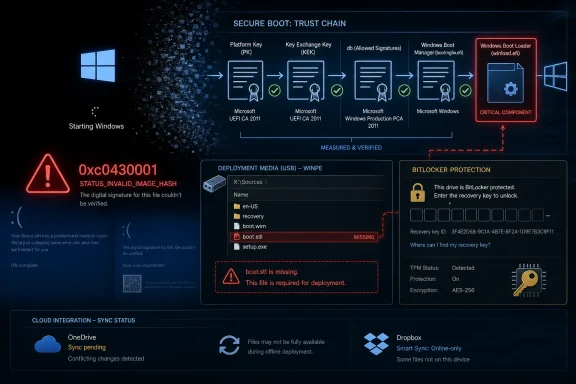
boot.stl, WinPE images, and error code 0xc0430001.If installation media has been updated without including the correct
boot.stl file, Microsoft warns that devices might fail to start from that media and can throw 0xc0430001. That does not prove every reported blue screen is Microsoft’s fault, HP’s fault, or an administrator’s imaging problem. It does show that this month’s update touches an area where a missing file or stale deployment image can turn a routine servicing task into a recovery-room exercise.HP Reports Point to the Fragility of the Boot Chain
The loudest reports so far appear to involve HP systems that hit a 0xc0430001 blue screen after KB5094126. Users on sysadmin and support forums have described machines refusing to boot cleanly, and in some cases failing even when administrators attempt recovery or reinstallation from media. The common thread is not simply “Windows update broke my PC,” but a more specific collision between Secure Boot validation and the files used to prove that Windows boot components are trusted.That distinction is important. A blue screen during normal Windows operation usually sends troubleshooting toward drivers, memory, virtualization, graphics, or storage. A blue screen tied to Secure Boot validation sends the investigation much earlier in the startup sequence. At that point, Windows is not merely loading an operating system; firmware, boot manager, certificates, and platform trust settings are all part of the same decision.
The
boot.stl file has become the symbol of this mess because Microsoft explicitly calls it out in the KB5094126 deployment section. The file is used during Secure Boot validation and must match the Windows version and architecture being deployed. Copying a similar-looking file from another image is not good enough if the architecture or release level does not match.That guidance also helps explain why the issue may look scattered rather than universal. A consumer laptop receiving KB5094126 through Windows Update is not the same scenario as a managed fleet using customized installation media, offline servicing, task sequences, or recovery USB drives that have accumulated months of partial maintenance. The same cumulative update can behave very differently depending on the age of the image used to deploy or repair the system.
HP may be overrepresented because of hardware population, firmware behavior, enterprise fleet composition, or simply because more administrators with HP devices are comparing notes. Without Microsoft or HP publishing a confirmed defect statement, it would be irresponsible to declare a single root cause. But the pattern is serious enough that administrators should treat HP boot failures after KB5094126 as more than anecdotal noise.
Microsoft’s Documentation Both Calms and Warns
The strangest part of KB5094126 is that Microsoft’s known-issues table is quiet while its deployment notes are anything but casual. The official line says Microsoft is not currently aware of any issues with the update. On the same page, Microsoft tells deployment teams that if they update existing Windows images with dynamic updates, they need to ensureboot.stl is present or risk startup failure from installation media.That is not a contradiction so much as a window into how Microsoft categorizes problems. A known issue usually means Microsoft has confirmed a defect or compatibility problem in the shipped update affecting a defined set of devices or scenarios. A deployment warning can describe a real failure mode without conceding that the cumulative update itself is defective.
For users, that distinction may feel academic. A machine that will not boot after Patch Tuesday is a broken machine, no matter which bucket Redmond puts it in. But for IT teams, the distinction matters because it changes the remediation path. If the problem is a bad update, you wait for a rollback, out-of-band patch, or vendor advisory. If the problem is stale deployment media, the fix may be in your imaging pipeline.
Microsoft recommends using the Update WinPE script to update existing Windows images so the required Secure Boot files are included. The manual alternative is to copy
boot.stl from Windows\Boot\EFI on a working installation into the corresponding folder on the installation media. That advice is precise, but it also assumes a level of deployment discipline that many smaller shops do not have.The result is a predictable split. Large enterprises with mature imaging processes will verify boot media, refresh WinPE, and test representative models. Small businesses and power users may discover the issue only when their “known good” USB recovery drive fails at the worst possible moment. That is where Microsoft’s technically accurate note still feels operationally thin.
BitLocker Recovery Is the Canary in the Firmware Mine
BitLocker prompts are also appearing in user reports, and they deserve special attention because they are often the first visible sign that the boot environment changed in a way Windows considers security-relevant. BitLocker does not need Windows to be “broken” to ask for a recovery key. It may simply detect that the measured boot state differs from what it expected.That is exactly why Secure Boot certificate changes are so sensitive. The Windows boot path is measured through hardware and firmware components, including TPM validation. If the boot manager, Secure Boot database, firmware behavior, or partition state changes in an unexpected way, BitLocker can shift from transparent protection to recovery mode.
Microsoft has been warning for months that devices still relying on older Secure Boot certificates need to be moved toward the 2023 certificate chain. Certificates used by most Windows devices begin expiring in 2026, and Microsoft has been staging certificate updates through Windows Update. The company’s stated strategy is cautious: devices should receive new certificates only after telemetry and targeting signals indicate sufficient confidence.
That cautious language is reassuring until you are the administrator holding a recovery key printout over a fleet of laptops. BitLocker loops are operationally brutal because they turn a security control into a help-desk storm. Even when no data is lost, users lose time, support teams lose capacity, and administrators lose confidence in the update cadence.
The practical answer is not to disable BitLocker or Secure Boot as a blanket policy. That would be an overreaction and, in many environments, a compliance problem. The better answer is to assume firmware, TPM state, Secure Boot certificates, and recovery-key escrow are now part of monthly patch readiness, not annual platform hygiene.
Lenovo Freezes Fit a Different Pattern
The reported Lenovo freezes are less clear-cut than the HP boot failures. Users have described systems becoming unresponsive after the June updates, but there is not yet enough public evidence to tie those freezes to one model line, driver family, firmware version, or Windows component. That uncertainty matters because “freeze after update” is one of the broadest symptoms in Windows troubleshooting.A cumulative update can expose a latent driver bug without being the sole cause. It can change timing, memory pressure, graphics behavior, virtualization code paths, storage filters, or security hooks in ways that only certain configurations notice. The June update also includes a fix for earlier virtualization-related stop errors, which is a reminder that one month’s mitigation can intersect with another month’s hardware stack in unexpected ways.
Lenovo systems are common in business environments, so even a modest defect can look large when viewed through forum posts. But the current evidence does not support treating every Lenovo freeze as part of the same Secure Boot story. Boot validation failures and desktop freezes live in different phases of system operation, and conflating them would make troubleshooting worse.
For now, Lenovo administrators should separate the reports into buckets: machines that fail before Windows loads, machines that boot but freeze shortly after sign-in, and machines that freeze only under specific workloads. That classification is not glamorous, but it is the difference between chasing a boot-chain problem and chasing a driver or application conflict.
The most important discipline is to preserve logs before uninstalling or reimaging whenever possible. Event Viewer, reliability history, dump files, firmware versions, driver versions, and Windows Update history are the breadcrumbs that determine whether a forum anecdote becomes a confirmed issue. Without them, every freeze becomes folklore.
OneDrive and Dropbox Are a Reminder That Security Settings Still Matter
The cloud storage complaints are the easiest to overstate. At least one report tied OneDrive and Dropbox File Explorer integration failures to disabling User Account Control while using a local administrator account, with both services reportedly working again after UAC was re-enabled. That points less toward a broken cloud client and more toward Windows security context.UAC has been culturally misunderstood for years as a mere annoyance prompt. In modern Windows, it is part of the boundary between standard user operations, elevated administrative actions, shell extensions, token filtering, and app integration. File Explorer cloud providers live inside that ecosystem. Change the token model, and strange things can happen.
That does not absolve KB5094126 of every possible shell-side regression. The June update includes a notable hardening change around
desktop.ini, which can affect custom folder icons and localized folder names from downloaded or remote locations. Microsoft describes that as a security change rather than a bug, but it still changes the way Explorer presents certain content.Cloud sync tools depend heavily on Explorer integration, overlay icons, namespace extensions, and background services. A security hardening change, a UAC configuration change, or a local administrator token quirk can all look to users like “OneDrive broke.” The fix may be as simple as re-enabling UAC, but the lesson is broader: unsupported security tweaks are becoming more likely to collide with Windows’ hardened shell.
For administrators, that means cloud-sync tickets after KB5094126 should start with configuration sanity checks. Is UAC enabled? Is the user running as a local admin? Are shell extensions loading? Are OneDrive and Dropbox current? Is the problem with sync itself, or only with File Explorer presentation? Those questions matter more than uninstalling the cumulative update on instinct.
Secure Boot’s 2026 Deadline Is Now a Daily Operations Problem
Microsoft has been telegraphing the Secure Boot certificate transition for some time, but KB5094126 is where the abstract deadline starts to feel like a practical support issue. The 2011-era certificates that underpin much of the Windows Secure Boot ecosystem are reaching expiration milestones in 2026. Microsoft’s 2023 replacement chain is meant to preserve boot-level trust for the next era of Windows hardware and firmware.That is necessary work. Secure Boot exists because the pre-OS environment is a high-value target. If attackers can compromise boot components, the operating system may start from a position of defeat. Updating the trust anchors is not optional theater; it is the maintenance cost of a security model that begins before Windows itself is fully alive.
The problem is that boot trust is unforgiving. A misconfigured shell extension can be disabled. A bad printer driver can be removed. A botched boot chain can lock a user out of the machine entirely. That makes the Secure Boot transition one of those rare Windows changes where the security benefit is real and the operational blast radius is equally real.
Microsoft’s staged targeting approach is designed to reduce that blast radius. Devices receive certificate updates after confidence signals suggest they are likely to survive the change. But enterprise devices are not always pristine telemetry subjects. They have custom images, vendor BIOS settings, disk encryption policies, recovery partitions, dual-boot remnants, old WinPE media, and years of “just make it work” exceptions.
That is why the KB5094126 reports should not be dismissed merely because Microsoft has not confirmed a widespread issue. The absence of a known issue is not the same as the absence of risk. It may simply mean the failure modes are fragmented across OEM firmware, deployment media, Secure Boot state, and local configuration.
The Patch Tuesday Trade-Off Is Getting Harder to Sell
There is an uncomfortable pattern in recent Windows servicing. Microsoft ships mandatory security updates that are broadly necessary, then a subset of users runs into boot failures, install failures, recovery prompts, or application breakage. The security case for patching remains strong, but the trust account gets debited every time a monthly update feels like a roulette spin.June 2026 is especially awkward because the update reportedly addresses a large set of vulnerabilities, including serious flaws. Delaying deployment indefinitely is not a serious security strategy. At the same time, pushing KB5094126 immediately across every model, every branch office, and every unmanaged edge case may be reckless if your fleet includes hardware already showing signs of Secure Boot friction.
This is the central tension of modern Windows administration. Microsoft wants Windows to be continuously serviced, continuously hardened, and continuously refreshed. IT departments want predictability, rollback paths, and enough warning to avoid turning security maintenance into an outage. Both sides are right, which is why neither side gets the easy answer.
Consumers have fewer levers. They can pause updates briefly, make sure recovery keys are backed up, update firmware, and avoid exotic security tweaks. They usually cannot test KB5094126 on a pilot ring of representative hardware. When a consumer PC blue-screens before boot, the sophistication of Microsoft’s servicing model is not much comfort.
Enterprises at least have process. They can stage deployments, monitor failure rates, refresh installation media, verify BitLocker key escrow, and hold back specific OEM models if early signals look bad. The question is whether they actually do those things before Patch Tuesday, or only after the first executive laptop lands in recovery.
Administrators Should Treat This as a Deployment Audit
The most useful response to KB5094126 is not panic; it is inventory. Which systems are HP models with Secure Boot enabled? Which devices have older firmware? Which machines have BitLocker enabled and recovery keys properly escrowed? Which deployment shares, task sequences, and recovery images have been refreshed with the current WinPE and Secure Boot files?That audit should include installation media, not just live endpoints. Microsoft’s
boot.stl warning is specifically about updated installation media and dynamic updates. A fleet can be fully patched while the recovery media used to repair it is stale. That mismatch is exactly the kind of hidden dependency that only appears during an incident.Administrators should also resist the temptation to normalize disabling Secure Boot as a workaround. It may get a device booting in a pinch, and in an emergency that may be necessary to recover data or restore service. But treating it as a standing fix undermines the security model that Microsoft is trying to preserve.
The better emergency path is controlled exception handling. Document the affected model, firmware version, Windows build, BitLocker state, stop code, and remediation steps. If Secure Boot must be temporarily disabled, record when it will be re-enabled and what firmware or update change is required first. A workaround that is not tracked becomes permanent by accident.
For managed fleets, the next week should be about rings, not heroics. Test KB5094126 on representative HP and Lenovo hardware, include BitLocker-enabled systems, test boot media, and verify that recovery workflows work before broad rollout. If those steps sound mundane, that is the point. Boring process is how you survive exciting updates.
The Practical Lessons Hidden in KB5094126
The June update does not yet have the shape of a confirmed Windows-wide disaster. It has the shape of a risky servicing moment exposing weak points in firmware readiness, deployment media, Secure Boot maintenance, and local configuration. That makes the response more nuanced than “install immediately” or “block everything.”- KB5094126 was released on June 9, 2026, for Windows 11 24H2 and 25H2, while KB5093998 serves Windows 11 23H2.
- Microsoft’s public KB5094126 page currently says the company is not aware of any known issues with the update.
- Microsoft’s own deployment notes warn that installation media updated without the correct
boot.stlfile can fail to start and produce error 0xc0430001. - HP-related blue screen reports deserve close attention because they line up with Secure Boot validation concerns, but a single confirmed root cause has not been established publicly.
- Lenovo freeze reports and OneDrive or Dropbox integration complaints should be investigated separately, because they may involve different layers of Windows rather than one universal defect.
- Administrators should refresh WinPE and installation media, verify BitLocker recovery-key escrow, update OEM firmware, and pilot the June update before broad deployment.
References
- Primary source: Windows Report
Published: 2026-06-15T11:10:18.160631
Windows 11 KB5094126 Users Report BSODs, Freezes, and OneDrive Issues
Windows 11 users report BSODs, freezes, BitLocker lockouts, and OneDrive issues after installing KB5094126. windowsreport.com
- Related coverage: windowslatest.com
Microsoft just dropped Windows 11's biggest update of 2026, and these are the 5 best features
Here are the top 5 features in Windows 11 June 2026 update (KB5094126) including Low Latency Profile, Multi-App camera, Shared Audio and more. www.windowslatest.com
- Related coverage: allthings.how
KB5094126 for Windows 11 (June 2026): Builds 26200.8655 and 26100.8655
The June Patch Tuesday update brings the Low Latency Profile, Shared Audio, multi-app camera streaming, and the Secure Boot certificate push.allthings.how - Related coverage: tutos-informatique.com
Windows 11 KB5094126 : BSOD corrigés avec le Patch Tuesday
KB5094126 et KB5093998 arrivent pour Windows 11 avec les correctifs de juin 2026, Secure Boot et la correction des BSOD liés à KB5089573.www.tutos-informatique.com - Related coverage: anoopcnair.com
2026 June KB5094126 KB5093998 Windows 11 Patch | 3 Zero Day Vulnerabilities And 200 Flaws HTMD Blog
2026 June KB5094126 KB5093998 Windows 11 Patch | 3 Zero Day Vulnerabilities and 200 Flaws! The June 2026 Windows 11 Patch Tuesday update brings severalwww.anoopcnair.com - Related coverage: pcgameshardware.de
- Related coverage: techtimes.com
Windows 11 June 2026 Update Kills Folder Icons: 23-Year-Old Shell Bug Finally Closed
Windows 11 desktop.ini update June 2026 breaks custom folder icons on network drives — but it is intentional. KB5094126 closes an unchecked-buffer code execution risk in Windows Shell folder parsingwww.techtimes.com - Related coverage: hoploninfosec.com
Windows 11 KB5094126 & KB5093998 June 2026 Update
Windows 11 KB5094126 & KB5093998 June 2026, Patch Tuesday updates fixing 200+ flaws, 3 zero-days, adding Shared Audio & Low Latency Profile. Install now!hoploninfosec.com - Related coverage: windowsforum.com
Windows 11 June 2026 Patch Tuesday (June 9): Secure Boot & Key New Features | Windows Forum
Microsoft’s June 2026 Patch Tuesday for Windows 11 is scheduled for June 9, bringing the usual security fixes alongside new user-facing features such as...windowsforum.com - Related coverage: ahmandonk.com
Update Kumulatif Windows 11 KB5094126 & KB5093998 Juni 2026 Resmi Dirilis - Ahmandonk.com
Microsoft resmi merilis update wajib Windows 11 KB5094126 & KB5093998 Juni 2026. Bawa fitur Shared Audio, optimalisasi NPU Task Manager, dan perbaikan bug.ahmandonk.com - Related coverage: bleepingcomputer.com
Windows 11 KB5094126 & KB5093998 cumulative updates released
Microsoft has released Windows 11 KB5094126 and KB5093998 cumulative updates for versions 25H2/24H2 and 23H2 to fix security vulnerabilities, bugs, and add new features.www.bleepingcomputer.com - Related coverage: windowscentral.com
Windows 11’s May update is causing install failures and slow internet — here’s what we know | Windows Central
Some users are hitting install failures and internet slowdowns after the May 2026 Patch Tuesday update.www.windowscentral.com - Related coverage: tomshardware.com
Microsoft's April patch puts Windows domain controllers into reboot loops — third known issue from KB5082063 is affecting Windows Server 2016 through 2025 | Tom's Hardware
Microsoft has confirmed the issuewww.tomshardware.com - Related coverage: techradar.com
Microsoft deploys yet another emergency patch for Windows 11 — but at least the fix for the broken March update arrived quickly | TechRadar
Break things then move fastwww.techradar.com - Related coverage: bndsys.com