

Microsoft’s June 2026 Patch Tuesday update for Windows 11, KB5094126, widened the Secure Boot 2023 certificate rollout to most supported consumer PCs with enough compatibility data, moving a long-running firmware-risk project from cautious pilot to mainstream Windows Update delivery. That is the plain version of the news; the more interesting version is that Microsoft is trying to refresh one of the PC’s deepest trust anchors without asking normal users to understand firmware cryptography. For most Windows users, the correct response is not panic, not registry editing, and not a late-night BIOS expedition. It is to verify the status, keep Windows Update moving, and let the machinery do what Microsoft has spent two years trying to make boring.
Secure Boot has always lived in an awkward place in the Windows security story. It is essential enough that Windows 11 requires it, but invisible enough that most users encounter it only when something has gone wrong: a BitLocker recovery prompt, a failed Linux dual-boot, a firmware update that asks too much trust of the person staring at the screen.
The June 2026 update changes the scale of Microsoft’s Secure Boot certificate refresh. The 2011-era certificates that underpin much of the Windows Secure Boot chain are reaching the end of their planned life, with expirations beginning in late June 2026 and continuing into October. Microsoft’s replacement set, usually described as the Secure Boot 2023 certificates, has been available for a while, but availability is not the same thing as deployment.
That distinction matters because Secure Boot certificates are not just another Windows component stored somewhere under System32. They are written into firmware-controlled trust databases, and a bad update at that layer can make a machine unbootable in ways that feel far more alarming than an ordinary failed cumulative update. Microsoft’s caution was not bureaucratic dithering; it was a recognition that the PC ecosystem is a mess of OEM firmware versions, custom platform keys, white-box boards, aging business laptops, virtual machines, and devices whose manufacturers have long since moved on.
With KB5094126, Microsoft is effectively saying that its confidence database has become large enough to trust automation for the vast majority of supported consumer devices it can see. That does not mean every PC on earth is covered. It means the default posture for mainstream Windows 11 and supported Windows 10 systems has shifted from “wait and observe” to “apply unless the evidence says not to.”
That is not what this deadline means.
The important date in June is tied to the Microsoft Corporation KEK CA 2011 certificate, which is used to sign updates to Secure Boot’s key exchange and revocation databases. When that certificate expires, Windows machines do not suddenly become bricks. They can still boot, and they can still receive ordinary Windows updates. The risk is subtler but still serious: systems that have not moved to the new KEK may stop receiving future Secure Boot revocation updates that blacklist compromised boot components.
That distinction is why Microsoft’s messaging has sounded both urgent and oddly calm. The company is not telling everyone that their PC will die after June 24. It is telling users and administrators that the future security pipeline for pre-OS components depends on getting the new trust material in place.
The October 2026 expiration of the Windows Production PCA 2011 certificate adds another layer. That certificate relates to signing Windows boot components, and its retirement is part of the same generational refresh. In practice, the June moment is the point at which the ability to keep revocation protections current becomes the urgent issue, while October marks a later phase of the same aging trust chain.
This is the kind of security maintenance that looks boring right up until it is not. Secure Boot is not perfect, and attackers have found ways around it, but it raises the cost of malware that wants to live below the operating system. Letting its trust infrastructure age out would be irresponsible. Refreshing it across the Windows installed base is a firmware compatibility gamble Microsoft cannot avoid.
A green checkmark means the machine is updated or otherwise in the desired state. For the overwhelming majority of modern Windows 11 PCs, that should be the end of the story. No PowerShell incantation is required. No BIOS toggle should be flipped. No forum post from someone with a different motherboard should become your deployment plan.
A yellow status is more ambiguous. It generally means Windows is waiting, observing, or lacking enough confidence about the specific firmware configuration. That can be frustrating because it looks like a warning without a clear action, but in this case restraint is a feature. Microsoft is deliberately avoiding writes to firmware on systems where the compatibility signal is not strong enough.
A red status is the one that deserves attention. It usually points toward a firmware incompatibility or an update path that needs help from the PC manufacturer. For consumers, that means checking Dell, HP, Lenovo, ASUS, Acer, MSI, or the relevant motherboard vendor for a BIOS or UEFI update. It does not mean blindly forcing the Secure Boot certificate update from the registry because a command worked on somebody else’s machine.
This is Microsoft’s implicit bargain with users: if Windows Security shows green, trust the platform; if it shows yellow, keep Windows Update enabled and be patient; if it shows red, look to the OEM before reaching for low-level tools. That may not satisfy enthusiasts who want to inspect every variable themselves, but it is the only scalable approach for hundreds of millions of machines.
Updating Secure Boot certificates is not as simple as dropping a file onto disk. Windows has to stage cryptographic material, coordinate with firmware-controlled variables, update boot components, and then restart into the new trust state. Each phase has to happen in a sequence that preserves the ability to recover if something fails.
That staging process also explains reports of a new SecureBoot folder appearing under C:\Windows. Users should not delete it. It is part of the certificate update workflow, not a malware artifact and not a botched cleanup job. Windows uses it to hold files involved in moving the system from the old trust chain to the new one.
This is where Microsoft’s consumer messaging has to overcome years of training. Users have been told, often correctly, to be suspicious of strange new folders, unexpected restarts, and update behavior that deviates from the usual routine. But firmware updates and Secure Boot servicing do not behave like ordinary app updates, and trying to “clean up” the process manually can create more risk than leaving it alone.
The practical advice is simple: if the machine restarts more than once after installing the June update, let it finish. If BitLocker asks for a recovery key, stop and make sure you have the key available before experimenting further. If the system boots normally and Windows Security shows green, resist the urge to optimize a process that has already succeeded.
A PC bought in 2020 or later and kept current through Windows Update is likely to be in the easy path. It probably has firmware new enough, telemetry common enough, and OEM support recent enough for Microsoft’s confidence model to do its job. That is the user Microsoft is clearly trying to protect from unnecessary complexity.
The murkier zone is the 2015-to-2019 Windows 10 generation. Many of those machines support UEFI Secure Boot and still run Windows adequately, but their firmware histories vary wildly. Some OEMs have continued releasing BIOS updates for business-class models. Others effectively ended meaningful firmware maintenance years ago.
Then there are white-box desktops and enthusiast boards, where the vendor, firmware version, Secure Boot configuration, and operating system history can differ dramatically from one machine to the next. A motherboard that has been through years of BIOS revisions, Linux installs, custom keys, disabled Secure Boot periods, and Windows upgrades may not resemble the clean OEM telemetry profile Microsoft prefers.
That is why yellow and red statuses matter. They are not moral judgments on the user’s PC. They are signals about Microsoft’s confidence in touching firmware. The older and stranger the hardware, the more valuable it becomes to update firmware first, back up recovery keys, and avoid forcing the process until there is a reason.
Windows 10 adds one more wrinkle. Supported Windows 10 devices can receive Secure Boot certificate updates, especially in managed or extended-support scenarios, but the broader consumer lifecycle is winding down. Users clinging to old Windows 10 hardware should separate two questions that are often collapsed into one: whether the device can receive the Secure Boot refresh, and whether it remains a sensible platform for future Windows security expectations.
The high-confidence category is the closest thing to the happy path. If devices are managed through Microsoft’s update stack and have not been opted out, the Secure Boot certificates can be applied automatically. Intune and Windows Autopatch reporting give administrators a way to see which devices are updated, pending, paused, unsupported, or lacking sufficient data.
The danger is assuming that “vast majority” means “my entire fleet.” It does not. A large organization may still have hundreds or thousands of devices outside the high-confidence group, especially if it has old hardware, unusual OEM images, lab machines, virtualized workloads, or devices that spend long periods offline. Those machines need deliberate handling.
Microsoft’s supported manual paths include policy-based deployment and registry-driven triggering of the certificate update process. But the existence of a trigger is not permission to use it everywhere. The sane workflow is to inventory first, group by model and firmware version, test representative devices, confirm status, and only then expand.
The temporarily paused bucket deserves special respect. A paused classification means Microsoft or its partners have seen enough risk to hold back the update for that configuration. Forcing the certificate update there is not brave administration. It is betting production hardware against a firmware problem Microsoft has already flagged.
The company’s security argument is strong. A trust chain created around 2011 cannot be allowed to run indefinitely, especially after years of bootkit research, leaked signing material, vulnerable bootloaders, and increasingly sophisticated pre-OS attack techniques. Updating the root of trust is responsible maintenance, not optional hardening for paranoid administrators.
But PC firmware remains uneven. OEMs ship different update tools, different release notes, different rollback policies, and different levels of support for older models. Some business-class devices get careful advisories and staged fixes. Some consumer machines get vague BIOS packages that say little more than “improves system stability.” Some boards get nothing.
HP’s recent firmware trouble illustrates the problem. Reports around premium commercial laptops and workstations described BitLocker recovery loops and boot failures tied to BIOS updates interacting with Secure Boot certificate changes. HP has since acknowledged issues and published updated firmware, but the episode reinforces a lesson administrators already know: a security-labeled firmware update can still break machines.
Microsoft’s broader Driver Quality Initiative, discussed at WinHEC 2026, should be read in this context. Windows security increasingly depends on components Microsoft does not wholly own: firmware, drivers, silicon enablement, device-specific update agents, and OEM validation pipelines. If the Secure Boot refresh feels difficult, it is because it exposes the real supply chain behind the Windows PC.
That behavior is not necessarily a bug. BitLocker is designed to notice changes at boot. The problem is that users experience a recovery prompt as a crisis, especially if they do not know where their recovery key is stored. For home users, that may mean a Microsoft account. For business users, it may mean Entra ID, Active Directory, MBAM-era tooling, or a help desk process that works well only during office hours.
This is why firmware and Secure Boot work should never be treated as just another update wave in managed environments. Before pushing certificate updates manually, administrators should confirm BitLocker recovery key escrow, test devices with common PCR profiles, and communicate what users might see. A successful security update that strands a remote executive at a recovery screen is still an operational failure.
Consumers should take the hint as well. Before installing BIOS updates in response to a red Secure Boot status, make sure the BitLocker recovery key is accessible. Windows increasingly enables device encryption by default on modern hardware, so users who never knowingly turned on BitLocker may still need a recovery key if firmware measurements change.
The deeper lesson is that Secure Boot, TPM, BitLocker, and Windows Update are no longer separate stories. They are parts of one boot integrity system. That system is more secure than the old BIOS-and-password world, but it asks users and administrators to treat firmware state as part of security operations rather than as obscure motherboard trivia.
If Secure Boot is off, Windows cannot update Secure Boot certificates in the same meaningful way because the firmware is not enforcing that trust path. The machine is already outside the protection model that Secure Boot provides. The certificate expiration does not create that exposure; it merely makes it more visible.
Turning Secure Boot back on is not always a one-click fix. A system installed in legacy BIOS mode may not boot under UEFI Secure Boot without conversion. A device with old bootloaders, unsigned components, unusual storage drivers, or custom keys may fail validation. A dual-boot setup may need updated shims or signed boot components.
That is why Microsoft’s consumer guidance wisely avoids telling everyone to dive into firmware settings. For a normal Windows 11 PC, Secure Boot should already be enabled. If it is not, there is probably a history behind that state, and changing it casually can break boot.
For administrators, disabled Secure Boot systems should be handled as exceptions rather than silently ignored. They may need remediation, replacement, documentation, or a business decision accepting the risk. What they should not get is a forced certificate workflow designed for machines that are already participating in Secure Boot.
The TPM-WMI source in the System event log is especially useful. Event IDs around the 1800 range can show whether a device is pending, blocked, missing required material, or successfully updated. Event 1808 is the one administrators want to see because it indicates the new Secure Boot keys are active. Earlier events can point toward incomplete updates, firmware errors, missing KEK material, or states that need additional investigation.
Registry indicators under the SecureBoot servicing keys can also help with inventory and remediation logic. In managed environments, those signals should be fed into Intune, Autopatch reporting, endpoint analytics, or whatever configuration database the organization trusts. The goal is not to admire event logs one machine at a time. It is to build a map of risk before the next Secure Boot revocation event makes the missing updates urgent.
Virtual machines deserve their own scrutiny. Hyper-V, Azure VMs, Trusted Launch configurations, and confidential computing scenarios can involve platform key and certificate states that differ from physical PCs. A VM may have the DB certificates but fail the KEK update, leaving it in a partial state where some protections exist but future revocation updates do not flow as intended.
That partial-success scenario is exactly why green/yellow/red consumer metaphors are not enough for enterprise. A device can look mostly fine and still be missing the piece that matters for future DBX updates. Fleet administrators need to distinguish “boots today” from “will continue to receive Secure Boot security material tomorrow.”
That is powerful, but it changes the trust relationship. Users and administrators are being asked to let Windows Update participate in decisions that used to be handled manually, if they were handled at all. The upside is obvious: most people will never update Secure Boot certificates themselves, so automation is the only realistic path to broad protection.
The downside is also obvious. When automation reaches into firmware, failures feel existential. A bad browser update is annoying. A failed firmware write is frightening. Even when Microsoft’s process is cautious and reversible, the psychological weight is different.
This is why the high-confidence database is the centerpiece of the story. Microsoft is not simply blasting the same firmware operation at every PC. It is using observed data to decide where the update is likely to succeed, holding back where signals are weak, and giving IT a way to override only after testing. That is the right model, but it depends on honest reporting, strong OEM collaboration, and administrators who resist the urge to bulldoze warnings.
The June update suggests Microsoft believes the model is mature enough for broad consumer deployment. The next test is not whether most machines update successfully. They probably will. The test is how cleanly Microsoft, OEMs, and IT departments handle the minority that do not.
That visibility is better than silence. For years, Secure Boot lived behind firmware menus and enterprise documentation, which made it easy for ordinary users to ignore and easy for enthusiasts to mythologize. The Windows Security status indicator gives the feature a consumer-level vocabulary.
But visibility also creates anxiety. A yellow warning that really means “wait for more confidence data” can be interpreted as “my PC is unsafe.” A red warning that means “install OEM firmware” can become “run this registry command from a forum.” A harmless staging folder can become something a cleanup utility deletes.
Microsoft has to write for two audiences at once: home users who should do almost nothing, and IT professionals who may need to do quite a lot. The Windows Latest coverage reflects that split because the Secure Boot refresh itself demands it. The same update can be a background maintenance event for a Surface Laptop and a carefully piloted firmware-risk project for a multinational fleet.
That split is not a communications failure. It is the reality of the Windows ecosystem. The mistake would be pretending one set of instructions fits both.
For Windows enthusiasts, the temptation is to over-instrument the process. You can inspect certificates, read UEFI variables, parse event logs, and compare registry values. That is useful if you know what you are doing, but it is not required for most users. The Windows Security app now exists precisely to keep normal people away from dangerous half-knowledge.
For sysadmins, the opposite temptation is more dangerous: assuming Microsoft’s automation has removed the need for planning. It has not. The June update reduces the number of devices requiring manual intervention, but the remaining devices are likely to be the weird ones, the old ones, the offline ones, and the politically sensitive ones nobody wants to replace.
The correct enterprise posture is measured urgency. Inventory the fleet, check the Secure Boot report, separate high-confidence devices from paused and unknown ones, update firmware where needed, pilot by hardware cohort, and watch for BitLocker and boot anomalies. That is not glamorous work, but it is exactly the kind of work that prevents a certificate deadline from becoming an outage.
For consumers, the correct posture is calmer. Install the June update, allow restarts, check Windows Security, and leave the SecureBoot folder alone. If the status is green, stop. If it is yellow, keep Windows Update enabled. If it is red, go to the OEM for firmware before trying anything clever.
 Microsoft Finally Takes the Secure Boot Refresh Out of the Lab
Secure Boot has always lived in an awkward place in the Windows security story. It is essential enough that Windows 11 requires it, but invisible enough that most users encounter it only when something has gone wrong: a BitLocker recovery prompt, a failed Linux dual-boot, a firmware update that asks too much trust of the person staring at the screen.The June 2026 update changes the scale of Microsoft’s Secure Boot certificate refresh. The 2011-era certificates that underpin much of the Windows Secure Boot chain are reaching the end of their planned life, with expirations beginning in late June 2026 and continuing into October. Microsoft’s replacement set, usually described as the Secure Boot 2023 certificates, has been available for a while, but availability is not the same thing as deployment.
That distinction matters because Secure Boot certificates are not just another Windows component stored somewhere under System32. They are written into firmware-controlled trust databases, and a bad update at that layer can make a machine unbootable in ways that feel far more alarming than an ordinary failed cumulative update. Microsoft’s caution was not bureaucratic dithering; it was a recognition that the PC ecosystem is a mess of OEM firmware versions, custom platform keys, white-box boards, aging business laptops, virtual machines, and devices whose manufacturers have long since moved on.
With KB5094126, Microsoft is effectively saying that its confidence database has become large enough to trust automation for the vast majority of supported consumer devices it can see. That does not mean every PC on earth is covered. It means the default posture for mainstream Windows 11 and supported Windows 10 systems has shifted from “wait and observe” to “apply unless the evidence says not to.”
The Deadline Is Real, but the Apocalypse Narrative Is Wrong
The Secure Boot deadline has been easy to misunderstand because certificate expiration sounds like a cliff. In normal consumer language, an expired certificate means a browser warning, a broken login, or a service that suddenly stops working. Applied to firmware and bootloaders, it sounds like millions of PCs waking up on June 24 and refusing to start.That is not what this deadline means.
The important date in June is tied to the Microsoft Corporation KEK CA 2011 certificate, which is used to sign updates to Secure Boot’s key exchange and revocation databases. When that certificate expires, Windows machines do not suddenly become bricks. They can still boot, and they can still receive ordinary Windows updates. The risk is subtler but still serious: systems that have not moved to the new KEK may stop receiving future Secure Boot revocation updates that blacklist compromised boot components.
That distinction is why Microsoft’s messaging has sounded both urgent and oddly calm. The company is not telling everyone that their PC will die after June 24. It is telling users and administrators that the future security pipeline for pre-OS components depends on getting the new trust material in place.
The October 2026 expiration of the Windows Production PCA 2011 certificate adds another layer. That certificate relates to signing Windows boot components, and its retirement is part of the same generational refresh. In practice, the June moment is the point at which the ability to keep revocation protections current becomes the urgent issue, while October marks a later phase of the same aging trust chain.
This is the kind of security maintenance that looks boring right up until it is not. Secure Boot is not perfect, and attackers have found ways around it, but it raises the cost of malware that wants to live below the operating system. Letting its trust infrastructure age out would be irresponsible. Refreshing it across the Windows installed base is a firmware compatibility gamble Microsoft cannot avoid.
The Green Checkmark Is the New Consumer Contract
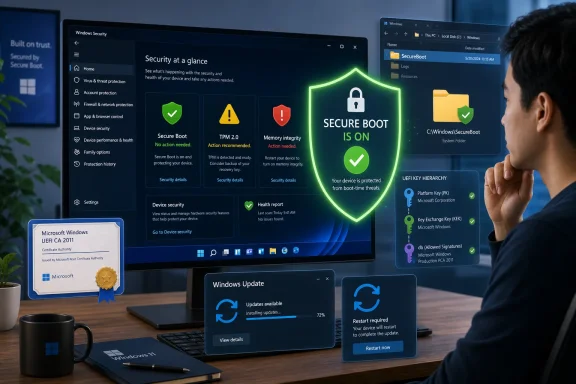
For home users, the most important change is not the certificate itself. It is the appearance of Secure Boot certificate status inside Windows Security, under Device Security and the Secure Boot section. Microsoft is turning a firmware trust problem into a consumer-facing status indicator, and that is the right abstraction.A green checkmark means the machine is updated or otherwise in the desired state. For the overwhelming majority of modern Windows 11 PCs, that should be the end of the story. No PowerShell incantation is required. No BIOS toggle should be flipped. No forum post from someone with a different motherboard should become your deployment plan.
A yellow status is more ambiguous. It generally means Windows is waiting, observing, or lacking enough confidence about the specific firmware configuration. That can be frustrating because it looks like a warning without a clear action, but in this case restraint is a feature. Microsoft is deliberately avoiding writes to firmware on systems where the compatibility signal is not strong enough.
A red status is the one that deserves attention. It usually points toward a firmware incompatibility or an update path that needs help from the PC manufacturer. For consumers, that means checking Dell, HP, Lenovo, ASUS, Acer, MSI, or the relevant motherboard vendor for a BIOS or UEFI update. It does not mean blindly forcing the Secure Boot certificate update from the registry because a command worked on somebody else’s machine.
This is Microsoft’s implicit bargain with users: if Windows Security shows green, trust the platform; if it shows yellow, keep Windows Update enabled and be patient; if it shows red, look to the OEM before reaching for low-level tools. That may not satisfy enthusiasts who want to inspect every variable themselves, but it is the only scalable approach for hundreds of millions of machines.
Multiple Reboots Are the Firmware Tax Coming Due
One reason this rollout feels different from a normal Patch Tuesday is that the update may require multiple restarts. Users who saw two or three reboots after recent Windows updates may have assumed something went wrong. In many cases, that behavior is expected.Updating Secure Boot certificates is not as simple as dropping a file onto disk. Windows has to stage cryptographic material, coordinate with firmware-controlled variables, update boot components, and then restart into the new trust state. Each phase has to happen in a sequence that preserves the ability to recover if something fails.
That staging process also explains reports of a new SecureBoot folder appearing under C:\Windows. Users should not delete it. It is part of the certificate update workflow, not a malware artifact and not a botched cleanup job. Windows uses it to hold files involved in moving the system from the old trust chain to the new one.
This is where Microsoft’s consumer messaging has to overcome years of training. Users have been told, often correctly, to be suspicious of strange new folders, unexpected restarts, and update behavior that deviates from the usual routine. But firmware updates and Secure Boot servicing do not behave like ordinary app updates, and trying to “clean up” the process manually can create more risk than leaving it alone.
The practical advice is simple: if the machine restarts more than once after installing the June update, let it finish. If BitLocker asks for a recovery key, stop and make sure you have the key available before experimenting further. If the system boots normally and Windows Security shows green, resist the urge to optimize a process that has already succeeded.
Older PCs Are Where the Automatic Story Gets Complicated
The broad rollout does not erase the problem of older hardware. It only narrows the population that still needs attention.A PC bought in 2020 or later and kept current through Windows Update is likely to be in the easy path. It probably has firmware new enough, telemetry common enough, and OEM support recent enough for Microsoft’s confidence model to do its job. That is the user Microsoft is clearly trying to protect from unnecessary complexity.
The murkier zone is the 2015-to-2019 Windows 10 generation. Many of those machines support UEFI Secure Boot and still run Windows adequately, but their firmware histories vary wildly. Some OEMs have continued releasing BIOS updates for business-class models. Others effectively ended meaningful firmware maintenance years ago.
Then there are white-box desktops and enthusiast boards, where the vendor, firmware version, Secure Boot configuration, and operating system history can differ dramatically from one machine to the next. A motherboard that has been through years of BIOS revisions, Linux installs, custom keys, disabled Secure Boot periods, and Windows upgrades may not resemble the clean OEM telemetry profile Microsoft prefers.
That is why yellow and red statuses matter. They are not moral judgments on the user’s PC. They are signals about Microsoft’s confidence in touching firmware. The older and stranger the hardware, the more valuable it becomes to update firmware first, back up recovery keys, and avoid forcing the process until there is a reason.
Windows 10 adds one more wrinkle. Supported Windows 10 devices can receive Secure Boot certificate updates, especially in managed or extended-support scenarios, but the broader consumer lifecycle is winding down. Users clinging to old Windows 10 hardware should separate two questions that are often collapsed into one: whether the device can receive the Secure Boot refresh, and whether it remains a sensible platform for future Windows security expectations.
IT Administrators Get Automation, but Not Absolution
For enterprise IT, the June update is less a finish line than a sorting mechanism. Microsoft has expanded the high-confidence bucket, but fleets are not made of averages. They are made of specific models, firmware revisions, BitLocker policies, remote users, VMs, shared devices, and business units that always seem to own the one laptop that behaves differently.The high-confidence category is the closest thing to the happy path. If devices are managed through Microsoft’s update stack and have not been opted out, the Secure Boot certificates can be applied automatically. Intune and Windows Autopatch reporting give administrators a way to see which devices are updated, pending, paused, unsupported, or lacking sufficient data.
The danger is assuming that “vast majority” means “my entire fleet.” It does not. A large organization may still have hundreds or thousands of devices outside the high-confidence group, especially if it has old hardware, unusual OEM images, lab machines, virtualized workloads, or devices that spend long periods offline. Those machines need deliberate handling.
Microsoft’s supported manual paths include policy-based deployment and registry-driven triggering of the certificate update process. But the existence of a trigger is not permission to use it everywhere. The sane workflow is to inventory first, group by model and firmware version, test representative devices, confirm status, and only then expand.
The temporarily paused bucket deserves special respect. A paused classification means Microsoft or its partners have seen enough risk to hold back the update for that configuration. Forcing the certificate update there is not brave administration. It is betting production hardware against a firmware problem Microsoft has already flagged.
Firmware Vendors Are the Weakest Link in Microsoft’s Strongest Argument
Microsoft can control Windows Update, Intune reporting, certificate signing, and the operating system’s user interface. It cannot fully control the quality of every firmware implementation that will receive these certificates. That is the uncomfortable truth underneath the entire Secure Boot refresh.The company’s security argument is strong. A trust chain created around 2011 cannot be allowed to run indefinitely, especially after years of bootkit research, leaked signing material, vulnerable bootloaders, and increasingly sophisticated pre-OS attack techniques. Updating the root of trust is responsible maintenance, not optional hardening for paranoid administrators.
But PC firmware remains uneven. OEMs ship different update tools, different release notes, different rollback policies, and different levels of support for older models. Some business-class devices get careful advisories and staged fixes. Some consumer machines get vague BIOS packages that say little more than “improves system stability.” Some boards get nothing.
HP’s recent firmware trouble illustrates the problem. Reports around premium commercial laptops and workstations described BitLocker recovery loops and boot failures tied to BIOS updates interacting with Secure Boot certificate changes. HP has since acknowledged issues and published updated firmware, but the episode reinforces a lesson administrators already know: a security-labeled firmware update can still break machines.
Microsoft’s broader Driver Quality Initiative, discussed at WinHEC 2026, should be read in this context. Windows security increasingly depends on components Microsoft does not wholly own: firmware, drivers, silicon enablement, device-specific update agents, and OEM validation pipelines. If the Secure Boot refresh feels difficult, it is because it exposes the real supply chain behind the Windows PC.
BitLocker Turns Firmware Maintenance Into an Identity Check
BitLocker is not the villain in Secure Boot update stories, but it is often the messenger. When firmware, Secure Boot state, TPM measurements, or boot components change, BitLocker may decide the machine’s boot environment no longer matches what it previously trusted. The result can be a recovery prompt.That behavior is not necessarily a bug. BitLocker is designed to notice changes at boot. The problem is that users experience a recovery prompt as a crisis, especially if they do not know where their recovery key is stored. For home users, that may mean a Microsoft account. For business users, it may mean Entra ID, Active Directory, MBAM-era tooling, or a help desk process that works well only during office hours.
This is why firmware and Secure Boot work should never be treated as just another update wave in managed environments. Before pushing certificate updates manually, administrators should confirm BitLocker recovery key escrow, test devices with common PCR profiles, and communicate what users might see. A successful security update that strands a remote executive at a recovery screen is still an operational failure.
Consumers should take the hint as well. Before installing BIOS updates in response to a red Secure Boot status, make sure the BitLocker recovery key is accessible. Windows increasingly enables device encryption by default on modern hardware, so users who never knowingly turned on BitLocker may still need a recovery key if firmware measurements change.
The deeper lesson is that Secure Boot, TPM, BitLocker, and Windows Update are no longer separate stories. They are parts of one boot integrity system. That system is more secure than the old BIOS-and-password world, but it asks users and administrators to treat firmware state as part of security operations rather than as obscure motherboard trivia.
Disabled Secure Boot Is Not a Loophole
Some users will discover during this process that Secure Boot is disabled. That may be intentional, especially on dual-boot systems, custom-built PCs, older installations, or machines that have been modified over time. It may also be accidental, left behind after troubleshooting or firmware resets.If Secure Boot is off, Windows cannot update Secure Boot certificates in the same meaningful way because the firmware is not enforcing that trust path. The machine is already outside the protection model that Secure Boot provides. The certificate expiration does not create that exposure; it merely makes it more visible.
Turning Secure Boot back on is not always a one-click fix. A system installed in legacy BIOS mode may not boot under UEFI Secure Boot without conversion. A device with old bootloaders, unsigned components, unusual storage drivers, or custom keys may fail validation. A dual-boot setup may need updated shims or signed boot components.
That is why Microsoft’s consumer guidance wisely avoids telling everyone to dive into firmware settings. For a normal Windows 11 PC, Secure Boot should already be enabled. If it is not, there is probably a history behind that state, and changing it casually can break boot.
For administrators, disabled Secure Boot systems should be handled as exceptions rather than silently ignored. They may need remediation, replacement, documentation, or a business decision accepting the risk. What they should not get is a forced certificate workflow designed for machines that are already participating in Secure Boot.
Event Logs Tell the Truth When the UI Is Too Polite
The Windows Security app is the right place for consumers, but administrators need more precise telemetry. Event Viewer and registry state remain the places where the Secure Boot update tells its real story.The TPM-WMI source in the System event log is especially useful. Event IDs around the 1800 range can show whether a device is pending, blocked, missing required material, or successfully updated. Event 1808 is the one administrators want to see because it indicates the new Secure Boot keys are active. Earlier events can point toward incomplete updates, firmware errors, missing KEK material, or states that need additional investigation.
Registry indicators under the SecureBoot servicing keys can also help with inventory and remediation logic. In managed environments, those signals should be fed into Intune, Autopatch reporting, endpoint analytics, or whatever configuration database the organization trusts. The goal is not to admire event logs one machine at a time. It is to build a map of risk before the next Secure Boot revocation event makes the missing updates urgent.
Virtual machines deserve their own scrutiny. Hyper-V, Azure VMs, Trusted Launch configurations, and confidential computing scenarios can involve platform key and certificate states that differ from physical PCs. A VM may have the DB certificates but fail the KEK update, leaving it in a partial state where some protections exist but future revocation updates do not flow as intended.
That partial-success scenario is exactly why green/yellow/red consumer metaphors are not enough for enterprise. A device can look mostly fine and still be missing the piece that matters for future DBX updates. Fleet administrators need to distinguish “boots today” from “will continue to receive Secure Boot security material tomorrow.”
Microsoft’s Real Bet Is That Windows Update Can Touch Firmware Safely
The Secure Boot certificate refresh is part of a larger transformation in Windows. The operating system is no longer merely updating itself. It is increasingly orchestrating firmware, drivers, security processors, identity-bound encryption, and cloud-managed compliance state.That is powerful, but it changes the trust relationship. Users and administrators are being asked to let Windows Update participate in decisions that used to be handled manually, if they were handled at all. The upside is obvious: most people will never update Secure Boot certificates themselves, so automation is the only realistic path to broad protection.
The downside is also obvious. When automation reaches into firmware, failures feel existential. A bad browser update is annoying. A failed firmware write is frightening. Even when Microsoft’s process is cautious and reversible, the psychological weight is different.
This is why the high-confidence database is the centerpiece of the story. Microsoft is not simply blasting the same firmware operation at every PC. It is using observed data to decide where the update is likely to succeed, holding back where signals are weak, and giving IT a way to override only after testing. That is the right model, but it depends on honest reporting, strong OEM collaboration, and administrators who resist the urge to bulldoze warnings.
The June update suggests Microsoft believes the model is mature enough for broad consumer deployment. The next test is not whether most machines update successfully. They probably will. The test is how cleanly Microsoft, OEMs, and IT departments handle the minority that do not.
The Secure Boot Folder Is a Symbol of a Messier Windows Future
The new C:\Windows\SecureBoot folder is mundane, but it captures the broader shift. Windows is becoming more transparent about hidden platform-security machinery at the same time that the machinery is becoming more complicated. Users see a folder, a reboot, a warning icon, or a BitLocker prompt, and they are suddenly looking at the edge of the trust chain.That visibility is better than silence. For years, Secure Boot lived behind firmware menus and enterprise documentation, which made it easy for ordinary users to ignore and easy for enthusiasts to mythologize. The Windows Security status indicator gives the feature a consumer-level vocabulary.
But visibility also creates anxiety. A yellow warning that really means “wait for more confidence data” can be interpreted as “my PC is unsafe.” A red warning that means “install OEM firmware” can become “run this registry command from a forum.” A harmless staging folder can become something a cleanup utility deletes.
Microsoft has to write for two audiences at once: home users who should do almost nothing, and IT professionals who may need to do quite a lot. The Windows Latest coverage reflects that split because the Secure Boot refresh itself demands it. The same update can be a background maintenance event for a Surface Laptop and a carefully piloted firmware-risk project for a multinational fleet.
That split is not a communications failure. It is the reality of the Windows ecosystem. The mistake would be pretending one set of instructions fits both.
The Practical Reading of June’s Secure Boot Push
The best way to understand KB5094126 is not as a feature update, even though it arrived alongside other Windows 11 changes. It is infrastructure maintenance under deadline pressure, pushed through the consumer update channel because there is no other channel large enough to solve the problem.For Windows enthusiasts, the temptation is to over-instrument the process. You can inspect certificates, read UEFI variables, parse event logs, and compare registry values. That is useful if you know what you are doing, but it is not required for most users. The Windows Security app now exists precisely to keep normal people away from dangerous half-knowledge.
For sysadmins, the opposite temptation is more dangerous: assuming Microsoft’s automation has removed the need for planning. It has not. The June update reduces the number of devices requiring manual intervention, but the remaining devices are likely to be the weird ones, the old ones, the offline ones, and the politically sensitive ones nobody wants to replace.
The correct enterprise posture is measured urgency. Inventory the fleet, check the Secure Boot report, separate high-confidence devices from paused and unknown ones, update firmware where needed, pilot by hardware cohort, and watch for BitLocker and boot anomalies. That is not glamorous work, but it is exactly the kind of work that prevents a certificate deadline from becoming an outage.
For consumers, the correct posture is calmer. Install the June update, allow restarts, check Windows Security, and leave the SecureBoot folder alone. If the status is green, stop. If it is yellow, keep Windows Update enabled. If it is red, go to the OEM for firmware before trying anything clever.
The June Update Leaves Users With Fewer Excuses and Better Signals
Microsoft has not solved every Secure Boot edge case, but it has made the normal path much clearer. The remaining ambiguity now belongs mostly to older hardware, unusual configurations, and managed fleets that should have the tools to deal with it.- A green Secure Boot status in Windows Security means the average home user does not need BIOS changes, registry edits, or manual certificate work.
- A yellow status usually means Windows is waiting for more compatibility confidence, so patience is safer than forcing the update.
- A red status should send users to their PC or motherboard maker for updated firmware before attempting any Secure Boot remediation.
- Multiple restarts after the June update can be normal because the certificate update is staged across boot phases.
- The C:\Windows\SecureBoot folder is part of the servicing process and should not be deleted.
- IT administrators should treat non-high-confidence devices as a pilot-and-validate problem, not as a reason to mass-deploy registry triggers.
References
- Primary source: Windows Latest
Published: Sun, 14 Jun 2026 16:13:27 GMT
Microsoft released the Windows 11 Secure Boot update for all PCs, how to verify yours
Secure Boot 2023 is now rolling out to most Windows 11 PCs via the June update. Check your status and what IT admins need to do right now. www.windowslatest.com
- Related coverage: techradar.com
Windows 11's June update is here — these are the 3 most important features, including a huge move to make apps and menus load much faster | TechRadar
Low Latency Profile, shared audio, and a boost for searchwww.techradar.com - Official source: support.microsoft.com
- Official source: learn.microsoft.com
Update Secure Boot Certificates for Windows Devices - Windows Client | Microsoft Learn
Update your Windows devices to maintain Secure Boot protection with 2023 certificates before they expire in June 2026.learn.microsoft.com - Related coverage: allthings.how
KB5094126 for Windows 11 (June 2026): Builds 26200.8655 and 26100.8655
The June Patch Tuesday update brings the Low Latency Profile, Shared Audio, multi-app camera streaming, and the Secure Boot certificate push.allthings.how - Related coverage: notebookcheck.net
Windows Secure Boot certificates start expiring June 24 - Notebookcheck News
Windows Secure Boot certificates from 2011 expire June 24. Devices without the update will lose boot-level security protections, with no fix for some older PCs. www.notebookcheck.net

- Official source: microsoft.com
Prepare your servers for Secure Boot certificate updates | Microsoft Windows Server Blog
The original Secure Boot certificates introduced in 2011 are approaching the end of their planned lifecycle, with expirations beginning in late June 2026.www.microsoft.com - Related coverage: windowscentral.com
Microsoft confirms Windows 11’s May 2026 update is failing to install with error 0x800f0922 and outlines a mitigation for affected PCs | Windows Central
Windows 11 May 2026 update fails on some PCs, but Microsoft has already shipped a workaround, and it's working on a permanent fix.www.windowscentral.com - Related coverage: tomshardware.com
Microsoft is refreshing Secure Boot certificates to plug security holes before they happen — if you bought a PC last year, you should be set | Tom's Hardware
Be sure to keep Windows 11 systems updated to get refreshed security certificates.www.tomshardware.com - Related coverage: tomsguide.com
Windows 10 users warned to upgrade now or risk a ‘degraded security state’ as Microsoft ends Secure Boot support | Tom's Guide
Support for Windows 10 officially ended in October 2025, and Microsoft says devices that don’t upgrade could enter a degraded security state — leaving them vulnerable to threats. Here’s what it means for your PC and how to protect it.www.tomsguide.com
