
Windows 10’s taskbar remains more efficient than Windows 11’s in June 2026 because it still offers faster direct manipulation, denser layout options, clearer multi-window indicators, and a more flexible Start experience, even as Microsoft restores many removed Windows 11 features through Insider builds and recent updates. That is the uncomfortable truth inside Microsoft’s five-year course correction. Windows 11 is no longer the taskbar downgrade it was at launch, but it still feels like a shell trying to rediscover instincts Windows 10 already had. The fight is no longer about nostalgia; it is about whether polish, AI ambition, and modern design can compensate for lost immediacy.
The Windows 11 taskbar was not merely redesigned in 2021. It was reset. Microsoft centered the icons, simplified the right-click menu, removed several long-standing affordances, and replaced a mature desktop control surface with something that looked cleaner but behaved less like Windows.
That tradeoff was defensible only if the new foundation quickly surpassed the old one. Instead, power users spent years watching Microsoft slowly reintroduce the features that had vanished: labels, never-combine behavior, smaller buttons, and now taskbar repositioning in testing. The story of the Windows 11 taskbar is therefore not one of steady innovation, but of delayed restitution.
This matters because the taskbar is not decoration. It is the command rail of the Windows desktop, the place where app switching, launching, notifications, search, system status, virtual desktops, and now AI entry points all collide. When Microsoft makes the taskbar slower or less configurable, it changes how every hour at the PC feels.
The Windows 10 taskbar looks older, certainly. It carries the visual language of a transitional OS that had one foot in Windows 7 and another in Microsoft’s abandoned live-tile future. But it also behaves like a tool refined by repetition: right-click, drag, resize, switch, disable, move on.
Windows 11 behaves more like a designed experience. That can be pleasant when the design aligns with what the user wants. It becomes maddening when the user wants the simple thing Windows has trained them to expect for decades.
The deeper issue was that Windows 11 did not just move the furniture. It locked several drawers. Windows 10’s taskbar right-click menu exposed useful controls directly: toolbars, search display options, task view, People, window arrangement commands, and other shell-era conveniences. Windows 11 replaced that with a sparse menu that mostly points users toward Settings.
That sounds minor until you use both systems side by side. Windows 10 lets the taskbar be manipulated as an object. Windows 11 treats it as a surface governed from elsewhere. The difference is philosophical, and it explains why Windows 10 still feels faster even when Windows 11 has technically regained the same option.
Search is a good example. Windows 10’s wide “Type here to search” box was visually heavy, but it was also obvious and configurable from the taskbar’s context menu. Windows 11’s search surface is tidier, but changing its behavior often means detouring through Settings or through the search interface itself.
Microsoft would argue, fairly, that Windows 11’s Settings app is cleaner and more coherent than Windows 10’s scattershot configuration maze. But taskbar customization is not a once-a-year administrative chore. It is part of the desktop’s tactile grammar, and Windows 10 still speaks that grammar more fluently.
Windows 11 launched without that equivalent. Users found registry hacks and partial icon-size workarounds, but those were not the same as a supported compact taskbar. On smaller laptops, Microsoft’s taller default bar was not merely a visual choice; it was a tax on screen real estate.
The newer Windows 11 implementation now being tested and rolled out through Microsoft’s recent shell work is more nuanced. “Show smaller taskbar buttons” suggests a framework that could eventually support more than a simple on/off switch. It also shrinks the bar itself rather than merely changing the icon scale, which addresses the original complaint more honestly.
Still, the sequence is revealing. Windows 10 had the practical answer from the beginning. Windows 11 removed it, then spent years reintroducing it. That is not progress so much as repentance with better typography.
The broader lesson is that density is not the enemy of modern design. A desktop OS serves people working with spreadsheets, terminals, browsers, remote sessions, ticket queues, and multiple monitors. Airy spacing may photograph well, but it can become dead space when the machine is being used as a machine.
Windows 11 removed that behavior at launch. Microsoft’s explanation has always been more plausible than critics sometimes admit: a movable taskbar affects Start, Search, flyouts, animations, window work areas, app assumptions, touch behavior, and multi-monitor layouts. If the Windows 11 shell was rebuilt with a bottom taskbar as a core assumption, restoring full mobility was not a trivial switch.
But users are rarely comforted by architectural explanations for missing features they already had. The operating system either lets them work the way they work, or it does not. For left-side taskbar users, vertical monitor users, and anyone who built muscle memory over years, Windows 11’s original answer was simply no.
Microsoft is now bringing taskbar positioning back in Insider builds, including top, left, right, and bottom placement. That closes one of the most glaring gaps. Yet it still matters that the Windows 11 version is settings-driven rather than drag-driven.
The best Windows interactions feel physical. Snapping a window to the side of the screen works because the pointer, the window, and the result are connected. Windows 10’s movable taskbar has that same quality. Windows 11’s picker may be cleaner, but it is one layer removed from the action.
Per-monitor taskbar positioning could eventually give Windows 11 a genuine win here. If Microsoft lets users put the taskbar at the bottom of one display and the side of another, Windows 11 would exceed Windows 10 rather than merely match it. But until that ships broadly and behaves reliably, Windows 10 still owns the simpler victory.
Windows 10 handled this with a kind of unfashionable clarity. Its combined-button indicators could make multiple instances more obvious at a glance. Its labels, when enabled, gave users a direct way to distinguish windows without hovering first.
Windows 11 has restored never-combine behavior and labels, which was one of the most important reversals Microsoft has made. For users who manage many windows at once, this is not a cosmetic option. It is a reduction in cognitive load.
But Windows 11’s visual language still tends to understate multiplicity. The small pill or dot beneath an icon can be elegant, yet elegance is not the same as legibility. Windows 10’s older stacked indicators may look less refined, but they communicate state more aggressively.
This is where Windows 10’s design age becomes a strength. It was not afraid to look busy because the desktop itself is busy. Windows 11 often seems determined to calm the interface down, even when the interface’s job is to tell the user that things are happening.
Microsoft is now testing more flexible Windows 11 Start menu options, including size presets and more control over pinned and recommended areas. That is welcome. It also underscores how constrained the original Windows 11 Start menu was.
Windows 10’s live tiles were divisive, and many users will not miss them. But they represented an attempt to make Start informational as well as navigational. Weather, calendar, mail, news, and app status could appear without opening anything.
Windows 11 removed live tiles and moved glanceable information toward Widgets. In theory, that made sense: separate app launching from personalized feeds. In practice, it made Start cleaner but less expressive, while Widgets inherited the news-feed baggage that many users wanted to avoid.
The Windows 10 Start menu had excesses. It could become messy, especially on machines loaded with OEM apps and Microsoft suggestions. But it also respected the idea that a user might want Start to be big, small, dense, sparse, app-centric, or tile-heavy. Windows 11 is still learning that customization is not clutter when the user asks for it.
Windows 11’s Widgets board has been more ambitious and more intrusive. Microsoft has iterated on the panel repeatedly, adjusting hover behavior, badges, layouts, and content controls. The problem is not that weather, calendar, stocks, sports, and glanceable cards have no place on a desktop. The problem is that Microsoft keeps smuggling a feed into spaces users think of as system surfaces.
The taskbar is trusted real estate. Users tolerate notifications there because notifications belong to apps and system state. They are less forgiving when the same space becomes a launcher for promoted articles, engagement loops, or algorithmic filler.
Microsoft has improved the defaults, including backing away from some hover-triggered irritation and reducing noisy badging. Yet the instinct remains visible. Windows 11’s taskbar is increasingly a gateway not only to apps but to services Microsoft wants users to consume.
Windows 10 was guilty of this too, but its shell still felt easier to discipline. One right-click could banish News and Interests. Windows 11 has required more negotiation.
Windows 10’s Action Center combined notifications and quick actions, but too many controls were shallow. Click Wi-Fi or Bluetooth and the user was often thrown into Settings to do the real work. Windows 11’s flyouts are more capable in place, which reduces context switching.
The battery indicator is also better in Windows 11. Color-coded states, clearer charging status, Energy Saver signaling, and an optional percentage display make the system’s power state easier to understand. That is exactly the kind of refinement Windows 11 should be delivering.
The clock flyout complicates the picture. Windows 10’s calendar and agenda integration gave users a simple native view of upcoming events. Windows 11 removed that at launch, and while agenda functionality is returning, Microsoft’s reliance on web-powered components makes some users wary.
Here the pattern repeats: Windows 11 often has the better concept and the heavier implementation. When it works, it feels modern. When it stutters, loads web content, or exposes Microsoft service priorities, Windows 10’s older native shell starts to look less obsolete than merely restrained.
That is good engineering. It is also a confession. Windows 10 did not need a special burst-mode performance profile to make its taskbar flyouts feel native because they largely were native. Its shell surfaces were comparatively direct, less layered, and less dependent on modern UI stacks and web-rendered components.
This does not mean Windows 10 is magically faster in every workload. Windows performance is a messy combination of drivers, hardware, background services, security features, display scaling, storage, and update state. But perceived responsiveness is not measured only by benchmarks. It is measured by the half-second after a click.
Windows 11’s responsiveness problem has always been especially damaging because the OS looks like it should be lighter. Rounded corners, simplified menus, centered icons, and clean panels create an expectation of fluidity. When those surfaces lag, the betrayal feels sharper.
Low Latency Profile may help close that gap. Microsoft deserves credit for attacking the problem at the scheduler and power-management level rather than merely shaving animations. But the very need for such a feature supports the Windows 10 loyalist’s central claim: the old taskbar was not just more configurable; it often felt more immediate.
This is where Windows 11 may eventually become meaningfully different rather than belatedly equivalent. Windows 10 was designed for launchers, windows, notifications, and lightweight feeds. Windows 11 is being positioned as a place where local apps, cloud services, Microsoft 365, Android devices, and AI agents intersect.
For some users, that will be valuable. A fast taskbar query box that can search, answer, summarize, and trigger actions could be more useful than the old Windows Search box that too often became a Bing handoff. A taskbar that can show the status of a background agent may become normal if agentic workflows become normal.
For many WindowsForum readers, however, this is exactly the concern. The taskbar is already overloaded. It launches apps, hosts tray icons, surfaces search, exposes widgets, handles virtual desktops, presents system status, manages notifications indirectly, and now wants to become an AI console.
The danger is not that AI exists on Windows. The danger is that Microsoft treats the taskbar as the shortest path to user attention. Windows 10’s taskbar feels better partly because it is less ambitious. It is not trying to be the front door to every corporate strategy.
The restoration of labels, smaller buttons, and taskbar positioning reduces friction for Windows 11 migrations. It gives IT departments fewer user complaints to absorb and fewer third-party customization utilities to evaluate. That matters as Windows 10’s mainstream support story becomes increasingly constrained and organizations face the practical reality of moving forward.
But restored features do not eliminate management concerns. AI entry points, widgets, search behavior, web results, cloud integration, and staged feature rollouts all require policy decisions. The Windows 11 taskbar is not a static component; it is a channel Microsoft can keep changing.
That dynamism is a double-edged sword. It allows Microsoft to fix mistakes faster than in the old service-pack era. It also means administrators must watch the shell as a living product, not a finished interface.
The safest enterprise reading is this: Windows 11’s taskbar is now much closer to acceptable for broad deployment, but it is not culturally equivalent to Windows 10’s. It requires more policy attention because Microsoft sees it as strategic real estate.
That does not mean staying on Windows 10 is the right long-term answer for most users. Security lifecycle realities, hardware support, app assumptions, and Microsoft’s development focus all favor Windows 11. But it does mean the complaints were never just grumbling from people allergic to change.
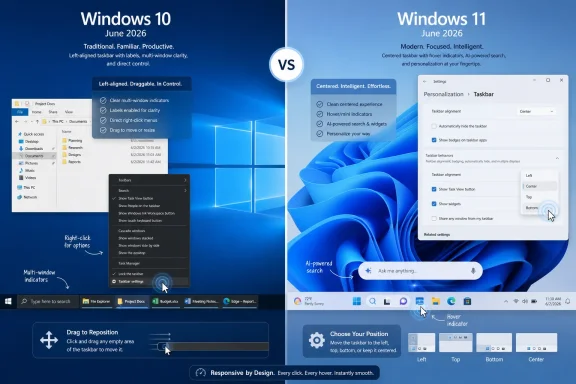 Microsoft Spent Five Years Rebuilding What It Already Had
The Windows 11 taskbar was not merely redesigned in 2021. It was reset. Microsoft centered the icons, simplified the right-click menu, removed several long-standing affordances, and replaced a mature desktop control surface with something that looked cleaner but behaved less like Windows.That tradeoff was defensible only if the new foundation quickly surpassed the old one. Instead, power users spent years watching Microsoft slowly reintroduce the features that had vanished: labels, never-combine behavior, smaller buttons, and now taskbar repositioning in testing. The story of the Windows 11 taskbar is therefore not one of steady innovation, but of delayed restitution.
This matters because the taskbar is not decoration. It is the command rail of the Windows desktop, the place where app switching, launching, notifications, search, system status, virtual desktops, and now AI entry points all collide. When Microsoft makes the taskbar slower or less configurable, it changes how every hour at the PC feels.
The Windows 10 taskbar looks older, certainly. It carries the visual language of a transitional OS that had one foot in Windows 7 and another in Microsoft’s abandoned live-tile future. But it also behaves like a tool refined by repetition: right-click, drag, resize, switch, disable, move on.
Windows 11 behaves more like a designed experience. That can be pleasant when the design aligns with what the user wants. It becomes maddening when the user wants the simple thing Windows has trained them to expect for decades.
The Centered Taskbar Was Never the Real Offense
The most visible Windows 11 taskbar change was also the least important one. Centered icons irritated many users because they broke muscle memory, but Microsoft at least made left alignment available. The setting was never hidden beyond recovery, and many users adjusted quickly.The deeper issue was that Windows 11 did not just move the furniture. It locked several drawers. Windows 10’s taskbar right-click menu exposed useful controls directly: toolbars, search display options, task view, People, window arrangement commands, and other shell-era conveniences. Windows 11 replaced that with a sparse menu that mostly points users toward Settings.
That sounds minor until you use both systems side by side. Windows 10 lets the taskbar be manipulated as an object. Windows 11 treats it as a surface governed from elsewhere. The difference is philosophical, and it explains why Windows 10 still feels faster even when Windows 11 has technically regained the same option.
Search is a good example. Windows 10’s wide “Type here to search” box was visually heavy, but it was also obvious and configurable from the taskbar’s context menu. Windows 11’s search surface is tidier, but changing its behavior often means detouring through Settings or through the search interface itself.
Microsoft would argue, fairly, that Windows 11’s Settings app is cleaner and more coherent than Windows 10’s scattershot configuration maze. But taskbar customization is not a once-a-year administrative chore. It is part of the desktop’s tactile grammar, and Windows 10 still speaks that grammar more fluently.
Small Buttons Reveal a Big Design Reversal
The small taskbar button is the kind of feature that never makes a keynote and still determines whether a 13-inch laptop feels cramped. Windows 10’s “Use small taskbar buttons” toggle was blunt, effective, and old-fashioned in the best sense. Flip it on, and the taskbar becomes shorter, the icons shrink, and the desktop gains back a little vertical space.Windows 11 launched without that equivalent. Users found registry hacks and partial icon-size workarounds, but those were not the same as a supported compact taskbar. On smaller laptops, Microsoft’s taller default bar was not merely a visual choice; it was a tax on screen real estate.
The newer Windows 11 implementation now being tested and rolled out through Microsoft’s recent shell work is more nuanced. “Show smaller taskbar buttons” suggests a framework that could eventually support more than a simple on/off switch. It also shrinks the bar itself rather than merely changing the icon scale, which addresses the original complaint more honestly.
Still, the sequence is revealing. Windows 10 had the practical answer from the beginning. Windows 11 removed it, then spent years reintroducing it. That is not progress so much as repentance with better typography.
The broader lesson is that density is not the enemy of modern design. A desktop OS serves people working with spreadsheets, terminals, browsers, remote sessions, ticket queues, and multiple monitors. Airy spacing may photograph well, but it can become dead space when the machine is being used as a machine.
Dragging the Taskbar Was the Desktop at Its Most Honest
Taskbar repositioning is where Windows 10’s advantage becomes almost embarrassingly simple. In Windows 10, unlock the taskbar, drag it to the top, left, right, or bottom edge, and it moves. The interaction is direct, memorable, and almost impossible to misunderstand.Windows 11 removed that behavior at launch. Microsoft’s explanation has always been more plausible than critics sometimes admit: a movable taskbar affects Start, Search, flyouts, animations, window work areas, app assumptions, touch behavior, and multi-monitor layouts. If the Windows 11 shell was rebuilt with a bottom taskbar as a core assumption, restoring full mobility was not a trivial switch.
But users are rarely comforted by architectural explanations for missing features they already had. The operating system either lets them work the way they work, or it does not. For left-side taskbar users, vertical monitor users, and anyone who built muscle memory over years, Windows 11’s original answer was simply no.
Microsoft is now bringing taskbar positioning back in Insider builds, including top, left, right, and bottom placement. That closes one of the most glaring gaps. Yet it still matters that the Windows 11 version is settings-driven rather than drag-driven.
The best Windows interactions feel physical. Snapping a window to the side of the screen works because the pointer, the window, and the result are connected. Windows 10’s movable taskbar has that same quality. Windows 11’s picker may be cleaner, but it is one layer removed from the action.
Per-monitor taskbar positioning could eventually give Windows 11 a genuine win here. If Microsoft lets users put the taskbar at the bottom of one display and the side of another, Windows 11 would exceed Windows 10 rather than merely match it. But until that ships broadly and behaves reliably, Windows 10 still owns the simpler victory.
The Labels Came Back, but the Information Density Did Not
Button grouping and labels are where taskbar design becomes less about preference and more about information. The default Windows 11 model combines app windows and hides labels, leaving the user with tidy icons and small activity indicators. That is attractive until you have five browser windows, three Excel workbooks, two remote desktop sessions, and a Teams meeting all competing for attention.Windows 10 handled this with a kind of unfashionable clarity. Its combined-button indicators could make multiple instances more obvious at a glance. Its labels, when enabled, gave users a direct way to distinguish windows without hovering first.
Windows 11 has restored never-combine behavior and labels, which was one of the most important reversals Microsoft has made. For users who manage many windows at once, this is not a cosmetic option. It is a reduction in cognitive load.
But Windows 11’s visual language still tends to understate multiplicity. The small pill or dot beneath an icon can be elegant, yet elegance is not the same as legibility. Windows 10’s older stacked indicators may look less refined, but they communicate state more aggressively.
This is where Windows 10’s design age becomes a strength. It was not afraid to look busy because the desktop itself is busy. Windows 11 often seems determined to calm the interface down, even when the interface’s job is to tell the user that things are happening.
The Start Menu Is the Taskbar Argument in Miniature
The Start menu is technically separate from the taskbar, but experientially it is part of the same argument. Click Start on Windows 10 and you get a resizable surface that can be stretched, widened, narrowed, and arranged around the user’s habits. Click Start on Windows 11 and, for most of its life, you got a fixed panel with pinned apps above and recommendations below.Microsoft is now testing more flexible Windows 11 Start menu options, including size presets and more control over pinned and recommended areas. That is welcome. It also underscores how constrained the original Windows 11 Start menu was.
Windows 10’s live tiles were divisive, and many users will not miss them. But they represented an attempt to make Start informational as well as navigational. Weather, calendar, mail, news, and app status could appear without opening anything.
Windows 11 removed live tiles and moved glanceable information toward Widgets. In theory, that made sense: separate app launching from personalized feeds. In practice, it made Start cleaner but less expressive, while Widgets inherited the news-feed baggage that many users wanted to avoid.
The Windows 10 Start menu had excesses. It could become messy, especially on machines loaded with OEM apps and Microsoft suggestions. But it also respected the idea that a user might want Start to be big, small, dense, sparse, app-centric, or tile-heavy. Windows 11 is still learning that customization is not clutter when the user asks for it.
Widgets Proved That Microsoft Still Cannot Resist the Feed
Windows 10’s News and Interests feature was not beloved. It put weather and MSN-powered cards on the taskbar, consumed resources through WebView2 processes, and felt like the preview of an internet portal grafted onto the desktop. But it had one virtue: it was easy to turn off.Windows 11’s Widgets board has been more ambitious and more intrusive. Microsoft has iterated on the panel repeatedly, adjusting hover behavior, badges, layouts, and content controls. The problem is not that weather, calendar, stocks, sports, and glanceable cards have no place on a desktop. The problem is that Microsoft keeps smuggling a feed into spaces users think of as system surfaces.
The taskbar is trusted real estate. Users tolerate notifications there because notifications belong to apps and system state. They are less forgiving when the same space becomes a launcher for promoted articles, engagement loops, or algorithmic filler.
Microsoft has improved the defaults, including backing away from some hover-triggered irritation and reducing noisy badging. Yet the instinct remains visible. Windows 11’s taskbar is increasingly a gateway not only to apps but to services Microsoft wants users to consume.
Windows 10 was guilty of this too, but its shell still felt easier to discipline. One right-click could banish News and Interests. Windows 11 has required more negotiation.
Quick Settings Is the One Place Windows 11 Clearly Wins
Not every comparison flatters the older OS. Windows 11’s split between Quick Settings and notifications is cleaner than Windows 10’s Action Center model. Clicking network, sound, battery, brightness, Bluetooth, and accessibility controls in Windows 11 feels closer to how a modern system tray should behave.Windows 10’s Action Center combined notifications and quick actions, but too many controls were shallow. Click Wi-Fi or Bluetooth and the user was often thrown into Settings to do the real work. Windows 11’s flyouts are more capable in place, which reduces context switching.
The battery indicator is also better in Windows 11. Color-coded states, clearer charging status, Energy Saver signaling, and an optional percentage display make the system’s power state easier to understand. That is exactly the kind of refinement Windows 11 should be delivering.
The clock flyout complicates the picture. Windows 10’s calendar and agenda integration gave users a simple native view of upcoming events. Windows 11 removed that at launch, and while agenda functionality is returning, Microsoft’s reliance on web-powered components makes some users wary.
Here the pattern repeats: Windows 11 often has the better concept and the heavier implementation. When it works, it feels modern. When it stutters, loads web content, or exposes Microsoft service priorities, Windows 10’s older native shell starts to look less obsolete than merely restrained.
Low Latency Profile Is a Fix and a Confession
The June 2026 Windows 11 update’s Low Latency Profile is one of the most interesting shell changes Microsoft has shipped in years. Its purpose is simple: make interactive Windows 11 actions feel faster by briefly boosting CPU frequency during short UI tasks such as opening Start, Search, flyouts, and other shell surfaces. On low-end hardware especially, that can make the system feel less hesitant.That is good engineering. It is also a confession. Windows 10 did not need a special burst-mode performance profile to make its taskbar flyouts feel native because they largely were native. Its shell surfaces were comparatively direct, less layered, and less dependent on modern UI stacks and web-rendered components.
This does not mean Windows 10 is magically faster in every workload. Windows performance is a messy combination of drivers, hardware, background services, security features, display scaling, storage, and update state. But perceived responsiveness is not measured only by benchmarks. It is measured by the half-second after a click.
Windows 11’s responsiveness problem has always been especially damaging because the OS looks like it should be lighter. Rounded corners, simplified menus, centered icons, and clean panels create an expectation of fluidity. When those surfaces lag, the betrayal feels sharper.
Low Latency Profile may help close that gap. Microsoft deserves credit for attacking the problem at the scheduler and power-management level rather than merely shaving animations. But the very need for such a feature supports the Windows 10 loyalist’s central claim: the old taskbar was not just more configurable; it often felt more immediate.
AI Turns the Taskbar Into a Control Plane
The next phase of the Windows 11 taskbar is not really about taskbars at all. It is about Copilot, agents, cross-device activity, and Microsoft’s attempt to turn the desktop into an orchestration layer for AI-assisted work. Ask Copilot in the taskbar, agent monitoring, Android resume-style activity, and share-to-agent features all point in the same direction.This is where Windows 11 may eventually become meaningfully different rather than belatedly equivalent. Windows 10 was designed for launchers, windows, notifications, and lightweight feeds. Windows 11 is being positioned as a place where local apps, cloud services, Microsoft 365, Android devices, and AI agents intersect.
For some users, that will be valuable. A fast taskbar query box that can search, answer, summarize, and trigger actions could be more useful than the old Windows Search box that too often became a Bing handoff. A taskbar that can show the status of a background agent may become normal if agentic workflows become normal.
For many WindowsForum readers, however, this is exactly the concern. The taskbar is already overloaded. It launches apps, hosts tray icons, surfaces search, exposes widgets, handles virtual desktops, presents system status, manages notifications indirectly, and now wants to become an AI console.
The danger is not that AI exists on Windows. The danger is that Microsoft treats the taskbar as the shortest path to user attention. Windows 10’s taskbar feels better partly because it is less ambitious. It is not trying to be the front door to every corporate strategy.
Enterprise IT Will See the Same Old Management Problem in a New Shape
For administrators, the Windows 10 versus Windows 11 taskbar debate is not just about taste. It affects imaging, user training, help desk scripts, accessibility accommodations, profile migration, and group policy expectations. When Microsoft removes or relocates familiar taskbar behaviors, organizations pay the translation cost.The restoration of labels, smaller buttons, and taskbar positioning reduces friction for Windows 11 migrations. It gives IT departments fewer user complaints to absorb and fewer third-party customization utilities to evaluate. That matters as Windows 10’s mainstream support story becomes increasingly constrained and organizations face the practical reality of moving forward.
But restored features do not eliminate management concerns. AI entry points, widgets, search behavior, web results, cloud integration, and staged feature rollouts all require policy decisions. The Windows 11 taskbar is not a static component; it is a channel Microsoft can keep changing.
That dynamism is a double-edged sword. It allows Microsoft to fix mistakes faster than in the old service-pack era. It also means administrators must watch the shell as a living product, not a finished interface.
The safest enterprise reading is this: Windows 11’s taskbar is now much closer to acceptable for broad deployment, but it is not culturally equivalent to Windows 10’s. It requires more policy attention because Microsoft sees it as strategic real estate.
The Old Bar Still Wins Where the New One Must Negotiate
The Windows 10 taskbar wins not because it is prettier, newer, or more future-proof. It wins because it still offers a more direct relationship between user intent and system response. Windows 11 is catching up quickly, but much of its progress consists of returning agency it removed.That does not mean staying on Windows 10 is the right long-term answer for most users. Security lifecycle realities, hardware support, app assumptions, and Microsoft’s development focus all favor Windows 11. But it does mean the complaints were never just grumbling from people allergic to change.
- Windows 10 still feels more direct because common taskbar actions can be performed through dragging, right-clicking, and immediate visual feedback.
- Windows 11 has recovered major missing features, including labels, smaller taskbar buttons, and taskbar positioning in current testing and rollout channels.
- Windows 11 clearly improves some system surfaces, especially Quick Settings and battery status, where the newer shell is more capable.
- Windows 10’s Start menu remains more flexible because it allows free resizing and denser personalization rather than preset-driven layouts.
- Windows 11’s AI roadmap could make the taskbar more powerful, but it also risks making an already busy control surface more intrusive.
- Administrators should treat Windows 11 taskbar changes as an ongoing management issue, not a one-time migration annoyance.
References
- Primary source: Windows Latest
Published: Thu, 18 Jun 2026 23:43:37 GMT
Sorry Microsoft, Windows 10 taskbar is still better than Windows 11, and here's why
Windows 11 taskbar is closer to Windows 10 now. I tested both side by side, app labels, repositioning, Start menu, Quick Settings, and more. www.windowslatest.com
- Related coverage: windowscentral.com
I dug through the Windows 11 Insider builds for June 2026 and found 7 features worth paying attention to | Windows Central
Microsoft's June Insider preview builds show a growing focus on polishing the OS experience across accessibility, updates, and performance.www.windowscentral.com - Related coverage: pcworld.com
Windows 11’s June update makes PCs feel faster. Here's what's new | PCWorld
Windows 11 received a host of new features and improvements in June. Here are the five most exciting ones. Be sure to give them a go!www.pcworld.com - Related coverage: allthings.how
KB5094126 for Windows 11 (June 2026): Builds 26200.8655 and 26100.8655
The June Patch Tuesday update brings the Low Latency Profile, Shared Audio, multi-app camera streaming, and the Secure Boot certificate push.allthings.how - Official source: blogs.windows.com
Improving Windows quality: Making Taskbar and Start more personal
In our commitment to Windows quality, we outlined our plans to deliver improvements in performance, reliability, and craft. We are also committed toblogs.windows.com - Related coverage: digitaltrends.com
The Windows 11 June update makes your Start menu and Search feel much more snappier - Digital Trends
Windows 11's June update rolls out Low Latency Profile to all 24H2 and 25H2 users, a CPU boost technique that makes Start, Search, and Action Center feel noticeably faster.www.digitaltrends.com
- Related coverage: windowsforum.com
Windows 11 KB5094126 (June 2026) Guide: Low Latency, Shared Audio, Secure Boot | Windows Forum
Microsoft released Windows 11 KB5094126 on June 9, 2026, as the June Patch Tuesday security update for Windows 11 versions 25H2 and 24H2, raising systems to...windowsforum.com - Related coverage: techradar.com
Microsoft introduces 'Ask Copilot' box to Windows 11's taskbar – but only if you want AI there | TechRadar
Copilot replaces the traditional search box, if you opt inwww.techradar.com - Related coverage: pcgamer.com
Microsoft rolls out Windows Low Latency Profile, giving older PCs a bit more snap when opening the Start Menu and apps | PC Gamer
Every little helps, even if it really is very little.www.pcgamer.com - Related coverage: tomsguide.com
How to disable Copilot in Windows 11 | Tom's Guide
Completely disable Copilot in Windows 11 in just a few simple steps.www.tomsguide.com - Official source: adoption.microsoft.com
