

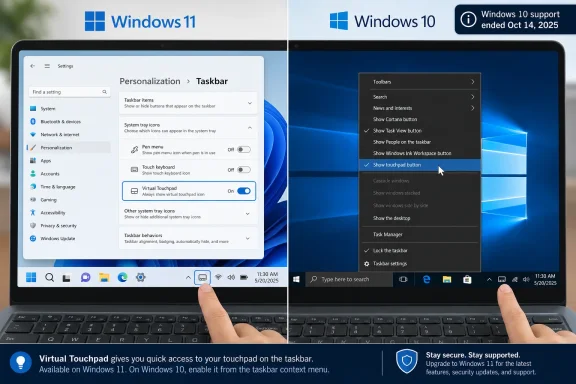
Microsoft’s current support guidance says Windows 11 users enable the virtual touchpad from Settings > Personalization > Taskbar by turning on Virtual Touchpad under system tray icons, while Windows 10 users use the taskbar’s “Show touchpad button” option, with Windows 10 support now ended. That small procedural split is more than a documentation wrinkle. It captures the way Windows has moved from a right-click-era desktop shell toward a settings-managed, touch-aware interface that still has to serve every odd hardware configuration users bring to it. The virtual touchpad is a niche feature, but it is exactly the kind of niche feature that reveals whether Windows still remembers what made it useful.
The virtual touchpad began life as one of those Windows features many people never discover until the day they desperately need it. It is an on-screen touchpad that lets a touchscreen device control the mouse pointer without a physical touchpad, mouse, or keyboard shortcut workaround. That sounds redundant on a tablet until you hit a desktop app, a tiny resize handle, a remote session, or a legacy dialog built for a pointer rather than a finger.
Microsoft’s Windows 11 instructions put the feature squarely inside the Settings app. Right-click the taskbar, open Taskbar settings, and in Personalization > Taskbar, switch Virtual Touchpad on under the system tray icons section. Once enabled, the icon appears in the system tray beside the clock, where it can be selected to bring up the virtual touchpad.
That is a more modern Windows story than the Windows 10 version. On Windows 10, the guidance is to right-click the taskbar and enable “Show touchpad button,” then use the tray icon to open the virtual touchpad. The function is similar, but the path tells you which design era you are living in.
Windows 10 treated the feature as a shell affordance. Windows 11 treats it as part of the curated taskbar experience, where system tray visibility is governed more explicitly through Settings. The difference is subtle enough to confuse a user following the wrong instructions, and significant enough to matter for IT support scripts, help-desk articles, and anyone trying to talk a family member through a problem over the phone.
The virtual touchpad’s relocation into Personalization > Taskbar fits that broader trend. Microsoft is not merely documenting a feature; it is reinforcing the idea that system tray icons are part of a policy-like visibility model. If the icon is missing, the answer is no longer necessarily “right-click and show the button.” It is “open the taskbar settings page and verify the toggle.”
That is cleaner, especially for users who expect settings to live in Settings. It is also less forgiving for users trained on the old Windows muscle memory. The same action—summoning an input helper—now depends on knowing whether you are on Windows 11 or Windows 10, and whether the tray icon is hidden because the feature is off or because the interface changed.
The design tradeoff is familiar. Microsoft wants Windows to feel coherent across touch, pen, mouse, and hybrid devices. But coherence often arrives by moving long-standing shell behaviors into panels that are easier to design, localize, test, and explain. Power users experience that as friction; newer users may experience it as order.
That end-of-support warning appears inside a simple hardware help article, which is precisely why it matters. Microsoft is no longer confining the Windows 10 transition message to lifecycle pages and upgrade campaigns. It is inserting the reality of Windows 10’s retirement into everyday support journeys: touchpads, keyboards, Bluetooth, printers, and all the mundane maintenance tasks that keep PCs useful.
For WindowsForum readers, this is the practical shape of platform aging. It is not just that a banner appears somewhere saying an operating system is old. It is that instructions begin to fork, screenshots drift, buttons move, and official support language starts nudging every troubleshooting session toward the newer platform.
The virtual touchpad remains available in Windows 10, according to the support guidance. But the paragraph around it has changed meaning. What used to be a parallel set of instructions is now a legacy branch.
That matters because users often interpret a missing tray icon as a driver problem, a broken update, or a device capability issue. Sometimes it may be. But the first diagnostic step is now visibility, not hardware. If the toggle is off, the icon is supposed to disappear.
This is one of Windows’ recurring support traps. The operating system exposes a feature through an icon, users treat the icon as the feature, and then the feature seems “missing” when the icon is merely hidden. The distinction is obvious to engineers and infuriating to ordinary users.
It also matters for managed environments. A help desk does not want to burn twenty minutes reinstalling pointing-device drivers when the actual fix is a taskbar visibility toggle. The virtual touchpad is a tiny feature, but the diagnostic pattern applies everywhere in Windows 11: before assuming a capability is gone, check whether Microsoft moved the entry point.
That awkwardness is not a failure so much as the cost of Windows’ superpower. The platform runs modern apps, old utilities, enterprise consoles, installer wizards, remote access tools, line-of-business programs, and configuration windows that may have been designed in very different eras. A finger can tap, swipe, and drag, but it is a blunt instrument when the target is a tiny checkbox in a dense Win32 dialog.
The virtual touchpad is Microsoft’s pragmatic concession to that reality. Rather than pretending every interface can be rebuilt for touch, Windows gives users a pointer emulator that works on top of the existing desktop metaphor. It is not glamorous, but it is deeply Windows: a compatibility shim with a user interface.
That is why this feature deserves more respect than its obscurity suggests. It is not only for tablets without keyboards. It is for convertible laptops in tent mode, wall-mounted touch displays, kiosk-like deployments, classrooms, conference rooms, accessibility setups, and any situation where the input device available is not the input device the software expects.
But simplicity in Windows is often conditional. You have to know that the setting lives under Personalization, not Bluetooth & devices. You have to know that “system tray icons” is the relevant category, even though the feature is fundamentally about input. You have to know that the system tray is the cluster near the time and date, a phrase that experienced users understand but newcomers may not.
That mismatch is not unique to this feature. Windows 11 has tried to modernize its surfaces while preserving enough of the old operating system to avoid breaking the world. The result is often a clean top layer with conceptual seams beneath it. The virtual touchpad lives at one of those seams: input hardware controlled through taskbar personalization.
There is a defensible logic here. The setting does not enable or disable touch hardware; it enables or disables the taskbar icon that launches the on-screen control. But users do not think in that distinction. They think: I need the virtual touchpad, where is the virtual touchpad setting?
The answer, in Windows 11, is that Microsoft considers the immediate problem to be icon visibility. That is sensible from the shell’s point of view. It is less intuitive from the user’s point of view.
There is an appealing directness to that. The command is where the icon will appear. You manipulate the taskbar from the taskbar. You do not pass through a Settings app hierarchy to expose a button that lives a few pixels away.
That directness is also why older Windows interfaces accumulated clutter. Every convenience exposed through right-click menus made the system feel powerful to those who knew where to look and chaotic to those who did not. Microsoft’s Windows 11 answer has been to prune, centralize, and redesign, even when that means adding a step.
Neither model is perfect. Windows 10 rewarded exploration but could overwhelm. Windows 11 rewards search and settings literacy but can hide the obvious behind a pane. The virtual touchpad is not a battlefield in the usual Windows culture war, but it is a good miniature of the tradeoff.
If you support both systems, the practical lesson is to stop giving generic “right-click the taskbar” advice without naming the operating system. The first fork in the instructions is now the Windows version itself.
This is especially relevant for convertible and detachable devices. A Surface-style PC without its keyboard cover is still a Windows PC, and Windows PCs still ask users to do pointer-heavy things. The virtual touchpad lets the device remain functional in the gray zone between tablet and laptop.
It also has value in remote and administrative scenarios. Anyone who has used a touch device to operate a remote desktop session knows the pain of mapping finger gestures onto a pointer-driven environment. A virtual touchpad can make that interaction less clumsy because it restores the cursor as an intermediary.
There is an accessibility angle too, though it should not be overstated. For some users, an on-screen pointing surface may be easier to use than direct touch targets or may serve as a fallback when preferred hardware is unavailable. For others, it will be useless. The point is not that Microsoft has solved accessible input, but that Windows benefits from redundant input paths.
If a user does not need the virtual touchpad, hiding the icon is reasonable housekeeping. In Windows 11, that means switching Virtual Touchpad off under system tray icons. In Windows 10, it means clearing “Show touchpad button” from the taskbar menu.
There is also a security-adjacent dimension, though not a dramatic one. The virtual touchpad is not a threat by itself, but any unnecessary interface element can generate confusion, misclicks, or support tickets. In shared devices, classroom machines, kiosks, and conference-room PCs, administrators often prefer fewer visible controls, not more.
The better Windows design principle is not “show every capability.” It is “make capabilities discoverable when needed and removable when not.” The virtual touchpad’s problem is that discoverability and removability currently depend on knowing which Windows generation you are operating.
That is why accuracy matters. If a user searches for the missing virtual touchpad icon and lands on instructions for the wrong Windows version, the failure feels like Windows is broken. In reality, the documentation path and the interface path have diverged.
Microsoft’s inclusion of both Windows 11 and Windows 10 instructions is therefore useful, but it also exposes the burden of transition. The same feature now has two mental models. One is a taskbar context-menu affordance; the other is a Settings-controlled tray icon.
For WindowsForum readers, the interesting part is not merely how to turn the feature on. It is how small interface moves become long-tail support issues. A changed toggle name or relocated icon can ripple through help articles, screenshots, internal runbooks, and years of accumulated forum answers.
The virtual touchpad article is an example of that slow pressure. Windows 10 still works. The feature still works. Yet the page now frames Windows 10 as the branch users should be leaving, not the baseline they can assume.
This is a delicate message for Microsoft because Windows 11 adoption has never been merely a matter of desire. Hardware compatibility, CPU requirements, TPM expectations, application validation, training, and procurement cycles all shape whether a PC can move. Telling users to upgrade is easy; making the path painless is harder.
Still, the end of standard Windows 10 support changes the support posture. Communities like WindowsForum will increasingly become the place where remaining Windows 10 users trade practical fixes, while Microsoft’s own material points them toward Windows 11. That split will define much of the next phase of Windows troubleshooting.
The most useful support notes are version-aware. “Right-click the taskbar” is no longer enough. A better note says that Windows 11 users should open Taskbar settings and use the Virtual Touchpad toggle under system tray icons, while Windows 10 users should use the “Show touchpad button” command on the taskbar context menu.
That version split is particularly important for hybrid fleets. Many organizations still have Windows 10 machines in extended support arrangements, Windows 11 machines in production, and test devices running newer feature updates. A single generic help-desk script can now be wrong for a significant share of the fleet.
Administrators should also decide whether the virtual touchpad is a supported user-facing feature in their environment. On tablets and convertibles, it may be worth documenting. On fixed desktops, shared kiosks, or locked-down systems, it may be better hidden.
Here is the practical read for users and support teams:
 Microsoft Moves the Touchpad From Trick to Setting
The virtual touchpad began life as one of those Windows features many people never discover until the day they desperately need it. It is an on-screen touchpad that lets a touchscreen device control the mouse pointer without a physical touchpad, mouse, or keyboard shortcut workaround. That sounds redundant on a tablet until you hit a desktop app, a tiny resize handle, a remote session, or a legacy dialog built for a pointer rather than a finger.Microsoft’s Windows 11 instructions put the feature squarely inside the Settings app. Right-click the taskbar, open Taskbar settings, and in Personalization > Taskbar, switch Virtual Touchpad on under the system tray icons section. Once enabled, the icon appears in the system tray beside the clock, where it can be selected to bring up the virtual touchpad.
That is a more modern Windows story than the Windows 10 version. On Windows 10, the guidance is to right-click the taskbar and enable “Show touchpad button,” then use the tray icon to open the virtual touchpad. The function is similar, but the path tells you which design era you are living in.
Windows 10 treated the feature as a shell affordance. Windows 11 treats it as part of the curated taskbar experience, where system tray visibility is governed more explicitly through Settings. The difference is subtle enough to confuse a user following the wrong instructions, and significant enough to matter for IT support scripts, help-desk articles, and anyone trying to talk a family member through a problem over the phone.
The Taskbar Is Now a Control Surface, Not Just a Launcher
For decades, Windows users learned that the taskbar was a place you could interrogate directly. Right-clicking it exposed knobs, toggles, toolbars, window management commands, and little conveniences that rarely earned marketing slides but often saved time. Windows 11 has steadily recast that surface as something more managed and less improvisational.The virtual touchpad’s relocation into Personalization > Taskbar fits that broader trend. Microsoft is not merely documenting a feature; it is reinforcing the idea that system tray icons are part of a policy-like visibility model. If the icon is missing, the answer is no longer necessarily “right-click and show the button.” It is “open the taskbar settings page and verify the toggle.”
That is cleaner, especially for users who expect settings to live in Settings. It is also less forgiving for users trained on the old Windows muscle memory. The same action—summoning an input helper—now depends on knowing whether you are on Windows 11 or Windows 10, and whether the tray icon is hidden because the feature is off or because the interface changed.
The design tradeoff is familiar. Microsoft wants Windows to feel coherent across touch, pen, mouse, and hybrid devices. But coherence often arrives by moving long-standing shell behaviors into panels that are easier to design, localize, test, and explain. Power users experience that as friction; newer users may experience it as order.
A Small Feature Becomes a Windows 10 Epitaph
The support page’s Windows 10 note now lands differently because the date has passed. Microsoft says support for Windows 10 ended on October 14, 2025, meaning free Windows Update security fixes, technical assistance, and regular software updates are no longer part of the standard deal. The PC still works, but the recommendation is to move to Windows 11.That end-of-support warning appears inside a simple hardware help article, which is precisely why it matters. Microsoft is no longer confining the Windows 10 transition message to lifecycle pages and upgrade campaigns. It is inserting the reality of Windows 10’s retirement into everyday support journeys: touchpads, keyboards, Bluetooth, printers, and all the mundane maintenance tasks that keep PCs useful.
For WindowsForum readers, this is the practical shape of platform aging. It is not just that a banner appears somewhere saying an operating system is old. It is that instructions begin to fork, screenshots drift, buttons move, and official support language starts nudging every troubleshooting session toward the newer platform.
The virtual touchpad remains available in Windows 10, according to the support guidance. But the paragraph around it has changed meaning. What used to be a parallel set of instructions is now a legacy branch.
The Missing Icon Is Usually Not a Bug
The most common user complaint here is simple: the virtual touchpad icon is no longer visible in the system tray. Microsoft’s answer is equally simple: in Windows 11, go to Taskbar settings and make sure the Virtual Touchpad switch is on. If you want it gone, close the touchpad window if it is open, return to the same settings area, and switch Virtual Touchpad off.That matters because users often interpret a missing tray icon as a driver problem, a broken update, or a device capability issue. Sometimes it may be. But the first diagnostic step is now visibility, not hardware. If the toggle is off, the icon is supposed to disappear.
This is one of Windows’ recurring support traps. The operating system exposes a feature through an icon, users treat the icon as the feature, and then the feature seems “missing” when the icon is merely hidden. The distinction is obvious to engineers and infuriating to ordinary users.
It also matters for managed environments. A help desk does not want to burn twenty minutes reinstalling pointing-device drivers when the actual fix is a taskbar visibility toggle. The virtual touchpad is a tiny feature, but the diagnostic pattern applies everywhere in Windows 11: before assuming a capability is gone, check whether Microsoft moved the entry point.
Touch Still Has to Translate the Desktop
The virtual touchpad exists because Windows has never been purely touch-native. Even in 2026, a touchscreen Windows device eventually confronts software that assumes a mouse pointer. Desktop Windows is rich, powerful, backward-compatible, and often awkward under a fingertip.That awkwardness is not a failure so much as the cost of Windows’ superpower. The platform runs modern apps, old utilities, enterprise consoles, installer wizards, remote access tools, line-of-business programs, and configuration windows that may have been designed in very different eras. A finger can tap, swipe, and drag, but it is a blunt instrument when the target is a tiny checkbox in a dense Win32 dialog.
The virtual touchpad is Microsoft’s pragmatic concession to that reality. Rather than pretending every interface can be rebuilt for touch, Windows gives users a pointer emulator that works on top of the existing desktop metaphor. It is not glamorous, but it is deeply Windows: a compatibility shim with a user interface.
That is why this feature deserves more respect than its obscurity suggests. It is not only for tablets without keyboards. It is for convertible laptops in tent mode, wall-mounted touch displays, kiosk-like deployments, classrooms, conference rooms, accessibility setups, and any situation where the input device available is not the input device the software expects.
Windows 11’s Version of Simplicity Still Requires Memory
Microsoft’s Windows 11 instruction flow is clean on paper. Open Taskbar settings. Turn on Virtual Touchpad. Click the tray icon. The virtual touchpad appears.But simplicity in Windows is often conditional. You have to know that the setting lives under Personalization, not Bluetooth & devices. You have to know that “system tray icons” is the relevant category, even though the feature is fundamentally about input. You have to know that the system tray is the cluster near the time and date, a phrase that experienced users understand but newcomers may not.
That mismatch is not unique to this feature. Windows 11 has tried to modernize its surfaces while preserving enough of the old operating system to avoid breaking the world. The result is often a clean top layer with conceptual seams beneath it. The virtual touchpad lives at one of those seams: input hardware controlled through taskbar personalization.
There is a defensible logic here. The setting does not enable or disable touch hardware; it enables or disables the taskbar icon that launches the on-screen control. But users do not think in that distinction. They think: I need the virtual touchpad, where is the virtual touchpad setting?
The answer, in Windows 11, is that Microsoft considers the immediate problem to be icon visibility. That is sensible from the shell’s point of view. It is less intuitive from the user’s point of view.
The Windows 10 Path Shows Why Old Windows Felt Faster
The Windows 10 path is blunt: right-click the taskbar and make sure “Show touchpad button” is selected. For touchscreens, press and hold the taskbar and enable the same option. Then tap the icon in the system tray.There is an appealing directness to that. The command is where the icon will appear. You manipulate the taskbar from the taskbar. You do not pass through a Settings app hierarchy to expose a button that lives a few pixels away.
That directness is also why older Windows interfaces accumulated clutter. Every convenience exposed through right-click menus made the system feel powerful to those who knew where to look and chaotic to those who did not. Microsoft’s Windows 11 answer has been to prune, centralize, and redesign, even when that means adding a step.
Neither model is perfect. Windows 10 rewarded exploration but could overwhelm. Windows 11 rewards search and settings literacy but can hide the obvious behind a pane. The virtual touchpad is not a battlefield in the usual Windows culture war, but it is a good miniature of the tradeoff.
If you support both systems, the practical lesson is to stop giving generic “right-click the taskbar” advice without naming the operating system. The first fork in the instructions is now the Windows version itself.
The Feature Is Most Useful When Something Else Has Gone Wrong
The virtual touchpad is a convenience feature on a good day and a rescue feature on a bad one. If a Bluetooth mouse battery dies, a detachable keyboard is left behind, a physical touchpad stops responding, or a driver update temporarily disrupts input, the on-screen touchpad can bridge the gap. It is not a replacement for proper hardware, but it can be the difference between finishing a task and being locked out of a workflow.This is especially relevant for convertible and detachable devices. A Surface-style PC without its keyboard cover is still a Windows PC, and Windows PCs still ask users to do pointer-heavy things. The virtual touchpad lets the device remain functional in the gray zone between tablet and laptop.
It also has value in remote and administrative scenarios. Anyone who has used a touch device to operate a remote desktop session knows the pain of mapping finger gestures onto a pointer-driven environment. A virtual touchpad can make that interaction less clumsy because it restores the cursor as an intermediary.
There is an accessibility angle too, though it should not be overstated. For some users, an on-screen pointing surface may be easier to use than direct touch targets or may serve as a fallback when preferred hardware is unavailable. For others, it will be useless. The point is not that Microsoft has solved accessible input, but that Windows benefits from redundant input paths.
The Disable Button Matters as Much as the Enable Button
Microsoft’s support page gives equal space to disabling the virtual touchpad, and that is not incidental. Tray icons are scarce attention real estate. On a small screen, every icon competes with battery, network, audio, security, update status, cloud sync, VPN software, and whatever the OEM decided to preload.If a user does not need the virtual touchpad, hiding the icon is reasonable housekeeping. In Windows 11, that means switching Virtual Touchpad off under system tray icons. In Windows 10, it means clearing “Show touchpad button” from the taskbar menu.
There is also a security-adjacent dimension, though not a dramatic one. The virtual touchpad is not a threat by itself, but any unnecessary interface element can generate confusion, misclicks, or support tickets. In shared devices, classroom machines, kiosks, and conference-room PCs, administrators often prefer fewer visible controls, not more.
The better Windows design principle is not “show every capability.” It is “make capabilities discoverable when needed and removable when not.” The virtual touchpad’s problem is that discoverability and removability currently depend on knowing which Windows generation you are operating.
Documentation Is Now Part of the Product
A support article like this looks mechanical, but it is doing product work. It defines where Microsoft thinks the feature lives. It declares which operating systems are current and which are legacy. It sets the vocabulary support agents, search engines, forum posts, and AI assistants will echo back to users.That is why accuracy matters. If a user searches for the missing virtual touchpad icon and lands on instructions for the wrong Windows version, the failure feels like Windows is broken. In reality, the documentation path and the interface path have diverged.
Microsoft’s inclusion of both Windows 11 and Windows 10 instructions is therefore useful, but it also exposes the burden of transition. The same feature now has two mental models. One is a taskbar context-menu affordance; the other is a Settings-controlled tray icon.
For WindowsForum readers, the interesting part is not merely how to turn the feature on. It is how small interface moves become long-tail support issues. A changed toggle name or relocated icon can ripple through help articles, screenshots, internal runbooks, and years of accumulated forum answers.
The Real Upgrade Pressure Comes From Everyday Friction
Microsoft’s Windows 10 support deadline has been discussed for years in terms of security updates, hardware requirements, and enterprise migration planning. Those are the big rocks. But many users feel operating-system obsolescence first through smaller frictions: advice that no longer matches, settings that look different, fixes that assume a newer interface.The virtual touchpad article is an example of that slow pressure. Windows 10 still works. The feature still works. Yet the page now frames Windows 10 as the branch users should be leaving, not the baseline they can assume.
This is a delicate message for Microsoft because Windows 11 adoption has never been merely a matter of desire. Hardware compatibility, CPU requirements, TPM expectations, application validation, training, and procurement cycles all shape whether a PC can move. Telling users to upgrade is easy; making the path painless is harder.
Still, the end of standard Windows 10 support changes the support posture. Communities like WindowsForum will increasingly become the place where remaining Windows 10 users trade practical fixes, while Microsoft’s own material points them toward Windows 11. That split will define much of the next phase of Windows troubleshooting.
The Sensible Admin Response Is to Document the Fork
For IT teams, the immediate action is not dramatic. Nobody needs a migration project because of the virtual touchpad. But teams should treat this as a reminder to audit internal quick-fix documentation for Windows 10 assumptions that no longer hold in Windows 11.The most useful support notes are version-aware. “Right-click the taskbar” is no longer enough. A better note says that Windows 11 users should open Taskbar settings and use the Virtual Touchpad toggle under system tray icons, while Windows 10 users should use the “Show touchpad button” command on the taskbar context menu.
That version split is particularly important for hybrid fleets. Many organizations still have Windows 10 machines in extended support arrangements, Windows 11 machines in production, and test devices running newer feature updates. A single generic help-desk script can now be wrong for a significant share of the fleet.
Administrators should also decide whether the virtual touchpad is a supported user-facing feature in their environment. On tablets and convertibles, it may be worth documenting. On fixed desktops, shared kiosks, or locked-down systems, it may be better hidden.
The Tiny Tray Icon Tells the Whole Story
The most concrete lesson from Microsoft’s guidance is that the virtual touchpad is controlled through the taskbar experience, not through a traditional device-driver control panel. That makes sense once you understand the feature as an on-screen launcher rather than hardware. It also explains why the icon vanishes when the corresponding taskbar option is off.Here is the practical read for users and support teams:
- Windows 11 users should enable the virtual touchpad from Taskbar settings by turning on the Virtual Touchpad option under system tray icons.
- Windows 10 users should enable it from the taskbar context menu by selecting “Show touchpad button.”
- The missing tray icon usually means the taskbar option is disabled, not that the touchpad feature has necessarily been removed.
- The virtual touchpad is most useful on touchscreen PCs when a precise pointer is needed for desktop apps, remote sessions, or fallback input.
- Windows 10’s support ended on October 14, 2025, so its instructions should now be treated as legacy guidance rather than the default path.
References
- Primary source: Microsoft Support
Published: Wed, 03 Jun 2026 06:34:51 Z
Enable and disable the virtual touchpad in Windows | Microsoft Support
Learn how to enable and disable the virtual touchpad in Windows. The virtual touchpad provides and on-screen touchpad that can be used to control the mouse.support.microsoft.com
