
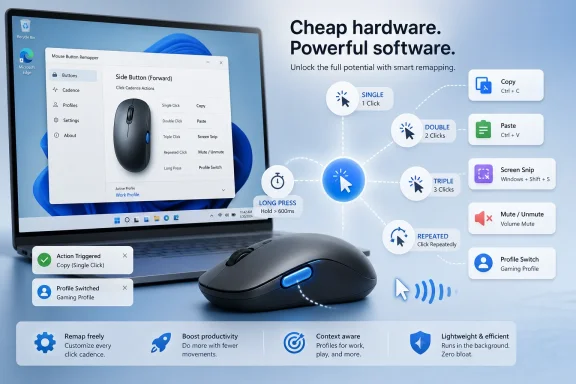
MouseKey, a Windows 10 and Windows 11 utility highlighted on June 23, 2026, lets users remap ordinary mouse buttons into multiple commands by assigning different actions to single, double, triple, repeated, or long-press clicks. The pitch is simple: software can make cheap hardware feel expensive. The more interesting story is that Windows still leaves a surprising amount of everyday input customization to vendors, hobbyists, and small utilities. MouseKey is not merely another power-user toy; it is a reminder that the PC’s most common peripheral remains under-programmed.
The modern mouse has become a strangely stratified product. At the low end, it is treated as disposable plastic: left click, right click, scroll wheel, maybe two side buttons if you are lucky. At the high end, it becomes a dashboard of profiles, macros, DPI stages, lighting zones, and vendor software that increasingly resembles a miniature operating system.
MouseKey’s appeal sits in the gap between those worlds. Most users do not need a premium gaming mouse or a flagship productivity model, but they do want quicker access to copy, paste, screenshots, mute, window hiding, or app launching. The hardware needed for that is already on many desks. What is missing is a neutral, Windows-level layer that treats mouse input as programmable rather than fixed.
That is why the claim that MouseKey works with “virtually any mouse” matters. Logitech, Razer, Corsair, Microsoft, and others already provide customization tools, but those tools typically exist inside brand ecosystems. If you bought a budget mouse with no companion app, or a no-name model whose software looks like it was last tested during the Windows 7 era, the buttons are often stuck doing whatever the firmware or default Windows behavior assigns.
MouseKey tries to make the brand irrelevant. Instead of asking whether your mouse qualifies for a vendor’s control panel, it asks only whether Windows can see the button event. That changes the upgrade equation: before buying better hardware, users can first ask whether their existing device is simply being underused.
That sounds gimmicky until you imagine the middle mouse button or a side button as a compact command surface. A single click could copy selected text, a double click could paste, and a long press could open an app or trigger a custom hotkey. On a five-button mouse, that becomes a surprisingly dense set of possible actions without requiring a hardware upgrade.
There is a trade-off, of course. Muscle memory is a finite resource. If every button becomes a six-way switch, the user may spend the first week triggering the wrong thing and the second week turning half of it off. MouseKey’s reported visual and audio feedback is therefore not cosmetic; it is part of the usability model. When input gets abstract, confirmation becomes important.
The best version of this idea is not “put everything on the mouse.” It is “put the commands you use constantly on the device your hand already occupies.” That distinction matters. A mouse packed with arbitrary macros can become a liability. A mouse with three carefully chosen shortcuts can become invisible productivity infrastructure.
That leaves room for utilities like MouseKey, X-Mouse Button Control, AutoHotkey scripts, vendor apps, and newer community tools. Each takes a different view of the problem. Some focus on mapping one button to another. Some support per-application behavior. Some are scriptable enough to become little automation engines. MouseKey’s differentiator is that it packages multi-action button behavior into a consumer-friendly app-store-style product.
This is exactly the kind of small Windows utility that can look trivial from a distance and transformative up close. The PC’s strength has always been that users can sand down the operating system’s rough edges. MouseKey belongs to the same lineage as clipboard managers, window tilers, launchers, macro tools, and keyboard remappers: small programs that exist because the default workflow is not quite personal enough.
The risk is that this class of software lives close to input handling, which is both powerful and sensitive. Anything that intercepts or rewrites clicks must earn trust. Users should be selective about where they install such tools from, understand what runs at startup, and avoid stacking multiple remappers unless they enjoy troubleshooting phantom input behavior.
But this is where a journalist’s caution matters. The strongest third-party write-up says MouseKey supports app-specific profiles that switch automatically depending on the active application. MouseKey’s own public materials, at least in some places, have described profile switching more conservatively, including manual switching through a “Next Profile” action rather than full automatic app detection. That does not mean the feature is absent; it may reflect a newer build, inconsistent documentation, or marketing lag. It does mean users should verify the current Microsoft Store listing and the app itself before buying specifically for automatic per-app switching.
That distinction is not pedantry. App-aware profiles are one of the major differences between a fun remapper and a professional workflow tool. A button that means “new tab” in a browser, “select all” in Word, and “mute clip” in an editor is powerful only if the switching is reliable. If users must manually cycle profiles, the feature is still useful, but it becomes a different kind of tool.
The same caution applies to “any mouse.” In practice, universal mouse remapping usually means “any mouse whose buttons emit standard input events Windows can observe.” Some devices expose special buttons only through vendor drivers, firmware modes, or unusual HID behavior. A budget mouse with standard left, right, middle, back, and forward buttons is likely the ideal target; exotic devices with DPI toggles, tilt wheels, sniper buttons, or hardware-level macros may be messier.
A sysadmin could map a side button to paste a standard command fragment or switch profiles while moving between management consoles. A writer could reserve the middle button for paste, undo, and screen capture. A support technician could bind common text snippets for ticket updates. A developer could trigger build commands, terminal shortcuts, or window management actions without reaching for a complex keyboard chord.
The reason this matters is ergonomic as much as computational. Keyboard shortcuts are efficient, but they assume both hands are in position and that the user remembers the chord. Mouse shortcuts make sense for tasks that occur while selecting, dragging, browsing, reviewing, or navigating. The point is not to replace the keyboard. It is to reduce the number of times your hand has to leave what it is already doing.
There is also an accessibility angle, though it should not be overstated without testing. For some users, replacing awkward multi-key combinations with simpler mouse gestures could reduce strain. For others, rapid multi-click patterns may be harder, not easier. The best accessibility tools are configurable, predictable, and reversible; MouseKey’s value will depend on how well it handles those basics.
That matters because MouseKey will not click with everyone. Some people prefer the certainty of one button, one action. Some will find triple-click or five-click bindings too slow or too easy to misfire. Some applications may consume mouse events in ways that interfere with remapping. Remote desktops, games with anti-cheat systems, browser sandboxes, and elevated administrator windows can all complicate input utilities.
The free tier is therefore not just a sales funnel; it is a compatibility test. Users should try their most important applications first, including anything that runs elevated or in a remote session. They should also check whether the app starts reliably with Windows, whether it behaves after sleep and wake, and whether it conflicts with vendor mouse software.
For a $6.99 one-time purchase, the upside is still obvious. If it saves a user from buying a premium mouse just to get a few programmable actions, the math is easy. But the app should be judged less as a bargain and more as a workflow layer. If it becomes muscle memory, it is worth far more than its price. If it remains a novelty, even free is too expensive in attention.
The Microsoft Store distribution helps, but it is not magic. Store availability can simplify installation and updates, but users should still review permissions, publisher information, privacy claims, offline behavior, and update history. Administrators should be especially cautious before allowing any input-remapping tool in managed environments, where macro behavior can become a support and compliance issue.
There is also the stability question. A remapper that fails quietly can leave users wondering why their paste command did not fire. A remapper that fails loudly can interfere with basic navigation. Tools in this category need conservative defaults, easy disable controls, clear profile visibility, and a fast way to restore normal mouse behavior.
The larger lesson is that productivity software often sits on a line between empowerment and complexity. The same feature that makes one user faster can make another user’s machine harder to support. That is not an argument against MouseKey. It is an argument for treating input customization as infrastructure, not decoration.
That is why MouseKey’s interface and defaults matter more than raw capability. A six-actions-per-button model can either feel like a breakthrough or like a memory test. The app’s success depends on whether it nudges users toward a few high-value bindings instead of encouraging them to fill every available slot.
The most durable shortcuts are the ones that disappear. A side button that always mutes audio during calls is easy to remember. A long press that always opens a screenshot tool is easy to remember. A five-click action that triggers a rarely used command may look powerful in a feature list and then vanish from practical use.
The better mental model is not a gaming mouse. It is a programmable remote control for Windows. The best remotes do not expose every possible function; they expose the functions people actually need while their attention is elsewhere.
 The Cheap Mouse Was Never the Limiting Factor
The modern mouse has become a strangely stratified product. At the low end, it is treated as disposable plastic: left click, right click, scroll wheel, maybe two side buttons if you are lucky. At the high end, it becomes a dashboard of profiles, macros, DPI stages, lighting zones, and vendor software that increasingly resembles a miniature operating system.MouseKey’s appeal sits in the gap between those worlds. Most users do not need a premium gaming mouse or a flagship productivity model, but they do want quicker access to copy, paste, screenshots, mute, window hiding, or app launching. The hardware needed for that is already on many desks. What is missing is a neutral, Windows-level layer that treats mouse input as programmable rather than fixed.
That is why the claim that MouseKey works with “virtually any mouse” matters. Logitech, Razer, Corsair, Microsoft, and others already provide customization tools, but those tools typically exist inside brand ecosystems. If you bought a budget mouse with no companion app, or a no-name model whose software looks like it was last tested during the Windows 7 era, the buttons are often stuck doing whatever the firmware or default Windows behavior assigns.
MouseKey tries to make the brand irrelevant. Instead of asking whether your mouse qualifies for a vendor’s control panel, it asks only whether Windows can see the button event. That changes the upgrade equation: before buying better hardware, users can first ask whether their existing device is simply being underused.
Click Cadence Turns One Button Into a Small Command Surface
The clever part of MouseKey is not just remapping; Windows users have had remapping tools for years. The clever part is the cadence model. A single button can behave differently depending on whether it is clicked once, twice, three times, four times, five times, or held for roughly two seconds.That sounds gimmicky until you imagine the middle mouse button or a side button as a compact command surface. A single click could copy selected text, a double click could paste, and a long press could open an app or trigger a custom hotkey. On a five-button mouse, that becomes a surprisingly dense set of possible actions without requiring a hardware upgrade.
There is a trade-off, of course. Muscle memory is a finite resource. If every button becomes a six-way switch, the user may spend the first week triggering the wrong thing and the second week turning half of it off. MouseKey’s reported visual and audio feedback is therefore not cosmetic; it is part of the usability model. When input gets abstract, confirmation becomes important.
The best version of this idea is not “put everything on the mouse.” It is “put the commands you use constantly on the device your hand already occupies.” That distinction matters. A mouse packed with arbitrary macros can become a liability. A mouse with three carefully chosen shortcuts can become invisible productivity infrastructure.
Windows Still Treats Mouse Customization Like Someone Else’s Problem
Microsoft has steadily improved Windows as a power-user platform, especially through PowerToys. FancyZones, PowerToys Run, keyboard remapping, text extraction, and cursor utilities have all made Windows feel more malleable. But mouse-button remapping remains less central than keyboard remapping in Microsoft’s own tooling.That leaves room for utilities like MouseKey, X-Mouse Button Control, AutoHotkey scripts, vendor apps, and newer community tools. Each takes a different view of the problem. Some focus on mapping one button to another. Some support per-application behavior. Some are scriptable enough to become little automation engines. MouseKey’s differentiator is that it packages multi-action button behavior into a consumer-friendly app-store-style product.
This is exactly the kind of small Windows utility that can look trivial from a distance and transformative up close. The PC’s strength has always been that users can sand down the operating system’s rough edges. MouseKey belongs to the same lineage as clipboard managers, window tilers, launchers, macro tools, and keyboard remappers: small programs that exist because the default workflow is not quite personal enough.
The risk is that this class of software lives close to input handling, which is both powerful and sensitive. Anything that intercepts or rewrites clicks must earn trust. Users should be selective about where they install such tools from, understand what runs at startup, and avoid stacking multiple remappers unless they enjoy troubleshooting phantom input behavior.
The Storefront Pitch Is Stronger Than the Verified Story
The feature set being circulated is attractive: support for Windows 10 and Windows 11, up to six actions per button, built-in commands such as copy, paste, undo, redo, save, screen snip, mute, brightness changes, pointer speed changes, profile switching, and the ability to create custom hotkeys or text snippets. The app is described as lightweight, free to try, and unlockable through a one-time Pro purchase.But this is where a journalist’s caution matters. The strongest third-party write-up says MouseKey supports app-specific profiles that switch automatically depending on the active application. MouseKey’s own public materials, at least in some places, have described profile switching more conservatively, including manual switching through a “Next Profile” action rather than full automatic app detection. That does not mean the feature is absent; it may reflect a newer build, inconsistent documentation, or marketing lag. It does mean users should verify the current Microsoft Store listing and the app itself before buying specifically for automatic per-app switching.
That distinction is not pedantry. App-aware profiles are one of the major differences between a fun remapper and a professional workflow tool. A button that means “new tab” in a browser, “select all” in Word, and “mute clip” in an editor is powerful only if the switching is reliable. If users must manually cycle profiles, the feature is still useful, but it becomes a different kind of tool.
The same caution applies to “any mouse.” In practice, universal mouse remapping usually means “any mouse whose buttons emit standard input events Windows can observe.” Some devices expose special buttons only through vendor drivers, firmware modes, or unusual HID behavior. A budget mouse with standard left, right, middle, back, and forward buttons is likely the ideal target; exotic devices with DPI toggles, tilt wheels, sniper buttons, or hardware-level macros may be messier.
The Best Use Case Is Boring Office Work, Not Gaming Heroics
Mouse remapping is often framed through gaming culture, but MouseKey’s most persuasive audience may be office workers, students, developers, editors, and administrators. These are users who repeat simple commands all day and rarely think of them as automation candidates. Copy, paste, undo, save, find, screenshot, mute, and window hiding are not glamorous, but they are exactly the actions that accumulate into friction.A sysadmin could map a side button to paste a standard command fragment or switch profiles while moving between management consoles. A writer could reserve the middle button for paste, undo, and screen capture. A support technician could bind common text snippets for ticket updates. A developer could trigger build commands, terminal shortcuts, or window management actions without reaching for a complex keyboard chord.
The reason this matters is ergonomic as much as computational. Keyboard shortcuts are efficient, but they assume both hands are in position and that the user remembers the chord. Mouse shortcuts make sense for tasks that occur while selecting, dragging, browsing, reviewing, or navigating. The point is not to replace the keyboard. It is to reduce the number of times your hand has to leave what it is already doing.
There is also an accessibility angle, though it should not be overstated without testing. For some users, replacing awkward multi-key combinations with simpler mouse gestures could reduce strain. For others, rapid multi-click patterns may be harder, not easier. The best accessibility tools are configurable, predictable, and reversible; MouseKey’s value will depend on how well it handles those basics.
The Freemium Model Makes the Experiment Low-Risk
The reported pricing model is sensible for this category: a free tier with a limited number of remappings, and a one-time Pro upgrade for users who want the full system. That is much easier to accept than a subscription for mouse clicks. It also lets users discover whether the cadence model fits their hands before committing.That matters because MouseKey will not click with everyone. Some people prefer the certainty of one button, one action. Some will find triple-click or five-click bindings too slow or too easy to misfire. Some applications may consume mouse events in ways that interfere with remapping. Remote desktops, games with anti-cheat systems, browser sandboxes, and elevated administrator windows can all complicate input utilities.
The free tier is therefore not just a sales funnel; it is a compatibility test. Users should try their most important applications first, including anything that runs elevated or in a remote session. They should also check whether the app starts reliably with Windows, whether it behaves after sleep and wake, and whether it conflicts with vendor mouse software.
For a $6.99 one-time purchase, the upside is still obvious. If it saves a user from buying a premium mouse just to get a few programmable actions, the math is easy. But the app should be judged less as a bargain and more as a workflow layer. If it becomes muscle memory, it is worth far more than its price. If it remains a novelty, even free is too expensive in attention.
Small Utilities Carry Big Trust Questions
Any utility that watches mouse input lives in a privileged psychological space. Users may not think of it as security-sensitive because it is “just a mouse app,” but input tools can see patterns, trigger actions, and affect behavior across applications. That does not make MouseKey suspect; it makes verification important.The Microsoft Store distribution helps, but it is not magic. Store availability can simplify installation and updates, but users should still review permissions, publisher information, privacy claims, offline behavior, and update history. Administrators should be especially cautious before allowing any input-remapping tool in managed environments, where macro behavior can become a support and compliance issue.
There is also the stability question. A remapper that fails quietly can leave users wondering why their paste command did not fire. A remapper that fails loudly can interfere with basic navigation. Tools in this category need conservative defaults, easy disable controls, clear profile visibility, and a fast way to restore normal mouse behavior.
The larger lesson is that productivity software often sits on a line between empowerment and complexity. The same feature that makes one user faster can make another user’s machine harder to support. That is not an argument against MouseKey. It is an argument for treating input customization as infrastructure, not decoration.
The Real Competition Is Habit, Not Hardware
MouseKey will inevitably be compared with X-Mouse Button Control, AutoHotkey, PowerToys, and vendor suites. Those comparisons are useful, but they miss the main obstacle. The main obstacle is not whether a cheaper or older tool can perform a similar trick. It is whether users will change years of muscle memory for a productivity gain they cannot see until after they have practiced it.That is why MouseKey’s interface and defaults matter more than raw capability. A six-actions-per-button model can either feel like a breakthrough or like a memory test. The app’s success depends on whether it nudges users toward a few high-value bindings instead of encouraging them to fill every available slot.
The most durable shortcuts are the ones that disappear. A side button that always mutes audio during calls is easy to remember. A long press that always opens a screenshot tool is easy to remember. A five-click action that triggers a rarely used command may look powerful in a feature list and then vanish from practical use.
The better mental model is not a gaming mouse. It is a programmable remote control for Windows. The best remotes do not expose every possible function; they expose the functions people actually need while their attention is elsewhere.
The MouseKey Bet Comes Down to Five Practical Checks
MouseKey looks like the rare small Windows utility that can make an old peripheral feel newly useful, but the difference between “hidden gem” and “clever distraction” depends on how it behaves on a real machine. Before treating it as a daily driver, users should test it under the same messy conditions in which they work.- Users should confirm that their mouse buttons are recognized by MouseKey before assuming every physical control can be remapped.
- Users should start with two or three high-frequency actions instead of filling every click pattern on day one.
- Users should verify whether app-specific profile switching is automatic in the current build or depends on manual profile changes.
- Users should test the app inside browsers, Office apps, remote desktops, administrator prompts, and any software where mouse behavior is mission-critical.
- Users should keep a clear escape route, including a disabled profile or uninstall path, in case remapped input becomes confusing.
- Administrators should evaluate MouseKey like any other input automation tool rather than treating it as a harmless cosmetic utility.
References
- Primary source: TechPP
Published: 2026-06-23T11:41:53.362687
Loading…
techpp.com - Related coverage: mousekey.site
Loading…
mousekey.site - Official source: support.microsoft.com
Loading…
support.microsoft.com - Related coverage: techyorker.com
Loading…
techyorker.com - Related coverage: ghacks.net
Loading…
www.ghacks.net - Related coverage: hao1885.com
Loading…
www.hao1885.com
- Related coverage: highrez.uk
Loading…
www.highrez.uk
