

Gadgetbridge’s five Windows 10 fixes for a disappearing cursor are to reconnect the mouse, unhide the pointer while typing, re-enable the touchpad, restart the PC, and run the Hardware and Devices troubleshooter, with driver updates suggested as a fallback for stubborn cases. The advice is familiar because the problem is familiar: Windows users often lose the pointer not because the system has failed dramatically, but because several small hardware, driver, and settings layers overlap. The useful lesson is not that these five tricks are magic; it is that cursor failures are usually best attacked from the outside in, starting with the physical device and ending with Windows’ input stack. For Windows 10 users in 2026, that order matters even more, because the operating system is now past its mainstream consumer support life and old input quirks are less likely to receive graceful fixes from Redmond.
A vanished pointer feels like a single failure. In practice, it is a symptom shared by several different problems that merely look identical once the arrow is gone. A loose USB receiver, a dead wireless mouse battery, a disabled laptop touchpad, a flaky driver, and a display or sleep-resume glitch can all produce the same user-facing result: no visible cursor and no obvious way to click anything.
That is why the most effective troubleshooting sequence is boring by design. Start with the mouse or touchpad, then move to Windows settings, then restart, then investigate drivers and hardware diagnostics. Jumping directly into Device Manager may satisfy the urge to “do something technical,” but it skips the failures most likely to have happened at the desk, not inside the OS.
Gadgetbridge’s list gets the broad shape right. It begins with reconnecting the external mouse and checking whether the device works on another PC, then moves into Windows’ Pointer Options setting, laptop touchpad controls, rebooting, and finally the hidden Hardware and Devices troubleshooter. That is roughly the same mental model most help-desk technicians use: isolate the hardware, verify the setting, reset the session, then blame the driver.
The weakness is that Windows 10 is no longer a static target. Microsoft ended regular support for Windows 10 on October 14, 2025, leaving many home users either on unsupported systems, in paid extended support arrangements, or running machines that may never qualify for Windows 11. A cursor issue on Windows 10 in 2026 is therefore not just a nuisance; it is often a sign that the machine is living in an increasingly fragile zone of aging drivers, vendor utilities, and partially maintained hardware.
The right test is not merely unplugging and replugging the mouse. It is moving the mouse to another USB port, removing any dock or hub from the path, replacing or charging the battery, and testing the same mouse on another computer. If the pointer appears elsewhere, the mouse is probably not the culprit. If it disappears everywhere, Windows was never the problem.
This matters because users often treat “Windows issue” as the default diagnosis for any input problem on a Windows PC. Sometimes that is fair. But USB ports wear out, wireless dongles get knocked loose, and laptop docks can be temperamental after sleep or firmware updates. The disappearing pointer can be the first clue that the machine is not receiving input at all.
There is also a keyboard-only discipline worth remembering. Pressing
The classic route is still
This is where Windows 10’s split personality shows. Many everyday settings moved into the Settings app years ago, but deeper mouse behavior still often leads users back to the older Mouse Properties dialog. For experienced users, that is merely untidy. For casual users, it creates the impression that there are two Windows control panels, both partially in charge.
The hiding option is also a reminder that not every “bug” is a bug. Some features are designed for an era of desktop computing that no longer maps cleanly onto modern laptops, touchscreens, browser apps, remote desktops, and multi-monitor workstations. A setting created to reduce visual clutter while typing can become a support headache when the cursor vanishes during a video call, in a browser form, or after a wake-from-sleep event.
This is where the top row of the keyboard becomes important. Many laptops include a touchpad toggle on a function key, often marked with an icon that looks like a rectangle or touch surface. Pressing it accidentally, sometimes with the
The Settings path is also easy to misstate because Windows 10 and Windows 11 organize it differently. On Windows 10, touchpad settings are generally under Settings, Devices, and Touchpad. Windows 11 moved much of that flow into Bluetooth and devices. Articles that blend the two can confuse users on older systems, especially when they are already navigating by keyboard.
Vendor software makes the picture messier. Synaptics, ELAN, Precision Touchpad implementations, and OEM control panels may expose different toggles, sensitivity controls, palm rejection settings, and disable-while-typing behavior. On some machines, the Windows toggle is the front door; on others, the real switch is still buried in a vendor tab inside the old Mouse Properties interface.
A restart forces that chain to rebuild. It reinitializes devices, reloads drivers, restarts Explorer, refreshes services, and clears many of the sleep-resume oddities that accumulate during long sessions. If the cursor vanished after docking, undocking, resuming from sleep, switching displays, or installing an update, a restart may be the fastest way to determine whether the problem is persistent or temporary.
The danger is treating the restart as a cure rather than a diagnostic step. If the pointer disappears once and never returns, fine. If it disappears every time the laptop wakes, every time a Bluetooth mouse reconnects, or every time a particular app launches, the restart is only hiding a repeatable trigger.
That distinction is especially important in business environments. A single user rebooting a laptop is an inconvenience; a fleet of machines losing cursor input after a driver package or firmware update is an incident. The same symptom can live at two scales, and IT departments need to notice when “restart it” stops being a fix and starts being a pattern.
But its placement matters. The troubleshooter is not where most users should begin. If a mouse battery is dead or a touchpad was disabled by a function key, a diagnostic wizard is an unnecessarily long road to a simple answer. The wizard belongs after the physical checks, pointer setting, touchpad toggle, and restart have failed.
There is also a broader Windows maintenance story here. Microsoft has steadily moved away from the old troubleshooting architecture in favor of newer help flows and settings-based repair paths. Commands that still work on Windows 10 can feel like trapdoors into an earlier version of the operating system. They are useful, but they are not the future of Windows support.
That is another reason Windows 10 users should be cautious about treating old command-line fixes as permanent knowledge. The command may run today, but the ecosystem around it is aging. The better habit is to understand what the tool is testing: whether Windows can see the hardware, whether drivers are installed, and whether the input device is reporting correctly.
Device Manager is the obvious place to look. Under “Mice and other pointing devices” and “Human Interface Devices,” users can inspect the device, update the driver, uninstall it, or roll it back if a recent update caused the problem. For laptops, the manufacturer’s support page is often more reliable than generic driver-hunting tools, especially for touchpads tied to model-specific firmware or keyboard shortcuts.
The rollback option is particularly important. Many users assume newer is always better, but input drivers can regress. A touchpad package tuned for one firmware version may behave badly on another. A Windows Update-supplied driver may be technically compatible yet worse than the OEM package for gestures, palm rejection, or wake behavior.
Administrators should also pay attention to timing. If multiple machines report disappearing cursors after Patch Tuesday, a BIOS update, a dock firmware update, or a driver deployment, the cause is probably not five users simultaneously forgetting how mice work. The cursor is the visible endpoint of a stack, and the stack has a change history.
A cursor that seems missing may simply be on another monitor, trapped inside a remote session, hidden by a full-screen app, or scaled oddly after a display topology change. Multi-monitor users should try moving the mouse broadly across the full desktop, using
Remote desktop adds its own confusion. The local machine and the remote session may each have a pointer, and capture behavior can vary by client, resolution, scaling, and full-screen mode. A user can believe the Windows 10 cursor has disappeared when the active problem is actually inside a remote session or virtual machine window.
Gaming mice and high-refresh displays can add still more variables. Vendor overlays, pointer trails, custom cursor schemes, high-DPI scaling, and accelerated input settings may interact poorly with certain apps. The humble cursor is now rendered into an environment much more complex than the beige desktop metaphor it was designed for.
A disappearing cursor will not by itself force an upgrade. But it may be one of several signals that an older laptop is running near the boundary of practical maintainability. If the OEM has stopped publishing drivers, if Windows Update is supplying generic replacements, if the touchpad vendor utility no longer installs cleanly, or if firmware updates have dried up, the cursor problem may be part of a larger decline.
For unsupported or extended-support Windows 10 systems, the best strategy is documentation. Keep a record of the device model, Windows build, BIOS version, touchpad driver, mouse driver, dock model, and the circumstances under which the pointer vanishes. That sounds excessive for a home user, but it is exactly the information that separates real troubleshooting from folklore.
For IT shops, the calculus is sharper. If Windows 10 must remain in service for application compatibility or hardware reasons, input reliability becomes part of operational risk. A system that cannot reliably accept pointer input is not merely annoying; it can delay support work, disrupt point-of-sale use, interfere with accessibility tools, and increase help-desk load.
That sequence prevents two common mistakes. The first is overengineering the problem by reinstalling drivers before checking the mouse battery. The second is underestimating the problem by repeatedly reconnecting the same mouse when the touchpad driver is actually failing after sleep. A good troubleshooting path narrows the cause with each step.
There is also a practical accessibility point. A missing cursor can lock out users who depend on pointing devices, especially those who cannot easily rely on keyboard navigation. Windows’ keyboard shortcuts, touch input, external mice, and accessibility settings should be treated as fallback paths, not afterthoughts. When input fails, redundancy matters.
The best version of Gadgetbridge’s advice, then, is not “try these five things.” It is “move from the simplest physical explanation to the deepest software explanation, and stop when the evidence changes.” That is the difference between a tips article and a troubleshooting method.
A vanished cursor is a small crisis that exposes a large truth about Windows maintenance: the parts of the PC we notice least are often the ones with the longest dependency chains. Mouse input feels basic, but it crosses hardware, firmware, drivers, settings, power management, displays, and user habits before a tiny arrow moves across the screen. Windows 10 users can still solve most disappearing-pointer problems with patient, old-fashioned troubleshooting, but the platform’s age means recurring failures should be treated as warnings, not quirks; the future belongs to systems whose most basic controls do not require archaeology to keep working.
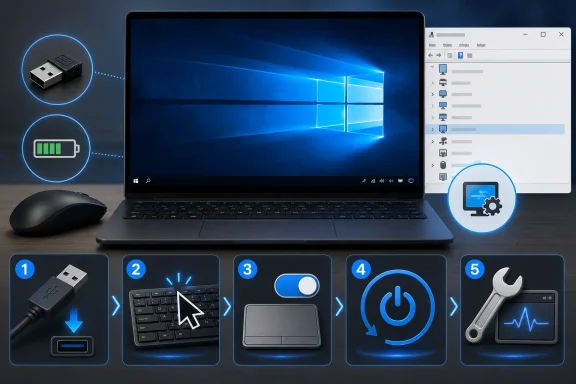 The Missing Cursor Is Usually a Symptom, Not the Disease
A vanished pointer feels like a single failure. In practice, it is a symptom shared by several different problems that merely look identical once the arrow is gone. A loose USB receiver, a dead wireless mouse battery, a disabled laptop touchpad, a flaky driver, and a display or sleep-resume glitch can all produce the same user-facing result: no visible cursor and no obvious way to click anything.That is why the most effective troubleshooting sequence is boring by design. Start with the mouse or touchpad, then move to Windows settings, then restart, then investigate drivers and hardware diagnostics. Jumping directly into Device Manager may satisfy the urge to “do something technical,” but it skips the failures most likely to have happened at the desk, not inside the OS.
Gadgetbridge’s list gets the broad shape right. It begins with reconnecting the external mouse and checking whether the device works on another PC, then moves into Windows’ Pointer Options setting, laptop touchpad controls, rebooting, and finally the hidden Hardware and Devices troubleshooter. That is roughly the same mental model most help-desk technicians use: isolate the hardware, verify the setting, reset the session, then blame the driver.
The weakness is that Windows 10 is no longer a static target. Microsoft ended regular support for Windows 10 on October 14, 2025, leaving many home users either on unsupported systems, in paid extended support arrangements, or running machines that may never qualify for Windows 11. A cursor issue on Windows 10 in 2026 is therefore not just a nuisance; it is often a sign that the machine is living in an increasingly fragile zone of aging drivers, vendor utilities, and partially maintained hardware.
The First Fix Is Still the One Everyone Skips
Reconnect the mouse. That advice sounds insultingly simple until you remember how much of modern troubleshooting is undoing assumptions. A wired mouse can fail because the USB plug is loose, the port is dirty, the cable is damaged, or the hub between the mouse and PC has stopped behaving. A wireless mouse adds a receiver, battery, Bluetooth pairing state, power-saving behavior, and sometimes proprietary vendor software to the chain.The right test is not merely unplugging and replugging the mouse. It is moving the mouse to another USB port, removing any dock or hub from the path, replacing or charging the battery, and testing the same mouse on another computer. If the pointer appears elsewhere, the mouse is probably not the culprit. If it disappears everywhere, Windows was never the problem.
This matters because users often treat “Windows issue” as the default diagnosis for any input problem on a Windows PC. Sometimes that is fair. But USB ports wear out, wireless dongles get knocked loose, and laptop docks can be temperamental after sleep or firmware updates. The disappearing pointer can be the first clue that the machine is not receiving input at all.
There is also a keyboard-only discipline worth remembering. Pressing
Tab, Alt + Tab, Windows, arrow keys, and Enter can usually get a stranded user far enough to save work, open Settings, or restart. Windows remains surprisingly navigable without a mouse, but only if the user slows down and resists the temptation to hard-power-cycle the machine immediately.Windows’ Own Pointer Setting Can Be the Culprit
The “Hide pointer while typing” option is one of those old Control Panel settings that has survived into modern Windows mostly because nobody wants to be responsible for removing it. When enabled, Windows can hide the pointer while text input is active. That behavior is intentional, but it is also easy to misread as a broken cursor if the pointer fails to return promptly or if the user is working in an app where the distinction between text focus and pointer focus is blurred.The classic route is still
Windows + R, then control mouse, then the Pointer Options tab. From there, disabling “Hide pointer while typing” removes one source of confusion. The setting does not fix a dead mouse, a disabled touchpad, or a corrupted driver, but it does eliminate a Windows feature whose entire job is to make the cursor disappear under certain conditions.This is where Windows 10’s split personality shows. Many everyday settings moved into the Settings app years ago, but deeper mouse behavior still often leads users back to the older Mouse Properties dialog. For experienced users, that is merely untidy. For casual users, it creates the impression that there are two Windows control panels, both partially in charge.
The hiding option is also a reminder that not every “bug” is a bug. Some features are designed for an era of desktop computing that no longer maps cleanly onto modern laptops, touchscreens, browser apps, remote desktops, and multi-monitor workstations. A setting created to reduce visual clutter while typing can become a support headache when the cursor vanishes during a video call, in a browser form, or after a wake-from-sleep event.
Laptop Touchpads Add a Second Layer of Confusion
On laptops, the disappearing cursor often has nothing to do with the pointer itself. The touchpad may simply be disabled. That can happen through a function key shortcut, a vendor utility, Windows settings, BIOS options, or a feature that disables the touchpad when an external mouse is attached.This is where the top row of the keyboard becomes important. Many laptops include a touchpad toggle on a function key, often marked with an icon that looks like a rectangle or touch surface. Pressing it accidentally, sometimes with the
Fn key, can turn the touchpad off without making the cause obvious. The user sees no cursor movement and assumes Windows has broken; the machine is simply obeying a hardware shortcut.The Settings path is also easy to misstate because Windows 10 and Windows 11 organize it differently. On Windows 10, touchpad settings are generally under Settings, Devices, and Touchpad. Windows 11 moved much of that flow into Bluetooth and devices. Articles that blend the two can confuse users on older systems, especially when they are already navigating by keyboard.
Vendor software makes the picture messier. Synaptics, ELAN, Precision Touchpad implementations, and OEM control panels may expose different toggles, sensitivity controls, palm rejection settings, and disable-while-typing behavior. On some machines, the Windows toggle is the front door; on others, the real switch is still buried in a vendor tab inside the old Mouse Properties interface.
Restarting Works Because Input Is Stateful
“Restart your PC” is the advice everyone mocks and everyone eventually uses. For a disappearing cursor, it is not superstition. Input devices are stateful: USB enumeration, Bluetooth pairing, HID drivers, display wake states, shell processes, graphics drivers, and vendor services all have to agree that a pointer exists and should be drawn on screen.A restart forces that chain to rebuild. It reinitializes devices, reloads drivers, restarts Explorer, refreshes services, and clears many of the sleep-resume oddities that accumulate during long sessions. If the cursor vanished after docking, undocking, resuming from sleep, switching displays, or installing an update, a restart may be the fastest way to determine whether the problem is persistent or temporary.
The danger is treating the restart as a cure rather than a diagnostic step. If the pointer disappears once and never returns, fine. If it disappears every time the laptop wakes, every time a Bluetooth mouse reconnects, or every time a particular app launches, the restart is only hiding a repeatable trigger.
That distinction is especially important in business environments. A single user rebooting a laptop is an inconvenience; a fleet of machines losing cursor input after a driver package or firmware update is an incident. The same symptom can live at two scales, and IT departments need to notice when “restart it” stops being a fix and starts being a pattern.
The Troubleshooter Is Useful, but It Belongs Near the End
Gadgetbridge points users toward the Hardware and Devices troubleshooter throughmsdt.exe -id DeviceDiagnostic. That tool can still be useful on Windows 10 systems, especially when the issue involves device detection rather than just a visual pointer setting. It may identify hardware problems, driver issues, or configuration faults that are not obvious from Settings.But its placement matters. The troubleshooter is not where most users should begin. If a mouse battery is dead or a touchpad was disabled by a function key, a diagnostic wizard is an unnecessarily long road to a simple answer. The wizard belongs after the physical checks, pointer setting, touchpad toggle, and restart have failed.
There is also a broader Windows maintenance story here. Microsoft has steadily moved away from the old troubleshooting architecture in favor of newer help flows and settings-based repair paths. Commands that still work on Windows 10 can feel like trapdoors into an earlier version of the operating system. They are useful, but they are not the future of Windows support.
That is another reason Windows 10 users should be cautious about treating old command-line fixes as permanent knowledge. The command may run today, but the ecosystem around it is aging. The better habit is to understand what the tool is testing: whether Windows can see the hardware, whether drivers are installed, and whether the input device is reporting correctly.
Drivers Are the Boring Part Until They Become the Whole Story
Driver updates appear almost as an afterthought in the Gadgetbridge piece, but they deserve more weight. Mouse and touchpad devices sit on the Human Interface Device stack, and while basic mice often use generic Microsoft drivers, laptop touchpads and gaming mice frequently rely on vendor-specific packages. When those drivers are outdated, corrupted, or replaced during an update, the cursor can behave unpredictably.Device Manager is the obvious place to look. Under “Mice and other pointing devices” and “Human Interface Devices,” users can inspect the device, update the driver, uninstall it, or roll it back if a recent update caused the problem. For laptops, the manufacturer’s support page is often more reliable than generic driver-hunting tools, especially for touchpads tied to model-specific firmware or keyboard shortcuts.
The rollback option is particularly important. Many users assume newer is always better, but input drivers can regress. A touchpad package tuned for one firmware version may behave badly on another. A Windows Update-supplied driver may be technically compatible yet worse than the OEM package for gestures, palm rejection, or wake behavior.
Administrators should also pay attention to timing. If multiple machines report disappearing cursors after Patch Tuesday, a BIOS update, a dock firmware update, or a driver deployment, the cause is probably not five users simultaneously forgetting how mice work. The cursor is the visible endpoint of a stack, and the stack has a change history.
Remote Work Made the Pointer More Fragile
The disappearing cursor problem has become more complicated because the “PC” is no longer always a single screen and a local mouse. Many users now move between laptop screens, external monitors, USB-C docks, Bluetooth peripherals, remote desktops, virtual machines, cloud PCs, and collaboration apps. Each layer can affect where the pointer is drawn and which system owns it.A cursor that seems missing may simply be on another monitor, trapped inside a remote session, hidden by a full-screen app, or scaled oddly after a display topology change. Multi-monitor users should try moving the mouse broadly across the full desktop, using
Windows + P to check projection mode, or disconnecting external displays to force Windows back onto the laptop panel.Remote desktop adds its own confusion. The local machine and the remote session may each have a pointer, and capture behavior can vary by client, resolution, scaling, and full-screen mode. A user can believe the Windows 10 cursor has disappeared when the active problem is actually inside a remote session or virtual machine window.
Gaming mice and high-refresh displays can add still more variables. Vendor overlays, pointer trails, custom cursor schemes, high-DPI scaling, and accelerated input settings may interact poorly with certain apps. The humble cursor is now rendered into an environment much more complex than the beige desktop metaphor it was designed for.
Windows 10’s Age Changes the Risk Calculation
If this article had appeared in 2019, the fix list would have been routine service journalism. In 2026, it carries a different edge. Windows 10 is still widely used, but it is no longer the current consumer Windows platform. That means users with recurring input problems need to think not only about the immediate fix, but about the health of the machine’s support path.A disappearing cursor will not by itself force an upgrade. But it may be one of several signals that an older laptop is running near the boundary of practical maintainability. If the OEM has stopped publishing drivers, if Windows Update is supplying generic replacements, if the touchpad vendor utility no longer installs cleanly, or if firmware updates have dried up, the cursor problem may be part of a larger decline.
For unsupported or extended-support Windows 10 systems, the best strategy is documentation. Keep a record of the device model, Windows build, BIOS version, touchpad driver, mouse driver, dock model, and the circumstances under which the pointer vanishes. That sounds excessive for a home user, but it is exactly the information that separates real troubleshooting from folklore.
For IT shops, the calculus is sharper. If Windows 10 must remain in service for application compatibility or hardware reasons, input reliability becomes part of operational risk. A system that cannot reliably accept pointer input is not merely annoying; it can delay support work, disrupt point-of-sale use, interfere with accessibility tools, and increase help-desk load.
The Fixes Work Best as a Sequence, Not a Grab Bag
The five fixes are useful, but their real value comes from the order in which they are applied. Reconnecting the mouse tests the physical layer. Unhiding the pointer checks a Windows behavior setting. Re-enabling the touchpad restores the built-in pointing device. Restarting resets the session. Running the troubleshooter and updating drivers digs into the device stack.That sequence prevents two common mistakes. The first is overengineering the problem by reinstalling drivers before checking the mouse battery. The second is underestimating the problem by repeatedly reconnecting the same mouse when the touchpad driver is actually failing after sleep. A good troubleshooting path narrows the cause with each step.
There is also a practical accessibility point. A missing cursor can lock out users who depend on pointing devices, especially those who cannot easily rely on keyboard navigation. Windows’ keyboard shortcuts, touch input, external mice, and accessibility settings should be treated as fallback paths, not afterthoughts. When input fails, redundancy matters.
The best version of Gadgetbridge’s advice, then, is not “try these five things.” It is “move from the simplest physical explanation to the deepest software explanation, and stop when the evidence changes.” That is the difference between a tips article and a troubleshooting method.
The Five Fixes Reveal the Real Windows 10 Lesson
The concrete advice is simple, but the pattern behind it is what Windows users should remember:- Reconnect the mouse, change ports, replace batteries, and test the device on another computer before assuming Windows is at fault.
- Disable “Hide pointer while typing” if the cursor disappears during text entry or behaves as though it is being intentionally suppressed.
- Re-enable the laptop touchpad through the function key or Windows 10’s Touchpad settings before digging into drivers.
- Restart the PC when the issue follows sleep, docking, display changes, or updates, but treat repeated disappearances as evidence of a deeper trigger.
- Use the Hardware and Devices troubleshooter, Device Manager, OEM drivers, and driver rollback only after simpler hardware and settings checks have failed.
A vanished cursor is a small crisis that exposes a large truth about Windows maintenance: the parts of the PC we notice least are often the ones with the longest dependency chains. Mouse input feels basic, but it crosses hardware, firmware, drivers, settings, power management, displays, and user habits before a tiny arrow moves across the screen. Windows 10 users can still solve most disappearing-pointer problems with patient, old-fashioned troubleshooting, but the platform’s age means recurring failures should be treated as warnings, not quirks; the future belongs to systems whose most basic controls do not require archaeology to keep working.
References
- Primary source: gadgetbridge.com
Published: Sun, 14 Jun 2026 11:54:59 GMT
Top 5 ways to fix disappearing cursor in Windows 10
Can't view the mouse pointer on the screen? Check out these top 5 ways to fix the disappearing cursor on your Windows 10 PC or laptop. www.gadgetbridge.com
- Official source: support.microsoft.com
Enable and disable the virtual touchpad in Windows - Microsoft Support
Learn how to enable and disable the virtual touchpad in Windows. The virtual touchpad provides and on-screen touchpad that can be used to control the mouse.support.microsoft.com - Related coverage: makeuseof.com
How to Hide the Cursor While Typing on Windows 10 and 11
If the cursor gets in your way when typing, use this method to hide it on Windows. www.makeuseof.com
- Related coverage: windowscentral.com
How to customize 'Precision Touchpad' settings on Windows 10 | Windows Central
On Windows 10, you can customize the 'Precision Touchpad' settings to improve navigation and productivity, and in this guide, I'll show you everything you need to know.www.windowscentral.com - Related coverage: wintips.org
FIX: TouchPad Settings Missing in Windows 10.
If the touchpad settings are missing on your Windows 10 computer, continue reading below. A few days ago one of my clients brought his Windows 10 laptop with thwww.wintips.org - Related coverage: howtogeek.com
How to Hide Your Cursor While Typing in Windows 10 or 11
Let that little cursor annoy you no longer! www.howtogeek.com
- Official source: microsoft.com
Touchpad Gestures for Your Windows 11 Laptop | Microsoft Windows
Take control of your laptop touchpad by customizing your touchpad gestures. Learn how to get more out of your Windows 11 touchpad with these tips.www.microsoft.com
