

Windows 11 still splits keyboard, mouse, and touchpad configuration across the modern Settings app, legacy Control Panel dialogs, and vendor utilities, leaving users in 2026 with an input system that mostly works automatically but remains oddly fragmented. The practical story is not that Windows fails at peripherals; it almost never does. The story is that Microsoft has modernized the surface of Windows faster than it has consolidated the machinery underneath it. For everyday users, that means a few useful settings are easy to miss; for IT admins, it means another small corner of Windows where old architecture continues to shape new behavior.
The great success of Windows input support is also why most people never think about it. Plug in a USB keyboard, pair a Bluetooth mouse, open a laptop lid, or rest a hand on a touchpad, and Windows 11 usually does the expected thing without ceremony. That reliability is the product of decades of hardware abstraction, driver compatibility, and an ecosystem that knows Windows must tolerate everything from a $9 office mouse to a premium haptic productivity device.
That is why the configuration story feels stranger than it should. Windows 11 presents itself as the cleaner, modern successor to Windows 10, yet input settings still reveal a split personality. Mouse and touchpad settings live where users expect them, under Bluetooth & devices. Keyboard settings, or at least the useful ones, are scattered elsewhere.
The inconsistency is not catastrophic. Nobody is losing a workday because the keyboard repeat-rate slider still lives in an old dialog. But it is emblematic of Windows 11’s broader design tension: Microsoft wants the operating system to feel coherent while preserving a vast compatibility base that resists simplification.
But if users go looking for keyboard settings in the same place they find mouse, touchpad, printer, camera, or Bluetooth device settings, Windows 11 does not reward the instinct. The most relevant modern keyboard option is buried under Time & language > Typing. That is logical only if Microsoft thinks of keyboard configuration primarily as text entry rather than hardware behavior.
That distinction matters. A user thinks, “I want to configure my keyboard.” Windows thinks, “Do you mean typing intelligence, input language, accessibility, repeat delay, cursor blink rate, or OEM-specific keys?” The machine model may be technically defensible, but the human model is simpler.
The most useful setting in this area is text suggestions for a physical keyboard. When enabled, Windows can offer predictive suggestions as a user types, similar to the experience long familiar on phones and tablets. It is off by default, and in some language contexts it may be unavailable, which makes sense given the privacy and localization implications of predictive text.
Still, it is one of the few keyboard features in Windows 11 that feels meaningfully modern. The PC inherited the smartphone’s expectation that typing should be assisted, not merely accepted. Microsoft has the feature, but it hides it behind a path many desktop users will never explore.
The feature also shows Microsoft’s caution. Predictive typing can feel invasive if the operating system appears to be watching too closely. By leaving it disabled by default, Microsoft avoids some obvious privacy complaints but also guarantees that many users who would benefit from it will never discover it.
Multilingual suggestions extend the logic further. If a PC is configured for multiple languages, Windows can adjust suggestions to match the user’s language behavior. That is exactly the sort of invisible assistance modern operating systems are supposed to provide.
But the user experience remains awkward. Selecting a suggestion with keyboard navigation is possible, but not especially elegant. The feature feels as though it was grafted onto a desktop interaction model rather than designed as a first-class part of it.
This is the larger keyboard problem in Windows 11. Microsoft has pockets of intelligence, but not a single, obvious place where keyboard behavior feels thoughtfully assembled. The result is a system that is capable without feeling curated.
Yet their survival is instructive. Microsoft has spent years moving settings from Control Panel into the Settings app, but the migration remains incomplete. Windows 11 may look cleaner than its predecessors, but parts of its configuration model are still inherited rather than redesigned.
The charitable reading is that Microsoft is avoiding churn. Repeat delay and cursor blink rate are stable, low-risk settings. Rebuilding every old dialog for aesthetic purity would consume engineering time better spent elsewhere.
The less charitable reading is that Windows settings remain a patchwork because Microsoft has never fully finished the job it started in Windows 8 and carried through Windows 10. The Settings app is the future; Control Panel is the basement; and users are still occasionally sent downstairs for something that should have been moved years ago.
For IT pros, this duality is familiar. Windows is rarely one system when you administer it closely. It is layers of old and new management surfaces, some polished, some ancient, many still necessary.
The inactive-window scrolling option deserves credit. Enabled by default, it allows users to scroll a window merely by hovering over it, without first clicking to focus it. It is one of those small quality-of-life features that makes multitasking less fussy and makes Windows feel more fluid.
The basic mouse settings also show the limits of Windows’ built-in approach. Pointer speed ranges from slow to fast, wheel behavior can be changed, and left-handed users can swap primary buttons. Beyond that, things get device-specific quickly.
Gaming mice, ergonomic mice, productivity mice, and haptic mice often need vendor software to expose their real capabilities. Logitech, Razer, Microsoft, Dell, HP, and others all have their own configuration layers, firmware utilities, and sometimes cloud-account assumptions. Windows provides the floor, not the ceiling.
That is not necessarily a failure. A general-purpose OS cannot reasonably expose every custom button, DPI stage, lighting zone, or gesture ring in a single universal UI. But it does mean the clean modern Mouse page is only part of the story.
If a keyboard includes media keys, Copilot keys, macro columns, custom lighting, fingerprint readers, or per-app profiles, the richest settings are likely to appear in a manufacturer utility rather than Windows itself. If a mouse has advanced buttons, onboard memory, adjustable polling, haptics, or gesture shortcuts, the same is true. If a laptop touchpad supports unique tuning, palm rejection modes, or firmware-specific gestures, the OEM may expose options outside Microsoft’s Settings app.
This is familiar territory for enthusiasts, but it is a usability tax for everyone else. Windows says the device is installed and working. The vendor says the device is capable of more if the user installs another app. The user must then decide whether the extra control is worth another background service, update mechanism, and possible telemetry path.
In managed environments, that tradeoff is sharper. An IT department may prefer Windows’ generic behavior over vendor utilities that complicate imaging, security baselines, or help-desk support. Power users, meanwhile, may find the generic behavior too limited.
Microsoft cannot eliminate that tension, but it could do more to make the boundary explicit. A user should be able to tell, from the Settings app, whether Windows is showing all available device options or only the generic subset. Too often, the answer is left to trial, error, or a support article.
Windows 11 reflects that shift. Touchpad settings live under Bluetooth & devices > Touchpad, and the page exposes a broader range of behaviors than the Mouse page. Users can enable or disable the touchpad, choose whether it remains active when a mouse is connected, adjust cursor speed, tune taps, configure scrolling and zooming, and assign three- and four-finger gestures.
This is where Windows 11 feels closest to a modern laptop OS. A good Precision Touchpad on a current Windows laptop can be excellent. Two-finger scrolling, pinch-to-zoom, desktop switching, and multi-finger taps can become muscle memory in the same way keyboard shortcuts do.
But that sophistication also creates room for annoyance. Accidental taps, misread swipes, palm contact, and inconsistent hardware quality can turn gestures into friction. The same feature that makes one user faster can make another user feel sabotaged.
That is why the ability to set taps or swipes to “Nothing” matters. It is not a retreat from modern input; it is an acknowledgment that input should be tuned to the person and the hardware. A touchpad gesture that fires accidentally is worse than no gesture at all.
Apple trained many users to think of scrolling as direct manipulation: your fingers move the content. Traditional PC scrolling treated the gesture more like moving a scrollbar. Neither model is objectively correct, but switching between them can make an experienced user feel briefly incompetent.
Windows 11’s willingness to expose the choice is the right answer. The operating system should not force a philosophical position when the real issue is habit. Input is deeply embodied; people do not merely choose settings, they build reflexes.
The problem is that Windows laptops vary widely. A premium machine with a large glass touchpad may make Windows 11 gestures feel smooth and intentional. A cheaper or older laptop may make the same settings feel imprecise. Microsoft can standardize the software surface, but it cannot make every OEM touchpad feel like a flagship device.
That variability is the Windows ecosystem in miniature. Choice creates breadth. Breadth creates inconsistency. The settings app then becomes the place where users try to compensate for differences in hardware quality.
A laptop with a good Precision Touchpad offers predictable gestures and a common configuration model. That matters for users who move between devices and for admins who support fleets of laptops. It also gives app developers a clearer baseline for touchpad behavior.
But the Precision model does not eliminate all complexity. Hardware still differs, firmware still matters, and some vendors still supplement Windows with additional tools. Even when the software path is unified, the physical experience is not.
There is also a discoverability problem. Many users do not know which gestures exist until they accidentally trigger one. Others know the gestures exist but never invest time in configuring them. The Settings app exposes options, but it does not teach a coherent input philosophy.
This is where Microsoft could take a cue from onboarding experiences in other platforms. A brief, optional gesture tutorial on first laptop setup would do more than another buried help page. People cannot benefit from gestures they never learn.
Windows has long had a broad accessibility surface, and Windows 11 continues that tradition. The issue is not lack of capability. It is fragmentation. Some settings live under Accessibility, some under Bluetooth & devices, some under Time & language, and some in legacy dialogs.
That scattering reflects the way features were built over time. It does not reflect the way people experience their machines. A user with tremor, repetitive strain injury, low vision, dyslexia, or multilingual typing needs a coherent input environment, not a scavenger hunt.
Microsoft has made progress in presenting accessibility as a first-class part of Windows rather than an afterthought. But input configuration is one place where the old seams remain visible. The best accessibility feature is not merely present; it is findable.
For enterprise IT, this is not just a humane concern. It is a support and compliance concern. If users need accommodations, administrators need clear settings paths, policy controls, and documentation that maps to the UI people actually see.
That is understandable in an operating system with Windows’ history. It is also frustrating. Each jump from Settings to a legacy control panel breaks the illusion of coherence. It reminds the user that Windows 11 is not a cleanly rebuilt system but a renovated one.
This matters less for enthusiasts who know the layers and more for ordinary users who expect settings to be where the UI implies they are. It also matters for support. “Open Settings” is easy guidance. “Open Settings, then click a legacy link, then use a dialog that looks like it escaped from another decade” is harder to defend.
Microsoft’s challenge is not simply moving every old dialog into a new shell. The company has to decide which old concepts still deserve to exist. Character repeat rate does. Cursor blink rate does. But the way they are exposed should not make users feel as though they have found an archaeological site.
When a hardware key can launch an assistant, search, or an app, keyboard configuration becomes more than repeat delay and typing suggestions. It becomes part of the operating system’s commercial and strategic surface. Users will reasonably expect Windows to provide clear control over what those keys do.
This is where Microsoft must be careful. A dedicated key can be useful if it is user-configurable and consistent. It becomes annoying if it feels like a billboard embedded in the keyboard. Hardware shortcuts are powerful because they are trusted; once users think a key exists primarily to serve a vendor agenda, that trust erodes.
The input settings story therefore has to evolve. A keyboard page in Bluetooth & devices should not be controversial. It should show connected keyboards, expose available system-level behaviors, link clearly to language and accessibility settings, and make special keys understandable. Windows already has the pieces; it lacks the gathering place.
This has obvious appeal. Done well, haptics can make interfaces feel more physical and precise. Designers, spreadsheet users, presenters, and anyone who manipulates objects on screen could benefit from subtle feedback that confirms alignment or state changes.
But haptics also raise the same old Windows problem in a new form. Support will depend on hardware, firmware, drivers, apps, and Microsoft’s platform APIs. Some users will have the full experience. Others will see references to features their devices cannot use.
That is why baseline settings matter. As input devices become more capable, Windows needs a clearer way to say what a device supports, which features are controlled by Windows, and which require vendor software. Otherwise, haptics will become another premium capability hidden behind brand-specific utilities and uneven documentation.
The future of input is not just more gestures or more buttons. It is richer feedback loops between user, device, app, and OS. Windows can participate in that future, but only if it makes the configuration model less fragmented than the past.
The scattered settings model complicates that work. Help-desk scripts must account for modern Settings paths, legacy dialogs, OEM utilities, driver packages, and sometimes firmware updates. A gesture problem may be a Windows setting, a driver issue, a hardware limitation, or a vendor utility overriding defaults.
In enterprise environments, the best input feature is often the one that reduces user confusion. Disabling troublesome gestures, standardizing pointer behavior, or leaving predictive typing off by default may be preferable to enabling every modern convenience. The right answer depends on the workforce, device fleet, and support model.
Security teams also have reasons to care. Vendor peripheral software can add services, update agents, telemetry, and privilege boundaries that need review. A mouse utility is rarely treated with the same suspicion as a VPN client or endpoint agent, but it still runs code on managed machines.
This is another area where Microsoft’s generic layer is valuable. The more Windows can do natively, the less organizations need to deploy peripheral utilities merely to achieve sane defaults. But native support must be discoverable and controllable if it is to replace vendor tooling in practice.
That is the part of operating systems people notice only when it is wrong. A cursor that moves too slowly, a touchpad that fires accidental taps, a scroll wheel that jumps too far, or a keyboard that repeats too quickly can make a powerful machine feel cheap. Conversely, a well-tuned input setup can make ordinary hardware feel more expensive than it is.
Windows 11’s input settings are therefore more consequential than their modest UI suggests. They are where software meets hands. They are where Microsoft’s abstraction layer meets the variability of the PC market.
The bargain is familiar: Windows supports a huge range of devices, but the price of that range is uneven polish. Apple can tune a narrower hardware stack more tightly. Microsoft must build a platform that survives almost everything plugged into it.
That bargain is still worth making. But Windows 11 should not use compatibility as an excuse for disorganization. The whole point of a modern Settings app is to hide complexity without denying it exists.
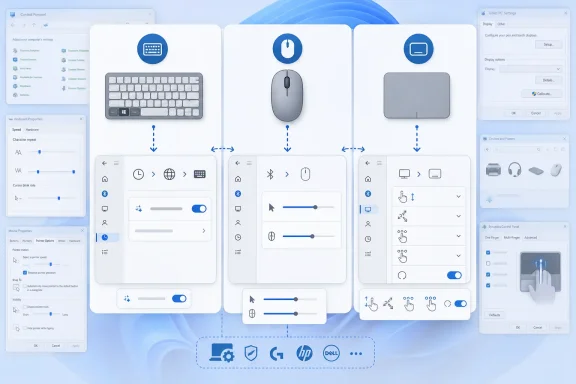 Windows Input Works Because It Is Boring
The great success of Windows input support is also why most people never think about it. Plug in a USB keyboard, pair a Bluetooth mouse, open a laptop lid, or rest a hand on a touchpad, and Windows 11 usually does the expected thing without ceremony. That reliability is the product of decades of hardware abstraction, driver compatibility, and an ecosystem that knows Windows must tolerate everything from a $9 office mouse to a premium haptic productivity device.That is why the configuration story feels stranger than it should. Windows 11 presents itself as the cleaner, modern successor to Windows 10, yet input settings still reveal a split personality. Mouse and touchpad settings live where users expect them, under Bluetooth & devices. Keyboard settings, or at least the useful ones, are scattered elsewhere.
The inconsistency is not catastrophic. Nobody is losing a workday because the keyboard repeat-rate slider still lives in an old dialog. But it is emblematic of Windows 11’s broader design tension: Microsoft wants the operating system to feel coherent while preserving a vast compatibility base that resists simplification.
The Keyboard Is Treated Like Plumbing, Not a Product
Keyboards occupy a peculiar place in Windows. They are essential, universal, and so mature that the operating system mostly treats them as infrastructure rather than a configurable device class. That is why a keyboard connected over USB or Bluetooth usually springs to life immediately, whether it is a generic desktop board, a laptop keyboard, or a specialty model with macro keys and lighting.But if users go looking for keyboard settings in the same place they find mouse, touchpad, printer, camera, or Bluetooth device settings, Windows 11 does not reward the instinct. The most relevant modern keyboard option is buried under Time & language > Typing. That is logical only if Microsoft thinks of keyboard configuration primarily as text entry rather than hardware behavior.
That distinction matters. A user thinks, “I want to configure my keyboard.” Windows thinks, “Do you mean typing intelligence, input language, accessibility, repeat delay, cursor blink rate, or OEM-specific keys?” The machine model may be technically defensible, but the human model is simpler.
The most useful setting in this area is text suggestions for a physical keyboard. When enabled, Windows can offer predictive suggestions as a user types, similar to the experience long familiar on phones and tablets. It is off by default, and in some language contexts it may be unavailable, which makes sense given the privacy and localization implications of predictive text.
Still, it is one of the few keyboard features in Windows 11 that feels meaningfully modern. The PC inherited the smartphone’s expectation that typing should be assisted, not merely accepted. Microsoft has the feature, but it hides it behind a path many desktop users will never explore.
The Best Keyboard Feature Is Also the Easiest to Miss
Physical-keyboard text suggestions are a revealing Windows 11 feature because they blur three different ideas: accessibility, productivity, and platform intelligence. For users with spelling difficulties, language-switching workflows, or fatigue from repetitive typing, suggestions can be genuinely helpful. For users who simply type all day, they can be a small but noticeable speed boost.The feature also shows Microsoft’s caution. Predictive typing can feel invasive if the operating system appears to be watching too closely. By leaving it disabled by default, Microsoft avoids some obvious privacy complaints but also guarantees that many users who would benefit from it will never discover it.
Multilingual suggestions extend the logic further. If a PC is configured for multiple languages, Windows can adjust suggestions to match the user’s language behavior. That is exactly the sort of invisible assistance modern operating systems are supposed to provide.
But the user experience remains awkward. Selecting a suggestion with keyboard navigation is possible, but not especially elegant. The feature feels as though it was grafted onto a desktop interaction model rather than designed as a first-class part of it.
This is the larger keyboard problem in Windows 11. Microsoft has pockets of intelligence, but not a single, obvious place where keyboard behavior feels thoughtfully assembled. The result is a system that is capable without feeling curated.
Control Panel Refuses to Die Because It Still Has Work to Do
The legacy Keyboard Properties dialog is one of those Windows artifacts that has survived so long it has become almost invisible. It lets users adjust character repeat delay, character repeat rate, and cursor blink rate. These are not glamorous settings, and most users will never touch them.Yet their survival is instructive. Microsoft has spent years moving settings from Control Panel into the Settings app, but the migration remains incomplete. Windows 11 may look cleaner than its predecessors, but parts of its configuration model are still inherited rather than redesigned.
The charitable reading is that Microsoft is avoiding churn. Repeat delay and cursor blink rate are stable, low-risk settings. Rebuilding every old dialog for aesthetic purity would consume engineering time better spent elsewhere.
The less charitable reading is that Windows settings remain a patchwork because Microsoft has never fully finished the job it started in Windows 8 and carried through Windows 10. The Settings app is the future; Control Panel is the basement; and users are still occasionally sent downstairs for something that should have been moved years ago.
For IT pros, this duality is familiar. Windows is rarely one system when you administer it closely. It is layers of old and new management surfaces, some polished, some ancient, many still necessary.
The Mouse Gets the Cleanest Deal
Mouse configuration is more straightforward. Windows 11 puts the main options under Bluetooth & devices > Mouse, which is where normal users would expect them. Primary button selection, pointer speed, wheel scrolling behavior, scroll line count, and inactive-window scrolling are all exposed in a modern interface.The inactive-window scrolling option deserves credit. Enabled by default, it allows users to scroll a window merely by hovering over it, without first clicking to focus it. It is one of those small quality-of-life features that makes multitasking less fussy and makes Windows feel more fluid.
The basic mouse settings also show the limits of Windows’ built-in approach. Pointer speed ranges from slow to fast, wheel behavior can be changed, and left-handed users can swap primary buttons. Beyond that, things get device-specific quickly.
Gaming mice, ergonomic mice, productivity mice, and haptic mice often need vendor software to expose their real capabilities. Logitech, Razer, Microsoft, Dell, HP, and others all have their own configuration layers, firmware utilities, and sometimes cloud-account assumptions. Windows provides the floor, not the ceiling.
That is not necessarily a failure. A general-purpose OS cannot reasonably expose every custom button, DPI stage, lighting zone, or gesture ring in a single universal UI. But it does mean the clean modern Mouse page is only part of the story.
Vendor Utilities Are the Real Advanced Settings
The Windows input model depends heavily on a division of labor. Microsoft handles the standard behaviors. Hardware vendors handle the special sauce. That arrangement works, but it has consequences.If a keyboard includes media keys, Copilot keys, macro columns, custom lighting, fingerprint readers, or per-app profiles, the richest settings are likely to appear in a manufacturer utility rather than Windows itself. If a mouse has advanced buttons, onboard memory, adjustable polling, haptics, or gesture shortcuts, the same is true. If a laptop touchpad supports unique tuning, palm rejection modes, or firmware-specific gestures, the OEM may expose options outside Microsoft’s Settings app.
This is familiar territory for enthusiasts, but it is a usability tax for everyone else. Windows says the device is installed and working. The vendor says the device is capable of more if the user installs another app. The user must then decide whether the extra control is worth another background service, update mechanism, and possible telemetry path.
In managed environments, that tradeoff is sharper. An IT department may prefer Windows’ generic behavior over vendor utilities that complicate imaging, security baselines, or help-desk support. Power users, meanwhile, may find the generic behavior too limited.
Microsoft cannot eliminate that tension, but it could do more to make the boundary explicit. A user should be able to tell, from the Settings app, whether Windows is showing all available device options or only the generic subset. Too often, the answer is left to trial, error, or a support article.
The Touchpad Became a Gesture Surface
The touchpad has changed more than the mouse or keyboard. Once known mostly as a trackpad, it was originally a substitute for moving a pointer when a mouse was unavailable. Modern Windows touchpads are multi-touch surfaces that can scroll, zoom, switch desktops, reveal windows, and trigger gestures with two, three, or four fingers.Windows 11 reflects that shift. Touchpad settings live under Bluetooth & devices > Touchpad, and the page exposes a broader range of behaviors than the Mouse page. Users can enable or disable the touchpad, choose whether it remains active when a mouse is connected, adjust cursor speed, tune taps, configure scrolling and zooming, and assign three- and four-finger gestures.
This is where Windows 11 feels closest to a modern laptop OS. A good Precision Touchpad on a current Windows laptop can be excellent. Two-finger scrolling, pinch-to-zoom, desktop switching, and multi-finger taps can become muscle memory in the same way keyboard shortcuts do.
But that sophistication also creates room for annoyance. Accidental taps, misread swipes, palm contact, and inconsistent hardware quality can turn gestures into friction. The same feature that makes one user faster can make another user feel sabotaged.
That is why the ability to set taps or swipes to “Nothing” matters. It is not a retreat from modern input; it is an acknowledgment that input should be tuned to the person and the hardware. A touchpad gesture that fires accidentally is worse than no gesture at all.
The Mac Comparison Still Haunts Windows Laptops
The most telling touchpad setting may be scrolling direction. Windows defaults to “down motion scrolls up,” while users coming from macOS may prefer the inverse behavior, where dragging down moves the page down. This tiny setting carries a decade of platform muscle memory.Apple trained many users to think of scrolling as direct manipulation: your fingers move the content. Traditional PC scrolling treated the gesture more like moving a scrollbar. Neither model is objectively correct, but switching between them can make an experienced user feel briefly incompetent.
Windows 11’s willingness to expose the choice is the right answer. The operating system should not force a philosophical position when the real issue is habit. Input is deeply embodied; people do not merely choose settings, they build reflexes.
The problem is that Windows laptops vary widely. A premium machine with a large glass touchpad may make Windows 11 gestures feel smooth and intentional. A cheaper or older laptop may make the same settings feel imprecise. Microsoft can standardize the software surface, but it cannot make every OEM touchpad feel like a flagship device.
That variability is the Windows ecosystem in miniature. Choice creates breadth. Breadth creates inconsistency. The settings app then becomes the place where users try to compensate for differences in hardware quality.
Precision Touchpads Solved One Problem and Exposed Another
Microsoft’s push around Precision Touchpads was supposed to reduce the chaos of laptop pointing devices. Instead of relying entirely on OEM-specific drivers and vendor control panels, Windows could provide a more consistent gesture stack. In practice, this has been one of the quieter successes of the modern Windows era.A laptop with a good Precision Touchpad offers predictable gestures and a common configuration model. That matters for users who move between devices and for admins who support fleets of laptops. It also gives app developers a clearer baseline for touchpad behavior.
But the Precision model does not eliminate all complexity. Hardware still differs, firmware still matters, and some vendors still supplement Windows with additional tools. Even when the software path is unified, the physical experience is not.
There is also a discoverability problem. Many users do not know which gestures exist until they accidentally trigger one. Others know the gestures exist but never invest time in configuring them. The Settings app exposes options, but it does not teach a coherent input philosophy.
This is where Microsoft could take a cue from onboarding experiences in other platforms. A brief, optional gesture tutorial on first laptop setup would do more than another buried help page. People cannot benefit from gestures they never learn.
Accessibility Is the Quiet Throughline
Keyboard, mouse, and touchpad settings are often treated as convenience features, but they are also accessibility features. Cursor speed, pointer size, text suggestions, repeat delay, tap sensitivity, and gesture disabling all affect whether a PC is comfortable or even usable for a given person. The line between “preference” and “accessibility” is thinner than many product teams admit.Windows has long had a broad accessibility surface, and Windows 11 continues that tradition. The issue is not lack of capability. It is fragmentation. Some settings live under Accessibility, some under Bluetooth & devices, some under Time & language, and some in legacy dialogs.
That scattering reflects the way features were built over time. It does not reflect the way people experience their machines. A user with tremor, repetitive strain injury, low vision, dyslexia, or multilingual typing needs a coherent input environment, not a scavenger hunt.
Microsoft has made progress in presenting accessibility as a first-class part of Windows rather than an afterthought. But input configuration is one place where the old seams remain visible. The best accessibility feature is not merely present; it is findable.
For enterprise IT, this is not just a humane concern. It is a support and compliance concern. If users need accommodations, administrators need clear settings paths, policy controls, and documentation that maps to the UI people actually see.
The Settings App Is Better Than It Was, But Still Not the System of Record
The Settings app has improved substantially since its awkward early years, but it still occupies an uncomfortable role. It is the interface Microsoft wants users to trust, yet it is not always the complete authority. When a page includes a link to “Additional mouse settings” or “More touchpad settings,” it is effectively admitting that the modern interface is incomplete.That is understandable in an operating system with Windows’ history. It is also frustrating. Each jump from Settings to a legacy control panel breaks the illusion of coherence. It reminds the user that Windows 11 is not a cleanly rebuilt system but a renovated one.
This matters less for enthusiasts who know the layers and more for ordinary users who expect settings to be where the UI implies they are. It also matters for support. “Open Settings” is easy guidance. “Open Settings, then click a legacy link, then use a dialog that looks like it escaped from another decade” is harder to defend.
Microsoft’s challenge is not simply moving every old dialog into a new shell. The company has to decide which old concepts still deserve to exist. Character repeat rate does. Cursor blink rate does. But the way they are exposed should not make users feel as though they have found an archaeological site.
The Copilot-Key Era Makes Keyboard Settings More Political
The keyboard is no longer just an input device in Microsoft’s strategy. The arrival of dedicated AI keys on some new PCs turned the keyboard into real estate for platform priorities. That makes the absence of a single, obvious keyboard settings hub more glaring.When a hardware key can launch an assistant, search, or an app, keyboard configuration becomes more than repeat delay and typing suggestions. It becomes part of the operating system’s commercial and strategic surface. Users will reasonably expect Windows to provide clear control over what those keys do.
This is where Microsoft must be careful. A dedicated key can be useful if it is user-configurable and consistent. It becomes annoying if it feels like a billboard embedded in the keyboard. Hardware shortcuts are powerful because they are trusted; once users think a key exists primarily to serve a vendor agenda, that trust erodes.
The input settings story therefore has to evolve. A keyboard page in Bluetooth & devices should not be controversial. It should show connected keyboards, expose available system-level behaviors, link clearly to language and accessibility settings, and make special keys understandable. Windows already has the pieces; it lacks the gathering place.
Haptics Point to the Next Input Layer
Recent movement around advanced haptics suggests that Windows input is entering another phase. Mice, pens, and touchpads are no longer limited to sending commands into the system; they can also receive tactile feedback from it. The idea is simple: actions such as snapping windows, aligning objects, resizing elements, or hovering over targets can be felt, not just seen.This has obvious appeal. Done well, haptics can make interfaces feel more physical and precise. Designers, spreadsheet users, presenters, and anyone who manipulates objects on screen could benefit from subtle feedback that confirms alignment or state changes.
But haptics also raise the same old Windows problem in a new form. Support will depend on hardware, firmware, drivers, apps, and Microsoft’s platform APIs. Some users will have the full experience. Others will see references to features their devices cannot use.
That is why baseline settings matter. As input devices become more capable, Windows needs a clearer way to say what a device supports, which features are controlled by Windows, and which require vendor software. Otherwise, haptics will become another premium capability hidden behind brand-specific utilities and uneven documentation.
The future of input is not just more gestures or more buttons. It is richer feedback loops between user, device, app, and OS. Windows can participate in that future, but only if it makes the configuration model less fragmented than the past.
Admins Need Predictability More Than Novelty
For sysadmins, the appeal of Windows input support is predictability. A keyboard should type. A mouse should point. A touchpad should scroll. Anything beyond that is welcome only if it can be managed, documented, and supported without creating tickets.The scattered settings model complicates that work. Help-desk scripts must account for modern Settings paths, legacy dialogs, OEM utilities, driver packages, and sometimes firmware updates. A gesture problem may be a Windows setting, a driver issue, a hardware limitation, or a vendor utility overriding defaults.
In enterprise environments, the best input feature is often the one that reduces user confusion. Disabling troublesome gestures, standardizing pointer behavior, or leaving predictive typing off by default may be preferable to enabling every modern convenience. The right answer depends on the workforce, device fleet, and support model.
Security teams also have reasons to care. Vendor peripheral software can add services, update agents, telemetry, and privilege boundaries that need review. A mouse utility is rarely treated with the same suspicion as a VPN client or endpoint agent, but it still runs code on managed machines.
This is another area where Microsoft’s generic layer is valuable. The more Windows can do natively, the less organizations need to deploy peripheral utilities merely to achieve sane defaults. But native support must be discoverable and controllable if it is to replace vendor tooling in practice.
The Small Settings Reveal the Big Windows Bargain
It is tempting to dismiss keyboard repeat delay, pointer speed, scroll direction, and tap sensitivity as minor preferences. In isolation, they are. Together, they define the physical feel of a PC.That is the part of operating systems people notice only when it is wrong. A cursor that moves too slowly, a touchpad that fires accidental taps, a scroll wheel that jumps too far, or a keyboard that repeats too quickly can make a powerful machine feel cheap. Conversely, a well-tuned input setup can make ordinary hardware feel more expensive than it is.
Windows 11’s input settings are therefore more consequential than their modest UI suggests. They are where software meets hands. They are where Microsoft’s abstraction layer meets the variability of the PC market.
The bargain is familiar: Windows supports a huge range of devices, but the price of that range is uneven polish. Apple can tune a narrower hardware stack more tightly. Microsoft must build a platform that survives almost everything plugged into it.
That bargain is still worth making. But Windows 11 should not use compatibility as an excuse for disorganization. The whole point of a modern Settings app is to hide complexity without denying it exists.
The Practical Wisdom Hidden in Windows 11’s Input Maze
For users and admins, the lesson is not that Windows 11 input settings are broken. It is that the useful controls are spread across more places than they should be, and the best experience often comes from knowing which layer owns which behavior.- Windows 11 usually detects keyboards, mice, and touchpads automatically, but advanced features often require OEM or vendor software.
- Physical-keyboard text suggestions are controlled from Time & language > Typing, not from the Bluetooth & devices area where many users would expect keyboard options.
- Mouse settings are relatively clean in the modern Settings app, though advanced pointer options still send users into legacy dialogs.
- Touchpad settings are more powerful than many users realize, especially for multi-finger gestures, scrolling direction, tap behavior, and disabling accidental actions.
- Legacy Control Panel settings remain part of the input story, which keeps compatibility intact but undermines Windows 11’s promise of a unified configuration experience.
- As haptics, AI keys, and smarter peripherals spread, Microsoft will need a clearer device-capability model inside Settings rather than relying on users to discover features through vendor utilities.
References
- Primary source: thurrott.com
Published: Tue, 23 Jun 2026 00:06:40 GMT
Keyboards, Mice, and Touchpads - Thurrott.com
Windows 11 provides basic configuration settings for internal and external keyboards, mice, and touchpads.www.thurrott.com - Official source: support.microsoft.com
Enable text suggestions in Windows | Microsoft Support
Use text suggestions to quickly complete words as you type a document, chat message, web form, or more.support.microsoft.com - Official source: learn.microsoft.com
Touchpad interactions - Windows apps | Microsoft Learn
Create Windows apps with intuitive and distinctive user interaction experiences that are optimized for touchpad but are functionally consistent across input devices.learn.microsoft.com - Official source: microsoft.com
Touch | Microsoft Windows
Get the most out of your Windows 11 experience with Touch. On touchscreen devices, you can tap to select, swipe to navigate, and pinch to zoom.www.microsoft.com
- Related coverage: windowscentral.com
Logitech MX Master 4 update lets you feel Windows 11 through haptics | Windows Central
A new firmware update integrates the MX Master 4 with Windows 11's new Advanced Haptics.www.windowscentral.com - Related coverage: techradar.com
Windows 11 laptops could get advanced haptic feedback for trackpads – and it's about time, MacBooks have had this for ages | TechRadar
Moving beyond basic haptics, finallywww.techradar.com
- Related coverage: ineasysteps.com
- Related coverage: teachucomp.com
