

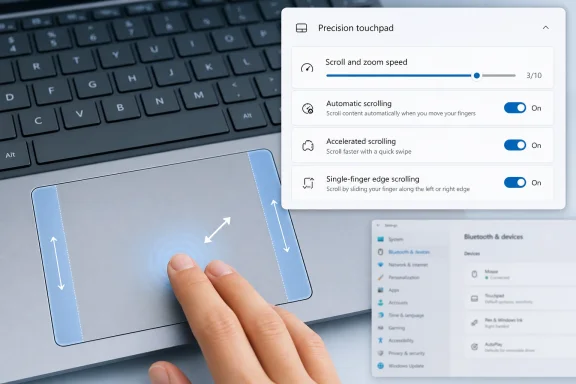
Microsoft added four precision touchpad controls to Windows 11's Experimental Insider Preview Build 26300.8376, released May 8, 2026, letting testers tune scroll and zoom speed, enable automatic and accelerated scrolling, and try single-finger vertical scrolling from the touchpad's edges in Settings. The change looks small because it lives in a familiar corner of the Settings app, not in Copilot or the Start menu. But it is exactly the kind of Windows work that matters: the daily friction between hand, glass, driver, app framework, and operating system. Microsoft is not reinventing laptop input here; it is admitting that laptop input still has room to become less clumsy.
For years, Windows touchpad settings have been good enough to avoid embarrassment and limited enough to remind laptop users why Apple still owns the word “trackpad” in so many conversations. Windows 11 already lets users adjust sensitivity, tap behavior, scrolling direction, pinch-to-zoom, and multi-finger gestures. That covers the checklist, but not always the feel.
The new Experimental build goes after the feel directly. Scroll and zoom speed controls give users a baseline adjustment for gestures that are currently too dependent on hardware defaults and driver behavior. Accelerated scrolling is meant for long documents and feeds, where repeated scrolling should move faster instead of making the user perform the same two-finger swipe over and over.
Automatic scrolling is the most ambitious of the four. Microsoft describes it as a mode where scrolling continues without lifting your fingers, triggered either by moving fingers near the touchpad edge while scrolling or, on supported hardware, by holding still and pressing harder. Single-finger scrolling brings a phone-like interaction to the left or right edge of the touchpad, turning that strip into a vertical scroll zone.
None of this is conceptually new in computing. Edge scrolling, inertial scrolling, pressure-based interaction, and acceleration curves have existed in different forms across old Synaptics panels, mobile devices, browsers, mice, and experimental input systems. What matters is that Microsoft is trying to make these behaviors part of the Windows precision touchpad experience rather than a lottery determined by OEM utilities.
A bad scroll gesture does not usually break workflow in a dramatic way. It just makes the user swipe again, overshoot a paragraph, pinch too far, move a hand to the keyboard, or reach for a mouse. Those are tiny interruptions, but they compound into the kind of drag that makes a laptop feel less responsive than its hardware specs suggest.
The new controls also acknowledge that scrolling is not one behavior. Reading a PDF, navigating a long spreadsheet, skimming a web page, zooming a map, browsing File Explorer, and moving through a code review all place different demands on the same two fingers. A single global default can be tolerable, but it will rarely be ideal.
This is why the speed slider may end up being more important than the flashier automatic scrolling mode. Users do not always want a new gesture vocabulary. Sometimes they just want the existing gesture to move at the right rate.
Microsoft’s precision touchpad model was supposed to tame that chaos by moving more of the touchpad experience into Windows itself. Instead of each OEM shipping its own opaque control panel and gesture stack, Windows could provide a standardized input pipeline and a shared Settings interface. That approach improved the baseline dramatically, especially compared with the Windows 7 and early Windows 10 era.
But standardization does not erase hardware differences. Touchpad size, surface material, palm rejection, click mechanism, haptics, firmware quality, sensor resolution, and driver implementation all affect what a gesture feels like. Automatic scrolling that feels natural on a large haptic touchpad may feel twitchy on a small budget panel. Pressure activation may be elegant on hardware that reports force well and irrelevant on hardware that does not.
That is why Microsoft’s hardware caveat matters. The company says one automatic scrolling trigger requires hardware support. In practice, this means the new Windows setting may not behave identically across laptops, and some users may not see the full version of the feature at all.
That makes these touchpad controls both promising and provisional. They are not a guarantee that every Windows 11 laptop will receive the same set of toggles in the next stable update. They are a signal that Microsoft is testing whether users want more granular control over scrolling behavior and whether the input stack can support it broadly enough.
The Controlled Feature Rollout model adds another wrinkle. Even among Insiders on the correct build, not everyone necessarily gets every feature at the same moment. Microsoft has increasingly used staged rollouts to gather telemetry and feedback before widening availability.
For enthusiasts, that can be frustrating. For IT departments, it is a reminder that Insider builds are not just early versions of tomorrow’s Patch Tuesday. They are Microsoft’s live laboratory, and the company is increasingly comfortable using that lab to test product direction rather than merely validate finished code.
Windows is not one UI stack. It is Win32, UWP remnants, WinUI, XAML Islands, web views, legacy shell surfaces, Settings pages, Office apps, Electron apps, browsers, games, virtual machines, remote sessions, and countless enterprise line-of-business applications. A gesture that feels native in one app may feel subtly wrong in another because the input event travels through different layers.
Microsoft can add a beautiful touchpad control to Settings, but that does not mean every application immediately honors it in the same way. Some apps consume raw input. Some translate gestures into mouse-wheel events. Some implement custom scrolling. Some rely on framework behavior that may lag behind the OS.
That is the quiet challenge behind these new settings. A user does not care whether a stuttery scroll is caused by the OS, WinAppSDK, the app, the driver, or a web rendering engine. The user only knows that two fingers moved and the page did not respond the way it should.
The activation methods are sensible in theory. Edge-based continuation mirrors old touchpad scroll zones and mobile scrolling expectations. Pressure-based activation could be more deliberate, especially on hardware that can distinguish a firm press from a resting finger.
But accidental activation is the enemy of input design. If a user scrolls near the edge and the page keeps moving after they expected it to stop, the feature will feel like the machine is disobeying them. If the pressure threshold is too low, it becomes a trap. If it is too high, users will forget it exists.
This is where Microsoft’s telemetry will only tell part of the story. Usage rates can show whether people enable the feature, but forum posts, Feedback Hub complaints, and OEM support channels will reveal whether users understand it. Good input features become muscle memory; bad ones become troubleshooting folklore.
This is especially useful in the places Windows users actually live: long browser pages, PDFs, spreadsheets, File Explorer folders, documentation sites, chat logs, and admin portals. The modern workplace has turned scrolling into a major input task. Search helps, but users still spend enormous amounts of time moving through vertical content.
Acceleration also avoids some of the ambiguity of automatic scrolling. The user is still actively gesturing, so the system is less likely to feel possessed. The trick is tuning the acceleration curve so it saves motion without making precise navigation harder.
Microsoft has to be careful here because overscroll is not merely annoying. In a document review, a code diff, or a spreadsheet, jumping too far can lose context. The best acceleration systems feel almost invisible: the page moves farther because you clearly asked it to, not because the system decided to show off.
That older model fell out of favor for good reasons. Touchpads got larger, multi-touch became normal, and edge zones could interfere with pointing. But the idea never stopped making sense for certain users and certain devices.
On compact laptops, budget machines, rugged devices, and accessibility-focused setups, single-finger scrolling can be useful. It may help users who find two-finger gestures awkward, who have limited dexterity, or who simply prefer a physical mental model: the side of the pad is for scrolling, the middle is for pointing.
The important word is optional. Microsoft should not force a resurrected edge zone onto users who have built years of muscle memory around modern gestures. But giving users a supported setting is better than making them hunt for OEM utilities, registry tweaks, or third-party tools.
For schools, buying Windows 11 Home devices and moving them into Pro Education can simplify procurement. Education buyers often operate under tight budgets and inconsistent supply chains. A supported upgrade route gives administrators more flexibility if the hardware they can afford or acquire ships with the wrong edition.
The one-way nature of the upgrade matters. Microsoft says reverting to Home is not supported without a clean OS reinstall. That is reasonable for managed education environments, but it is also the kind of detail administrators need to internalize before testing the process on real devices.
This part of the build will not excite laptop enthusiasts in the same way as new touchpad controls. Still, it reflects a practical Microsoft: one eye on user experience, the other on deployment pipelines. Windows succeeds or fails not just by delighting individual users, but by surviving the procurement and management realities of institutions.
That said, administrators should pay attention. Input changes can affect training materials, accessibility accommodations, help desk scripts, and device qualification. If Microsoft eventually ships these controls broadly, organizations may want policy guidance on whether users can change them, whether defaults should be standardized, and how support teams should troubleshoot gesture complaints.
There is also a hardware evaluation angle. If automatic scrolling depends partly on pressure-capable touchpads, procurement teams may need to distinguish between laptops that merely run Windows 11 and laptops that deliver the best Windows 11 input experience. That difference is already visible with haptic touchpads, webcams, neural processing units, and battery life; input hardware belongs in the same conversation.
The practical move is to test on a few representative devices: a premium ultrabook, a mainstream business laptop, a budget education model, and any specialized hardware used in the organization. The feature’s value will not be proven in release notes. It will be proven by how consistently it behaves across the machines people actually touch.
The touchpad update is a reminder that Windows polish is not one grand redesign. It is a thousand small negotiations between defaults, hardware, app frameworks, and user preferences. Microsoft has often been better at platform breadth than at cohesive feel, and touchpad behavior is one of the places where that tradeoff becomes tactile.
Apple’s advantage in this area has never been only that its trackpads are large and smooth. It is that hardware, firmware, operating system, and app expectations are tightly coordinated. Microsoft cannot fully copy that model because the Windows ecosystem is intentionally more open and varied.
But Microsoft can close the gap by taking ownership of the interaction layer. Precision touchpads were the first big step. More granular, OS-level tuning is another. The goal should not be to make every Windows laptop identical; it should be to make every decent Windows laptop predictable.
Source: XDA Microsoft is adding four new Touchpad options to Windows 11, and they look pretty useful
 Microsoft Finally Puts Touchpad Feel on the Windows Roadmap
For years, Windows touchpad settings have been good enough to avoid embarrassment and limited enough to remind laptop users why Apple still owns the word “trackpad” in so many conversations. Windows 11 already lets users adjust sensitivity, tap behavior, scrolling direction, pinch-to-zoom, and multi-finger gestures. That covers the checklist, but not always the feel.The new Experimental build goes after the feel directly. Scroll and zoom speed controls give users a baseline adjustment for gestures that are currently too dependent on hardware defaults and driver behavior. Accelerated scrolling is meant for long documents and feeds, where repeated scrolling should move faster instead of making the user perform the same two-finger swipe over and over.
Automatic scrolling is the most ambitious of the four. Microsoft describes it as a mode where scrolling continues without lifting your fingers, triggered either by moving fingers near the touchpad edge while scrolling or, on supported hardware, by holding still and pressing harder. Single-finger scrolling brings a phone-like interaction to the left or right edge of the touchpad, turning that strip into a vertical scroll zone.
None of this is conceptually new in computing. Edge scrolling, inertial scrolling, pressure-based interaction, and acceleration curves have existed in different forms across old Synaptics panels, mobile devices, browsers, mice, and experimental input systems. What matters is that Microsoft is trying to make these behaviors part of the Windows precision touchpad experience rather than a lottery determined by OEM utilities.
The Real Feature Is Not More Gestures, but Fewer Tiny Interruptions
Touchpad improvements are easy to underestimate because they do not photograph well. A screenshot of a new Settings toggle looks boring beside AI features, HDR improvements, or a redesigned taskbar. But input quality is one of the few parts of an operating system that every laptop user experiences hundreds of times a day.A bad scroll gesture does not usually break workflow in a dramatic way. It just makes the user swipe again, overshoot a paragraph, pinch too far, move a hand to the keyboard, or reach for a mouse. Those are tiny interruptions, but they compound into the kind of drag that makes a laptop feel less responsive than its hardware specs suggest.
The new controls also acknowledge that scrolling is not one behavior. Reading a PDF, navigating a long spreadsheet, skimming a web page, zooming a map, browsing File Explorer, and moving through a code review all place different demands on the same two fingers. A single global default can be tolerable, but it will rarely be ideal.
This is why the speed slider may end up being more important than the flashier automatic scrolling mode. Users do not always want a new gesture vocabulary. Sometimes they just want the existing gesture to move at the right rate.
Windows Has Always Had a Touchpad Hardware Problem
The Windows laptop ecosystem is broad, competitive, and messy. That is its strength when buyers want choice, repairability, price range, and unusual form factors. It is also the reason input consistency has historically been hard.Microsoft’s precision touchpad model was supposed to tame that chaos by moving more of the touchpad experience into Windows itself. Instead of each OEM shipping its own opaque control panel and gesture stack, Windows could provide a standardized input pipeline and a shared Settings interface. That approach improved the baseline dramatically, especially compared with the Windows 7 and early Windows 10 era.
But standardization does not erase hardware differences. Touchpad size, surface material, palm rejection, click mechanism, haptics, firmware quality, sensor resolution, and driver implementation all affect what a gesture feels like. Automatic scrolling that feels natural on a large haptic touchpad may feel twitchy on a small budget panel. Pressure activation may be elegant on hardware that reports force well and irrelevant on hardware that does not.
That is why Microsoft’s hardware caveat matters. The company says one automatic scrolling trigger requires hardware support. In practice, this means the new Windows setting may not behave identically across laptops, and some users may not see the full version of the feature at all.
The Experimental Channel Is Doing Its Job
XDA is right to frame this as useful, but the Insider channel label is not cosmetic. Build 26300.8376 is in the Experimental channel, the renamed successor to the Dev Channel during Microsoft’s ongoing Windows Insider Program reshuffle. Microsoft’s own release notes stress that features in this lane may change, roll out gradually, or never ship broadly.That makes these touchpad controls both promising and provisional. They are not a guarantee that every Windows 11 laptop will receive the same set of toggles in the next stable update. They are a signal that Microsoft is testing whether users want more granular control over scrolling behavior and whether the input stack can support it broadly enough.
The Controlled Feature Rollout model adds another wrinkle. Even among Insiders on the correct build, not everyone necessarily gets every feature at the same moment. Microsoft has increasingly used staged rollouts to gather telemetry and feedback before widening availability.
For enthusiasts, that can be frustrating. For IT departments, it is a reminder that Insider builds are not just early versions of tomorrow’s Patch Tuesday. They are Microsoft’s live laboratory, and the company is increasingly comfortable using that lab to test product direction rather than merely validate finished code.
The WinUI 3 Caveat Exposes Windows’ Split Personality
The most interesting line in Microsoft’s note is not the list of touchpad features. It is the warning that the improvements should be broadly available across applications, except that WinUI 3-based interfaces need newer Windows App SDK versions for complete functionality. That sentence says a lot about modern Windows.Windows is not one UI stack. It is Win32, UWP remnants, WinUI, XAML Islands, web views, legacy shell surfaces, Settings pages, Office apps, Electron apps, browsers, games, virtual machines, remote sessions, and countless enterprise line-of-business applications. A gesture that feels native in one app may feel subtly wrong in another because the input event travels through different layers.
Microsoft can add a beautiful touchpad control to Settings, but that does not mean every application immediately honors it in the same way. Some apps consume raw input. Some translate gestures into mouse-wheel events. Some implement custom scrolling. Some rely on framework behavior that may lag behind the OS.
That is the quiet challenge behind these new settings. A user does not care whether a stuttery scroll is caused by the OS, WinAppSDK, the app, the driver, or a web rendering engine. The user only knows that two fingers moved and the page did not respond the way it should.
Automatic Scrolling Could Be Great, or It Could Be Another Toggle People Disable
Automatic scrolling is the feature most likely to divide users. Done well, it can reduce strain when reading long articles, scanning documentation, reviewing logs, or moving through endless admin consoles. Done poorly, it can become the kind of feature that triggers accidentally and makes users distrust their own touchpad.The activation methods are sensible in theory. Edge-based continuation mirrors old touchpad scroll zones and mobile scrolling expectations. Pressure-based activation could be more deliberate, especially on hardware that can distinguish a firm press from a resting finger.
But accidental activation is the enemy of input design. If a user scrolls near the edge and the page keeps moving after they expected it to stop, the feature will feel like the machine is disobeying them. If the pressure threshold is too low, it becomes a trap. If it is too high, users will forget it exists.
This is where Microsoft’s telemetry will only tell part of the story. Usage rates can show whether people enable the feature, but forum posts, Feedback Hub complaints, and OEM support channels will reveal whether users understand it. Good input features become muscle memory; bad ones become troubleshooting folklore.
Accelerated Scrolling Is the Sensible Power-User Compromise
Accelerated scrolling is less flashy, but it may be the safer win. The idea is simple: if the user scrolls repeatedly, Windows increases the speed so long-distance movement takes less effort. That maps well to intent because repetition is already a signal that the user wants to go farther.This is especially useful in the places Windows users actually live: long browser pages, PDFs, spreadsheets, File Explorer folders, documentation sites, chat logs, and admin portals. The modern workplace has turned scrolling into a major input task. Search helps, but users still spend enormous amounts of time moving through vertical content.
Acceleration also avoids some of the ambiguity of automatic scrolling. The user is still actively gesturing, so the system is less likely to feel possessed. The trick is tuning the acceleration curve so it saves motion without making precise navigation harder.
Microsoft has to be careful here because overscroll is not merely annoying. In a document review, a code diff, or a spreadsheet, jumping too far can lose context. The best acceleration systems feel almost invisible: the page moves farther because you clearly asked it to, not because the system decided to show off.
Single-Finger Edge Scrolling Revives an Old Idea for a New Laptop Era
Single-finger edge scrolling will feel familiar to anyone who used pre-precision Windows laptops. Before two-finger scrolling became the expected default, many touchpads offered vertical scroll zones along the edge. You dragged one finger down the side and the page moved.That older model fell out of favor for good reasons. Touchpads got larger, multi-touch became normal, and edge zones could interfere with pointing. But the idea never stopped making sense for certain users and certain devices.
On compact laptops, budget machines, rugged devices, and accessibility-focused setups, single-finger scrolling can be useful. It may help users who find two-finger gestures awkward, who have limited dexterity, or who simply prefer a physical mental model: the side of the pad is for scrolling, the middle is for pointing.
The important word is optional. Microsoft should not force a resurrected edge zone onto users who have built years of muscle memory around modern gestures. But giving users a supported setting is better than making them hunt for OEM utilities, registry tweaks, or third-party tools.
The K-12 Upgrade Note Shows Microsoft’s Other Priority
The same build also includes a free upgrade path from Windows 11 Home to Windows 11 Pro Education for eligible K-12 environments. That is a very different kind of feature from touchpad tuning, but it tells the same broader story: Microsoft is trying to reduce friction in places where Windows devices are deployed at scale.For schools, buying Windows 11 Home devices and moving them into Pro Education can simplify procurement. Education buyers often operate under tight budgets and inconsistent supply chains. A supported upgrade route gives administrators more flexibility if the hardware they can afford or acquire ships with the wrong edition.
The one-way nature of the upgrade matters. Microsoft says reverting to Home is not supported without a clean OS reinstall. That is reasonable for managed education environments, but it is also the kind of detail administrators need to internalize before testing the process on real devices.
This part of the build will not excite laptop enthusiasts in the same way as new touchpad controls. Still, it reflects a practical Microsoft: one eye on user experience, the other on deployment pipelines. Windows succeeds or fails not just by delighting individual users, but by surviving the procurement and management realities of institutions.
Enterprise IT Should Watch, Not Deploy
For IT pros, the lesson is simple: do not chase these features into production. Experimental builds are valuable for testing, feedback, and early compatibility work, but they are not a shortcut to a better daily driver fleet. Touchpad behavior is too fundamental to risk destabilizing without a clear business reason.That said, administrators should pay attention. Input changes can affect training materials, accessibility accommodations, help desk scripts, and device qualification. If Microsoft eventually ships these controls broadly, organizations may want policy guidance on whether users can change them, whether defaults should be standardized, and how support teams should troubleshoot gesture complaints.
There is also a hardware evaluation angle. If automatic scrolling depends partly on pressure-capable touchpads, procurement teams may need to distinguish between laptops that merely run Windows 11 and laptops that deliver the best Windows 11 input experience. That difference is already visible with haptic touchpads, webcams, neural processing units, and battery life; input hardware belongs in the same conversation.
The practical move is to test on a few representative devices: a premium ultrabook, a mainstream business laptop, a budget education model, and any specialized hardware used in the organization. The feature’s value will not be proven in release notes. It will be proven by how consistently it behaves across the machines people actually touch.
This Is the Kind of Windows Polish Microsoft Cannot Outsource to AI
Microsoft’s recent Windows messaging has been dominated by AI PCs, Copilot integrations, Recall controversy, local models, and the push to make the operating system feel newly intelligent. Those projects may define the company’s strategic pitch, but they do not replace the basics. A laptop that scrolls badly still feels bad, no matter how many tokens its NPU can process.The touchpad update is a reminder that Windows polish is not one grand redesign. It is a thousand small negotiations between defaults, hardware, app frameworks, and user preferences. Microsoft has often been better at platform breadth than at cohesive feel, and touchpad behavior is one of the places where that tradeoff becomes tactile.
Apple’s advantage in this area has never been only that its trackpads are large and smooth. It is that hardware, firmware, operating system, and app expectations are tightly coordinated. Microsoft cannot fully copy that model because the Windows ecosystem is intentionally more open and varied.
But Microsoft can close the gap by taking ownership of the interaction layer. Precision touchpads were the first big step. More granular, OS-level tuning is another. The goal should not be to make every Windows laptop identical; it should be to make every decent Windows laptop predictable.
The Useful Part Is Hiding in the Settings Slider
The practical impact of this update depends on how far Microsoft carries it beyond the Experimental channel. Still, the direction is encouraging because it addresses real laptop behavior rather than adding another promotional surface to Windows.- Microsoft is testing four new precision touchpad options in Windows 11 Experimental Preview Build 26300.8376.
- The new controls cover scroll and zoom speed, automatic scrolling, accelerated scrolling, and single-finger edge scrolling.
- Automatic scrolling may depend on hardware support, so the experience could vary meaningfully between laptops.
- Microsoft says the features should work widely across applications, though WinUI 3 interfaces need newer Windows App SDK support for complete functionality.
- Insider testers should treat the feature as experimental, because Microsoft may change, remove, or delay it before any broad release.
- IT teams should watch the feature now and test representative hardware later, rather than putting Experimental builds on production laptops.
Source: XDA Microsoft is adding four new Touchpad options to Windows 11, and they look pretty useful
