

On May 8, 2026, Microsoft released Windows 11 Insider Preview builds 26220.8370, 26300.8376, 28020.2075, and 29585.1000 across its Beta, Experimental, Experimental 26H1, and Experimental Future Platforms channels, led by new precision touchpad scrolling and gesture controls. The headline is not that Windows laptops suddenly became Macs; it is that Microsoft is finally treating laptop input as a first-class part of Windows polish rather than a driver-side afterthought. For a platform that has spent years selling premium hardware while tolerating uneven trackpad behavior, this is a small change with unusually large symbolic weight.
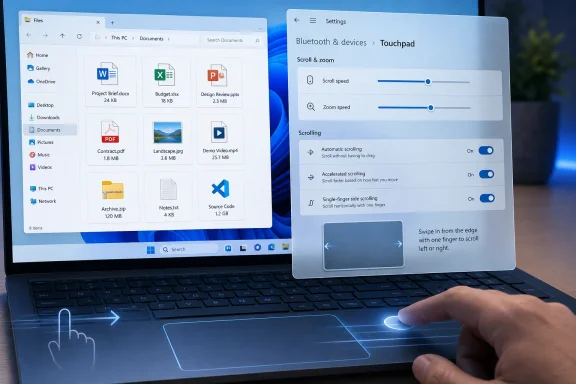
The most interesting part of this Insider drop is not the number of builds, though four simultaneous flights make for a crowded changelog. It is that the touchpad changes arrive as a coherent set of behaviors inside Settings, where ordinary users and fleet administrators can actually find them. Microsoft is adding scroll and zoom speed sliders, automatic scrolling, accelerated scrolling, and single-finger scrolling options for precision touchpads in the Experimental channel.
That matters because touchpads have long sat in the uncomfortable middle of the Windows hardware ecosystem. On paper, the Precision Touchpad standard was supposed to tame the old chaos of OEM utilities, inconsistent drivers, and mysterious gesture stacks. In practice, Windows laptops improved substantially, but they still rarely felt as predictably tuned as the best MacBook trackpads or the best first-party Surface implementations.
The new controls point to a more opinionated Windows. Automatic scrolling at the edge of the touchpad lets a page continue moving when fingers reach the boundary. Pressure-based automatic scrolling does something similar when fingers press harder while stationary, though Microsoft says that version requires hardware support. Accelerated scrolling, meanwhile, speeds up repeated scroll gestures so long documents and web pages can be traversed more quickly.
The final addition, single-finger scrolling from the left or right side of the touchpad, is almost retro. It evokes older laptop scrolling zones, but the difference is that Microsoft is exposing it through the modern Windows 11 Settings surface rather than burying it in an OEM control panel. That is the story here: not one flashy gesture, but the return of configurability to a platform that often pretends simplification is the same thing as usability.
For users, the practical path is simple enough: Settings, Bluetooth & devices, Touchpad, then Scroll & zoom. That is where the revamped controls are expected to appear on supported builds. The move into Settings is crucial because laptop input tuning has historically suffered from being too dependent on vendors. If a gesture was controlled by a Synaptics panel, an Elan utility, or a half-maintained OEM app, it might disappear after a driver update or behave differently after a clean install.
Precision Touchpad was Microsoft’s attempt to consolidate that experience. These new options suggest the company is not finished. Scroll speed and zoom speed sliders let users adjust the baseline feel instead of accepting a single default curve. Automatic and accelerated scrolling acknowledge that the gesture itself is not binary; the OS needs to understand intent, not just finger movement.
This is where the premium-laptop angle becomes unavoidable. Most people do not evaluate a notebook by opening a benchmark suite. They judge it by whether scrolling feels controlled, whether the cursor seems to obey the hand, whether the interface stays out of the way. A $1,500 Windows laptop with a high-refresh display and a mediocre touchpad still feels compromised. Microsoft cannot fix every cheap component in the ecosystem, but it can raise the baseline for machines that already meet the precision touchpad requirement.
Edge-triggered automatic scrolling is likely to be the most broadly useful version because it does not depend on pressure-capable hardware. If implemented well, it can make a large touchpad behave more like a viewport control: move toward the boundary, keep the document in motion, pull back to regain control. If implemented poorly, it becomes one more accidental-scroll complaint in the Settings app’s feedback pile.
Pressure-based scrolling is more interesting but also more constrained. Microsoft is explicit that it requires hardware support, which means this is not a universal laptop upgrade. It also raises the usual question around discoverability: will users understand that pressing harder while holding position changes scroll behavior, or will the feature mostly serve enthusiasts who explore every checkbox?
Accelerated scrolling is probably the safest bet. Users already understand the idea from mouse wheels, browsers, and touch interfaces: repeated motion implies urgency. The challenge is calibration. Too little acceleration and the feature is invisible; too much and every long document becomes a slot machine. Microsoft’s decision to expose it as a checkbox rather than force it on everyone is the right instinct.
Still, the comparison can obscure what Microsoft is actually doing. Apple wins by integrating hardware, firmware, drivers, and OS behavior in a tightly controlled pipeline. Microsoft wins, when it wins, by creating standards that are good enough to work across a chaotic ecosystem. Precision Touchpad was one such standard; this new gesture work looks like the next layer on top of it.
That is why the Settings integration matters more than any one gesture. Microsoft is not merely saying that a few lucky laptops will get a nicer scrolling trick. It is building a common language for touchpad behavior across Windows devices. OEMs can still differentiate with haptics, size, materials, and palm rejection, but the base interaction model becomes more Microsoft-defined.
There is a risk here. More options can become more confusion, especially when some of them depend on hardware support or application framework updates. But Windows users have repeatedly shown that they prefer visible controls to invisible paternalism, particularly on enthusiast and professional machines. The better answer is not fewer controls; it is clearer defaults and better explanations.
File Explorer is the place where Windows users meet the operating system most directly. It is also where Microsoft’s modernization effort has been most visibly uneven. The Windows 11 redesign made Explorer look more current, but it also introduced delays, regressions, and debates over density and discoverability. Making file sizes readable is not glamorous, but it is exactly the kind of change that reduces cognitive load dozens of times a day.
The address bar fixes are similarly practical. Support for paths containing double backslashes and quotation marks matters to people who copy paths from terminals, scripts, documentation, or administrative tools. Microsoft also fixed a bug where the address bar suggestion dropdown could remain open after selection, and another where renaming items in folder views could repeatedly select text.
These are not marquee features. They will not appear in a consumer ad. But they are the difference between an operating system that feels like it is helping and one that feels like it is constantly extracting a tax from users who know what they are doing. File Explorer has needed less reinvention and more discipline; this build leans toward discipline.
The old overlay made sense in the era when voice features needed to prove that they were active. Modern users need less theater. If the microphone is listening, a compact status indicator is enough, especially when the task at hand is entering text into a document, message, search box, or form. Microsoft’s shift here mirrors a broader maturation in accessibility and productivity features: the best assistive UI is often the least performative one.
There is also a privacy-adjacent dimension, even if this specific change is visual rather than policy-related. Voice input is sensitive by nature. Large overlays can make the feature feel more intrusive, more exceptional, and more like a system-level event. A small animation on the dictation key makes it feel like a normal input method, closer to switching keyboard layouts than launching a special mode.
For Windows tablets and convertible PCs, that matters. Microsoft has spent more than a decade trying to make Windows credible on touch-first and pen-first devices. Dictation is part of that story, but only if it feels integrated. Removing visual clutter is not a revolution, but it is a sign of a company sanding down the rough edges that make Windows feel less fluid than its ambitions.
The logic is obvious. Schools often buy on price, and Windows 11 Home devices can be cheaper and easier to source than education-ready configurations. But Home is not where school management wants to live. Pro Education brings the device closer to the policies, management expectations, and deployment patterns that IT administrators need.
Microsoft benefits too. A smoother Home-to-Pro Education path reduces procurement friction and keeps schools inside the Windows ecosystem at a time when ChromeOS, iPadOS, and web-first workflows remain credible alternatives in classrooms. If the upgrade is reliable and truly cost-free for eligible environments, it gives districts more flexibility without forcing every purchasing decision through a narrow SKU funnel.
The risk is operational clarity. Licensing changes are only as good as the documentation, tooling, and support that surround them. A one-way command-line upgrade may be straightforward for experienced admins, but schools vary widely in IT staffing. Microsoft will need to make the process boring, repeatable, and well explained if it wants this to be more than a footnote in an Insider changelog.
The May 8 builds illustrate the problem. Build 26220.8370 lands in Beta. Build 26300.8376 lands in Experimental and carries the touchpad and File Explorer changes. Build 28020.2075 is Experimental 26H1 and includes clipboard and language-input improvements. Build 29585.1000 is Experimental Future Platforms and gets the cleaner dictation experience, sign-in fixes, Japanese IME reliability work, and Internet Protocol Print driver hardware ID updates.
There is a logic to this. Windows is now a set of serviced branches, enablement packages, platform tracks, and future hardware preparation paths. Microsoft needs a testing structure that reflects where code is actually headed. But for Insiders, the channel names are supposed to answer a simpler question: what am I testing, and how risky is it?
That question is harder to answer when the most interesting feature in a given week appears in one Experimental build while a different UI cleanup lands in Future Platforms. Enthusiasts will cope. Enterprise test labs will map builds to deployment rings. Everyone else may reasonably wonder whether the Insider Program is becoming less a public preview channel and more a visible slice of Microsoft’s internal branching complexity.
Win32 apps, UWP remnants, XAML islands, WinUI 3 apps, web wrappers, Electron shells, and Microsoft’s own hybrid interfaces all coexist on the same desktop. This is a strength when compatibility matters and a weakness when consistency matters. Input features that feel universal in one app but partial in another make the operating system feel fragmented, even when the underlying reason is technically reasonable.
The mention of Windows App SDK versions 1.8 and 2.0 is therefore a signal to developers. If Microsoft wants these gestures to become part of the expected Windows experience, app frameworks need to catch up quickly. Otherwise, the feature risks becoming another example of Windows offering a capability that behaves differently depending on which UI stack happens to be under the cursor.
This is not a reason to dismiss the change. It is a reason to watch the rollout carefully. Windows modernization succeeds when the platform layers move together. It struggles when Settings gains a new switch before the application ecosystem can fully honor it.
That said, there are practical signals worth tracking. If your organization buys Windows laptops in volume, richer precision touchpad controls could become part of the user-experience baseline for future hardware evaluations. If your help desk fields complaints about accidental scrolling, inconsistent gesture behavior, or poor long-document navigation, these controls may eventually reduce those tickets — or create new ones if defaults are poorly chosen.
The education upgrade path deserves more immediate administrative attention, at least for K–12 environments participating in Insider validation. It touches licensing, management readiness, and procurement strategy. Even if the feature remains in preview, schools may want to understand how a Home-to-Pro Education upgrade fits into imaging, enrollment, compliance, and device lifecycle workflows.
The File Explorer and notification-related fixes are also worth watching because they address reliability rather than novelty. Microsoft says Beta and Experimental builds include a fix for a Windows Push Notification hang that could break notifications and cause some apps to freeze on launch. That kind of bug is exactly why Insider rings matter: not because they are fun, but because they surface the OS plumbing that can make or break daily reliability.
That is the Windows tax: the accumulation of tiny interruptions that users learn to route around until they forget they are interruptions at all. Microsoft has often chased the grand redesign while leaving these taxes in place. This build is notable because it attacks several of them at once.
The touchpad work is the most visible example because input is intimate. A laptop can have a fast processor and a beautiful display, but if scrolling feels clumsy, the machine feels cheap. Conversely, a modest laptop with predictable input feels better than its spec sheet. Microsoft seems to understand that polish is not decoration; it is performance as experienced by the hand.
File Explorer’s improvements make the same argument in a different register. Readable file sizes, reliable renaming, and better path handling are not modern in the marketing sense. They are modern in the only sense that matters: they remove needless translation between what the user intends and what the computer does.
Source: Windows Latest Microsoft is upgrading Windows 11 touchpad with four new gestures
 Microsoft Finally Notices the Fingers on the Glass
The most interesting part of this Insider drop is not the number of builds, though four simultaneous flights make for a crowded changelog. It is that the touchpad changes arrive as a coherent set of behaviors inside Settings, where ordinary users and fleet administrators can actually find them. Microsoft is adding scroll and zoom speed sliders, automatic scrolling, accelerated scrolling, and single-finger scrolling options for precision touchpads in the Experimental channel.That matters because touchpads have long sat in the uncomfortable middle of the Windows hardware ecosystem. On paper, the Precision Touchpad standard was supposed to tame the old chaos of OEM utilities, inconsistent drivers, and mysterious gesture stacks. In practice, Windows laptops improved substantially, but they still rarely felt as predictably tuned as the best MacBook trackpads or the best first-party Surface implementations.
The new controls point to a more opinionated Windows. Automatic scrolling at the edge of the touchpad lets a page continue moving when fingers reach the boundary. Pressure-based automatic scrolling does something similar when fingers press harder while stationary, though Microsoft says that version requires hardware support. Accelerated scrolling, meanwhile, speeds up repeated scroll gestures so long documents and web pages can be traversed more quickly.
The final addition, single-finger scrolling from the left or right side of the touchpad, is almost retro. It evokes older laptop scrolling zones, but the difference is that Microsoft is exposing it through the modern Windows 11 Settings surface rather than burying it in an OEM control panel. That is the story here: not one flashy gesture, but the return of configurability to a platform that often pretends simplification is the same thing as usability.
The Trackpad Upgrade Is Really a Settings Upgrade
Microsoft’s wording is careful. These are precision touchpad features, and the company says they should be widely available across applications, with a caveat for WinUI 3 interfaces that need updated Windows App SDK support for complete functionality. That caveat is more than a developer footnote; it is a reminder that Windows is never one UI stack, one app model, or one input layer.For users, the practical path is simple enough: Settings, Bluetooth & devices, Touchpad, then Scroll & zoom. That is where the revamped controls are expected to appear on supported builds. The move into Settings is crucial because laptop input tuning has historically suffered from being too dependent on vendors. If a gesture was controlled by a Synaptics panel, an Elan utility, or a half-maintained OEM app, it might disappear after a driver update or behave differently after a clean install.
Precision Touchpad was Microsoft’s attempt to consolidate that experience. These new options suggest the company is not finished. Scroll speed and zoom speed sliders let users adjust the baseline feel instead of accepting a single default curve. Automatic and accelerated scrolling acknowledge that the gesture itself is not binary; the OS needs to understand intent, not just finger movement.
This is where the premium-laptop angle becomes unavoidable. Most people do not evaluate a notebook by opening a benchmark suite. They judge it by whether scrolling feels controlled, whether the cursor seems to obey the hand, whether the interface stays out of the way. A $1,500 Windows laptop with a high-refresh display and a mediocre touchpad still feels compromised. Microsoft cannot fix every cheap component in the ecosystem, but it can raise the baseline for machines that already meet the precision touchpad requirement.
Automatic Scrolling Is a Power Feature Wearing Consumer Clothes
Automatic scrolling sounds mundane until you think about the work it replaces. Reading a long PDF, scanning a spreadsheet, reviewing logs, or scrolling through documentation all involve the same small physical repetition. The user pushes, resets fingers, pushes again, and tries not to overshoot. A better scroll model reduces that friction without demanding a new app or peripheral.Edge-triggered automatic scrolling is likely to be the most broadly useful version because it does not depend on pressure-capable hardware. If implemented well, it can make a large touchpad behave more like a viewport control: move toward the boundary, keep the document in motion, pull back to regain control. If implemented poorly, it becomes one more accidental-scroll complaint in the Settings app’s feedback pile.
Pressure-based scrolling is more interesting but also more constrained. Microsoft is explicit that it requires hardware support, which means this is not a universal laptop upgrade. It also raises the usual question around discoverability: will users understand that pressing harder while holding position changes scroll behavior, or will the feature mostly serve enthusiasts who explore every checkbox?
Accelerated scrolling is probably the safest bet. Users already understand the idea from mouse wheels, browsers, and touch interfaces: repeated motion implies urgency. The challenge is calibration. Too little acceleration and the feature is invisible; too much and every long document becomes a slot machine. Microsoft’s decision to expose it as a checkbox rather than force it on everyone is the right instinct.
The Mac Comparison Is Inevitable, but Not Sufficient
Every Windows touchpad story eventually gets dragged into a Mac comparison, usually with good reason. Apple has spent years making trackpad behavior part of the identity of the Mac. Windows, by contrast, has had to make peace with a sprawling hardware universe in which a $299 laptop and a $2,499 workstation both run the same OS but offer wildly different input quality.Still, the comparison can obscure what Microsoft is actually doing. Apple wins by integrating hardware, firmware, drivers, and OS behavior in a tightly controlled pipeline. Microsoft wins, when it wins, by creating standards that are good enough to work across a chaotic ecosystem. Precision Touchpad was one such standard; this new gesture work looks like the next layer on top of it.
That is why the Settings integration matters more than any one gesture. Microsoft is not merely saying that a few lucky laptops will get a nicer scrolling trick. It is building a common language for touchpad behavior across Windows devices. OEMs can still differentiate with haptics, size, materials, and palm rejection, but the base interaction model becomes more Microsoft-defined.
There is a risk here. More options can become more confusion, especially when some of them depend on hardware support or application framework updates. But Windows users have repeatedly shown that they prefer visible controls to invisible paternalism, particularly on enthusiast and professional machines. The better answer is not fewer controls; it is clearer defaults and better explanations.
File Explorer’s Small Fixes Say Something Unflattering About Windows
The same Experimental build also brings File Explorer changes that are almost comically overdue. Details view is being updated to show file sizes in appropriate units such as KB, MB, and GB rather than leaning so aggressively on KB. It is a tiny usability fix, and the fact that it feels notable says something about how long Windows has tolerated low-grade friction in daily workflows.File Explorer is the place where Windows users meet the operating system most directly. It is also where Microsoft’s modernization effort has been most visibly uneven. The Windows 11 redesign made Explorer look more current, but it also introduced delays, regressions, and debates over density and discoverability. Making file sizes readable is not glamorous, but it is exactly the kind of change that reduces cognitive load dozens of times a day.
The address bar fixes are similarly practical. Support for paths containing double backslashes and quotation marks matters to people who copy paths from terminals, scripts, documentation, or administrative tools. Microsoft also fixed a bug where the address bar suggestion dropdown could remain open after selection, and another where renaming items in folder views could repeatedly select text.
These are not marquee features. They will not appear in a consumer ad. But they are the difference between an operating system that feels like it is helping and one that feels like it is constantly extracting a tax from users who know what they are doing. File Explorer has needed less reinvention and more discipline; this build leans toward discipline.
Voice Typing Gets Quieter, Which Is Exactly the Point
The Future Platforms build removes the full-screen overlay that appeared during voice typing and moves the listening animation onto the dictation key itself. This is a design change with a simple message: dictation should not make the operating system the center of attention. The user is trying to write, not admire a listening interface.The old overlay made sense in the era when voice features needed to prove that they were active. Modern users need less theater. If the microphone is listening, a compact status indicator is enough, especially when the task at hand is entering text into a document, message, search box, or form. Microsoft’s shift here mirrors a broader maturation in accessibility and productivity features: the best assistive UI is often the least performative one.
There is also a privacy-adjacent dimension, even if this specific change is visual rather than policy-related. Voice input is sensitive by nature. Large overlays can make the feature feel more intrusive, more exceptional, and more like a system-level event. A small animation on the dictation key makes it feel like a normal input method, closer to switching keyboard layouts than launching a special mode.
For Windows tablets and convertible PCs, that matters. Microsoft has spent more than a decade trying to make Windows credible on touch-first and pen-first devices. Dictation is part of that story, but only if it feels integrated. Removing visual clutter is not a revolution, but it is a sign of a company sanding down the rough edges that make Windows feel less fluid than its ambitions.
Education Licensing Gets the Most Strategic Change in the Batch
Buried beneath the touchpad excitement is a licensing move that may matter more to school IT departments than any gesture ever will. Microsoft is introducing a free upgrade path from Windows 11 Home to Windows 11 Pro Education for K–12 environments in the Beta and Experimental channels. Administrators can initiate the one-way upgrade using Clipupgrade.exe from an elevated Command Prompt.The logic is obvious. Schools often buy on price, and Windows 11 Home devices can be cheaper and easier to source than education-ready configurations. But Home is not where school management wants to live. Pro Education brings the device closer to the policies, management expectations, and deployment patterns that IT administrators need.
Microsoft benefits too. A smoother Home-to-Pro Education path reduces procurement friction and keeps schools inside the Windows ecosystem at a time when ChromeOS, iPadOS, and web-first workflows remain credible alternatives in classrooms. If the upgrade is reliable and truly cost-free for eligible environments, it gives districts more flexibility without forcing every purchasing decision through a narrow SKU funnel.
The risk is operational clarity. Licensing changes are only as good as the documentation, tooling, and support that surround them. A one-way command-line upgrade may be straightforward for experienced admins, but schools vary widely in IT staffing. Microsoft will need to make the process boring, repeatable, and well explained if it wants this to be more than a footnote in an Insider changelog.
The New Insider Map Is Still a Maze
This release also continues Microsoft’s transition to the restructured Windows Insider Program. The old mental model was already difficult enough for casual testers: Canary for early platform work, Dev for active development, Beta for closer-to-release features, and Release Preview for the last mile. The new arrangement introduces Beta, Experimental, Experimental 26H1, and Experimental Future Platforms language that may be more accurate internally but is not automatically clearer to humans.The May 8 builds illustrate the problem. Build 26220.8370 lands in Beta. Build 26300.8376 lands in Experimental and carries the touchpad and File Explorer changes. Build 28020.2075 is Experimental 26H1 and includes clipboard and language-input improvements. Build 29585.1000 is Experimental Future Platforms and gets the cleaner dictation experience, sign-in fixes, Japanese IME reliability work, and Internet Protocol Print driver hardware ID updates.
There is a logic to this. Windows is now a set of serviced branches, enablement packages, platform tracks, and future hardware preparation paths. Microsoft needs a testing structure that reflects where code is actually headed. But for Insiders, the channel names are supposed to answer a simpler question: what am I testing, and how risky is it?
That question is harder to answer when the most interesting feature in a given week appears in one Experimental build while a different UI cleanup lands in Future Platforms. Enthusiasts will cope. Enterprise test labs will map builds to deployment rings. Everyone else may reasonably wonder whether the Insider Program is becoming less a public preview channel and more a visible slice of Microsoft’s internal branching complexity.
The WinUI 3 Caveat Is the Canary in the App Platform Coal Mine
Microsoft says the new touchpad features should be widely available across applications, except that WinUI 3-based interfaces require new Windows App SDK versions for complete functionality. That sentence is easy to skip, but it exposes one of Windows 11’s recurring tensions. The OS is trying to modernize input and UI behavior while supporting multiple generations of application frameworks.Win32 apps, UWP remnants, XAML islands, WinUI 3 apps, web wrappers, Electron shells, and Microsoft’s own hybrid interfaces all coexist on the same desktop. This is a strength when compatibility matters and a weakness when consistency matters. Input features that feel universal in one app but partial in another make the operating system feel fragmented, even when the underlying reason is technically reasonable.
The mention of Windows App SDK versions 1.8 and 2.0 is therefore a signal to developers. If Microsoft wants these gestures to become part of the expected Windows experience, app frameworks need to catch up quickly. Otherwise, the feature risks becoming another example of Windows offering a capability that behaves differently depending on which UI stack happens to be under the cursor.
This is not a reason to dismiss the change. It is a reason to watch the rollout carefully. Windows modernization succeeds when the platform layers move together. It struggles when Settings gains a new switch before the application ecosystem can fully honor it.
Admins Should Treat This as a Preview, Not a Promise
For IT pros, the May 8 drop is a reminder that Insider builds are both useful and dangerous evidence. They show intent, but they do not guarantee delivery timing. Touchpad gestures in Experimental are not the same thing as a feature landing next month on stable Windows 11. Future Platforms fixes are even further away from the average production desktop.That said, there are practical signals worth tracking. If your organization buys Windows laptops in volume, richer precision touchpad controls could become part of the user-experience baseline for future hardware evaluations. If your help desk fields complaints about accidental scrolling, inconsistent gesture behavior, or poor long-document navigation, these controls may eventually reduce those tickets — or create new ones if defaults are poorly chosen.
The education upgrade path deserves more immediate administrative attention, at least for K–12 environments participating in Insider validation. It touches licensing, management readiness, and procurement strategy. Even if the feature remains in preview, schools may want to understand how a Home-to-Pro Education upgrade fits into imaging, enrollment, compliance, and device lifecycle workflows.
The File Explorer and notification-related fixes are also worth watching because they address reliability rather than novelty. Microsoft says Beta and Experimental builds include a fix for a Windows Push Notification hang that could break notifications and cause some apps to freeze on launch. That kind of bug is exactly why Insider rings matter: not because they are fun, but because they surface the OS plumbing that can make or break daily reliability.
This Build Is Really About Reducing the Windows Tax
The through-line in this release is not AI, Copilot, or a new monetizable service. It is friction. Scrolling long documents takes effort. File sizes shown in the wrong units slow comprehension. Dictation overlays interrupt concentration. Address bar bugs punish power users. Licensing SKU gaps complicate school deployments.That is the Windows tax: the accumulation of tiny interruptions that users learn to route around until they forget they are interruptions at all. Microsoft has often chased the grand redesign while leaving these taxes in place. This build is notable because it attacks several of them at once.
The touchpad work is the most visible example because input is intimate. A laptop can have a fast processor and a beautiful display, but if scrolling feels clumsy, the machine feels cheap. Conversely, a modest laptop with predictable input feels better than its spec sheet. Microsoft seems to understand that polish is not decoration; it is performance as experienced by the hand.
File Explorer’s improvements make the same argument in a different register. Readable file sizes, reliable renaming, and better path handling are not modern in the marketing sense. They are modern in the only sense that matters: they remove needless translation between what the user intends and what the computer does.
The May 8 Insider Drop Draws a Map of Microsoft’s Priorities
The concrete lessons from this release are unusually clear because the changes span input, shell, accessibility, education, and plumbing. They do not all serve the same user, but they do point in the same direction: Windows 11 is being tuned as a lived-in operating system, not merely expanded as a feature platform.- Microsoft is testing four new precision touchpad capabilities in the Experimental channel: speed controls, automatic scrolling, accelerated scrolling, and single-finger scrolling.
- The most broadly useful touchpad changes should work on many precision touchpads, but pressure-based automatic scrolling depends on compatible hardware.
- WinUI 3 applications may need updated Windows App SDK support before the new touchpad behavior is complete across those interfaces.
- File Explorer is gaining more readable file-size units, better address bar handling, and fixes for renaming and context-menu navigation annoyances.
- K–12 environments are getting a preview of a free one-way upgrade path from Windows 11 Home to Windows 11 Pro Education.
- The restructured Insider channel model may reflect Microsoft’s engineering reality, but it remains a lot for ordinary testers to parse.
Source: Windows Latest Microsoft is upgrading Windows 11 touchpad with four new gestures
