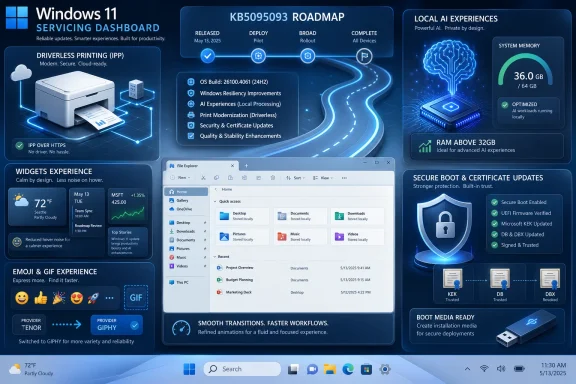
Microsoft released KB5095093 on June 23, 2026, as an optional preview update for Windows 11 versions 24H2 and 25H2, moving 24H2 to Build 26100.8737 and 25H2 to Build 26200.8737. The patch is not just another late-month bundle of small fixes. It is a revealing snapshot of where Windows is being pulled next: toward driverless printing, local AI workloads, quieter widgets, more managed update behavior, and a desktop shell that Microsoft is still sanding down in public. For users and administrators, the interesting part is not any single feature, but the way Microsoft is using cumulative updates to turn Windows into a rolling platform rather than a periodically upgraded operating system.
KB5095093 arrives under the familiar preview label, which means it is not a security update and is not supposed to be treated like Patch Tuesday by cautious administrators. But that label increasingly understates the importance of these releases. The late-month optional preview has become the place where Microsoft exposes the operational direction of Windows before those changes are swept into the next mandatory cumulative update.
That matters because the old rhythm of Windows administration was built around a clearer distinction between feature updates, quality updates, and security updates. Windows 11 has blurred those lines. A preview update can now carry visible user-interface changes, new policy behavior, driver model shifts, AI component updates, networking fixes, and known-issue mitigations all in one package.
KB5095093 is particularly dense because it spans Windows 11 version 24H2 and the newer 25H2 branch. On paper, those builds remain distinct. In practice, Microsoft is keeping them closely aligned, using cumulative servicing to deliver much of the same experience across both. That makes life easier for Microsoft’s servicing pipeline, but it also means administrators need to stop thinking of optional previews as merely a collection of obscure bug fixes.
The gradual rollout caveat is equally important. Microsoft says some features will arrive in phases, which means two fully updated machines may not behave identically on the same day. That is not new, but it remains uncomfortable in environments where predictability is the whole point of endpoint management. Windows is becoming more dynamic at precisely the moment enterprise IT wants fewer surprises.
Windows Ready Print is part of a longer retreat from the old third-party printer driver ecosystem. That ecosystem gave hardware vendors flexibility, but it also gave Windows one of its most durable sources of installation failures, print spooler fragility, security exposure, and user irritation. Printing has always looked boring until it breaks; then it becomes the entire help desk queue.
Using IPP by default is Microsoft’s way of saying that modern printers should behave more like network services and less like peripheral-driver science projects. If the printer can describe itself well enough using standards-based protocols, Windows should not need a large vendor software stack just to print a boarding pass or a quarterly report. The benefit is not glamour. The benefit is fewer brittle moving parts.
For administrators, the shift is more nuanced. Standardized driver selection can reduce support overhead, but it can also expose edge cases where specialized finishing options, accounting features, badge release workflows, or vendor-specific fleet tools still depend on proprietary components. Microsoft is not magically erasing those requirements. It is changing the default path so that the broad middle of printing no longer depends on the most fragile part of the old model.
The setting to control default printer installation behavior gives IT some breathing room. That is important because print infrastructure is rarely clean. Many organizations have a mix of modern IPP-capable devices, older multifunction printers, label printers, line-of-business dependencies, and vendor utilities nobody wants to own but everyone fears removing. KB5095093 does not solve that mess, but it does make clear where Microsoft wants the mess to go.
The point is not that every Windows user is suddenly running a local large language model. Most are not. The point is that Microsoft is preparing Windows for a world in which local AI features, developer tools, creative applications, indexing services, and model-backed assistants all compete for memory, GPU access, and responsiveness on the same client machine.
This also shows the awkward layering of the AI PC era. Microsoft talks about Copilot+ PCs, neural processors, and AI components, but the actual performance experience often comes down to old-fashioned resource management. If Windows cannot schedule memory sensibly under heavy local-model workloads, the marketing story collapses into stutter, swapping, and support tickets.
KB5095093 also updates AI components, including image search, content extraction, semantic analysis, and the settings model, though Microsoft notes that these components apply to Copilot+ PCs and do not install on ordinary Windows PCs or Windows Server. That split is becoming a defining characteristic of Windows 11. Two machines can share the same cumulative update number yet receive different functional payloads depending on silicon, region, account type, and rollout eligibility.
There is a risk here for Microsoft. The company wants Windows to be both universal and hardware-aware, both familiar and AI-forward. But as AI features become gated by device class and staged deployment, the simple question “Is my PC up to date?” becomes harder to answer. KB5095093 is a preview of that future: one KB number, many lived realities.
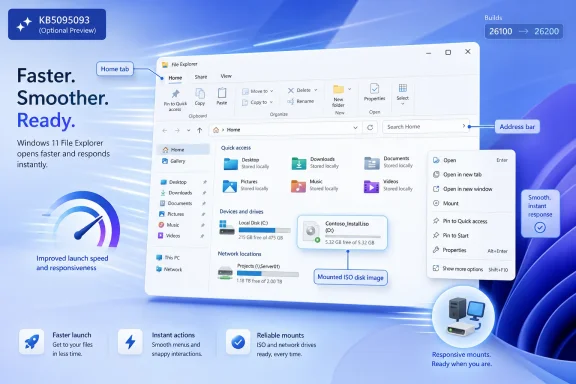
Some of the fixes are specific. File Explorer should behave better when navigating to Home during OneDrive sync. It should launch faster and respond better when mounting disk images. The address bar is more tolerant of paths with double backslashes and quotation marks, and the suggestion dropdown should close more reliably after selection. Rename behavior receives fixes for repeated text selection and case-only name changes.
Other fixes target the broader sensation of Windows behaving oddly at the edges. Blank gray taskbar icons should be less likely. Notification badges should update more accurately. Explorer.exe should be more reliable when switching between desktops. Shell extensions should interfere less with app launching. Acrylic blur effects in the Start menu, Settings, and lock screen should be more stable.
These are not headline features, but they are the texture of trust. Users rarely praise an operating system because the taskbar icon did not turn into a gray rectangle. They notice when it does. Administrators rarely write deployment plans around acrylic blur, but unexplained shell instability is exactly the kind of nuisance that makes users blame “the update” for everything that follows.
The OneDrive-related File Explorer fix is especially telling. Microsoft has made cloud integration central to the Windows experience, but the File Explorer Home view now sits at the intersection of local files, cloud sync, account identity, recent activity, favorites, and Copilot-adjacent quick actions. That is a lot of state to render in a window users still expect to behave like a file manager from 2009. KB5095093’s Explorer fixes are a reminder that modern Windows complexity keeps surfacing in familiar places.
On its face, this is a tiny consumer-facing change. GIF search in the emoji panel is not the foundation of enterprise computing. But the dependency chain is worth noticing. A service API changes, Microsoft swaps providers, and a Windows cumulative update becomes the delivery mechanism required to preserve a small cloud-backed feature inside a system panel.
That is modern Windows in miniature. The operating system is no longer only a local platform. It is a client for Microsoft services, third-party services, identity services, cloud content, AI models, sync engines, notification systems, and provider APIs. A component as mundane as the emoji panel can break if the service contract behind it changes.
This does not mean Windows should avoid service integration. Users expect search, personalization, cloud sync, and rich input tools to work across devices and contexts. But it does mean the boundary between “Windows feature” and “web service dependency” is thinner than many users realize. KB5095093’s GIF change is a small reminder that even local UI surfaces increasingly depend on remote arrangements the user never sees.
For managed environments, the lesson is not that GIFs are strategically important. The lesson is that user-visible behavior can change because of service migrations outside the traditional operating-system lifecycle. That raises familiar questions about documentation, timing, privacy review, content filtering, and regional availability. Even the silly parts of Windows now have operational implications.
Microsoft has spent years encouraging developers to treat Windows as a first-class development workstation for Linux-adjacent workflows. WSL is central to that pitch. But the more WSL resembles a real development environment, the more it must survive the unglamorous realities of enterprise networking: split tunnels, DNS quirks, endpoint agents, VPN adapters, firewall rules, certificate inspection, and nested virtualization.
Mirrored networking was meant to make WSL networking feel less like a special case and more like part of the host. VPN reliability is therefore a credibility issue. If a developer can reach a resource from Windows but not from WSL, the abstraction fails in exactly the place it was supposed to disappear.
KB5095093 also includes broader networking improvements, including reliability work for shared network resources and null-session connections used by some legacy applications. This is the other side of Microsoft’s modernization project. Windows must support confidential virtual machines and SR-IOV acceleration while also not breaking a line-of-business application that still expects an unauthenticated network connection pattern from a very different era.
That tension is not going away. Windows remains the platform where old and new infrastructure collide. Microsoft can push toward modern security and cloud-native development, but it still has to service the stubborn middle: SMB shares, old domain controllers, legacy applications, VPN clients, and enterprise workflows whose owners retired three reorganizations ago.
The controlled rollout language is important because Secure Boot is one of those technologies users normally ignore until it prevents a device from starting. Certificate updates must land widely, but they must not brick machines, strand recovery media, or disrupt deployment workflows. Microsoft is therefore treating certificate replacement as a targeted servicing campaign rather than a simple payload blast.
For consumers, the practical message is less dramatic than the expiration date might sound. Microsoft says devices that have not yet received newer certificates will continue to start and operate normally, and standard Windows updates will continue to install. But the clock still forces action across the ecosystem. Firmware, bootloaders, recovery environments, installation media, and enterprise deployment images all intersect with Secure Boot trust.
The KB also warns that when administrators deploy dynamic updates to an existing Windows image, the boot.stl file must be included as part of installation media. If it is missing, devices may fail to start from that media with an error. That is the kind of detail that separates “we patched the fleet” from “why won’t this recovery USB boot in the lab?”
Secure Boot certificate servicing is not flashy, but it is exactly the kind of plumbing that determines whether Windows remains operational at scale. KB5095093’s approach suggests Microsoft knows the risk. The company is trying to move a foundational trust component while watching telemetry for signs that a given device class can tolerate the change.
But the feature also illustrates Microsoft’s philosophy of controlled flexibility. Users get more legible control, but within a boundary Microsoft defines. The 35-day limit remains the guardrail. The interface becomes more humane without changing the fundamental premise that Windows updates are not something users can simply opt out of indefinitely.
For home users, that is mostly sensible. A clearer pause control reduces the chance of surprise restarts during inconvenient moments while still keeping devices in the servicing stream. For enthusiasts, it is another example of Microsoft allowing configuration but not full autonomy. For enterprise administrators, it is less important than policy-based update management, but it shapes user expectations.
The broader point is that Microsoft is making Windows Update more visible as a user experience rather than hiding it as background maintenance. That can be good. Users who understand when updates resume are less likely to feel ambushed. But it also means Windows Update remains one of the most politically sensitive parts of the operating system, especially as optional previews carry more visible change.
The redesigned pause UI sits alongside the Secure Boot rollout, AI component servicing, printer model changes, and GIF provider migration as evidence of one thing: Windows Update is now Microsoft’s delivery rail for almost everything. Security patches are only part of the story. The update client is the platform’s bloodstream.
The touchpad setting is a good example of a user annoyance that can feel much bigger than it looks in release notes. Pressable touchpads rely heavily on zones and gestures. If the right-click zone feels too large or too small, a laptop can feel imprecise all day. Giving users default, small, medium, and large options is not revolutionary, but it is the kind of device-level polish Windows has historically left too often to OEM utilities.
The Location settings change is similarly modest but welcome. If Location Services are off, options such as Default location and Allow location override do not immediately apply in the way users might assume. Greying them out makes the dependency visible. A good settings app does not merely expose toggles; it explains why a toggle matters and when it is inactive.
Widgets also get a quieter default experience, with less hover-driven interruption, fewer default badges, and more emphasis on opening the dashboard intentionally. That is Microsoft responding to a criticism that has followed Windows 11 since launch: too many surfaces feel like they are competing for attention. A calmer Widgets panel is not a retreat from web-powered Windows, but it is at least an acknowledgment that ambient engagement can become noise.
Accessibility improvements, including screen tint options and Magnifier controls, sit in the same pattern. Microsoft is slowly turning Windows settings from a warehouse of switches into a more adaptive control plane. The results are uneven, but KB5095093 suggests the company understands that usability is no longer just about adding features. It is about reducing friction around the features already there.
Microsoft improves Netlogon secure channel connections between domain controllers, specifically enabling member servers to connect successfully to older domain controllers deployed before 2025. That is a very Windows sentence. It contains a modern servicing timeline, legacy infrastructure, identity plumbing, and a failure mode that could make a routine update feel like an outage.
Remote Desktop receives a refreshed settings dialog when enabling the feature, which is more cosmetic than architectural. Still, Remote Desktop remains a core administrative pathway, and its UI continues to matter for small businesses, lab environments, and power users who do not live entirely inside enterprise management consoles. Windows administration is full of such hybrid cases.
The update also addresses UAC prompts that could appear unexpectedly in some installers and applications after installing KB5089549. That kind of fix rarely makes headlines, but unexpected elevation behavior is exactly the sort of thing that triggers security reviews, breaks install automation, and erodes user confidence. In regulated environments, a surprise prompt is not just annoying; it can be a process failure.
Then there is the known issue involving Microsoft Office applications launched through certain third-party applications using OLE automation. Microsoft says some affected scenarios can involve apps such as CCH Engagement, Workpaper Manager, dental software, and Zotero, with Office apps or documents failing to open after Windows updates released on or after June 9, 2026. That known issue is a useful reminder that optional preview updates are still previews. They can fix many things while leaving administrators to route around one business-critical breakage.
That timing adds a subtle pressure to the 24H2 and 25H2 pairing in this update. Microsoft is servicing both, but it is also nudging users off 24H2 before support ends for Home and Pro. The builds are aligned today, but the lifecycle clock ensures they will not remain equal forever.
For enthusiasts, the decision may be simple: move to 25H2 once hardware and software are ready. For small organizations without formal endpoint management, the calculus is messier. They may be running Windows 11 Pro on machines that behave like business endpoints but are serviced like consumer devices. Those systems need attention before October, especially if they are also carrying vendor apps, VPN clients, printer dependencies, and Office automation workflows.
The preview update therefore functions as both a patch and a signpost. It says 24H2 is still receiving meaningful improvements, but it also reminds users that the servicing window is finite. Microsoft has learned to make Windows version upgrades feel smaller, but it has not made lifecycle deadlines optional.
This is another reason optional previews deserve scrutiny. They show what Microsoft intends to fold into the supported baseline. If a fleet is going to move from 24H2 to 25H2, KB5095093’s fixes and known issues provide clues about what administrators should test: printing, WSL with VPN, Office automation, shell reliability, Secure Boot media, and line-of-business network access.
The update is available through Windows Update optional updates, the Microsoft Update Catalog, and manual enterprise import paths such as WSUS. For many users, the simplest advice remains to wait unless one of the fixes addresses a current problem. For IT departments, the better approach is to treat this as a test candidate for the next security cumulative update.
The known Office issue is the biggest reason to be deliberate. If a business depends on software that launches Word, Excel, PowerPoint, Access, or documents through automation, KB5095093 belongs in a validation ring before broad deployment. The workaround of opening Office files directly may be tolerable for some users and unacceptable for others. The difference depends on workflow, not on Microsoft’s severity language.
The printing change also deserves targeted testing. Modern printers that support IPP should benefit, but organizations with specialized print features need to verify that Windows Ready Print does not silently flatten capabilities users rely on. A smoother install path is only a win if it preserves the functions that made the printer worth buying.
The Secure Boot deployment language likewise calls for imaging and recovery checks. Administrators who update installation media should confirm the relevant boot files are present and aligned. The scariest update problems are not always the ones that break a running machine. Sometimes they are the ones that only appear when a machine needs to be rebuilt under pressure.
 The Optional Preview Is Becoming Microsoft’s Real Change Log
KB5095093 arrives under the familiar preview label, which means it is not a security update and is not supposed to be treated like Patch Tuesday by cautious administrators. But that label increasingly understates the importance of these releases. The late-month optional preview has become the place where Microsoft exposes the operational direction of Windows before those changes are swept into the next mandatory cumulative update.That matters because the old rhythm of Windows administration was built around a clearer distinction between feature updates, quality updates, and security updates. Windows 11 has blurred those lines. A preview update can now carry visible user-interface changes, new policy behavior, driver model shifts, AI component updates, networking fixes, and known-issue mitigations all in one package.
KB5095093 is particularly dense because it spans Windows 11 version 24H2 and the newer 25H2 branch. On paper, those builds remain distinct. In practice, Microsoft is keeping them closely aligned, using cumulative servicing to deliver much of the same experience across both. That makes life easier for Microsoft’s servicing pipeline, but it also means administrators need to stop thinking of optional previews as merely a collection of obscure bug fixes.
The gradual rollout caveat is equally important. Microsoft says some features will arrive in phases, which means two fully updated machines may not behave identically on the same day. That is not new, but it remains uncomfortable in environments where predictability is the whole point of endpoint management. Windows is becoming more dynamic at precisely the moment enterprise IT wants fewer surprises.
Windows Ready Print Is the Quiet Endgame for Printer Drivers
The most consequential feature in KB5095093 may be the one most home users will barely notice: new printer installations now use Internet Printing Protocol by default when supported. Microsoft presents this as a simplification and reliability improvement, and it probably will be for many users. Anyone who has fought a flaky vendor printer package knows why Windows is moving in this direction.Windows Ready Print is part of a longer retreat from the old third-party printer driver ecosystem. That ecosystem gave hardware vendors flexibility, but it also gave Windows one of its most durable sources of installation failures, print spooler fragility, security exposure, and user irritation. Printing has always looked boring until it breaks; then it becomes the entire help desk queue.
Using IPP by default is Microsoft’s way of saying that modern printers should behave more like network services and less like peripheral-driver science projects. If the printer can describe itself well enough using standards-based protocols, Windows should not need a large vendor software stack just to print a boarding pass or a quarterly report. The benefit is not glamour. The benefit is fewer brittle moving parts.
For administrators, the shift is more nuanced. Standardized driver selection can reduce support overhead, but it can also expose edge cases where specialized finishing options, accounting features, badge release workflows, or vendor-specific fleet tools still depend on proprietary components. Microsoft is not magically erasing those requirements. It is changing the default path so that the broad middle of printing no longer depends on the most fragile part of the old model.
The setting to control default printer installation behavior gives IT some breathing room. That is important because print infrastructure is rarely clean. Many organizations have a mix of modern IPP-capable devices, older multifunction printers, label printers, line-of-business dependencies, and vendor utilities nobody wants to own but everyone fears removing. KB5095093 does not solve that mess, but it does make clear where Microsoft wants the mess to go.
Local AI Is Now a Memory-Management Problem
The update’s graphics kernel change is easy to skim past, but it says a great deal about the PC Microsoft thinks it is now servicing. KB5095093 includes an improved memory-management policy that allows PCs with more than 32GB of installed RAM to run larger local AI models more effectively. That is a sentence that would have sounded like workstation trivia a few years ago. In 2026, it reads like platform planning.The point is not that every Windows user is suddenly running a local large language model. Most are not. The point is that Microsoft is preparing Windows for a world in which local AI features, developer tools, creative applications, indexing services, and model-backed assistants all compete for memory, GPU access, and responsiveness on the same client machine.
This also shows the awkward layering of the AI PC era. Microsoft talks about Copilot+ PCs, neural processors, and AI components, but the actual performance experience often comes down to old-fashioned resource management. If Windows cannot schedule memory sensibly under heavy local-model workloads, the marketing story collapses into stutter, swapping, and support tickets.
KB5095093 also updates AI components, including image search, content extraction, semantic analysis, and the settings model, though Microsoft notes that these components apply to Copilot+ PCs and do not install on ordinary Windows PCs or Windows Server. That split is becoming a defining characteristic of Windows 11. Two machines can share the same cumulative update number yet receive different functional payloads depending on silicon, region, account type, and rollout eligibility.
There is a risk here for Microsoft. The company wants Windows to be both universal and hardware-aware, both familiar and AI-forward. But as AI features become gated by device class and staged deployment, the simple question “Is my PC up to date?” becomes harder to answer. KB5095093 is a preview of that future: one KB number, many lived realities.
The Desktop Shell Still Needs Monthly Repair
For all the talk of AI and modern protocols, KB5095093 spends a lot of energy on the oldest Windows problem of all: making the shell feel reliable. File Explorer, explorer.exe, the taskbar, virtual desktops, acrylic blur, app launch behavior, notification badges, and the lock screen all receive attention. That is not a small maintenance note. It is an admission that the Windows 11 shell remains an active construction site.Some of the fixes are specific. File Explorer should behave better when navigating to Home during OneDrive sync. It should launch faster and respond better when mounting disk images. The address bar is more tolerant of paths with double backslashes and quotation marks, and the suggestion dropdown should close more reliably after selection. Rename behavior receives fixes for repeated text selection and case-only name changes.
Other fixes target the broader sensation of Windows behaving oddly at the edges. Blank gray taskbar icons should be less likely. Notification badges should update more accurately. Explorer.exe should be more reliable when switching between desktops. Shell extensions should interfere less with app launching. Acrylic blur effects in the Start menu, Settings, and lock screen should be more stable.
These are not headline features, but they are the texture of trust. Users rarely praise an operating system because the taskbar icon did not turn into a gray rectangle. They notice when it does. Administrators rarely write deployment plans around acrylic blur, but unexplained shell instability is exactly the kind of nuisance that makes users blame “the update” for everything that follows.
The OneDrive-related File Explorer fix is especially telling. Microsoft has made cloud integration central to the Windows experience, but the File Explorer Home view now sits at the intersection of local files, cloud sync, account identity, recent activity, favorites, and Copilot-adjacent quick actions. That is a lot of state to render in a window users still expect to behave like a file manager from 2009. KB5095093’s Explorer fixes are a reminder that modern Windows complexity keeps surfacing in familiar places.
The GIF Switch Shows How Dependent Windows Has Become on Services
One of the stranger changes in KB5095093 is also one of the most illustrative. Microsoft has moved the Windows emoji panel’s GIF provider from Google’s Tenor service to GIPHY after changes to the Tenor API. Starting June 30, 2026, users need current Windows updates installed to keep GIF search working in the emoji panel; otherwise, the panel may report that the GIF service is unavailable.On its face, this is a tiny consumer-facing change. GIF search in the emoji panel is not the foundation of enterprise computing. But the dependency chain is worth noticing. A service API changes, Microsoft swaps providers, and a Windows cumulative update becomes the delivery mechanism required to preserve a small cloud-backed feature inside a system panel.
That is modern Windows in miniature. The operating system is no longer only a local platform. It is a client for Microsoft services, third-party services, identity services, cloud content, AI models, sync engines, notification systems, and provider APIs. A component as mundane as the emoji panel can break if the service contract behind it changes.
This does not mean Windows should avoid service integration. Users expect search, personalization, cloud sync, and rich input tools to work across devices and contexts. But it does mean the boundary between “Windows feature” and “web service dependency” is thinner than many users realize. KB5095093’s GIF change is a small reminder that even local UI surfaces increasingly depend on remote arrangements the user never sees.
For managed environments, the lesson is not that GIFs are strategically important. The lesson is that user-visible behavior can change because of service migrations outside the traditional operating-system lifecycle. That raises familiar questions about documentation, timing, privacy review, content filtering, and regional availability. Even the silly parts of Windows now have operational implications.
WSL and VPN Fixes Aim at the Developer Reality Microsoft Helped Create
The Windows Subsystem for Linux fix in KB5095093 targets mirrored networking mode when VPNs are active. That sounds narrow until you consider the audience. Developers, security engineers, cloud administrators, and power users often run WSL while connected to corporate VPNs, private package feeds, internal Git services, test environments, or cloud control planes. When WSL networking misbehaves in that context, the problem is not theoretical.Microsoft has spent years encouraging developers to treat Windows as a first-class development workstation for Linux-adjacent workflows. WSL is central to that pitch. But the more WSL resembles a real development environment, the more it must survive the unglamorous realities of enterprise networking: split tunnels, DNS quirks, endpoint agents, VPN adapters, firewall rules, certificate inspection, and nested virtualization.
Mirrored networking was meant to make WSL networking feel less like a special case and more like part of the host. VPN reliability is therefore a credibility issue. If a developer can reach a resource from Windows but not from WSL, the abstraction fails in exactly the place it was supposed to disappear.
KB5095093 also includes broader networking improvements, including reliability work for shared network resources and null-session connections used by some legacy applications. This is the other side of Microsoft’s modernization project. Windows must support confidential virtual machines and SR-IOV acceleration while also not breaking a line-of-business application that still expects an unauthenticated network connection pattern from a very different era.
That tension is not going away. Windows remains the platform where old and new infrastructure collide. Microsoft can push toward modern security and cloud-native development, but it still has to service the stubborn middle: SMB shares, old domain controllers, legacy applications, VPN clients, and enterprise workflows whose owners retired three reorganizations ago.
Secure Boot Certificate Updates Become a Servicing Campaign
KB5095093 expands the deployment of new Secure Boot certificates using what Microsoft describes as higher-confidence device targeting data. Devices receive the new certificates only after showing sufficient successful update signals. That phrasing is bureaucratic, but the underlying issue is serious: Secure Boot certificates used by most Windows devices are set to begin expiring in June 2026, and Microsoft has been rolling out replacements.The controlled rollout language is important because Secure Boot is one of those technologies users normally ignore until it prevents a device from starting. Certificate updates must land widely, but they must not brick machines, strand recovery media, or disrupt deployment workflows. Microsoft is therefore treating certificate replacement as a targeted servicing campaign rather than a simple payload blast.
For consumers, the practical message is less dramatic than the expiration date might sound. Microsoft says devices that have not yet received newer certificates will continue to start and operate normally, and standard Windows updates will continue to install. But the clock still forces action across the ecosystem. Firmware, bootloaders, recovery environments, installation media, and enterprise deployment images all intersect with Secure Boot trust.
The KB also warns that when administrators deploy dynamic updates to an existing Windows image, the boot.stl file must be included as part of installation media. If it is missing, devices may fail to start from that media with an error. That is the kind of detail that separates “we patched the fleet” from “why won’t this recovery USB boot in the lab?”
Secure Boot certificate servicing is not flashy, but it is exactly the kind of plumbing that determines whether Windows remains operational at scale. KB5095093’s approach suggests Microsoft knows the risk. The company is trying to move a foundational trust component while watching telemetry for signs that a given device class can tolerate the change.
The Update Pause Calendar Is Control With a Microsoft Accent
KB5095093 also builds on the new Windows Update pause experience, which lets users choose an end date on a calendar for pausing updates, up to 35 days. On paper, this is a usability improvement. Instead of thinking in abstract weekly increments, users can pick a date that maps to travel, a deadline, a presentation, or an administrator’s maintenance window.But the feature also illustrates Microsoft’s philosophy of controlled flexibility. Users get more legible control, but within a boundary Microsoft defines. The 35-day limit remains the guardrail. The interface becomes more humane without changing the fundamental premise that Windows updates are not something users can simply opt out of indefinitely.
For home users, that is mostly sensible. A clearer pause control reduces the chance of surprise restarts during inconvenient moments while still keeping devices in the servicing stream. For enthusiasts, it is another example of Microsoft allowing configuration but not full autonomy. For enterprise administrators, it is less important than policy-based update management, but it shapes user expectations.
The broader point is that Microsoft is making Windows Update more visible as a user experience rather than hiding it as background maintenance. That can be good. Users who understand when updates resume are less likely to feel ambushed. But it also means Windows Update remains one of the most politically sensitive parts of the operating system, especially as optional previews carry more visible change.
The redesigned pause UI sits alongside the Secure Boot rollout, AI component servicing, printer model changes, and GIF provider migration as evidence of one thing: Windows Update is now Microsoft’s delivery rail for almost everything. Security patches are only part of the story. The update client is the platform’s bloodstream.
Input, Accessibility, and Widgets Show a Softer Kind of Control
Not every change in KB5095093 is about infrastructure. The update adds a right-click zone size setting for compatible pressable precision touchpads, improves recognition of English characters in Japanese handwriting, and changes Location settings so unavailable options are greyed out when Location Services are disabled. These are small changes, but they share a common theme: Windows is trying to explain itself better.The touchpad setting is a good example of a user annoyance that can feel much bigger than it looks in release notes. Pressable touchpads rely heavily on zones and gestures. If the right-click zone feels too large or too small, a laptop can feel imprecise all day. Giving users default, small, medium, and large options is not revolutionary, but it is the kind of device-level polish Windows has historically left too often to OEM utilities.
The Location settings change is similarly modest but welcome. If Location Services are off, options such as Default location and Allow location override do not immediately apply in the way users might assume. Greying them out makes the dependency visible. A good settings app does not merely expose toggles; it explains why a toggle matters and when it is inactive.
Widgets also get a quieter default experience, with less hover-driven interruption, fewer default badges, and more emphasis on opening the dashboard intentionally. That is Microsoft responding to a criticism that has followed Windows 11 since launch: too many surfaces feel like they are competing for attention. A calmer Widgets panel is not a retreat from web-powered Windows, but it is at least an acknowledgment that ambient engagement can become noise.
Accessibility improvements, including screen tint options and Magnifier controls, sit in the same pattern. Microsoft is slowly turning Windows settings from a warehouse of switches into a more adaptive control plane. The results are uneven, but KB5095093 suggests the company understands that usability is no longer just about adding features. It is about reducing friction around the features already there.
Enterprise Reliability Is the Update’s Unsexy Center of Gravity
The most important customers for KB5095093 may not be the users who notice GIF search, touchpad zones, or File Explorer quick actions. They may be the administrators watching domain controllers, Remote Desktop, third-party credential providers, Office automation, shared resources, and UAC behavior. The update’s enterprise fixes are scattered across the release notes, but together they form the update’s practical center.Microsoft improves Netlogon secure channel connections between domain controllers, specifically enabling member servers to connect successfully to older domain controllers deployed before 2025. That is a very Windows sentence. It contains a modern servicing timeline, legacy infrastructure, identity plumbing, and a failure mode that could make a routine update feel like an outage.
Remote Desktop receives a refreshed settings dialog when enabling the feature, which is more cosmetic than architectural. Still, Remote Desktop remains a core administrative pathway, and its UI continues to matter for small businesses, lab environments, and power users who do not live entirely inside enterprise management consoles. Windows administration is full of such hybrid cases.
The update also addresses UAC prompts that could appear unexpectedly in some installers and applications after installing KB5089549. That kind of fix rarely makes headlines, but unexpected elevation behavior is exactly the sort of thing that triggers security reviews, breaks install automation, and erodes user confidence. In regulated environments, a surprise prompt is not just annoying; it can be a process failure.
Then there is the known issue involving Microsoft Office applications launched through certain third-party applications using OLE automation. Microsoft says some affected scenarios can involve apps such as CCH Engagement, Workpaper Manager, dental software, and Zotero, with Office apps or documents failing to open after Windows updates released on or after June 9, 2026. That known issue is a useful reminder that optional preview updates are still previews. They can fix many things while leaving administrators to route around one business-critical breakage.
The 24H2 Deadline Adds Pressure Behind the Preview
KB5095093 also carries a lifecycle reminder: Windows 11 version 24H2 Home and Pro editions reach end of updates on October 13, 2026. Enterprise and Education editions continue longer, but the consumer and small-business deadline is close enough to matter. Microsoft’s advice, predictably, is to move to the latest Windows 11 version.That timing adds a subtle pressure to the 24H2 and 25H2 pairing in this update. Microsoft is servicing both, but it is also nudging users off 24H2 before support ends for Home and Pro. The builds are aligned today, but the lifecycle clock ensures they will not remain equal forever.
For enthusiasts, the decision may be simple: move to 25H2 once hardware and software are ready. For small organizations without formal endpoint management, the calculus is messier. They may be running Windows 11 Pro on machines that behave like business endpoints but are serviced like consumer devices. Those systems need attention before October, especially if they are also carrying vendor apps, VPN clients, printer dependencies, and Office automation workflows.
The preview update therefore functions as both a patch and a signpost. It says 24H2 is still receiving meaningful improvements, but it also reminds users that the servicing window is finite. Microsoft has learned to make Windows version upgrades feel smaller, but it has not made lifecycle deadlines optional.
This is another reason optional previews deserve scrutiny. They show what Microsoft intends to fold into the supported baseline. If a fleet is going to move from 24H2 to 25H2, KB5095093’s fixes and known issues provide clues about what administrators should test: printing, WSL with VPN, Office automation, shell reliability, Secure Boot media, and line-of-business network access.
The Fine Print Is Where This Patch Becomes Operational
KB5095093 is not a security update, but treating it as harmless because of that label would be a mistake. It changes defaults, updates AI components on eligible hardware, adjusts network behavior, touches Secure Boot certificate deployment, modifies printing installation paths, and carries a known Office automation issue that could matter in professional workflows. That is a lot of operational surface area for an optional preview.The update is available through Windows Update optional updates, the Microsoft Update Catalog, and manual enterprise import paths such as WSUS. For many users, the simplest advice remains to wait unless one of the fixes addresses a current problem. For IT departments, the better approach is to treat this as a test candidate for the next security cumulative update.
The known Office issue is the biggest reason to be deliberate. If a business depends on software that launches Word, Excel, PowerPoint, Access, or documents through automation, KB5095093 belongs in a validation ring before broad deployment. The workaround of opening Office files directly may be tolerable for some users and unacceptable for others. The difference depends on workflow, not on Microsoft’s severity language.
The printing change also deserves targeted testing. Modern printers that support IPP should benefit, but organizations with specialized print features need to verify that Windows Ready Print does not silently flatten capabilities users rely on. A smoother install path is only a win if it preserves the functions that made the printer worth buying.
The Secure Boot deployment language likewise calls for imaging and recovery checks. Administrators who update installation media should confirm the relevant boot files are present and aligned. The scariest update problems are not always the ones that break a running machine. Sometimes they are the ones that only appear when a machine needs to be rebuilt under pressure.
KB5095093 Draws the Map for Windows 11’s Next Six Months
KB5095093 is best read less as a grab bag and more as a map. It shows Microsoft modernizing old subsystems, preparing Windows for local AI, softening noisy user experiences, and continuing to repair the shell while keeping enterprises inside a managed servicing lane. The concrete lessons are straightforward, but their combined meaning is larger than the patch notes.- Windows Ready Print is becoming the preferred path for new printer installs when IPP is supported, which should reduce driver friction but still requires validation for specialized printer fleets.
- PCs with more than 32GB of RAM receive graphics-kernel memory-management improvements aimed at larger local AI models, signaling that Windows client performance work is now being shaped by on-device AI.
- WSL mirrored networking with VPNs should behave more reliably, a meaningful fix for developers who use Windows as a corporate Linux workstation.
- GIF search in the emoji panel now depends on the GIPHY migration and current Windows updates before the June 30, 2026 cutoff.
- Secure Boot certificate deployment is being phased using device reliability signals, so administrators should pay attention to imaging, recovery media, and boot validation details.
- The known Office automation issue means organizations using third-party apps to launch Office documents should test before deploying this preview broadly.
References
- Primary source: Windows Report
Published: 2026-06-24T08:10:25.937170
Windows 11 KB5095093 Adds Windows Ready Print, AI Improvements, and GIF Changes
Microsoft has released Windows 11 KB5095093, bringing Windows Ready Print improvements, WSL fixes, AI enhancements, and reliability updates. windowsreport.com