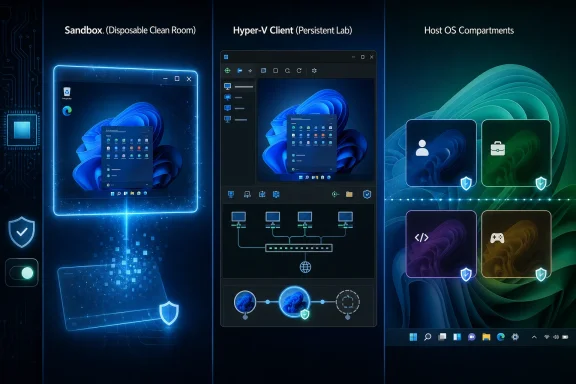
Thurrott.com published and updated its Windows 11 Field Guide virtualization material on July 5, 2026, centering the 2026 edition around Hyper-V, Windows Sandbox, and the broader virtualization tools built into modern Windows 11. The update is not just another how-to chapter refresh. It is a sign that virtualization has moved from specialist territory into the everyday Windows maintenance, security, and development story.
That matters because Windows 11 now treats virtualization as plumbing for everything from app isolation to Linux development to credential protection. As Paul Thurrott’s updated Field Guide material makes clear, the user-facing pieces are still split across legacy dialogs, Settings pages, and management consoles, but the platform idea is increasingly unified: Windows is no longer one environment, but a host for many controlled ones. The problem for Microsoft is that the pieces still feel like they were designed by different committees.
For years, virtualization on a Windows desktop was something enthusiasts enabled after a trip into the BIOS and a detour through “Turn Windows features on or off.” That was tolerable when the audience was mostly developers, IT pros, and lab builders. It is less defensible in 2026, when virtualization underpins security features, Windows Sandbox, WSL, Hyper-V, containers, and increasingly the way users are expected to test risky software without torching their primary installation.
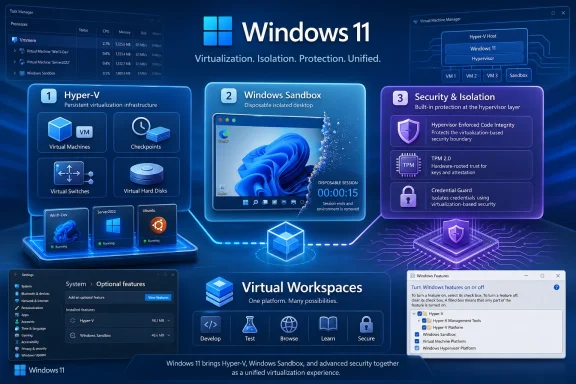
Thurrott’s updated Windows 11 Field Guide material frames Hyper-V as the full-fat option and Windows Sandbox as the disposable one. That distinction remains useful. Hyper-V is for persistent virtual machines, checkpoints, virtual disks, network switches, and controlled test rigs; Sandbox is for “I need to run this once and throw the whole room away afterward.”
The operating system, however, still exposes these choices with a surprising amount of historical sediment. Some of the entry points are modern, some are MMC-era, and some still point users toward the Windows Features control panel. Microsoft has spent years migrating bits of Windows into Settings, but virtualization remains one of those areas where the old architecture keeps showing through the drywall.
This is not merely aesthetic. If virtualization is now part of Windows security and daily troubleshooting, it needs to be discoverable and explainable. A feature that asks users to reboot after toggling a checkbox, fails silently when firmware virtualization is disabled, and changes the behavior of third-party hypervisors is not a casual setting. It is an operating mode.
But Hyper-V’s strength is also its stubbornness. It asks the user to understand virtual disks, VM generations, UEFI, Secure Boot templates, TPM support, dynamic memory, and virtual switches. These are not unreasonable concepts for WindowsForum readers, but they are not consumer concepts, either.
The Windows 11 requirement story makes this more complicated. If you are installing Windows 11 inside a Hyper-V VM, you must care about virtual TPM support because Windows 11 itself cares about TPM support. If you are booting certain Linux distributions, Secure Boot certificate choices can decide whether the virtual machine starts at all. The abstraction leaks early.
That leakiness is not a bug so much as a tradeoff. Hyper-V gives you enough control to model real machines and real deployment problems. It is the tool you want when a developer needs to test an installer, a sysadmin needs to validate a policy change, or a writer needs screenshots from Windows Setup without reinstalling a laptop five times.
The price is that Hyper-V is not an “app.” It is a subsystem with a management front end. Microsoft can modernize its entry points, but the job itself remains technical.
That makes Sandbox one of the most useful security-adjacent features in Windows 11 Pro, Education, and Enterprise. It is not a malware-analysis lab. It is not a replacement for endpoint protection. But for users who need to open a suspicious installer, test a script, or inspect a file without polluting the primary Windows profile, it is exactly the right level of friction.
The key word is temporary. Hyper-V is about persistence and state. Sandbox is about forgetting. That difference is easy to describe in a guide and too easy for Windows itself to obscure.
Microsoft’s own documentation has also reflected a moving target. In Windows 11 version 24H2 and later, Microsoft notes that inbox Store apps such as Calculator, Photos, Notepad, and Terminal are not available inside Windows Sandbox. That sounds minor until a user opens the sandbox expecting a normal Windows environment and instead gets something more skeletal.
That skeletal design is defensible. Sandbox is supposed to be light, disposable, and fast. But Microsoft needs to present it as a purpose-built isolation chamber, not a miniature Windows PC. The moment users expect a complete desktop, they start treating missing pieces as bugs rather than design constraints.
That changes the old advice around disabling hypervisors. A decade ago, a gamer or VirtualBox user might turn off Hyper-V because it interfered with another tool or hurt performance. In 2026, that decision may also touch security posture. The hypervisor is no longer just a lab feature; it is part of how Windows partitions trust.
This is where Microsoft’s naming hurts it. Hyper-V, Windows Hypervisor Platform, Virtual Machine Platform, Windows Sandbox, WSL, containers, and virtualization-based security are related but not interchangeable. Users see a nest of similarly named toggles and assume they are duplicates. They are not.
For enterprise admins, this is manageable because policy, baselines, and documentation can define what is enabled and why. For enthusiasts and small-office admins, the picture is messier. A user trying to speed up a VM may disable the wrong thing and weaken a security feature. Another user may enable a feature for WSL and wonder why a third-party VM product behaves differently afterward.
The thesis is simple: Windows virtualization is now infrastructure. Infrastructure needs a map.
There are workarounds for some pieces, and the Windows community has never been shy about finding them. But workarounds are not product strategy. If Microsoft believes disposable isolation is a meaningful safety feature for ordinary users, keeping Sandbox out of Home looks increasingly awkward.
The counterargument is support cost. Virtualization features depend on firmware settings, CPU capabilities, memory, storage, and driver behavior. The average Home user who toggles a hypervisor on a low-end PC may not get a great experience. Microsoft may not want that support burden.
But the Windows threat model has changed. Home users download unknown apps, run unsigned utilities, test game mods, open questionable archives, and follow dubious “fix your PC” instructions from the web. If any audience could benefit from a simple throwaway Windows environment, it is not only the professional one.
The more Microsoft pushes security as a Windows 11 selling point, the harder it becomes to explain why the simplest built-in isolation tool is paywalled by edition.
Windows Sandbox is lighter, but it still spins up an isolated Windows environment. WSL 2 uses a lightweight VM architecture. Containers depend on virtualization components. Security features can alter how the system uses the hypervisor. These layers add up.
The real issue is not whether virtualization is “slow.” On modern hardware, it is often fast enough to feel ordinary. The issue is that resource contention becomes harder to diagnose because the work is hidden behind Vmmem processes, background services, and optional components.
For developers, the tradeoff is usually worth it. A reproducible VM or Linux environment beats contaminating the host OS. For admins, a safe test VM is cheaper than breaking production. For casual users, however, the overhead can seem mysterious if Windows does not clearly explain what is running and why.
This is an area where Task Manager and Settings could do more. Windows can show GPU usage, startup impact, app history, and efficiency mode. It should be just as clear about virtualization-backed workloads and their cost.
Microsoft has improved Windows on Arm significantly, especially around app compatibility and performance. But virtualization is where architecture becomes visible again. You cannot wish away CPU architecture when booting operating systems, loading drivers, or emulating workloads.
For many users, that will not matter. A Copilot+ PC buyer who lives in Edge, Office, Teams, and native Arm apps may never care. For developers, admins, and enthusiasts, it matters immediately. A Windows laptop that cannot run the same test VMs as an x86 machine is not equivalent, no matter how good its battery life is.
This is not a reason to dismiss Arm PCs. It is a reason to be precise about their role. If your work depends on local virtualization labs, your buying decision should include that fact. The marketing story around AI PCs and battery life cannot replace the operational story around guest OS support.
That is the right move, but it is only the first move. A Settings page that merely mirrors old checkboxes is not enough. Users need dependency explanations, edition warnings, firmware checks, restart expectations, and plain-English descriptions of consequences.
The ideal Settings experience would tell a user, before rebooting, that enabling a given feature may affect third-party VM software, may be required for WSL, may be unavailable on Home, or may require firmware virtualization to be enabled. It would not assume the user knows the difference between “Virtual Machine Platform” and “Windows Hypervisor Platform.”
Windows has become far better at surfacing some system health information. Virtualization should be part of that trend. If a PC supports it, Windows should say so. If firmware support is disabled, Windows should say so. If a feature is blocked by edition, Windows should say so without making the user discover it through a missing checkbox.
This is the kind of polish that separates a feature from a platform. Microsoft has the platform. It still owes users the polish.
That distinction matters because unnecessary virtualization can add complexity, while the right virtualization can remove risk. The best Windows setups are intentional. The worst ones are a pile of half-remembered toggles enabled to satisfy some tool that was uninstalled six months ago.
For Windows enthusiasts, the sweet spot is clear: enable what you use, document why you enabled it, and remember that virtualization is a system-level choice. It is not a browser extension.
The biggest change is not in virtualization itself but in the overall structure: Thurrott says the old Microsoft Edge section, previously about 100 pages, has been removed and replaced with a much smaller single Edge chapter. He also says newer consolidated chapters now cover areas including Hardware, Security, Apps, Command Line Interfaces, Virtualization, Xbox and Videogames, and Help and Recovery.
For Windows readers and IT pros using the guide as a reference, the practical impact is that the 2026 edition is becoming smaller, more consolidated, and easier to download, but it is not finished. Thurrott notes that reference links still need checking, style consistency remains a work in progress, and he intends to establish a monthly update schedule as Microsoft continues adding Windows 11 features.
That matters because Windows 11 now treats virtualization as plumbing for everything from app isolation to Linux development to credential protection. As Paul Thurrott’s updated Field Guide material makes clear, the user-facing pieces are still split across legacy dialogs, Settings pages, and management consoles, but the platform idea is increasingly unified: Windows is no longer one environment, but a host for many controlled ones. The problem for Microsoft is that the pieces still feel like they were designed by different committees.
 Windows Virtualization Has Become Too Important to Hide in Old Dialogs
For years, virtualization on a Windows desktop was something enthusiasts enabled after a trip into the BIOS and a detour through “Turn Windows features on or off.” That was tolerable when the audience was mostly developers, IT pros, and lab builders. It is less defensible in 2026, when virtualization underpins security features, Windows Sandbox, WSL, Hyper-V, containers, and increasingly the way users are expected to test risky software without torching their primary installation.Thurrott’s updated Windows 11 Field Guide material frames Hyper-V as the full-fat option and Windows Sandbox as the disposable one. That distinction remains useful. Hyper-V is for persistent virtual machines, checkpoints, virtual disks, network switches, and controlled test rigs; Sandbox is for “I need to run this once and throw the whole room away afterward.”
The operating system, however, still exposes these choices with a surprising amount of historical sediment. Some of the entry points are modern, some are MMC-era, and some still point users toward the Windows Features control panel. Microsoft has spent years migrating bits of Windows into Settings, but virtualization remains one of those areas where the old architecture keeps showing through the drywall.
This is not merely aesthetic. If virtualization is now part of Windows security and daily troubleshooting, it needs to be discoverable and explainable. A feature that asks users to reboot after toggling a checkbox, fails silently when firmware virtualization is disabled, and changes the behavior of third-party hypervisors is not a casual setting. It is an operating mode.
Hyper-V Remains Powerful Because It Refuses to Become Friendly
Hyper-V is still the serious tool in the Windows client virtualization stack. Thurrott’s guide describes the basics accurately: it lets Windows 11 users run Windows and other operating systems in virtual machines, with Hyper-V Manager handling VMs, virtual hard disks, virtual switches, and checkpoints. For developers and admins, that remains an enormous amount of power without buying VMware Workstation or building a separate lab machine.But Hyper-V’s strength is also its stubbornness. It asks the user to understand virtual disks, VM generations, UEFI, Secure Boot templates, TPM support, dynamic memory, and virtual switches. These are not unreasonable concepts for WindowsForum readers, but they are not consumer concepts, either.
The Windows 11 requirement story makes this more complicated. If you are installing Windows 11 inside a Hyper-V VM, you must care about virtual TPM support because Windows 11 itself cares about TPM support. If you are booting certain Linux distributions, Secure Boot certificate choices can decide whether the virtual machine starts at all. The abstraction leaks early.
That leakiness is not a bug so much as a tradeoff. Hyper-V gives you enough control to model real machines and real deployment problems. It is the tool you want when a developer needs to test an installer, a sysadmin needs to validate a policy change, or a writer needs screenshots from Windows Setup without reinstalling a laptop five times.
The price is that Hyper-V is not an “app.” It is a subsystem with a management front end. Microsoft can modernize its entry points, but the job itself remains technical.
Windows Sandbox Is the Feature Microsoft Should Explain Better
Windows Sandbox is the opposite proposition. It is virtualization with the sharp corners sanded down. As Thurrott’s guide notes, it creates a temporary, isolated Windows desktop environment based on the host Windows installation, and anything changed inside it is discarded when the sandbox closes.That makes Sandbox one of the most useful security-adjacent features in Windows 11 Pro, Education, and Enterprise. It is not a malware-analysis lab. It is not a replacement for endpoint protection. But for users who need to open a suspicious installer, test a script, or inspect a file without polluting the primary Windows profile, it is exactly the right level of friction.
The key word is temporary. Hyper-V is about persistence and state. Sandbox is about forgetting. That difference is easy to describe in a guide and too easy for Windows itself to obscure.
Microsoft’s own documentation has also reflected a moving target. In Windows 11 version 24H2 and later, Microsoft notes that inbox Store apps such as Calculator, Photos, Notepad, and Terminal are not available inside Windows Sandbox. That sounds minor until a user opens the sandbox expecting a normal Windows environment and instead gets something more skeletal.
That skeletal design is defensible. Sandbox is supposed to be light, disposable, and fast. But Microsoft needs to present it as a purpose-built isolation chamber, not a miniature Windows PC. The moment users expect a complete desktop, they start treating missing pieces as bugs rather than design constraints.
The Security Story Is Bigger Than Sandbox
The virtualization discussion is too often reduced to “run another OS in a window.” In Windows 11, that is now the least interesting part of the story. Virtualization-based security, memory integrity, Credential Guard, app isolation, and protected execution environments all depend on the same broad idea: the OS can use hardware virtualization not only to run guests, but to defend itself.That changes the old advice around disabling hypervisors. A decade ago, a gamer or VirtualBox user might turn off Hyper-V because it interfered with another tool or hurt performance. In 2026, that decision may also touch security posture. The hypervisor is no longer just a lab feature; it is part of how Windows partitions trust.
This is where Microsoft’s naming hurts it. Hyper-V, Windows Hypervisor Platform, Virtual Machine Platform, Windows Sandbox, WSL, containers, and virtualization-based security are related but not interchangeable. Users see a nest of similarly named toggles and assume they are duplicates. They are not.
For enterprise admins, this is manageable because policy, baselines, and documentation can define what is enabled and why. For enthusiasts and small-office admins, the picture is messier. A user trying to speed up a VM may disable the wrong thing and weaken a security feature. Another user may enable a feature for WSL and wonder why a third-party VM product behaves differently afterward.
The thesis is simple: Windows virtualization is now infrastructure. Infrastructure needs a map.
The Windows 11 Edition Split Still Matters
The Field Guide correctly emphasizes a long-standing annoyance: the most useful client virtualization features are not evenly distributed across Windows editions. Hyper-V and Windows Sandbox remain Pro-and-above features in normal supported configurations. That means many Windows 11 Home users are locked out of Microsoft’s cleanest built-in testing tools.There are workarounds for some pieces, and the Windows community has never been shy about finding them. But workarounds are not product strategy. If Microsoft believes disposable isolation is a meaningful safety feature for ordinary users, keeping Sandbox out of Home looks increasingly awkward.
The counterargument is support cost. Virtualization features depend on firmware settings, CPU capabilities, memory, storage, and driver behavior. The average Home user who toggles a hypervisor on a low-end PC may not get a great experience. Microsoft may not want that support burden.
But the Windows threat model has changed. Home users download unknown apps, run unsigned utilities, test game mods, open questionable archives, and follow dubious “fix your PC” instructions from the web. If any audience could benefit from a simple throwaway Windows environment, it is not only the professional one.
The more Microsoft pushes security as a Windows 11 selling point, the harder it becomes to explain why the simplest built-in isolation tool is paywalled by edition.
Performance Is the Tax Nobody Escapes
Virtualization has become easier to enable, but it has not become free. Hyper-V consumes memory, storage, CPU time, and attention. Thurrott’s guidance that regular Hyper-V users should have a relatively high-end PC, fast SSD storage, and at least 16 GB of RAM remains sensible, though many modern developer workflows are more comfortable with 32 GB or more.Windows Sandbox is lighter, but it still spins up an isolated Windows environment. WSL 2 uses a lightweight VM architecture. Containers depend on virtualization components. Security features can alter how the system uses the hypervisor. These layers add up.
The real issue is not whether virtualization is “slow.” On modern hardware, it is often fast enough to feel ordinary. The issue is that resource contention becomes harder to diagnose because the work is hidden behind Vmmem processes, background services, and optional components.
For developers, the tradeoff is usually worth it. A reproducible VM or Linux environment beats contaminating the host OS. For admins, a safe test VM is cheaper than breaking production. For casual users, however, the overhead can seem mysterious if Windows does not clearly explain what is running and why.
This is an area where Task Manager and Settings could do more. Windows can show GPU usage, startup impact, app history, and efficiency mode. It should be just as clear about virtualization-backed workloads and their cost.
The Arm Question Is No Longer Academic
Windows on Arm complicates the virtualization story in ways that will matter more as Snapdragon-based PCs continue to mature. On x86-64 PCs, users expect Hyper-V, WSL, Windows Sandbox, and third-party virtualization products to operate inside a long-established ecosystem. On Arm, the compatibility matrix is more constrained, and guest OS choices are different.Microsoft has improved Windows on Arm significantly, especially around app compatibility and performance. But virtualization is where architecture becomes visible again. You cannot wish away CPU architecture when booting operating systems, loading drivers, or emulating workloads.
For many users, that will not matter. A Copilot+ PC buyer who lives in Edge, Office, Teams, and native Arm apps may never care. For developers, admins, and enthusiasts, it matters immediately. A Windows laptop that cannot run the same test VMs as an x86 machine is not equivalent, no matter how good its battery life is.
This is not a reason to dismiss Arm PCs. It is a reason to be precise about their role. If your work depends on local virtualization labs, your buying decision should include that fact. The marketing story around AI PCs and battery life cannot replace the operational story around guest OS support.
Microsoft’s Virtualization UX Is Finally Catching Up, But Not Fast Enough
Recent Windows 11 builds have pointed toward a more centralized virtualization settings experience, including the “Virtual Workspaces” framing reported by Windows Central. The idea is obvious and overdue: put Hyper-V, Windows Sandbox, Virtual Machine Platform, Windows Hypervisor Platform, Containers, and related toggles in a modern Settings location rather than forcing users through the old Windows Features dialog.That is the right move, but it is only the first move. A Settings page that merely mirrors old checkboxes is not enough. Users need dependency explanations, edition warnings, firmware checks, restart expectations, and plain-English descriptions of consequences.
The ideal Settings experience would tell a user, before rebooting, that enabling a given feature may affect third-party VM software, may be required for WSL, may be unavailable on Home, or may require firmware virtualization to be enabled. It would not assume the user knows the difference between “Virtual Machine Platform” and “Windows Hypervisor Platform.”
Windows has become far better at surfacing some system health information. Virtualization should be part of that trend. If a PC supports it, Windows should say so. If firmware support is disabled, Windows should say so. If a feature is blocked by edition, Windows should say so without making the user discover it through a missing checkbox.
This is the kind of polish that separates a feature from a platform. Microsoft has the platform. It still owes users the polish.
Where Enthusiasts Should Draw the Line in 2026
The practical lesson from Thurrott’s updated material is not that everyone should turn on every virtualization feature. It is that Windows users should understand which layer solves which problem. Hyper-V is a lab. Sandbox is a burn-after-reading room. WSL is a Linux development environment. Virtualization-based security is part of the Windows defense model.That distinction matters because unnecessary virtualization can add complexity, while the right virtualization can remove risk. The best Windows setups are intentional. The worst ones are a pile of half-remembered toggles enabled to satisfy some tool that was uninstalled six months ago.
For Windows enthusiasts, the sweet spot is clear: enable what you use, document why you enabled it, and remember that virtualization is a system-level choice. It is not a browser extension.
The 2026 Virtualization Checklist Writes Itself
The virtualization chapter’s real value is that it turns a scattered Windows feature set into a decision tree. Most users do not need every tool, but almost every serious Windows user needs at least one of them.- Windows Sandbox is the first feature to enable if your goal is safely testing unknown apps, scripts, or files without preserving state.
- Hyper-V is the better choice when you need persistent Windows or Linux virtual machines, checkpoints, custom networking, or repeatable test environments.
- Windows 11 Pro or higher remains the practical baseline for Microsoft’s built-in client virtualization tools, even if workarounds exist for some Home scenarios.
- Firmware virtualization must be enabled before Windows can use these features reliably, and that setting still lives outside Windows on most PCs.
- Virtualization-based security means the hypervisor is part of Windows protection, not merely a developer convenience.
- Users buying Windows on Arm PCs should verify their virtualization requirements before assuming parity with x86-64 machines.
Update: Field Guide PDF Shrinks as Thurrott Continues 2026 Restructure (July 6, 2026)
Thurrott.com has posted a second status update on the Windows 11 Field Guide 2026 Edition, confirming that the broader book overhaul is still underway beyond the virtualization material covered earlier. The PDF has now been reduced to 73.9 MB and 839 pages, down from 103 MB and 990 pages in the previous check-in, and far below its earlier peak of more than 300 MB and 1,150 pages.The biggest change is not in virtualization itself but in the overall structure: Thurrott says the old Microsoft Edge section, previously about 100 pages, has been removed and replaced with a much smaller single Edge chapter. He also says newer consolidated chapters now cover areas including Hardware, Security, Apps, Command Line Interfaces, Virtualization, Xbox and Videogames, and Help and Recovery.
For Windows readers and IT pros using the guide as a reference, the practical impact is that the 2026 edition is becoming smaller, more consolidated, and easier to download, but it is not finished. Thurrott notes that reference links still need checking, style consistency remains a work in progress, and he intends to establish a monthly update schedule as Microsoft continues adding Windows 11 features.
References
- Primary source: thurrott.com
Published: 2026-07-05T20:14:09.243746
virtualization-2026 - Thurrott.com
 www.thurrott.com
Last edited: