

To control a Windows 10 PC remotely in July 2026, the host must run Pro, Enterprise, or Education, Remote Desktop must be enabled for an authorized account, and the connection should travel over a trusted local network or VPN rather than an internet-exposed port. The mechanics are still straightforward; the operating context is not. Mainstream Windows 10 has passed the end of free support, Microsoft has retired one Windows Remote Desktop app while previewing its replacement, and too many old tutorials still treat port 3389 as a harmless shortcut. Remote access now begins with a lifecycle and security decision, not merely a switch in Settings.
Remote Desktop remains one of Windows 10’s most useful built-in capabilities. It presents the host computer’s desktop on another device, accepts keyboard and pointer input, and gives the remote user access to applications, files, and network resources much as if that person were sitting at the machine.
The protocol has not suddenly become obsolete because Windows 10 reached the end of free support. What changed is the risk calculation around the computer hosting the session. A remote-access configuration that was reasonable on a fully patched Windows 10 PC becomes harder to justify when the underlying operating system no longer receives ordinary security updates.
Technobezz’s current setup guide correctly puts the edition check first, because Windows 10 does not provide symmetrical Remote Desktop capabilities across every edition. Windows 10 Home can run a client and connect outward, but it cannot accept an incoming Microsoft Remote Desktop connection. The host must be Windows 10 Pro, Enterprise, or Education.
That distinction is easy to miss because users often think of “Remote Desktop” as a single application installed on both computers. It is more accurate to separate the host—the PC being controlled—from the client—the device from which someone connects. The client can be a Windows 10 Home computer, but the host cannot.
This is the first hard stop in any setup. If Settings identifies the host as Windows 10 Home, repeatedly changing firewall rules, account permissions, router settings, or client applications will not turn it into a supported RDP host. The practical choices are to change the Windows edition, move the workload to another supported computer, or use a different remote-access service.
If the computer reports Windows 10 Pro, Enterprise, or Education, the built-in host can be configured. If it reports Home, it remains usable as the connecting device but not as the destination for an incoming Remote Desktop session.
The second question is whether the machine is still receiving security servicing. Mainstream Windows 10 version 22H2 Home, Pro, Enterprise, and Education reached the end of free support on October 14, 2025. In July 2026, a Windows 10 host in one of those mainstream channels should therefore be covered by Extended Security Updates or scheduled to move to Windows 11 before it is treated as a dependable remote-access endpoint.
This matters more for a remotely reachable computer than for an old PC kept offline for a legacy application. Enabling Remote Desktop creates an additional path into a system that may contain saved credentials, browser sessions, personal files, administrative tools, and access to other devices on the local network. The more important the machine becomes, the less defensible it is to leave its operating system outside an active security-servicing plan.
LTSC machines need separate treatment rather than being swept into the mainstream Windows 10 deadline. Enterprise LTSC 2021 is serviced through January 12, 2027, while IoT Enterprise LTSC 2021 is serviced through January 13, 2032. Those dates do not make every LTSC deployment automatically safe, but they do mean that an administrator should verify the installed servicing channel before purchasing ESU or assuming the system reached the same deadline as version 22H2.
The lifecycle question also exposes a common inventory problem. A label such as “Windows 10 Enterprise” is not enough by itself to establish how long the installation is supported. Administrators need the edition, version, and servicing channel, especially when ordinary Enterprise, Enterprise LTSC, and IoT Enterprise LTSC devices coexist.
May 27, 2025 — The Microsoft Store Remote Desktop app for Windows reaches the end of support and becomes unavailable for new installation or download.
October 14, 2025 — Mainstream Windows 10 version 22H2 Home, Pro, Enterprise, and Education reach the end of free support.
July 2026 — Mainstream Windows 10 Remote Desktop hosts should be covered by ESU or moved to Windows 11 before being relied upon for continuing remote access.
January 12, 2027 — Enterprise LTSC 2021 reaches the end of servicing.
January 13, 2032 — IoT Enterprise LTSC 2021 reaches its service end date.
The important point is not that Remote Desktop stops launching on any of these dates. It does not. The dates determine whether the host continues to receive the security maintenance expected of a machine that accepts remote sign-ins.
Microsoft has directed users of Windows 10 Fall Creators Update version 1709 and later to this Settings page, which is why instructions centered on the old Remote Desktop assistant should no longer be the default. The Settings route is both clearer and less likely to send users toward retired software.
Under “How to connect to this PC,” copy the computer name. That name is the address the client will normally use on a local network, although an IP address may be necessary where name resolution is unavailable or the network design requires it.
The computer must remain powered on, reachable, and available when the connection is attempted. Remote Desktop cannot establish a session with a host that is shut down, and power-management behavior can easily be mistaken for a network fault. A setup that works during testing and fails later may simply be encountering a sleeping or otherwise unavailable host.
Account authorization is the other half of host configuration. Members of the local Administrators group already have Remote Desktop access, but a non-administrator must be explicitly added. From the Remote Desktop Settings page, select the option labeled “Select users that can remotely access this PC” or, in later releases, “Remote Desktop users,” then add the Windows username that will be used for the remote sign-in.
The credential must belong to the host PC. A user should not assume that the account currently open on the client is automatically valid on the destination computer, even when the same person owns both devices. Remote Desktop authenticates against the host’s account and authorization configuration.
This is where small-office deployments often drift into unnecessary administrative access. Granting a user membership in Administrators merely to make Remote Desktop work is usually broader than adding that user to the permitted Remote Desktop list. The remote user should receive the rights required for the job rather than a blanket elevation used as a troubleshooting shortcut.
Remote Desktop should be enabled only after the host’s edition, servicing status, account permissions, and network path have been deliberately checked. Flipping the switch first and solving the exposure problem afterward reverses the proper order.
This old client lacks the branding momentum of Windows App, but it has an advantage that matters in operational guidance: Microsoft continues to identify it as the generally available Windows client for direct Remote PC connections. Windows App can make those connections on Windows, but the feature remains in preview.
For a one-off connection, the graphical interface is sufficient. For repeatable administration, launchers, scripts, or saved profiles, MSTSC also exposes a compact command-line interface. A connection to a named host uses
A saved connection file can be opened with
Those saved profiles can reduce mistakes when an administrator manages several systems with different display, device-redirection, or destination settings. They should still be treated as configuration files rather than as proof that a destination is trustworthy. A neatly named connection file can point to the wrong machine just as easily as a mistyped command can.
Microsoft’s client transition has made terminology unnecessarily confusing. “Remote Desktop” may refer to the Windows capability, the RDP-based connection itself, the built-in Remote Desktop Connection client, the old Microsoft Store Remote Desktop app, or a connection inside Windows App. A current guide must say which component it means.
The old Microsoft Store Remote Desktop app for Windows reached end of support on May 27, 2025. It is no longer available for installation or download, so instructions telling users to acquire it for a new Windows setup are stale even if the screenshots still look plausible.
Windows App is Microsoft’s newer cross-platform destination, but its readiness varies by scenario and platform. On Windows, direct Remote PC connections are still preview functionality. For a generally available Windows-to-Windows connection in July 2026, Remote Desktop Connection remains the conservative recommendation.
That is not an argument that MSTSC will remain the preferred interface forever. It is an argument against treating a preview feature as an invisible drop-in replacement in a production support procedure. Administrators need to distinguish Microsoft’s long-term product direction from the client Microsoft currently describes as generally available for the task.
On macOS, Microsoft’s Windows App can add a PC from its Devices area by accepting the computer name or IP address. The user then opens that saved device and supplies the Windows credentials when prompted.
The iPhone and iPad workflow follows the same model, although Windows App may request Bluetooth and local-network permissions during initial setup. Those permissions can support discovery and local-device behavior, but they do not remove the need for a resolvable host address and valid account.
Android and ChromeOS clients can also add a PC by hostname or IP address through Windows App. Local-resource options appear as part of the connection experience, allowing the user to decide which client resources should be made available in the remote session.
Meta Quest 3 and Quest 3S are the unusual edge of this client strategy. Microsoft lists Remote PC support through Windows App on those devices, but the capability remains in preview. That makes it an interesting display and interaction option rather than the obvious foundation for a business-critical remote-access workflow.
The unifying idea is that the client device is flexible, but the Windows host is the control point. Installing Windows App on a phone or headset does not enable Remote Desktop on a Windows 10 Home PC, patch an unsupported host, authorize an account, or make an unsafe network route secure.
The documented forwarding route sends traffic arriving at the router’s public address to the Windows 10 PC’s internal address on port 3389. After that rule is established, the remote user connects to the router’s public address, and the router passes the connection to the host.
This is technically direct and operationally brittle. The rule exposes a recognizable remote-access service at the network perimeter, binds the setup to internal and public addressing behavior, and makes the security of the endpoint dependent on the Windows host, credentials, router, and forwarding rule all remaining correctly maintained.
Microsoft’s warning is direct: “opening RDP to the internet is not recommended.” Its preferred approach for routine outside-network access is a VPN.
With a VPN, the client first joins the trusted network through the protected tunnel. Remote Desktop can then target the host’s private PC name or IP address much as it would from inside the building, without publishing the Windows PC’s RDP listener directly to the public internet.
Changing the externally visible port does not alter the core architecture. A custom port may reduce noise from the most simplistic scans, but it does not transform an exposed remote-login service into a private one. The meaningful control is eliminating the public inbound path, not merely moving it away from the default number.
The same reasoning applies even when the host uses a strong password. Credentials are essential, but they should not be treated as the only barrier protecting an aging operating system from the public network. A VPN narrows the exposed entry point and separates network admission from the Windows desktop sign-in.
Port forwarding remains documented because some environments may require it, not because it is the preferred consumer design. A responsible guide should explain the mechanism without framing it as the normal next step after local access succeeds.
For IT departments, the lesson is broader. An unmanaged forwarding rule created on a small router can quietly turn an internal workstation into an external service. If an organization does not inventory router rules and remote-access paths, its endpoint inventory may say “desktop PC” while its actual attack surface says “internet-facing authentication service.”
The difference is not cosmetic. In a normal Remote Desktop workflow, the host can be waiting unattended for an authorized user. With Quick Assist, the person receiving help participates by entering a temporary code, allowing screen sharing, and separately approving control when requested.
Quick Assist can be opened from Start or with
This consent-oriented design makes Quick Assist the better fit for helping a family member, walking an employee through a problem, or inspecting a machine during a trusted support call. It is not the same as persistent, unattended access to one’s own workstation.
That distinction also protects users from installing or enabling more access than they need. A person who wants a technician to fix one printer problem does not necessarily need a permanently enabled Remote Desktop host, a dedicated account, and a network route back to the PC.
Administrators should nevertheless control who is permitted to provide assistance and how users verify the identity of a helper. A legitimate 6-digit code does not make the person who supplied it trustworthy. The user is still granting another party a view of the screen and potentially full input control.
Quick Assist may need to be installed through Microsoft Store if it is absent. On managed work or school PCs, policy may affect whether a user can install it, making the help-desk process partly an application-management question rather than a purely user-driven support workflow.
The setup begins through Google’s Chrome Remote Desktop access page. On the Windows computer, the user installs the required remote-access component, names the computer, and sets a PIN. From another computer, the user signs into the service, selects the registered machine, enters the PIN, and starts the connection.
Because it is a different service architecture, Chrome Remote Desktop should not be described as another skin for Microsoft Remote Desktop. Its account relationships, connection brokering, software components, policy controls, and troubleshooting path belong to Google’s service.
That separation can be useful. A Windows 10 Home PC that cannot accept incoming Microsoft RDP sessions can still use a third-party remote-access service whose host software supports the edition. It may also avoid the need to expose port 3389 directly through a home router.
But the simpler networking experience does not erase lifecycle concerns. A remotely controllable Windows 10 Home PC that has passed the end of free support remains a remotely controllable Windows 10 Home PC that has passed the end of free support. Changing the remote-control product does not patch the operating system underneath it.
The trust decision also moves rather than disappears. With Microsoft RDP over a VPN, an organization controls the network route and Windows host configuration. With a brokered consumer service, it relies more heavily on the provider’s account system, software, infrastructure, and policy model.
For a personal machine, that trade may be acceptable and easier to operate. For a managed environment, the use of a third-party remote-access service should be an explicit policy choice. Unapproved remote-control agents can create support, audit, data-handling, and offboarding problems even when they are legitimate products.
The first obsolete route is the old Microsoft Remote Desktop assistant. For Windows 10 version 1709 and later, Microsoft directs users to Settings > System > Remote Desktop. A guide that begins with downloading the assistant is adding an unnecessary dependency to a task the operating system already exposes directly.
The second is the Microsoft Store Remote Desktop app for Windows. Its May 27, 2025 support end means a new guide should not tell Windows users to install it. Windows App is Microsoft’s strategic successor, but direct Remote PC connections on Windows remain in preview, leaving built-in Remote Desktop Connection as the generally available recommendation.
The third source of confusion is Remote Desktop Connection Manager. It is not the default consumer answer for opening a normal connection to one Windows 10 PC. A user asking how to reach a home desktop does not need an enterprise-flavored connection-management story when
The Remote Desktop web client is another frequently misunderstood option. It is intended for organization-managed resources reached through a URL supplied by the organization, not as a direct browser gateway into an unmanaged personal Windows 10 PC.
This distinction matters because users increasingly expect every remote service to have a browser-only path. Microsoft’s organizational web clients do not eliminate the infrastructure, publication, and identity components behind the resource. They are not a magic web front end for an ordinary home PC with Remote Desktop enabled.
The result is a fragmented naming environment in which the safest instruction is often the most explicit one: name the host edition, name the client, name the network path, and state whether the feature is generally available or still in preview. “Use Microsoft Remote Desktop” is no longer precise enough.
Start with the edition because it cannot be fixed by changing network settings. Then confirm that Enable Remote Desktop remains on and that the intended account appears in the permitted user list or belongs to the Administrators group.
Next, test from the same local network. This isolates the Windows host and client configuration from VPN, internet, public-address, and router issues. If a same-network session fails, adding an external connection path will only make the diagnosis harder.
If the computer name fails, try the host’s IP address where appropriate. A successful IP-based connection combined with a failed name-based connection points toward name resolution rather than a broken Remote Desktop host.
If the sign-in screen appears but the credentials fail, return to the account on the host. Confirm the username, password, and authorization rather than repeatedly changing firewall settings. Reaching the authentication stage already demonstrates that much of the network path is working.
If local access works but VPN access does not, inspect the VPN’s network reachability, routing, and name-resolution behavior. Do not “solve” that failure by immediately forwarding port 3389 to the internet. That substitutes exposure for troubleshooting.
Saved RDP files and custom-port commands deserve similar discipline. A saved file may contain an outdated host address, while
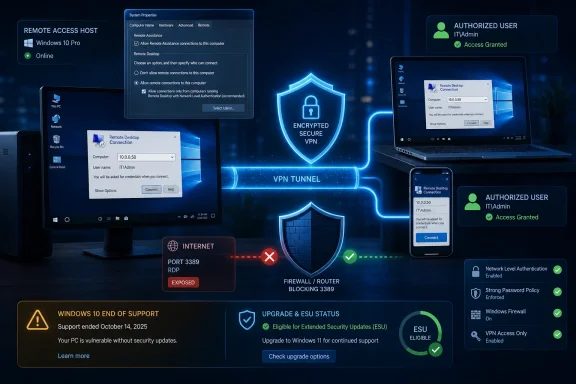 Remote Desktop Still Works, but Windows 10 Has Changed Around It
Remote Desktop remains one of Windows 10’s most useful built-in capabilities. It presents the host computer’s desktop on another device, accepts keyboard and pointer input, and gives the remote user access to applications, files, and network resources much as if that person were sitting at the machine.The protocol has not suddenly become obsolete because Windows 10 reached the end of free support. What changed is the risk calculation around the computer hosting the session. A remote-access configuration that was reasonable on a fully patched Windows 10 PC becomes harder to justify when the underlying operating system no longer receives ordinary security updates.
Technobezz’s current setup guide correctly puts the edition check first, because Windows 10 does not provide symmetrical Remote Desktop capabilities across every edition. Windows 10 Home can run a client and connect outward, but it cannot accept an incoming Microsoft Remote Desktop connection. The host must be Windows 10 Pro, Enterprise, or Education.
That distinction is easy to miss because users often think of “Remote Desktop” as a single application installed on both computers. It is more accurate to separate the host—the PC being controlled—from the client—the device from which someone connects. The client can be a Windows 10 Home computer, but the host cannot.
| Windows 10 edition | Can connect to another PC? | Can host incoming Remote Desktop? | Mainstream version 22H2 free-support end |
|---|---|---|---|
| Home | Yes | No | October 14, 2025 |
| Pro | Yes | Yes | October 14, 2025 |
| Enterprise | Yes | Yes | October 14, 2025 |
| Education | Yes | Yes | October 14, 2025 |
The Host PC Determines Whether the Whole Plan Is Defensible
On the Windows 10 computer to be controlled, open Start, then Settings, System, and About. Under Windows specifications, read the Edition field before changing anything else.If the computer reports Windows 10 Pro, Enterprise, or Education, the built-in host can be configured. If it reports Home, it remains usable as the connecting device but not as the destination for an incoming Remote Desktop session.
The second question is whether the machine is still receiving security servicing. Mainstream Windows 10 version 22H2 Home, Pro, Enterprise, and Education reached the end of free support on October 14, 2025. In July 2026, a Windows 10 host in one of those mainstream channels should therefore be covered by Extended Security Updates or scheduled to move to Windows 11 before it is treated as a dependable remote-access endpoint.
This matters more for a remotely reachable computer than for an old PC kept offline for a legacy application. Enabling Remote Desktop creates an additional path into a system that may contain saved credentials, browser sessions, personal files, administrative tools, and access to other devices on the local network. The more important the machine becomes, the less defensible it is to leave its operating system outside an active security-servicing plan.
LTSC machines need separate treatment rather than being swept into the mainstream Windows 10 deadline. Enterprise LTSC 2021 is serviced through January 12, 2027, while IoT Enterprise LTSC 2021 is serviced through January 13, 2032. Those dates do not make every LTSC deployment automatically safe, but they do mean that an administrator should verify the installed servicing channel before purchasing ESU or assuming the system reached the same deadline as version 22H2.
The lifecycle question also exposes a common inventory problem. A label such as “Windows 10 Enterprise” is not enough by itself to establish how long the installation is supported. Administrators need the edition, version, and servicing channel, especially when ordinary Enterprise, Enterprise LTSC, and IoT Enterprise LTSC devices coexist.
Timeline
Windows 10 version 1709 — Microsoft begins directing supported Windows 10 users to Settings > System > Remote Desktop rather than relying on the older Remote Desktop assistant workflow.May 27, 2025 — The Microsoft Store Remote Desktop app for Windows reaches the end of support and becomes unavailable for new installation or download.
October 14, 2025 — Mainstream Windows 10 version 22H2 Home, Pro, Enterprise, and Education reach the end of free support.
July 2026 — Mainstream Windows 10 Remote Desktop hosts should be covered by ESU or moved to Windows 11 before being relied upon for continuing remote access.
January 12, 2027 — Enterprise LTSC 2021 reaches the end of servicing.
January 13, 2032 — IoT Enterprise LTSC 2021 reaches its service end date.
The important point is not that Remote Desktop stops launching on any of these dates. It does not. The dates determine whether the host continues to receive the security maintenance expected of a machine that accepts remote sign-ins.
Enabling the Feature Is the Easy Part
Once the edition and lifecycle are understood, the local configuration is short. On the host—not the laptop, tablet, phone, or other device being used as the client—open Settings, System, and Remote Desktop. Turn on Enable Remote Desktop and confirm the change.Microsoft has directed users of Windows 10 Fall Creators Update version 1709 and later to this Settings page, which is why instructions centered on the old Remote Desktop assistant should no longer be the default. The Settings route is both clearer and less likely to send users toward retired software.
Under “How to connect to this PC,” copy the computer name. That name is the address the client will normally use on a local network, although an IP address may be necessary where name resolution is unavailable or the network design requires it.
The computer must remain powered on, reachable, and available when the connection is attempted. Remote Desktop cannot establish a session with a host that is shut down, and power-management behavior can easily be mistaken for a network fault. A setup that works during testing and fails later may simply be encountering a sleeping or otherwise unavailable host.
Account authorization is the other half of host configuration. Members of the local Administrators group already have Remote Desktop access, but a non-administrator must be explicitly added. From the Remote Desktop Settings page, select the option labeled “Select users that can remotely access this PC” or, in later releases, “Remote Desktop users,” then add the Windows username that will be used for the remote sign-in.
The credential must belong to the host PC. A user should not assume that the account currently open on the client is automatically valid on the destination computer, even when the same person owns both devices. Remote Desktop authenticates against the host’s account and authorization configuration.
This is where small-office deployments often drift into unnecessary administrative access. Granting a user membership in Administrators merely to make Remote Desktop work is usually broader than adding that user to the permitted Remote Desktop list. The remote user should receive the rights required for the job rather than a blanket elevation used as a troubleshooting shortcut.
Remote Desktop should be enabled only after the host’s edition, servicing status, account permissions, and network path have been deliberately checked. Flipping the switch first and solving the exposure problem afterward reverses the proper order.
MSTSC Remains the Stable Windows Client
From another Windows PC, the most dependable client remains Remote Desktop Connection, the built-in program also known asmstsc.exe. Search the taskbar for Remote Desktop Connection, open it, enter the host’s PC name or IP address, select Connect, and sign in with an account authorized on the destination computer.This old client lacks the branding momentum of Windows App, but it has an advantage that matters in operational guidance: Microsoft continues to identify it as the generally available Windows client for direct Remote PC connections. Windows App can make those connections on Windows, but the feature remains in preview.
For a one-off connection, the graphical interface is sufficient. For repeatable administration, launchers, scripts, or saved profiles, MSTSC also exposes a compact command-line interface. A connection to a named host uses
mstsc.exe /v:<server>, while a service listening on a custom port uses mstsc.exe /v:<server>:<port>.A saved connection file can be opened with
mstsc.exe <connectionfile>. The same file can be opened for modification with mstsc.exe /edit <connectionfile>.Those saved profiles can reduce mistakes when an administrator manages several systems with different display, device-redirection, or destination settings. They should still be treated as configuration files rather than as proof that a destination is trustworthy. A neatly named connection file can point to the wrong machine just as easily as a mistyped command can.
Microsoft’s client transition has made terminology unnecessarily confusing. “Remote Desktop” may refer to the Windows capability, the RDP-based connection itself, the built-in Remote Desktop Connection client, the old Microsoft Store Remote Desktop app, or a connection inside Windows App. A current guide must say which component it means.
The old Microsoft Store Remote Desktop app for Windows reached end of support on May 27, 2025. It is no longer available for installation or download, so instructions telling users to acquire it for a new Windows setup are stale even if the screenshots still look plausible.
Windows App is Microsoft’s newer cross-platform destination, but its readiness varies by scenario and platform. On Windows, direct Remote PC connections are still preview functionality. For a generally available Windows-to-Windows connection in July 2026, Remote Desktop Connection remains the conservative recommendation.
That is not an argument that MSTSC will remain the preferred interface forever. It is an argument against treating a preview feature as an invisible drop-in replacement in a production support procedure. Administrators need to distinguish Microsoft’s long-term product direction from the client Microsoft currently describes as generally available for the task.
Windows App Extends the Client Side Beyond Windows
The host requirements do not change when the connecting device is a Mac, iPhone, iPad, Android device, Chromebook, or supported Meta Quest headset. The Windows 10 destination must still be capable of hosting Remote Desktop, the feature must be enabled, and the account must be authorized.On macOS, Microsoft’s Windows App can add a PC from its Devices area by accepting the computer name or IP address. The user then opens that saved device and supplies the Windows credentials when prompted.
The iPhone and iPad workflow follows the same model, although Windows App may request Bluetooth and local-network permissions during initial setup. Those permissions can support discovery and local-device behavior, but they do not remove the need for a resolvable host address and valid account.
Android and ChromeOS clients can also add a PC by hostname or IP address through Windows App. Local-resource options appear as part of the connection experience, allowing the user to decide which client resources should be made available in the remote session.
Meta Quest 3 and Quest 3S are the unusual edge of this client strategy. Microsoft lists Remote PC support through Windows App on those devices, but the capability remains in preview. That makes it an interesting display and interaction option rather than the obvious foundation for a business-critical remote-access workflow.
The unifying idea is that the client device is flexible, but the Windows host is the control point. Installing Windows App on a phone or headset does not enable Remote Desktop on a Windows 10 Home PC, patch an unsupported host, authorize an account, or make an unsafe network route secure.
Port 3389 Is a Capability, Not a Recommendation
Remote Desktop works simply when the client and host are on the same trusted local network. The temptation begins when a user wants to reach the home or office PC from elsewhere and discovers router port forwarding.The documented forwarding route sends traffic arriving at the router’s public address to the Windows 10 PC’s internal address on port 3389. After that rule is established, the remote user connects to the router’s public address, and the router passes the connection to the host.
This is technically direct and operationally brittle. The rule exposes a recognizable remote-access service at the network perimeter, binds the setup to internal and public addressing behavior, and makes the security of the endpoint dependent on the Windows host, credentials, router, and forwarding rule all remaining correctly maintained.
Microsoft’s warning is direct: “opening RDP to the internet is not recommended.” Its preferred approach for routine outside-network access is a VPN.
With a VPN, the client first joins the trusted network through the protected tunnel. Remote Desktop can then target the host’s private PC name or IP address much as it would from inside the building, without publishing the Windows PC’s RDP listener directly to the public internet.
Changing the externally visible port does not alter the core architecture. A custom port may reduce noise from the most simplistic scans, but it does not transform an exposed remote-login service into a private one. The meaningful control is eliminating the public inbound path, not merely moving it away from the default number.
The same reasoning applies even when the host uses a strong password. Credentials are essential, but they should not be treated as the only barrier protecting an aging operating system from the public network. A VPN narrows the exposed entry point and separates network admission from the Windows desktop sign-in.
Port forwarding remains documented because some environments may require it, not because it is the preferred consumer design. A responsible guide should explain the mechanism without framing it as the normal next step after local access succeeds.
For IT departments, the lesson is broader. An unmanaged forwarding rule created on a small router can quietly turn an internal workstation into an external service. If an organization does not inventory router rules and remote-access paths, its endpoint inventory may say “desktop PC” while its actual attack surface says “internet-facing authentication service.”
Action checklist for admins
- Confirm that the host is Windows 10 Pro, Enterprise, or Education; do not attempt to make Windows 10 Home an RDP host.
- Record the host’s version and servicing channel, then verify that it is covered by ESU, still within its LTSC lifecycle, or scheduled for migration.
- Enable Remote Desktop on the host and document its PC name or required IP address.
- Add only the user accounts that need access; do not grant administrator membership solely as an RDP workaround.
- Test the connection with the built-in Remote Desktop Connection client on the trusted local network before adding remote-network complexity.
- Use a VPN for off-site access and remove unnecessary router forwarding rules for port 3389.
- Replace instructions that depend on the retired Microsoft Store Remote Desktop app with MSTSC or the appropriate Windows App workflow.
- Review saved connection profiles, device redirection, host power settings, and account ownership before handing the setup to users.
Quick Assist Solves a Different Problem
Remote Desktop is designed around signing in to a computer that has already been prepared to accept the connection. Quick Assist is designed around a person asking another trusted person for help and approving the support session.The difference is not cosmetic. In a normal Remote Desktop workflow, the host can be waiting unattended for an authorized user. With Quick Assist, the person receiving help participates by entering a temporary code, allowing screen sharing, and separately approving control when requested.
Quick Assist can be opened from Start or with
Ctrl + Windows logo key + Q. The helper selects Help someone and shares a 6-digit code. The recipient enters that code, submits it, and selects Allow; the helper can then request control, which the recipient must approve.This consent-oriented design makes Quick Assist the better fit for helping a family member, walking an employee through a problem, or inspecting a machine during a trusted support call. It is not the same as persistent, unattended access to one’s own workstation.
That distinction also protects users from installing or enabling more access than they need. A person who wants a technician to fix one printer problem does not necessarily need a permanently enabled Remote Desktop host, a dedicated account, and a network route back to the PC.
Administrators should nevertheless control who is permitted to provide assistance and how users verify the identity of a helper. A legitimate 6-digit code does not make the person who supplied it trustworthy. The user is still granting another party a view of the screen and potentially full input control.
Quick Assist may need to be installed through Microsoft Store if it is absent. On managed work or school PCs, policy may affect whether a user can install it, making the help-desk process partly an application-management question rather than a purely user-driven support workflow.
Chrome Remote Desktop Trades RDP for a Brokered Service
Chrome Remote Desktop is another current option, particularly when the destination is Windows 10 Home or when the user wants a consumer-oriented service that avoids configuring Microsoft’s RDP host. It uses Google’s service rather than Microsoft Remote Desktop Protocol.The setup begins through Google’s Chrome Remote Desktop access page. On the Windows computer, the user installs the required remote-access component, names the computer, and sets a PIN. From another computer, the user signs into the service, selects the registered machine, enters the PIN, and starts the connection.
Because it is a different service architecture, Chrome Remote Desktop should not be described as another skin for Microsoft Remote Desktop. Its account relationships, connection brokering, software components, policy controls, and troubleshooting path belong to Google’s service.
That separation can be useful. A Windows 10 Home PC that cannot accept incoming Microsoft RDP sessions can still use a third-party remote-access service whose host software supports the edition. It may also avoid the need to expose port 3389 directly through a home router.
But the simpler networking experience does not erase lifecycle concerns. A remotely controllable Windows 10 Home PC that has passed the end of free support remains a remotely controllable Windows 10 Home PC that has passed the end of free support. Changing the remote-control product does not patch the operating system underneath it.
The trust decision also moves rather than disappears. With Microsoft RDP over a VPN, an organization controls the network route and Windows host configuration. With a brokered consumer service, it relies more heavily on the provider’s account system, software, infrastructure, and policy model.
For a personal machine, that trade may be acceptable and easier to operate. For a managed environment, the use of a third-party remote-access service should be an explicit policy choice. Unapproved remote-control agents can create support, audit, data-handling, and offboarding problems even when they are legitimate products.
Old Remote Desktop Advice Has Become Part of the Risk
Windows tutorials age badly because the interface often survives longer than the supported workflow. A page may show a recognizable Windows 10 desktop while directing the reader to an app Microsoft has retired, an assistant Microsoft no longer emphasizes, or a public port-forwarding design Microsoft warns against.The first obsolete route is the old Microsoft Remote Desktop assistant. For Windows 10 version 1709 and later, Microsoft directs users to Settings > System > Remote Desktop. A guide that begins with downloading the assistant is adding an unnecessary dependency to a task the operating system already exposes directly.
The second is the Microsoft Store Remote Desktop app for Windows. Its May 27, 2025 support end means a new guide should not tell Windows users to install it. Windows App is Microsoft’s strategic successor, but direct Remote PC connections on Windows remain in preview, leaving built-in Remote Desktop Connection as the generally available recommendation.
The third source of confusion is Remote Desktop Connection Manager. It is not the default consumer answer for opening a normal connection to one Windows 10 PC. A user asking how to reach a home desktop does not need an enterprise-flavored connection-management story when
mstsc.exe is already present.The Remote Desktop web client is another frequently misunderstood option. It is intended for organization-managed resources reached through a URL supplied by the organization, not as a direct browser gateway into an unmanaged personal Windows 10 PC.
This distinction matters because users increasingly expect every remote service to have a browser-only path. Microsoft’s organizational web clients do not eliminate the infrastructure, publication, and identity components behind the resource. They are not a magic web front end for an ordinary home PC with Remote Desktop enabled.
The result is a fragmented naming environment in which the safest instruction is often the most explicit one: name the host edition, name the client, name the network path, and state whether the feature is generally available or still in preview. “Use Microsoft Remote Desktop” is no longer precise enough.
Troubleshooting Should Follow the Connection Path
Remote Desktop failures are easier to diagnose when treated as a chain rather than a single feature. The host must be eligible, enabled, powered on, reachable, listening through its firewall, and prepared to accept the chosen account. The client must then target the correct name or IP address and supply credentials valid on the host.Start with the edition because it cannot be fixed by changing network settings. Then confirm that Enable Remote Desktop remains on and that the intended account appears in the permitted user list or belongs to the Administrators group.
Next, test from the same local network. This isolates the Windows host and client configuration from VPN, internet, public-address, and router issues. If a same-network session fails, adding an external connection path will only make the diagnosis harder.
If the computer name fails, try the host’s IP address where appropriate. A successful IP-based connection combined with a failed name-based connection points toward name resolution rather than a broken Remote Desktop host.
If the sign-in screen appears but the credentials fail, return to the account on the host. Confirm the username, password, and authorization rather than repeatedly changing firewall settings. Reaching the authentication stage already demonstrates that much of the network path is working.
If local access works but VPN access does not, inspect the VPN’s network reachability, routing, and name-resolution behavior. Do not “solve” that failure by immediately forwarding port 3389 to the internet. That substitutes exposure for troubleshooting.
Saved RDP files and custom-port commands deserve similar discipline. A saved file may contain an outdated host address, while
mstsc.exe /v:<server>:<port> will fail if the configured service and network path do not agree on the port. Convenience syntax cannot correct an inconsistent endpoint configuration.The Practical Rules for a Windows 10 Remote Host
The best setup in July 2026 is not necessarily the one with the fewest clicks. It is the one whose host remains supportable, whose access path can be explained, and whose client software has not already been retired.- Windows 10 Home can initiate Remote Desktop connections but cannot host incoming Microsoft RDP sessions.
- Windows 10 Pro, Enterprise, and Education can host after Remote Desktop is enabled and the account is authorized.
- Mainstream version 22H2 hosts need ESU coverage or a move to Windows 11 after the October 14, 2025 end of free support.
- On Windows, use built-in Remote Desktop Connection for a generally available direct Remote PC client; Windows App support for that scenario remains in preview.
- Use a VPN for routine access from outside the local network instead of publishing port 3389.
- Use Quick Assist for consent-based support and Chrome Remote Desktop when a separate Google-provided remote-access service better fits the job.