

Windows 11 still contains a surprisingly broad set of built-in personalization controls outside the Settings app’s Personalization page, including legacy screen savers, accessibility visuals, File Explorer switches, and a taskbar “End task” shortcut. A July 15 How-To Geek guide rounds up six of the less obvious locations, though some of the registry-based tweaks deserve caution on managed or frequently updated PCs.
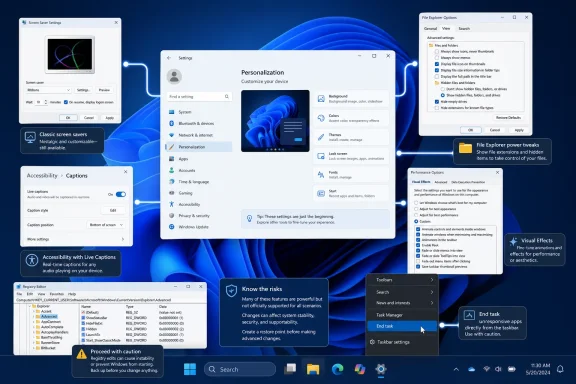
Several of the options are supported and documented rather than truly hidden. Microsoft’s own support material confirms that Windows 11 still includes the classic Screen Saver Settings dialog, available through Personalization > Lock screen > Screen saver or by searching for “screensaver.” It remains useful for the Photos and 3D Text options, although Microsoft recommends screen sleep timers for energy savings.
Accessibility is the more consequential destination. Settings > Accessibility exposes independent text-size scaling, cursor and pointer controls, contrast themes, color filters, transparency and animation controls, plus Live Captions. The latter can be enabled with Win+Ctrl+L and works at the system level for supported audio, making it useful well beyond its accessibility purpose.
Microsoft also now groups power-user options under Settings > System > Advanced, formerly branded as “For developers.” Per Microsoft Learn, this page includes the switch to add End task to the right-click menu for running taskbar apps. It is a quick way to terminate a hung application without opening Task Manager. The same page includes File Explorer options such as showing file extensions and hidden or protected system files.
Admins should be selective about enabling hidden and system files. Showing extensions is generally sensible, particularly as a defense against misleading filenames; exposing protected operating system files is less appropriate for ordinary user profiles.
The guide’s two registry commands are more fragile. One restores the pre-Windows 11 context menu by creating a per-user CLSID registry key; another sets
Neither is an officially supported customization path for consumer Windows 11, and the former in particular has repeatedly been affected by shell changes across Windows releases. Organizations should use documented policy and configuration-management settings where available rather than deploying registry hacks broadly. Users who try either command should create a restore point or export the affected registry key first, and should expect a future feature update to reverse or ignore the change.
The practical upside is that most of the useful controls—Live Captions, visual effects, Explorer options, screensavers, and taskbar End task—are already available in Windows 11 without third-party customization tools.
 Settings Microsoft scattered elsewhere
Several of the options are supported and documented rather than truly hidden. Microsoft’s own support material confirms that Windows 11 still includes the classic Screen Saver Settings dialog, available through Personalization > Lock screen > Screen saver or by searching for “screensaver.” It remains useful for the Photos and 3D Text options, although Microsoft recommends screen sleep timers for energy savings.Accessibility is the more consequential destination. Settings > Accessibility exposes independent text-size scaling, cursor and pointer controls, contrast themes, color filters, transparency and animation controls, plus Live Captions. The latter can be enabled with Win+Ctrl+L and works at the system level for supported audio, making it useful well beyond its accessibility purpose.
Microsoft also now groups power-user options under Settings > System > Advanced, formerly branded as “For developers.” Per Microsoft Learn, this page includes the switch to add End task to the right-click menu for running taskbar apps. It is a quick way to terminate a hung application without opening Task Manager. The same page includes File Explorer options such as showing file extensions and hidden or protected system files.
Admins should be selective about enabling hidden and system files. Showing extensions is generally sensible, particularly as a defense against misleading filenames; exposing protected operating system files is less appropriate for ordinary user profiles.
Legacy controls and registry workarounds
How-To Geek also points to the older Performance Options dialog, reached by searching for “View advanced system settings.” Its Visual Effects page permits granular choices—for example, retaining window animations while removing fades, shadows, or other interface flourishes. That remains a useful alternative to Accessibility’s all-or-nothing Animation effects toggle.The guide’s two registry commands are more fragile. One restores the pre-Windows 11 context menu by creating a per-user CLSID registry key; another sets
BingSearchEnabled to zero in the current user’s Search registry path to suppress web results in Windows Search.Neither is an officially supported customization path for consumer Windows 11, and the former in particular has repeatedly been affected by shell changes across Windows releases. Organizations should use documented policy and configuration-management settings where available rather than deploying registry hacks broadly. Users who try either command should create a restore point or export the affected registry key first, and should expect a future feature update to reverse or ignore the change.
The practical upside is that most of the useful controls—Live Captions, visual effects, Explorer options, screensavers, and taskbar End task—are already available in Windows 11 without third-party customization tools.
References
- Primary source: How-To Geek
Published: 2026-07-15T11:30:15+00:00
6 hidden customization settings Microsoft buried in Windows
The Windows Settings Personalization tab contains just a small fraction of the customization options available in Windows 11. www.howtogeek.com
- Official source: learn.microsoft.com
List of the Policy Settings To Configure the Windows Taskbar | Microsoft Learn
Learn about the CSP and GPO policy settings to configure the Windows taskbar.learn.microsoft.com - Official source: support.microsoft.com
Configure a Screen Saver in Windows - Microsoft Support
Learn how to configure screen saver settings in Windows.support.microsoft.com
