

Windows 11’s most consequential near-term changes are no longer confined to Copilot+ PCs or speculative design mockups: Microsoft is testing a movable taskbar, a compact taskbar mode, a cleaner Search experience, recovery from a non-booting PC, and a stricter model for administrator elevation in current Insider builds.
As PCMag outlined on July 16, the feature set amounts to a long-overdue response to complaints that have followed Windows 11 since launch: too little taskbar control, too much web content in local search, and too many surfaces that treated Copilot branding as the product rather than the tool. Microsoft’s own Windows Insider posts corroborate the broad direction, though there is an important qualification for anyone ready to install a preview build: many of these features are rolling out gradually through Controlled Feature Rollout, and several require manually enabling a Feature flag.
The immediate payoff is practical. Windows enthusiasts can test a different desktop layout; IT administrators can evaluate a recovery workflow that may eliminate a USB stick in some break/fix cases; and security teams can start planning around a more restrictive elevation model. But none of this should be mistaken for a promised stable-release checklist.
The headline change is alternate taskbar positioning. In the Experimental channel, Windows 11 can place its taskbar at the top, left, right, or bottom of the screen, reviving a flexibility Windows 10 users lost in the transition to Windows 11.
Microsoft says the implementation includes location-aware Start, Search, and flyout behavior, rather than simply rotating the old bottom bar. A vertical taskbar can also show uncombined, labeled windows—particularly useful on ultrawide displays, where horizontal screen space is abundant but vertical space is at a premium. Developers, remote workers living in Teams and browsers, and users with multiple open File Explorer windows are the obvious beneficiaries.
The related compact setting is more than Windows 11’s earlier small-icons option. Microsoft’s new smaller taskbar reduces the bar’s overall height as well as icon size, reclaiming usable screen space on laptops and smaller displays. It is a modest adjustment, but it addresses a very visible piece of Windows 11’s “roomier by default” design.
There are caveats. Microsoft’s May taskbar announcement says auto-hide and the tablet-optimized taskbar do not yet work in alternate positions, touch gestures for those placements remain in development, and the full Search box is not supported away from the default bottom edge. Search becomes an icon instead. That is a reasonable preview-stage limitation, but it means the feature is not yet a complete replacement for every old Windows workflow.
Most importantly, Microsoft says apps, settings, and files should appear ahead of web and Store results when they are the stronger match. That sounds elementary for a desktop operating system, but it represents a meaningful reversal after years in which the Start menu and taskbar search surfaces regularly blurred local navigation with Bing-driven discovery.
PCMag described the change as stripping Bing clutter from Search. Microsoft’s own wording is more cautious: web results remain available unless users turn them off, and the company is emphasizing relevance rather than removing web search outright. Still, the direction is notable. The best Windows Search experience is generally the one that opens an installed application, finds a local document, or reaches the right Settings page without turning a simple query into a web transaction.
The update also improves tolerance for app-search typos and partial terms, expands local file matching to two-character searches, and is intended to surface cloud and connected files when appropriate. These are usability refinements, not flashy AI features—and that is exactly why they may matter more in daily work.
That distinction is more than cosmetic. A writing action inside Notepad, an image cleanup action in Photos, and a chatbot conversation are not necessarily the same product experience, even if they rely on related cloud services or account credits. Treating every AI-assisted action as Copilot made Windows feel as though its interface had become a funnel to one brand.
The new approach does not remove the underlying trade-offs. Some functions still require a Microsoft account or Microsoft 365 AI credits, and organizations will still need to decide which AI features are acceptable under their data-handling policies. But separating the assistant from individual app capabilities should make Windows feel less cluttered and make those choices easier to understand.
According to Microsoft Learn documentation and the release notes for Windows 11 Insider Preview Build 26300.8772, Cloud rebuild downloads both a target Windows image and device drivers from Windows Update. Unlike Reset this PC, it does not depend on the integrity of the existing Windows installation, a custom corporate image, or USB installation media.
For a managed Windows fleet, that is potentially valuable. After the rebuild, an Autopilot-registered, Intune-managed device can proceed through the out-of-box experience and be reprovisioned with its assigned applications, policies, settings backup, and OneDrive files. That could reduce the friction of recovering a machine with damaged system files, particularly for remote users who do not have local IT support or a prepared recovery drive.
It is not a magic fix. Cloud rebuild reformats the system disk, removing local accounts, files, apps, and settings. It requires a functional Windows Recovery Environment, compatible networking support in WinRE, internet access, and a Windows Update driver path for the hardware. At present, Microsoft documents Ethernet and WPA-Personal Wi-Fi support, not every conceivable enterprise wireless configuration. It is also explicitly a preview feature, with remote initiation through endpoint-management tools planned for a later release.
That makes Cloud rebuild worth evaluating in a lab, not deploying as a replacement for established recovery procedures tomorrow.
The system then creates an isolated, profile-separated administrative token for that specific elevated process and destroys it when the process ends. Microsoft describes the change as a new security boundary intended to protect elevated sessions from unauthorized access or tampering.
For administrators, the immediate question is compatibility rather than principle. Least privilege and just-in-time elevation are well-established security goals, but Windows environments contain legacy installers, line-of-business utilities, scripts, remote support tools, and domain workflows that can make elevation behavior complicated. Microsoft itself notes that the feature’s previous appearance in the October 2025 non-security update was reverted, and that broader availability will come later.
The right response is to test it against real admin workflows: application deployment, driver updates, PowerShell automation, help-desk remote control, and any software that expects a conventional UAC prompt. If Microsoft can make the model transparent enough, it could be one of the more meaningful Windows 11 security improvements in years.
The rest of this Insider wave is less dramatic but consistent with the same theme. New precision-touchpad options add single-finger edge scrolling, automatic scrolling, acceleration, and speed controls. Accessibility additions include Screen Tint, which overlays a configurable color across the display, and Voice Isolation for Voice Access, which processes speech locally to better distinguish the user from nearby voices and noise.
The common thread is not a dramatic new Windows generation. It is a willingness to revisit core Windows 11 decisions that users have been arguing with since 2021. Microsoft’s Experimental channel is now carrying Windows 11 version 26H2 work, but features can change, disappear, or arrive on a different schedule. For now, the practical milestone is simpler: Windows 11 is finally testing a version of itself that gives users more control, makes local work easier to reach, and reserves its biggest risks for a secondary PC.
As PCMag outlined on July 16, the feature set amounts to a long-overdue response to complaints that have followed Windows 11 since launch: too little taskbar control, too much web content in local search, and too many surfaces that treated Copilot branding as the product rather than the tool. Microsoft’s own Windows Insider posts corroborate the broad direction, though there is an important qualification for anyone ready to install a preview build: many of these features are rolling out gradually through Controlled Feature Rollout, and several require manually enabling a Feature flag.
The immediate payoff is practical. Windows enthusiasts can test a different desktop layout; IT administrators can evaluate a recovery workflow that may eliminate a USB stick in some break/fix cases; and security teams can start planning around a more restrictive elevation model. But none of this should be mistaken for a promised stable-release checklist.
 The taskbar finally becomes a user choice again
The headline change is alternate taskbar positioning. In the Experimental channel, Windows 11 can place its taskbar at the top, left, right, or bottom of the screen, reviving a flexibility Windows 10 users lost in the transition to Windows 11.Microsoft says the implementation includes location-aware Start, Search, and flyout behavior, rather than simply rotating the old bottom bar. A vertical taskbar can also show uncombined, labeled windows—particularly useful on ultrawide displays, where horizontal screen space is abundant but vertical space is at a premium. Developers, remote workers living in Teams and browsers, and users with multiple open File Explorer windows are the obvious beneficiaries.
The related compact setting is more than Windows 11’s earlier small-icons option. Microsoft’s new smaller taskbar reduces the bar’s overall height as well as icon size, reclaiming usable screen space on laptops and smaller displays. It is a modest adjustment, but it addresses a very visible piece of Windows 11’s “roomier by default” design.
There are caveats. Microsoft’s May taskbar announcement says auto-hide and the tablet-optimized taskbar do not yet work in alternate positions, touch gestures for those placements remain in development, and the full Search box is not supported away from the default bottom edge. Search becomes an icon instead. That is a reasonable preview-stage limitation, but it means the feature is not yet a complete replacement for every old Windows workflow.
Search is being asked to act like Windows Search
The July 13 Windows Insider blog post may be the clearest sign that Microsoft has heard one of Windows 11’s most persistent complaints. The revised Windows Search box removes promotional material from web results, simplifies the home screen around recent searches, labels the origin of results more clearly, and gives users a Settings control for web and Microsoft Store suggestions.Most importantly, Microsoft says apps, settings, and files should appear ahead of web and Store results when they are the stronger match. That sounds elementary for a desktop operating system, but it represents a meaningful reversal after years in which the Start menu and taskbar search surfaces regularly blurred local navigation with Bing-driven discovery.
PCMag described the change as stripping Bing clutter from Search. Microsoft’s own wording is more cautious: web results remain available unless users turn them off, and the company is emphasizing relevance rather than removing web search outright. Still, the direction is notable. The best Windows Search experience is generally the one that opens an installed application, finds a local document, or reaches the right Settings page without turning a simple query into a web transaction.
The update also improves tolerance for app-search typos and partial terms, expands local file matching to two-character searches, and is intended to surface cloud and connected files when appropriate. These are usability refinements, not flashy AI features—and that is exactly why they may matter more in daily work.
Microsoft is putting distance between Copilot and every AI button
The second big design shift is a retreat from indiscriminate Copilot branding. Microsoft has already said it is reducing “unnecessary Copilot entry points” in apps including Notepad, Photos, Snipping Tool, and Widgets. In Notepad’s case, the tools remain, but their presentation changes from a prominent Copilot button to an AI Writing Tools menu.That distinction is more than cosmetic. A writing action inside Notepad, an image cleanup action in Photos, and a chatbot conversation are not necessarily the same product experience, even if they rely on related cloud services or account credits. Treating every AI-assisted action as Copilot made Windows feel as though its interface had become a funnel to one brand.
The new approach does not remove the underlying trade-offs. Some functions still require a Microsoft account or Microsoft 365 AI credits, and organizations will still need to decide which AI features are acceptable under their data-handling policies. But separating the assistant from individual app capabilities should make Windows feel less cluttered and make those choices easier to understand.
Cloud rebuild could matter more to IT than the visual changes
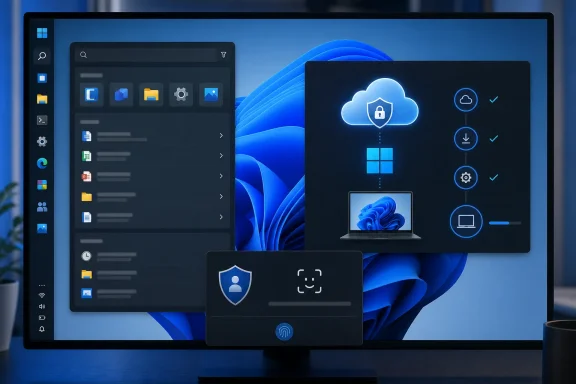
The most operationally significant preview feature is Cloud rebuild, a new Windows Recovery Environment option that can reinstall Windows 11 even when the installed OS will not boot.According to Microsoft Learn documentation and the release notes for Windows 11 Insider Preview Build 26300.8772, Cloud rebuild downloads both a target Windows image and device drivers from Windows Update. Unlike Reset this PC, it does not depend on the integrity of the existing Windows installation, a custom corporate image, or USB installation media.
For a managed Windows fleet, that is potentially valuable. After the rebuild, an Autopilot-registered, Intune-managed device can proceed through the out-of-box experience and be reprovisioned with its assigned applications, policies, settings backup, and OneDrive files. That could reduce the friction of recovering a machine with damaged system files, particularly for remote users who do not have local IT support or a prepared recovery drive.
It is not a magic fix. Cloud rebuild reformats the system disk, removing local accounts, files, apps, and settings. It requires a functional Windows Recovery Environment, compatible networking support in WinRE, internet access, and a Windows Update driver path for the hardware. At present, Microsoft documents Ethernet and WPA-Personal Wi-Fi support, not every conceivable enterprise wireless configuration. It is also explicitly a preview feature, with remote initiation through endpoint-management tools planned for a later release.
That makes Cloud rebuild worth evaluating in a lab, not deploying as a replacement for established recovery procedures tomorrow.
Administrator protection changes the elevation conversation
Microsoft is also continuing work on Administrator protection, a preview security feature designed to reduce the exposure created by persistent administrator privileges. When enabled, Windows keeps the signed-in user in a deprivileged state and requires Windows Hello authentication when an application needs elevation.The system then creates an isolated, profile-separated administrative token for that specific elevated process and destroys it when the process ends. Microsoft describes the change as a new security boundary intended to protect elevated sessions from unauthorized access or tampering.
For administrators, the immediate question is compatibility rather than principle. Least privilege and just-in-time elevation are well-established security goals, but Windows environments contain legacy installers, line-of-business utilities, scripts, remote support tools, and domain workflows that can make elevation behavior complicated. Microsoft itself notes that the feature’s previous appearance in the October 2025 non-security update was reverted, and that broader availability will come later.
The right response is to test it against real admin workflows: application deployment, driver updates, PowerShell automation, help-desk remote control, and any software that expects a conventional UAC prompt. If Microsoft can make the model transparent enough, it could be one of the more meaningful Windows 11 security improvements in years.
The rest of this Insider wave is less dramatic but consistent with the same theme. New precision-touchpad options add single-finger edge scrolling, automatic scrolling, acceleration, and speed controls. Accessibility additions include Screen Tint, which overlays a configurable color across the display, and Voice Isolation for Voice Access, which processes speech locally to better distinguish the user from nearby voices and noise.
The common thread is not a dramatic new Windows generation. It is a willingness to revisit core Windows 11 decisions that users have been arguing with since 2021. Microsoft’s Experimental channel is now carrying Windows 11 version 26H2 work, but features can change, disappear, or arrive on a different schedule. For now, the practical milestone is simpler: Windows 11 is finally testing a version of itself that gives users more control, makes local work easier to reach, and reserves its biggest risks for a secondary PC.
References
- Primary source: PCMag
Published: 2026-07-16T13:29:07+00:00
10 Future Windows 11 Features You Can Try Today | PCMag
Microsoft is focused on addressing complaints with Windows 11 this year, and you can test out major improvements in Insider builds before anyone else. These 10 are my top picks.www.pcmag.com
