

Instagram not working—whether it freezes, will not load Reels, cannot upload, misses notifications, or refuses a login—can usually be fixed by checking the service, refreshing the app or browser, correcting access permissions, and then repairing or reinstalling the affected app. These steps cover Instagram on iPhone and iPad, Android, Windows 10 and Windows 11, and Instagram in a web browser.
Do this first if Instagram fails on more than one device, messages and feeds will not refresh, or other people are having the same issue.
If Instagram was installed through Microsoft Store and will not update or reinstall:
On a child, school, or work-managed device, Screen Time, Content & Privacy Restrictions, Family Link, a work profile, mobile-device management, or an administrator policy can prevent app updates, deletion, permissions, notifications, cellular access, or access to Instagram itself. In that case, only the device owner or administrator can remove the restriction.
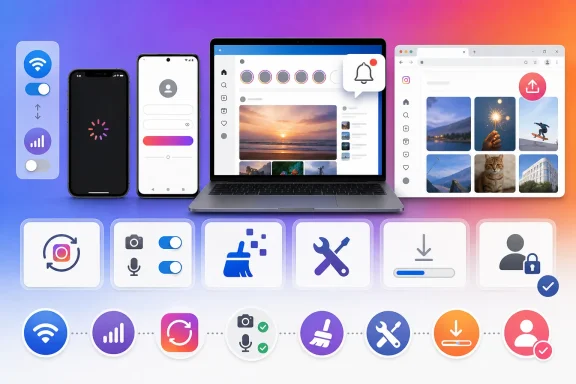 1. Rule out a service or connection problem
Do this first if Instagram fails on more than one device, messages and feeds will not refresh, or other people are having the same issue.- Try opening Instagram on a different connection:
- Switch from Wi‑Fi to mobile data, or vice versa.
- If you are on a public, work, or school network, try another network. Those networks can block social-media services.
- Open Instagram in a browser and try signing in there.
- Check for an in-app notice about a disruption or account issue.
- If you use Instagram business tools, check Meta Status for wider Meta service disruptions.
2. Fully close Instagram and restart the device
A stalled app session can cause blank feeds, endless loading, failed Stories, or an app that opens and immediately closes.iPhone or iPad
- Open the App Switcher:
- On Face ID devices, swipe up from the bottom edge and pause.
- On devices with a Home button, double-click the Home button.
- Find Instagram.
- Swipe up on the Instagram preview to close it.
- Open Instagram again.
Android
- Open Settings.
- Select Apps > Instagram.
- Select Force stop, then confirm if prompted.
- Open Instagram again.
Windows
- Close the Instagram app or browser tab.
- Press Ctrl + Shift + Esc to open Task Manager.
- Select Instagram, Microsoft Edge, Chrome, or the browser you are using.
- Select End task.
- Reopen Instagram.
3. Update Instagram, the device, and the browser
An outdated app build is a common cause of sign-in loops, crashes, missing features, and upload failures.iPhone or iPad
- Open the App Store.
- Tap your profile picture.
- Under available updates, tap Update beside Instagram, or select Update All.
- If no Instagram update is listed, go to Settings > General > Software Update and install any available iOS or iPadOS update.
Android
- Open the Google Play Store.
- Tap your profile icon.
- Select Manage apps & device.
- Under Updates available, update Instagram or choose to update all apps.
- Check for Android updates:
- Usually, go to Settings > System > Software update or System update.
- Some manufacturers use Settings > About phone > Software update.
Windows 11
- Select Start and open Microsoft Store.
- Select Library.
- Select Get updates or Check for updates.
- Install available updates for Instagram, Microsoft Store, and related components.
- Go to Start > Settings > Windows Update > Check for updates.
Windows 10
- Open Microsoft Store.
- Select the More button.
- Choose Downloads and updates.
- Select Get updates.
- Check Windows updates at Start > Settings > Update & Security > Windows Update > Check for updates.
4. Check mobile-data, background-data, and Data Saver settings
Use this fix when Instagram works on Wi‑Fi but not cellular data, Reels take an unusually long time to load, or the feed does not refresh away from Wi‑Fi.iPhone
- Open Settings > Cellular.
- Confirm Cellular Data is turned on.
- Scroll to Instagram and make sure its switch is enabled.
Android
Android menu names vary by manufacturer, but try one of these paths:- Open Settings > Network & internet > Data Saver > Unrestricted data.
- Allow Instagram to use unrestricted data.
- Open Settings > Apps > Instagram.
- Select Mobile data & Wi‑Fi or Data usage.
- Enable Background data and, if available, Unrestricted data usage.
5. Restore camera, microphone, photo, and notification access
If you cannot create a Story, record a Reel, upload photos, use the microphone, attach media in messages, or receive alerts, check permissions before reinstalling.iPhone or iPad
- Open Settings > Apps > Instagram.
- Enable the access Instagram needs, such as:
- Camera
- Microphone
- Photos
- Notifications
- Cellular Data
- For notifications, open Settings > Apps > Instagram > Notifications and turn on Allow Notifications.
Android
- Open Settings > Apps > Instagram > Permissions.
- Select the permission that is blocked.
- Choose the appropriate access level, such as Allow only while using the app.
- Open Settings > Notifications > App notifications.
- Select Instagram.
- Turn notifications on and review notification categories if your phone lists them.
6. Clear cached or corrupted app and browser data
This is a repair step, not a first step. It can sign you out or remove locally stored app information.Android: clear Instagram cache
- Open Settings > Apps > Instagram.
- Select Storage or Storage & cache.
- Select Clear cache.
- Reopen Instagram and test it.
iPhone or iPad: offload or reinstall
iOS does not provide a general “clear cache” button for individual apps.- Go to Settings > General > iPhone Storage.
- Select Instagram.
- Choose Offload App.
- Select Reinstall App.
Microsoft Edge: clear Instagram website data
- Open Edge.
- Select Settings and more > History > Open history page.
- Select Delete browsing data.
- Set Time range to All time.
- Select Cached images and files. Add Cookies and other site data if Instagram still cannot sign in or load correctly.
- Select Clear now.
- Close and reopen Edge, then sign in to Instagram again.
7. Repair, reset, or reinstall Instagram
Reinstalling is appropriate when Instagram still crashes, will not open, or remains broken after updates and permissions checks.Windows: repair or reset the Store app
- Go to Start > Settings > Apps > Installed apps.
- Find Instagram.
- Select the More button next to it, then choose Advanced options.
- Select Repair first.
- Test Instagram.
If Instagram was installed through Microsoft Store and will not update or reinstall:
- Press Windows key + R.
- Type
wsreset.exe. - Select OK.
- Wait for Microsoft Store to reopen, then search for Instagram again.
iPhone or iPad
- Touch and hold Instagram.
- Select Remove App > Delete App > Delete.
- Restart the device.
- Download Instagram again from the App Store.
- Sign in and test a basic task such as loading the feed or posting a draft.
Android
- Touch and hold the Instagram icon.
- Choose App info or Uninstall.
- Select Uninstall and confirm.
- Restart the phone.
- Reinstall Instagram from Google Play.
8. Check Account Status and use Instagram’s recovery tools
If Instagram opens normally but you cannot comment, post, follow, message, go live, monetize, or use a particular feature, the problem may be account-specific rather than a device fault.- Open Instagram and go to your profile.
- Tap the menu button.
- Open Account Status. Depending on the app version, it may appear under More info and support.
- Review any removed content, feature restrictions, limits, or appeal options shown there.
- Follow the in-app appeal process if you believe an enforcement action was incorrect.
- Start from the Instagram login screen.
- Select Forgot password?, Get help logging in, or Need more help?, depending on what appears.
- Complete recovery using the email address, phone number, username, or linked account available to you.
- If you suspect the account was compromised, change the password after you regain access and review the account’s login activity and security settings.
On a child, school, or work-managed device, Screen Time, Content & Privacy Restrictions, Family Link, a work profile, mobile-device management, or an administrator policy can prevent app updates, deletion, permissions, notifications, cellular access, or access to Instagram itself. In that case, only the device owner or administrator can remove the restriction.
References
- Primary source: Technobezz
Published: 2026-07-16T16:18:43.652000+00:00
Instagram Not Working? 8 Fixes That Actually Work (2026) | Technobezz
Instagram not working on iPhone, Android, or the web? Fix crashes, loading issues, login trouble, and notifications.www.technobezz.com
