

Instagram Stories that will not load, upload, record audio, open the camera, or show Add to story can usually be fixed by restarting and updating Instagram, testing another connection, then checking permissions and local app data. These steps apply to the Instagram app on Android phones and tablets, iPhone, and iPad; menu names can vary slightly by Android manufacturer and Instagram app release.
A frozen app session can make Stories fail even when the account and network are working.
After changing permissions, fully close Instagram and open it again before testing the Story camera.
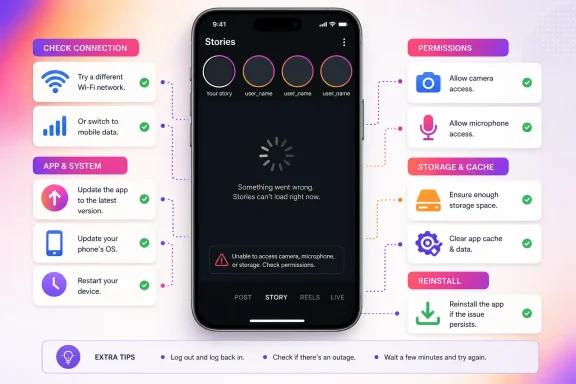 1. Restart Instagram, then restart the device
A frozen app session can make Stories fail even when the account and network are working.- Close Instagram completely.
- iPhone or iPad: Open the App Switcher, find Instagram, then swipe it away.
- Android: Open Recent apps, then swipe Instagram away.
- Open Instagram again and test:
- the Stories tray at the top of the feed;
- recording a short Story;
- uploading one existing photo or video.
- If it still fails, restart the phone or tablet.
- iPhone: Turn it off, wait about 30 seconds, then turn it back on.
- Android: Use Restart from the power menu. If the menu does not appear, follow your device maker’s restart method.
2. Update Instagram and the device software
Meta’s own troubleshooting guidance starts with running the current Instagram app version and the latest available operating-system update for the device.- Update Instagram from the official app store.
- iPhone or iPad: Open App Store > tap your account picture > check Available Updates. Tap Update beside Instagram if it appears.
- Android: Open Google Play Store > tap the profile icon > Manage apps & device > Updates available > update Instagram.
- Restart Instagram after the update completes.
- If no update is offered, the store considers the installed build current for that device.
- Check for an operating-system update.
- iPhone or iPad: Settings > General > Software Update.
- Android: Usually Settings > System > Software update. On some devices, use Settings > About phone > Software update.
3. Rule out Wi-Fi, mobile-data, and data-saving restrictions
Stories need a stable connection for loading, recording previews, processing video, and uploading. A feed can appear usable while Story media still fails.- Test Instagram on Wi-Fi.
- Turn Wi-Fi off and test on mobile data.
- Turn Wi-Fi back on and test again.
- If Stories work on one connection but not the other:
- restart the router if you control it;
- reconnect to the Wi-Fi network;
- temporarily disable a VPN, proxy, or DNS-filtering app;
- check whether Instagram is allowed to use mobile data.
- On an iPhone, open Settings > Cellular and confirm Cellular Data is enabled. Scroll to Instagram and make sure its individual cellular-data switch is enabled.
- Check Low Data Mode on iPhone or iPad.
- Cellular, LTE, or 4G: Settings > Cellular > Cellular Data Options > turn Low Data Mode off.
- 5G: Settings > Cellular > Cellular Data Options > Data Mode > choose Standard or Allow More Data on 5G.
- Wi-Fi: Settings > Wi-Fi > tap the information button beside the connected network > turn Low Data Mode off.
- On Android, check Data Saver. A common path is Settings > Network & internet > Data Saver > Unrestricted data. Allow Instagram if Data Saver must remain enabled.
- In Instagram, open your profile > tap the menu button > look for Media quality or Data usage and media quality. Turn off Instagram’s data-saving option if it is enabled.
4. Restore camera, microphone, and photo permissions
Use this fix when the Story camera is black, the microphone does not record, the gallery is empty, or Instagram cannot select media.iPhone and iPad
- Open Settings > Privacy & Security > Camera.
- Turn on Instagram.
- Go back to Privacy & Security > Microphone.
- Turn on Instagram.
- Open Privacy & Security > Photos > Instagram.
- Choose Full Access if you want Instagram to see the full photo library.
Android
- Open Settings > Apps > Instagram > Permissions.
- Review these permissions where shown:
- Camera
- Microphone
- Photos and videos
- Music and audio
- Files and media on older Android versions
- Select Allow only while using the app for camera and microphone access. Allow photo or video access as needed for uploads.
After changing permissions, fully close Instagram and open it again before testing the Story camera.
5. Check available storage before recording or uploading
A Story can fail when the device lacks working space to capture, process, cache, or upload media.- Check storage.
- iPhone: Settings > General > iPhone Storage.
- iPad: Settings > General > iPad Storage.
- Android: Settings > Storage.
- Remove unneeded downloads, large videos, or unused apps.
- Empty the Recently Deleted section in Photos only if you are certain you no longer need those files.
- Restart the device after freeing space, then attempt a short Story upload.
6. Clear Instagram’s cache or reinstall the app
This is a fix, not merely a workaround: it removes damaged temporary files or resets the app installation.Android: clear cache first
- Open Settings > Apps > Instagram.
- Tap Storage or Storage & cache.
- Tap Clear cache.
- Open Instagram and test Stories.
- Return to Storage or Storage & cache.
- Tap Clear storage or Clear data.
iPhone and iPad: reinstall Instagram
iOS and iPadOS do not provide the same per-app cache-clearing control.- Touch and hold the Instagram icon.
- Tap Remove App.
- Tap Delete App, then confirm.
- Open the App Store.
- Search for Instagram and reinstall it.
- Sign in and test Stories.
7. Check account restrictions and sharing settings
If the Story tray works but a particular posting or sharing action is missing, distinguish an account setting from a technical fault.- Open Instagram > profile > menu button.
- Find Account Status. In some releases it appears under More info and support.
- Review any notices about removed content, feature restrictions, or available review options.
- If you cannot share another person’s feed post to your Story, the original account must be eligible for resharing. A private account, or an account that does not permit resharing, can remove the Add to story option.
- If other people cannot share your eligible posts or reels to their Stories, review Instagram’s sharing controls under the profile menu. The wording and placement may vary, but look for Sharing and reuse or a setting related to allowing posts and reels to be shared to Stories.
- If only Story replies are failing, check the Story reply controls in the profile menu under Messages and story replies or Story replies.
8. Test the account on the web and report a reproducible bug
Open Instagram in a supported browser, sign in, and check whether Stories load there.- If Stories work on the web but not in the mobile app, the problem is likely local to the app, permissions, device, or connection. Repeat the cache/reinstall steps.
- If Stories fail in both the app and browser, the issue may be account-specific or a service-side problem. Check Account Status, then report it.
- Open your profile.
- Tap the menu button.
- Under More info and support, tap Help.
- Tap Report a problem.
- Choose the reporting option and follow the on-screen instructions.
- Include:
- what failed;
- whether it happens on Wi-Fi, mobile data, or both;
- the time it occurred;
- the device model and operating-system version;
- a screenshot or short screen recording, when safe to share.
References
- Primary source: Technobezz
Published: 2026-07-16T16:33:17.809000+00:00
Loading…
www.technobezz.com
