

Uninstall an app by opening the device’s app list or storage settings, selecting the app, and choosing Uninstall, Delete, or Remove. The procedures below cover current versions of Windows 10 and 11, iPhone and iPad, Android, macOS, ChromeOS, popular TV platforms, watches, Xbox, PlayStation 5, Nintendo Switch, and managed work or school devices.
Deleting an app usually does not cancel a paid subscription. Cancel recurring billing separately through the store, service provider, or account that bills you.
Check these points before removing anything important:
To offload one app:
If Delete App is missing for a third-party app, check Settings > Screen Time > Content & Privacy Restrictions > iTunes & App Store Purchases > Deleting Apps and set it to Allow. Some built-in Apple apps cannot be removed, while deleting other built-in apps can affect related system functions.
Supported Android versions can also archive unused apps. Archiving removes portions of the app to reclaim space while retaining its icon and personal data. This is a storage workaround, not a full uninstall.
On macOS versions that display removable App Store apps in Launchpad, hold Option or click and hold an icon until apps jiggle, then select the app’s Delete button. The button appears only for supported removable apps. Apps required by macOS cannot be deleted through Finder or Launchpad.
To manage several items:
Deleting Switch 2 software does not delete its save data. Save data has a separate deletion command and should not be removed merely to free space.
On a personally owned Android device with a Work Profile:
For Microsoft Intune-managed devices, an authorized administrator can use Devices > All devices, select the device, and choose Remove apps and configuration on supported platforms. This is a temporary troubleshooting action: Intune automatically reapplies removed assigned items within 8 to 24 hours unless the administrator changes the assignment or initiates another supported action.
Warning: Removing managed Wi-Fi, VPN, or certificate configurations can break the device’s connection to company services. An administrator should arrange an alternate Wi-Fi or cellular connection before initiating that action.
If an app returns after you uninstall it, or its removal control is unavailable, contact the organization’s help desk. Permanent removal requires the administrator to change the app’s required assignment or release the device from the applicable management policy.
Deleting an app usually does not cancel a paid subscription. Cancel recurring billing separately through the store, service provider, or account that bills you.
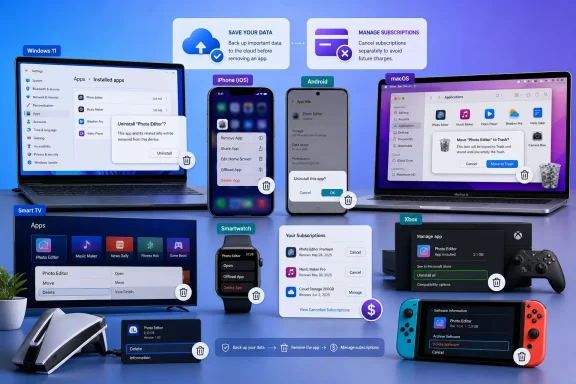 Before uninstalling an app
Check these points before removing anything important:- Back up files stored only inside the app, including projects, downloads, recordings, game saves, and locally stored messages.
- Sync the app if it uses a cloud account.
- Save license keys or deactivate licensed software when the vendor requires it.
- Quit desktop applications before uninstalling them.
- Confirm whether the device offers Delete, Offload, Archive, or Disable. These options do not have the same effect.
- On a work or school device, assume the organization may restrict removal or automatically reinstall required apps.
Delete apps on iPhone or iPad
These steps apply to current iOS and iPadOS releases.- Find the app on the Home Screen or in App Library.
- Touch and hold its icon.
- Tap Remove App.
- Tap Delete App.
- Tap Delete to confirm.
- Tap the Remove button in the app icon’s upper-left corner.
- Tap Delete App.
- Tap Delete.
- Tap Done when finished.
Offload an iPhone or iPad app without losing its documents
Offloading removes the installed app while retaining its documents and data for a later reinstall.To offload one app:
- Open Settings.
- Go to General > iPhone Storage or General > iPad Storage.
- Select the app.
- Tap Offload App.
- Confirm Offload App.
- Open Settings.
- Tap Apps > App Store.
- Turn on Offload Unused Apps.
If Delete App is missing for a third-party app, check Settings > Screen Time > Content & Privacy Restrictions > iTunes & App Store Purchases > Deleting Apps and set it to Allow. Some built-in Apple apps cannot be removed, while deleting other built-in apps can affect related system functions.
Uninstall apps on Android phones and tablets
Menu names vary among manufacturers, but Google Play provides a consistent removal route for Play Store apps:- Open Google Play Store.
- Tap your profile picture.
- Tap Manage apps & device.
- Open the Manage tab.
- Select the app.
- Tap Uninstall.
- Open Settings.
- Tap Apps.
- If necessary, tap See all apps.
- Select the app.
- Tap Uninstall.
- Confirm the removal.
- Open Settings > Apps.
- Select the downloaded app.
- Tap Uninstall.
- Tap OK.
Disable or archive an Android app
Some manufacturer and system apps cannot be uninstalled. If Android offers Disable, that option stops the app, removes its updates in some cases, and hides or restricts it without removing the underlying system package.- Open Settings > Apps.
- Select the preinstalled app.
- Tap Disable.
- Confirm the warning.
Supported Android versions can also archive unused apps. Archiving removes portions of the app to reclaim space while retaining its icon and personal data. This is a storage workaround, not a full uninstall.
Uninstall apps and programs in Windows 11 or Windows 10
Microsoft supports three primary removal routes. Start with Settings, then use Start or Control Panel if the program is not listed correctly.Use Windows Settings
On current Windows 11 releases:- Open Start > Settings.
- Select Apps > Installed apps.
- Find the app.
- Select its More options button.
- Select Uninstall.
- Select Uninstall again if prompted.
- Complete any vendor uninstaller that opens.
- Open Start > Settings.
- Select Apps > Apps & features.
- Select the program.
- Select Uninstall.
- Follow the displayed instructions.
Uninstall from the Start menu
- Open Start > All apps.
- Find the application.
- Right-click it, or press and hold it on a touchscreen.
- Select Uninstall.
- Follow the prompts.
Use Control Panel for traditional desktop programs
- Search for and open Control Panel.
- Select Programs > Programs and Features.
- Select the program.
- Choose Uninstall or Uninstall/Change.
- Complete the program’s removal wizard.
Uninstall with Windows Package Manager
For an app recognized by Windows Package Manager:- Right-click Start and open Terminal.
- List recognized applications:
winget list- Uninstall the application using its exact name or package ID:
winget uninstall --name "Application Name"- Approve any elevation or vendor-uninstaller prompt.
Remove an app from a Mac
Use the app’s supplied uninstaller when available. This is especially important for antivirus tools, VPN clients, hardware utilities, virtualization products, and software that installs system extensions.Use the app’s uninstaller
- Quit the application.
- Open Finder > Applications.
- Open the application’s folder, if it has one.
- Look for Uninstall, Uninstaller, or Remove [app name].
- Open it and follow the instructions.
- Restart the Mac if requested.
Delete a Mac app through Finder
If the app has no dedicated uninstaller:- Quit the app.
- Open Finder > Applications.
- Select the app.
- Drag it to the Trash, choose File > Move to Trash, or press Command-Delete.
- Enter administrator credentials if requested.
- Choose Finder > Empty Trash when ready to permanently remove it.
On macOS versions that display removable App Store apps in Launchpad, hold Option or click and hold an icon until apps jiggle, then select the app’s Delete button. The button appears only for supported removable apps. Apps required by macOS cannot be deleted through Finder or Launchpad.
Remove Chromebook apps and Chrome extensions
To remove an app from ChromeOS:- Select the Launcher.
- Find the app.
- Right-click it, or use a two-finger touchpad click.
- Select Uninstall or Remove from Chrome.
- Select Uninstall to confirm.
- Open Chrome.
- Select More > Extensions > Manage extensions. On interfaces that retain the older path, use More > More tools > Extensions.
- Find the extension.
- Select Remove.
- Select Remove again.
Delete apps from streaming devices and smart TVs
Apple TV 4K
To review apps by storage use:- Open Settings.
- Go to General > Manage Storage.
- Select the trash button beside the app.
- Choose:
- Delete to remove the app and its Apple TV data.
- Offload to remove the app while retaining its data.
Google TV
- Open the Apps tab.
- Find the app under Your apps.
- Hold the remote’s Select button.
- Choose View details > Uninstall.
- Confirm the removal.
Android TV
- Open Settings from the Home screen.
- Select Apps.
- Select See all apps if shown.
- Select the downloaded app.
- Choose Uninstall > OK.
Samsung Smart TV or projector
On current Samsung interfaces:- Press Home.
- Open Apps.
- Scroll to App Settings.
- Select the app.
- Select Delete.
- Select Delete again.
Amazon Fire TV
- Open Settings.
- Select Applications.
- Select Manage Installed Applications.
- Choose the app.
- Select Uninstall.
- Select Uninstall again.
Roku
Before removing an app billed through Roku, turn off automatic renewal. An active subscription can prevent the Remove app option from appearing.- Press Home on the Roku remote.
- Move right and highlight the app.
- Press the Star button.
- Select Remove app.
- Confirm the removal.
Remove apps from watches
Apple Watch
- Press the Digital Crown to display apps.
- Touch and hold the display until the apps jiggle.
- Tap the app’s Delete button.
- Tap Delete App.
- Press the Digital Crown to finish.
Wear OS
These steps require Wear OS 2 or later and may differ by watch manufacturer:- Wake the watch and press its Power button.
- Open Play Store.
- Swipe down from the top.
- Tap My Apps.
- Select the app.
- Scroll down and tap Uninstall.
Delete games and apps from consoles
Xbox
- Open My games & apps.
- Highlight the game or app.
- Press the controller’s Menu button.
- Select Uninstall or Manage game and add-ons.
- Select the content to remove and confirm.
PlayStation 5
For a quick removal, highlight the game on the Home screen, press the Options button, and select Delete.To manage several items:
- Open Settings > Storage.
- Select the storage location.
- Open Games and Apps.
- Select the items.
- Choose Delete.
Nintendo Switch 2
- Highlight the software on the HOME Menu.
- Press + or -.
- Select Manage Software.
- Select Delete Software.
- Select Delete to confirm.
Deleting Switch 2 software does not delete its save data. Save data has a separate deletion command and should not be removed merely to free space.
Handle apps on work or school devices
A missing or disabled uninstall button commonly means the app is required by device-management policy.On a personally owned Android device with a Work Profile:
- Open Settings > Passwords and accounts.
- Open the Work tab.
- Tap Remove Work Profile.
- Tap Delete.
For Microsoft Intune-managed devices, an authorized administrator can use Devices > All devices, select the device, and choose Remove apps and configuration on supported platforms. This is a temporary troubleshooting action: Intune automatically reapplies removed assigned items within 8 to 24 hours unless the administrator changes the assignment or initiates another supported action.
Warning: Removing managed Wi-Fi, VPN, or certificate configurations can break the device’s connection to company services. An administrator should arrange an alternate Wi-Fi or cellular connection before initiating that action.
If an app returns after you uninstall it, or its removal control is unavailable, contact the organization’s help desk. Permanent removal requires the administrator to change the app’s required assignment or release the device from the applicable management policy.
References
- Primary source: Technobezz
Published: 2026-07-13T16:16:42.217000+00:00
How to Uninstall Apps on Any Device (2026) | Technobezz
How to uninstall apps on iPhone, Android, Windows, Mac, TVs, consoles, and more using current device menus.www.technobezz.com - Official source: support.microsoft.com
Uninstall or remove apps and programs in Windows - Microsoft Support
Uninstall or remove apps and programs in the Settings app.support.microsoft.com - Official source: learn.microsoft.com
Device Action: Remove Apps and Configuration - Microsoft Intune | Microsoft Learn
Learn how apps and configurations can be removed temporarily, then restored automatically or manually using the Remove apps and configuration device action with Intune.learn.microsoft.com
