

You can change your phone’s hotspot name, password, security, radio band, timeout, and sharing method from the phone’s network settings. The steps below cover current iPhone and cellular iPad models, Google Pixel phones, Samsung Galaxy devices, other recent Android phones, and connecting from Windows 10 or Windows 11. Menu options can vary by carrier, Android version, and phone manufacturer.
Check these requirements first:
Every device using the old password will be disconnected. Reconnect each device with the new password.
Settings > Network & internet > Hotspot & tethering > Wi-Fi hotspot
Some options require a recent Android version.
If Wi-Fi hotspot will not turn on, disable Data Saver and try again.
Settings > Connections > Mobile Hotspot and Tethering > Mobile Hotspot
Labels and available controls can differ by Galaxy model, carrier, and One UI version.
Open the full hotspot page to look for:
Windows 11
To roll back the connection, turn off USB tethering before unplugging the phone.
Requirements include:
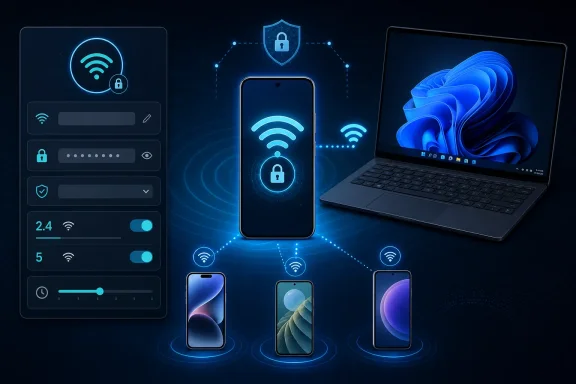 Before changing hotspot settings
Check these requirements first:- Your phone or cellular tablet must have an active mobile-data connection.
- Your carrier plan must permit hotspot or tethering use. Some plans impose separate limits or charges.
- Changing the hotspot name, password, security, or band disconnects currently connected devices.
- Keep the phone connected to power during long tethering sessions because hotspot use can drain the battery quickly.
- If the device is managed by an employer or school, management policies may hide or lock hotspot controls.
Change Personal Hotspot settings on iPhone or iPad
These instructions apply to an iPhone or cellular-capable iPad with a carrier and plan that support Personal Hotspot.Turn Personal Hotspot on or off
- Open Settings.
- Tap Personal Hotspot.
If that option is not shown on the main Settings page, open:
Settings > Cellular > Personal Hotspot - Turn Allow Others to Join on.
- Leave the Personal Hotspot screen open while connecting another device for the first time.
Change the hotspot password
- Open Settings > Personal Hotspot.
- Tap Wi-Fi Password.
- Enter a password containing at least eight characters.
- Tap Done.
Every device using the old password will be disconnected. Reconnect each device with the new password.
Rename an iPhone or iPad hotspot
An iPhone does not have a separate network-name box inside Personal Hotspot. Its hotspot uses the device name.- Open Settings.
- Go to General > About > Name.
- Delete the existing device name.
- Enter the name you want other devices to see.
- Tap Done or return to the previous screen.
Improve compatibility with older devices
If a computer can see the iPhone hotspot but cannot maintain a connection:- Open Settings > Personal Hotspot.
- Turn on Maximize Compatibility, if the option appears.
- Disconnect the computer from the hotspot.
- Scan for Wi-Fi networks again and reconnect.
Change hotspot settings on a Google Pixel
Google’s current Pixel path is:Settings > Network & internet > Hotspot & tethering > Wi-Fi hotspot
Some options require a recent Android version.
Turn the Pixel hotspot on or off
- Open Settings.
- Tap Network & internet.
- Tap Hotspot & tethering.
- Tap Wi-Fi hotspot.
- Turn Use Wi-Fi hotspot or Wi-Fi hotspot on.
If Wi-Fi hotspot will not turn on, disable Data Saver and try again.
Change the Pixel hotspot name or password
- Open Settings > Network & internet > Hotspot & tethering > Wi-Fi hotspot.
- Tap the hotspot-name setting and enter a recognizable network name.
- Tap the password setting and enter a new password.
- Save the change if prompted.
- Turn the hotspot off and back on if the new details do not appear immediately.
Change automatic shutdown behavior
Pixel phones normally turn off the hotspot when no devices are connected to conserve power.- Open Settings > Network & internet > Hotspot & tethering > Wi-Fi hotspot.
- Find Turn off hotspot automatically.
- Turn it on to conserve battery or off if the hotspot must remain available while temporarily idle.
Change hotspot settings on a Samsung Galaxy
On current Samsung Galaxy software, open:Settings > Connections > Mobile Hotspot and Tethering > Mobile Hotspot
Labels and available controls can differ by Galaxy model, carrier, and One UI version.
Turn Mobile Hotspot on or off
- Open Settings.
- Tap Connections.
- Tap Mobile Hotspot and Tethering.
- Turn on the switch beside Mobile Hotspot.
Change the Galaxy hotspot name and password
- Open Settings > Connections > Mobile Hotspot and Tethering.
- Tap Mobile Hotspot.
- Tap the Information section.
- Select Network name and enter the new name.
- Select Password and enter the new password.
- Save or confirm the changes.
Choose 2.4 GHz or 5 GHz
From the Mobile Hotspot information screen, tap Band if available.- 2.4 GHz provides broader compatibility and generally better range. Use it when an older computer, smart device, or game console cannot see the hotspot.
- 5 GHz can provide better performance at shorter distances but may not appear on older Wi-Fi adapters.
- An automatic or combined option, where available, lets the phone choose based on device support.
Set security and timeout options
From Settings > Connections > Mobile Hotspot and Tethering > Mobile Hotspot:- Open the Information section.
- Tap Security to select an available protected security mode.
- Open Advanced.
- Tap Turn off when no device connected for.
- Choose how long the hotspot should wait before shutting down.
Enable Auto Hotspot for Samsung devices
Auto Hotspot can make the connection available to compatible devices using the same Samsung account or Samsung family group.- Open Settings > Connections > Mobile Hotspot and Tethering.
- Tap Mobile Hotspot.
- Tap Auto Hotspot.
- Turn on Auto Hotspot.
- Enable Family sharing if approved family-group members should also have access.
Find hotspot controls on other Android phones
Android manufacturers frequently rename or reorganize network menus. On most recent phones, start with one of these paths:- Settings > Network & internet > Hotspot & tethering
- Settings > Connections > Hotspot & tethering
- Settings > Connection & sharing > Personal hotspot
- Settings > Mobile network > Personal hotspot
Open the full hotspot page to look for:
- Hotspot or network name
- Password
- Security
- AP band or hotspot band
- Connected devices
- Maximum connections
- Data limit
- Automatic shutdown
- Hidden network
- Blocked devices
Connect a Windows PC after changing the settings
Once the hotspot is enabled, Windows treats it like a normal Wi-Fi network.Windows 11
- Select the Network, Sound, or Battery area on the right side of the taskbar.
- Select the arrow beside Wi-Fi to open Manage Wi-Fi connections.
- Select the phone’s hotspot name.
- Select Connect.
- Enter the hotspot password.
- Select Next.
Windows 10
- Select the Network icon on the right side of the taskbar.
- Select the phone’s hotspot name.
- Select Connect.
- Enter the password.
- Select Next.
- Choose whether the PC should be discoverable on that network.
Remove an old saved hotspot profile
If Windows repeatedly tries the previous password, forget the saved network.Windows 11
- Open Settings > Network & internet > Wi-Fi.
- Select Manage known networks.
- Find the old hotspot name.
- Select Forget.
- Reconnect from the Wi-Fi list.
- Open Settings > Network & Internet > Wi-Fi.
- Select Manage known networks.
- Select the old hotspot profile.
- Select Forget.
- Reconnect and enter the current password.
Use USB tethering with Windows
USB tethering is useful when Wi-Fi is unreliable and can also keep the phone charged.Android to Windows
- Connect the Android phone to the PC with a USB data cable.
- Unlock the phone.
- Open Settings > Network & internet > Hotspot & tethering, or the manufacturer’s equivalent.
- Turn on USB tethering.
- Wait while Windows detects the connection.
To roll back the connection, turn off USB tethering before unplugging the phone.
iPhone or cellular iPad to Windows
- Install or update Apple Devices or iTunes for Windows.
- On the iPhone or iPad, open Settings > Personal Hotspot.
- Turn on Allow Others to Join.
- Connect the device to the PC with a USB cable.
- Approve Allow if Windows asks to use the accessory.
- Tap Trust on the Apple device if the trust prompt appears.
- Enter the device passcode when requested.
Use Windows 11 Instant Hotspot with a compatible Android phone
Microsoft’s Instant Hotspot feature lets supported Android phones appear in the Windows 11 Wi-Fi menu without repeatedly entering a password.Requirements include:
- Windows 11 version 22H2, build 22621 or later
- A PC with Wi-Fi and Bluetooth
- Current versions of Phone Link and Link to Windows
- A supported Samsung, HONOR, OPPO, OnePlus, Realme, or vivo device
- A carrier plan that permits hotspot use
- Open Phone Link on the PC.
- Open Settings > Features > Instant Hotspot.
- Select Setup Instant Hotspot.
- Follow the prompts and select Send Notification.
- On the phone, open the notification and select Allow.
- In Link to Windows on the phone, enable Instant Hotspot.
- Open the Windows Wi-Fi menu and select the phone.
Troubleshoot missing or failed hotspot settings
- The hotspot menu is missing or dimmed: Confirm that mobile data is enabled. Restart the phone, then check whether the carrier plan includes tethering.
- The hotspot turns on but has no internet: Verify that websites load directly on the phone over mobile data. Disable airplane mode, VPN software, and Data Saver temporarily.
- Windows cannot see the hotspot: Move the phone closer, refresh the Wi-Fi list, and switch the phone’s hotspot band to 2.4 GHz.
- Windows says the password is incorrect: Forget the saved network in Windows, confirm the password on the phone, and reconnect.
- The connection drops when idle: Disable the phone’s automatic hotspot timeout or increase its delay.
- USB tethering is unavailable: Unlock the phone, replace the cable with a data-capable cable, and try another USB port.
- The setting is controlled by an organization: Work and school management policies can prohibit tethering or prevent hotspot changes. Only the organization’s administrator can remove that restriction.
- The option disappeared after changing carriers: Install carrier and phone software updates, restart the phone, and contact the carrier to confirm hotspot provisioning.
- An iPhone hotspot remains unreliable: Update both devices, restart them, turn on Maximize Compatibility, and retry the connection while the Personal Hotspot screen remains open.
References
- Primary source: Technobezz
Published: 2026-07-13T17:15:41.800000+00:00
How to Change Hotspot Settings on Your Phone | Technobezz
How to change hotspot settings on iPhone, Android, Samsung, Motorola, and OnePlus, including name, password, sharing, and tethering.www.technobezz.com
