

Windows File Explorer Preview pane not working in Windows 11 or Windows 10 is usually fixed by turning the pane and preview handlers back on, removing the internet security block from a trusted download, or repairing the app that supplies the file’s preview handler. These steps cover local files, downloaded files, PDFs, Microsoft 365/Office documents, and supported extra formats such as Markdown and SVG.
The Preview pane is the panel on the right side of File Explorer that displays a file’s contents when you select it. Thumbnails are the small images shown on file icons in the main file list. They use different components, so working thumbnails do not prove that Preview pane should work.
Start by testing with a small, local file you trust, such as a
Next, make sure Windows is allowed to use installed preview handlers:
A blocked file may display this message in Preview pane:
To enable thumbnails:
If the preview begins working after repair but later fails again, install current Windows and Office updates before trying third-party registry fixes.
PowerToys also includes Peek, a separate quick-view feature. Select a supported file in File Explorer and press Space to open it in Peek. This is a workaround for quickly viewing a file; it does not replace the File Explorer Preview pane and does not bypass Windows security blocks.
Warning: Do not close the Command Prompt window while System File Checker is running. Wait until verification reaches 100%.
Restart Windows after the scans complete, then test File Explorer again.
Warning: A clean boot temporarily disables non-Microsoft services and startup apps. Record what you disable so you can restore normal startup afterward. On a work-managed PC, consult IT before changing startup configuration.
When testing is complete, restore normal startup:
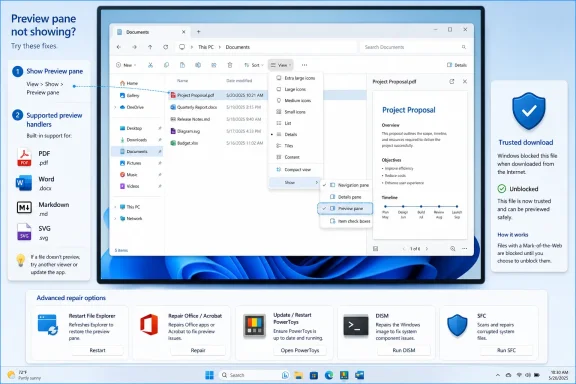 First: identify whether this is a preview-pane or thumbnail problem
The Preview pane is the panel on the right side of File Explorer that displays a file’s contents when you select it. Thumbnails are the small images shown on file icons in the main file list. They use different components, so working thumbnails do not prove that Preview pane should work.Start by testing with a small, local file you trust, such as a
.txt, .jpg, or .docx file stored in Documents. Then compare the result with the file that fails.- If no files show on the right, check the File Explorer settings and restart Explorer.
- If only downloaded files fail and File Explorer warns that the file could harm your computer, this is a Windows security block.
- If one type fails—for example PDF, Word, or Markdown—the app or preview handler for that type is the likely issue.
- If previews fail throughout File Explorer alongside crashes, freezes, or missing menus, use the Windows repair section later in this guide.
Turn on Preview pane and preview handlers
- Open File Explorer by pressing Windows key + E.
- On Windows 11, select View > Show > Preview pane.
- On Windows 10, select the View tab, then select Preview pane.
- Select a file and look for the preview on the right.
Next, make sure Windows is allowed to use installed preview handlers:
- In File Explorer, select See more (…) on the command bar.
- Select Options.
- Open the View tab.
- Under Advanced settings, select Show preview handlers in preview pane.
- Select Apply, then OK.
- Close and reopen File Explorer, then test the file again.
Unblock a trusted file downloaded from the internet
Since Windows security updates released on and after October 14, 2025, File Explorer blocks previews for files marked as having come from the internet. This is intentional protection against a vulnerability that could expose credentials when Explorer rendered unsafe content.A blocked file may display this message in Preview pane:
Do not disable this protection generally just to restore previews. Instead, unblock only files whose source and contents you trust.The file you are attempting to preview could harm your computer.
- In File Explorer, right-click the affected file.
- Select Properties.
- On the General tab, locate the Security section near the bottom.
- Select Unblock.
- Select Apply, then OK.
- Select the file again and check Preview pane.
Unblock several trusted files
Use this only for files from a reviewed, trusted source. Removing the block makes it possible for Windows and installed preview handlers to process the files.- Right-click Start and select Terminal (Admin), or search for PowerShell, right-click it, and select Run as administrator.
- To unblock one file, run:
Unblock-File -Path "C:\Path\File.ext"- To unblock all files in a specific trusted folder and its subfolders, run:
Get-ChildItem -Path "C:\Path\Folder" -File -Recurse | Unblock-File- Close and reopen File Explorer, or sign out and sign back in.
Restart File Explorer before repairing software
File Explorer can keep an old preview-handler session active after settings or app changes. Restart it before moving to larger repairs.- Press Ctrl + Shift + Esc to open Task Manager.
- Find Windows Explorer under Processes.
- Right-click it and select Restart.
- Open File Explorer again and test the file.
- In Task Manager, select Run new task.
- Type:
explorer.exe- Select OK.
Restore previews for PDF files
PDF Preview pane support depends on a compatible PDF preview handler. A browser being able to open a PDF does not necessarily mean it supplies a File Explorer preview handler.Use Acrobat or Acrobat Reader
If Acrobat or Acrobat Reader is installed, update it first:- Open Adobe Acrobat or Adobe Acrobat Reader.
- Select Help > Check for updates.
- Install any offered update and restart the app when prompted.
- Open Settings > Apps > Default apps.
- Search for .pdf.
- Select the current default app.
- Choose Adobe Acrobat or Adobe Acrobat Reader if that is the preview handler you intend to use.
- Open Acrobat or Reader.
- Select Help > Repair Installation.
- Confirm the repair and restart Windows when prompted.
Do not confuse Acrobat’s thumbnail setting with Preview pane
Acrobat’s Enable PDF thumbnail previews in Windows Explorer setting controls PDF thumbnails on icons. It does not necessarily repair the right-side Preview pane.To enable thumbnails:
- Open Acrobat or Acrobat Reader.
- Open Preferences.
- Select General.
- Select Enable PDF thumbnail previews in Windows Explorer.
- Select OK and allow Acrobat to configure the component.
Restore Word, Excel, PowerPoint, and other Office previews
Word, Excel, PowerPoint, Visio, and similar Microsoft 365 or Office document previews depend on Office components. Repairing Office is the supported first repair when only those formats fail.- Right-click Start.
- Select Installed apps in Windows 11, or Apps and Features in Windows 10.
- Find Microsoft 365 or your installed Microsoft Office product.
- In Windows 11, select the … button next to the product, then select Modify.
- In Windows 10, select the product and choose Modify.
- Choose Quick Repair first and complete the repair.
- Restart Windows and test Preview pane.
- If the problem remains, repeat the process and choose Online Repair.
If the preview begins working after repair but later fails again, install current Windows and Office updates before trying third-party registry fixes.
Add preview support for unsupported file types
File Explorer does not natively preview every file format. Microsoft PowerToys can add Preview pane support for:- SVG images
- Markdown files
- Source-code files
- PDF files
- G-code files
- QOI images
- Open PowerToys Settings.
- Select File Explorer add-ons.
- Turn on the previewer for the file type you need.
- Open File Explorer Options > View.
- Confirm Show preview handlers in preview pane is selected.
- Restart File Explorer and test the file.
PowerToys also includes Peek, a separate quick-view feature. Select a supported file in File Explorer and press Space to open it in Peek. This is a workaround for quickly viewing a file; it does not replace the File Explorer Preview pane and does not bypass Windows security blocks.
Repair Windows when File Explorer has wider problems
Use Windows component repair only when the issue is broader than a single file type or an intentionally blocked downloaded file.- Install available Windows updates and restart the PC.
- Search for Command Prompt.
- Right-click Command Prompt and select Run as administrator.
- Run this command:
DISM.exe /Online /Cleanup-image /Restorehealth- Wait for DISM to finish successfully.
- Then run:
sfc /scannowWarning: Do not close the Command Prompt window while System File Checker is running. Wait until verification reaches 100%.
Restart Windows after the scans complete, then test File Explorer again.
Isolate third-party conflicts with a clean boot
Use a clean boot only if previews work inconsistently, Explorer crashes, or you suspect a third-party PDF tool, security product, cloud client, or shell extension is interfering.Warning: A clean boot temporarily disables non-Microsoft services and startup apps. Record what you disable so you can restore normal startup afterward. On a work-managed PC, consult IT before changing startup configuration.
- Sign in with an administrator account.
- Search for msconfig and open System Configuration.
- Open the Services tab.
- Select Hide all Microsoft services.
- Select Disable all, then select Apply.
- Open the Startup tab and select Open Task Manager.
- In Startup apps, disable each enabled nonessential startup item, keeping a record of the changes.
- Close Task Manager.
- Select OK in System Configuration and restart Windows.
- Test Preview pane.
When testing is complete, restore normal startup:
- Open msconfig again.
- On the General tab, select Normal startup.
- On the Services tab, clear Hide all Microsoft services, select Enable all, then select Apply.
- Open Startup > Open Task Manager and re-enable the items you previously disabled.
- Restart Windows.
References
- Primary source: Technobezz
Published: 2026-07-18T16:51:31.835000+00:00
Windows Explorer Preview Pane Not Working? How to Fix It in 2026 | Technobezz
Windows Explorer preview pane not working? Fix blank previews, blocked downloads, PDF previews, Office files, and File Explorer glitches.www.technobezz.com - Related coverage: helpx.adobe.com
- Official source: support.microsoft.com
File Explorer automatically disables the preview feature for files downloaded from the internet | Microsoft Support
File Explorer automatically disables the preview feature for files downloaded from the internetsupport.microsoft.com - Official source: learn.microsoft.com
File Explorer Preview Pane Not Working for Network Share Files After Recent Windows Update - Microsoft Q&A
Environment: Windows 11 domain-joined workstations Windows Server 2019 file server Active Directory domain Adobe Acrobat DC installed on workstations Referenced article:…learn.microsoft.com
