

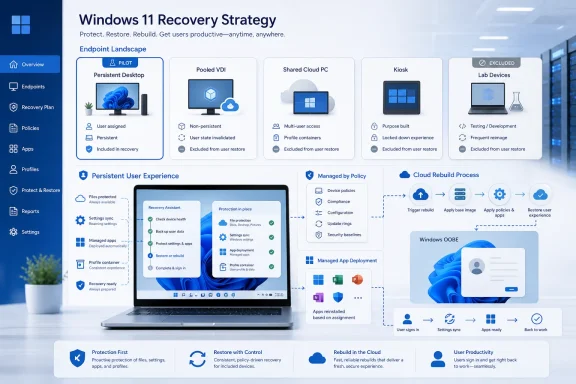
Windows settings backup and restore in Windows 11 should be treated as a scoped recovery capability for durable, user-assigned endpoints—not as a replacement for file backup, application deployment, profile management, or migration tooling. WindowsForum’s reporting on the Windows 11 26H2 recovery baseline makes the practical task clear: classify endpoints first, exclude reset-based and shared desktops, and pilot recovery behavior before broad deployment.
WindowsForum’s coverage of the 26H2 change describes Windows settings backup as becoming a more prominent managed recovery feature. That does not mean every managed endpoint should contribute recovery data or present a recovery experience.
The feature has a deliberately narrow purpose: it preserves supported Windows settings and the Microsoft Store app list. It does not back up user files, reinstall traditional Win32 software, restore application state, or replace a full migration plan.
That distinction matters most in virtual and shared environments. A pooled desktop that resets at logoff has a different lifecycle from a user’s assigned laptop. Similarly, a shared Cloud PC or kiosk should return to its managed baseline rather than inherit a prior user’s preferences.
Before turning on any recovery setting, decide which endpoint classes have a durable, one-user-to-one-device relationship and which do not.
Start with backup and recovery testing on a small, representative set of users. Include standard knowledge workers, users with accessibility requirements, and users who rely on a defined set of Microsoft Store apps. Do not treat successful testing as evidence that files, line-of-business software, or application settings will return.
The key question is whether Windows settings recovery adds useful value without duplicating or conflicting with the organization’s established user-state approach. Test the experience with the actual desktop image, assigned applications, profile tooling, and sign-in process used by that population.
Where profile containers or other VDI personalization systems are used, they should remain the primary mechanism for durable user state. Where no such tool exists, Windows settings recovery still does not turn a disposable desktop into a dependable personalization platform.
Use the VDI platform’s supported profile, container, or personalization technology instead.
Keep backup and restore disabled for shared Cloud PCs, kiosks, classroom devices, call-center stations, and similar endpoints. Use the organization’s shared-device configuration, application assignment, and profile-management approach for those systems.
Desktop and lock-screen images also need careful expectations. Their availability depends on OneDrive availability and configuration. Do not promise that a particular image will return unless that scenario has been tested with the organization’s OneDrive design.
For users, the message should be straightforward: Windows settings recovery may reduce personalization work after a supported recovery, but files, apps, and specialized settings must come from the tools designed for them.
Cloud rebuild is a Windows 11 preview capability intended for evaluation on non-production devices. It reinstalls Windows, downloads the Windows image and drivers from Windows Update, does not require USB media or custom images, and continues to OOBE.
Use the following controlled evaluation process:
Windows settings backup is most useful when it is positioned as one limited layer in a broader recovery design. Classify endpoints first, exclude reset-based and shared desktops, validate policy on persistent pilot devices, and keep files, applications, and profile recovery with the tools built to manage them.
| Endpoint class | Backup | Restore | Rationale | Use instead |
|---|---|---|---|---|
| Persistent, user-assigned laptop or desktop | Pilot, then enable | Pilot | A durable device has a continuing relationship with one user. | OneDrive for files; Intune or software deployment for apps |
| Persistent virtual desktop assigned to one user | Pilot | Pilot | Test whether settings recovery adds value alongside the existing desktop and profile design. | Existing profile and application-management tools |
| Pooled or non-persistent VDI | Exclude | Exclude | The desktop is reset or discarded, so recovered settings may not remain durable. | Profile containers or VDI personalization tooling |
| Shared Cloud PC or shared-use endpoint | Exclude | Exclude | A shared device is not a dependable one-user recovery target. | Shared-device configuration and user-profile tooling |
| Kiosk, lab, training, or temporary endpoint | Exclude | Exclude | These devices should return to a known managed configuration. | Assigned-device policy and reprovisioning procedures |
| Device replacement or rebuild project | Evaluate | Pilot | Settings recovery can be one part of a rebuild workflow, but not the whole migration plan. | OneDrive, app deployment, profile migration, and user communications |
 Why endpoint classification matters before rollout
WindowsForum’s coverage of the 26H2 change describes Windows settings backup as becoming a more prominent managed recovery feature. That does not mean every managed endpoint should contribute recovery data or present a recovery experience.The feature has a deliberately narrow purpose: it preserves supported Windows settings and the Microsoft Store app list. It does not back up user files, reinstall traditional Win32 software, restore application state, or replace a full migration plan.
That distinction matters most in virtual and shared environments. A pooled desktop that resets at logoff has a different lifecycle from a user’s assigned laptop. Similarly, a shared Cloud PC or kiosk should return to its managed baseline rather than inherit a prior user’s preferences.
Before turning on any recovery setting, decide which endpoint classes have a durable, one-user-to-one-device relationship and which do not.
Audit endpoint classes and policy ownership first
Complete this inventory before moving devices into a broad rollout ring. The objective is not just to find devices that can receive policy; it is to identify devices where settings recovery has a useful outcome.- Build an endpoint inventory from Intune, Active Directory, your virtualization platform, and asset-management records.
- Classify each endpoint as one of the following:
- Persistent physical laptop or desktop.
- Persistent virtual desktop assigned to one person.
- Pooled or non-persistent VDI.
- Shared Cloud PC or other shared-use desktop.
- Kiosk, lab, classroom, or temporary endpoint.
- Device intended for replacement, refresh, or recovery testing.
- Record the device’s management owner. Identify whether the endpoint receives configuration through Intune, Group Policy, another MDM provider, or a combination of management systems.
- Record the user and business owner for every endpoint group. The recovery decision should have an accountable owner, especially for shared desktops and virtual environments.
- Identify existing user-state tools, including OneDrive, profile containers, folder redirection, virtualization-platform personalization, and application deployment systems.
- Identify exclusions before creating an enablement group. At minimum, make separate groups for pooled VDI, non-persistent desktops, shared devices, kiosks, and labs.
- Build a small pilot group containing only persistent, user-assigned endpoints with known users and documented support contacts.
Apply a containment policy before broad enablement
Use explicit inclusion and exclusion groups rather than treating recovery as a tenant-wide convenience setting. The exact policy surface can vary by management method and Windows servicing level, so validate the available administrative control in your environment before deployment.Intune rollout steps
- Create an Intune pilot group containing only persistent, user-assigned devices.
- Create a Windows device-configuration profile that enables the available Windows settings backup control for that pilot group.
- Create separate exclusion groups for pooled VDI, non-persistent virtual desktops, shared Cloud PCs, kiosks, labs, and other shared-use systems.
- Create a second configuration profile that disables the available Windows settings backup and restore controls for the exclusion groups.
- Assign policies to device groups that reflect lifecycle, not merely hardware type. A virtual machine can be persistent or pooled; the lifecycle matters more than the fact that it is virtual.
- Review assignment results in Intune and confirm that no shared or reset-based endpoint receives the pilot enablement profile.
- Keep restore-related exposure limited to the pilot until administrators have completed a tested recovery scenario on representative devices.
- Document the approved support path for users: files come from OneDrive or another approved backup service; applications come from managed deployment; Windows settings recovery handles only its supported scope.
Group Policy rollout steps
- Create a security group or organizational unit for persistent, user-assigned devices approved for the pilot.
- Create a separate security group or organizational unit for pooled VDI, non-persistent desktops, kiosks, labs, and shared endpoints.
- In the applicable Windows administrative templates, configure the available Windows settings backup control for the pilot scope.
- Configure the corresponding backup and restore controls as disabled for the exclusion scope.
- Link and security-filter the policies so that no device can receive both the pilot enablement and an exclusion policy.
- On representative devices, refresh policy and confirm the resulting policy assignment through your normal Group Policy verification process.
- Keep an exception register. If a team requests enablement for a shared or virtual endpoint, require a documented reason, lifecycle description, and recovery test.
Which endpoint classes should receive backup and restore?
Persistent laptops and desktops: usually the best pilot candidates
A user-assigned laptop or desktop is the clearest place to test Windows settings recovery. The device has a continuing user relationship, and the user may benefit when receiving a replacement device or completing a supported recovery workflow.Start with backup and recovery testing on a small, representative set of users. Include standard knowledge workers, users with accessibility requirements, and users who rely on a defined set of Microsoft Store apps. Do not treat successful testing as evidence that files, line-of-business software, or application settings will return.
Persistent virtual desktops: evaluate before enabling
A persistent virtual desktop may be a reasonable pilot candidate, but only after reviewing the existing profile, app-delivery, and desktop-management design.The key question is whether Windows settings recovery adds useful value without duplicating or conflicting with the organization’s established user-state approach. Test the experience with the actual desktop image, assigned applications, profile tooling, and sign-in process used by that population.
Pooled and non-persistent VDI: explicitly exclude
WindowsForum’s user reports emphasize the growing importance of recovery tooling, but pooled VDI remains a poor fit for settings recovery. A reset-on-logoff or otherwise non-persistent desktop is designed to discard changes.Where profile containers or other VDI personalization systems are used, they should remain the primary mechanism for durable user state. Where no such tool exists, Windows settings recovery still does not turn a disposable desktop into a dependable personalization platform.
Use the VDI platform’s supported profile, container, or personalization technology instead.
Shared Cloud PCs and shared-use desktops: explicitly exclude
Shared endpoints are not reliable one-user recovery targets. The configuration goal is normally consistency between sessions and users, not restoration of one person’s previous environment.Keep backup and restore disabled for shared Cloud PCs, kiosks, classroom devices, call-center stations, and similar endpoints. Use the organization’s shared-device configuration, application assignment, and profile-management approach for those systems.
Know exactly what recovery does—and does not—bring back
Windows settings backup and restore has a narrow scope:- It preserves supported Windows settings.
- It preserves the Microsoft Store app list.
- It does not back up user files.
- It does not reinstall traditional Win32 applications.
- It does not restore traditional desktop application settings or application state.
- It should not be presented as a complete device migration solution.
Desktop and lock-screen images also need careful expectations. Their availability depends on OneDrive availability and configuration. Do not promise that a particular image will return unless that scenario has been tested with the organization’s OneDrive design.
For users, the message should be straightforward: Windows settings recovery may reduce personalization work after a supported recovery, but files, apps, and specialized settings must come from the tools designed for them.
Use Cloud rebuild with a recovery runbook, not as a backup substitute
WindowsForum’s reporting on the Windows Resiliency Initiative and the Cloud rebuild feature places this capability in a broader recovery story that includes cloud-aware recovery tools and point-in-time recovery work. Cloud rebuild should still be handled as an evaluation feature, not as a shortcut around recovery planning.Cloud rebuild is a Windows 11 preview capability intended for evaluation on non-production devices. It reinstalls Windows, downloads the Windows image and drivers from Windows Update, does not require USB media or custom images, and continues to OOBE.
Use the following controlled evaluation process:
- Select a non-production, persistent test device.
- Confirm that the device has internet access suitable for downloading Windows and drivers from Windows Update.
- Confirm that the user’s files are protected separately through OneDrive or another approved data-protection service.
- Confirm that required applications can be delivered through the organization’s normal application-management process after recovery.
- Confirm that the device belongs to the correct endpoint class and is not pooled, non-persistent, or shared.
- Run the Cloud rebuild evaluation and document the time required, recovery outcome, driver state, enrollment behavior, and user-support steps.
- At OOBE, validate only the recovery experience your organization has deliberately enabled and tested.
- Record gaps separately: missing files are a file-protection issue; missing Win32 software is an app-deployment issue; missing desktop personalization may be a OneDrive or settings-scope issue.
Verification and troubleshooting checklist
After policy deployment, verify the rollout in this order:- Confirm the device is in the intended pilot or exclusion group.
- Confirm the endpoint class is correct: persistent, pooled, non-persistent, shared, kiosk, or lab.
- Confirm the device received the intended configuration from its management authority.
- Confirm the user understands the limited recovery scope: supported Windows settings and Microsoft Store app list, not files or Win32 applications.
- Test a controlled recovery scenario on one representative device before expanding the group.
- Verify that files remain available through the approved file-protection service.
- Verify that required applications return through normal managed deployment.
Frequently Asked Questions
Does Windows settings backup reinstall Microsoft Store apps?
It preserves the Microsoft Store app list. It is not a general application backup and does not reinstall traditional Win32 applications or restore their settings.Does it back up user files?
No. Use OneDrive or another approved file-protection and recovery service for user documents, pictures, and other files.Should pooled VDI receive Windows settings backup and restore?
No. Pooled and non-persistent desktops should be explicitly excluded because their reset-based lifecycle is not a dependable fit for retained user settings.Can Cloud rebuild replace our recovery runbook?
No. Cloud rebuild is a preview capability for evaluation on non-production devices. It reinstalls Windows from Windows Update and continues to OOBE, but it does not replace file backup, application deployment, profile management, or tested support procedures.Windows settings backup is most useful when it is positioned as one limited layer in a broader recovery design. Classify endpoints first, exclude reset-based and shared desktops, validate policy on persistent pilot devices, and keep files, applications, and profile recovery with the tools built to manage them.
References
- Primary source: learn.microsoft.com
Cloud rebuild (Preview) | Microsoft Learn
IT Pro documentation for the Cloud rebuild feature in Windows 11learn.microsoft.com - Independent coverage: support.microsoft.com
Windows Backup Settings Catalog | Microsoft Support
Windows Backup and Sync settings allow you to sync the settings you choose across all your Windows devices that you've signed in to with your Microsoft account. This article describes in detail what's synced.support.microsoft.com - Independent coverage: techcommunity.microsoft.com
- Primary source: WindowsForum
Windows 11 Recovery Goes Cloud Powered with PITR QMR and Cloud Rebuild | Windows Forum
Microsoft’s Ignite-stage update makes Windows 11’s recovery story far more ambitious: the operating system is getting a cloud-aware, pre-boot toolbox —...windowsforum.com
