

Microsoft Publisher’s October 2026 retirement calls for a file-by-file migration plan: export completed records to PDF, move text-first material into Word, rebuild slide-like items in PowerPoint, and redesign layout-critical publications in a specialist workflow after testing the result with the people who use it.
WindowsForum members discussing Publisher’s end of life repeatedly raise the same practical concern: the problem is not simply losing an app, but losing the ability to update old newsletters, forms, church bulletins, school materials, event programs, labels, and branded templates. Microsoft has said Publisher will no longer be included in Microsoft 365 after October 2026, and Microsoft 365 subscribers will no longer be able to open or edit
That makes the next step an operational decision, not a search for one universal replacement.
Use this table as the project’s first working page. Every active or retained
The table prevents a common failure: treating “converted” as a useful status. A PDF for a 2018 newsletter may be successful preservation. That same PDF is not a maintained source file for the 2027 newsletter.
For a Windows file share, PowerShell provides a repeatable discovery method. Run this from a workstation or server account that has read access to the share. Replace the example share path with the root of the location being reviewed.
Create
The CSV schema should include at least:
Useful sample status values are:
IT can find
In Publisher, open the
After export, open the PDF and compare it with the Publisher file. Check the first page, last page, pages with photos or logos, and any page containing tables, coupons, labels, or unusual formatting. Record the output path and the result in the CSV.
PDF is appropriate when the requirement is a viewable or printable record. It is not an editable Publisher replacement.
Use this workflow:
This route is best for documents whose lasting value is their text. It should be treated as a redesign-and-review workflow, not as proof that Publisher’s original page construction has been retained.
The project record should identify the selected destination tool, the template owner, approved logos and images, required output format, and the person authorized to approve the rebuilt template. Save the new source file in the team’s managed location, not on an individual desktop.
Operationally, treat older assets as review items. If a rebuilt publication depends on images, fonts, or files stored elsewhere, confirm that the new workflow has access to approved replacements before sign-off. If the publication remains active public communication, include accessibility review in the rebuild process rather than assuming a visual export resolves that requirement.
An organization may choose to retain a controlled legacy workstation temporarily to inspect old
Keep original
Should we keep the original
Yes, during the migration and validation period. Keep the source until the converted or rebuilt result has owner sign-off and retention requirements permit disposal.
WindowsForum members discussing Publisher’s end of life repeatedly raise the same practical concern: the problem is not simply losing an app, but losing the ability to update old newsletters, forms, church bulletins, school materials, event programs, labels, and branded templates. Microsoft has said Publisher will no longer be included in Microsoft 365 after October 2026, and Microsoft 365 subscribers will no longer be able to open or edit
.pub files in Publisher. Microsoft guidance also tells users to convert important files before the deadline.That makes the next step an operational decision, not a search for one universal replacement.
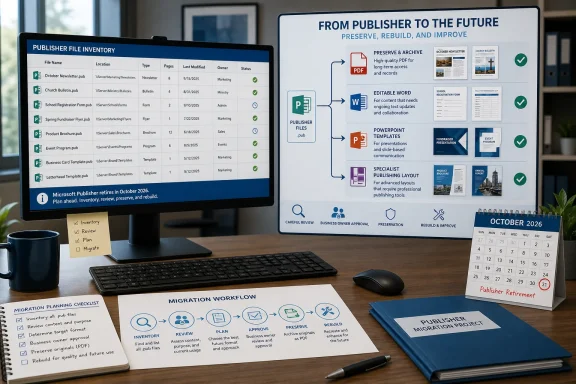 Make the Outcome Decision Before Converting
Use this table as the project’s first working page. Every active or retained .pub file should have an owner, a selected destination, and a defined acceptance test.| Required outcome | Recommended destination | Editing retained? | Rebuild required? | Owner | Acceptance test |
|---|---|---|---|---|---|
| Keep an approved historical record | No | No, if visual record is sufficient | Records owner or department | PDF opens, pages are readable, and spot-checked pages match the source visually | |
| Update mostly written content | Word .docx | Yes, with layout changes possible | Usually light cleanup | Content owner | Owner can edit expected text, save, and print or share the revised document |
| Reuse posters, signs, simple flyers, or display material | PowerPoint .pptx | Yes | Yes | Communications or template owner | New version can be created from the template without moving required branding elements |
| Maintain exact multi-page or print-critical design | Specialist publishing workflow | Yes | Yes | Design, marketing, or print owner | Approved test output meets the organization’s production requirements |
| Retire obsolete material | Retention-approved disposal | Not applicable | No | Records owner | Owner confirms no continuing business, legal, or historical need |
Start With an Inventory, Not a Converter
WindowsForum’s Publisher retirement discussions have stressed the approaching cutoff, but administrators need to begin with visibility. Locate the files, identify the department that owns them, and determine whether each item is a record, an active document, a reusable template, or disposal candidate.For a Windows file share, PowerShell provides a repeatable discovery method. Run this from a workstation or server account that has read access to the share. Replace the example share path with the root of the location being reviewed.
Code:
$root = "\\FileServer\Shared"
$out  = "C:\PublisherMigration\publisher-inventory.csv"

Get-ChildItem -Path $root -Filter *.pub -File -Recurse -ErrorAction SilentlyContinue |
    Select-Object `
        @{Name="SourcePath";Expression={$_.FullName}},
        @{Name="FileName";Expression={$_.Name}},
        @{Name="Extension";Expression={$_.Extension}},
        @{Name="LastModified";Expression={$_.LastWriteTime}},
        @{Name="SizeBytes";Expression={$_.Length}},
        @{Name="Department";Expression={""}},
        @{Name="BusinessOwner";Expression={""}},
        @{Name="RequiredOutcome";Expression={""}},
        @{Name="Destination";Expression={""}},
        @{Name="Status";Expression={"Discovered"}},
        @{Name="OutputPath";Expression={""}},
        @{Name="ExceptionReason";Expression={""}},
        @{Name="OwnerSignoffDate";Expression={""}} |
Export-Csv -Path $out -NoTypeInformation -Encoding UTF8C:\PublisherMigration first, or change $out to an approved project location. For large environments, run the command separately against each department share and combine the resulting CSV files. Record access-denied locations separately; an incomplete scan should not be mistaken for an empty one.The CSV schema should include at least:
Code:
SourcePath,FileName,Extension,LastModified,SizeBytes,Department,BusinessOwner,
RequiredOutcome,Destination,Status,OutputPath,ExceptionReason,OwnerSignoffDate
Code:
Discovered
AwaitingOwnerReview
ArchiveToPDF
PDFExported
WordRebuildRequired
PowerPointRebuildRequired
SpecialistRebuildRequired
ValidationFailed
OwnerApproved
RetentionReview
Disposed.pub files, but the business owner must decide whether a file is still meaningful. A ten-year-old brochure might be a historical record, a current template, or abandoned clutter. Those are different migration jobs.Route 1: Export a Fixed Record to PDF
A practical WindowsForum workflow for completed publications is to export them to PDF and keep the source during the transition.In Publisher, open the
.pub file and use:- Select File.
- Select Export.
- Select Create PDF/XPS Document.
- Select Create PDF/XPS.
- In the Save dialog, choose the approved archive folder.
- Use a consistent name, such as
Newsletter_2018-06_Approved.pdforEventProgram_2024-05_Final.pdf. - Confirm the file type is PDF.
- Select Publish.
\\FileServer\PublisherArchivePDF\Communications\Newsletters\After export, open the PDF and compare it with the Publisher file. Check the first page, last page, pages with photos or logos, and any page containing tables, coupons, labels, or unusual formatting. Record the output path and the result in the CSV.
PDF is appropriate when the requirement is a viewable or printable record. It is not an editable Publisher replacement.
Route 2: Create an Editable Word Version
For text-centered material, Word can be a workable destination if the owner accepts that the document may need layout cleanup.Use this workflow:
- Export the Publisher publication to PDF using File > Export > Create PDF/XPS Document > Create PDF/XPS.
- Open Word.
- Select File > Open > Browse.
- Navigate to the exported PDF and select it.
- When Word warns that it will convert the PDF into an editable Word document, select OK.
- Review the converted document page by page.
- Select File > Save As > Browse.
- Save it in the department’s approved working location as a Word Document (
.docx), using a name such asVolunteerLetter_Template_2026.docx.
.docx as the editable working version. The owner should verify that expected text can be changed, headings remain understandable, images are acceptable for the intended use, and the revised document can be saved without creating an unusable result.This route is best for documents whose lasting value is their text. It should be treated as a redesign-and-review workflow, not as proof that Publisher’s original page construction has been retained.
Route 3: Rebuild Slide-Like Materials in PowerPoint
WindowsForum contributors looking at Publisher alternatives often identify PowerPoint as familiar territory for simple visual materials. A practical workflow is to rebuild posters, signs, display flyers, certificates, and similar single-page assets as controlled PowerPoint templates.- Open PowerPoint and select Blank Presentation.
- Select Design > Slide Size > Custom Slide Size.
- Set the page dimensions required for the intended output.
- Recreate the approved layout using the Publisher file or exported PDF as a visual reference.
- Add logos, approved images, and text from the organization’s approved asset locations.
- Save the working template as
Department_EventPoster_Template.pptx. - If appropriate, select File > Save As and choose PowerPoint Template (
.potx) for the controlled template copy. - Export a test copy through File > Export > Create PDF/XPS Document and compare it with the approved reference.
Route 4: Rebuild Layout-Critical Publications
For multi-page brochures, recurring branded publications, complex print pieces, or materials where precise layout is the product, assign the file to a specialist publishing workflow. Do not promise a direct editable conversion from Publisher.The project record should identify the selected destination tool, the template owner, approved logos and images, required output format, and the person authorized to approve the rebuilt template. Save the new source file in the team’s managed location, not on an individual desktop.
Operationally, treat older assets as review items. If a rebuilt publication depends on images, fonts, or files stored elsewhere, confirm that the new workflow has access to approved replacements before sign-off. If the publication remains active public communication, include accessibility review in the rebuild process rather than assuming a visual export resolves that requirement.
Run a Pilot Before Bulk Processing
Do not begin with the largest folder. Select a small pilot from each category:- Choose representative samples: a text-heavy newsletter, a graphics-heavy flyer, a multi-page publication, a reusable template, and a file with unusual branding or images.
- Export or rebuild each sample using the selected route.
- Visually compare the result with the Publisher source or approved reference.
- Give the result to the business owner for its real task: reading, editing, printing, publishing, or reusing as a template.
- Obtain owner sign-off and record it in the inventory.
- Process the remaining files in that category using the approved method.
Unsupported Publisher Is Not a Long-Term Plan
Microsoft Lifecycle documentation lists October 13, 2026, as the end-of-support date for Office 2021. That date applies to Office 2021; it should not be used to make a blanket claim about the lifecycle status of every perpetual Publisher edition.An organization may choose to retain a controlled legacy workstation temporarily to inspect old
.pub files during migration. That is a continuity measure, not a reason to defer the project. Before making any claim about continued support for a particular perpetual Publisher installation, check the lifecycle statement for that exact product and edition.Keep original
.pub files until the owner has approved the selected outcome and the organization’s retention rules allow disposal. The practical goal before October 2026 is straightforward: know what exists, assign ownership, preserve records, rebuild active templates, and leave each department with a supported way to do its next piece of work.Frequently Asked Questions
Can I just save every Publisher file as PDF?
You can use PDF for records that no longer need editing, but PDF does not replace an active template or recurring publication source. Ask the owner whether future changes are expected before choosing that route.What should I do with files that nobody recognizes?
Mark themAwaitingOwnerReview or RetentionReview in the inventory. Do not delete them merely because they are old, and do not spend rebuild effort until a responsible owner determines their value.Should we keep the original .pub files?
Yes, during the migration and validation period. Keep the source until the converted or rebuilt result has owner sign-off and retention requirements permit disposal.Can PowerShell convert Publisher files to PDF?
Automation may be useful after a pilot proves the workflow, but the inventory, output naming, error logging, and human validation process should be established first. A bulk job should record failures for review rather than silently marking every file complete.References
- Primary source: learn.microsoft.com
Publisher question - Microsoft Q&A
I have seen a notice that Microsoft Publisher will be discontinued. I have used Publisher for several significant documents over the years. My question is whether Publisher is being removed or will it simply not be supported? If it is being removed, do…learn.microsoft.com - Primary source: WindowsForum
Microsoft Publisher's End of Life: Key Changes Coming in October 2026 | Windows Forum
Microsoft Publisher to Reach End of Life in October 2026: What You Need to Know After more than three decades of service as a staple for desktop publishing...windowsforum.com
