

Microsoft’s latest Windows 11 26H1 Release Preview update is less about one headline feature than a broad campaign against everyday friction. Build 28000.2597 introduces a calendar-based update pause control, a quieter Widgets panel, adjustable touchpad right-click zones, accessibility upgrades, extensive Bluetooth repairs, modernized printer installation, and dozens of reliability improvements across File Explorer, networking, Windows Hello, Remote Desktop, and the shell. The cumulative effect is a version of Windows that should interrupt users less, accommodate more hardware, and behave more predictably—even if many of its most interesting changes will arrive gradually rather than immediately.
Windows 11 version 26H1 occupies an unusual place in Microsoft’s release strategy. The company originally identified the 28000-series branch as a targeted platform release intended to support specific new silicon rather than a conventional feature update replacing Windows 11 version 25H2 for the general installed base.
Build 28000 first appeared in the Canary Channel in November 2025. Microsoft subsequently expanded the 26H1 testing structure, placing 28000-series builds into a Beta branch while moving more experimental work onto the 28100 series.
That distinction is especially important for build 28000.2597 because the release contains two deployment categories. Some changes are part of the normal rollout, while others use controlled feature rollout technology and may appear only after Microsoft expands eligibility.
Nevertheless, the branch has become a valuable proving ground. Features developed elsewhere in Windows 11 are being consolidated, serviced, and validated alongside the platform work required by newer processors.
This is a deceptively useful usability improvement. People tend to organize around events—business trips, presentations, examinations, holidays, or production deadlines—not abstract seven-day intervals.
A calendar turns the decision into a practical question: When is it safe for this PC to resume receiving updates? That is clearer than calculating how many weeks remain until an important date.
Microsoft is also modifying update cleanup logic to improve performance immediately after installation. That matters because post-update maintenance—including component cleanup, indexing, optimization, and background servicing—can temporarily consume storage and processor resources.
The safest process remains straightforward:
Build 28000.2597 changes the defaults in favor of restraint.
This is an important design correction rather than a minor preference change. Interfaces located near the edge of the screen must be especially careful about interpreting pointer movement as intent because users regularly pass through that area while switching applications or targeting the Start button.
The first-use experience also opens directly to the Widgets dashboard. Configuration is available through Settings in the navigation bar, where users can restore or modify behaviors according to their preferences.
The quieter defaults suggest that Microsoft is recognizing a basic principle: a feature does not become more valuable merely by appearing more often. Widgets may have a better chance of retaining users if the panel behaves like an optional information center rather than an eager overlay.
Performance, responsiveness, reliability, and visual quality have also been improved. Those refinements will be important because removing accidental activation solves only half the problem; the dashboard must still feel fast when deliberately opened.
A zone that is too small can frustrate users who rely on physical clicking. A zone that is too large can produce unwanted context menus when a person intended to left-click near the center or lower edge.
The ideal setting varies with hand size, posture, touchpad dimensions, and muscle memory. Exposing a simple selector in Settings makes an existing low-level capability understandable to ordinary users without requiring registry modifications or vendor software.
Laptop manufacturers can also influence the result through firmware, drivers, and customization software. Users should therefore expect some variation between devices even when both are marketed as having Precision Touchpads.
A screen tint differs from simply reducing brightness. It changes the color characteristics of the image, which may make text or large bright surfaces more comfortable for some people.
No single tint will suit every visual condition, and it should not be treated as a medical solution. Its value lies in giving users another adjustable layer between application colors, system themes, Night light, color filters, and hardware display controls.
The increment setting is available from the Magnifier toolbar rather than requiring a trip into the main Settings app. That reduces context switching for people who adjust magnification frequently.
Touch users can restore the bars under Settings > Accessibility > Magnifier. This is another example of build 28000.2597 choosing the less intrusive default while preserving configurability.
Fluid dictation is disabled by default for new users, with a teaching prompt presented on first use. That cautious default is sensible because automatic rewriting can be useful without always preserving the speaker’s exact phrasing or specialist terminology.
These tasks touch several Windows subsystems, including storage, security scanning, shell extensions, and navigation. A delay perceived as “Explorer being slow” may therefore originate outside the window itself, making broad reliability work more significant than a simple animation change.
Windows paths appear in many forms depending on how they were copied or escaped. A graphical file manager should ideally normalize reasonable input rather than rejecting it because it includes syntactic artifacts from another environment.
Address-bar suggestions also close more consistently after an item is selected. That removes a small but distracting visual defect that could obscure content or make Explorer appear unresponsive.
Cloud integration has made Explorer more useful, but it also introduced asynchronous state changes that local-only file managers did not have to handle. Files can be placeholders, downloading, syncing, renamed remotely, or indexed while the shell is displaying them.
Case-only renaming is technically awkward because Windows file systems commonly preserve letter case while treating names as case-insensitive. Users still expect changing
Organizations will need to examine how these actions interact with data boundaries, licensing, information protection, and Copilot policies. A visible command is not necessarily proof that every file can or should be processed by an AI service.
This avoids a particularly dangerous communications failure: believing a microphone is muted when the operating system thinks it is active, or speaking while Windows remains muted despite the headset indicating otherwise.
Bluetooth devices combine firmware, chipset behavior, radio conditions, operating-system drivers, profile negotiation, and vendor-specific quirks. Compatibility workarounds are often necessary even when both sides nominally support the same specifications.
For LE Audio hardware, playback should begin more quickly when the microphone is active. Streaming should recover more reliably after interruptions, including cases in which another paired device such as a phone temporarily takes control.
Clear error handling matters because users often react to ambiguous Bluetooth failures by repeatedly removing devices, reinstalling drivers, or resetting network settings. A more accurate status can prevent unnecessary troubleshooting.
Incoming Phone Link calls will no longer ring through the PC while Windows Do Not Disturb is enabled. This aligns cross-device telephony with the notification preferences already expressed on the computer.
Windows Ready Print uses inbox IPP support and modern companion applications rather than requiring a unique legacy driver for every model. Its architectural neutrality is particularly valuable as Windows expands across x64 and Arm-based PCs.
Build 28000.2597 makes that strategic transition more visible to users by applying IPP during supported printer installations. Secure IPP print performance is also being improved, with higher page-per-minute throughput promised for IPPS devices.
Microsoft is not immediately blocking separately downloaded vendor packages. Administrators should nevertheless begin testing existing fleets because driver preference changes can alter which feature set appears after a printer is reinstalled.
Users can connect a supported reader and enroll it under Settings > Accounts > Sign-in options. The sensor must explicitly support the necessary security capabilities; an older USB reader will not become ESS-compatible merely because the operating system has been updated.
Enterprises should confirm compatibility, firmware levels, procurement requirements, and credential policies before standardizing on a model. Biometric hardware remains part of a wider trust chain that includes the sensor, driver, Windows Hello configuration, and identity provider.
Users with limited storage may prefer not to retain model packages they never use. Organizations may also want to reduce unnecessary components for compliance, attack-surface management, support consistency, or policy reasons.
The graphics kernel receives a related improvement for systems with more than 32 GB of memory. A revised memory-management policy allows those PCs to run larger local AI models, reflecting the growing importance of RAM allocation and accelerator-aware workloads in Windows.
That can improve throughput and latency, which are especially important when confidential-computing protections already add complexity to workload isolation. The change should still be validated against host firmware, adapter drivers, security policy, and live-migration requirements.
Networking failures inside a virtualized hypervisor can be difficult to diagnose because the administrator must distinguish guest configuration from the outer virtual switch, address assignment, routing, and host security controls.
WSL mirrored networking should also operate more reliably with VPNs. This matters to developers who need Linux environments to follow the host’s corporate connectivity, proxy, DNS, and private network routes.
DHCP renewal is also more reliable when a server returns a negative acknowledgment and on systems using Modern Standby. These are not glamorous changes, but they address the sort of intermittent connectivity failures that generate expensive support cases.
Sign-in and lock-screen reliability has been improved, particularly under low-memory conditions and when third-party credential providers are installed. Acrylic blur rendering in Start, Settings, and the lock screen also receives stability work.
The update also addresses cases in which clicking the left edge of a left-aligned taskbar failed to open Start. This is a narrow defect, but edge targeting is important because screen boundaries make pointer placement faster and more forgiving.
The energy-saver activation threshold is also restored under Settings > System > Power & battery. Together, these changes should make Windows’ modern Settings interface a more authoritative control surface.
Clipboard failures can seriously disrupt remote work because text, commands, and small files are frequently moved between local and remote environments. Reliability matters more here than visual modernization, although a clearer enablement dialog can help users understand the security implications of accepting remote connections.
Creative professionals will still need to validate calibrated workflows. Color-management fixes can be beneficial while also exposing differences previously masked by incorrect profile behavior.
A feature appearing on one 28000.2597 PC does not guarantee that another machine is misconfigured if it remains absent. Repeatedly resetting Windows or forcing undocumented feature flags can create more problems than it solves.
Firmware updates may be just as important as the Windows build. Bluetooth interoperability and biometric security in particular rely on coordinated behavior across several layers.
If those requirements do not align with the annual second-half feature-update schedule, Microsoft may continue using specialized branches while delivering user-facing improvements across multiple versions through cumulative servicing.
Detailed Feedback Hub reports should include the device model, relevant accessory firmware, connection type, reproduction steps, and diagnostic traces where possible. That information gives Microsoft and hardware partners a better chance of distinguishing a Windows regression from a vendor-specific failure.
Build 28000.2597 does not redefine Windows 11, but it demonstrates what mature operating-system development should look like: fewer unsolicited interruptions, more understandable controls, stronger hardware interoperability, and sustained repair work beneath the visible interface. If Microsoft can deliver these changes without introducing new regressions—and clearly explain which PCs will receive them—the 26H1 Release Preview may become notable not for a single marquee feature, but for making Windows feel quieter, faster, and more dependable in the moments that matter most.
Windows Setup now includes a parental-controls notice introducing Microsoft Family Safety tools for child accounts, screen-time limits, and family settings. This may make those controls easier to discover while configuring a new PC, although it also adds another Microsoft services prompt to the setup process.
The build restores Unicode variation-sequence support in the Myanmar Text font and improves character shaping and rendering with Mongolian Baiti. These fixes should provide more accurate text presentation for affected languages and documents.
Microsoft has also improved detection of time-zone changes. Windows should adjust the system clock more reliably when users travel or move between locations, reducing the likelihood of incorrect appointment times, timestamps, and authentication-related problems.
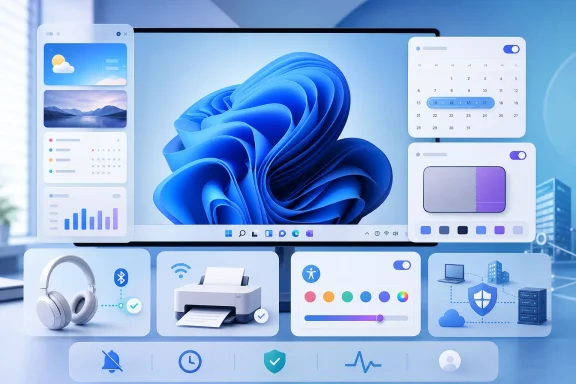 Background
Windows 11 version 26H1 occupies an unusual place in Microsoft’s release strategy. The company originally identified the 28000-series branch as a targeted platform release intended to support specific new silicon rather than a conventional feature update replacing Windows 11 version 25H2 for the general installed base.Build 28000 first appeared in the Canary Channel in November 2025. Microsoft subsequently expanded the 26H1 testing structure, placing 28000-series builds into a Beta branch while moving more experimental work onto the 28100 series.
Why Release Preview matters
The Release Preview Channel is generally the last major testing stop before changes reach production servicing. Features seen there are more mature than ideas introduced in Canary, Dev, or Experimental channels, although Microsoft can still alter, delay, or withdraw them.That distinction is especially important for build 28000.2597 because the release contains two deployment categories. Some changes are part of the normal rollout, while others use controlled feature rollout technology and may appear only after Microsoft expands eligibility.
26H1 is not simply “the next Windows”
The 26H1 label can create the impression that every Windows 11 PC will soon move from 25H2 to 26H1. Microsoft’s prior guidance makes the situation more nuanced: 26H1 was designed around platform requirements for particular hardware, while the company’s mainstream annual feature-update cadence remained centered on second-half releases.Nevertheless, the branch has become a valuable proving ground. Features developed elsewhere in Windows 11 are being consolidated, serviced, and validated alongside the platform work required by newer processors.
A More Predictable Windows Update Experience
The most immediately understandable addition is a calendar-based interface for pausing Windows Update. Instead of choosing from a limited set of weekly increments, users can select the date on which the pause should end.Pausing updates by date
The new control appears under Settings > Windows Update and allows updates to be paused for up to 35 days. Users can extend the pause by selecting a different end date, and they can pause again after updating when Windows permits it.This is a deceptively useful usability improvement. People tend to organize around events—business trips, presentations, examinations, holidays, or production deadlines—not abstract seven-day intervals.
A calendar turns the decision into a practical question: When is it safe for this PC to resume receiving updates? That is clearer than calculating how many weeks remain until an important date.
Better progress and cleanup behavior
Build 28000.2597 also improves the calculation shown for update progress in Settings. Windows Update percentages have historically appeared to stall or jump because the installation process consists of multiple stages whose workload differs from one package and machine to another.Microsoft is also modifying update cleanup logic to improve performance immediately after installation. That matters because post-update maintenance—including component cleanup, indexing, optimization, and background servicing—can temporarily consume storage and processor resources.
What the pause control does not change
The calendar does not eliminate Windows servicing requirements. A pause remains temporary, and security updates will eventually need to be installed.The safest process remains straightforward:
- Choose a pause end date that falls after the critical work period.
- Save important files and verify that backups are current.
- Resume updates when there is time for installation and a possible restart.
- Test essential applications and peripherals after the update.
- Report repeatable Insider problems through Feedback Hub.
Widgets Finally Learn to Stay Quiet
Widgets have been one of Windows 11’s most visible experiments in taskbar-driven content. They have also been a frequent source of complaints because the panel could open unexpectedly when the pointer crossed its taskbar area.Build 28000.2597 changes the defaults in favor of restraint.
No more opening on hover by default
The revised Widgets experience no longer opens merely because the pointer hovers over the taskbar entry. Users must intentionally select it, substantially reducing accidental activation.This is an important design correction rather than a minor preference change. Interfaces located near the edge of the screen must be especially careful about interpreting pointer movement as intent because users regularly pass through that area while switching applications or targeting the Start button.
Notifications and badges are reduced
Microsoft is minimizing Widgets notifications and taskbar badges by default. Dashboard icons can still display alert counts, but badges are cleared automatically after the user leaves a dashboard.The first-use experience also opens directly to the Widgets dashboard. Configuration is available through Settings in the navigation bar, where users can restore or modify behaviors according to their preferences.
Microsoft is responding to interruption fatigue
Windows 11 has accumulated several surfaces that compete for attention: Widgets, Search highlights, account notices, recommendations, Copilot entry points, notification banners, and subscription prompts. Even individually modest signals can become tiring when combined.The quieter defaults suggest that Microsoft is recognizing a basic principle: a feature does not become more valuable merely by appearing more often. Widgets may have a better chance of retaining users if the panel behaves like an optional information center rather than an eager overlay.
Performance, responsiveness, reliability, and visual quality have also been improved. Those refinements will be important because removing accidental activation solves only half the problem; the dashboard must still feel fast when deliberately opened.
Touchpad Controls Become More Personal
Windows Precision Touchpads already expose settings for gestures, sensitivity, taps, scrolling, and pointer behavior. Build 28000.2597 adds a setting that laptop users may notice every day: control over the physical right-click zone.Adjustable right-click area
On supported touchpads with a pressable surface, users can open Settings > Bluetooth & devices > Touchpad and select one of four right-click zone sizes:- Default retains the standard behavior selected by Windows or the hardware configuration.
- Small reduces the bottom-right area that triggers a one-finger right-click.
- Medium provides a larger target without occupying as much of the pad as the maximum option.
- Large makes the right-click region easier to find by feel.
Why right-click zones cause trouble
Modern clickpads often hide both mouse buttons beneath one seamless surface. Windows interprets the position of a press to determine whether the user intended a left or right click.A zone that is too small can frustrate users who rely on physical clicking. A zone that is too large can produce unwanted context menus when a person intended to left-click near the center or lower edge.
The ideal setting varies with hand size, posture, touchpad dimensions, and muscle memory. Exposing a simple selector in Settings makes an existing low-level capability understandable to ordinary users without requiring registry modifications or vendor software.
Hardware limitations still apply
The option is restricted to touchpads with a pressable surface. It does not create a physical right-click region on hardware that lacks the necessary click mechanism, nor does it replace two-finger tapping.Laptop manufacturers can also influence the result through firmware, drivers, and customization software. Users should therefore expect some variation between devices even when both are marketed as having Precision Touchpads.
Accessibility Improvements Go Beyond Magnification
Microsoft is adding a full-screen tint feature and refining Magnifier controls. These changes target users who need stronger visual customization but can also benefit anyone dealing with eye strain, glare, or difficult contrast.Full-screen color tint
The new tint control applies a color overlay across the display. Users can select presets, adjust intensity, and configure automatic behavior from the Accessibility section in Settings.A screen tint differs from simply reducing brightness. It changes the color characteristics of the image, which may make text or large bright surfaces more comfortable for some people.
No single tint will suit every visual condition, and it should not be treated as a medical solution. Its value lies in giving users another adjustable layer between application colors, system themes, Night light, color filters, and hardware display controls.
More precise Magnifier zoom
Magnifier now accepts a directly entered zoom percentage. Users can also change the zoom in increments from the Magnifier window, providing more precise control than repeatedly stepping through predefined levels.The increment setting is available from the Magnifier toolbar rather than requiring a trip into the main Settings app. That reduces context switching for people who adjust magnification frequently.
Cleaner operation on touch devices
Horizontal and vertical touch bars used to pan a magnified screen are now disabled by default. They could cover content, undermining the visibility that Magnifier was supposed to provide.Touch users can restore the bars under Settings > Accessibility > Magnifier. This is another example of build 28000.2597 choosing the less intrusive default while preserving configurability.
Multilingual fluid dictation
Voice access and voice typing gain real-time text improvement in French, German, and Spanish. The system can correct recognition errors, grammar, and punctuation while improving clarity in noisy conditions.Fluid dictation is disabled by default for new users, with a teaching prompt presented on first use. That cautious default is sensible because automatic rewriting can be useful without always preserving the speaker’s exact phrasing or specialist terminology.
File Explorer Receives a Broad Reliability Pass
File Explorer remains one of Windows’ most frequently used components, making small delays and inconsistencies disproportionately visible. Build 28000.2597 addresses startup, disk-image mounting, address-bar input, cloud-file duplication, renaming, and shell stability.Faster launches and disk-image mounting
Microsoft says File Explorer should open more quickly. Responsiveness has also been improved when mounting disk images, which will benefit developers, administrators, enthusiasts, and anyone working with ISO or virtual disk files.These tasks touch several Windows subsystems, including storage, security scanning, shell extensions, and navigation. A delay perceived as “Explorer being slow” may therefore originate outside the window itself, making broad reliability work more significant than a simple animation change.
More tolerant address-bar parsing
The address bar now handles paths containing double backslashes and quotation marks more reliably. This improves compatibility when users paste paths from scripts, command-line instructions, documentation, or deployment tools.Windows paths appear in many forms depending on how they were copied or escaped. A graphical file manager should ideally normalize reasonable input rather than rejecting it because it includes syntactic artifacts from another environment.
Address-bar suggestions also close more consistently after an item is selected. That removes a small but distracting visual defect that could obscure content or make Explorer appear unresponsive.
OneDrive and Favorites fixes
A problem that could duplicate OneDrive files in the Home page’s Favorites section has been addressed. The build also improves navigation back to Home during OneDrive synchronization.Cloud integration has made Explorer more useful, but it also introduced asynchronous state changes that local-only file managers did not have to handle. Files can be placeholders, downloading, syncing, renamed remotely, or indexed while the shell is displaying them.
Rename behavior becomes more dependable
Microsoft is correcting an issue that repeatedly selected text during renaming. Case-only changes should also appear immediately for local and cloud items.Case-only renaming is technically awkward because Windows file systems commonly preserve letter case while treating names as case-insensitive. Users still expect changing
report.docx to Report.docx to appear immediately, regardless of the underlying comparison rules.Copilot quick actions expand to organizational accounts
Hovering over a file in Explorer Home can expose quick actions such as opening its location or asking Copilot about it. Build 28000.2597 extends this experience to supported work and school accounts authenticated through Microsoft Entra ID.Organizations will need to examine how these actions interact with data boundaries, licensing, information protection, and Copilot policies. A visible command is not necessarily proof that every file can or should be processed by an AI service.
Bluetooth and Phone Link Get Serious Engineering Attention
The Bluetooth changelog is one of the largest in the update. Rather than introducing a flashy new codec or branding change, Microsoft is addressing the difficult state-management problems that make wireless audio feel unreliable.Headset mute synchronization
Windows can now synchronize microphone mute state between the audio mixer and Bluetooth Hands-Free Profile devices. Headphones with a physical mute button or indicator should therefore agree more consistently with the state shown by Windows.This avoids a particularly dangerous communications failure: believing a microphone is muted when the operating system thinks it is active, or speaking while Windows remains muted despite the headset indicating otherwise.
AirPods and Beats compatibility
Microsoft has added device-specific workarounds intended to help AirPods appear more quickly during pairing and to improve microphone reliability with Beats Studio Pro headphones. Such fixes illustrate why standards compliance alone does not guarantee a smooth accessory experience.Bluetooth devices combine firmware, chipset behavior, radio conditions, operating-system drivers, profile negotiation, and vendor-specific quirks. Compatibility workarounds are often necessary even when both sides nominally support the same specifications.
Classic Audio and LE Audio improvements
The build reduces reconnection time for classic Bluetooth audio devices after hibernation. It also improves voice-call reliability when using the Hands-Free Profile.For LE Audio hardware, playback should begin more quickly when the microphone is active. Streaming should recover more reliably after interruptions, including cases in which another paired device such as a phone temporarily takes control.
Better device removal and Settings stability
Windows should no longer display a misleading Remove failed message merely because the Bluetooth radio is unavailable or its state has changed since pairing. The Bluetooth & devices Settings page also receives stability improvements.Clear error handling matters because users often react to ambiguous Bluetooth failures by repeatedly removing devices, reinstalling drivers, or resetting network settings. A more accurate status can prevent unnecessary troubleshooting.
Phone Link call routing is less disruptive
When an outgoing call is placed from a paired phone, ringing audio remains on the phone until the call is answered from the PC. Audio then transfers only when the Windows device actually becomes the active endpoint.Incoming Phone Link calls will no longer ring through the PC while Windows Do Not Disturb is enabled. This aligns cross-device telephony with the notification preferences already expressed on the computer.
Printing Moves Toward a Driverless Future
New printer installations will use Internet Printing Protocol by default when the hardware supports it. The behavior is associated with Windows Ready Print and can be controlled from Settings > Bluetooth & devices > Printers & scanners.IPP becomes the preferred route
Traditional Windows printing depends heavily on manufacturer-provided v3 or v4 drivers. Those packages can supply advanced functionality, but they also add code to a security-sensitive subsystem and can become a source of compatibility problems after operating-system upgrades.Windows Ready Print uses inbox IPP support and modern companion applications rather than requiring a unique legacy driver for every model. Its architectural neutrality is particularly valuable as Windows expands across x64 and Arm-based PCs.
The timing is deliberate
Microsoft began restricting new third-party printer driver publication to Windows Update in January 2026. On July 1, 2026, it changed driver ranking so that the inbox Windows IPP class driver would be preferred.Build 28000.2597 makes that strategic transition more visible to users by applying IPP during supported printer installations. Secure IPP print performance is also being improved, with higher page-per-minute throughput promised for IPPS devices.
Legacy hardware remains the complication
Not every printer exposes all of its functions through a standards-based path. Older devices and specialized office equipment may depend on vendor drivers for finishing controls, accounting modules, unusual paper handling, scanning workflows, or proprietary status reporting.Microsoft is not immediately blocking separately downloaded vendor packages. Administrators should nevertheless begin testing existing fleets because driver preference changes can alter which feature set appears after a printer is reinstalled.
Security, Sign-In, and AI Components Become More Modular
Build 28000.2597 expands Enhanced Sign-in Security to supported external fingerprint readers. It also allows an installed Image Generation AI component to be removed from compatible Copilot+ PCs.External fingerprint sensors gain ESS support
Windows Hello Enhanced Sign-in Security previously favored integrated biometric hardware. Support is now beginning to expand to compatible peripheral fingerprint readers, making the feature more practical for desktops, docks, and workstations.Users can connect a supported reader and enroll it under Settings > Accounts > Sign-in options. The sensor must explicitly support the necessary security capabilities; an older USB reader will not become ESS-compatible merely because the operating system has been updated.
Why peripheral support matters
Desktop users have long had fewer convenient biometric options than laptop owners. External ESS fingerprint readers could reduce that gap while maintaining stronger isolation and authentication protections than basic legacy accessories.Enterprises should confirm compatibility, firmware levels, procurement requirements, and credential policies before standardizing on a model. Biometric hardware remains part of a wider trust chain that includes the sensor, driver, Windows Hello configuration, and identity provider.
Removable AI components
Supported Copilot+ PCs can remove the Image Generation AI component when it is installed. This is a small but meaningful step toward making Windows’ local AI stack more modular.Users with limited storage may prefer not to retain model packages they never use. Organizations may also want to reduce unnecessary components for compliance, attack-surface management, support consistency, or policy reasons.
The graphics kernel receives a related improvement for systems with more than 32 GB of memory. A revised memory-management policy allows those PCs to run larger local AI models, reflecting the growing importance of RAM allocation and accelerator-aware workloads in Windows.
Enterprise Networking and Virtualization Improvements
Although the consumer-facing changes will attract more attention, build 28000.2597 contains substantial networking work for virtualized and managed environments.SR-IOV for confidential virtual machines
Confidential virtual machines now use Single Root I/O Virtualization hardware acceleration by default where supported. SR-IOV allows a virtual machine to access virtualized functions of a physical network adapter with less hypervisor overhead.That can improve throughput and latency, which are especially important when confidential-computing protections already add complexity to workload isolation. The change should still be validated against host firmware, adapter drivers, security policy, and live-migration requirements.
Nested Hyper-V provisioning
Microsoft has corrected a configuration issue affecting network setup in nested Hyper-V environments. Nested virtualization is commonly used for labs, training, build systems, cloud development, and testing infrastructure-as-code scenarios.Networking failures inside a virtualized hypervisor can be difficult to diagnose because the administrator must distinguish guest configuration from the outer virtual switch, address assignment, routing, and host security controls.
Wi-Fi, WWAN, and VPN reliability
The networking stack is receiving fixes intended to reduce Wi-Fi power-related blue screens. Cellular connectivity is improved, including support for IPv6 VPN scenarios, and compatibility has been strengthened for third-party VPN software.WSL mirrored networking should also operate more reliably with VPNs. This matters to developers who need Linux environments to follow the host’s corporate connectivity, proxy, DNS, and private network routes.
Settings survive operating-system upgrades
Network adapter settings and bindings should be preserved more consistently during upgrades. Losing bindings can break specialized configurations involving filters, virtual switches, security software, traffic capture, or server adapters.DHCP renewal is also more reliable when a server returns a negative acknowledgment and on systems using Modern Standby. These are not glamorous changes, but they address the sort of intermittent connectivity failures that generate expensive support cases.
Shell, Power, Audio, and Remote Work Refinements
A large portion of build 28000.2597 is devoted to reliability rather than new controls. Microsoft is targeting explorer.exe, the Start menu, taskbar, sign-in surfaces, power settings, Remote Desktop, and audio.Explorer.exe stability
The shell should behave more reliably when opening jump lists and recent files, sharing content, switching virtual desktops, using Task View, and loading shell extensions. Microsoft is also reducing the chance that taskbar icons appear as blank gray placeholders.Sign-in and lock-screen reliability has been improved, particularly under low-memory conditions and when third-party credential providers are installed. Acrylic blur rendering in Start, Settings, and the lock screen also receives stability work.
Start and taskbar behavior
Start menu view preferences should persist rather than unexpectedly reverting. Keyboard navigation is improved when focus is in the applications list, and the system tray should load more reliably.The update also addresses cases in which clicking the left edge of a left-aligned taskbar failed to open Start. This is a narrow defect, but edge targeting is important because screen boundaries make pointer placement faster and more forgiving.
Power settings apply across plans
Changes made in Settings to display, sleep, hibernation, power-button, sleep-button, and lid-close behavior will apply to all power plans. This should prevent a selected preference from disappearing when Windows or an OEM utility changes the active plan.The energy-saver activation threshold is also restored under Settings > System > Power & battery. Together, these changes should make Windows’ modern Settings interface a more authoritative control surface.
Remote Desktop and virtual desktops
The Remote Desktop enablement dialog receives a refreshed design. Clipboard reliability is improved for both Remote Desktop and Azure Virtual Desktop sessions.Clipboard failures can seriously disrupt remote work because text, commands, and small files are frequently moved between local and remote environments. Reliability matters more here than visual modernization, although a clearer enablement dialog can help users understand the security implications of accepting remote connections.
Audio and display reliability
Microsoft is improving the inbox HD Audio driver and refining system sounds for dark mode. Rendering while scrolling across multi-monitor application windows should also be more dependable, and color profiles should apply and persist more consistently.Creative professionals will still need to validate calibrated workflows. Color-management fixes can be beneficial while also exposing differences previously masked by incorrect profile behavior.
Strengths and Opportunities
Build 28000.2597 is strongest when viewed as a collection of user-respectful defaults and platform repairs rather than as a traditional feature release.- Widgets become intentional rather than intrusive. Disabling hover activation and reducing badges should make the taskbar feel calmer.
- Update scheduling matches real calendars. Choosing an end date is easier to understand than selecting an arbitrary number of weeks.
- Touchpad behavior becomes adaptable. Right-click zone sizing acknowledges that physical interaction differs between people and devices.
- Accessibility tools gain depth. Screen tinting, precise zoom entry, cleaner touch magnification, and multilingual dictation broaden Windows’ usability.
- Bluetooth engineering targets real-world pain points. Mute synchronization, reconnection, call routing, and LE Audio recovery address common failures.
- IPP printing reduces dependency on legacy drivers. The shift can improve security, Arm compatibility, setup, and long-term maintainability.
- Enterprise infrastructure receives meaningful fixes. SR-IOV, nested Hyper-V, VPN, WSL, WWAN, DHCP, and adapter-preservation work can reduce operational friction.
- Windows’ AI stack becomes more configurable. Larger local models can use high-memory systems more effectively, while unwanted image-generation components can be removed.
Risks and Concerns
The scale of the update also creates uncertainty, particularly because much of the release uses staged deployment.- Gradual rollout complicates troubleshooting. Two PCs on the same build may expose different features, making documentation and support less straightforward.
- 26H1’s audience remains potentially confusing. Users may mistake a hardware-targeted platform release for the universal successor to Windows 11 version 25H2.
- IPP can reduce access to vendor-specific printer features. Organizations should test finishing, scanning, accounting, and management functions before broad deployment.
- Automatic dictation correction may alter intended wording. Legal, technical, medical, and multilingual content requires careful review.
- Copilot file actions raise governance questions. Enterprises need clear policies for protected documents, cloud processing, licensing, and data boundaries.
- OEM software can override or complicate settings. Touchpad, audio, Bluetooth, graphics, and power behavior may still vary significantly by manufacturer.
- A large reliability changelog implies a wide regression surface. Fixes across the shell, networking, graphics, printing, and virtualization require representative testing.
- Release Preview is still pre-release software. Production-critical systems should not be enrolled merely to obtain convenience features early.
What to Watch Next
The most important question is not whether build 28000.2597 contains worthwhile improvements. It does. The question is how Microsoft distributes them across 26H1, mainstream Windows 11 releases, and future production cumulative updates.Rollout expansion
Insiders should watch for server-side enablement of the calendar pause interface, quieter Widgets defaults, screen tinting, Copilot file actions, touchpad controls, and external ESS fingerprint support. Availability can depend on region, account type, hardware, driver compatibility, and Microsoft’s rollout cohort.A feature appearing on one 28000.2597 PC does not guarantee that another machine is misconfigured if it remains absent. Repeatedly resetting Windows or forcing undocumented feature flags can create more problems than it solves.
Hardware compatibility
External fingerprint readers, pressable touchpads, LE Audio accessories, IPP printers, and SR-IOV adapters all depend on hardware capabilities. Device makers will need to publish clearer compatibility information as these features approach wider deployment.Firmware updates may be just as important as the Windows build. Bluetooth interoperability and biometric security in particular rely on coordinated behavior across several layers.
26H1’s longer-term role
Microsoft’s handling of 26H1 will reveal whether hardware-targeted Windows releases remain exceptional or become a recurring part of its platform strategy. New silicon increasingly demands operating-system work involving schedulers, security processors, neural accelerators, memory policy, power management, and device initialization.If those requirements do not align with the annual second-half feature-update schedule, Microsoft may continue using specialized branches while delivering user-facing improvements across multiple versions through cumulative servicing.
Feedback priorities
Insiders evaluating this build should concentrate on repeatable behavior rather than merely confirming that a toggle exists. Particularly valuable tests include Bluetooth recovery after sleep, printer feature availability under IPP, Explorer startup with third-party shell extensions, VPN operation with WSL mirrored networking, and power-setting persistence across plan changes.Detailed Feedback Hub reports should include the device model, relevant accessory firmware, connection type, reproduction steps, and diagnostic traces where possible. That information gives Microsoft and hardware partners a better chance of distinguishing a Windows regression from a vendor-specific failure.
Build 28000.2597 does not redefine Windows 11, but it demonstrates what mature operating-system development should look like: fewer unsolicited interruptions, more understandable controls, stronger hardware interoperability, and sustained repair work beneath the visible interface. If Microsoft can deliver these changes without introducing new regressions—and clearly explain which PCs will receive them—the 26H1 Release Preview may become notable not for a single marquee feature, but for making Windows feel quieter, faster, and more dependable in the moments that matter most.
Update: Build 28000.2597 Adds Account, Setup, Font, and Time Zone Refinements (July 21, 2026)
Windows Report has highlighted several additional changes in Windows 11 26H1 Build 28000.2597. The Start menu’s account control receives a refreshed design and can display a badge indicating the user’s Microsoft account subscription status.Windows Setup now includes a parental-controls notice introducing Microsoft Family Safety tools for child accounts, screen-time limits, and family settings. This may make those controls easier to discover while configuring a new PC, although it also adds another Microsoft services prompt to the setup process.
The build restores Unicode variation-sequence support in the Myanmar Text font and improves character shaping and rendering with Mongolian Baiti. These fixes should provide more accurate text presentation for affected languages and documents.
Microsoft has also improved detection of time-zone changes. Windows should adjust the system clock more reliably when users travel or move between locations, reducing the likelihood of incorrect appointment times, timestamps, and authentication-related problems.
References
- Primary source: Neowin
Published: 2026-07-20T21:50:01+00:00
Latest Windows 11 26H1 Release Preview build adds quieter Widgets and new touchpad controls - Neowin
The new build 28000.2597 for Windows 11 (26H1) Release Preview brings in a massive set of changes. Check them out: www.neowin.net
- Official source: blogs.windows.com
Announcing new Release Preview builds for 14 May 2026
[19 May 2026: Updated build numbers for new releases containing bug fixes - see release notes for details] Hello Windows Insiders, Today we're releasing new builds for Release Preview across our supported versions of Windows 11. Please see the bublogs.windows.com - Official source: learn.microsoft.com
Precision touchpad tuning (touchpad-tuning-guidelines) | Microsoft Learn
This topic presents information about touchpad tuning capabilities in Windows 10 and beyondlearn.microsoft.com
Last edited:

