

Microsoft has delivered an unusually broad set of Windows 11 Insider updates on July 20, 2026, spanning the mainstream Beta and Experimental channels, a separate 26H1 Beta branch, and Release Preview servicing for Windows 11 versions 24H2, 25H2, and 26H1. The headline builds are Beta Build 26220.8925, Experimental Build 26300.8935, Beta 26H1 Build 28020.2539, Release Preview Builds 26100.8942 and 26200.8942, and Release Preview 26H1 Build 28000.2597. Together, they reveal a Windows development program focused less on one dramatic redesign and more on accessibility, File Explorer performance, quieter Widgets, modern printing, better Bluetooth behavior, stronger virtualization networking, and a steadily expanding set of local AI capabilities.
Microsoft’s July 20 flight is notable because it touches several Windows 11 development branches at once. The company is testing features against the current servicing foundations of Windows 11 versions 24H2 and 25H2, a separate 26H1 platform line, and an Experimental channel associated with version 26H2.
That structure reflects how Windows engineering has become more modular. A visible feature such as improved touchpad scrolling may appear in a Beta build based on 25H2, while a similar change reaches Release Preview through a cumulative update and lower-level platform work continues on a separate 26H1 branch.
That means two PCs running the same nominal Windows version may not display precisely the same features on the same day. Enrollment channel, build family, device eligibility, regional availability, feature flags, and rollout status all influence what an Insider actually receives.
Microsoft now uses Insider channels not merely to preview the next annual feature update, but also to test individual experiences that can move between branches. File Explorer changes, accessibility improvements, Widgets behavior, and Start menu refinements can therefore appear in more than one channel without each build representing a traditional monolithic Windows upgrade.
The Experimental channel accepts more uncertainty. Build 26300.8935 is associated with version 26H2, but its features are not promises about the final contents of a future commercial release. Microsoft can modify, withdraw, or redirect those experiments after evaluating reliability data and Insider feedback.
The July 20 Release Preview updates are therefore particularly significant. Changes appearing there—especially those listed for normal rollout—are stronger candidates for delivery to ordinary Windows 11 installations than ideas confined to an Experimental flight.
This method helps Microsoft compare telemetry between enabled and control groups, but it creates practical challenges for testers. An Insider cannot always assume that the absence of a feature indicates a failed installation, registry problem, or incompatible PC.
The build is based on Windows 11 version 25H2 through an enablement package. That relationship suggests Microsoft is validating experiences that can operate on an existing platform foundation rather than requiring a completely new operating-system base.
These controls address an important weakness in Windows laptop ergonomics. Trackpad hardware has improved substantially, but users still encounter inconsistent gesture behavior across applications and device manufacturers. Moving more tuning into Windows can reduce dependence on vendor-specific utilities.
The WinUI 3 caveat is technically important. Microsoft says complete functionality in WinUI 3 interfaces requires corresponding Windows App SDK work, with changes being prepared for the 1.8 and 2.0 lines. In other words, operating-system support alone cannot guarantee identical behavior in every application; developers must also consume the required framework updates.
Users can choose small or large Start menu layouts instead of relying solely on the automatic option. Another setting can hide the account name and profile picture, while the overall Start settings page has been redesigned to accommodate the additional controls.
These changes suggest Microsoft has absorbed years of feedback about Start feeling too prescriptive. The ability to reduce or remove sections will not satisfy everyone who wants the Windows 10 Start menu back, but it should make the Windows 11 design less rigid.
Middle-clicking a folder in the address bar or Home page can now open it in a new tab. The behavior brings folder navigation closer to familiar browser conventions and makes the tabbed File Explorer interface more coherent.
Microsoft has also improved screen-reader announcements during copy and move conflict resolution. That change helps users understand when Windows encounters duplicate names or other decisions requiring intervention.
The changes span Narrator, braille hardware, Magnifier, screen tinting, Voice Access, and language support. Their presence in both Beta and Release Preview branches indicates that accessibility is being developed as a platform-wide capability rather than an isolated application feature.
Named compatible devices include the Orbit Reader 20, Orbit Slate 340, Freedom Scientific Focus 40, and APH Mantis Q40. Users can manage braille input and output through Narrator’s accessibility settings.
Most importantly, compatible USB braille displays can work during Windows Out-of-Box Experience. A deaf-blind user may therefore be able to configure a new PC from the first setup screen without waiting for another person to install proprietary software.
Release Preview 26H1 goes further by adding direct zoom-percentage entry and adjustable zoom increments from the Magnifier interface. This avoids repeated trips into Settings and gives users more precise control over enlargement.
A new screen-tint option applies a full-screen color overlay with selectable presets and intensity. Such controls can improve readability and reduce visual discomfort for users who benefit from altered color temperature or contrast.
Release Preview 26H1 expands enhanced voice access and voice typing into French, German, and Spanish. The system can refine grammar, punctuation, clarity, and recognition while the user speaks, including in noisy environments.
The larger implication is that Microsoft is turning voice input into more than raw speech-to-text conversion. It is becoming an assisted composition layer, which raises productivity opportunities while also making predictable offline behavior, privacy controls, and correction accuracy increasingly important.
For WindowsForum readers, these changes may matter more than a headline visual redesign. Explorer sits at the center of local storage, OneDrive, network shares, removable media, compressed files, disk images, and application shell extensions, so small faults can affect the entire desktop.
Deleting a fragmented file can create significant filesystem bookkeeping, particularly on busy or heavily used volumes. The notes do not disclose the implementation, but the targeted improvement suggests Microsoft is optimizing how Explorer coordinates deletion requests or reports progress.
The Recommended carousel on Home now supports touch scrolling. That closes an interaction gap on tablets and convertible PCs, where a horizontally presented interface should respond naturally to direct manipulation.
Rename behavior receives fixes for repeated text selection and case-only changes. The latter matters because Windows filesystems are commonly case-preserving even when ordinary path comparisons are case-insensitive, and cloud-backed folders can add another synchronization layer.
OneDrive files should no longer appear duplicated in Home’s Favorites section. Explorer navigation to Home during active OneDrive synchronization is also more reliable.
This could shorten the path between finding a document and querying its contents, but organizations will need to understand where data is processed and which compliance boundaries apply. A convenient shell command can become a governance concern when files contain financial, legal, personnel, or customer information.
The update combines visible refinements with reliability work. Search becomes more tolerant, precision touchpads gain configurable gesture behavior, and Start should preserve user choices more consistently.
These are important improvements because Windows Search increasingly serves as the front door to applications, documents, settings, and cloud content. If typo tolerance or relevance ranking fails, users often abandon Search and navigate manually.
Enterprise administrators should nevertheless test the updated behavior with managed search policies and connected repositories. Broader discovery is useful only when it respects permissions and does not expose confusing or stale results.
Build 28000.2597 separately adds a configurable right-click zone for touchpads with pressable surfaces. Users can select Default, Small, Medium, or Large, while a Custom label can reflect manufacturer-provided configuration.
This is a thoughtful addition for users whose palms or finger positioning cause accidental context-menu activation. It also acknowledges that a single geometry cannot suit every touchpad size and hand position.
Microsoft continues to polish the Start account-control flyout with subscription-status badges and benefit information. The design may help Microsoft-account users understand cloud storage or subscription entitlements, although some users may regard another subscription indicator inside the shell as promotional clutter.
That apparent contradiction is better understood as segmentation. Microsoft wants supported providers to communicate timely information visually, but it also wants to stop the Widgets panel from opening unexpectedly or demanding attention through aggressive badges.
Dashboard icons can display alert counts, with badges clearing after the user leaves the associated dashboard. Microsoft also promises better reliability, responsiveness, and visual quality.
These changes should reduce accidental activation, one of the most persistent complaints about hover-driven interfaces. They also make Widgets feel more like an intentional destination and less like a panel waiting to interrupt pointer movement.
The risk is that animation becomes another attention-extraction mechanism. Microsoft will need strict limits on frequency, motion intensity, provider behavior, and accessibility preferences if it wants richer Widgets without recreating the distraction problems now being reduced elsewhere.
Wallpaper faults can appear trivial, but virtual-desktop users often assign different backgrounds as spatial cues. Losing those selections weakens the mental separation between workspaces and makes the feature feel unreliable.
The build improves both consumer accessory behavior and complex infrastructure scenarios. Bluetooth headsets, Phone Link calls, VPN-connected WSL environments, virtual machines, cellular devices, and secure printers all receive attention.
Microsoft is also improving AirPods pairing visibility and Beats Studio Pro microphone reliability. Classic Bluetooth audio devices should reconnect faster after hibernation, while LE Audio accessories should recover more reliably after another device interrupts the connection.
The build reduces delays before LE Audio playback begins while the microphone is active. It also addresses stability problems associated with some manufacturer drivers and improves Bluetooth voice-call reliability.
These details make multi-device calling more predictable. Audio routing that changes too early can expose a private call through PC speakers or leave users speaking into the wrong microphone.
This change fits Microsoft’s long-term move away from vendor-specific third-party printer drivers. IPP and IPPS can simplify deployment, reduce dependence on large legacy driver packages, and create a more standardized security and servicing model.
Existing specialist printers may still require vendor software for finishing, accounting, scanning, or color-management features. Organizations should therefore test representative devices instead of assuming that successful basic printing proves full workflow compatibility.
WSL mirrored networking receives VPN improvements, while Windows adds support improvements for IPv6 VPN use over cellular connections. Wi-Fi power-related bug checks and DHCP renewal failures also receive fixes.
These are highly relevant changes for developers and infrastructure teams. Modern Windows systems increasingly run local containers, WSL distributions, nested labs, security-isolated workloads, and remote-development environments simultaneously, making the host networking stack a critical dependency.
Release Preview 26H1 adds a calendar-based pause interface. Users can choose an end date for the pause, up to 35 days, and adjust or renew it when needed.
The 35-day ceiling preserves Microsoft’s expectation that devices eventually resume servicing. It is a postponement mechanism, not a permanent opt-out from security and quality updates.
Improved calculation cannot eliminate every pause, but it can give users a more realistic picture of update state. Post-update cleanup changes may also reduce the temporary slowdown that sometimes follows installation while Windows finalizes component and storage maintenance.
At the same time, supported Copilot+ PCs can remove the installed Image Generation AI component. This is a noteworthy recognition that users and administrators may want selective AI functionality rather than an all-or-nothing platform.
The direction is clear, however. Windows is being prepared for local inference workloads that exceed the scale of lightweight assistants and image filters.
Local processing can improve latency and keep more data on the device, but it also creates resource-management questions. Large models compete with games, creative software, virtual machines, and browser workloads for memory and compute capacity.
The key test will be whether removal remains durable across servicing and whether management tools can inventory, uninstall, and prevent reinstallation of the component. A Settings option is helpful, but enterprise control requires repeatable policy and deployment behavior.
Peripheral support could help organizations modernize authentication without replacing entire computers. Compatibility details will matter, because an ordinary USB fingerprint reader should not be assumed to support the enhanced security path.
Enterprises face a more complex picture. The same release includes changes affecting Entra ID users, Remote Desktop, Azure Virtual Desktop, Hyper-V, WSL, VPNs, IPP printing, fingerprint authentication, group policy, and local AI workloads.
Feature availability will vary, so the appearance of a capability on one PC does not prove that another installation is broken. Microsoft will likely use diagnostic data and Feedback Hub reports to decide when each rollout can broaden.
Microsoft will need to keep explaining which devices qualify for each branch, whether movement between channels is possible without reinstalling, and which features depend on new hardware. Clear communication will become even more important as Windows platform work diverges from the cadence of visible feature releases.
Vague dislike can influence design direction, but reproducible technical reports are more likely to produce engineering fixes. Hardware identifiers, driver versions, traces, and exact steps remain invaluable.
Microsoft’s July 20, 2026 Insider rollout is not defined by a single spectacular feature; it is a wide-ranging attempt to make Windows 11 more configurable, accessible, manageable, and dependable across several generations of the platform. If the strongest changes survive controlled rollout and hardware validation, users may soon see a noticeably calmer Widgets experience, more capable touchpads, faster File Explorer behavior, easier assistive-device setup, modernized printing, and fewer connectivity surprises. The challenge now is execution: Microsoft must turn this unusually rich collection of preview work into stable improvements that arrive consistently, respect user choice, and remain understandable across an increasingly complicated Windows release map.
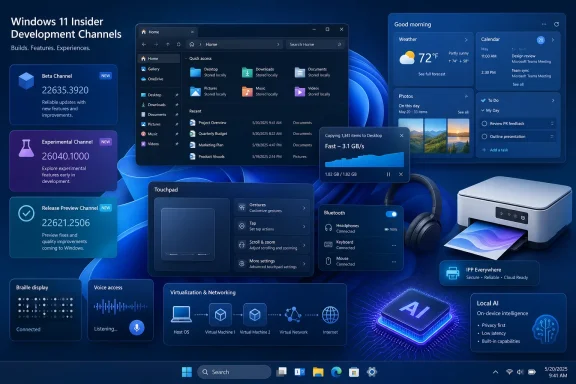 Overview
Microsoft’s July 20 flight is notable because it touches several Windows 11 development branches at once. The company is testing features against the current servicing foundations of Windows 11 versions 24H2 and 25H2, a separate 26H1 platform line, and an Experimental channel associated with version 26H2.That structure reflects how Windows engineering has become more modular. A visible feature such as improved touchpad scrolling may appear in a Beta build based on 25H2, while a similar change reaches Release Preview through a cumulative update and lower-level platform work continues on a separate 26H1 branch.
The builds released on July 20
The day’s Windows Insider rollout consists of the following builds:- Beta Build 26220.8925 is based on Windows 11 version 25H2 and includes touchpad, Start menu, File Explorer, Narrator, account-control, input, and update-installation improvements.
- Experimental Build 26300.8935 is based on Windows 11 version 26H2 and concentrates on File Explorer performance, desktop-background persistence, Widgets animation, taskbar behavior, Run suggestions, and input reliability.
- Beta 26H1 Build 28020.2539 delivers accessibility, Voice Access, Settings, sound, and general reliability improvements to PCs on that specific branch.
- Release Preview Builds 26100.8942 and 26200.8942 serve Windows 11 versions 24H2 and 25H2 respectively, with a substantial collection of features and fixes approaching broader availability.
- Release Preview 26H1 Build 28000.2597 contains the largest and most technically varied change list, including Windows Update controls, Bluetooth fixes, modern printing behavior, networking improvements, accessibility features, and support for larger local AI models.
Why the branch labels matter
The build number alone no longer tells the complete Windows story. Microsoft can distribute shell experiences, inbox-app updates, controlled feature rollouts, enablement packages, and servicing-stack changes on different schedules.That means two PCs running the same nominal Windows version may not display precisely the same features on the same day. Enrollment channel, build family, device eligibility, regional availability, feature flags, and rollout status all influence what an Insider actually receives.
How Microsoft’s Insider Strategy Has Evolved
The Windows Insider Program began as a comparatively straightforward preview pipeline in which enthusiasts installed increasingly polished builds ahead of a major Windows release. Today’s model is more complicated because Windows itself is developed and serviced as a collection of overlapping platforms and components.Microsoft now uses Insider channels not merely to preview the next annual feature update, but also to test individual experiences that can move between branches. File Explorer changes, accessibility improvements, Widgets behavior, and Start menu refinements can therefore appear in more than one channel without each build representing a traditional monolithic Windows upgrade.
Beta versus Experimental
The Beta channel generally offers a more stable environment for testing features that have a plausible path toward public release. Build 26220.8925 is tied to Windows 11 version 25H2 through an enablement-package model, making it relatively close to the servicing foundation used by production systems on that version.The Experimental channel accepts more uncertainty. Build 26300.8935 is associated with version 26H2, but its features are not promises about the final contents of a future commercial release. Microsoft can modify, withdraw, or redirect those experiments after evaluating reliability data and Insider feedback.
The role of Release Preview
Release Preview remains the most conservative Insider option. It is typically where Microsoft validates cumulative updates, drivers, servicing changes, and features that are closer to general deployment.The July 20 Release Preview updates are therefore particularly significant. Changes appearing there—especially those listed for normal rollout—are stronger candidates for delivery to ordinary Windows 11 installations than ideas confined to an Experimental flight.
Controlled Feature Rollout complicates testing
Microsoft continues to use Controlled Feature Rollout technology to activate features gradually. A build can install successfully while one or more advertised experiences remain unavailable because the device is not yet in the enabled cohort.This method helps Microsoft compare telemetry between enabled and control groups, but it creates practical challenges for testers. An Insider cannot always assume that the absence of a feature indicates a failed installation, registry problem, or incompatible PC.
Beta Build 26220.8925 Refines Everyday Windows Controls
Beta Build 26220.8925 contains several changes that users will notice during ordinary desktop work. Touchpad configuration, Start menu personalization, and File Explorer navigation receive meaningful attention, while accessibility and update reliability improve beneath the surface.The build is based on Windows 11 version 25H2 through an enablement package. That relationship suggests Microsoft is validating experiences that can operate on an existing platform foundation rather than requiring a completely new operating-system base.
More control over precision touchpads
Microsoft is adding settings for baseline scroll and zoom speed on precision touchpads. Accelerated scrolling is also being tested, allowing repeated gestures to increase movement speed through long documents, web pages, spreadsheets, and code files.These controls address an important weakness in Windows laptop ergonomics. Trackpad hardware has improved substantially, but users still encounter inconsistent gesture behavior across applications and device manufacturers. Moving more tuning into Windows can reduce dependence on vendor-specific utilities.
The WinUI 3 caveat is technically important. Microsoft says complete functionality in WinUI 3 interfaces requires corresponding Windows App SDK work, with changes being prepared for the 1.8 and 2.0 lines. In other words, operating-system support alone cannot guarantee identical behavior in every application; developers must also consume the required framework updates.
A more configurable Start menu
Build 26220.8925 renames the Recommended section to Recent, a label that more directly describes the mixture of recently used files and applications shown there. Microsoft is also adding independent controls for the Pinned, Recent, and All sections.Users can choose small or large Start menu layouts instead of relying solely on the automatic option. Another setting can hide the account name and profile picture, while the overall Start settings page has been redesigned to accommodate the additional controls.
These changes suggest Microsoft has absorbed years of feedback about Start feeling too prescriptive. The ability to reduce or remove sections will not satisfy everyone who wants the Windows 10 Start menu back, but it should make the Windows 11 design less rigid.
File Explorer gains practical shortcuts
File Explorer’s Details view now displays file sizes using appropriate KB, MB, and GB units instead of expressing everything in kilobytes. This is a small change with a disproportionately large usability benefit, particularly when comparing large media files, virtual disks, archives, and application packages.Middle-clicking a folder in the address bar or Home page can now open it in a new tab. The behavior brings folder navigation closer to familiar browser conventions and makes the tabbed File Explorer interface more coherent.
Microsoft has also improved screen-reader announcements during copy and move conflict resolution. That change helps users understand when Windows encounters duplicate names or other decisions requiring intervention.
Accessibility Moves Closer to Independent Setup
Accessibility improvements are among the strongest elements of the July 20 builds. Microsoft is addressing not only day-to-day assistive technology use but also the initial Windows setup experience, where missing device support can prevent a person from configuring a new PC independently.The changes span Narrator, braille hardware, Magnifier, screen tinting, Voice Access, and language support. Their presence in both Beta and Release Preview branches indicates that accessibility is being developed as a platform-wide capability rather than an isolated application feature.
HID braille support removes setup friction
Beta Build 26220.8925 and Beta 26H1 Build 28020.2539 introduce instant Narrator connectivity for refreshable braille displays using the HID standard. Compatible USB displays can begin working without a separate driver installation, while Bluetooth HID devices can be paired through the normal Bluetooth settings interface.Named compatible devices include the Orbit Reader 20, Orbit Slate 340, Freedom Scientific Focus 40, and APH Mantis Q40. Users can manage braille input and output through Narrator’s accessibility settings.
Most importantly, compatible USB braille displays can work during Windows Out-of-Box Experience. A deaf-blind user may therefore be able to configure a new PC from the first setup screen without waiting for another person to install proprietary software.
Magnifier becomes less obstructive
The Release Preview builds turn off Magnifier’s horizontal and vertical touch-panning bars by default. Those controls remain available, but they will no longer cover part of the magnified content unless the user chooses to enable them.Release Preview 26H1 goes further by adding direct zoom-percentage entry and adjustable zoom increments from the Magnifier interface. This avoids repeated trips into Settings and gives users more precise control over enlargement.
A new screen-tint option applies a full-screen color overlay with selectable presets and intensity. Such controls can improve readability and reduce visual discomfort for users who benefit from altered color temperature or contrast.
Voice Access expands its linguistic reach
Beta 26H1 adds Voice Access support for Portuguese as used in Portugal and Brazil, along with Korean for South Korea. The 24H2 and 25H2 Release Preview update also adds Korean Voice Access.Release Preview 26H1 expands enhanced voice access and voice typing into French, German, and Spanish. The system can refine grammar, punctuation, clarity, and recognition while the user speaks, including in noisy environments.
The larger implication is that Microsoft is turning voice input into more than raw speech-to-text conversion. It is becoming an assisted composition layer, which raises productivity opportunities while also making predictable offline behavior, privacy controls, and correction accuracy increasingly important.
File Explorer Performance Becomes a Cross-Branch Priority
File Explorer appears throughout the July 20 release notes, which signals a sustained engineering effort rather than a one-off feature experiment. Microsoft is targeting launch speed, deletion performance, tab behavior, path parsing, cloud-file presentation, renaming, and general shell reliability.For WindowsForum readers, these changes may matter more than a headline visual redesign. Explorer sits at the center of local storage, OneDrive, network shares, removable media, compressed files, disk images, and application shell extensions, so small faults can affect the entire desktop.
Experimental Build 26300.8935 targets speed
The Experimental build improves File Explorer Home launch performance and responsiveness. Microsoft also says deletion can be faster in certain scenarios involving large, fragmented files.Deleting a fragmented file can create significant filesystem bookkeeping, particularly on busy or heavily used volumes. The notes do not disclose the implementation, but the targeted improvement suggests Microsoft is optimizing how Explorer coordinates deletion requests or reports progress.
The Recommended carousel on Home now supports touch scrolling. That closes an interaction gap on tablets and convertible PCs, where a horizontally presented interface should respond naturally to direct manipulation.
Release Preview 26H1 addresses workflow irritants
Build 28000.2597 improves Explorer launch time and responsiveness when mounting disk images. It also allows the address bar to accept paths containing quotation marks or doubled backslashes more reliably, which can help when users paste paths copied from command-line instructions, scripts, or administrative documentation.Rename behavior receives fixes for repeated text selection and case-only changes. The latter matters because Windows filesystems are commonly case-preserving even when ordinary path comparisons are case-insensitive, and cloud-backed folders can add another synchronization layer.
OneDrive files should no longer appear duplicated in Home’s Favorites section. Explorer navigation to Home during active OneDrive synchronization is also more reliable.
Copilot enters enterprise file discovery
Hovering over files in File Explorer Home can expose quick actions such as opening the file location or asking Copilot about the item. Build 28000.2597 extends this experience to work and school accounts authenticated through Microsoft Entra ID.This could shorten the path between finding a document and querying its contents, but organizations will need to understand where data is processed and which compliance boundaries apply. A convenient shell command can become a governance concern when files contain financial, legal, personnel, or customer information.
Release Preview Brings Better Search, Touchpad, and Start Behavior
Release Preview Builds 26100.8942 and 26200.8942 deliver a substantial set of changes to versions 24H2 and 25H2. Some are gradual rollouts, meaning installation of the update does not guarantee immediate activation.The update combines visible refinements with reliability work. Search becomes more tolerant, precision touchpads gain configurable gesture behavior, and Start should preserve user choices more consistently.
Windows Search becomes more forgiving
Microsoft is improving discovery across local, cloud, and connected content, including support for searches containing only two characters. App search should better understand partial names and typographical errors, while Settings search will rank relevant configuration pages more effectively.These are important improvements because Windows Search increasingly serves as the front door to applications, documents, settings, and cloud content. If typo tolerance or relevance ranking fails, users often abandon Search and navigate manually.
Enterprise administrators should nevertheless test the updated behavior with managed search policies and connected repositories. Broader discovery is useful only when it respects permissions and does not expose confusing or stale results.
Touchpad features approach wider deployment
The touchpad scroll-speed and accelerated-scrolling controls found in Beta also appear in Release Preview for 24H2 and 25H2. This overlap indicates that Microsoft is preparing at least part of the experience for broader distribution.Build 28000.2597 separately adds a configurable right-click zone for touchpads with pressable surfaces. Users can select Default, Small, Medium, or Large, while a Custom label can reflect manufacturer-provided configuration.
This is a thoughtful addition for users whose palms or finger positioning cause accidental context-menu activation. It also acknowledges that a single geometry cannot suit every touchpad size and hand position.
Start reliability matters as much as appearance
The Release Preview updates improve retention of the selected Start view and keyboard navigation in the applications list. Build 28000.2597 also addresses cases where clicking the far-left taskbar area failed to open Start when icons were left-aligned.Microsoft continues to polish the Start account-control flyout with subscription-status badges and benefit information. The design may help Microsoft-account users understand cloud storage or subscription entitlements, although some users may regard another subscription indicator inside the shell as promotional clutter.
Widgets, Notifications, and Desktop Personalization Change Direction
Widgets have struggled to find the right balance between glanceable information and unwanted interruption. The July 20 builds show Microsoft experimenting in two directions: richer animation in the Experimental channel and quieter defaults in Release Preview 26H1.That apparent contradiction is better understood as segmentation. Microsoft wants supported providers to communicate timely information visually, but it also wants to stop the Widgets panel from opening unexpectedly or demanding attention through aggressive badges.
Quieter defaults in Release Preview 26H1
Build 28000.2597 stops Widgets from opening merely because the pointer hovers over the taskbar entry point. Notifications and taskbar badges are minimized by default, and first use opens directly to the dashboard.Dashboard icons can display alert counts, with badges clearing after the user leaves the associated dashboard. Microsoft also promises better reliability, responsiveness, and visual quality.
These changes should reduce accidental activation, one of the most persistent complaints about hover-driven interfaces. They also make Widgets feel more like an intentional destination and less like a panel waiting to interrupt pointer movement.
Experimental animations test engagement
Experimental Build 26300.8935 broadens support for animated taskbar icons supplied by supported widget providers. Dynamically updated animation can make breaking or time-sensitive information easier to notice.The risk is that animation becomes another attention-extraction mechanism. Microsoft will need strict limits on frequency, motion intensity, provider behavior, and accessibility preferences if it wants richer Widgets without recreating the distraction problems now being reduced elsewhere.
Desktop-background persistence improves
The Experimental build improves wallpaper persistence across multiple scenarios, including virtual desktops. Small cosmetic changes are also arriving on the Background settings page.Wallpaper faults can appear trivial, but virtual-desktop users often assign different backgrounds as spatial cues. Losing those selections weakens the mental separation between workspaces and makes the feature feel unreliable.
Release Preview 26H1 Modernizes Connectivity and Printing
Build 28000.2597 contains one of the broadest collections of Bluetooth, networking, printing, and virtualization changes seen in this flight. These updates will attract less attention than Start or Copilot, yet they can have a greater effect on enterprise reliability.The build improves both consumer accessory behavior and complex infrastructure scenarios. Bluetooth headsets, Phone Link calls, VPN-connected WSL environments, virtual machines, cellular devices, and secure printers all receive attention.
Bluetooth audio becomes more consistent
Windows can now synchronize microphone mute state between the audio mixer and the Bluetooth Hands-Free Profile. A headset’s physical mute control or indicator should therefore agree more consistently with Windows.Microsoft is also improving AirPods pairing visibility and Beats Studio Pro microphone reliability. Classic Bluetooth audio devices should reconnect faster after hibernation, while LE Audio accessories should recover more reliably after another device interrupts the connection.
The build reduces delays before LE Audio playback begins while the microphone is active. It also addresses stability problems associated with some manufacturer drivers and improves Bluetooth voice-call reliability.
Phone Link respects call context
For outgoing calls initiated on a paired phone, ringing audio remains on the handset until the call is answered from the PC. If Windows Do Not Disturb is enabled, an incoming paired-phone call should no longer ring through the computer.These details make multi-device calling more predictable. Audio routing that changes too early can expose a private call through PC speakers or leave users speaking into the wrong microphone.
IPP becomes the preferred printing path
New printer installations use Internet Printing Protocol by default when the hardware supports it. Administrators and users can control the behavior through the Windows Ready Print setting.This change fits Microsoft’s long-term move away from vendor-specific third-party printer drivers. IPP and IPPS can simplify deployment, reduce dependence on large legacy driver packages, and create a more standardized security and servicing model.
Existing specialist printers may still require vendor software for finishing, accounting, scanning, or color-management features. Organizations should therefore test representative devices instead of assuming that successful basic printing proves full workflow compatibility.
Virtualization networking gets serious upgrades
Confidential Virtual Machines now use SR-IOV hardware acceleration by default for higher network throughput. Microsoft has also fixed a nested Hyper-V provisioning problem and improved compatibility involving third-party VPNs, server SR-IOV configurations, and network settings preserved across operating-system upgrades.WSL mirrored networking receives VPN improvements, while Windows adds support improvements for IPv6 VPN use over cellular connections. Wi-Fi power-related bug checks and DHCP renewal failures also receive fixes.
These are highly relevant changes for developers and infrastructure teams. Modern Windows systems increasingly run local containers, WSL distributions, nested labs, security-isolated workloads, and remote-development environments simultaneously, making the host networking stack a critical dependency.
Windows Update and Servicing Become More Predictable
Several builds address Windows Update directly. Beta and Experimental include a fix for Insider installations failing with error 0xc0000409, while Release Preview contains progress-calculation and post-update cleanup improvements.Release Preview 26H1 adds a calendar-based pause interface. Users can choose an end date for the pause, up to 35 days, and adjust or renew it when needed.
A calendar is clearer than week-based controls
Traditional update-pause controls often require users to translate a duration into an actual resumption date. A calendar makes the outcome explicit, which is helpful when avoiding updates during travel, a project deadline, a live event, or a maintenance freeze.The 35-day ceiling preserves Microsoft’s expectation that devices eventually resume servicing. It is a postponement mechanism, not a permanent opt-out from security and quality updates.
Better progress reporting reduces uncertainty
Windows Update progress indicators have historically been imperfect because installation involves downloading, staging, component servicing, migration, cleanup, and reboot phases. Progress may appear stationary even when background work continues.Improved calculation cannot eliminate every pause, but it can give users a more realistic picture of update state. Post-update cleanup changes may also reduce the temporary slowdown that sometimes follows installation while Windows finalizes component and storage maintenance.
A sensible testing sequence
Insiders and administrators evaluating these builds should use a disciplined process:- Record the existing build, channel, firmware, driver versions, and enabled feature state before updating.
- Create a current backup and verify that recovery media or an alternate boot path is available.
- Install the update while the device has stable power and network connectivity.
- Confirm the resulting build number before looking for controlled-rollout features.
- Test sleep, hibernation, Bluetooth, VPN, printing, File Explorer, and authentication before using the PC for critical work.
- Submit reproducible failures through Feedback Hub with logs, screenshots, and exact hardware details.
AI, Security, and User Control
The July 20 builds continue Microsoft’s effort to integrate AI into Windows while exposing more control over installed AI components. Release Preview 26H1 adds File Explorer Copilot actions for organizational accounts and changes graphics-kernel memory policy for large local models.At the same time, supported Copilot+ PCs can remove the installed Image Generation AI component. This is a noteworthy recognition that users and administrators may want selective AI functionality rather than an all-or-nothing platform.
Larger local models on high-memory PCs
Build 28000.2597 changes graphics-kernel memory management so systems with more than 32 GB of RAM can run larger local AI models. Microsoft does not specify model sizes or performance targets, so the real-world effect will depend on the GPU, NPU, memory architecture, drivers, and application.The direction is clear, however. Windows is being prepared for local inference workloads that exceed the scale of lightweight assistants and image filters.
Local processing can improve latency and keep more data on the device, but it also creates resource-management questions. Large models compete with games, creative software, virtual machines, and browser workloads for memory and compute capacity.
Removable AI components establish a useful precedent
Allowing removal of the Image Generation AI component gives users a way to reclaim storage or reduce unused functionality. Enterprises may also prefer to limit generative features on regulated or task-specific endpoints.The key test will be whether removal remains durable across servicing and whether management tools can inventory, uninstall, and prevent reinstallation of the component. A Settings option is helpful, but enterprise control requires repeatable policy and deployment behavior.
Enhanced fingerprint security expands to peripherals
Windows Hello Enhanced Sign-in Security now supports compatible external fingerprint sensors. This extends stronger biometric protection beyond laptops with integrated readers to desktops and other Windows 11 devices, including Copilot+ PCs.Peripheral support could help organizations modernize authentication without replacing entire computers. Compatibility details will matter, because an ordinary USB fingerprint reader should not be assumed to support the enhanced security path.
Enterprise and Consumer Impact
Consumers will experience the July 20 updates primarily through more comfortable touchpad behavior, fewer Widget interruptions, improved Bluetooth headsets, clearer update pausing, better accessibility, and faster Explorer operations. None alone transforms Windows, but together they reduce recurring friction.Enterprises face a more complex picture. The same release includes changes affecting Entra ID users, Remote Desktop, Azure Virtual Desktop, Hyper-V, WSL, VPNs, IPP printing, fingerprint authentication, group policy, and local AI workloads.
What consumers are most likely to notice
- File Explorer should feel faster and more predictable, particularly when opening Home, mounting images, navigating tabs, or renaming files.
- Bluetooth headsets should reconnect and route calls more reliably, including after hibernation or handoff between devices.
- Touchpad settings become more personal, with gesture speed, acceleration, and right-click-zone controls.
- Widgets should interrupt users less often, especially now that hover activation is being removed in Release Preview 26H1.
- Accessibility tools become easier to configure, with stronger braille, Magnifier, tint, and voice support.
- Update pauses become easier to understand through explicit calendar dates.
What administrators should validate
- IPP-based printer installation must be tested against business-specific finishing and scanning requirements.
- VPN, WSL, Hyper-V, and nested virtualization changes should be evaluated with existing endpoint-security and network-filter drivers.
- External Enhanced Sign-in Security fingerprint readers require confirmed hardware and policy compatibility.
- Copilot actions for Entra ID content need compliance, identity, and data-boundary review.
- AI-component removal should be tested for persistence and manageability.
- Remote Desktop and Azure Virtual Desktop clipboard behavior should be checked with data-loss-prevention controls.
Strengths and Opportunities
The July 20 rollout shows Microsoft prioritizing foundational usability alongside newer AI work. That balance is healthier than concentrating exclusively on high-profile assistant features.- Accessibility improvements begin at first boot, giving compatible braille users a more independent setup path.
- Explorer investment targets speed and reliability, not merely cosmetic changes.
- Modern IPP printing can reduce legacy driver complexity and improve long-term servicing.
- Bluetooth fixes address real accessory interoperability, including popular third-party headphones.
- Virtualization networking improvements support modern developer and enterprise workloads.
- Removable AI components offer a degree of user and administrator choice.
- Quieter Widget defaults acknowledge that engagement should not come at the expense of focus.
- Calendar-based update pausing communicates servicing behavior more clearly.
Risks and Concerns
The breadth of the release also increases the number of interactions that need testing. A fix for one hardware class or shell workflow can expose regressions elsewhere, especially on systems with vendor utilities and third-party extensions.- Controlled rollouts make results difficult to compare, because identically numbered builds may expose different features.
- Multiple active branch labels can confuse Insiders, particularly when 26H1, 26H2, 25H2, and Future Platforms tracks coexist.
- Experimental animation may conflict with quieter Widget goals if providers overuse motion.
- IPP defaults may omit specialist printer features that remain dependent on vendor software.
- Bluetooth changes can interact unpredictably with OEM drivers, firmware, and multipoint accessories.
- Shell-integrated Copilot actions create governance questions for organizational documents.
- Larger local AI models may increase memory pressure, heat, and battery consumption.
- Subscription badges in Start may feel promotional, particularly to users seeking a neutral operating-system interface.
- Insider builds remain unsuitable for systems that cannot tolerate downtime, regardless of how polished a particular release appears.
What to Watch Next
The most immediate question is how quickly Microsoft expands the gradual rollouts. Release Preview users should watch for touchpad controls, Voice Isolation, improved Search, quieter Widgets, external fingerprint ESS support, and the ability to remove the Image Generation AI component.Feature availability will vary, so the appearance of a capability on one PC does not prove that another installation is broken. Microsoft will likely use diagnostic data and Feedback Hub reports to decide when each rollout can broaden.
Signals for future public updates
Several items look mature enough to become part of upcoming cumulative updates:- The File Explorer size-unit and middle-click improvements already span Beta and Release Preview.
- Touchpad speed and acceleration controls have moved beyond a single experimental branch.
- Start view persistence, Explorer reliability, and update cleanup are conventional servicing improvements.
- Windows Hello support for external ESS fingerprint readers is beginning a gradual deployment after earlier disclosure.
- IPP-by-default printing aligns with Microsoft’s established transition away from third-party printer drivers.
Questions surrounding 26H1 and 26H2
The coexistence of Beta 26H1 Build 28020.2539, Release Preview 26H1 Build 28000.2597, and Experimental 26H2 Build 26300.8935 demonstrates that build numbering does not represent a simple chronological ladder. Each line serves a different validation purpose.Microsoft will need to keep explaining which devices qualify for each branch, whether movement between channels is possible without reinstalling, and which features depend on new hardware. Clear communication will become even more important as Windows platform work diverges from the cadence of visible feature releases.
Feedback that will matter most
Microsoft will be looking for evidence about performance, reliability, and unintended interaction. Useful reports should concentrate on measurable behavior: Explorer launch times, failed update codes, Bluetooth reconnection delays, printer capability differences, VPN routing failures, braille setup problems, or memory pressure during local AI workloads.Vague dislike can influence design direction, but reproducible technical reports are more likely to produce engineering fixes. Hardware identifiers, driver versions, traces, and exact steps remain invaluable.
Microsoft’s July 20, 2026 Insider rollout is not defined by a single spectacular feature; it is a wide-ranging attempt to make Windows 11 more configurable, accessible, manageable, and dependable across several generations of the platform. If the strongest changes survive controlled rollout and hardware validation, users may soon see a noticeably calmer Widgets experience, more capable touchpads, faster File Explorer behavior, easier assistive-device setup, modernized printing, and fewer connectivity surprises. The challenge now is execution: Microsoft must turn this unusually rich collection of preview work into stable improvements that arrive consistently, respect user choice, and remain understandable across an increasingly complicated Windows release map.
References
- Primary source: Microsoft - Windows Insiders Blog
Published: Mon, 20 Jul 2026 21:05:12 +0000
Announcing new builds for 20 July 2026
Hello Windows Insiders, Today we are releasing new Windows 11 Insider Preview Builds across Beta, Experimental and Release Preview. See your channel release notes here: Beta:blogs.windows.com