

How-To Geek published a May 11, 2026 Windows article arguing that five everyday PowerShell techniques —
PowerShell has always had a branding problem. To casual Windows users, it looks like a sterner Command Prompt. To Linux veterans, it can look verbose, ceremonial, and faintly Microsoftian in all the predictable ways. To administrators who use it daily, though, the shell is less a place to type commands than a way to move structured information from one decision point to another.
That is why the five commands highlighted by How-To Geek are a useful snapshot of PowerShell at its best. None of them is exotic. None requires a third-party module in the normal desktop-administration case. Their value comes from the same design choice Microsoft made years ago: PowerShell does not merely pass text around. It passes objects.
That difference matters. Text output invites grep-like reflexes, brittle parsing, and visual scanning. Objects preserve properties, types, and relationships, which means an administrator can search, filter, sort, select, export, or act on a result without reconstructing meaning from columns of text.
The “feels like cheating” part is not that
The command is especially useful when the administrator does not yet know the exact filter they want. Maybe the result set is a long list of services, processes, scheduled tasks, or events. You could keep refining a
The catch is platform reality.
Its most interesting mode is
For example, a desktop administrator could inspect services, manually select the suspicious or relevant rows, and pass those objects directly to another command. That is not as clean as a fully deterministic script, but it is often how real troubleshooting happens. You start with ambiguity, narrow the field, and only then automate the next step.
That capability changes the administrative posture. Logging into five servers one by one is a nuisance. Logging into fifty is an operating model failure. A shell that can run a script block across a list of systems turns the administrator’s laptop into a control plane, provided the remoting infrastructure and permissions are sane.
On Windows, the classic path is WinRM and WS-Management. In modern PowerShell, SSH support also matters because PowerShell itself is cross-platform. Starting with PowerShell 6.0, SSH-based remoting became a way to connect across Windows, Linux, and macOS systems when PowerShell and SSH endpoints are installed and configured.
But this is the command in the list that deserves the most caution. Remoting is not magic; it is distributed execution. Authentication, trusted hosts, TLS choices, endpoint configuration, throttling, and account rights all become part of the blast radius. A convenient command that runs everywhere can also fail everywhere, or worse, run the wrong thing everywhere.
PowerShell helps by tagging remote output with the originating computer name. That detail matters more than it sounds. When you collect service states, event log entries, disk data, or version numbers from multiple machines, the data is only useful if its origin survives aggregation. The
The bigger lesson is that
PowerShell has session history, but the modern experience is shaped heavily by PSReadLine, the module that provides richer command-line editing and persistent history in many PowerShell environments. The practical result is simple: commands can survive across sessions, and keyboard-driven search can retrieve them without rebuilding syntax from scratch.
That has a subtle effect on behavior. If history is easy to search, administrators are more willing to compose useful commands interactively rather than stopping every time to create a formal script. The command line becomes a workbench with memory, not a chalkboard that gets wiped at exit.
The shortcut described by How-To Geek — using
There is, however, a security footnote that should not be ignored. Persistent history can preserve secrets if users type them directly into commands. Tokens, passwords, connection strings, and one-off credentials do not become harmless because they sit in a local text file. A good PowerShell habit includes knowing where history lives and avoiding secret material on the command line in the first place.
With
This is not glamorous automation. It is the sort of small operational convenience that reduces friction during troubleshooting. A sysadmin staring at a deployment log does not need an observability platform for every tiny task. Sometimes they need the last 50 lines and live updates while they restart a service.
The
Still,
A text shell encourages matching strings. PowerShell encourages asking whether a property equals, exceeds, resembles, contains, or fails a condition. That distinction is why
The simplified syntax introduced in Windows PowerShell 3.0 made common filters easier to read. A command like
That duality is healthy. Beginners get readable filters. Advanced users get full predicate logic. The same cmdlet spans “show me stopped services” and “find every module that matches several conditions and has a help URI.”
The trap is performance and placement. Filtering late in a pipeline is convenient, but some cmdlets and providers can filter earlier and more efficiently. If a provider can apply a filter before returning objects, that is often better than pulling back everything and asking
Even so,
That is the difference between a bag of tips and a working style. PowerShell rewards users who think in pipelines. It is less about memorizing 500 cmdlets than recognizing that each command should accept input, preserve structure, and emit something another command can use.
Consider the ordinary case of investigating a failing service across a small server group. An administrator can run a remote query, filter for stopped or unhealthy services, sort by computer name, and send the result to a grid. If a few rows matter,
This is also why PowerShell can feel deceptively approachable. A user starts by typing single commands. Then they add a pipe. Then they add a filter. Then they add remoting. Suddenly, the same person is doing light fleet automation without having declared themselves a programmer.
The danger is that the transition can be too smooth. One-liners that affect many systems deserve the same care as scripts. Version control, peer review, change windows, logging, and rollback planning do not stop mattering because the command fits on one line.
Together, they reject the false choice between GUI convenience and command-line seriousness. Windows administration has always lived in that hybrid space. Event Viewer, Services, Task Scheduler, Server Manager, Windows Admin Center, Terminal, PowerShell, and remote management all overlap because real work rarely fits one interface.
The smart move is not to romanticize the console. It is to use the console when structure and repeatability matter, and use interactive surfaces when they speed judgment.
That matters for Windows enthusiasts as much as enterprise administrators. A home lab user managing four machines can benefit from the same patterns as a sysadmin managing four hundred. The scale differs, but the repetitive work looks familiar: checking services, tailing logs, finding past commands, filtering output, and running the same query in more than one place.
Microsoft’s broader PowerShell bet has always been that administrators should not have to choose between discoverability and automation. Verb-noun command names, object output, aliases, providers, remoting, and pipeline semantics all serve that bet. The five commands in this list are useful because they expose that architecture without requiring a lecture about it.
That distinction matters because “built in” does not always mean “ready in your environment.” Enterprise hardening often restricts remoting, and for good reason. Server Core deployments will not support UI-dependent tools. Cross-platform SSH remoting requires SSH endpoints and PowerShell configuration on both sides.
There is also a version story. PowerShell 7 is not the same thing as Windows PowerShell 5.1, even though both may exist on the same Windows machine. Some parameters and behaviors differ by version. Some features were introduced in Windows PowerShell 3.0, others in PowerShell 6.x or 7.x. Administrators who move between legacy servers and modern clients should verify behavior before assuming parity.
The same applies to aliases. PowerShell’s aliases can be convenient interactively, but scripts should usually favor full cmdlet names for clarity.
That is the larger editorial point: the best PowerShell tricks are the ones that can graduate from convenience to practice. If a command only saves a keystroke, it is a tip. If it preserves structure, improves repeatability, reduces manual inspection, and can be made safe, it is part of an operational method.
Source: How-To Geek These 5 Windows PowerShell commands are so good, they feel like cheating
Out-GridView, Invoke-Command, PSReadLine history search, Get-Content -Wait, and Where-Object — can remove repetitive console work for Windows users and administrators. The framing is casual, but the lesson is more serious than a listicle implies. PowerShell’s real advantage is not that it has obscure tricks; it is that its object pipeline turns small commands into operational leverage.
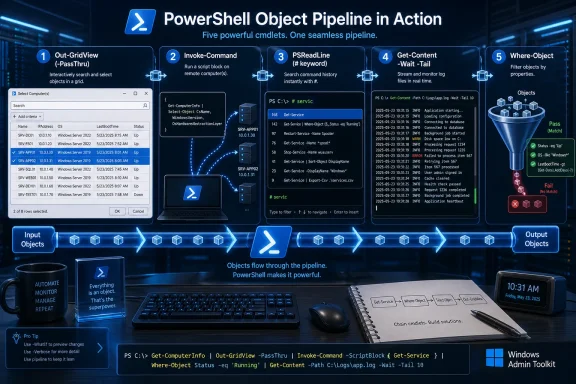 The Cheat Code Is Really the Pipeline
PowerShell has always had a branding problem. To casual Windows users, it looks like a sterner Command Prompt. To Linux veterans, it can look verbose, ceremonial, and faintly Microsoftian in all the predictable ways. To administrators who use it daily, though, the shell is less a place to type commands than a way to move structured information from one decision point to another.That is why the five commands highlighted by How-To Geek are a useful snapshot of PowerShell at its best. None of them is exotic. None requires a third-party module in the normal desktop-administration case. Their value comes from the same design choice Microsoft made years ago: PowerShell does not merely pass text around. It passes objects.
That difference matters. Text output invites grep-like reflexes, brittle parsing, and visual scanning. Objects preserve properties, types, and relationships, which means an administrator can search, filter, sort, select, export, or act on a result without reconstructing meaning from columns of text.
The “feels like cheating” part is not that
Where-Object or Invoke-Command are secret weapons. It is that they collapse the gap between exploration and automation. The command you use to poke around interactively can become the same command you schedule, run against a fleet, or wire into a remediation script.Out-GridView Turns the Console Into a Triage Desk
Out-GridView is the oddball in the group because it is proudly graphical. Pipe a set of objects into it, and PowerShell opens a separate grid window where the rows can be searched, sorted, filtered, copied, and — with the right option — selected for further processing. In a culture that often treats command-line purity as a virtue, that sounds like a concession. In practice, it is a pressure valve.The command is especially useful when the administrator does not yet know the exact filter they want. Maybe the result set is a long list of services, processes, scheduled tasks, or events. You could keep refining a
Where-Object expression until the output looks right, but there are moments when a searchable grid is faster and less error-prone.The catch is platform reality.
Out-GridView is Windows-only and depends on a desktop user interface, so it is not a tool for headless Server Core sessions or Nano Server-style minimal environments. That limitation does not make it obsolete; it simply defines its lane. It is an interactive inspection tool, not a universal automation primitive.Its most interesting mode is
-PassThru. Without it, Out-GridView is essentially a viewing surface. With it, the grid becomes a selection interface: choose rows, click OK, and those selected objects continue down the pipeline. That turns visual triage into structured automation instead of a dead-end screenshot exercise.For example, a desktop administrator could inspect services, manually select the suspicious or relevant rows, and pass those objects directly to another command. That is not as clean as a fully deterministic script, but it is often how real troubleshooting happens. You start with ambiguity, narrow the field, and only then automate the next step.
Remoting Is Where PowerShell Stops Being a Local Tool
Invoke-Command is the opposite kind of power. It is not about making one console easier to read; it is about making one console reach many machines. Microsoft’s documentation describes it plainly: the cmdlet runs commands on local or remote computers and returns the output, including errors. In a single command, it can run against multiple systems.That capability changes the administrative posture. Logging into five servers one by one is a nuisance. Logging into fifty is an operating model failure. A shell that can run a script block across a list of systems turns the administrator’s laptop into a control plane, provided the remoting infrastructure and permissions are sane.
On Windows, the classic path is WinRM and WS-Management. In modern PowerShell, SSH support also matters because PowerShell itself is cross-platform. Starting with PowerShell 6.0, SSH-based remoting became a way to connect across Windows, Linux, and macOS systems when PowerShell and SSH endpoints are installed and configured.
But this is the command in the list that deserves the most caution. Remoting is not magic; it is distributed execution. Authentication, trusted hosts, TLS choices, endpoint configuration, throttling, and account rights all become part of the blast radius. A convenient command that runs everywhere can also fail everywhere, or worse, run the wrong thing everywhere.
PowerShell helps by tagging remote output with the originating computer name. That detail matters more than it sounds. When you collect service states, event log entries, disk data, or version numbers from multiple machines, the data is only useful if its origin survives aggregation. The
PSComputerName property is the difference between “some server is weird” and “Server02 is the one drifting from baseline.”The bigger lesson is that
Invoke-Command turns scripts into fleet operations. That is a gift to sysadmins, but also a demand for discipline. Test locally, scope narrowly, understand throttling, and avoid treating a remote script block as a place to improvise against production.History Search Is the Forgotten Productivity Layer
The How-To Geek article’s discussion of command history may look minor beside remoting, but it points at one of the most common productivity leaks in PowerShell: administrators forget their own work. A carefully assembled one-liner that solved yesterday’s problem often vanishes into memory, chat logs, or a terminal window that has already been closed.PowerShell has session history, but the modern experience is shaped heavily by PSReadLine, the module that provides richer command-line editing and persistent history in many PowerShell environments. The practical result is simple: commands can survive across sessions, and keyboard-driven search can retrieve them without rebuilding syntax from scratch.
That has a subtle effect on behavior. If history is easy to search, administrators are more willing to compose useful commands interactively rather than stopping every time to create a formal script. The command line becomes a workbench with memory, not a chalkboard that gets wiped at exit.
The shortcut described by How-To Geek — using
# plus a keyword and Tab to search history — is a good example of the kind of feature that looks tiny until it becomes muscle memory. PowerShell is full of long names by design: Get-ChildItem, Where-Object, Invoke-Command, Select-Object. The verbosity pays off in readability, but only if the shell also gives users ways to avoid retyping everything forever.There is, however, a security footnote that should not be ignored. Persistent history can preserve secrets if users type them directly into commands. Tokens, passwords, connection strings, and one-off credentials do not become harmless because they sit in a local text file. A good PowerShell habit includes knowing where history lives and avoiding secret material on the command line in the first place.
Watching a Log Should Not Require a Refresh Ritual
Get-Content -Wait is PowerShell’s answer to a familiar Unix habit: follow a file as it grows. For Windows administrators, the value is immediate. Logs change while services start, installers run, agents phone home, and applications misbehave. Rerunning Get-Content every few seconds is the kind of manual loop that computers were built to eliminate.With
-Wait, Get-Content keeps watching the file and emits new lines as they appear. Microsoft documents that it checks the file once per second and continues indefinitely until interrupted. Pair it with -Tail, and the command becomes far more practical for large logs: show only the last handful of lines, then follow new activity.This is not glamorous automation. It is the sort of small operational convenience that reduces friction during troubleshooting. A sysadmin staring at a deployment log does not need an observability platform for every tiny task. Sometimes they need the last 50 lines and live updates while they restart a service.
The
-TotalCount behavior is also useful in scripts that need to wait until a file reaches a certain number of lines. That is a narrower case, but it hints at a broader pattern: PowerShell commands often work both interactively and programmatically. A command that helps a human watch a log can also help a script pause until evidence appears.Still,
Get-Content -Wait is not a full logging strategy. It does not index logs, correlate events, preserve context, or solve rotation policies. It is a tactical tool, not a substitute for Event Viewer, Windows Event Forwarding, SIEM ingestion, or proper application telemetry. Its strength is that it is immediate, built in, and good enough for the first five minutes of an investigation.Where-Object Is the Small Command That Teaches the Whole Model
If one cmdlet on this list explains PowerShell’s philosophy, it isWhere-Object. The command filters objects based on property values. That sounds mundane, but filtering is the moment where PowerShell stops being output and starts being logic.A text shell encourages matching strings. PowerShell encourages asking whether a property equals, exceeds, resembles, contains, or fails a condition. That distinction is why
Where-Object becomes one of the first commands users learn after Get-Process, Get-Service, and Get-ChildItem.The simplified syntax introduced in Windows PowerShell 3.0 made common filters easier to read. A command like
Get-Service | Where-Object Status -EQ Stopped is legible even to someone who does not write scripts all day. The script block form, meanwhile, remains available for compound logic: combine comparisons, use -and and -or, inspect nested properties, or express rules that do not fit the shorter form.That duality is healthy. Beginners get readable filters. Advanced users get full predicate logic. The same cmdlet spans “show me stopped services” and “find every module that matches several conditions and has a help URI.”
The trap is performance and placement. Filtering late in a pipeline is convenient, but some cmdlets and providers can filter earlier and more efficiently. If a provider can apply a filter before returning objects, that is often better than pulling back everything and asking
Where-Object to sort the pile. The cmdlet is powerful, but it should not become an excuse to ignore upstream filtering options.Even so,
Where-Object is where many Windows users first understand that PowerShell output is not just a blob of characters. Each row has properties. Each property can be tested. Each test can feed the next command. That mental shift is the foundation for nearly everything else.These Commands Are Not Separate Tricks
The list works because the commands compose.Invoke-Command can collect data from many machines. Where-Object can narrow the result. Out-GridView can let a human inspect or select the remaining objects. Get-Content -Wait can watch the log produced by the change. History search can retrieve the whole chain later.That is the difference between a bag of tips and a working style. PowerShell rewards users who think in pipelines. It is less about memorizing 500 cmdlets than recognizing that each command should accept input, preserve structure, and emit something another command can use.
Consider the ordinary case of investigating a failing service across a small server group. An administrator can run a remote query, filter for stopped or unhealthy services, sort by computer name, and send the result to a grid. If a few rows matter,
-PassThru can carry those selections into export, restart, or reporting steps. The commands remain small, but the workflow becomes substantial.This is also why PowerShell can feel deceptively approachable. A user starts by typing single commands. Then they add a pipe. Then they add a filter. Then they add remoting. Suddenly, the same person is doing light fleet automation without having declared themselves a programmer.
The danger is that the transition can be too smooth. One-liners that affect many systems deserve the same care as scripts. Version control, peer review, change windows, logging, and rollback planning do not stop mattering because the command fits on one line.
The Desktop Still Matters, Even in an Automation Story
There is an interesting tension in this particular set of recommendations.Out-GridView is interactive and graphical. Invoke-Command is remote and automatable. Get-Content -Wait is live and observational. Where-Object is deterministic and script-friendly. PSReadLine history sits somewhere between human memory and repeatable practice.Together, they reject the false choice between GUI convenience and command-line seriousness. Windows administration has always lived in that hybrid space. Event Viewer, Services, Task Scheduler, Server Manager, Windows Admin Center, Terminal, PowerShell, and remote management all overlap because real work rarely fits one interface.
The smart move is not to romanticize the console. It is to use the console when structure and repeatability matter, and use interactive surfaces when they speed judgment.
Out-GridView is not cheating because it opens a window. It is useful because it preserves objects while letting a human make a selection.That matters for Windows enthusiasts as much as enterprise administrators. A home lab user managing four machines can benefit from the same patterns as a sysadmin managing four hundred. The scale differs, but the repetitive work looks familiar: checking services, tailing logs, finding past commands, filtering output, and running the same query in more than one place.
Microsoft’s broader PowerShell bet has always been that administrators should not have to choose between discoverability and automation. Verb-noun command names, object output, aliases, providers, remoting, and pipeline semantics all serve that bet. The five commands in this list are useful because they expose that architecture without requiring a lecture about it.
The Fine Print Separates Convenience From Craft
The article’s reassuring claim that these commands need no extra setup is mostly true for local use, but it deserves qualification.Where-Object, Get-Content, and command history features are available in normal PowerShell environments. Out-GridView is Windows desktop-specific. Invoke-Command may require remoting configuration, endpoint access, firewall rules, credentials, and administrative rights depending on the target.That distinction matters because “built in” does not always mean “ready in your environment.” Enterprise hardening often restricts remoting, and for good reason. Server Core deployments will not support UI-dependent tools. Cross-platform SSH remoting requires SSH endpoints and PowerShell configuration on both sides.
There is also a version story. PowerShell 7 is not the same thing as Windows PowerShell 5.1, even though both may exist on the same Windows machine. Some parameters and behaviors differ by version. Some features were introduced in Windows PowerShell 3.0, others in PowerShell 6.x or 7.x. Administrators who move between legacy servers and modern clients should verify behavior before assuming parity.
The same applies to aliases. PowerShell’s aliases can be convenient interactively, but scripts should usually favor full cmdlet names for clarity.
where and ? are fast to type; Where-Object is easier to understand six months later. ogv is cute; Out-GridView explains itself.That is the larger editorial point: the best PowerShell tricks are the ones that can graduate from convenience to practice. If a command only saves a keystroke, it is a tip. If it preserves structure, improves repeatability, reduces manual inspection, and can be made safe, it is part of an operational method.
Five Small Moves That Change the Shape of Windows Work
The practical lesson from How-To Geek’s list is not that everyone should memorize five more cmdlets. It is that Windows users should notice where they are doing the same thing twice. PowerShell’s value appears wherever repetition, searching, filtering, and remote execution begin to consume attention.Out-GridViewis best used as an interactive inspection and selection layer on Windows desktops, especially when the right filter is not obvious yet.Invoke-Commandis the cmdlet that turns a local script block into a remote operation, but it should be treated with the same caution as any fleet-wide administrative action.- PSReadLine history search is a productivity feature with a security caveat, because persistent command history can preserve sensitive material if users type secrets directly into commands.
Get-Content -Waitis a quick tactical tool for following changing text files, especially when paired with-Tailto avoid dumping huge logs into the console.Where-Objectis the core filtering idiom that teaches users to think in objects and properties rather than raw text.
Source: How-To Geek These 5 Windows PowerShell commands are so good, they feel like cheating
