

If you use Windows 11 every day, a handful of overlooked shortcuts and settings can convert tiny, repetitive interruptions into seconds (and eventually hours) of reclaimed time — and the five tricks below are among the simplest, most reliable wins you can enable in minutes. They range from the delightfully tactile (a slide-to-shutdown gesture) to quietly practical system tweaks (Focus assist and taskbar customization), and each one is backed by Microsoft’s own controls while also having useful community tips and caveats worth knowing before you flip switches. What follows is a compact playbook: how to use each trick, why it matters for productivity or comfort, and what to watch out for when you adopt it into your daily workflow.
Background / Overview
Windows 11 has accumulated a large set of productivity-oriented features since its release: Snap Layouts, Focus/Focus Sessions, a richer emoji/symbol picker, and deeper personalization in the taskbar and colours. Many of these features are intentionally tucked into Settings or bundled into inbox apps, so they feel “hidden in plain sight.” Community roundups and troubleshooting guides make the same core point: a little configuration goes a long way toward turning the OS from a generic workstation into a daily work companion.Below are five particularly useful tricks — each explained step‑by‑step, verified against official documentation or reputable coverage, and annotated with practical strengths and limitations.
1) Access special symbols and emojis instantly
What it is and why it helps
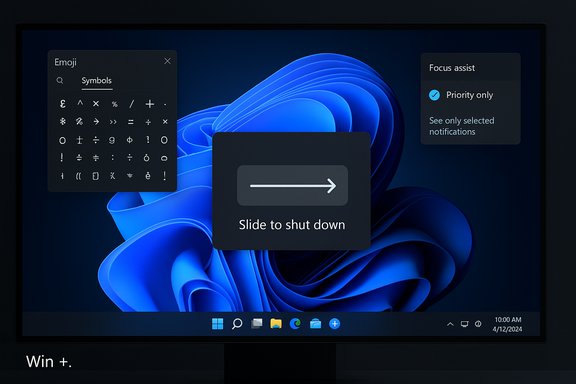
Windows 11’s emoji panel is more than a social-media toy: it includes a Symbols pane that lets you paste currency marks, math symbols, punctuation variants and special characters without hunting the web or memorizing Alt codes. This saves time when writing emails, composing documentation, or inserting special characters into spreadsheets. Microsoft documents the feature and the exact shortcut: press Windows + . (period) to open the panel, then pick the Symbols tab.How to use it
- Press Windows + . (period).
- Switch to the Symbols tab (look near the right side of the panel).
- Click the character you need; it pastes into the active field.
Practical tips
- If you work in technical fields, keep the panel open while composing equations or inserting muted punctuation — it’s faster than opening a browser and searching.
- The panel also includes GIFs, kaomoji and an improved search in many builds; if you rely on search and it’s not functioning correctly, check for known bugs or recent updates. Some Windows builds have pocket regressions that affect search inside the picker; it’s uncommon but worth noting if you suddenly can’t find emojis by keyword.
Strengths and limitations
- Strength: Universal, fast and accessible anywhere text can be entered.
- Limitation: A small number of builds have exhibited search problems, and enterprise-managed machines may lock down some elements of the panel for compliance reasons. If you’re scripting or producing lots of symbols, learn the classic Alt codes as a fallback.
2) Shut down your PC with a single swipe (the SlideToShutDown trick)
What it is
A little-known, built-in executable — SlideToShutDown.exe — brings a full-screen slider interface that lets you swipe down to power off the PC. It’s a satisfying and fast shutdown method, handy for touch devices and surprising on laptops as a novelty that quickly becomes practical. This shortcut has been covered in mainstream Windows guides for years and still works on modern machines if the file exists in System32.How to set it up
- Right‑click an empty spot on the desktop and choose New → Shortcut.
- Paste: %windir%\System32\SlideToShutDown.exe into the location field, then click Next.
- Give the shortcut a name like ShutDown (or Slide to Shutdown) and finish.
- Optional: change the icon via Properties → Change Icon for a visual cue.
Why power users like it
- It’s fast and visually clear; when you’re done for the day, one gesture closes everything down without hunting multiple menus.
- Works on non-touch devices too — you can click and drag with a mouse.
Caveats and risks
- SlideToShutDown.exe isn’t essential system functionality; some builds or OEM configurations may not include it, and IT-managed systems might remove or block it. Confirm the file exists before relying on it.
- If you assign this shortcut to a dock or place it where it’s easy to click by accident, you can inadvertently shut down mid-work — consider pinning it somewhere deliberate or using a confirmation habit (don’t place it on the taskbar unless you want one-click power-off).
- Deleting the executable is possible but not generally recommended; tampering with system files can create update or stability issues. Community threads show users sometimes remove it when they find the slide intrusive, but that comes with standard file‑ownership and permission complexities.
3) Stay focused without muting the world completely (Focus assist)
What it is
Focus assist (previously Quiet Hours) is Windows’ built‑in notification filtering system. It lets you silence notifications except for what you explicitly allow — essential when you need uninterrupted work blocks but still want calls, certain apps, or alarms to come through. Microsoft’s Settings pane lists the three states: Off, Priority only, and Alarms only. Priority only lets you craft a whitelist of people and apps; Alarms only blocks everything but alarms. The system also supports summaries of missed notifications.How to configure Focus assist
- Open Settings → System → Focus (or Focus assist on older labels).
- Choose:
- Off — all notifications pass through.
- Priority only — only whitelisted sources will notify you.
- Alarms only — only alarms will get through.
- Under Priority only, customise calls, contacts, and apps that are allowed.
- Optionally, set automatic rules (for example: during screen sharing, gaming, or at specific hours).
Strengths
- Granular control: You can let through urgent contacts or email from key apps while blocking everything else.
- Focus session integration: Focus pairs with Focus Sessions and the Clock app for Pomodoro-style work blocks with summaries and break timers — a neat productivity combo.
Limitations and gotchas
- Automatic rules can be accidentally broad — if you configure “While I’m duplicating my display” and then present, you may unintentionally silence needed alerts; review automatic rule settings regularly.
- Not all third‑party apps behave as expected with Focus assist; test critical workflows (VoIP, security alerts) after enabling Priority lists. Community coverage and how‑to guides recommend a quick run-through of allowed apps after a policy change or Windows feature update.
4) Customise the taskbar to fit how you work
Why taskbar tweaks matter
The taskbar is where you start, switch and control apps — small changes here compound across every hour you work. Windows 11’s taskbar settings let you realign icons, hide clutter, toggle Widgets and Chat, and adjust behaviour like auto-hide and small icons. Microsoft’s taskbar support page explains the controls and the exact steps to move icons to the left or to hide Widgets.Useful taskbar tweaks to try
- Align icons to the left (classic Windows layout) or keep them centred to conserve mouse travel.
- Turn Widgets off to remove an extra visual surface if you find the feed distracting.
- Enable hide automatically for a larger clean desktop when you don’t need a persistent bar.
- Use taskbar behaviours to control badge visibility and overflow icon behaviour.
How to change these settings
- Right‑click the taskbar and choose Taskbar settings, or open Settings → Personalization → Taskbar.
- Toggle Widgets off/on; expand Taskbar behaviours to select alignment and auto-hide.
Strengths and practical benefits
- Cleaner workspace: Hiding Widgets and disabling pinned chat reduces visual clutter and the cognitive load of competing tiles.
- Familiarity: Left-aligning helps long-time Windows users retain muscle memory for keyboard and mouse movement.
Cautions
- Taskbar behaviour can vary by Windows build; some legacy behaviours (like moving the bar to the top) are intentionally restricted in Windows 11. If you need full legacy functionality, third‑party tools exist but come with their own security and maintenance costs.
5) Switch to Dark mode and give your eyes a break
The quick win
Dark mode is a system-level theme that swaps bright surfaces for darker ones. Turn it on via Settings → Personalization → Colors → Choose your mode → Dark. Microsoft documents the control and the option to set accent colours that apply to Start, taskbar and title bars.How to enable
- Press Windows + I to open Settings.
- Go to Personalization → Colors.
- Under Choose your mode, select Dark (or Custom to mix app vs. Windows mode).
Why people enable it
- Comfort in low light: A darker interface is less glaring at night and can reduce the perceived brightness of the overall workspace.
- Aesthetic preference: Dark themes are widely liked and reduce contrast shock when switching between bright real-world environments and a screen.
Does dark mode save battery?
This is nuanced. Dark mode can save battery life on devices with OLED or AMOLED screens because those panels can turn off individual pixels to show true black. On LCDs — where a backlight stays on regardless of pixel colours — dark mode provides little to no battery benefit. Multiple independent studies and analyses show the savings depend heavily on screen technology and brightness level: OLED devices at very high brightness can show large savings, while typical indoor brightness yields modest gains (single-digit percentages). Treat claims of “dark mode extends battery by X%” as conditional: they depend on hardware and usage.Strengths and tradeoffs
- Strength: Better late-night comfort for many users.
- Tradeoff: Some readability tests show black text on white background is clearer at small sizes; for dense reading or editing, light backgrounds can remain preferable. If you choose dark mode for battery reasons, first confirm your display type (OLED vs LCD).
Quick follow-ups — small additions that punch above their weight
- Clipboard history (Windows + V): Keep a ring buffer of copied items and paste previous entries. It’s enabled in Settings → Clipboard and saves time when juggling multiple snippets.
- Snap Layouts & Snap Groups: Hover the maximize button or press Windows + Z to pick a layout — invaluable for arranging multiple apps side by side without manual resizing. This is one of the most practical multitasking features introduced in Windows 11.
- Virtual desktops: Use Windows + Tab → New Desktop to create project-specific workspaces and keep personal tabs separate from work apps.
- Quick app launching: Press Windows + number (1–9) to start or switch to the corresponding pinned taskbar app — a decade-old shortcut that still saves seconds every time you use it.
Risks, privacy notes and version caveats
- Feature availability can vary by Windows 11 build, OEM skin and enterprise policy. Some features are gated behind Insider channels or optional updates, while organizations often disable features for compliance. Always check Settings first and consult your IT policy before making system-wide changes.
- Small, novelty features (like SlideToShutDown) may be removed or not present on some systems; they’re convenient but not critical to workflows. If you depend on a trick in production, create a fallback routine or script that replicates the behavior in a supported way.
- Privacy and notification filtering: Focus assist hides notifications but does not alter app-level data collection. Turning off widgets or hiding recommended tips reduces visual noise but does not disable telemetry that Microsoft documents separately under Privacy & Security settings. Review the Privacy & Security pane if telemetry or ad suggestions are a concern.
Practical rollout plan (three quick steps)
- Try one major tweak at a time (taskbar or Focus assist) and use it for a workday to see the net benefit. Small habit changes compound — don’t flip everything at once.
- Document your preferred setup (a short checklist with shortcut keys you rely on) so you can replicate it on another machine or restore it after a major update.
- Backup or note changes that require elevated permissions (deleting system files, third‑party tools to restore legacy behaviors). Use System Restore points when experimenting with system-level modifications.
Conclusion
Windows 11 hides several productivity wins in plain sight: the emoji and symbols picker eliminates small interruptions, SlideToShutDown is a playful but useful fast-power control, Focus assist preserves deep work without cutting off critical alerts, taskbar tweaks reduce friction across every task switch, and Dark mode can improve comfort (and sometimes battery) depending on your device. Each trick is easy to try and easy to revert, and together they form a lightweight customization toolkit for anyone who spends long hours on a Windows laptop or desktop. For power users, the returns aren’t flashy but are real — small time savings and fewer distractions that add up into better focus and less friction over the course of a day.If you want a compact checklist version of the five tricks to paste into a new machine’s onboarding doc, the following quick list will get you started:
- Press Windows + . to open the emoji/symbols panel and pin it mentally to your workflow.
- Create a SlideToShutDown desktop shortcut with %windir%\System32\SlideToShutDown.exe.
- Configure Focus assist in Settings → System → Focus for Priority or Alarms only.
- Open Taskbar settings to align icons, hide Widgets and enable auto-hide as you prefer.
- Switch to Dark mode via Settings → Personalization → Colors if you want reduced glare (verify OLED hardware for battery claims).
Source: digit.in 5 cool Windows 11 tricks you should try right now
