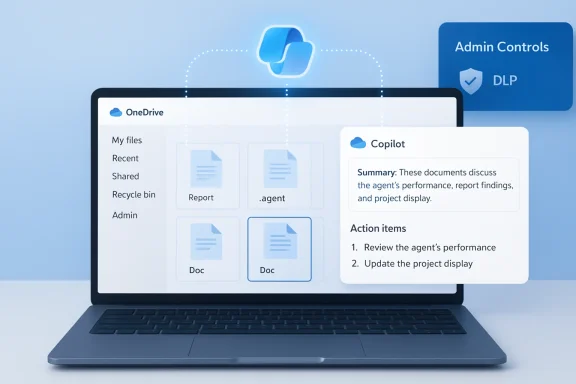
Microsoft has begun rolling out Agents in OneDrive, a feature that turns selected files and folders into a focused, shareable Copilot-powered assistant — saved as a .agent file — and positions OneDrive as a place not just for storage, but for context-aware, project-centric AI assistance.
Microsoft’s Copilot initiative has evolved from single-session chat assistance into a full agent platform that can persist context, call tools, and act across services. Over the last year Microsoft has layered several product and governance components — Copilot Studio for building agents, Agent 365 as a governance/control plane, andsace and managed agent identities — that together allow agentic AI to move from experimentation into production workflows. These platform pieces are intended to let organizations treat agents like first-class IT services with identities, logs, and lifecycle controls.
The OneDrive announcement is a concrete application of that strategy: instead of asking Copilot ad‑hoc questions about individual documents, users can create an Agent in OneDrive** that understands a curated set of files and stays “on topic” for an ongoing project or dataset. Microsoft describes the feature as generally available to commercial customers with a Microsoft 365 Copilot license, and the agent is stored and handled like any other file in OneDrive, with the same sharing and permission model.
Primarompt injection (XPIA)**: when an agent ingests text from documents, images (OCR), or UI surfaces, adversarial content could be treated as instructions and hijack the agent’s workflow. Microsoft explicitly calls this a new, cecumented mitigation guidance for preview features.
The strategic logic is clear: make Copilot the primary interface for knowledge work by embedding it where documents, conversations, and decisions live. OneDrive agents are the content‑centric entry point for that vision.
That upside comes with new responsibilities. Agents extend the attack surface to include document content as an instruction channel, compound DLP and identity challenges, and — if allowed to proliferate without governance — could create costly consumption and compliance blind spots. Organizations should treat OneDrive agents as they would any new platform: start small, force integration with existing security controls, and maintain human-in-the-loop validation for high‑impact use cases.
Adopters who respect those guardrails will likely find OneDrive agents to be a powerful, pragmatic step toward an AI-native workplace; adopters who skip that work risk creating new operational and security debt.
Source: Windows Report https://windowsreport.com/microsoft-introduces-ai-agents-in-onedrive-as-copilot-integration-expands/
 Background
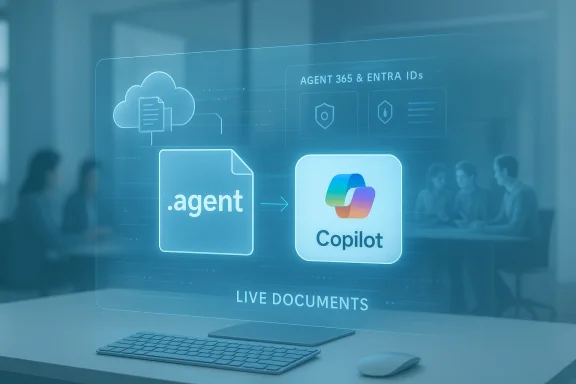
Microsoft’s Copilot initiative has evolved from single-session chat assistance into a full agent platform that can persist context, call tools, and act across services. Over the last year Microsoft has layered several product and governance components — Copilot Studio for building agents, Agent 365 as a governance/control plane, andsace and managed agent identities — that together allow agentic AI to move from experimentation into production workflows. These platform pieces are intended to let organizations treat agents like first-class IT services with identities, logs, and lifecycle controls.The OneDrive announcement is a concrete application of that strategy: instead of asking Copilot ad‑hoc questions about individual documents, users can create an Agent in OneDrive** that understands a curated set of files and stays “on topic” for an ongoing project or dataset. Microsoft describes the feature as generally available to commercial customers with a Microsoft 365 Copilot license, and the agent is stored and handled like any other file in OneDrive, with the same sharing and permission model.
What Agents in OneDrive do — the practical overview
Agents in OneDrive are designed to be a lightweight, project-focused AI layer that you build by selecting up to a set number of source files and optional instruction text. Once created, the agent appears in your OneDrive as a .agent file and opens into a full-screen Copilot interface where you can:- Ask questions across every included document at once.
- Get consolidated summaries, action items, deadlines, named owners, and risk highlights.
- Generate an FAQ or a briefing based on the combined contents.
- Share the configured agent with collaborators; it will only utilize source files that the recipient also has permission to access.
- Agents are currently available on OneDrive on the web and require a Microsoft 365 Copilot license (work or school accounts).
- Agents reference source files rather than creating a persistent copy; their responses are grounded in the live documents you attach.
- Shared agents follow the underlying permissions model: the agent will not surface material from files a viewer cannot access.
How to create and use an agent — step by step
Creating an agent is intentionally simple from a user workflow perspective:- Open OneDrive web and select Create → Create an agent, or select files/folders and choose Create an agent from the toolbar.
- Choose up to the allowed number of files and folders, give the agent a name and optional instructions that define its scope and behavior.
- Save: the agent is created as a .agent file and can be opened like a document; the Copnswers questions based on the files you selected.
- You can update the anstructions anytime; the agent’s responses reflect the current underlying content.
- Agents are indexed and searchable by file type in OneDrive, allowing them to be found through filters like any other item in the storage surface.
Why Microsoft is embedding agents into OneDrive
OneDrive is where documents and project artifacts live; adding agents directly inside the content repository is a classic example of “AI where trosoft’s stated reasons are practical:- Reduce friction: users no longer need to copy files into separate tools for analysis. An agent can answer cross‑document questions without file export/import cycles.
- Keep context current: because agents reference live files, as documents are updated the agent’s answers reflect the latest version.
- Share intelligence with access controls: agents are portable (.agent files), but their outputs are constrained by users’ existing file permissions — an important design point for enterprise adoption.
Governing agents and enterprise controls
Microsoft has emphasized governance as agents move into production. The platform components that matter for IT include:- Agent 365 / Copilot Control System: a tenant-level console for discovering agents, managing lifecccess controls.
- Managed Agent Identities (Entra Agent ID): agents receive distinct identities so conditional access and least-privilege principles can be applied, and audit trails can map actions back to an agent principal.
- Permissions-aware design: OneDrive agents do not circumvent SharePoint/OneDrive permissions; sharing an .agent file only provides the agent metadata — the viewer still needs access to the referenced files for complete responses.
Security and privacy: the real trade-offs
Embedding agents directly into file stores is powerful — and it also introduces specific, novel attack surfaces. The main risks and Microsoft’s countermeasures are worth restating clearly.Primarompt injection (XPIA)**: when an agent ingests text from documents, images (OCR), or UI surfaces, adversarial content could be treated as instructions and hijack the agent’s workflow. Microsoft explicitly calls this a new, cecumented mitigation guidance for preview features.
- Excessive permissions / data exposure: agents that can open, scan, and summarize many files increase the blast radiu malicious action if permissions are misconfigured. OneDrive’s permissions-aware sharing reduces—but does not eliminate—this risk.
- Local agent runtimes and endpoint risk: Microsoft’s experimental Agent Workspace in Windows brings agent runtimes closer to the endpoint, which raises differand requires strict administrative controls. Critics have flagged that enabling agentic features creates new local-file access vectors that must be carefully governed.
- Agents run with separate, low‑privilege identities and (where applicable) in contained agent workspaces to limit lateral access and create auditable trails.
- The OneDrive agent model is permissions-aware: the .agent file references files rather than copying data, and shared users must also hold permissions to see the underlying content. This reduces the chance of accidental exfiltration via an agent.
- Administrative gating: experimental agent features are off by default, require admin enablement, and are beinpreview programs to gather telemetry and refine controls before wide deployment.
What this means for IT: concrete actions and checklist
If you manage OneDrive, Micros treat agents like a new application platform. Practical first steps:- Inventory and policy: Add “Agents” to your asset inventory and define which groups can create and share agents. Track .agent files and their owners.
- Enforce least privilege: Use Entra conditional access and DLP rules to limit which users and devices may create or activate agents. Ensure agents follow the same retention and sensitivity labels as the underlying files.
- Logging and monitoring: Route agent activity to your SIEM, watch for anomalous agent creation patterns, and set alerts on masume Copilot consumption.
- Test for prompt injection: Include adversarial tests in your security validation program; simulate malicious payloads in documents and observe how agents handle instructions embedded in content.
- User education: Train staff on how agents behave, the distinction between Agent “answers” and authoritative documents, and safe-sharing practices.
- Cost governance: If your tenant uses consumption billing or Copilot Credits, monitor agent usage to avoid unexpected charges. Consider quota policies or consumption alerts.
Typical enterprise workflows and example use cases
Agents in OneDrive are aimed at scenarios where projects or dossiers span many documents and stakeholders. Here are realisct launch dossier: A product manager assembles specs, marketing decks, and testing reports into an agent. Team members ask the agent for release blockers, owner assignments, and a consolidated QA summary before a go/no‑go meeting.- Legal-contract digest: Legal creates a contract agent that highlights change history, unend negotiation points. Sales accesses the agent to ask narrow questions without reading the whole contract library. Permissions ensure sales cannot see redacted clauses.
- Research and competitive analysis: R&D teams add whitepapers, benchmark data, and notes to an agent that can produce an exmpare vendor claims across multiple PDFs and slide decks. ([windowsreport.com](https://windowsreport.com/microsoft...s-copilot-integration-expands/?utm_sourceples show the productivity value: agents reduce manual cross‑document reading and accelerate repeated queries that previously required hunting through multiple file types.
Limitations and what Microsoft has said
Microsoft’s initial OneDrive agent rollout has clear scope limitations and guidance you should know:- Licensing: Agents require a Microsoft 365 Copilot license for work or school accounts; personal consumers and non‑Copilot subscribers are excluded for now.
- File counts and scope: Agents are created from a bounded set of files (for now Microsoft suggests a modest limit when creating an agent); they are optimized for project-level datasets, not for searching an entire enterprise repository in one go.
- Not a silver bullet: Agents summarize and reason over content, but they do not replace human review on legal, compliance, or safety‑critical outputs. Microsoft’s guidance and independent analysts stress that agents should be paired with human validation, especially for consequential decisions.
Where agents in OneDrive fit into Microsoft’s broader Copilot expansion
OneDrive’s agents are one piece of a much larger push. Microsoft has rolled agentic features into Word, Excel, PowerPoint and Teams (Agent Mode, Office Agents), and introduced management control planes — all meant to turn Copilot into a pervasive automation and reasoning layer across the productivity stack. The company is also enabling multi‑model routing (choice among models), low-code agent creation in Copilot Studio, and integrations with Azure AI Foundry to host and manage custom models.The strategic logic is clear: make Copilot the primary interface for knowledge work by embedding it where documents, conversations, and decisions live. OneDrive agents are the content‑centric entry point for that vision.
Independent coverage and early reactions
Industry press and technical commentators have generally framed OneDrive agents as a natural — if inevitable — next step for enterprise AI, praising the permissions-aware sharing model and the simplicity of creating .agent files. At the same time, security analysts and privacy advocates have warned about the risks of giving autonomous or semi-autonomous agents broad read/write access to files or endpoints. Experimental OS-level agent features in Windows received especially sharp scrutiny because they change the endpoint threat model in ways that require new defensive patterns.Recommendations for organizations evaluating OneDrive agents today
For teams thinking about adopting OneDrive agents in the next 30–90 days, here’s a practical plan:- Pilot narrowly: Start with non-sensitive projects (onboarding packs, marketing dossiers, meeting digests) to learn agent behavior and to tune instructions and guardrails.
- Integrate with existing controls: Ensure agents respect Purview sensitivity labels, DLP policies, and conditional access rules before scaling.
- Add agent checks to change management: Include agent creation and modification as part of your configuration and release workflows so that owners can be audited and accountable.
- Test adversarial scenarios: Use simulated prompt-injection tests against agents that will touch external or user-generated content. Document your findings and iterate on instruction sets and safety filters.
- Plan for cost and capacity: If your tenant uses consumption billing or Copilot Credits, run a usage forecast and apply quotas if necessary. Monitor agent usage for runaway consumption.
Bottom line
Agents in OneDrive mark a significant product milestone: Microsoft has taken a familiar storage surface and turned it into a host for portable, permissions-aware AI assistants that work over curated sets of documents. For teams that wrestle with distributed knowledge, the productivity upside is real: faster briefings, better on‑ramps for new team members, and fewer manual cross‑document lookups.That upside comes with new responsibilities. Agents extend the attack surface to include document content as an instruction channel, compound DLP and identity challenges, and — if allowed to proliferate without governance — could create costly consumption and compliance blind spots. Organizations should treat OneDrive agents as they would any new platform: start small, force integration with existing security controls, and maintain human-in-the-loop validation for high‑impact use cases.
Adopters who respect those guardrails will likely find OneDrive agents to be a powerful, pragmatic step toward an AI-native workplace; adopters who skip that work risk creating new operational and security debt.
Source: Windows Report https://windowsreport.com/microsoft-introduces-ai-agents-in-onedrive-as-copilot-integration-expands/