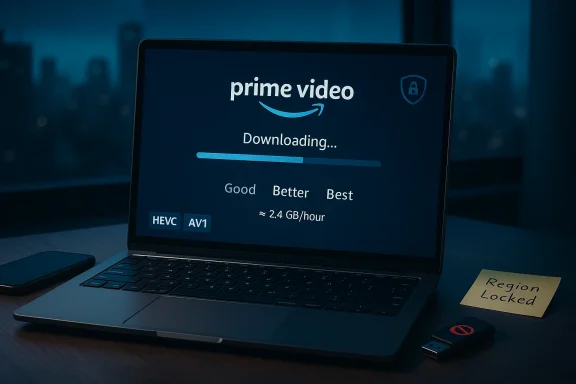
Amazon's decision to ship a native Prime Video app for Windows 10 finally closed a long‑standing gap between mobile and desktop streaming: the Microsoft Store listing brought official desktop installs, access to purchases and Prime Video Channels, and—critically—the ability to download titles for offline playback on laptops and tablets, but the feature set and quality ceilings are bound by platform DRM, codec support, and regional rollout limits.
When Amazon published a Universal Windows Platform (UWP)-style Prime Video client to the Microsoft Store in mid‑2020, it marked a strategic extension of the service beyond browsers and mobile apps. The Windows app mirrors much of the web experience—catalog access, Prime Originals, and channel subscriptions—while adding desktop‑oriented navigation and a dedicated Downloads section for offline viewing. The move delivered parity for a high‑value consumer feature (offline downloads) that had been available on iOS and Android for years. Two related facts make this launch more than cosmetic. First, Store‑distributed apps on Windows can integrate with the OS media stack and DRM mechanisms in ways a browser often cannot. Second, platform DRM rules and hardware codec support materially affect what quality level the app can stream or save for offline viewing—creating both benefits (offline playback) and constraints (resolution ceilings, device limits). Those technical realities define the user experience on the Prime Video Windows app.
Notable strengths:
Amazon's Windows 10 Prime Video app closed an important feature gap and delivered genuine utility, but it also revealed the edges of the Windows media stack—edges that matter more now that offline downloads on laptops are commonplace. The tradeoff is clear: stronger content protection and offline capability in exchange for a more complex dependency set that users and administrators must manage deliberately.
 Background
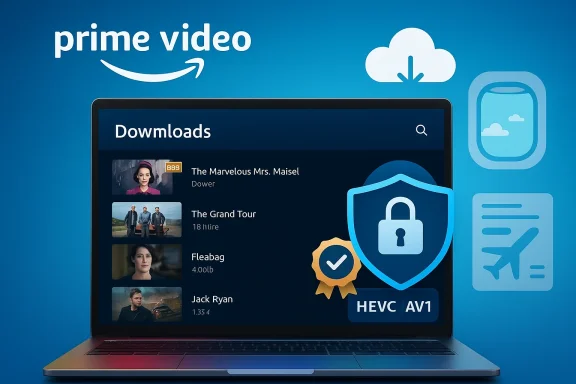
When Amazon published a Universal Windows Platform (UWP)-style Prime Video client to the Microsoft Store in mid‑2020, it marked a strategic extension of the service beyond browsers and mobile apps. The Windows app mirrors much of the web experience—catalog access, Prime Originals, and channel subscriptions—while adding desktop‑oriented navigation and a dedicated Downloads section for offline viewing. The move delivered parity for a high‑value consumer feature (offline downloads) that had been available on iOS and Android for years. Two related facts make this launch more than cosmetic. First, Store‑distributed apps on Windows can integrate with the OS media stack and DRM mechanisms in ways a browser often cannot. Second, platform DRM rules and hardware codec support materially affect what quality level the app can stream or save for offline viewing—creating both benefits (offline playback) and constraints (resolution ceilings, device limits). Those technical realities define the user experience on the Prime Video Windows app.What the Windows 10 Prime Video app delivers
Short, scannable list of core user-facing features introduced by the native app:- Streaming of Prime Video catalog, including purchased/rented titles through a desktop-optimized UI.
- Offline downloads with selectable quality tiers (Good, Better, Best). This is the primary functional win over browser‑only access.
- Prime Video Channels support where channel integrations are available regionally.
- X‑Ray / IMDb metadata during playback, preserving features found in other Prime apps.
- Purchase and rental workflows available in supported markets via the app.
Download quality and storage planning
The app exposes tiered download settings that balance file size and picture quality. Independent measurements and publisher reporting at launch have a practical planning figure for the top quality tier: expect multiple gigabytes per hour of video. A commonly cited ballpark for the "Best" setting is around 2.4 GB per hour of content, which is useful when planning offline libraries for long trips. Practical tip: choose a lower quality tier for mobile SSDs or small internal drives; reserve Best for high‑capacity NVMe SSDs or external storage when available.The technical underpinnings: why the app behaves differently
A native Microsoft Store app operates inside Windows' app model and can integrate with Microsoft PlayReady DRM and hardware‑backed media pipelines. That makes the app capable of issuing persistent offline licenses and working with platform protections that browsers sometimes cannot use in the same way. The PlayReady client and the UWP packaging are the mechanisms that enable downloads and playback on Windows. Key technical points every Windows user should know:- PlayReady DRM is central. PlayReady enables secure offline licenses and hardware‑backed protection; content providers commonly require PlayReady at higher security levels for premium content. Not every PC can meet those hardware and platform requirements.
- Codec support matters. Modern streaming services rely on HEVC (H.265) and AV1 codecs to deliver efficient HD and UHD content. On Windows, HEVC support may require installing an OS codec package or having OEM drivers that expose hardware decode to the media stack. Without proper HEVC/AV1 support, the app may fall back to software decode or lower resolutions.
- SL3000 / hardware compliance for 4K. Studios and rights holders often gate 4K/UHD behind stronger DRM (e.g., PlayReady SL3000) and require signed hardware pathways. That means even capable 4K monitors won't guarantee 4K playback unless the device's firmware, PlayReady implementation, and driver stack are compliant.
Verified limitations and early rollout quirks
The app's rollout and behaviour have exhibited several regional and device‑specific nuances for readers who want predictable offline playback.- Regional rollout and staged availability. The Windows Store listing first appeared publicly in mid‑2020 and rolled out regionally. Not every market received the app simultaneously; some users reported store errors or sign‑in blocks during early availability windows.
- Resolution ceilings on Windows clients. Multiple independent checks found that streaming from the app sometimes did not exceed 720p on test devices—even though the service offered 1080p and 4K in other contexts. Amazon's platform documentation lists maximums as region and device dependent; community testing flagged discrepancies between marketing and practical delivery.
- Codec and HEVC packaging. HEVC playback may require additional system components (HEVC Video Extensions or equivalent OEM packages) to enable hardware decode; otherwise playback may be degraded or limited. For AV1, hardware decode support is newer and varies by chipset generation.
A closer look at DRM and codecs (what IT pros need to know)
IT managers and power users often ask why desktop media behavior is inconsistent. The answer is an integration stack of components, each with its own policy and constraints:- PlayReady DRM and license enforcement on Windows. PlayReady is tightly coupled with Windows media protection APIs and can enforce HDCP/DRM policies that affect playback resolution and offline license behavior. Some premium content requires PlayReady at higher security levels (SL3000), which in turn requires hardware and firmware assurances.
- Hardware‑backed cryptographic environments. To protect keys and decrypted streams, platforms often require hardware roots of trust. Without hardware DRM, content providers may allow only lower resolutions or deny certain offline license features.
- Codec availability: HEVC/AV1 and the OS. HEVC is used for efficient HD streaming; on Windows this may require a Store codec package or OEM preinstallation. AV1 is increasingly used but hardware support is limited to newer silicon. Missing or mismatched codecs cause fallback to software decode or lower quality streams.
- Browser CDMs vs. Store apps. Browsers implement CDMs (Widevine, PlayReady via EME) with different behaviors and license policies; the result is customers can see different maximum bitrates and resolutions in browser streaming versus the native app.
Real‑world user experience: early tests and community reports
Independent reporters and community threads captured the mixed early outcomes:- Windows Central and other outlets confirmed the app's Microsoft Store listing and stressed that early downloads and log‑in reliability varied across regions. The Store listing itself highlighted downloads, Channels, and X‑Ray, but some testers encountered sign‑in and quality issues immediately after the launch.
- The Verge's testing (as cited in other outlets) found that the app frequently failed to stream beyond 720p on test machines, even when the web player could achieve higher resolutions—suggesting unresolved device or DRM conditions limited the Windows app. These findings were echoed by other news aggregators and community posts.
- Community troubleshooting threads documented sign-in errors, device‑limit notifications, and variable reminders that cloud entitlements and account rules still control content access beyond the technical client.
Strengths — why the native app matters
- Offline downloads return real utility to laptop users. For travelers and students, being able to store shows directly on a Windows device without relying on mobile devices is a tangible improvement in convenience.
- PlayReady integration enables persistent licenses. PlayReady's integration means more reliable offline licenses than browser caches or ephemeral sessions, improving playback reliability when offline.
- Store distribution simplifies updates. The Microsoft Store model centralizes app updates and integrity checks, making it easier for less technical users to maintain the client.
Risks and limitations — where the app falls short
- Resolution and codec constraints. Users with 4K displays will often find the app cannot deliver UHD content due to PlayReady SL3000 requirements, missing HEVC/AV1 decoders, or hardware non‑compliance.
- Complex dependency chain increases failure modes. DRM, codecs, GPU drivers, and store runtimes create multiple points where mismatches produce playback regressions, crashes, or lower quality. For IT admins, that equates to more maintenance and baselining.
- Regional licensing variability. Not all titles or features (Channels, downloads, purchases) are available everywhere; the app experience is region‑dependent and subject to content licensing rules.
- Privacy and device count implications. Offline downloads are bound to your Amazon account and device entitlements; corporate or shared devices must be handled carefully to avoid accidental entitlements or sign‑in conflicts. Community threads highlight confusion when many devices show up under a single account.
How to prepare a Windows PC for reliable Prime Video playback (step‑by‑step)
- Update Windows 10 to the latest cumulative update and ensure Microsoft Store is updated.
- Confirm the Microsoft Store listing is the official Amazon publisher before installing.
- Install hardware/driver updates from OEM (Intel, AMD, NVIDIA) to expose HEVC/AV1 hardware decode where available.
- If needed for HEVC: install the HEVC codec package your OEM or Microsoft Store supplies to enable hardware acceleration.
- Test a download in each quality tier and measure storage consumption (plan ~2.4 GB/hour for the highest quality as a rough guide).
- For enterprises: document a certified device image (drivers, codec packages, and Store runtime) and use that baseline for fleet provisioning.
Comparison: native app vs. browser streaming vs. Windows 11 Android apps
- Native app (Microsoft Store / UWP): Best for offline downloads and PlayReady integration; quality and feature set depend on OS DRM and hardware.
- Browser playback: Easier cross‑platform parity; quality depends on browser CDM support (Widevine vs PlayReady) and platform policies—browsers sometimes hit different resolution caps.
- Android apps on Windows 11 (Amazon Appstore pathways): Introduce a different compatibility model (Android runtime on Windows), which can blur feature parity and DRM behavior compared with native UWP/Store apps.
Critical analysis: what this launch reveals about modern media delivery on Windows
Amazon's Windows 10 app is a pragmatic, consumer‑facing response to long‑standing user demand: make desktop devices behave more like phones for media consumption. It delivers practical value—especially offline downloads—but also exposes the friction between content‑owner protection models and user expectations.Notable strengths:
- The app acknowledges real user behavior: many people prefer to watch long sessions on laptops rather than phone screens. Providing downloads natively is a user‑centric move that reduces device juggling.
- PlayReady integration addresses content holder security concerns while enabling offline rights, a necessary compromise to make downloads viable in premium catalogs.
- The very mechanisms that protect premium content—PlayReady, SL3000, hardware roots of trust—create a fragmented user experience across the vast diversity of Windows PCs. The consequence: inconsistent playback quality and confusing failure modes that frustrate customers.
- Marketing and store copy that touts "up to 1080p" or "4K titles available" without clarifying device and DRM prerequisites sets unrealistic expectations. Independent testing exposed gaps between marketing claims and day‑to‑day behavior for many users.
Practical conclusion and verdict
The Amazon Prime Video Windows 10 app is a meaningful addition for Windows users who value offline downloads and the convenience of a native desktop player. It leverages Microsoft's PlayReady DRM and the Store distribution model to offer persistent offline licenses and a single‑click install experience. However, buyers should approach with eyes open: real‑world playback quality depends on PlayReady capabilities, codec availability (HEVC/AV1), hardware drivers, and regional licensing. Early tests and community reports recorded real discrepancies between advertised and achieved resolutions, so plan device checks and codec installs before relying on the app for important travel or field operations. For Windows enthusiasts and IT managers, the arrival of a native Prime Video client is a reminder that modern media on PCs is not purely a web problem—it is an integration challenge involving DRM, codecs, firmware, and entitlements. Treat the app as both a consumer convenience and a small systems‑integration project: test, certify, and document your baselines, and be ready to install codec packages or update drivers to get the best possible experience.Amazon's Windows 10 Prime Video app closed an important feature gap and delivered genuine utility, but it also revealed the edges of the Windows media stack—edges that matter more now that offline downloads on laptops are commonplace. The tradeoff is clear: stronger content protection and offline capability in exchange for a more complex dependency set that users and administrators must manage deliberately.