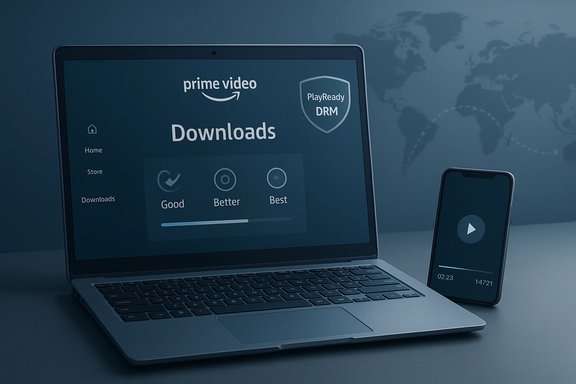
Amazon’s move to bring a native Prime Video app to Windows 10 — and with it, the long‑awaited ability to download titles for offline viewing on laptops and desktops — finally closed a persistent feature gap between mobile devices and the PC. The Windows 10 Prime Video app, distributed through the Microsoft Store and built as a Universal Windows Platform (UWP) experience, delivers a Store‑managed installer, a desktop‑oriented UI, and the same download controls that mobile Prime Video users have relied on for years. For Windows users this is both convenience and capability: travel‑ready downloads, better DRM integration for protected streams, and a route to play purchased or rented titles without opening a browser. Multiple independent reports documenting the app’s mid‑2020 rollout corroborate the core claim that the Microsoft Store listing enables offline downloads on Windows 10 devices.
However, the convenience carries a governance cost. Offline licences are bound to the app and platform DRM; this is good for content owners but constraining for users who want portability. The dependency chain — Store runtime, PlayReady components, codecs, hardware decoders, and GPU drivers — creates multiple points of failure that can cause playback regressions, crashes, or quality limits. User complaints about ad load, subscription pricing, or app crashes (documented in community threads) magnify the perceived downside of content access if the technical infrastructure does not behave consistently. For enterprise and power users, the sensible approach is to treat the Prime Video Windows app as a supported consumer‑grade client: test it on representative hardware, document codec/driver baselines, and maintain a troubleshooting runbook. For anyone relying on offline playback in production scenarios (flight crews, field technicians, remote sales teams), validate both the catalogue availability and the device entitlements well before a critical need.
Readers planning to use the Prime Video Windows 10 app should update Windows and the Microsoft Store, install necessary codecs or use compatible hardware for higher quality, and test downloads ahead of travel. When exact quotas, expiry windows, or enterprise distribution questions arise, verify account and region details through Amazon’s help channels — community guides and published reviews provide operational context, but account‑level rules can change and must be confirmed with the provider.
This article synthesized screen‑level reporting on the Windows 10 Prime Video app’s offline capability, platform DRM documentation (PlayReady), community troubleshooting threads about playback regressions, and practical codec guidance — and it flagged operational limits that users should verify with Amazon’s official support materials where necessary.
Source: Born2Invest https://born2invest.com/?b=style-755700712/
 Background
Why a native app matters on Windows
Desktop browsers offer parity for casual streaming, but they cannot always match native app capabilities around DRM, hardware‑accelerated playback, or offline licences. Store‑distributed apps on Windows can access platform DRM stacks and hardware protection (PlayReady), install via a single click, and be updated through Microsoft’s distribution model. That makes a UWP-style Prime Video app more than a convenience: it’s a technical mechanism permitting licensed, offline playback at higher quality on PCs than browser‑based delivery sometimes allows. Microsoft’s PlayReady design and UWP integration have been the mechanisms content providers use to protect premium video on Windows platforms.Timeline and rollout
The Prime Video Windows app first appeared publicly in mid‑2020 with a staggered, regional rollout. Early press and news aggregators reported the Microsoft Store listing and confirmed that the app offered downloads for offline viewing, streaming through the app, and access to Prime Video Channels and purchases. Coverage from technology outlets at the time documented the arrival and functionality, noting the app’s staged availability across regions.What the Prime Video Windows 10 app delivers
Core user‑facing features
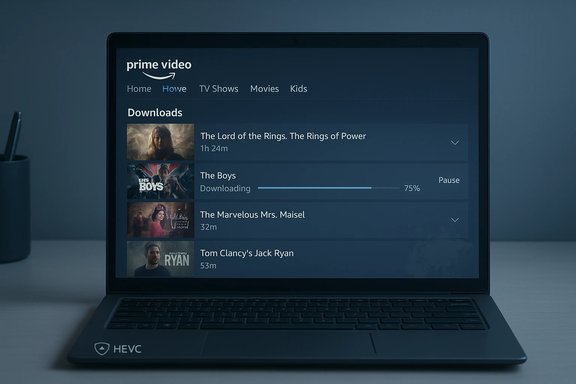
- Offline downloads: Titles can be downloaded to the PC for offline playback. The app supports selectable download quality settings to control file sizes and storage use.
- Catalog parity for many titles: Prime Originals and many licensed movies and TV shows are available for streaming or downloading where licensing allows. The availability of specific titles remains region‑dependent.
- Purchase and rental support: Some Store listings and press notices noted the ability to rent or buy titles directly through the app in supported regions.
- Prime Video Channels: The app provides access to channel subscriptions (HBO, Showtime, etc. where those channel integrations are permitted in the region.
Download quality and sizing
The Windows app exposes quality choices similar to mobile apps (often labelled along tiers such as Good, Better, Best). Independent testing and guides show these settings materially change storage use — Best quality can consume multiple gigabytes per hour of content (a published bench of ~2.4 GB/hour for the highest quality is a useful planning figure for travelers and notebook users). Users should choose quality settings based on available free space and expected viewing duration.How it works technically
App architecture and DRM
The Prime Video Windows 10 app behaves like other UWP/Store apps: it is packaged for the Microsoft Store and runs within Windows’ application model. Critically, protected content is delivered under a DRM framework. On Windows, the prevalent studio‑accepted DRM for app‑based playback is Microsoft PlayReady, which supports secure offline licensing and hardware‑backed protection on compliant devices. PlayReady is integrated with Windows’ media stack and enables apps to issue persistent (offline) licences that are validated and enforced by the platform during playback. This is why the Store app can support offline files in a way that browser downloads cannot. Browsers that stream protected content typically rely on a different CDM (Content Decryption Module) such as Widevine (Chromium browsers) or PlayReady where supported — differences here explain why behaviour and maximum resolutions can vary between in‑browser streaming and the Store app. When playback requires higher guarantees (e.g., 4K/UHD), content providers may require PlayReady at the highest security levels (SL3000) and hardware support on the client. That means not every Windows PC can reach the top permitted bitrates or resolutions even when the app is present.Codecs and hardware decode
High‑efficiency codecs such as HEVC (H.265) and AV1 are increasingly used by streaming services to deliver HD and UHD streams at reasonable bitrates. On Windows, HEVC support is not always included in a base install and often requires installing the HEVC Video Extensions (or using a player like VLC that ships its own decoders). Hardware acceleration for HEVC/AV1 (present in modern Intel, AMD, and NVIDIA hardware) offloads decode work to silicon and improves battery life and smoothness; older machines may fall back to CPU decode or be unable to play higher‑bitrate streams properly without the relevant codec installed. Guides and Microsoft documentation outline both the codec packaging and the caveats around app behaviour and codec availability.Practical installation and troubleshooting
Quick install checklist
- Open Microsoft Store on Windows 10.
- Search for Amazon Prime Video (check publisher is Amazon).
- Install, launch, and sign in with the Amazon account that has Prime Video access.
- If downloads are greyed out or playback errors occur, confirm Windows Update, Microsoft Store updates, and the app are current.
Optimizing for downloads and playback
- Install the appropriate HEVC/AV1 codecs if intending to view higher‑quality or HDR content (HEVC availability in the Microsoft Store varies and may require a small paid purchase or the OEM variant). If HEVC is unavailable, use a third‑party player like VLC for local files, but note that DRM‑protected Store downloads are playable only inside the Prime Video app.
- Keep GPU drivers current (NVIDIA, AMD, Intel). Playback regressions frequently trace to driver bugs; vendor archives and support pages provide stable driver choices for older hardware.
- If DRM errors appear (playback error codes referencing compatibility or CDM), verify browser/Edge WebView runtimes when using the web player, or reset the app and sign out/sign in to refresh entitlements when using the Store app. Community troubleshooting commonly recommends clearing Store cache (wsreset), resetting the app from Settings → Apps → Prime Video → Advanced options, and reinstalling if persistent.
When downloads fail or won’t play offline
Common root causes include regional licensing blocks, transient entitlement issues, device‑to‑device download quotas, expired offline licences, and DRM revalidation failures after major system changes. Practical mitigation steps include disabling VPNs, confirming the system clock is correct (DRM often relies on accurate time), ensuring downloads are stored on internal drives (external USB drives can disconnect and break entitlements), and engaging Amazon support with Event Viewer logs when necessary. Community and troubleshooting guides outline these exact steps.Limits, caveats, and known inconsistencies
Regional availability and licensing
Not all titles are eligible for download in every territory. Licensing agreements govern offline rights; country‑specific catalogues and blackout rules still apply. The Microsoft Store listing and Amazon’s regional pages can show availability differences. Users traveling internationally may find that some downloaded content becomes unplayable outside permitted countries.Device and quota constraints
Third‑party guides and user reports indicate there are practical limits to the number of concurrent downloads or devices allowed per Amazon account. Several unofficial guides cite a commonly reported ceiling (for example, up to 25 titles across devices), with offline licences typically expiring after a fixed window (30 days unused, and often 48 hours once playback begins). These numbers appear in repeated help‑style articles, but an absolute confirmation from Amazon’s official help pages is advisable before treating them as contractually exact. Treat such quota figures as operationally useful but to be verified in Amazon’s own documentation or account help. This particular quota claim should be validated against Amazon’s current support documentation for final accuracy.Quality ceiling and hardware requirements
While the app can stream at up to 1080p on many Windows devices, higher resolutions and HDR/UHD are gated by stricter DRM and hardware requirements. To hit 4K or HDR streaming, a combination of a PlayReady SL3000‑capable client, signed hardware support, and the appropriate codec and display pipeline must be present — a configuration that many older or general‑purpose notebooks do not meet. In practice, many users will find 1080p is the realistic ceiling on broad mainstream laptops.Security, privacy, and the DRM trade‑off
DRM brings security — and limits control
DRM schemes like PlayReady provide content owners confidence to license high‑value streams for offline viewing. That security comes with trade‑offs: downloaded files are bound to an account and device, cannot be exported to arbitrary players, and expire. Attempts to remove DRM or use third‑party “downloaders” circumvent these protections and often violate terms of service and potentially local law. Users should rely on official app downloads for compliance and for the safest playback experience.A note on platform vulnerabilities
The PlayReady ecosystem and other DRM systems carry their own structural risks: leaked PlayReady certificates or keys have in the past been exploited, prompting vendor takedowns and content‑provider reaction. While this is niche and technical, it directly affects the content protection landscape and how providers respond to piracy vectors. Such incidents reinforce why platform integration and timely update management matter for end users and enterprises alike. If a DRM compromise appears in the wild, content providers may tighten playback requirements or revoke offline licences to block misuse.Strengths for Windows users and IT pros
- True offline capability on laptops: The Prime Video app brings the same convenience long available on mobile devices to Windows notebooks, which matters for travel, intermittent connectivity, and edge deployments.
- Store‑managed distribution: Installation and automatic updates via Microsoft Store reduce deployment friction for casual users and corporate images that allow Store apps.
- Better platform DRM integration: UWP Store apps can leverage PlayReady and Windows’ media APIs for more stable entitlement handling and higher‑quality playback on capable hardware.
Key risks and practical downsides
- Regional fragmentation and licensing limits: Users travelling internationally or with accounts registered in one country can run into playback or download restrictions.
- DRM and device locking: Downloads are restricted to the app and device, with expiry windows and device quotas that complicate long‑term offline archiving. Third‑party “forever download” tools bypass protections but carry legal and security risk.
- Codec/driver fragility: Users on older platforms may see stuttering, inability to reach top quality, or crashes when the video stack, WebView2 runtime, or GPU drivers drift out of supported versions. Community threads report occasional app crashes tied to runtime mismatches or driver regressions — a real operational headache for IT managers.
Recommendations: get the best experience on Windows
- Update Windows 10 (latest cumulative update) and the Microsoft Store before installing the Prime Video app.
- Install vendor GPU drivers from NVIDIA/AMD/Intel and, if needed, install HEVC or AV1 codec extensions via Microsoft Store or rely on tested third‑party players for non‑DRM content. Verify whether the HEVC option offered is the “Device Manufacturer” variant or Microsoft’s paid extension; the ecosystem remains fragmented.
- Prefer internal storage for downloads. Avoid external USB drives for offline titles unless the app explicitly supports them; removable drives can disrupt entitlements.
- If encountering playback errors, clear Store cache (wsreset), reset the Prime Video app, confirm WebView2/Edge runtimes if using web components, and collect Event Viewer logs before contacting Amazon support. Community troubleshooting recipes widely recommend this sequence.
- Confirm regional content rules before travel and verify device limits and expiry windows if planning long trips. Where exact quota rules matter (e.g., enterprise procurement, extended fieldwork), seek explicit confirmation from Amazon Help for account‑specific ceilings — community guides provide useful heuristics, but the official help page is the final authority.
Critical analysis — why this matters now
The arrival of a native Prime Video app for Windows 10 was a pragmatic win: it converted laptops into full‑featured, offline‑capable video players while leveraging Windows’ content protection stack. For consumers, that means less juggling between devices and better travel readiness. For IT and system admins, it highlights the importance of lifecycle management of codecs, runtime components (WebView2), and GPU drivers to keep apps functioning across heterogeneous fleets.However, the convenience carries a governance cost. Offline licences are bound to the app and platform DRM; this is good for content owners but constraining for users who want portability. The dependency chain — Store runtime, PlayReady components, codecs, hardware decoders, and GPU drivers — creates multiple points of failure that can cause playback regressions, crashes, or quality limits. User complaints about ad load, subscription pricing, or app crashes (documented in community threads) magnify the perceived downside of content access if the technical infrastructure does not behave consistently. For enterprise and power users, the sensible approach is to treat the Prime Video Windows app as a supported consumer‑grade client: test it on representative hardware, document codec/driver baselines, and maintain a troubleshooting runbook. For anyone relying on offline playback in production scenarios (flight crews, field technicians, remote sales teams), validate both the catalogue availability and the device entitlements well before a critical need.
Final verdict
Amazon’s Windows 10 Prime Video app meaningfully closed a feature gap by enabling offline downloads on laptops and desktops. The Store app’s integration with Windows DRM (PlayReady) and the platform media stack provides a robust mechanism for protected offline playback — but it also binds users to the app and to platform‑level constraints (licences, device limits, codec requirements). The net effect is a functional win for everyday users and an operational reminder for IT professionals: media functionality on PCs is no longer just about a browser and a video tag — it is a small systems‑integration project that needs attention to drivers, codecs, and entitlements.Readers planning to use the Prime Video Windows 10 app should update Windows and the Microsoft Store, install necessary codecs or use compatible hardware for higher quality, and test downloads ahead of travel. When exact quotas, expiry windows, or enterprise distribution questions arise, verify account and region details through Amazon’s help channels — community guides and published reviews provide operational context, but account‑level rules can change and must be confirmed with the provider.
This article synthesized screen‑level reporting on the Windows 10 Prime Video app’s offline capability, platform DRM documentation (PlayReady), community troubleshooting threads about playback regressions, and practical codec guidance — and it flagged operational limits that users should verify with Amazon’s official support materials where necessary.
Source: Born2Invest https://born2invest.com/?b=style-755700712/