Prime Video Windows 10: Best Offline Downloads with Store App

  • Thread Author
Amazon’s official Prime Video app from the Microsoft Store is the practical default for watching and downloading Prime content on Windows 10 — but calling it simply “the best” requires context: for offline downloads and a Store-native experience it’s the only fully featured, supported Amazon client on Windows, while the browser experience and platform DRM/codec limits shape what “best” means in terms of resolution, reliability, and portability. on.co.uk])

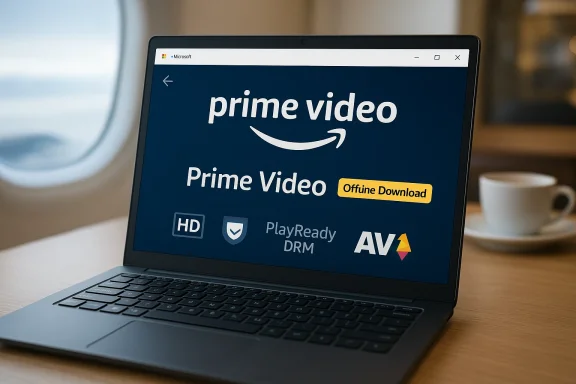
Laptop screen shows Prime Video with an Offline Download badge.Background / Overview​

Amazon released a Microsoft Store version of Prime Video for Windows 10 that behaves like a Universal Windows Platform (UWP)-style client: a desktop-optimized UI, access to Prime Originals and purchases, and the headline feature that pushed this release into relevance — offline downloads for PC. That feature closed a long-standing gap between mobile apps and desktop browsers and made Windows laptops and tablets vi players for travel and field work.
But the presence of an official app only solves part of the problem. Premium video delivery on Windows is governed by a chain of platform controls — DRM (PlayReady), codec availability (HEVC/AV1), hardware decode support, and OEM/provider-supplied components — and those factors determine the ceiling for resolution, HDR, and DRM-backed offline licenses. In practice, users often find the app delivers predictable offline capability, but with *device-depenty and format.

What the Prime Video Windows 10 app actually offers​

Short, practical summary of the features Windows users care about:
  • **Streaming of Primeme Originals, licensed movies, and purchased/rented content where regionally permitted).
  • Offline downloads with selectable quality tie Good, Better, Best) so you can watch without network access.
  • Prime Video Channels support add-on channels are available in your country.
  • X‑Ray / metadata integration dr to Amazon’s other apps.
  • Store distribution & updates via the Microsoft Store, which simplifies installation and updatesers.
What the vendor (Amazon) documents in its system requirements is straightforward: the Prime Video app on Windows 10/11 supports streaming up to HD quality in the Windows client, with audio and subtitle feature support. That official note is critical because it sets the expectations for resolution on many Windows devices.

Technical deep-dive: DRM, codecs, and the real limits​

If you want the best possible Amazon video experience on Windows 10, you must understand three technical pillars that determine what you’ll actually see and download.

PlayReady DRM: the gatekeeper​

  • The Prime Video Windows app uses Microsoft PlayReady to protect premium content and to issue offline licenses. PlayReady enables persistent licenses (so downloads can be played offline), but studios often require higher PlayReady security levels (for example SL3000) to permit HD/UHD playback. Not every PC implements Placurity level, and that is a hard precondition for the highest-quality streams.
  • Practical consequence: having the app installed is necessary but not sufficient for 4K or HDR playback. Firmware, signed drivers, and PlayReady support must all align before Amazon wils. Many consumer laptops do not meet these requirements.

Codecs: HEVC and AV1 matter​

  • Modern streaming uses HEVC (H.265) and increasingly AV1 for efficient HD and UHD delivery. On Windows, HEVC is frequently delivered via Microsoft Store codec packages (the HEVC Video Extensions) or via OEM-supplied decoders; without proper hardware decode support, playbacktware decode or reduced resolution.
  • AV1 hardware decode is newer and uneven across chipsets; on older or midrange hardware AV1 content will either be unavailable or require expensive CPU decoding, which can stutter and drain battery.

Resolution ceilings and the real-world picture​

  • Independent testing and community reports consistently showed that many Windows devices saw maximum streaming or downloaded resolutions of 720p or 1080p, not 4K, unless the device met strict DRM and codec prerequisites. Amazon’s own system documentation frames Windows clients as supporting up to HD, further reinforcing that the expectation for 4K on Windows shouprjsurvey.amazon.co.uk])
  • A practical planning figure often cited for the app’s Best download quality is roughly ~2.4 GB per hour of video. That estimate is useful for travel planning but should be treather than an absolute; codec, content bitrates, and chosen quality tier cause variance.

Installation and optimization: step-by-step​

If you choose the Prime Video app as your Windows 10 video client, follow this sequence to avoid common pitfalls and maximize quality.
  • Update Windows 10 fully (ecurity → Windows Update). This reduces runtime and DRM mismatches.
  • Open Microsoft Store, search for Amazon Prime Video, confirm the publisher is Amazon, and install the app. Use thon to get DRM and Store runtime compatibility.
  • Sign in with the Amazon account that holds your Prime Video entitlement. Downloadse account authentication.
  • Install codec extensions if you want the best chance at HD/UHD playback: HEVC Video Extensions (OEM variant if recommended), and verify whether AV1 support is present for your chipset. If your machine doesn’t include hardware HEVC/AV1, expect lower rode.
  • Keep GPU drivers up to date from your vendor (Intel / AMD / NVIDIA). Driver regressions are a frequent cause of stutter or playback fail’s settings, pick a download quality: Good / Better / Best. Reserve Best for high-capacity NVMe SSDs or when streaming bandwidth is abundant.
Tip: use *intenloads when possible; removable USB media can break DRM entitlements if disconnected while files are licensed to the device.

Troubleshooting: common proPrime Video Store app is generally dependable, but several consistent failure modes appear in community reports. Here are the practical fixes that solve most cases.​

  • Symptom: Stuttering or system-wide jerkiness while the Prime app window is visible.
    Fixes: ensure the app uses the dedicated GPU (if present), update GPU drivers, and confirm the WebView2 runtime is current; if the problem persists try resetting the app (Settings → Apps → Prime Video → Reset). Community threads suggest WebView2/driver mismatches are common culprits.
  • Symptom: Downloads missing / gray download button.
    Fixes: confirm regional availability (content licensing varies by country), update Windows and the Microsoft Store, and verify your Amazon account has Prime or the necessary purchase entitlement. Some early rollout quirks affected availability dunch window; verify the Store listing and app version.
  • Symptom: Low maximum resolution (720p/1080p) despite 4K display.
    Explanation: DRM and signed hardware path rules gate 4K. Unless your device implements PlayReady at the required security level and the codec/hardware chain supports HEVC/AV1 decode, 4K will be unavailable. Verify PlayReady support and codec install status; when in doubentation or device spec sheets.
  • Symptom: Downloaded files won’t play on other devices.
    Explanation: downloads are encrypted and bound to the Prime Video app and the device’s DRM entitlement. This is expected behavior; portable.
When the app persistently misbehaves, collect Event Viewer logs and use Windows’ built-in Reset or Repair flows before contacting Amazon or Microsoft support. Community troubleshooting sequences (update → driver → codec → reset) usually resolve 80–90% of issues.

Alternatives and how they compare​

If “best” means different things to different users, here’s how the three common ways to consume Amazon video on Windows compare.
  • Prime Video app (Microsoft Store): best for offline downloads, simple Store-managed installation, and integration with PlayReady for persistent licenses. Expect the most consistent offline behavior on Windows devices with matched codec/DRM stacks.
  • Web browrefox): best for cross-platform convenience and sometimes easier access to playback on desktops. Browsers typically use Widevine or PlayReady CDMs depending on platform and may stream HD, but browser-based playback cannot always support the same offline licensing semantics as the Store app. For many users, the browser will be perfectly acceptable for casual streaming.
  • Android app via Windows 11 Android support (Amazon Appstore): relevant only on Windows 11 and not Windows 10. This is a separate compatibility path and can lead to different DRM/feaot a viable option for Windows 10 users.
Bottom line: for Windows 10 users who need offline downloads, the Prime Video Microsoft Store app is the best and only fully supported choice. For users focused purely on streaming and with fewer offline needs, the browser experience may be simpler and less dependent on codecs and PlayReady edge cases.

Strengths — why the Store app stands out​

  • Offline downloads on laptops give real travel utility and parity with mobile platforms. For long flights or remote work environments the app transforms a Windowete offline player.
  • PlayReady integration enables more robust offline entitlements than browser caching can provide, reducing the chances of playback fa
  • Microsoft Store distribution simplifies updates and lowers the barrier for less technical users to install and update the client.
    veats — what makes the experience variable
  • Fragmented Windows hardware: the diversity of PCs means DRM and codec support vary dramatically. The result is inconsistent delivery ceilings and unexpected failure modes for users who assume every laptop is equal.
  • **Complex dependegs go wrong you may need to update Windows, the Store runtime, WebView2, GPU drivers, and codec packages. That creates more troubleshooting steps than a typical browser-only streaming problem.
  • No portable downloads: offline filevice and app; you cannot archive or copy them to another computer. Plan around that constraint for long trips that change devices.
  • Regional and licensing quirks: title availability for dovaries by country; some content is not permitted to be downloaded in certain regions. Always check the title’s download icon before travel.
Where claims are not directly verifiable across vendor documentation (for example, pates or the exact per-hour GB figure for every title), treat community figures as approximations and re-check before committing to constrained storage plans. We flagged a commonly cited 2.4 GB/hour number as a planning heuristic rather than an exact guarantee.

Practical recommendations: who should use which option​

  • If you need downloads for offline viese the Prime Video Microsoft Store app and follow the optimization checklist (update Windows, install HEVC/AV1 if available, use internal storage).
  • If you just stream occasionally and hate extra configuration: use your browser of choice and accept you’ll lack offline dier cross-device parity.
  • If you demand 4K/HDR on a PC: evaluate device specs carefully for PlayReady SL3000 support and HEVC/AV1 hardware decode before assuming the app will deliver UHD; this is the hardest scenario to guarantee on Windows laptops.

Final verdict: is the Prime Video app the “bor Windows 10”?​

Yes — with nuance.
  • For Windows 10 users who prioritize offline downloads, the Microsoft Store Prime Video app is effectively the best and only fully supported Amazon client that provides that capability on Windows. Its integration with PlayReady and the Store makes it the correct choice for travel, fieldwork, or any situation where connectivity can’t be assumed.
  • If “best” is measured by simplicity and lowest friction, the browser sfewer dependencies and faster setup for users who don’t need offline playback. Official Amazon documentation also frames browser playback as a simple route to HD streams on many platforms.
  • If “best” means highest quality 4K/HDR, the current Windows ecosystem makes that a difficult label to award. The strict DRM and hardware requirements mean most laptops won’t be able to hit UHD even with the app installed; achieving 4K often requires an explicitly certified device or streaming path.
playback and tight Store integration, Prime Video for Windows 10 is the best Amazon video option you can install on this OS. For casual streaming or for users unwilling to manage codecs and DRM chains, the browser is often a simpler, lower-maintenance alternate.

Conclusion​

The Prime Video Microsoft Store app solved a tangible user need — downloads on Windows 10 — and it did so by leveraging platform DRM and Store distribution. That made laptops more useful as offline media players, but it also introduced the real-world complexity of PlayReady, HEVC/AV1 codec dependencies, and device-specific limits on resolution. For Windows 10 users the app is the recommended route when offline capability matters; for pure streaming, the browser remains a perfectly viable and simpler option. Check device codec support, update drivers, and verify PlayReady capabilities before relying on 4K promises — and plan download storage with realistic per-hour size heuristics in mind.
If you install the app, follow the steps above to maximize reliability and remember the trade-offs: strong offline DRM convenience in exchange for a slightly more complex integration stack. That balance is what defineerience on Windows 10 today.

Source: Born2Invest https://born2invest.com/?b=style-732270512/
 

If your goal is to watch Amazon Prime Video on a Windows 10 PC and — critically — to download movies and shows for offline viewing, the Microsoft Store version of the Prime Video app is the practical and supported answer for most users, but it comes with a chain of platform dependencies (DRM, codecs, drivers, and regional licensing) that determine whether downloads, HD playback, or 4K will actually work on a given device.

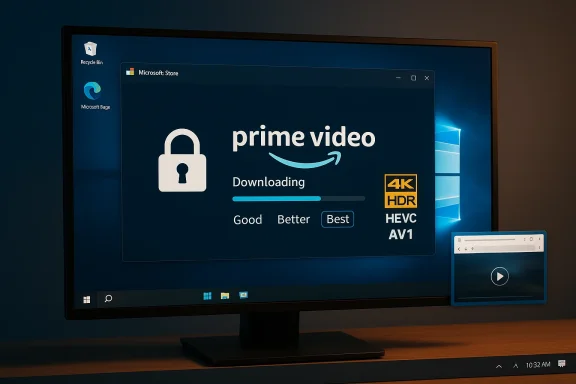
Windows desktop shows Prime Video downloading in 4K HDR with AV1/HEVC logos.Background / Overview​

Amazon made a strategic move by publishing a native Prime Video app for Windows through the Microsoft Store. That app brought a feature parity previously reserved for mobile devices: the ability to download titles to a Windows laptop or tablet for offline playback. Early rollout began in mid‑2020 and was expanded regionally; the Store app behaves like a UWP-style client and exposes download controls and quality tiers familiar to mobile Prime Video users.
Why this matters: browsers can stream most catalog items, but native Store apps can integrate directly with Windows’ media stack and studio‑accepted DRM systems to issue persistent offline licenses. That is the technical reason downloads work in the Store app but not as portable files you can move between devices.

The simple answer: which Prime Video is “best” for Windows 10?​

  • For offline downloads and a supported, updateable client: Amazon Prime Video (Microsoft Store app). It’s the only fully featured, supported Amazon client on Windows that permits offline downloads on Windows 10 devices.
  • For casual, no‑setup streaming (no downloads needed): your browser (Edge, Chrome, Firefox) is often the lowest‑friction path. Browsers are ideal if you only stream and don’t need offline playback, but they typically cannot provide the same offline license features.
These choices are not value judgments so much as technical tradeoffs: the Store app unlocks offline capability at the cost of additional platform dependencies; the browser avoids those dependencies but can’t give you portable offline viewing.

How Prime Video downloads work on Windows 10 — the technical essentials​

DRM and licensing​

The Store app uses Microsoft’s DRM ecosystem — primarily PlayReady — to request and store offline licenses that the app validates at playback time. This protected license model is why downloaded titles are tied to the app and the device; you cannot copy files and play them in another player. When studios require higher security levels for premium formats (for instance, 4K/UHD), they may demand PlayReady at stricter levels (e.g., SL3000) and hardware-backed protections before granting those higher‑quality streams.

Codecs and hardware decode​

Modern streams use efficient codecs (HEVC/H.265 and increasingly AV1). Windows devices vary: some include hardware HEVC/AV1 support, others rely on OS codec packages or fall back to software decoding. On Windows 10, HEVC hardware decode is frequently provided via the HEVC Video Extensions package (or OEM codec drivers). Without proper codec support and drivers, playback may be CPU‑bound, produce stutter, or be limited to lower resolutions.

Resolution ceilings (HD vs 4K)​

Even if you have a 4K display and a powerful GPU, 4K/UHD playback on Prime Video for Windows may be gated by DRM and hardware trust chains. In practice, many Windows laptops and desktop PCs cannot reach the highest quality levels because the firmware, PlayReady implementation, and drivers are not in the required trust state. That’s why many users see 720p or 1080p as their practical ceiling. If you need 4K on a Windows PC, expect to validate your device’s PlayReady and codec support before assuming it will work.

Step‑by‑step: Install Prime Video app on Windows 10 and download titles​

Follow these steps to set up the Microsoft Store app and start downloading content for offline viewing.
  • Update Windows 10: Settings → Update & Security → Windows Update. Install all applicable updates to reduce compatibility problems.
  • Open Microsoft Store on the PC and search for “Amazon Prime Video.” Confirm the publisher is Amazon before installing.
  • Install and launch the Prime Video app, then sign in with the Amazon account that holds your Prime subscription or purchases. Downloads require entitlement via your account.
  • In the app, open Settings → Downloads (or similar) and choose a download quality: Good / Better / Best. These tiers trade off file size for picture fidelity.
  • Browse to a show or movie and look for the download icon. Select the episodes or the movie and choose the quality if prompted. The app will save the content to the configured location.
Practical tip: Use internal storage (SSD/NVMe) for downloads where possible. Removable drives can interrupt DRM entitlements if the drive disconnects during playback or license checks.

How much storage will downloads use?​

The app exposes quality tiers; a commonly cited planning figure for the top “Best” quality tier is roughly 2.4 GB per hour of video. Treat that number as a practical heuristic rather than a guaranteed constant — codec, resolution, HDR, and scene complexity all influence file size. Choose lower tiers for long trips or if you have limited SSD space.
  • Good: smallest files; suitable for short commutes or low storage devices.
  • Better: balanced fidelity and file size; good for most users.
  • Best: highest quality available for the title; expect multiple GB per hour.

Optimizing your PC for the best Prime Video experience​

  • Keep Windows 10, GPU drivers (Intel/AMD/NVIDIA), and the Microsoft Store updated. Driver regressions can break hardware decode paths and degrade playback.
  • Install HEVC/AV1 codec packages as needed. The HEVC Video Extensions often appear in Microsoft Store or may be provided by your OEM. Without these, HEVC‑encoded streams may be limited to software decode or lower resolutions.
  • Ensure WebView2/runtime and Microsoft Store components are current — many Store apps depend on these runtimes for parts of their UI and web‑backed flows.
  • Prefer internal non‑removable storage for downloads to avoid DRM edge cases with removable media.

Troubleshooting: common problems and fixes​

Problem: Downloads greyed out or not available for a title.
  • Check that the title is available for download in your region; licensing may block downloads on some content. If the download icon isn’t shown, the title may simply be ineligible.
Problem: Playback stutters or audio/video desync.
  • Update GPU drivers and ensure HEVC/AV1 hardware decode is functioning. If hardware decode is missing, the CPU may struggle with high-bitrate streams.
Problem: App crashes or login failures.
  • Update Windows and the Store app. Try the app reset path: Settings → Apps → Amazon Prime Video → Advanced options → Reset. Reinstall from the Store if needed. Disable VPNs or proxies during license checks, as geolocation mismatches can cause entitlement errors.
Problem: Downloads disappear or won’t play offline.
  • DRM entitlements expire or require periodic re-validation when the device reconnects. Ensure the app can reach Amazon’s license servers occasionally (or re‑sign in) to refresh entitlements. If the file was moved, the app may no longer find the license.
If basic steps fail, capture logs (Event Viewer → Windows Logs → Application) and contact Amazon support with those details; many issues require vendor escalation.

Practical scenarios — which workflow to choose​

You travel frequently and need offline playback​

Use the Microsoft Store Prime Video app and plan storage using the quality tiers. Update Windows and codecs before travel and verify downloads while still online. Keep a buffer of storage for last‑minute additions.

You only stream at home on a connected desktop or TV​

A browser may be simplest. Browsers give fast access without Store or codec installation, and for many titles they deliver acceptable HD streams. Use the Store app only if you require offline playback or specific app features.

You want the absolute highest fidelity (4K/HDR)​

Be prepared: many laptops and some desktops cannot meet PlayReady SL3000 and hardware trust requirements needed for UHD playback. Verify device certification, install HEVC/AV1 codec support, and confirm that the specific title is offered in 4K on the platform. Expect that achieving 4K on Windows is the exception, not the rule.

Security, privacy, and legal notes (what the app does and does not let you do)​

  • Downloads are protected by DRM and are not portable outside the Prime Video app. Attempts to circumvent DRM or copy files violate terms of service and may be illegal. The app’s DRM model is deliberate: it enforces studio and license conditions.
  • Regional licensing determines availability. A title available for download in one country may be stream‑only or unavailable in another. Always verify the download icon for the title before travel.
  • The app and platform may collect usage and diagnostics data according to Microsoft and Amazon policies; check your account and privacy settings if you need to limit data sharing. The technical storage language you included in your message reflects standard privacy and telemetry disclaimers used by many services. Treat them as generic indicators that diagnostic/telemetry channels exist rather than proof of specific unusual behavior.
Caution: some community‑reported figures (for example exact per‑title GB/hour numbers) vary by content and encoding; use the published ~2.4 GB/hour figure as a planning heuristic rather than a guarantee. Where claims cannot be directly verified from vendor documentation for a given title, treat them as approximations.

Advanced considerations for power users and IT departments​

  • Enterprise or kiosk scenarios: the Store app’s integration with Windows and PlayReady allows managed devices to deliver offline playback while retaining license controls. However, IT should test the exact device images and driver stacks to ensure PlayReady and codec requirements are satisfied.
  • Automated imaging and drivers: if you create an OS image for many devices, verify that the HEVC/AV1 codecs and the correct Store runtimes are included or easily installable. Driver mismatches are a frequent cause of playback regressions.
  • Auditing and compliance: if you operate in a regulated environment, remember DRM-protected files do not absolve you from license tracking and audit needs; ensure account entitlement and channel subscriptions are managed centrally when needed.

Final verdict and practical recommendation​

For Windows 10 users who need offline downloads — for flights, remote work, or long commutes — the Microsoft Store Prime Video app is effectively the best and only fully supported choice. It brings download parity with mobile devices and integrates with PlayReady to provide licensed offline playback. That said, it is not a silver bullet: a chain of platform components — PlayReady, codec availability (HEVC/AV1), firmware, GPU drivers, and regional licensing — all shape the actual experience. If you only stream occasionally and prioritize simplicity, a browser is an easier path that avoids the codec/DRM troubleshooting burden.

Quick checklist (at a glance)​

  • Prefer Microsoft Store app for downloads and offline use.
  • Update Windows, Store, WebView2/runtime, and GPU drivers before troubleshooting.
  • Install HEVC/AV1 codecs if you want higher-quality playback.
  • Expect “Best” quality to consume multiple GB per hour; use ~2.4 GB/hr as a planning heuristic.
  • Verify download icons and regional availability before travel.

Downloading movies and shows from Amazon Prime Video on Windows 10 is a solved problem in the sense that a supported, Store‑distributed app provides the feature — but it’s a solution that depends on platform-level cooperation. If you prepare your device (updates, codecs, drivers), understand the DRM constraints, and budget storage accordingly, the experience is reliable and close to what mobile users have enjoyed for years. If you’re chasing the highest fidelity (4K/HDR) or need cross‑device portability of offline files, be prepared for limitations imposed by licensing and platform security — and plan fallback workflows (local streaming from an isolated device, or carrying a tablet/phone with confirmed downloads) where necessary.
Conclusion: install the Microsoft Store Prime Video app for offline needs, keep your system current, and plan storage carefully — the app is the right tool for PC downloads, but the platform around it determines how far you can go.

Source: Born2Invest https://born2invest.com/?b=prime-video-for-pc-windows-10-755697212/
 

Amazon’s Prime Video presence on Windows has quietly become more complicated than most users realize: there is an official Microsoft Store client that enables offline downloads and tighter DRM integration for many Windows 10/11 users, but third‑party hosts — notably Uptodown and similar repositories — are re‑packaging and distributing MSIX bundles of that client, creating a practical choice between convenience and risk that every Windows user should understand before tapping “Download.”

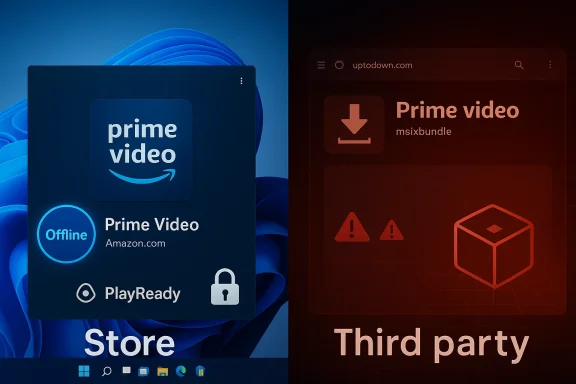
Split-screen showing Prime Video on Windows (left) and a third-party download page (right).Background / Overview​

Amazon first surfaced a native Prime Video client for Windows in a staggered rollout beginning in mid‑2020; the move closed a long‑standing gap between mobile apps (which support offline downloads) and the browser experience on desktops. The Microsoft Store distribution (a UWP/Store‑style package) allowed Amazon to offer platform‑specific features — most importantly, the ability to download titles for offline playback on laptops and tablets. Early coverage and community threads documented the rollout and hids capability as the headline feature.
That official Store path remains the recommended, supported route for most users who need downloads. However, a parallel ecosystem of third‑party download sites has emerged that republishes Microsoft Store packages (MSIX / MSIXBUNDLE files) for users who can’t or won’t use the Store. Uptodown is one high‑profile example: it currently lists Amazon Prime Video for Windows as an MSIXBUNDLE with a version history, SHA‑256 hashes, and editorial notes claiming the package is the official client from Amazon. Those listings have large download counts and appear in multiple language editions of the site.
There are two practical consequences:
  • For convenience: third‑party bundles let users sideload the app on machines that may not have friend some corporate, regional, or S‑mode locked devices).
  • For risk: the repackaged bundles bypass Microsoft’s Store distribution model and its update/validation flow, creating potential security, integrity, and privacy concerns that users must evaluate.

What “official” means: Microsoft Store vs third‑party MSIX bundles​

The Microsoft Store route (what you should expect)​

  • When you install Prime Video through the Microsoft Store the publisher is listed as Amazon and the package is delivered through Store update channels.
  • Store apps can integrate more directly with Windows DRM stacks and platform codecs. That integration is why the Store app supports true offline downloads in a way browser playback cannot. The offline files are tied to an app‑bound license enforced by the platform.

Third‑party packages (Uptodown and similar)​

  • Sites such as Uptodown publish MSIXBUNDLE files and make them available for direct download; Uptodown’s Prime Video listing shows multiple msixbundle versions with timestamps and SHA‑256 checksums. They present editorial notes suggesting the packages come from Amazon, and they provide download convenience for users who cannot use the Microsrime-video-for-windows.en.upto
  • Rehosted Store packages can be legitimate (mirror of a Store file), but they may also be repackaged, modified, or include additional wrappers. Uptodown displays a security/antivirus report area and a checksum, which is better than blind downloads — but a checksum alone does not prove the file came from Amazon’s servers unless you can verify it against an official source.

The technical chain that determines what you can actually watch or download​

The presence of an app alone does not guarantee HD or 4K downloads. Three technical pillars determinen Windows:
  • DRM (PlayReady and security levels): On Windows the industry‑accepted DRM for many premium apps is Microsoft PlayReady. PlayReady enables persistent offline licenses inside Store apps, but studios often require higher PlayReady security levels (for example, SL3000) and hardware‑backed trust before allowing HD/UHD playback. That’s why many W720p or 1080p even with the app installed — the PlayReady hardware/firmware chain is the gating factor.
  • Codecs (HEVC/AV1) and hardware decode: Efficient HD/UHD delivery uses HEVC (H.265) and AV1; on Windows, HEVC support is commonly delivered via the HEVC Video Extensions or OEM drivers. Without hardware decode or the correct extensions, playback may fall back to software decoding or be restricted to lower resolutions.
  • Platform integration and CDMs in browsers vs Store apps: Browsers often rely on different CDMs (Widevine in Chromium browsers, PlayReady in Edge where supported), which leads to different resolution ceilings and behavior. Native Store apps can access platform DRM and issue offline licenses; browsers generally cannot provide the same portable, persistent offline license model. Microsoft Edge and PWA behavior also affect how web apps are installed and used on Windows.
These constraints explain why the Microsoft Store app can provide an offline download capability that a browser cannot (or will not) replicate in a portable file format.

The Uptodown conundrum — convenience vs verification​

Uptodown’s pages for Amazon Prime Video indicate:
  • A file type of MSIXBUNDLE, with version history entries and SHA‑256 values.
  • Editorial comments that label the listing “the official Amazon app” and note the ability to download content for offline playback.
But there are critical verification gaps when you download MSIX bundles outside the Microsoft Store:
  • Did Amazon sign this package? Is the signature intact and chaining to a trusted CA?
  • Was the package downloaded from Microsoft/Amazon servers or produced by an intermediary?
  • Have dependencies, optional certificates, or additional runtime components been altered or injected?
Uptodown provides a checksum and editorial context — useful clues — but a checksum reported by the host is not the same as an independently verified signature from the publisher. Treat such files as convenient mirrors that still require thorough validation before trusting them.

How to evaluate a Windows MSIX/MSIXBUNDLE before you install it (practical checklist)​

Below is a conservative, forensic checklist for Power users who are considewnload:
  • Confirm the publisher metadata shown in the package and installer UI. If it does not show Amazon (or a clearly attributable Amazon publisher) be suspicious.
  • Verify the cryptographic signature:
  • Use PowerShell: Get-AuthenticodeSignature "<path‑the Status and SignerCertificate. A Status of Valid and a trusted certificate chain is the minimum baseline.
  • Compare SHA‑256 checksums with an authoritative source. If the site provides a checksum, cross‑check that against other mirrors or official channels where possible. A match to multiple independent hosts increases confidence; a single host’s checksum is useful but not definitive.
  • Inspect the package manifest and metadata (tools/PowerShell modules exist to extract AppxManifest from MSIX). Look for dependencies and required capabilities. Avoid packages that request unusual, high‑privilege capabilities.
  • Run the installer in a controlled environment (VM or disposable test machine) first. Check network behavior and outbound connections during the first run. Monitor certificate prompts and unexpected UAC elevations.
  • If you do install, install updates only from Microsoft or Amazon channels afterward; mixing update channels (Store vs manual MSIX) increases fragility.

Safe installation: step‑by‑step for the cautious user​

If you still want to install an MSIX bundle (for instance, because you cannot access the Store), follow this sequence to reduce risk:
  • Create a full system backup / restore point.
  • Confirm the MSIX file signature:
  • Open PowerShell as Administrator and run:
  • $sig = Get-AuthenticodeSignature -FilePath "C:\Path\to\app.msixbundle"
  • Inspect $sig.Status and $sig.SignerCertificate. If the status is NotSigned, HashMismatch, or UnknownError, do not proceed.
  • (Optional but recommended) Install in a VM or non‑persistent test Windows instar.
  • Install App Installer (if not present) from the Microsoft Store to get a safer installer UI; if that fails, use PowerShell’s Add-AppxPackage cmdlet:
  • Add-AppxPackage -Path "C:\Path\to\app.msixbundle"
  • If dependencies are required, install those in the proper order. Expect the installer to surface any dependency errors.
  • Inspect installed app’s Digital Signature and publisher in the Installed Apps list and via File Explorer > Properties > Digital Signatures (when applicable).
  • After installation, sign in and monitor account activity. If Amazon reports a sudden flood of “new device” logins, treat that as a red flag.

Security and privacy risks explained​

  • Repackaging risk: An MSIX bundle can be repackaged to include additional executables, telemetry, or adware. Even if the app UI looks the same, a repackaged bundle can call home to different servers or include hidden binaries. This is the single largest risk with third‑party stores.
  • Signature forgery and tampering: A file that is unsigned or signed with a dubious certificate may still run; signature checks are essential. Tools like Get-AuthenticodeSignature and the Digital Signatures tab provide immediate clues. If a signature chains to a root not widely trusted, consider it suspect.
  • Privacy / analytics disclaimers: Boilerplate privacy text (for example, “The technical storage or access that is used exclusively for statistical purposes…”) is often copied into cookie dialogs and site policies by third parties. That wording is not a guaranymity — it’s legal boilerplate for cookie consent. You should treat it as a prompt to audit what trackers or analytics the site or packaged app uses, and whether personal data is being shared with third parties.
  • DRM and account risk: Sideloaded or unofficial clients may mishandle DRM or credential flows. If a package asks you to re‑enter credentials and then shows unusual account activity (Amazon sending new device notifications), revoke sessions and check your Amazon account security. Use multi‑factor authentication (MFA) on your Amazon account.

When the Microsoft Store isn’t an option: alternatives and tradeoffs​

If you cannot or will not use the Microsoft Store, consider these alternatives before trusting a te the web interface in a browser for streaming (no offline downloads, but the simplest and lowest‑risk option). Browsers will stream most content and are regularly patched. Note that browsers rely on different CDMs and may limit resolution compared with a Store app.
  • Use an officially supported platform (mobile device, Fire tablet, smart TV) for reliable offline downloads and HDR/4K playback. Many platforms have a straightforward, secure app distribution channel.
  • If you must sideload, prefer packages with:
  • A clear publisher signature that validates to a trusted CA;
  • A checksum published by multiple reputable mirrors;
  • Positive, independent community audits or antivirus scans performed by third‑party vendors.

The broader context: platform shifts and why this matters now​

Two parallel platform shifts increase the stakes for Windows users:
  • Microsoft’s ongoing Store and DRM strategy means content owners expect apps to integrate with PlayReady and platform codecs to validate offline licenses and higher bitrates. That creates legitimate technical gates and a rationale for Store‑distributed clients rather than browser‑only approaches.
  • Microsoft’s evolving handling of the Amazon Appstore / Windows Subsystem for Android (and the Movies & TV storefront changes) has reshaped the ways apps and media are delivered on Windows. Recent Microsoft support notices and Store policy changes have made some cross‑platform paths (Android on Windows, Store purchases) more brittle, increasing demand for direct MSIX distribution in edge cases — and increasing the temptation to use third‑party mirrors. Be mindful: policy changes on the platform side can affect what you can and cannot legally or practically do with a given package.

Final assessment: recommended approach for Windows users​

  • For most users who want a safe, supported Prime Video experience on Windows 10/11 — including offline downloads — the Microsoft Store route is the only one that reliably delivers correct DRM integration, updates, and lower risk. Confirm the publisher shows as Amazon and install from the Store when possible.
  • If you cannot use the Microsoft Store and weigh installing a third‑party MSIX bundle:
  • Treat the file as untrusted software until proven otherwise.
  • Verify digital signatures and checksums.
  • Install only after running the file in a VM/test environment.
  • Maintain strong account security (MFA) and monitor Amazon account device activity for anomalies.
  • Avoid tools or sites that offer “DRM removal” or “convert Prime downloads to MP4” — these tools break DRM and are often illegal in many territories; they also introduce high security and privacy risk. Rely on official app features for offline viewing.

Conclusion​

Amazon Prime Video on Windows is technically available in a variety of forms: a Microsoft Store app that integrates with Windows’ DRM and download ecosystems, and repackaged MSIXBUNDLEs circulated on third‑party sites like Uptodown for users who can’t access the Store. The Store client is the safest, supported option and the only one that reliably enables offline downloads in the way rights holders expect; third‑party bundles can provide practical workarounds but require forensic verification — signatures, checksums, and test installs — before trusting them on a primary device. In short: convenience is tempting, but verify cryptographic signatures, use controlled test environments for sideloads, and prefer the Microsoft Store whenever you can.

Source: Born2Invest https://born2invest.com/?b=style-755694412/
 

Back
Top