Amazon’s official Prime Video app from the Microsoft Store is the practical default for watching and downloading Prime content on Windows 10 — but calling it simply “the best” requires context: for offline downloads and a Store-native experience it’s the only fully featured, supported Amazon client on Windows, while the browser experience and platform DRM/codec limits shape what “best” means in terms of resolution, reliability, and portability. on.co.uk])
Amazon released a Microsoft Store version of Prime Video for Windows 10 that behaves like a Universal Windows Platform (UWP)-style client: a desktop-optimized UI, access to Prime Originals and purchases, and the headline feature that pushed this release into relevance — offline downloads for PC. That feature closed a long-standing gap between mobile apps and desktop browsers and made Windows laptops and tablets vi players for travel and field work.
But the presence of an official app only solves part of the problem. Premium video delivery on Windows is governed by a chain of platform controls — DRM (PlayReady), codec availability (HEVC/AV1), hardware decode support, and OEM/provider-supplied components — and those factors determine the ceiling for resolution, HDR, and DRM-backed offline licenses. In practice, users often find the app delivers predictable offline capability, but with *device-depenty and format.
If you install the app, follow the steps above to maximize reliability and remember the trade-offs: strong offline DRM convenience in exchange for a slightly more complex integration stack. That balance is what defineerience on Windows 10 today.
Source: Born2Invest https://born2invest.com/?b=style-732270512/
 Background / Overview
Amazon released a Microsoft Store version of Prime Video for Windows 10 that behaves like a Universal Windows Platform (UWP)-style client: a desktop-optimized UI, access to Prime Originals and purchases, and the headline feature that pushed this release into relevance — offline downloads for PC. That feature closed a long-standing gap between mobile apps and desktop browsers and made Windows laptops and tablets vi players for travel and field work.But the presence of an official app only solves part of the problem. Premium video delivery on Windows is governed by a chain of platform controls — DRM (PlayReady), codec availability (HEVC/AV1), hardware decode support, and OEM/provider-supplied components — and those factors determine the ceiling for resolution, HDR, and DRM-backed offline licenses. In practice, users often find the app delivers predictable offline capability, but with *device-depenty and format.
What the Prime Video Windows 10 app actually offers
Short, practical summary of the features Windows users care about:- **Streaming of Primeme Originals, licensed movies, and purchased/rented content where regionally permitted).
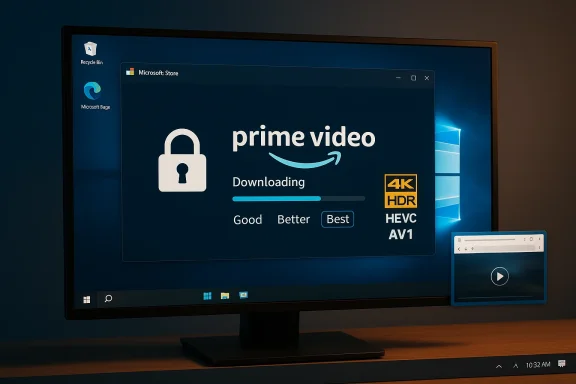
- Offline downloads with selectable quality tie Good, Better, Best) so you can watch without network access.
- Prime Video Channels support add-on channels are available in your country.
- X‑Ray / metadata integration dr to Amazon’s other apps.
- Store distribution & updates via the Microsoft Store, which simplifies installation and updatesers.
Technical deep-dive: DRM, codecs, and the real limits
If you want the best possible Amazon video experience on Windows 10, you must understand three technical pillars that determine what you’ll actually see and download.PlayReady DRM: the gatekeeper
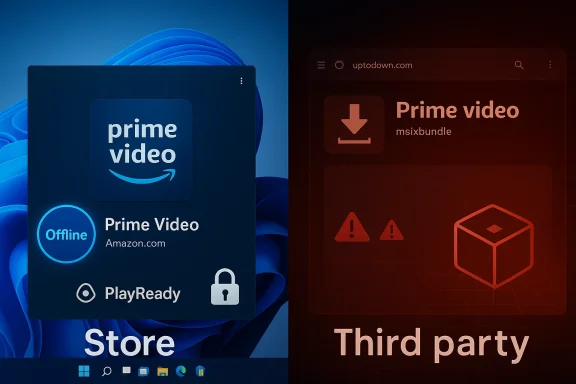
- The Prime Video Windows app uses Microsoft PlayReady to protect premium content and to issue offline licenses. PlayReady enables persistent licenses (so downloads can be played offline), but studios often require higher PlayReady security levels (for example SL3000) to permit HD/UHD playback. Not every PC implements Placurity level, and that is a hard precondition for the highest-quality streams.
- Practical consequence: having the app installed is necessary but not sufficient for 4K or HDR playback. Firmware, signed drivers, and PlayReady support must all align before Amazon wils. Many consumer laptops do not meet these requirements.
Codecs: HEVC and AV1 matter
- Modern streaming uses HEVC (H.265) and increasingly AV1 for efficient HD and UHD delivery. On Windows, HEVC is frequently delivered via Microsoft Store codec packages (the HEVC Video Extensions) or via OEM-supplied decoders; without proper hardware decode support, playbacktware decode or reduced resolution.
- AV1 hardware decode is newer and uneven across chipsets; on older or midrange hardware AV1 content will either be unavailable or require expensive CPU decoding, which can stutter and drain battery.
Resolution ceilings and the real-world picture
- Independent testing and community reports consistently showed that many Windows devices saw maximum streaming or downloaded resolutions of 720p or 1080p, not 4K, unless the device met strict DRM and codec prerequisites. Amazon’s own system documentation frames Windows clients as supporting up to HD, further reinforcing that the expectation for 4K on Windows shouprjsurvey.amazon.co.uk])
- A practical planning figure often cited for the app’s Best download quality is roughly ~2.4 GB per hour of video. That estimate is useful for travel planning but should be treather than an absolute; codec, content bitrates, and chosen quality tier cause variance.
Installation and optimization: step-by-step
If you choose the Prime Video app as your Windows 10 video client, follow this sequence to avoid common pitfalls and maximize quality.- Update Windows 10 fully (ecurity → Windows Update). This reduces runtime and DRM mismatches.
- Open Microsoft Store, search for Amazon Prime Video, confirm the publisher is Amazon, and install the app. Use thon to get DRM and Store runtime compatibility.
- Sign in with the Amazon account that holds your Prime Video entitlement. Downloadse account authentication.
- Install codec extensions if you want the best chance at HD/UHD playback: HEVC Video Extensions (OEM variant if recommended), and verify whether AV1 support is present for your chipset. If your machine doesn’t include hardware HEVC/AV1, expect lower rode.
- Keep GPU drivers up to date from your vendor (Intel / AMD / NVIDIA). Driver regressions are a frequent cause of stutter or playback fail’s settings, pick a download quality: Good / Better / Best. Reserve Best for high-capacity NVMe SSDs or when streaming bandwidth is abundant.
Troubleshooting: common proPrime Video Store app is generally dependable, but several consistent failure modes appear in community reports. Here are the practical fixes that solve most cases.
- Symptom: Stuttering or system-wide jerkiness while the Prime app window is visible.
Fixes: ensure the app uses the dedicated GPU (if present), update GPU drivers, and confirm the WebView2 runtime is current; if the problem persists try resetting the app (Settings → Apps → Prime Video → Reset). Community threads suggest WebView2/driver mismatches are common culprits. - Symptom: Downloads missing / gray download button.
Fixes: confirm regional availability (content licensing varies by country), update Windows and the Microsoft Store, and verify your Amazon account has Prime or the necessary purchase entitlement. Some early rollout quirks affected availability dunch window; verify the Store listing and app version. - Symptom: Low maximum resolution (720p/1080p) despite 4K display.
Explanation: DRM and signed hardware path rules gate 4K. Unless your device implements PlayReady at the required security level and the codec/hardware chain supports HEVC/AV1 decode, 4K will be unavailable. Verify PlayReady support and codec install status; when in doubentation or device spec sheets. - Symptom: Downloaded files won’t play on other devices.
Explanation: downloads are encrypted and bound to the Prime Video app and the device’s DRM entitlement. This is expected behavior; portable.
Alternatives and how they compare
If “best” means different things to different users, here’s how the three common ways to consume Amazon video on Windows compare.- Prime Video app (Microsoft Store): best for offline downloads, simple Store-managed installation, and integration with PlayReady for persistent licenses. Expect the most consistent offline behavior on Windows devices with matched codec/DRM stacks.
- Web browrefox): best for cross-platform convenience and sometimes easier access to playback on desktops. Browsers typically use Widevine or PlayReady CDMs depending on platform and may stream HD, but browser-based playback cannot always support the same offline licensing semantics as the Store app. For many users, the browser will be perfectly acceptable for casual streaming.
- Android app via Windows 11 Android support (Amazon Appstore): relevant only on Windows 11 and not Windows 10. This is a separate compatibility path and can lead to different DRM/feaot a viable option for Windows 10 users.
Strengths — why the Store app stands out
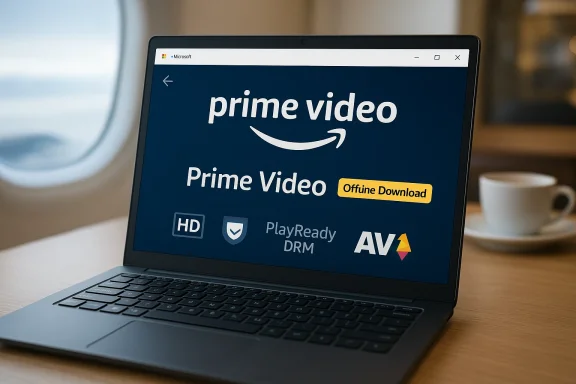
- Offline downloads on laptops give real travel utility and parity with mobile platforms. For long flights or remote work environments the app transforms a Windowete offline player.
- PlayReady integration enables more robust offline entitlements than browser caching can provide, reducing the chances of playback fa
- Microsoft Store distribution simplifies updates and lowers the barrier for less technical users to install and update the client.
veats — what makes the experience variable - Fragmented Windows hardware: the diversity of PCs means DRM and codec support vary dramatically. The result is inconsistent delivery ceilings and unexpected failure modes for users who assume every laptop is equal.
- **Complex dependegs go wrong you may need to update Windows, the Store runtime, WebView2, GPU drivers, and codec packages. That creates more troubleshooting steps than a typical browser-only streaming problem.
- No portable downloads: offline filevice and app; you cannot archive or copy them to another computer. Plan around that constraint for long trips that change devices.
- Regional and licensing quirks: title availability for dovaries by country; some content is not permitted to be downloaded in certain regions. Always check the title’s download icon before travel.
Practical recommendations: who should use which option
- If you need downloads for offline viese the Prime Video Microsoft Store app and follow the optimization checklist (update Windows, install HEVC/AV1 if available, use internal storage).
- If you just stream occasionally and hate extra configuration: use your browser of choice and accept you’ll lack offline dier cross-device parity.
- If you demand 4K/HDR on a PC: evaluate device specs carefully for PlayReady SL3000 support and HEVC/AV1 hardware decode before assuming the app will deliver UHD; this is the hardest scenario to guarantee on Windows laptops.
Final verdict: is the Prime Video app the “bor Windows 10”?
Yes — with nuance.- For Windows 10 users who prioritize offline downloads, the Microsoft Store Prime Video app is effectively the best and only fully supported Amazon client that provides that capability on Windows. Its integration with PlayReady and the Store makes it the correct choice for travel, fieldwork, or any situation where connectivity can’t be assumed.
- If “best” is measured by simplicity and lowest friction, the browser sfewer dependencies and faster setup for users who don’t need offline playback. Official Amazon documentation also frames browser playback as a simple route to HD streams on many platforms.
- If “best” means highest quality 4K/HDR, the current Windows ecosystem makes that a difficult label to award. The strict DRM and hardware requirements mean most laptops won’t be able to hit UHD even with the app installed; achieving 4K often requires an explicitly certified device or streaming path.
Conclusion
The Prime Video Microsoft Store app solved a tangible user need — downloads on Windows 10 — and it did so by leveraging platform DRM and Store distribution. That made laptops more useful as offline media players, but it also introduced the real-world complexity of PlayReady, HEVC/AV1 codec dependencies, and device-specific limits on resolution. For Windows 10 users the app is the recommended route when offline capability matters; for pure streaming, the browser remains a perfectly viable and simpler option. Check device codec support, update drivers, and verify PlayReady capabilities before relying on 4K promises — and plan download storage with realistic per-hour size heuristics in mind.If you install the app, follow the steps above to maximize reliability and remember the trade-offs: strong offline DRM convenience in exchange for a slightly more complex integration stack. That balance is what defineerience on Windows 10 today.
Source: Born2Invest https://born2invest.com/?b=style-732270512/