

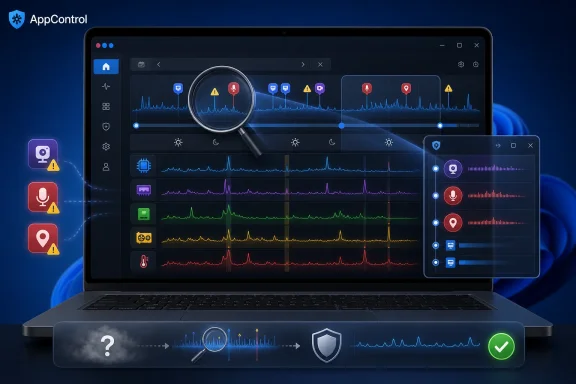
AppControl is a free Windows 10 and Windows 11 utility that monitors running apps, processes, hardware usage, temperatures, privacy-sensitive access, and recent system events, giving users a rolling three-day view of what slowed a PC instead of Task Manager’s mostly live snapshot. That distinction matters because most Windows slowdowns are not polite enough to happen while you are staring at Task Manager. They arrive as stutters, fan bursts, frozen tabs, disk churn, and the vague suspicion that something on the machine is doing work you did not ask for.
The pitch is simple: AppControl does not merely show what is happening now; it tries to show what happened. That turns Windows troubleshooting from a guessing game into something closer to a timeline.
Task Manager remains one of Windows’ most useful built-in tools because it answers the first question everyone asks when a PC bogs down: what is using the CPU, memory, disk, network, or GPU right now? For many problems, that is enough. A runaway browser tab, a stalled installer, a game launcher chewing through updates, or an obviously broken app will usually show up near the top of the list.
The weakness is that Task Manager is fundamentally a live instrument. It is excellent when the problem is happening in front of you and far less helpful when the machine was slow ten minutes ago, hot overnight, or mysteriously busy while idle. Windows has deeper tools for that sort of work, but they live in places ordinary users rarely go: Event Viewer, Resource Monitor, Performance Monitor, reliability history, security logs, vendor control panels, and third-party utilities.
AppControl’s argument is that the missing layer is not another prettier process list. It is history. A rolling three-day record of CPU, memory, disk, GPU, temperatures, app launches, updates, unsigned binaries, and privacy-access events gives the user a chance to connect symptoms to causes after the fact.
That makes it less a Task Manager replacement than a consumer-friendly observability layer for Windows. The word observability usually belongs to cloud infrastructure and production services, but the same idea applies to a personal PC: if you cannot see what changed, you cannot explain why the system feels different.
That is why rebooting feels so effective and so unsatisfying. It clears the immediate condition without preserving the evidence. If the real trigger was an updater, background indexing, a thermal spike, a driver helper, a sync client, or a browser process that briefly went feral, the restart gives you a clean slate and no diagnosis.
AppControl’s moving graph and historical event view are built for that gap. Hovering over spikes to see which apps were consuming CPU or memory at a specific point is more useful than scanning a live list after the storm has passed. The same goes for GPU usage, disk activity, and temperature history, especially on laptops where thermal throttling can make a high-end processor feel like a budget chip.
This is where the tool’s appeal becomes obvious. It recognizes that modern Windows performance problems are often episodic. The culprit may not be “always bad”; it may be bad at 2:13 p.m., after waking from sleep, during a cloud sync, while a browser has 40 tabs open, or immediately after a software update.
AppControl’s plain-language app and process descriptions are meant to reduce that friction. Instead of forcing users to copy an executable name into a search engine and hope the results are not SEO sludge, the tool attempts to explain what a process does from inside the interface. That is not a substitute for expert judgment, but it lowers the barrier to sensible troubleshooting.
The ability to disable or kill a process also gives AppControl sharper teeth than a passive dashboard. Killing a frozen app is familiar Task Manager territory. Disabling a recurring troublemaker is a more consequential action, and it is where users need to slow down.
A process using resources is not automatically malicious or unnecessary. Some of the noisiest processes on a Windows PC are doing legitimate maintenance. The value of AppControl is not that it encourages users to terminate anything that spikes. It is that it gives them enough context to decide whether a spike is expected, repeated, abnormal, or tied to the moment the PC became unusable.
A CPU spike is annoying. A microphone access event at an unexpected time feels personal.
Windows already includes privacy controls and indicators, and Microsoft has improved transparency around permissions over the years. But those controls are not the same as a local timeline that says which app accessed what and when. For users who have learned to distrust the invisible churn of desktop software, that history is the feature that makes AppControl feel less like a utility and more like a watchdog.
The same applies to unsigned apps, new applications, software updates, and service changes. These signals are not proof of compromise by themselves, but they are useful prompts. A new unsigned binary launching in the background deserves a different level of attention than a known signed updater doing scheduled work.
For IT pros, that distinction is obvious. For home users, it is often the difference between paranoia and practical suspicion. AppControl’s challenge is to present those events without making every normal background process feel like an emergency.
That is an elegant use of AI because the model is not being asked to hallucinate generic PC advice from memory. It is being given a local dataset and asked to summarize patterns in plain English. In theory, that is exactly where assistants should shine: reducing a dense timeline into a short explanation and a few next steps.
But it also requires a trust decision. AppControl’s MCP server is described as read-only, meaning the AI connection can query data but not change rules or modify system configuration. That is the right boundary. Still, allowing any AI tool to inspect local system activity is not something users should treat casually.
For enthusiasts, the appeal is obvious. For administrators, the reaction will be more cautious. Local telemetry about apps, processes, locations, hardware, and privacy events can be sensitive even if it never includes document contents. The safest use is with a clear understanding of what data is exposed, which assistant is receiving it, and whether the workflow stays local or involves a cloud model.
That fragmentation creates an opening for tools that package system visibility in a friendlier way. AppControl is not the first Windows utility to promise deeper insight, and power users have long relied on Sysinternals, HWiNFO, Process Explorer, Process Monitor, GPU-Z, vendor tools, and monitoring overlays. The difference is that AppControl is trying to make a broad slice of that visibility legible to people who do not want to become part-time Windows internals specialists.
That is why the comparison with Task Manager is both fair and incomplete. Task Manager is built into Windows, trusted by default, fast to open, and good enough for common triage. AppControl is more ambitious because it is trying to answer a different question: not “what is wrong right now?” but “what has this machine been doing?”
Microsoft could build more of this into Windows. A friendlier historical performance and privacy timeline would fit naturally into Settings, Task Manager, or the Windows Security app. Until then, third-party utilities will keep filling the gap.
That matters because performance tools can encourage a kind of amateur surgery. Users see a process using memory, assume memory usage is bad, kill it, and then wonder why another app broke. They see disk activity, assume something malicious is happening, and interrupt a legitimate update. They see temperature spikes and blame the app, when the root cause may be dust, firmware, a bad fan curve, or a laptop sitting on a blanket.
The best way to use AppControl is as a witness, not a judge. It can show the timeline, identify suspects, and preserve clues that Windows often lets disappear. It cannot automatically decide whether a process is safe to disable, whether an app is badly written, or whether a slowdown is caused by software rather than hardware.
That is especially true for AI-assisted explanations. A model can summarize the obvious pattern, but the quality of the answer depends on the quality of the data and the boundaries of the question. “What caused my PC to slow down?” may produce a useful lead; it should not be treated as a forensic verdict.
For sysadmins, the value is more situational. AppControl looks useful for individual troubleshooting, especially on personal workstations, lab machines, developer boxes, and troublesome PCs where symptoms are intermittent. It is less obviously a fleet-management product, and organizations with mature endpoint tooling will already have centralized telemetry, EDR, logging, and policy controls.
For ordinary users, the sweet spot is the moment after frustration but before panic. If the PC is slow, the fan is screaming, the browser freezes, or something feels wrong after installing new software, AppControl may provide a clearer first look than Task Manager alone. That does not mean every user should leave another resident utility running forever, but it does make a strong case for keeping it in the troubleshooting kit.
The free price also changes the calculus. A paid utility has to justify itself against built-in Windows tools and established power-user favorites. A free utility only has to be useful enough to earn a place on the machine, and AppControl’s historical view is distinctive enough to do that.
That trade-off is sensible. Most user-facing slowdowns are investigated soon after they happen. If your laptop locked up yesterday afternoon or your desktop fans ramped up overnight, a three-day window is enough to reconstruct the scene.
It also keeps the product focused. AppControl is not trying to be an enterprise SIEM or a months-long audit log. It is trying to answer the common home and enthusiast question: what just happened to my PC?
That focus is why the tool feels more practical than grandiose. It does not promise to fix Windows. It promises to make Windows less mysterious at the exact moment users usually give up and reboot.
The pitch is simple: AppControl does not merely show what is happening now; it tries to show what happened. That turns Windows troubleshooting from a guessing game into something closer to a timeline.
 Task Manager Still Wins the Moment, but Loses the Memory
Task Manager remains one of Windows’ most useful built-in tools because it answers the first question everyone asks when a PC bogs down: what is using the CPU, memory, disk, network, or GPU right now? For many problems, that is enough. A runaway browser tab, a stalled installer, a game launcher chewing through updates, or an obviously broken app will usually show up near the top of the list.The weakness is that Task Manager is fundamentally a live instrument. It is excellent when the problem is happening in front of you and far less helpful when the machine was slow ten minutes ago, hot overnight, or mysteriously busy while idle. Windows has deeper tools for that sort of work, but they live in places ordinary users rarely go: Event Viewer, Resource Monitor, Performance Monitor, reliability history, security logs, vendor control panels, and third-party utilities.
AppControl’s argument is that the missing layer is not another prettier process list. It is history. A rolling three-day record of CPU, memory, disk, GPU, temperatures, app launches, updates, unsigned binaries, and privacy-access events gives the user a chance to connect symptoms to causes after the fact.
That makes it less a Task Manager replacement than a consumer-friendly observability layer for Windows. The word observability usually belongs to cloud infrastructure and production services, but the same idea applies to a personal PC: if you cannot see what changed, you cannot explain why the system feels different.
The Slow PC Is Usually a Timeline Problem
The most familiar Windows slowdown is not a catastrophic failure. It is the machine becoming just sluggish enough to interrupt work. The mouse still moves, the app eventually responds, the browser tab might recover, and the system looks “fine” by the time you open Task Manager.That is why rebooting feels so effective and so unsatisfying. It clears the immediate condition without preserving the evidence. If the real trigger was an updater, background indexing, a thermal spike, a driver helper, a sync client, or a browser process that briefly went feral, the restart gives you a clean slate and no diagnosis.
AppControl’s moving graph and historical event view are built for that gap. Hovering over spikes to see which apps were consuming CPU or memory at a specific point is more useful than scanning a live list after the storm has passed. The same goes for GPU usage, disk activity, and temperature history, especially on laptops where thermal throttling can make a high-end processor feel like a budget chip.
This is where the tool’s appeal becomes obvious. It recognizes that modern Windows performance problems are often episodic. The culprit may not be “always bad”; it may be bad at 2:13 p.m., after waking from sleep, during a cloud sync, while a browser has 40 tabs open, or immediately after a software update.
AppControl Turns Background Noise Into Evidence
Windows is full of background work, and not all of it is suspicious. Microsoft Defender scans, Windows Update sessions, browser updaters, Office click-to-run services, game launchers, vendor utilities, and cloud storage clients all compete for resources. The problem is that they tend to look like anonymous noise unless you know what to look for.AppControl’s plain-language app and process descriptions are meant to reduce that friction. Instead of forcing users to copy an executable name into a search engine and hope the results are not SEO sludge, the tool attempts to explain what a process does from inside the interface. That is not a substitute for expert judgment, but it lowers the barrier to sensible troubleshooting.
The ability to disable or kill a process also gives AppControl sharper teeth than a passive dashboard. Killing a frozen app is familiar Task Manager territory. Disabling a recurring troublemaker is a more consequential action, and it is where users need to slow down.
A process using resources is not automatically malicious or unnecessary. Some of the noisiest processes on a Windows PC are doing legitimate maintenance. The value of AppControl is not that it encourages users to terminate anything that spikes. It is that it gives them enough context to decide whether a spike is expected, repeated, abnormal, or tied to the moment the PC became unusable.
Privacy Alerts Make the Performance Tool More Interesting
The most striking part of AppControl is that it does not stop at performance. It also watches for access to the webcam, microphone, and location, then lets users filter apps by those capabilities and create alerts around privacy-sensitive events. That changes the emotional register of the product.A CPU spike is annoying. A microphone access event at an unexpected time feels personal.
Windows already includes privacy controls and indicators, and Microsoft has improved transparency around permissions over the years. But those controls are not the same as a local timeline that says which app accessed what and when. For users who have learned to distrust the invisible churn of desktop software, that history is the feature that makes AppControl feel less like a utility and more like a watchdog.
The same applies to unsigned apps, new applications, software updates, and service changes. These signals are not proof of compromise by themselves, but they are useful prompts. A new unsigned binary launching in the background deserves a different level of attention than a known signed updater doing scheduled work.
For IT pros, that distinction is obvious. For home users, it is often the difference between paranoia and practical suspicion. AppControl’s challenge is to present those events without making every normal background process feel like an emergency.
The AI Hook Is Clever, but It Raises the Stakes
The optional MCP integration is the feature most likely to attract attention beyond the Windows utility crowd. By connecting AppControl to an AI assistant such as Claude or another compatible tool, users can ask natural-language questions about recent system behavior: what used the most resources, what ran while the PC was idle, what caused a heat spike, or what touched the webcam and microphone.That is an elegant use of AI because the model is not being asked to hallucinate generic PC advice from memory. It is being given a local dataset and asked to summarize patterns in plain English. In theory, that is exactly where assistants should shine: reducing a dense timeline into a short explanation and a few next steps.
But it also requires a trust decision. AppControl’s MCP server is described as read-only, meaning the AI connection can query data but not change rules or modify system configuration. That is the right boundary. Still, allowing any AI tool to inspect local system activity is not something users should treat casually.
For enthusiasts, the appeal is obvious. For administrators, the reaction will be more cautious. Local telemetry about apps, processes, locations, hardware, and privacy events can be sensitive even if it never includes document contents. The safest use is with a clear understanding of what data is exposed, which assistant is receiving it, and whether the workflow stays local or involves a cloud model.
Microsoft Has Left Room for This Kind of Tool
The existence of AppControl is also an indictment of a long-standing Windows design problem. Microsoft has all the ingredients for serious troubleshooting, but they are spread across too many surfaces. Task Manager is approachable, Event Viewer is dense, Performance Monitor is powerful but unfriendly, and many useful signals are buried in settings panes or logs that normal users never see.That fragmentation creates an opening for tools that package system visibility in a friendlier way. AppControl is not the first Windows utility to promise deeper insight, and power users have long relied on Sysinternals, HWiNFO, Process Explorer, Process Monitor, GPU-Z, vendor tools, and monitoring overlays. The difference is that AppControl is trying to make a broad slice of that visibility legible to people who do not want to become part-time Windows internals specialists.
That is why the comparison with Task Manager is both fair and incomplete. Task Manager is built into Windows, trusted by default, fast to open, and good enough for common triage. AppControl is more ambitious because it is trying to answer a different question: not “what is wrong right now?” but “what has this machine been doing?”
Microsoft could build more of this into Windows. A friendlier historical performance and privacy timeline would fit naturally into Settings, Task Manager, or the Windows Security app. Until then, third-party utilities will keep filling the gap.
The Real Risk Is Overconfidence, Not Complexity
AppControl throws a lot of data at the user, but data volume is not the main risk. The bigger risk is interpretation. A graph spike, an unsigned app, a hot CPU, or a background service change can mean many things.That matters because performance tools can encourage a kind of amateur surgery. Users see a process using memory, assume memory usage is bad, kill it, and then wonder why another app broke. They see disk activity, assume something malicious is happening, and interrupt a legitimate update. They see temperature spikes and blame the app, when the root cause may be dust, firmware, a bad fan curve, or a laptop sitting on a blanket.
The best way to use AppControl is as a witness, not a judge. It can show the timeline, identify suspects, and preserve clues that Windows often lets disappear. It cannot automatically decide whether a process is safe to disable, whether an app is badly written, or whether a slowdown is caused by software rather than hardware.
That is especially true for AI-assisted explanations. A model can summarize the obvious pattern, but the quality of the answer depends on the quality of the data and the boundaries of the question. “What caused my PC to slow down?” may produce a useful lead; it should not be treated as a forensic verdict.
Where It Fits on a Serious Windows Bench
For Windows enthusiasts, AppControl belongs in the category of tools that make the operating system less opaque. It is not a cleaner, not an optimizer, not a magic speed button, and not a replacement for basic maintenance. Its strength is that it makes background behavior visible enough to investigate.For sysadmins, the value is more situational. AppControl looks useful for individual troubleshooting, especially on personal workstations, lab machines, developer boxes, and troublesome PCs where symptoms are intermittent. It is less obviously a fleet-management product, and organizations with mature endpoint tooling will already have centralized telemetry, EDR, logging, and policy controls.
For ordinary users, the sweet spot is the moment after frustration but before panic. If the PC is slow, the fan is screaming, the browser freezes, or something feels wrong after installing new software, AppControl may provide a clearer first look than Task Manager alone. That does not mean every user should leave another resident utility running forever, but it does make a strong case for keeping it in the troubleshooting kit.
The free price also changes the calculus. A paid utility has to justify itself against built-in Windows tools and established power-user favorites. A free utility only has to be useful enough to earn a place on the machine, and AppControl’s historical view is distinctive enough to do that.
The Three-Day Window Changes the Diagnosis
AppControl’s three-day history is both generous and revealing. It is long enough to catch patterns across work sessions, sleep cycles, updates, idle periods, and recurring app behavior. It is short enough to avoid turning a personal PC into a permanent archive of every local event.That trade-off is sensible. Most user-facing slowdowns are investigated soon after they happen. If your laptop locked up yesterday afternoon or your desktop fans ramped up overnight, a three-day window is enough to reconstruct the scene.
It also keeps the product focused. AppControl is not trying to be an enterprise SIEM or a months-long audit log. It is trying to answer the common home and enthusiast question: what just happened to my PC?
That focus is why the tool feels more practical than grandiose. It does not promise to fix Windows. It promises to make Windows less mysterious at the exact moment users usually give up and reboot.
The Culprit Is Easier to Find When the PC Can Remember
The lesson from AppControl is not that Task Manager is obsolete. It is that live diagnostics are no longer enough for a desktop environment where the most disruptive work often happens in bursts, in the background, or while the user is not paying attention.- AppControl’s biggest advantage over Task Manager is its rolling history of recent resource usage and system events.
- Its most practical use is investigating intermittent slowdowns after they occur, rather than hoping the culprit is still visible in a live process list.
- Its privacy alerts add value beyond performance monitoring by recording access to the webcam, microphone, and location.
- Its kill and disable controls are useful, but users should treat them as troubleshooting tools rather than routine optimization buttons.
- Its AI integration is promising because it can summarize local system history, but users should understand what data an assistant can inspect before enabling it.
- Its best role is as a diagnostic witness that helps users make better decisions, not as an automatic judge of what belongs on a Windows PC.
References
- Primary source: ZDNET
Published: 2026-06-25T13:10:08.604407
This free Windows tool shows exactly why my PC is slowing down (and it beats Task Manager)
AppControl reveals which apps are chewing up your memory and system resources - so you can better control them.www.zdnet.com - Related coverage: larevuetech.fr
AppControl débarque sur Windows: l'outil qui garde 3 jours d'historique et traque les applis trop curieuses - La Revue Tech
AppControl, c'est le gestionnaire de tâches que Windows n'a jamais vraiment voulu te donner. Gratuit, léger (un setup autour de 14 Mo) et pensé pour Windows 10 et 11, il fait un truc tout bête mais que le Task Manager gère mal: il te laisse remonter le temps. Jusqu'à trois…larevuetech.fr - Related coverage: vonews.net
- Related coverage: windowsforum.com
AppControl vs Task Manager: 72-Hour Windows Monitoring Timeline for Troubleshooting | Windows Forum
AppControl is a free Windows monitoring utility that launched in February 2026 and gives users a three-day, second-by-second history of CPU, memory, disk...windowsforum.com - Related coverage: justgeek.fr
AppControl : un gestionnaire des tâches avancé pour Windows
AppControl est un gestionnaire des tâches amélioré et gratuit pour Windows avec historique système sur 3 jours, contrôles avancés et alertes de confidentialité.www.justgeek.fr - Related coverage: pureinfotech.com
Windows 11 finally has a proper Task Manager alternative – meet AppControl - Pureinfotech
AppControl brings 3-day system history, app launch tracking, and alerts to Windows 11. Is it better than Task Manager? Here’s the full breakdown. pureinfotech.com
- Related coverage: appcontrol.en.uptodown.com
AppControl for Windows - Download it from Uptodown for free
Download AppControl for Windows for free. Download AppControl – Advanced Task Manager Alternative for Windows. AppControl is a powerful and modern Task...appcontrol.en.uptodown.com - Related coverage: tech.yahoo.com
I tried this free Windows cleanup tool to see if it'd speed up my PC - and it worked
The free Winhance utility boasts that it can optimize and customize Windows the way you prefer.tech.yahoo.com - Related coverage: computertaal.info
AppControl: een gratis tool die je toont wat Windows doet - Computertaal
 computertaal.info
- Related coverage: urbanteach.org
