Microsoft’s April 2026 Windows 11 quality updates are doing exactly what modern Patch Tuesdays so often do: tightening security in one area while creating friction in another. KB5083769 for Windows 11 25H2 and 24H2 introduces new Remote Desktop safeguards meant to blunt spoofing attacks tied to RDP files, but the change is now colliding with a visible UI bug in the new warning window. Microsoft has acknowledged that the dialog can render incorrectly on multi-monitor systems with mixed display scaling, leaving overlapping text or clipped buttons and making the prompt harder to use. In parallel, Microsoft’s KB5082052 for Windows 11 23H2 also includes the new one-time RDP warning behavior, while enterprises are still dealing with the separate BitLocker recovery issue that accompanied the April security wave.
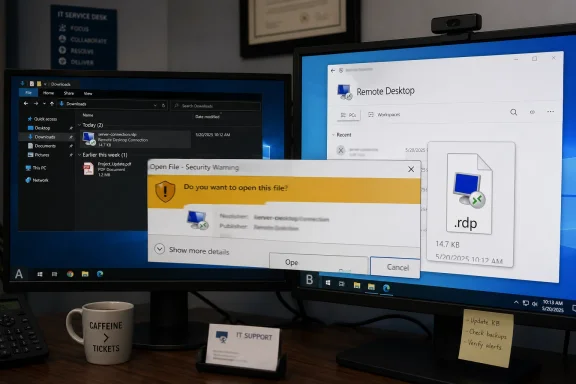
The latest Windows 11 updates are a good reminder that security hardening rarely arrives without some usability tradeoffs. Microsoft is clearly trying to close a phishing-style gap around .rdp files, which can be weaponized to mislead users about where a remote session will connect and what settings it will use. The company’s new approach is more defensive by design: it surfaces connection settings before the session begins and shows a one-time warning the first time an RDP file is opened on a device.
At a technical level, that is a sensible move. Remote Desktop remains a critical enterprise tool, but also a tempting target because the file format can act as a launch point for social engineering. Microsoft’s own support language now explicitly says the update improves protection against phishing attacks that use Remote Desktop files, and the company ties the feature to the April 2026 security cycle. That means this is not an experimental toggle or a fringe feature; it is part of the core monthly security posture for supported Windows 11 releases.
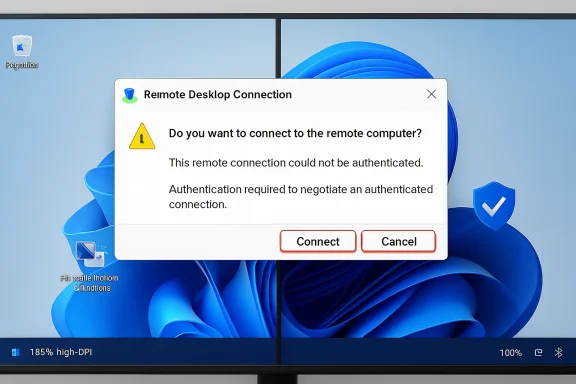
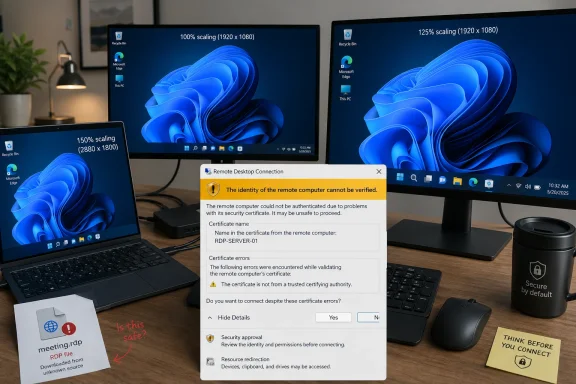
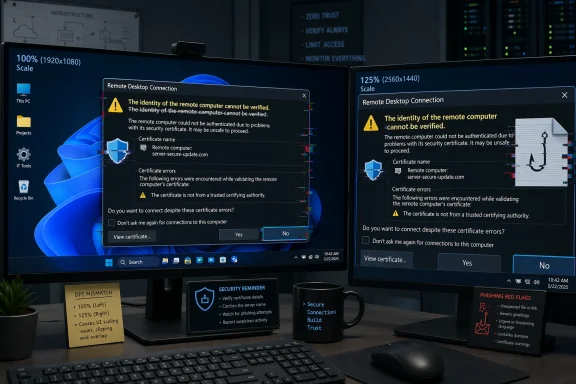
The problem is that the safeguard itself appears to be brittle in a very common workstation setup: multiple monitors with different scale settings. According to Microsoft’s support guidance, the warning window can show overlapping text or partially hidden buttons when displays are set to different scaling values, such as 100% on one monitor and 125% on another. That is especially awkward because the dialog is precisely the kind of trust gate users need to read clearly before proceeding.
This is also happening against a broader backdrop of patch-side turbulence. Microsoft’s April 2026 servicing cadence has already produced a separate BitLocker recovery issue on some managed devices, and that matters because IT teams do not experience update problems in isolation. They experience them as stacked incidents, each one adding a little more pressure to rollout schedules, help desk queues, and user confidence in Windows quality updates.
That design reflects a trust-first approach. Instead of allowing an.rdp file to silently shape a connection, the client now forces the user to acknowledge what is being requested. This is a meaningful defense against spoofing and other deceptive workflows because the attacker’s advantage often comes from speed and familiarity. A warning that clearly spells out the destination and settings can break that flow.
This is exactly the sort of issue that slips past basic testing because it depends on a matrix of conditions. A single-monitor laptop at 100% scaling might never show the defect, while a dual-monitor workstation with 125% and 100% scaling will. In other words, the issue is not random; it is environment-specific, which is often how Windows UX regressions surface in the real world.
Microsoft’s own description makes the impact clear: the text can become difficult to read, and the buttons can become hard to interact with. That is bad enough for ordinary users, but it is even more problematic for IT staff because these prompts often appear during time-sensitive connection attempts. If a warning is meant to slow someone down and make them think, it must still be legible.
The irony is hard to miss. Microsoft introduced the warning to reduce spoofing risk, yet the bug can reduce the warning’s effectiveness precisely when users need clarity most. Security prompts that are partially hidden can create a dangerous form of habituation: users learn to expect annoyance, not guidance. That is the opposite of what Microsoft wants.
The first workaround is the cleanest from a UI perspective. If every display uses the same scaling value, the prompt should render more predictably. The second workaround is more of an accessibility safety valve, but it is important because it gives users a way to proceed even when the dialog is visually compromised.
The keyboard workaround is particularly telling. It works because it bypasses the visual defect, not because it fixes it. That is often the right short-term answer for a support desk, but it underscores why Microsoft needs to patch the rendering problem quickly. A security dialog should be accessible by design, not by accident.
The same Remote Desktop behavior appears across multiple April 2026 update branches. Windows 11 23H2’s KB5082052 also includes the new RDP warning behavior, showing that Microsoft is pushing the safeguard broadly across supported client channels. This is not a one-off change limited to a single OS generation.
The threat model here is less about exploit code and more about deception. An attacker who can convince a user to open a malicious or manipulated.rdp file may be able to steer them toward an unexpected session or alter what they believe they are connecting to. That kind of attack benefits from user haste, routine, and trust in familiar workflows.
That is a defensible model, but it comes with a familiar security-product challenge: the more often users see warnings, the more likely they are to ignore them. This is why layout defects matter. A malformed prompt undermines the very confidence Microsoft is trying to build. If the warning looks broken, users may assume the entire process is untrustworthy.
In that sense, the bug is not merely visual. It is reputational. Security UX is part of trust infrastructure, and broken UI can erode confidence in the feature just as quickly as a failed policy. That is especially true in enterprises, where administrators are already being asked to defend patching decisions to skeptical end users.
For consumers, the story is simpler and potentially more frustrating. Home users who rarely open.rdp files may only notice the issue if they happen to use a dual-monitor setup for work-from-home tasks or remote support. They are also less likely to know what display scaling means, which makes the workaround less intuitive than Microsoft’s technical language suggests.
What stands out here is the relative speed of acknowledgment. Microsoft is directly describing the rendering issue and the conditions that trigger it, which gives administrators something concrete to work with. In practice, that reduces guesswork and helps separate the security feature itself from the UI regression that accompanied it.
A numbered response strategy for IT teams would look like this:
The broader trend is easy to see: Microsoft wants more explicit user confirmation around sensitive actions, especially when file-driven workflows can be exploited. That means more dialogs, more policy nudges, and more pressure on Windows UX quality. In the long run, the success of these changes will depend less on the abstract security idea and more on whether the prompts remain obvious, accessible, and predictable on real-world systems.
Source: Neowin Microsoft: Windows 11 KB5083769, KB5082052 updates causing Remote Desktop issues
 Overview
The latest Windows 11 updates are a good reminder that security hardening rarely arrives without some usability tradeoffs. Microsoft is clearly trying to close a phishing-style gap around .rdp files, which can be weaponized to mislead users about where a remote session will connect and what settings it will use. The company’s new approach is more defensive by design: it surfaces connection settings before the session begins and shows a one-time warning the first time an RDP file is opened on a device.At a technical level, that is a sensible move. Remote Desktop remains a critical enterprise tool, but also a tempting target because the file format can act as a launch point for social engineering. Microsoft’s own support language now explicitly says the update improves protection against phishing attacks that use Remote Desktop files, and the company ties the feature to the April 2026 security cycle. That means this is not an experimental toggle or a fringe feature; it is part of the core monthly security posture for supported Windows 11 releases.
The problem is that the safeguard itself appears to be brittle in a very common workstation setup: multiple monitors with different scale settings. According to Microsoft’s support guidance, the warning window can show overlapping text or partially hidden buttons when displays are set to different scaling values, such as 100% on one monitor and 125% on another. That is especially awkward because the dialog is precisely the kind of trust gate users need to read clearly before proceeding.
This is also happening against a broader backdrop of patch-side turbulence. Microsoft’s April 2026 servicing cadence has already produced a separate BitLocker recovery issue on some managed devices, and that matters because IT teams do not experience update problems in isolation. They experience them as stacked incidents, each one adding a little more pressure to rollout schedules, help desk queues, and user confidence in Windows quality updates.
What Microsoft Changed in RDP Security
The important shift is not merely that Microsoft added a warning. It is that the company changed the user experience around how RDP settings are presented before a connection is established. The support pages say Remote Desktop now shows all requested connection settings before it connects, with each setting turned off by default, and that a one-time security warning appears the first time an.rdp file is opened on a device.That design reflects a trust-first approach. Instead of allowing an.rdp file to silently shape a connection, the client now forces the user to acknowledge what is being requested. This is a meaningful defense against spoofing and other deceptive workflows because the attacker’s advantage often comes from speed and familiarity. A warning that clearly spells out the destination and settings can break that flow.
Why this matters for enterprises
Enterprises live on RDP more than casual users do. Admins, support teams, and remote workers use it as a daily utility, which means any security prompt that adds friction can generate real operational drag. The upside is stronger protection against phishing-style misuse; the downside is that administrators must now account for a prompt that can affect user workflows and remote-support handoffs.- Security posture improves because the client is no longer implicitly trusting the file.
- User comprehension increases because connection parameters are displayed before the session starts.
- Help desk load can rise if the prompt is unreadable or confusing on certain systems.
- Workflow consistency matters because remote support often depends on rapid, predictable launches.
- Policy and training may need updates so staff know what the warning means.
The Display Scaling Bug
The bug Microsoft has confirmed is not a crash or a failure to connect. It is more subtle and, in some ways, more annoying: the warning window may not display properly when monitors have different DPI scaling settings. That means mixed environments — common in offices, hot-desking setups, docking stations, and hybrid workstations — are the most likely to trip it.This is exactly the sort of issue that slips past basic testing because it depends on a matrix of conditions. A single-monitor laptop at 100% scaling might never show the defect, while a dual-monitor workstation with 125% and 100% scaling will. In other words, the issue is not random; it is environment-specific, which is often how Windows UX regressions surface in the real world.
Why mixed-DPI systems are vulnerable
Windows has spent years trying to make high-DPI behavior feel seamless, but legacy applications and security dialogs still expose edge cases. A warning window that is sized or laid out incorrectly on one display arrangement can end up with clipped controls or overlapping copy. In this case, that is not just a cosmetic defect; it can directly interfere with user decision-making.Microsoft’s own description makes the impact clear: the text can become difficult to read, and the buttons can become hard to interact with. That is bad enough for ordinary users, but it is even more problematic for IT staff because these prompts often appear during time-sensitive connection attempts. If a warning is meant to slow someone down and make them think, it must still be legible.
The irony is hard to miss. Microsoft introduced the warning to reduce spoofing risk, yet the bug can reduce the warning’s effectiveness precisely when users need clarity most. Security prompts that are partially hidden can create a dangerous form of habituation: users learn to expect annoyance, not guidance. That is the opposite of what Microsoft wants.
The Workarounds Microsoft Recommends
Microsoft is not offering an emergency rollback here, at least not yet. Instead, it has shared two straightforward workarounds: normalize scaling across all monitors, or use the keyboard to navigate the broken prompt if the mouse targets are unreliable. Those steps are practical, though they are not especially elegant for modern multi-display setups.The first workaround is the cleanest from a UI perspective. If every display uses the same scaling value, the prompt should render more predictably. The second workaround is more of an accessibility safety valve, but it is important because it gives users a way to proceed even when the dialog is visually compromised.
Microsoft’s two immediate fixes
- Set the same Scale value on all displays in Display settings.
- Use the keyboard: press Tab to move focus and Spacebar to select an option.
The keyboard workaround is particularly telling. It works because it bypasses the visual defect, not because it fixes it. That is often the right short-term answer for a support desk, but it underscores why Microsoft needs to patch the rendering problem quickly. A security dialog should be accessible by design, not by accident.
KB5083769 and KB5082052 in the Bigger April Update Picture
The Remote Desktop issue cannot be understood in isolation from the rest of April 2026’s Windows servicing stack. Microsoft’s April security releases have already included other problem areas, most notably the BitLocker recovery issue affecting some devices with an unrecommended Group Policy configuration. That makes this a messy month for enterprise patching, even before anyone notices the broken RDP warning.The same Remote Desktop behavior appears across multiple April 2026 update branches. Windows 11 23H2’s KB5082052 also includes the new RDP warning behavior, showing that Microsoft is pushing the safeguard broadly across supported client channels. This is not a one-off change limited to a single OS generation.
What this says about Microsoft’s priorities
The pattern suggests Microsoft considers RDP phishing resistance a top-tier security initiative. By implementing the warning across Windows 11 servicing branches, the company is signaling that the threat is significant enough to justify a user-facing behavior change, even with the inevitable support cost. That is a notable posture shift for a product family that often prefers invisible security fixes.- The change is broadly deployed, not isolated to a single SKU.
- The user warning is treated as a security control, not a cosmetic enhancement.
- The rollout likely reflects pressure from spoofing and phishing risk.
- The bug shows the limits of shipping security UX changes at scale.
- Enterprises now need to balance patch urgency against workflow disruption.
Why Remote Desktop Remains a Security Hot Spot
Remote Desktop is one of those Windows features that never really leaves the critical path. Even as Microsoft pushes cloud management, modern Windows endpoints, and newer support models, RDP remains embedded in admin workflows, enterprise troubleshooting, and remote access. That makes it both indispensable and persistently attractive to attackers.The threat model here is less about exploit code and more about deception. An attacker who can convince a user to open a malicious or manipulated.rdp file may be able to steer them toward an unexpected session or alter what they believe they are connecting to. That kind of attack benefits from user haste, routine, and trust in familiar workflows.
The strategic logic behind the warning
Microsoft’s new prompt is trying to attack the moment of assumption. The company is saying, in effect, that opening an RDP file should no longer feel like an invisible handoff. The user should be made aware that a file is proposing a connection with specific settings, and those settings should start disabled so the user has to opt in deliberately.That is a defensible model, but it comes with a familiar security-product challenge: the more often users see warnings, the more likely they are to ignore them. This is why layout defects matter. A malformed prompt undermines the very confidence Microsoft is trying to build. If the warning looks broken, users may assume the entire process is untrustworthy.
In that sense, the bug is not merely visual. It is reputational. Security UX is part of trust infrastructure, and broken UI can erode confidence in the feature just as quickly as a failed policy. That is especially true in enterprises, where administrators are already being asked to defend patching decisions to skeptical end users.
Enterprise Impact vs. Consumer Impact
For enterprises, the main concern is control. IT departments can standardize display settings, issue guidance, and train staff to use keyboard navigation if necessary. They can also pace deployment, test the update on multi-monitor environments, and decide whether the new security behavior is worth the operational overhead immediately or after Microsoft ships a fix.For consumers, the story is simpler and potentially more frustrating. Home users who rarely open.rdp files may only notice the issue if they happen to use a dual-monitor setup for work-from-home tasks or remote support. They are also less likely to know what display scaling means, which makes the workaround less intuitive than Microsoft’s technical language suggests.
Different users, different pain points
Enterprises can absorb a broken prompt as part of the patch-management lifecycle. Consumers are more likely to see it as a mysterious Windows annoyance. That distinction matters because Microsoft’s user base is not homogeneous; a security change that is acceptable in managed IT may still be irritating in a personal productivity setup.- Enterprises can enforce consistent scaling standards on managed endpoints.
- Consumers may not know how to identify or adjust mixed DPI settings.
- Help desks need clear scripts for the Tab-and-Spacebar workaround.
- Remote support teams may need to explain the new warning in advance.
- Accessibility considerations become more important when buttons are clipped.
Microsoft’s Support Playbook
Microsoft’s current playbook is familiar: acknowledge the issue, document the conditions, provide immediate workarounds, and promise a future fix. That is the standard operating mode for Windows quality issues, especially when the bug is limited to a specific combination of factors rather than a catastrophic system failure.What stands out here is the relative speed of acknowledgment. Microsoft is directly describing the rendering issue and the conditions that trigger it, which gives administrators something concrete to work with. In practice, that reduces guesswork and helps separate the security feature itself from the UI regression that accompanied it.
Why transparency matters here
When Microsoft tells users exactly how to reproduce or avoid a bug, it is effectively buying trust. Administrators are much more tolerant of rough edges when the company is explicit about symptoms and mitigation. That is especially true when the defect does not block connectivity entirely and can be sidestepped with display or keyboard changes.A numbered response strategy for IT teams would look like this:
- Identify systems with mixed monitor scaling.
- Confirm whether the RDP warning is affected.
- Standardize scaling where possible.
- Train users on keyboard navigation as a fallback.
- Monitor for a future cumulative fix.
Strengths and Opportunities
Microsoft deserves credit for taking the RDP phishing problem seriously and moving quickly to add a user-facing safeguard across supported Windows 11 branches. The company is also doing the right thing by documenting a workaround instead of leaving admins to diagnose the issue blind. That said, the real opportunity is to turn this into a more polished and durable security experience.- Stronger default protection against malicious.rdp file behavior.
- Better user awareness of requested remote connection settings.
- Cross-version consistency in security behavior across Windows 11 branches.
- A clearer phishing defense story for enterprise customers.
- An accessibility improvement opportunity if Microsoft refines the dialog rendering.
- Better admin policy alignment with security-conscious remote access workflows.
- Room to improve telemetry and testing for mixed-DPI, multi-monitor systems.
Risks and Concerns
The chief concern is that a security dialog that cannot be read cleanly may be ignored, worked around unsafely, or resented by users who already dislike interruption. There is also the broader risk that multiple April update issues will combine to create patch fatigue, particularly in organizations already dealing with BitLocker prompts and other servicing side effects. Microsoft can afford a few rough edges, but only if they are isolated and clearly temporary.- Users may click through warnings they cannot read clearly.
- Help desk demand may increase in mixed-monitor environments.
- Patch fatigue is rising because of concurrent April issues.
- Accessibility friction could affect users who rely on visual clarity.
- Enterprise rollout delays may occur while admins test compatibility.
- Trust erosion is possible if security prompts appear broken.
- A delayed fix could make the workaround feel like an official requirement.
Looking Ahead
The next few weeks will tell us whether this is a narrow rendering issue or the start of a larger feedback cycle around Microsoft’s new RDP security prompt. If the company resolves it quickly in another cumulative update, the feature will likely settle into the background as one more security hardening step. If not, it may become another example of Windows shipping a sound control with a rough first impression.The broader trend is easy to see: Microsoft wants more explicit user confirmation around sensitive actions, especially when file-driven workflows can be exploited. That means more dialogs, more policy nudges, and more pressure on Windows UX quality. In the long run, the success of these changes will depend less on the abstract security idea and more on whether the prompts remain obvious, accessible, and predictable on real-world systems.
- A future patch should repair the warning window layout.
- Enterprises will watch for a possible KIR-style mitigation or follow-up fix.
- Microsoft may bundle the repair with another servicing release.
- Administrators should keep monitoring mixed-DPI workstations closely.
- User education around .rdp file trust prompts will likely become permanent.
Source: Neowin Microsoft: Windows 11 KB5083769, KB5082052 updates causing Remote Desktop issues