

Microsoft’s April 2026 Windows “news you can use” update bundled enterprise app-removal controls, Intune inventory improvements, Windows 365 reporting previews, Secure Boot planning reminders, accessibility upgrades, Copilot governance changes, and Windows Server 2025 migration hooks for IT teams managing Windows 11 and cloud PCs. The headline is not any single feature. It is Microsoft’s continuing attempt to turn Windows from a product IT deploys every few years into a managed service whose knobs, dashboards, and AI features arrive continuously. April’s updates show both the value and the tension in that model: administrators get more control, but only if they keep up with the moving target.
The most useful April changes are not the flashiest ones. They are the controls that let administrators remove preinstalled Store apps, inventory applications more frequently through Intune, and strip Copilot from managed devices without resorting to brittle scripts or post-image cleanup rituals.
That matters because Windows management has spent years oscillating between two extremes. On one side, Microsoft wants Windows 11 to be a modern, cloud-connected platform where features ship continuously. On the other, enterprise IT wants a predictable estate where the operating system does not reintroduce unwanted consumer experiences after every cumulative update.
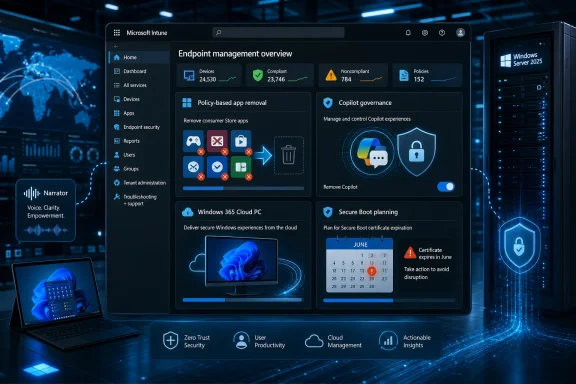
The new policy-based app removal work is a quiet but important concession to the second camp. The ability to remove select preinstalled Microsoft Store apps on Windows 11 version 25H2 and 24H2, plus a dynamic app removal list based on Package Family Name, gives IT a cleaner way to define what belongs on corporate endpoints.
This is not merely “debloating” in the enthusiast sense. In a managed environment, every unnecessary inbox app can become a support question, a privacy review, a policy exception, or a user distraction. Microsoft is acknowledging that the default Windows experience and the corporate Windows experience are no longer the same thing.
April’s app-removal policy work is Microsoft inching toward a more adult model. Instead of asking every admin to maintain a private list of packages and hope the next release does not rename or re-provision them, Windows can now be told—through policy—which preinstalled Microsoft Store apps should not be there.
The dynamic PFN-based removal list is the more interesting piece. A static list is useful, but a dynamic list reflects the real world, where line-of-business restrictions, regional compliance needs, and corporate standards often differ wildly between organizations. One company’s harmless inbox utility is another company’s audit finding.
There is a catch, of course. This is tied to specific Windows 11 releases and editions, and it depends on organizations moving to the newer servicing baseline. Microsoft is not just giving admins a broom; it is also nudging them onto the floors where the broom works.
That is the bargain increasingly baked into Windows administration. Microsoft will give IT more knobs, but the knobs live in the current platform, not in yesterday’s image.
Inventory freshness is one of those problems that only becomes visible when something goes wrong. A vulnerable app is discovered, a prohibited package appears, a licensing question lands, or a help desk ticket depends on knowing what is actually installed. If the management plane is stale, the entire response becomes slower and less trustworthy.
Microsoft’s delta-upload approach is also important. More frequent inventory can become a network tax if done bluntly, especially across large fleets and constrained sites. Sending only changes is the difference between “better visibility” and “yet another background process saturating links that already carry too much.”
But this is not automatic magic. Organizations need to configure and assign a new device configuration policy to eligible corporate-owned Windows 11 devices enrolled in Microsoft Entra ID. That detail is a reminder that modern Windows management is increasingly a policy choreography, not a single switch.
The benefit is real, but so is the administrative overhead. The most mature Windows shops will treat this as part of a broader inventory and vulnerability workflow. The less mature ones may read the announcement, nod, and never enable the policy.
Cloud PCs create a different kind of support burden. The device may be virtual, but the user’s frustration is not. Performance, provisioning, licensing, policy assignment, network path, and app state can all blur together when someone says “my Cloud PC is slow.”
A unified reporting layer does not solve every problem, but it gives IT a common operational language. If Windows 365 is going to be a mainstream part of enterprise desktop strategy, admins need fleet-level visibility without hopping between portals and mental models.
The Windows 365 Reserve preview moves in the same direction from a different angle. Letting users initiate provisioning within IT-defined controls is a step toward self-service resilience. It treats Cloud PCs not just as virtual desktops, but as contingency infrastructure.
That may prove especially useful for contractors, temporary access, disaster recovery, travel scenarios, and device-loss situations. The key is that Microsoft is not handing provisioning directly to end users without guardrails; it is making self-service available inside policy and security boundaries.
Duplicate Security Identifiers have long been one of those Windows hygiene issues that many administrators understand in principle but do not always encounter in a dramatic way. In modern environments, cloned machines, bad imaging processes, or improperly generalized deployments can create identity confusion that attackers may exploit or that administrators may misread.
By blocking authentication attempts in these cases, Windows is becoming less tolerant of sloppy endpoint identity. That is good security engineering. It may also expose technical debt that has been quietly sitting inside older fleets.
This is part of a broader pattern. Microsoft is moving Windows toward a world where insecure administrative habits are not merely discouraged; they are increasingly blocked, warned on, or made operationally painful. The same logic shows up in Secure Boot certificate planning, hotpatch messaging, and Autopatch reporting.
The platform is becoming more opinionated because the threat landscape has forced it to be. The question for IT is whether those opinions arrive as useful guardrails or as surprises during a maintenance window.
The fact that Microsoft is hosting repeated Ask Microsoft Anything sessions on the topic tells us something. This is not a cosmetic documentation update. It is a broad ecosystem coordination problem involving firmware, operating systems, deployment processes, recovery media, and operational timing.
For administrators, the risk is not only the deadline itself. The risk is assuming that every device in the estate behaves like the last laptop tested in the lab. Hardware models, firmware versions, imaging histories, and disconnected systems can all complicate a certificate rollover.
The right response is boring and therefore effective: inventory, test rings, recovery planning, vendor firmware checks, and documentation for support staff. The wrong response is to wait until June and treat the issue as a Patch Tuesday footnote.
April’s AMA-on-demand note and the May 18 follow-up event are less a marketing gesture than a warning flare. Microsoft is giving organizations a runway. IT should use it.
The promise is simple: reduce disruption while keeping systems protected. That does not mean reboots disappear from Windows life entirely, and it certainly does not mean patch management becomes effortless. But it does shift the conversation from “when can we interrupt the business?” to “how much interruption is actually necessary?”
That distinction matters in server environments, virtual desktops, and regulated industries where uptime and compliance often tug in opposite directions. If hotpatching can reduce the number of disruptive patch events, Microsoft has a credible story for why staying current is not merely a security demand but an operational improvement.
The bigger strategic play is Windows Autopatch. April’s new report, with updated patch compliance recommendations and risk exposure based on configured policies and rollout status, shows Microsoft trying to make patching measurable in a more executive-friendly way.
That may irritate administrators who do not need another dashboard. But visibility changes behavior. Once patch compliance and risk exposure are expressed in management tooling, they become harder to ignore and easier to escalate.
Narrator’s new Copilot integration is the more visible feature. The ability to get on-device descriptions and ask Copilot for more detail points toward a future where assistive technology becomes more contextual and conversational. For users who depend on screen reading or who benefit from additional description, that could be meaningful.
But the enterprise question is more complicated. AI-assisted accessibility needs to be understood in terms of privacy, reliability, data handling, and user trust. A generated description can be helpful, but it must be clear when a user is receiving machine interpretation rather than authored accessibility metadata.
Still, the direction is promising. Accessibility in Windows has too often been treated as a set of specialized features hidden behind settings pages. Bringing it into live demos, Q&A sessions, and AI-assisted workflows makes it more visible to the people responsible for enabling it.
The best organizations will not wait for individual employees to request these capabilities one by one. They will treat accessibility readiness as part of standard endpoint and productivity planning.
That duality is the whole Windows AI story in miniature. Microsoft wants Copilot to become an interface layer across the operating system. Enterprises want to decide when, where, and whether that layer belongs on managed devices.
The new removal policy is therefore more important than it might look. It recognizes that Copilot adoption will not be uniform. Some organizations will embrace it quickly, some will pilot it narrowly, and others will block it until legal, compliance, security, and data-governance concerns are resolved.
The word “non-disruptive” is doing a lot of work here. Admins do not want AI features that require manual cleanup, break shell assumptions, or reappear unpredictably. If Microsoft wants Copilot to be taken seriously in enterprise Windows, it must be manageable like any other component.
This is where the company’s AI ambitions meet the hard wall of corporate governance. Enthusiast demos can move fast. Enterprise rollouts move through risk committees.
None of that will dominate a keynote. All of it matters to daily users.
File Explorer remains one of the most frequently touched parts of Windows, and its rough edges are amplified precisely because it is so familiar. When folder preferences fail to persist, users do not think about the underlying shell behavior. They simply experience Windows as inconsistent.
The archive-format expansion is especially useful for developers, sysadmins, and power users who regularly encounter packaging formats outside the consumer ZIP-and-RAR mainstream. Native handling does not replace specialized tools in every case, but it reduces friction.
The Settings Home device information card is another polish item with enterprise relevance. Clearer device specifications help users, help desks, and admins speak the same language. A user who can easily find the model, memory, processor, and device details is less likely to send a screenshot of the wrong page or misread what support is asking for.
That is not glamorous, but at fleet scale, small power improvements matter. Modern laptops spend much of their lives moving between docks, monitors, sleep states, meeting rooms, and travel bags. Every peripheral path that prevents deep sleep becomes a support ticket waiting to happen.
Windows power management has always been a negotiation between hardware, firmware, drivers, and user behavior. USB4 adds capability, but it also adds complexity. If Microsoft can make sleep behavior more reliable around native USB4 displays, that is a practical win.
The larger point is that Windows 11’s maturity will be judged as much by these refinements as by AI features. Users forgive fewer everyday irritations when the operating system is also asking them to accept a faster cadence of change.
Server upgrades are not desktop upgrades. They are entangled with workloads, roles, vendor support matrices, backup strategy, maintenance windows, and rollback planning. A Settings-based opt-in does not change those fundamentals.
But it does show Microsoft trying to normalize Windows Server 2025 as the current destination rather than a distant project. The Windows Server Summit scheduled for May 11–13 reinforces that push, with product-team sessions, presentation decks, and private roundtables for VIP registrants.
The server message in April is not “click this button casually.” It is “start planning seriously.” Microsoft is making the path more visible, and that visibility is itself a form of pressure.
For organizations still balancing Windows Server 2019, 2022, and cloud migration plans, the immediate task is not to chase novelty. It is to identify which workloads benefit from Server 2025, which should remain stable for now, and which should be retired before the next platform decision.
This is not just branding. The old channel structure had become difficult to explain, even to people who follow Windows closely. Canary, Dev, Beta, Release Preview, enablement packages, feature flags, split build series, staged rollouts, and hidden experiences created a maze of expectations.
The new model appears designed to separate rough experimentation from more release-adjacent testing. Experimental is where Microsoft can try features earlier and more visibly. Beta is where users should expect something closer to the next stable experience.
The in-place upgrade work may matter even more than the names. One of the long-standing risks of Insider participation has been getting trapped on a build path that requires a clean install to escape. If Microsoft can reduce that penalty, more serious testers may be willing to participate.
For IT pros, the Insider reset is worth watching even if production machines never touch preview builds. The Insider Program is the weather radar for Windows. When Microsoft changes how it tests, labels, and migrates preview features, it changes the early-warning system for everyone downstream.
Gradual rollout is rational from Microsoft’s perspective. It limits blast radius, enables telemetry-driven throttling, and allows fixes before every eligible device receives a feature. For a platform as broad as Windows, that is sensible engineering.
But from an administrator’s perspective, gradual rollout can make documentation and support messy. Two machines with the same build number may not expose the same experience at the same time. A help desk article may be correct for one user and premature for another.
That tension is now built into Windows operations. The OS is no longer defined solely by version number and patch level. It is also defined by policy state, rollout eligibility, feature flags, hardware capability, region, licensing, and cloud configuration.
Microsoft can reduce the pain by documenting features clearly and giving administrators more control over enablement. But it cannot fully eliminate the complexity while also shipping features continuously. That is the trade.
That is good news for organizations that have invested in Intune, Microsoft Entra ID, Windows Autopatch, Windows 365, and modern endpoint practices. For them, April’s changes add useful levers. For organizations still treating Windows 11 like Windows 7 with a new Start menu, the gap keeps widening.
The most concrete April actions are straightforward:
Windows in 2026 is not becoming simpler; it is becoming more instrumented, more policy-driven, and more tightly bound to Microsoft’s cloud management stack. April’s “news you can use” is valuable precisely because it exposes that direction in practical pieces rather than keynote slogans. The organizations that benefit most will be the ones that treat these monthly updates not as scattered feature notes, but as signals from a platform that now changes by design, not by exception.
Source: Microsoft - Message Center Windows news you can use: April 2026 - Windows IT Pro Blog
 Microsoft Is Still Trying to Make Windows Feel Governable Again
The most useful April changes are not the flashiest ones. They are the controls that let administrators remove preinstalled Store apps, inventory applications more frequently through Intune, and strip Copilot from managed devices without resorting to brittle scripts or post-image cleanup rituals.That matters because Windows management has spent years oscillating between two extremes. On one side, Microsoft wants Windows 11 to be a modern, cloud-connected platform where features ship continuously. On the other, enterprise IT wants a predictable estate where the operating system does not reintroduce unwanted consumer experiences after every cumulative update.
The new policy-based app removal work is a quiet but important concession to the second camp. The ability to remove select preinstalled Microsoft Store apps on Windows 11 version 25H2 and 24H2, plus a dynamic app removal list based on Package Family Name, gives IT a cleaner way to define what belongs on corporate endpoints.
This is not merely “debloating” in the enthusiast sense. In a managed environment, every unnecessary inbox app can become a support question, a privacy review, a policy exception, or a user distraction. Microsoft is acknowledging that the default Windows experience and the corporate Windows experience are no longer the same thing.
The App Story Is Finally Moving From Cleanup Script to Policy
For years, one of the least elegant parts of Windows deployment has been the post-install purge. Organizations built PowerShell scripts, task sequences, provisioning packages, and Autopilot workarounds to remove consumer-facing apps that should never have been on a corporate desktop in the first place.April’s app-removal policy work is Microsoft inching toward a more adult model. Instead of asking every admin to maintain a private list of packages and hope the next release does not rename or re-provision them, Windows can now be told—through policy—which preinstalled Microsoft Store apps should not be there.
The dynamic PFN-based removal list is the more interesting piece. A static list is useful, but a dynamic list reflects the real world, where line-of-business restrictions, regional compliance needs, and corporate standards often differ wildly between organizations. One company’s harmless inbox utility is another company’s audit finding.
There is a catch, of course. This is tied to specific Windows 11 releases and editions, and it depends on organizations moving to the newer servicing baseline. Microsoft is not just giving admins a broom; it is also nudging them onto the floors where the broom works.
That is the bargain increasingly baked into Windows administration. Microsoft will give IT more knobs, but the knobs live in the current platform, not in yesterday’s image.
Intune’s Faster App Inventory Is a Small Change With Big Operational Consequences
The Intune app inventory change sounds mundane: Windows app inventory now updates more frequently and uploads only changes since the last sync. In practice, that is the kind of adjustment that can improve the daily rhythm of endpoint management.Inventory freshness is one of those problems that only becomes visible when something goes wrong. A vulnerable app is discovered, a prohibited package appears, a licensing question lands, or a help desk ticket depends on knowing what is actually installed. If the management plane is stale, the entire response becomes slower and less trustworthy.
Microsoft’s delta-upload approach is also important. More frequent inventory can become a network tax if done bluntly, especially across large fleets and constrained sites. Sending only changes is the difference between “better visibility” and “yet another background process saturating links that already carry too much.”
But this is not automatic magic. Organizations need to configure and assign a new device configuration policy to eligible corporate-owned Windows 11 devices enrolled in Microsoft Entra ID. That detail is a reminder that modern Windows management is increasingly a policy choreography, not a single switch.
The benefit is real, but so is the administrative overhead. The most mature Windows shops will treat this as part of a broader inventory and vulnerability workflow. The less mature ones may read the announcement, nod, and never enable the policy.
Windows 365 Is Being Pulled Into the Same Management Gravity
The public preview of a Windows 365 monitoring and reporting platform is another sign that Microsoft wants Cloud PCs to feel less like a separate product and more like another class of Windows endpoint inside Intune. Consolidated dashboards for Cloud PC health, performance, and configuration are exactly what Windows 365 needs if it is going to scale beyond pilot projects and specialized use cases.Cloud PCs create a different kind of support burden. The device may be virtual, but the user’s frustration is not. Performance, provisioning, licensing, policy assignment, network path, and app state can all blur together when someone says “my Cloud PC is slow.”
A unified reporting layer does not solve every problem, but it gives IT a common operational language. If Windows 365 is going to be a mainstream part of enterprise desktop strategy, admins need fleet-level visibility without hopping between portals and mental models.
The Windows 365 Reserve preview moves in the same direction from a different angle. Letting users initiate provisioning within IT-defined controls is a step toward self-service resilience. It treats Cloud PCs not just as virtual desktops, but as contingency infrastructure.
That may prove especially useful for contractors, temporary access, disaster recovery, travel scenarios, and device-loss situations. The key is that Microsoft is not handing provisioning directly to end users without guardrails; it is making self-service available inside policy and security boundaries.
Security Hardening Is Becoming More Opinionated
The April security notes contain one of the more consequential administrative hardening changes: Windows now detects and blocks authentication attempts between machines that share duplicate SIDs. That is the kind of security improvement that sounds obvious until it collides with legacy imaging practices.Duplicate Security Identifiers have long been one of those Windows hygiene issues that many administrators understand in principle but do not always encounter in a dramatic way. In modern environments, cloned machines, bad imaging processes, or improperly generalized deployments can create identity confusion that attackers may exploit or that administrators may misread.
By blocking authentication attempts in these cases, Windows is becoming less tolerant of sloppy endpoint identity. That is good security engineering. It may also expose technical debt that has been quietly sitting inside older fleets.
This is part of a broader pattern. Microsoft is moving Windows toward a world where insecure administrative habits are not merely discouraged; they are increasingly blocked, warned on, or made operationally painful. The same logic shows up in Secure Boot certificate planning, hotpatch messaging, and Autopatch reporting.
The platform is becoming more opinionated because the threat landscape has forced it to be. The question for IT is whether those opinions arrive as useful guardrails or as surprises during a maintenance window.
Secure Boot Is the Calendar Item Nobody Should Ignore
Microsoft’s reminders about older Secure Boot certificates expiring beginning in June are easy to skim past, but they deserve attention. Certificate transitions are the sort of infrastructure maintenance that can feel abstract right up until a device fails to boot, update, or trust the chain it depends on.The fact that Microsoft is hosting repeated Ask Microsoft Anything sessions on the topic tells us something. This is not a cosmetic documentation update. It is a broad ecosystem coordination problem involving firmware, operating systems, deployment processes, recovery media, and operational timing.
For administrators, the risk is not only the deadline itself. The risk is assuming that every device in the estate behaves like the last laptop tested in the lab. Hardware models, firmware versions, imaging histories, and disconnected systems can all complicate a certificate rollover.
The right response is boring and therefore effective: inventory, test rings, recovery planning, vendor firmware checks, and documentation for support staff. The wrong response is to wait until June and treat the issue as a Patch Tuesday footnote.
April’s AMA-on-demand note and the May 18 follow-up event are less a marketing gesture than a warning flare. Microsoft is giving organizations a runway. IT should use it.
Hotpatching Is Becoming Microsoft’s Favorite Enterprise Argument
Microsoft’s renewed emphasis on hotpatch security architecture is not surprising. Hotpatching is one of the few Windows update improvements that speaks simultaneously to security teams, operations teams, and executives tired of hearing why maintenance windows still exist.The promise is simple: reduce disruption while keeping systems protected. That does not mean reboots disappear from Windows life entirely, and it certainly does not mean patch management becomes effortless. But it does shift the conversation from “when can we interrupt the business?” to “how much interruption is actually necessary?”
That distinction matters in server environments, virtual desktops, and regulated industries where uptime and compliance often tug in opposite directions. If hotpatching can reduce the number of disruptive patch events, Microsoft has a credible story for why staying current is not merely a security demand but an operational improvement.
The bigger strategic play is Windows Autopatch. April’s new report, with updated patch compliance recommendations and risk exposure based on configured policies and rollout status, shows Microsoft trying to make patching measurable in a more executive-friendly way.
That may irritate administrators who do not need another dashboard. But visibility changes behavior. Once patch compliance and risk exposure are expressed in management tooling, they become harder to ignore and easier to escalate.
Accessibility Is Moving From Compliance Checkbox to Everyday Interface
The April accessibility update deserves more attention than it will probably get. Microsoft’s Windows Accessibility team delivered its first interactive deep dive on Tech Community, with demos of Narrator improvements and live Q&A. That format matters because accessibility features often fail not because they do not exist, but because organizations do not know how to deploy, teach, or support them.Narrator’s new Copilot integration is the more visible feature. The ability to get on-device descriptions and ask Copilot for more detail points toward a future where assistive technology becomes more contextual and conversational. For users who depend on screen reading or who benefit from additional description, that could be meaningful.
But the enterprise question is more complicated. AI-assisted accessibility needs to be understood in terms of privacy, reliability, data handling, and user trust. A generated description can be helpful, but it must be clear when a user is receiving machine interpretation rather than authored accessibility metadata.
Still, the direction is promising. Accessibility in Windows has too often been treated as a set of specialized features hidden behind settings pages. Bringing it into live demos, Q&A sessions, and AI-assisted workflows makes it more visible to the people responsible for enabling it.
The best organizations will not wait for individual employees to request these capabilities one by one. They will treat accessibility readiness as part of standard endpoint and productivity planning.
Copilot Is Both a Feature and a Governance Problem
April’s Copilot-related changes reveal Microsoft’s delicate balancing act. On one hand, Narrator can now work with Copilot across Windows 11 devices, and pen settings can map the pen tail button to the same app as the Copilot key. On the other, Microsoft is adding a RemoveMicrosoftCopilotApp policy so organizations can uninstall Copilot in a non-disruptive way.That duality is the whole Windows AI story in miniature. Microsoft wants Copilot to become an interface layer across the operating system. Enterprises want to decide when, where, and whether that layer belongs on managed devices.
The new removal policy is therefore more important than it might look. It recognizes that Copilot adoption will not be uniform. Some organizations will embrace it quickly, some will pilot it narrowly, and others will block it until legal, compliance, security, and data-governance concerns are resolved.
The word “non-disruptive” is doing a lot of work here. Admins do not want AI features that require manual cleanup, break shell assumptions, or reappear unpredictably. If Microsoft wants Copilot to be taken seriously in enterprise Windows, it must be manageable like any other component.
This is where the company’s AI ambitions meet the hard wall of corporate governance. Enthusiast demos can move fast. Enterprise rollouts move through risk committees.
File Explorer Changes Show the Value of Boring Polish
Not every April change is strategic. Some are the kind of small quality-of-life improvements that make Windows feel less neglected. Voice Typing now works when renaming a file in File Explorer. View and Sort preferences are preserved in common folders when apps launch File Explorer directly. Archive support expands to formats including uu, cpio, xar, and NuGet packages.None of that will dominate a keynote. All of it matters to daily users.
File Explorer remains one of the most frequently touched parts of Windows, and its rough edges are amplified precisely because it is so familiar. When folder preferences fail to persist, users do not think about the underlying shell behavior. They simply experience Windows as inconsistent.
The archive-format expansion is especially useful for developers, sysadmins, and power users who regularly encounter packaging formats outside the consumer ZIP-and-RAR mainstream. Native handling does not replace specialized tools in every case, but it reduces friction.
The Settings Home device information card is another polish item with enterprise relevance. Clearer device specifications help users, help desks, and admins speak the same language. A user who can easily find the model, memory, processor, and device details is less likely to send a screenshot of the wrong page or misread what support is asking for.
Power Management Is Still a Feature When You Own the Fleet
The USB4 monitor sleep improvement is the sort of change that disappears into the background if it works. When a native USB4 monitor connection allows the USB controller to enter its lowest power level while the PC sleeps, battery life improves without user intervention.That is not glamorous, but at fleet scale, small power improvements matter. Modern laptops spend much of their lives moving between docks, monitors, sleep states, meeting rooms, and travel bags. Every peripheral path that prevents deep sleep becomes a support ticket waiting to happen.
Windows power management has always been a negotiation between hardware, firmware, drivers, and user behavior. USB4 adds capability, but it also adds complexity. If Microsoft can make sleep behavior more reliable around native USB4 displays, that is a practical win.
The larger point is that Windows 11’s maturity will be judged as much by these refinements as by AI features. Users forgive fewer everyday irritations when the operating system is also asking them to accept a faster cadence of change.
Windows Server 2025 Is Becoming the Upgrade Path Microsoft Wants You to Notice
The Windows Server note is brief but significant: organizations running Windows Server 2022 or Windows Server 2019 can now opt in to the Windows Server 2025 feature update from the Settings dialog. That is a very Windows-client-like experience for a product line that many administrators still approach with old-school caution.Server upgrades are not desktop upgrades. They are entangled with workloads, roles, vendor support matrices, backup strategy, maintenance windows, and rollback planning. A Settings-based opt-in does not change those fundamentals.
But it does show Microsoft trying to normalize Windows Server 2025 as the current destination rather than a distant project. The Windows Server Summit scheduled for May 11–13 reinforces that push, with product-team sessions, presentation decks, and private roundtables for VIP registrants.
The server message in April is not “click this button casually.” It is “start planning seriously.” Microsoft is making the path more visible, and that visibility is itself a form of pressure.
For organizations still balancing Windows Server 2019, 2022, and cloud migration plans, the immediate task is not to chase novelty. It is to identify which workloads benefit from Server 2025, which should remain stable for now, and which should be retired before the next platform decision.
The Insider Program Reset Is an Admission That Complexity Had Won
The Windows Insider Program shift to two primary channels, Experimental and Beta, may be one of the most revealing April developments. Microsoft is simplifying the Insider experience and making behind-the-scenes changes to support in-place upgrades between versions.This is not just branding. The old channel structure had become difficult to explain, even to people who follow Windows closely. Canary, Dev, Beta, Release Preview, enablement packages, feature flags, split build series, staged rollouts, and hidden experiences created a maze of expectations.
The new model appears designed to separate rough experimentation from more release-adjacent testing. Experimental is where Microsoft can try features earlier and more visibly. Beta is where users should expect something closer to the next stable experience.
The in-place upgrade work may matter even more than the names. One of the long-standing risks of Insider participation has been getting trapped on a build path that requires a clean install to escape. If Microsoft can reduce that penalty, more serious testers may be willing to participate.
For IT pros, the Insider reset is worth watching even if production machines never touch preview builds. The Insider Program is the weather radar for Windows. When Microsoft changes how it tests, labels, and migrates preview features, it changes the early-warning system for everyone downstream.
Gradual Rollouts Are the New Normal, and That Is a Management Problem
Several April and May-adjacent features are described as gradually rolling out. That phrase has become one of the defining features of modern Windows. It also remains one of the most frustrating.Gradual rollout is rational from Microsoft’s perspective. It limits blast radius, enables telemetry-driven throttling, and allows fixes before every eligible device receives a feature. For a platform as broad as Windows, that is sensible engineering.
But from an administrator’s perspective, gradual rollout can make documentation and support messy. Two machines with the same build number may not expose the same experience at the same time. A help desk article may be correct for one user and premature for another.
That tension is now built into Windows operations. The OS is no longer defined solely by version number and patch level. It is also defined by policy state, rollout eligibility, feature flags, hardware capability, region, licensing, and cloud configuration.
Microsoft can reduce the pain by documenting features clearly and giving administrators more control over enablement. But it cannot fully eliminate the complexity while also shipping features continuously. That is the trade.
April’s Useful News Is Really a Map of Microsoft’s Windows Strategy
The practical lesson from April is that Windows administration is becoming less about images and more about posture. App state, update state, AI state, accessibility state, Secure Boot readiness, Cloud PC health, and Insider readiness are all managed through policies, dashboards, staged rollouts, and service-backed controls.That is good news for organizations that have invested in Intune, Microsoft Entra ID, Windows Autopatch, Windows 365, and modern endpoint practices. For them, April’s changes add useful levers. For organizations still treating Windows 11 like Windows 7 with a new Start menu, the gap keeps widening.
The most concrete April actions are straightforward:
- Organizations running Windows 11 version 24H2 or 25H2 should evaluate the new policy options for removing preinstalled Microsoft Store apps, especially where standard images still rely on cleanup scripts.
- Intune-managed fleets should consider enabling the new app inventory policy so software visibility improves without unnecessarily increasing network traffic.
- Security teams should test for duplicate SID issues and review Secure Boot certificate readiness before expirations begin in June.
- Windows 365 administrators should look at the public previews for Cloud PC monitoring and Windows 365 Reserve if virtual desktops are part of business continuity planning.
- Accessibility leads and endpoint teams should watch Microsoft’s Narrator deep dive and decide how AI-assisted descriptions fit their support, training, and governance model.
- Organizations that do not want Copilot on managed devices should validate the new removal policy rather than relying on manual uninstalls or fragile workarounds.
Windows in 2026 is not becoming simpler; it is becoming more instrumented, more policy-driven, and more tightly bound to Microsoft’s cloud management stack. April’s “news you can use” is valuable precisely because it exposes that direction in practical pieces rather than keynote slogans. The organizations that benefit most will be the ones that treat these monthly updates not as scattered feature notes, but as signals from a platform that now changes by design, not by exception.
Source: Microsoft - Message Center Windows news you can use: April 2026 - Windows IT Pro Blog
