

If you want a bigger, more comfortable way to monitor Arlo security cameras, using a PC or Mac is not just possible — it's often the better choice for multi‑camera oversight, easier downloads, and more productive workflows.
Arlo built its reputation on wire‑free home security cameras and a mobile‑first app that makes setup and monitoring straightforward. Over the past few years the company has pushed its capabilities beyond phones and tablets: a robust web portal, improved cloud features, expanded AI detection, and clearer local‑storage options mean desktop access is now a mainstream, practical way to run an Arlo system.
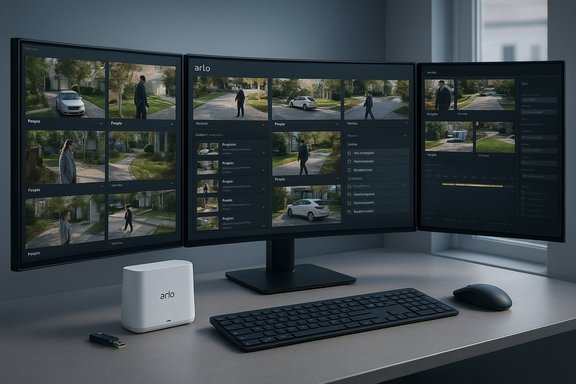
Accessing Arlo from a desktop gives tangible advantages: larger, multi‑monitor layouts for simultaneous camera views, easier archive management (downloads and exports are faster on desktop storage), and superior multitasking for households that combine monitoring with work or home automation dashboards. That said, how you use Arlo on a PC or Mac — via the official web portal, an emulator, or an app store entry — affects performance, feature availability, and privacy tradeoffs.
Key consumer realities to keep in mind:
Before you expand your Arlo use on desktop, take three concrete steps:
Source: PrioriData Download Arlo App for PC (Windows & Mac) | Priori Data
 Background
Arlo built its reputation on wire‑free home security cameras and a mobile‑first app that makes setup and monitoring straightforward. Over the past few years the company has pushed its capabilities beyond phones and tablets: a robust web portal, improved cloud features, expanded AI detection, and clearer local‑storage options mean desktop access is now a mainstream, practical way to run an Arlo system.Accessing Arlo from a desktop gives tangible advantages: larger, multi‑monitor layouts for simultaneous camera views, easier archive management (downloads and exports are faster on desktop storage), and superior multitasking for households that combine monitoring with work or home automation dashboards. That said, how you use Arlo on a PC or Mac — via the official web portal, an emulator, or an app store entry — affects performance, feature availability, and privacy tradeoffs.
Overview: What “Arlo on PC/Mac” actually means
There are four realistic paths to run Arlo on a desktop:- Using the official Arlo web portal (my.arlo.com) — the simplest and most supported approach.
- Running the mobile Arlo app inside an Android emulator on Windows or macOS.
- Installing an app from the Microsoft Store (Windows) or Mac App Store when third‑party options exist; official native desktop apps are rare.
- Using vendor or third‑party desktop software that supports ONVIF/RTSP cameras or exports.
Why desktop access matters
Using Arlo on a PC or Mac is not simply about “bigger screens.” Desktop access changes how you interact with video security across these practical areas:- Multi‑camera monitoring: Arrange feeds in grids, watch several cameras at once, and keep an always‑on control panel on a secondary monitor.
- Archive handling: Downloading and cataloging clips is easier when you can use local storage, batch rename files, and run desktop video tools.
- Productivity and automation: Combine camera feeds with home automation dashboards, streaming software, or security consoles without switching devices.
- Reliability for extended sessions: Desktop browsers and machines tolerate long, continuous sessions better than phones and conserve battery life.
What the Arlo desktop experience offers (feature breakdown)
Live video streaming
The Arlo web portal supports live streaming with multi‑camera grid layouts. Video quality and frame rates depend on your camera model and network, but modern systems support up to 2K–4K resolution (depending on your subscription and camera). Desktop browsers handle larger resolutions and multiple streams more gracefully than phones.Motion detection and smart alerts
Arlo’s modern detection features use AI to separate people, animals, vehicles, and packages. These smart detections reduce false alarms and allow fine‑grained alerting schedules. Desktop notifications can be enabled through browser settings so you receive instant alerts even while working.Cloud storage and local backups
Arlo stores recordings to its cloud by default. Paid plans increase retention and unlock advanced AI features. Arlo also supports local backups via USB drives or microSD cards connected to an Arlo Base Station or SmartHub, but local storage functions as a secondary backup — cloud recording remains primary for many features and for remote access.Two‑way audio
Two‑way audio works from the web portal and mobile apps. Depending on camera model, Arlo supports either full‑duplex two‑way audio (speak and listen simultaneously) or push‑to‑talk. Desktop speakers and mics generally offer good quality for conversations with visitors, delivery drivers, or family members.Smart home integration
Arlo connects with voice assistants and automation platforms. Desktop access does not change integrations but makes it easier to combine camera triggers with desktop home‑automation dashboards or IFTTT-style workflows.Installation and setup methods — step‑by‑step
Method 1 — The web portal (recommended)
The web portal is the simplest, most stable way to use Arlo on a PC or Mac.- Open a modern browser: Chrome, Firefox, Safari (macOS), or Edge.
- Navigate to the Arlo web portal and sign in with your Arlo account.
- Accept any prompt to enable desktop notifications if you want alert popups.
- Click the feed or camera tile to open a live stream; use the grid view for multi‑camera layouts.
- To download recordings, open Library, select clips, and use the download controls to save standard video files.
- No installation required and always up to date.
- Broad feature parity with the mobile app for most users.
- Lower resource use versus emulators.
- Some vendor features may be mobile‑optimized and appear differently on web.
- Browser permissions must allow microphone/speaker for two‑way audio.
Method 2 — Android emulator (Windows & macOS)
If you prefer the exact mobile UI or need an app‑only feature, an Android emulator will run the official Arlo app.- Choose an emulator: BlueStacks, NoxPlayer, or LDPlayer are common options.
- Confirm system requirements: at least 4 GB RAM (8 GB recommended), adequate CPU, and GPU support.
- Download and install the emulator from its official site.
- Open the emulator, sign into Google Play, and install the Arlo app.
- Launch Arlo inside the emulator and sign in.
- Exact mobile UI and all mobile‑exclusive flows.
- Useful when a feature is present only on the mobile app.
- Emulators require more system resources and may produce higher CPU and GPU load.
- Audio and camera permissions can be finicky; adjust emulator settings for microphone pass‑through.
- Emulators are a compatibility workaround, not an official desktop client.
Method 3 — Microsoft Store (Windows) and Mac App Store (macOS)
Occasionally you’ll find Arlo-compatible apps in official app stores. These options vary by region and vendor.- Open Microsoft Store (Windows) or Mac App Store (macOS).
- Search for “Arlo” and review the listed apps carefully.
- Check publisher details, recent update dates, and user reviews before installing.
- Install and sign in with your Arlo credentials.
- Native app behaviour (potentially better performance).
- App store updates simplify maintenance.
- Official native Arlo desktop apps are not widely distributed; many are third‑party clients.
- Third‑party apps may lack features or be limited in compatibility. Vet them for reviews and update cadence.
Method 4 — Third‑party desktop clients and NVR software
Advanced users who run mixed brand cameras often prefer dedicated desktop surveillance software that supports RTSP/ONVIF or can import Arlo feeds via cloud exports.- Select software that supports your camera type and security model.
- Configure camera feeds using RTSP (if supported) or integrate via local recordings exported from Arlo.
- Set up recording schedules, archiving, and alerts inside the desktop NVR.
- High customization, local control, and professional features.
- Often better for long‑term storage, enterprise use, or integration with other CCTV systems.
- Requires technical knowledge and possible loss of cloud‑only features like Arlo cloud AI.
- RTSP is not available on all Arlo camera models; verify compatibility before committing.
System requirements and performance tips
- Browser method: Any modern desktop from the last five years with a current browser and stable internet is adequate.
- Emulator method: Minimum 4 GB RAM (8 GB recommended), multi‑core CPU, and some GPU acceleration. Emulators can consume significant resources when running multiple camera streams.
- Native apps: Varies by app. Check app store listings for precise requirements.
- Use wired Ethernet for base stations and essential cameras when possible to reduce latency and packet loss.
- For many cameras, lowering simultaneous stream quality reduces CPU/GPU load and bandwidth.
- Prefer Chrome or Edge for Windows, and Safari or Chrome for macOS for best compatibility with desktop notifications and media playback.
- Enable hardware acceleration in the browser if available.
Pricing, subscriptions, and the cost picture
The Arlo app itself is free to download and use for live viewing and basic features, but advanced capabilities — extended cloud retention, AI‑powered person/vehicle/face recognition, and certain premium functions — require a subscription. Subscription tiers and prices have changed in recent product updates and may vary by region and billing cadence (monthly vs annual).Key consumer realities to keep in mind:
- Cloud retention windows and AI features are gated behind paid plans.
- Some advanced AI features and longer retention may require a higher tier plan.
- Local storage via Arlo base stations offers a free secondary backup option, but many cloud features remain tied to subscriptions.
- Pricing changes have occurred in recent years, so check current Arlo pricing in your region before assuming older fees.
Security and privacy considerations
Security and privacy are core considerations when moving surveillance access to any desktop.- Encryption and account control: Arlo encrypts communications between devices and its cloud servers. The account dashboard includes privacy controls to view and remove content, manage linked devices, and disconnect third‑party integrations.
- Local storage caveats: Local backups to USB or microSD on a base station are available, but local storage does not always provide the same cloud‑based AI features and remote accessibility.
- Desktop browser security: Using the web portal requires trusting the browser and OS. Keep browsers and OS patched, enable two‑factor authentication (2FA) on the Arlo account, and avoid public Wi‑Fi when accessing sensitive feeds.
- Third‑party apps and emulators: Carefully vet any third‑party or store‑listed Arlo apps; prefer official channels. Emulators increase attack surface because they run a virtual Android environment on your desktop — keep them updated and download only from official emulator publishers.
- Privacy center and data controls: Use Arlo’s privacy controls to manage stored content and revoke access for unknown devices. Consider regular audits of connected integrations (Alexa, Google, IFTTT) to limit unwanted data sharing.
Troubleshooting common desktop issues
- Login failures on the web portal: Clear browser cache and cookies, confirm you’re using the correct email, and try an alternate supported browser. Rebooting your machine sometimes resolves session corruption.
- Missing features on web vs mobile: Some mobile‑only flows may not appear on the web. Check the web portal settings and the camera firmware version; if a feature is critical, use the mobile app or an emulator.
- Two‑way audio not working: Verify browser microphone and speaker permissions, ensure you have a working microphone, and confirm the camera model supports full‑duplex audio (some models are push‑to‑talk).
- Slow or choppy streams: Check internet uplink at the camera side, reduce stream resolution, or use wired network connections for base stations.
- Downloads failing: Use the web portal’s library download function and choose standard video formats; switch browsers if a download stalls.
Alternatives worth considering
Arlo is a mature choice, but the desktop experience and pricing model may make alternatives attractive depending on priorities.- Ring: Strong PC web access and a wide ecosystem, especially for doorbell cameras. Ring’s cloud plans and integrations are focused on consumer ease.
- Nest/Google: Tight Google Home integration, clean web interface, and strong AI integrations for Google users.
- Wyze: Budget‑friendly with solid basic desktop/web monitoring; fewer premium AI features but excellent value.
- Reolink: Desktop‑centric software and NVR options with strong local‑first control, attractive for users who prefer local storage and professional setups.
Practical security workflows for desktop users
- Use the web portal as your primary desktop access; reserve mobile apps for instant alerts.
- Enable two‑factor authentication to protect your Arlo account and restrict device access in the privacy settings.
- Set up local backup (USB or microSD) on a base station to provide an offline copy in case of internet outages.
- Configure cloud activity zones and smart detection to minimize false alarms and reduce unnecessary storage usage.
- Maintain a dedicated admin workstation or virtual desktop for long‑term monitoring rather than using a daily‑use machine — this reduces the chance of accidental logouts or browser conflicts.
Strengths and weaknesses: a critical assessment
Strengths
- Mature cloud and AI features: Arlo’s smart detections and automated alerts reduce noise and improve signal‑to‑noise in camera notifications.
- Convenient web access: The web portal delivers a near‑complete set of features without extra installations.
- Local backup options: Support for USB and microSD backups via hubs provides redundancy and an offline safety net.
- Device variety: Arlo offers battery, wired, floodlight, doorbell, and 4K models to suit many installation needs.
Weaknesses and risks
- Subscription dependence: Certain AI features and extended retention are subscription‑locked; recurring costs can grow with more cameras.
- Desktop app inconsistency: An official native desktop app is not reliably available across platforms, which forces many users to rely on the web portal or emulators.
- Resource costs for advanced setups: Running many high‑resolution streams in emulators or on multiple browser tabs can be CPU/GPU intensive.
- Privacy surface: Cloud processing and facial/vehicle recognition introduce privacy considerations; while control features exist, users must proactively manage permissions and integrations.
- Pricing volatility: Subscription tiers and pricing have changed recently, which may affect long‑term planning and budgets.
A recommended approach for most Windows and Mac users
For most users, the best balance of convenience, security, and features is:- Use the Arlo web portal (my.arlo.com) on a modern browser for daily desktop monitoring.
- Enable two‑factor authentication and regularly audit connected devices and integrations.
- Add local storage via a SmartHub or Base Station if offline redundancy matters.
- Subscribe to the appropriate Arlo plan only if you need extended retention or AI features — otherwise, rely on the free tier plus local backups.
- For mobile‑only features, use your phone app or an emulator only when necessary.
Final thoughts and practical next steps
Using Arlo on a PC or Mac turns your security system into a more productive and manageable tool. The web portal provides the safest, easiest, and most future‑proof route for desktop access, while emulators and third‑party apps remain viable for edge cases and mobile‑UI needs.Before you expand your Arlo use on desktop, take three concrete steps:
- Secure your account with a strong password and two‑factor authentication.
- Decide whether you need cloud retention beyond the free tier and budget accordingly.
- Set up local backups on a hub if you want an offline archive.
Source: PrioriData Download Arlo App for PC (Windows & Mac) | Priori Data
