

Microsoft is quietly testing a major shift in how Windows 11 surfaces discovery and assistance: the familiar taskbar Search box can now be replaced, optionally, by an “Ask Copilot anything” chat-style pill that mixes instant local search results with Copilot’s conversational, voice, and vision inputs — available today to Windows Insiders in Dev and Beta preview flights but off by default.
For years the Windows taskbar search field has been a fast, predictable route to apps, files, and settings. Microsoft’s recent Insider preview work reframes that touchpoint as the first-class surface for a multimodal assistant: a compact text field that invites typed prompts, offers a “Hey, Copilot” voice activation path, and provides a one-click path to Copilot Vision (screen-aware analysis). The experience is designed to blend the established Windows Search index with generative AI responses — a hybrid front end rather than a total rewrite of the indexing plumbing. This is not an accidental experiment: Microsoft has been methodically folding Copilot into core surfaces across Windows — the Copilot app, File Explorer actions, a wake‑word-driven Copilot Voice, and Copilot Vision — and the taskbar pill is the most visible next step in that integration arc. Microsoft describes much of the behavior as opt‑in and permissioned, claiming Copilot does not gain special access to files beyond the existing Windows Search APIs unless the user consents. Independent hands‑on reports and Insider notes confirm the staged, server‑gated rollout model and the opt‑in posture for Insiders.
For now, the prudent posture is cautious experimentation: try Ask Copilot on non‑critical devices, validate privacy and DLP interactions, and insist on explicit admin controls and audit logging before enabling agentic features at scale. If Microsoft continues to iterate with transparent consent models and strong governance tooling, the quest to make Windows more conversational could deliver meaningful productivity benefits — but the path is littered with trade‑offs that deserve careful management.
Source: theregister.com Microsoft tests replacing Search with Copilot in Windows 11
 Background
For years the Windows taskbar search field has been a fast, predictable route to apps, files, and settings. Microsoft’s recent Insider preview work reframes that touchpoint as the first-class surface for a multimodal assistant: a compact text field that invites typed prompts, offers a “Hey, Copilot” voice activation path, and provides a one-click path to Copilot Vision (screen-aware analysis). The experience is designed to blend the established Windows Search index with generative AI responses — a hybrid front end rather than a total rewrite of the indexing plumbing. This is not an accidental experiment: Microsoft has been methodically folding Copilot into core surfaces across Windows — the Copilot app, File Explorer actions, a wake‑word-driven Copilot Voice, and Copilot Vision — and the taskbar pill is the most visible next step in that integration arc. Microsoft describes much of the behavior as opt‑in and permissioned, claiming Copilot does not gain special access to files beyond the existing Windows Search APIs unless the user consents. Independent hands‑on reports and Insider notes confirm the staged, server‑gated rollout model and the opt‑in posture for Insiders. What’s shipping in the preview builds
The visible changes
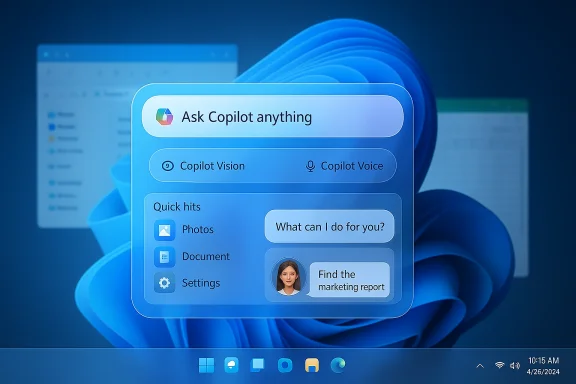
- The Search field on the taskbar can be toggled to an Ask Copilot pill that says “Ask Copilot anything.”
- The pill shows two inline icons: a glasses icon for Copilot Vision (to share a window or region) and a microphone icon for Copilot Voice (press-to-talk or Hey, Copilot wake-word flows).
- Typing into the pill yields a mixed surface: immediate, indexed hits for apps/files/settings and below them prompts or suggestions that escalate to a Copilot chat if you request generative help. Clicking a Copilot suggestion opens the Copilot app for a longer session.
Verified build and rollout mechanics
- The feature appears in Insider preview builds tied to Build 26220.7051 (delivered via cumulative preview updates such as the KB packages that target Dev and Beta channels). Multiple outlets and Insider reports cite this build as carrying the opt‑in taskbar experiment.
- Microsoft is using server-side toggles and staged entitlement logic to control who sees the feature even after the binaries land on machines; having the cumulative update installed does not guarantee immediate visibility.
How to enable the Ask Copilot pill (Insider preview)
Microsoft intends the pill to be optional, but for Insiders who want to try it immediately there are documented steps:- Join the Windows Insider Program and move a test PC to the Dev or Beta channel running Build 26220.7051 or higher.
- If the setting does not appear automatically, some hands‑on guides show you can enable the UI toggle after activating hidden feature flags. A commonly shared method uses ViveTool to flip the experimental bits (unzip ViveTool, run an elevated command prompt, and run the enable command). The reported ViveTool IDs are 57739723 and 57941090; after reboot you should find Settings → Personalization → Taskbar → Ask Copilot.
Hands‑on: how the hybrid search + chat feels
Early hands‑on reports and tester notes reveal a consistent UX pattern: the pill acts as a flexible entry point that preserves the speed of classic Windows Search while placing Copilot’s generative affordances a single keystroke away.- When you type a straightforward app name (e.g., “Chrome”) the pill returns an immediate, simple list like classic Search.
- When the input reads like a natural language prompt (e.g., “George Washington”), the top results sometimes include a proactive Ask Copilot suggestion that invites a conversational summary; selecting that result opens the Copilot app and continues the session there. One tester reported getting mixed results where a plain command like “winver” was found by classic Search but not surfaced by Copilot’s hybrid list in some cases — an important reminder that the two surfaces are similar but not always identical.
Copilot Vision and misrecognition risks
Copilot Vision allows you to select a screen, window, or region and ask Copilot to “see” it. This enables OCR, UI element identification, and contextual help. Vision is session‑initiated and permissioned: Copilot will not scan your screen silently — you must explicitly share a region or window. However, Vision isn’t perfect: early tests show inaccurate outputs (for example, miscounting desktop icons or mislabeling UI elements), so users should treat Vision’s findings as a starting point, not definitive facts.Voice: “Hey, Copilot” and privacy controls
The wake word “Hey, Copilot” is opt‑in and implemented with a local spotter that only activates cloud processing after the wake phrase is detected. Microsoft documents that the local spotter uses a transient, in‑memory audio buffer and that cloud processing starts once the system confirms activation. Voice sessions yield transcribed text and audio responses in the Copilot UI. The microphone‑in‑use system indicator remains visible while the feature is enabled.What’s under the hood: search plumbing, model routing, and Copilot+
Microsoft’s design reuses existing Windows Search APIs and the classic indexing infrastructure to collect local hits (apps, files, settings). The Copilot layer sits on top to provide semantic understanding, follow‑ups, and generative summaries. That design choice keeps legacy controls such as indexing exclusions, enterprise search policies, and OneDrive indexing intact while adding a conversational overlay. A second important dimension is the hardware split that Microsoft brands as Copilot+ PCs. Copilot+ devices include an on‑device Neural Processing Unit (NPU) capable of 40+ TOPS (trillions of operations per second). On Copilot+ hardware, certain AI tasks and semantic local search can be executed on‑device for reduced latency and improved privacy; on standard machines, heavier generative requests are handled in the cloud. Microsoft’s Copilot+ pages and independent explainers confirm the 40+ TOPS requirement and list initial wave features reserved for these devices.Benefits: where this can help
- Reduced friction — a single taskbar prompt for discovery, summarization, and actions reduces context switching.
- Accessibility gains — voice and vision inputs lower the barrier for users with mobility or vision challenges.
- Multimodal convenience — quick access to OCR, summarization, and follow‑up prompts can speed up troubleshooting and short tasks.
- Unified workflows — the ability to escalate from a local hit to a generative summary or action (e.g., ask Copilot to summarize a spreadsheet and export it) promises real productivity gains in some workflows.
Risks and trade‑offs
These are real, and deserve careful attention before broad adoption.- Privacy and consent friction. The more places Copilot appears, the higher the chance users will accidentally share sensitive content. Although Microsoft says local results use the same Search APIs and Vision is session‑scoped, adding low-friction Vision and voice controls increases the frequency of potentially sensitive interactions. Missteps in UI signposting or consent dialogs can have serious consequences.
- Accuracy and hallucination. Generative responses and visual analyses can be wrong. Testers reported errors (for example, incorrect desktop icon counts) — a reminder that Copilot’s outputs should be verified, especially for tasks that affect decisions, compliance, or security.
- Fragmented experience. The hybrid model — server‑gated enablement, hardware‑gated Copilot+ features, and staged rollouts — means two identical machines or accounts may behave differently. That fragmentation complicates support and documentation for help desks and IT teams.
- UI disruption. The floating dialog placement and mixed-mode results can be jarring for users who expect a consistent, left‑aligned Start/search flow. Power users who rely on third‑party launchers (PowerToys Run, Everything) may find the change irrelevant or worse.
- Forced adoption risk. If Microsoft ever makes the Copilot pill the default for non‑Insider machines without clear controls, many users will feel pressured into an AI‑forward experience they neither want nor trust. Observers have flagged the potential for UI nudge tactics to accelerate adoption.
Enterprise and IT implications
Enterprises must treat this preview as a policy and governance test:- Pilot early, document behavior. Test the feature under enterprise accounts to observe server‑gating and telemetry effects. The binaries may arrive via cumulative updates but visibility is often controlled server‑side, so coordinate pilots with Windows Update and Microsoft account entitlements.
- Validate DLP and indexing rules. Because Copilot layers on top of Windows Search, existing Data Loss Prevention (DLP) policies and index exclusions remain relevant — but organizations should verify that agentic features like Copilot Actions (which can automate tasks) honor admin controls and generate auditable logs. Microsoft has signaled forthcoming admin tools, but many governance details remain to be published.
- Accessibility testing. Voice-first and vision‑driven flows may benefit users with disabilities, but keyboard and assistive technology behavior must be validated before wide deployment. Early reports indicated some keyboard discoverability gaps.
What Microsoft has said — and what it hasn’t
Microsoft’s public materials emphasize opt‑in controls, the reuse of Windows Search APIs, and the local wake‑word spotter model for voice activation. The Copilot on Windows documentation explains how “Hey, Copilot” works, includes guidance about the on‑device wake‑word spotter, and reiterates that voice/cloud routing begins after the wake phrase is detected. The official Copilot+ PC pages explain the 40+ TOPS NPU requirement and the hardware gating for enhanced local capabilities. Those are important assurances, but they are high‑level; administrator documentation and telemetry contracts that spell out retention, exact permission scopes for agentic automation, and enterprise audit features are still incomplete in public docs. Enterprises and privacy reviewers should press Microsoft for precise, auditable guarantees before production deployment.Practical recommendations for Windows users
- If you prefer the classic search experience, do nothing. The Copilot pill is opt‑in in the preview and Microsoft has reiterated the traditional Search pane remains accessible. If the pill appears and you dislike it, Settings → Personalization → Taskbar allows you to toggle Ask Copilot off.
- For Insiders who want to try it, use a test machine and follow ViveTool instructions only when you understand the risk: ViveTool flips hidden flags that may be temporary or server‑gated. Keep a system backup and avoid enabling hidden features on production machines.
- Treat Copilot outputs as assistive drafts, not authoritative answers. Verify facts and double‑check any action Copilot proposes before allowing it to execute multi‑step agentic flows or to send messages on your behalf.
- If you are an IT admin, pilot the feature under controlled conditions: document logs, check DLP interactions, and test keyboard/assistive‑tech behavior thoroughly. Request explicit admin controls and audit logging from Microsoft before enabling agentic features for broad employee use.
The larger context: Microsoft’s AI OS thesis
This taskbar experiment is consistent with Microsoft’s stated strategy to make AI a first‑class interaction mode across Windows. Copilot has moved from an optional sidebar and separate app into a system-level assistant with multiple integration points. The Copilot+ hardware tier (the 40+ TOPS NPU devices) represents Microsoft’s attempt to hedge the privacy and latency tradeoffs by enabling more on‑device inference for eligible machines, while cloud services continue to provide heavier reasoning for the broad install base. That hybrid model is pragmatic — it broadens availability while reserving certain low‑latency and privacy-minded experiences for hardware that can deliver them locally. Yet strategy and implementation diverge: making Copilot ubiquitous risks normalizing an always‑available AI layer that users may not fully understand or consent to in daily workflows. UI clarity, explicit consent flows, and robust admin tooling will determine whether this integration is accepted or resisted.Final assessment
The “Ask Copilot anything” taskbar pill is a logical next move in Microsoft’s long arc of integrating Copilot into Windows. It offers clear productivity and accessibility upside: natural language, voice, and screen‑aware assistance are powerful tools when used judiciously. The implementation also respects several guardrails — opt‑in toggles, permissioned Vision sessions, local wake‑word spotters, and reuse of Windows Search APIs — reducing some immediate technical concerns. However, the preview also exposes real UX, accuracy, and governance risks. The floating dialog placement is intrusive for some setups, hybrid results can be inconsistent with classic Search, and generative + vision outputs are error‑prone in early tests. On the enterprise side, gaps remain in public admin and telemetry contracts that organizations need to trust agentic capabilities.For now, the prudent posture is cautious experimentation: try Ask Copilot on non‑critical devices, validate privacy and DLP interactions, and insist on explicit admin controls and audit logging before enabling agentic features at scale. If Microsoft continues to iterate with transparent consent models and strong governance tooling, the quest to make Windows more conversational could deliver meaningful productivity benefits — but the path is littered with trade‑offs that deserve careful management.
Quick reference: what to check, and where
- Build and channel: Ensure test devices run Build 26220.7051 (Dev/Beta).
- How to opt in (Insider): Settings → Personalization → Taskbar → Ask Copilot (or use ViveTool for advanced enablement with IDs 57739723 and 57941090 on test machines).
- Voice privacy: Hey, Copilot uses an on‑device wake-word spotter; cloud routing begins after detection. Toggle is off by default.
- Hardware gating: Copilot+ PCs require NPUs capable of 40+ TOPS for the fastest, local experiences.
Source: theregister.com Microsoft tests replacing Search with Copilot in Windows 11
