

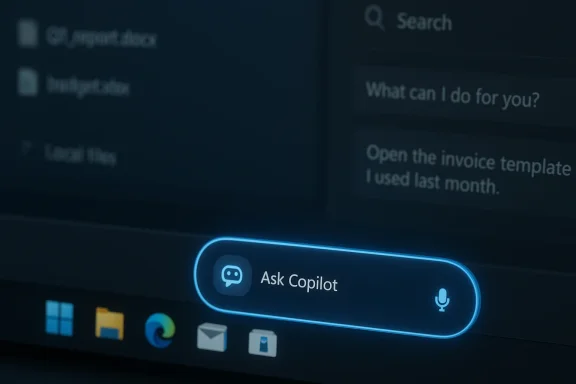
Microsoft is testing a new taskbar entry called Ask Copilot that replaces the familiar Windows Search pill with an AI-aware, multimodal input — but only if you choose to turn it on. The feature arrives in Windows Insider preview builds (Dev and Beta channels), appears as an opt‑in toggle under Settings > Personalization > Taskbar, and blends Windows’ local index with Copilot’s conversational capabilities while exposing one‑click access to Copilot Vision and voice interaction.
Over the past year Microsoft has repeatedly moved Copilot from a sidebar experiment into deeper OS surfaces: first as a separate Copilot app and browser integrations, and more recently with screen‑aware tools (Copilot Vision), voice activation (Copilot Voice / “Hey Copilot”), and policy‑scoped automations (Copilot Actions). The Ask Copilot taskbar pill is the latest step in that strategy: it puts a single, conversational entry point where users already look for files, apps and settings. This represents a shift from discrete assistants to an embedded, hybrid search + assistant surface.
Microsoft published the official Insider notes for the release that introduced the Ask Copilot taskbar option in Preview Build 26220.7051. Those notes confirm where to enable the feature (Settings > Personalization > Taskbar > Ask Copilot), reiterate that the experience is optional, and explain that the feature uses the same Windows search APIs/indexer to return local results rather than granting Copilot new implicit access to private files.
Two technical implications follow:
That language addresses two common concerns:
If your organisation needs low latency and offline capabilities, review Microsoft’s Copilot+ hardware requirements and evaluate which features are available locally versus which require cloud connectivity. For many enterprise use cases, hybrid policies that restrict tenant connectors and route sensitive operations through enterprise controls will be essential.
That said, the feature is still a preview. Early reports show promising convenience gains but also point to UI rough edges, server‑side gating, and important admin planning work before you deploy widely. For individual users who value fast, conversational desktop help, Ask Copilot will be an appealing, easy opt‑in. For IT teams, success will depend on clear policies, staged testing, and user education so the convenience doesn’t become an accidental source of risk.
If you’ve already read the Cambridge Network summary, it captures the consumer‑facing headline accurately: Ask Copilot aims to make your PC “understand what you’re trying to do” — but, crucially, only if you want it to.
In short: Ask Copilot brings multimodal AI to the Windows 11 taskbar as an opt‑in productivity surface. It’s worth piloting and watching closely, but treat it like any powerful new capability — test, control connectors, educate users, and monitor its behaviour before you flip it on for a whole organisation.
Source: Cambridge Network Ask Copilot" is coming to your Taskbar (but only if you want it to) | Cambridge Network
 Background
Over the past year Microsoft has repeatedly moved Copilot from a sidebar experiment into deeper OS surfaces: first as a separate Copilot app and browser integrations, and more recently with screen‑aware tools (Copilot Vision), voice activation (Copilot Voice / “Hey Copilot”), and policy‑scoped automations (Copilot Actions). The Ask Copilot taskbar pill is the latest step in that strategy: it puts a single, conversational entry point where users already look for files, apps and settings. This represents a shift from discrete assistants to an embedded, hybrid search + assistant surface.Microsoft published the official Insider notes for the release that introduced the Ask Copilot taskbar option in Preview Build 26220.7051. Those notes confirm where to enable the feature (Settings > Personalization > Taskbar > Ask Copilot), reiterate that the experience is optional, and explain that the feature uses the same Windows search APIs/indexer to return local results rather than granting Copilot new implicit access to private files.
What Ask Copilot does — a practical overview
One bar, many inputs
- The taskbar pill functions as a hybrid search + chat field: type a query for fast local results, or enter natural‑language prompts to escalate into a Copilot conversation.
- The interface is multimodal: text input, a press‑to‑talk / voice affordance, and a Copilot Vision control for sharing on‑screen content are surfaced from the same pill. Several preview reports show dedicated Vision and voice icons adjacent to the Ask Copilot box.
Real actions, not just answers
Ask Copilot is designed to go beyond showing lists. In preview behavior described by Microsoft and independent observers, Copilot can:- Open a specific file or app shown in search results.
- Adjust or navigate to Windows settings.
- Summarize or manipulate document contents when the user explicitly shares them (for example, when using Copilot Vision to OCR a screen region).
- Provide quick how‑to answers and step‑by‑step guidance for common tasks.
Those are the scenarios Microsoft highlights as the main productivity benefits.
Examples that appeared in early reporting and previews
Users and preview writeups have tested prompts such as:- “Open the invoice template I used last month”
- “Connect to the projector”
- “How do I split this PDF?”
These examples illustrate the intended user flow: natural language → local result or guided action → execution (with permission). The Cambridge Network summary captured precisely this intent, noting that Ask Copilot “understandwhat you’re looking for and guideyou directly to the right place — or helpyou achieve what you’re trying to do.”
How it integrates technically (brief, verifiable)
Ask Copilot is not a ground‑up rewrite of Windows Search. Microsoft states the taskbar surface mixes indexed, local results from the Windows Search indexer with a conversational Copilot layer, using existing Windows APIs to return apps, files and settings. If Copilot needs file contents beyond the index, the UI asks for explicit permission to share items into the session. That technical design is central to Microsoft’s messaging about privacy and control.Two technical implications follow:
- Local results performance remains tied to the indexer’s state and settings (index scope, inclusion/exclusion lists, OneDrive/SharePoint connectors).
- Any generative responses or “actions” may still rely on cloud processing or tenant‑grounded Copilot/365 connectors depending on what the user asks and which connectors are enabled.
Privacy and permission model — what Microsoft says (and what to watch for)
Microsoft has emphasized that Ask Copilot is permissioned by design: the taskbar pill uses the same APIs as Windows Search, and Copilot will not read private files unless you explicitly grant it access during a session. The Windows Insider notes explicitly state that Ask Copilot “does not grant Copilot access to your personal content” beyond the indexer’s usual reach.That language addresses two common concerns:
- passive, background scanning of files by an always‑listening assistant; and
- silent telemetry or data exfiltration without user consent.
- When you attach or share a window, document or region with Copilot Vision, that content is in scope for Copilot’s processing; session data may be used transiently for the conversation unless otherwise controlled by enterprise policy or tenant settings. Multiple preview reports show Copilot Vision functioning as a session‑bound, user‑initiated action — not a continuous screen scanner — but exact telemetry and retention practices depend on broader Copilot settings and the user’s Microsoft account/tenant configuration.
- The enterprise environment introduces additional complexity: tenant‑grounded Copilot features (that reason over Exchange, OneDrive, SharePoint and Teams data) typically require the appropriate Microsoft 365 licensing and admin consent models. Desktop Ask Copilot can be a local assistant or an escalator to tenant‑grounded Copilot depending on what connectors and credentials you allow.
Enterprise and admin implications
Manageability
Microsoft notes admins can control Copilot visibility and start behavior. The Ask Copilot toggle is user‑facing, but modern management options (Group Policy, Intune/MDM, AppLocker) and tenant controls allow administrators to block or control Copilot installs and features across fleets in managed environments. Early guidance from preview reporting underscores that the rollout is staged and server‑gated, meaning having the Insider build isn’t always enough to see the feature — Microsoft pairs builds with server flags and account/device entitlements.Recommended admin checklist
- Verify which Insider channel(s) or production update will carry the feature for your device classes. Test on representative hardware first.
- Confirm policy controls for Copilot app auto‑start, presence on the taskbar, and connector onboarding.
- Establish consent and training procedures for sharing screen content and for tenant connector enablement (OneDrive, Exchange, Google connectors if allowed).
- Update baseline images and monitoring policies to capture any unexpected CPU, memory or GPU usage spikes that may correlate with Copilot sessions.
UX and productivity: What Ask Copilot promises — and what it realistically delivers today
Productivity promises
- Faster access to the right resource: ask naturally and let Copilot open the exact file, setting or app.
- Reduced context switching: get how‑to help or content summaries without opening multiple apps or searching the web.
- Multimodal convenience: use voice or share a screen region to let Copilot understand visual content and provide targeted help.
Today’s limitations and realistic expectations
- Preview polish: several early writeups note hand‑offs can feel unpolished (e.g., transitioning from the taskbar pill to the full Copilot app). The UI and experience continue to evolve in the Dev/Beta previews.
- Feature gating and availability: Ask Copilot is currently preview‑gated and server‑flagged. Not every Insider device will see it immediately. Expect a phased rollout.
- Dependence on indexing and connectors: if your Windows index is incomplete (non‑indexed folders, offline OneDrive placeholders), local results may be less helpful. If Copilot needs deep tenant access, licensing and tenant‑level entitlements may be required.
Performance, compute and on‑device processing
One practical concern often raised in previews is compute and battery cost. If every user on an organisation’s fleet begins invoking model‑backed Copilot sessions from the taskbar, back‑end compute demand grows quickly. Microsoft’s long‑term strategy includes Copilot+ hardware that can offload more AI tasks on device using NPUs, but most current PCs will rely on cloud processing for heavier generative steps. This has implications for latency, privacy, and cost.If your organisation needs low latency and offline capabilities, review Microsoft’s Copilot+ hardware requirements and evaluate which features are available locally versus which require cloud connectivity. For many enterprise use cases, hybrid policies that restrict tenant connectors and route sensitive operations through enterprise controls will be essential.
Security and data governance — practical risks and mitigations
Principal risks
- Accidental sharing of sensitive info: Copilot Vision or a poorly understood “share” flow could leak screen content if users are not trained.
- Misclassification of search results: generative answers can hallucinate or make incorrect assumptions, so using Copilot as an authoritative source for compliance or legal tasks is risky.
- Connector misconfiguration: enabling Gmail/Google Drive or tenant‑grounded connectors without strict control can expand Copilot’s scope in uncontrolled ways.
Mitigations
- Default to opt‑out for connectors in sensitive tenants; require explicit admin approval to enable.
- Educate users: short, mandatory micro‑training on what “Share with Copilot” does and when to avoid it.
- Audit trails and telemetry: turn on and review logs that capture Copilot session starts, file attachments shared, and connector usage.
- Staging and testing: roll Ask Copilot to pilot groups before broad deployment and measure resource usage (CPU, memory, network) during normal workflows.
How to try it (for enthusiasts and early adopters)
If you want to test Ask Copilot in an Insider preview:- Join the Windows Insider Program and enrol the device in the Dev or Beta channel that carries build 26220.7051 or later.
- Confirm your device has the Copilot app available and updated (some features require a paired Copilot client).
- Enable the taskbar option: Settings > Personalization > Taskbar > Ask Copilot.
- Try mixed scenarios: local file queries, voice prompts, and a Copilot Vision share to see session permission prompts and behavior.
Balanced appraisal: strengths, risks, and where this fits in Windows’ evolution
Notable strengths
- Contextual convenience: consolidating search, voice, and screen‑aware help into one accessible taskbar surface reduces friction for many common tasks.
- User control: making the pill opt‑in and reiterating the use of existing index APIs addresses a major public concern about forced AI surfaces.
- Incremental rollout: preview gating and server flags let Microsoft test real‑world performance and telemetry before mass exposure.
Important risks and cautions
- Perceived privacy risk: even with explicit permission flows, users and admins may mistrust any feature that reads screen content or accesses files — transparency and aud be essential.
- Performance and cost: broad usage could push significant cloud compute load and increase latency or cost if not architected for edge/offload scenarios.
- Overreliance on generative answers: Copilot can be helpful for quick guidance but can also provide inaccurate or incomplete responses; workflows that require exactitude should include verification steps.
Recommendations for IT teams and power users
- Treat Ask Copilot as a feature to pilot, not flip globally without testing.
- Define and enforce connector and Copilot policy settings at the tenant level before enabling broad access.
- Use group policy or MDM to control who sees Ask Copilot in early deployments; pilot with a small cohort of knowledge workers and service desk staff first.
- Monitor system resources and telemetry metrics during pilots to detect unexpected CPU, GPU or network usage correlated with Copilot sessions.
- Invest in short user guidance: one page or a 5‑minute demo that shows the exact flow for “Share with Copilot” and the permission prompts.
Final thoughts
Ask Copilot’s taskbar insertion is a modest but meaningful rethinking of where conversational assistance belongs on the desktop: not as a separate sidebar or web page, but as a small, opt‑in pill where users already look for files and quick answers. The feature’s promise is simple — save time and reduce context switching — and Microsoft has deliberately framed it as optional, with the Windows Search indexer and explicit sharing flows forming the backbone of the privacy argument.That said, the feature is still a preview. Early reports show promising convenience gains but also point to UI rough edges, server‑side gating, and important admin planning work before you deploy widely. For individual users who value fast, conversational desktop help, Ask Copilot will be an appealing, easy opt‑in. For IT teams, success will depend on clear policies, staged testing, and user education so the convenience doesn’t become an accidental source of risk.
If you’ve already read the Cambridge Network summary, it captures the consumer‑facing headline accurately: Ask Copilot aims to make your PC “understand what you’re trying to do” — but, crucially, only if you want it to.
In short: Ask Copilot brings multimodal AI to the Windows 11 taskbar as an opt‑in productivity surface. It’s worth piloting and watching closely, but treat it like any powerful new capability — test, control connectors, educate users, and monitor its behaviour before you flip it on for a whole organisation.
Source: Cambridge Network Ask Copilot" is coming to your Taskbar (but only if you want it to) | Cambridge Network
