

Microsoft’s first public preview of the Copilot‑powered taskbar search box delivers a clean, polished experience that blurs the line between classic Windows Search and an AI assistant — but early testing shows the tradeoffs are real: convenience and discovery come at the cost of fragmented interfaces, the same flaky search reliability under the hood, and a hand‑off model that still feels unfinished.
Microsoft has begun rolling out an opt‑in taskbar pill called Ask Copilot in Windows 11 Insider preview builds, replacing (or augmenting) the traditional taskbar search box with a compact, floating prompt that surfaces local results and offers one‑click access to Copilot Voice and Copilot Vision. The feature is gated behind Insider builds and server‑side rollout flags; users must enable the option in Settings and have the Copilot app present on the device for the new taskbar entry to appear.
This new entry point is explicitly positioned as a hybrid: it returns immediate local hits — apps, files, and settings — while also surfacing conversational prompts labeled “Ask Copilot” that launch the full Copilot chat experience for more complex, generative queries. The design intent is clear: put AI where people already look first, and make multimodal inputs (typing, voice, screen sharing) available with a single click.
Key usability wins:
Microsoft’s experiment with a Copilot‑powered taskbar search box illustrates a broader tension in modern OS design: how to invite transformative AI experiences without creating fragmentation, confusion, or new privacy hazards. The Ask Copilot pill is a tasteful step toward making AI more accessible on the desktop, but real value will arrive only when the experience is fully integrated, consistently reliable, and governed by clear enterprise controls. Until then, it’s a polished preview with serious promise and some important tradeoffs to manage.
Source: Windows Central First look at Windows 11's new Copilot-powered Taskbar search box in action — better than the old search UI?
 Background
Microsoft has begun rolling out an opt‑in taskbar pill called Ask Copilot in Windows 11 Insider preview builds, replacing (or augmenting) the traditional taskbar search box with a compact, floating prompt that surfaces local results and offers one‑click access to Copilot Voice and Copilot Vision. The feature is gated behind Insider builds and server‑side rollout flags; users must enable the option in Settings and have the Copilot app present on the device for the new taskbar entry to appear.This new entry point is explicitly positioned as a hybrid: it returns immediate local hits — apps, files, and settings — while also surfacing conversational prompts labeled “Ask Copilot” that launch the full Copilot chat experience for more complex, generative queries. The design intent is clear: put AI where people already look first, and make multimodal inputs (typing, voice, screen sharing) available with a single click.
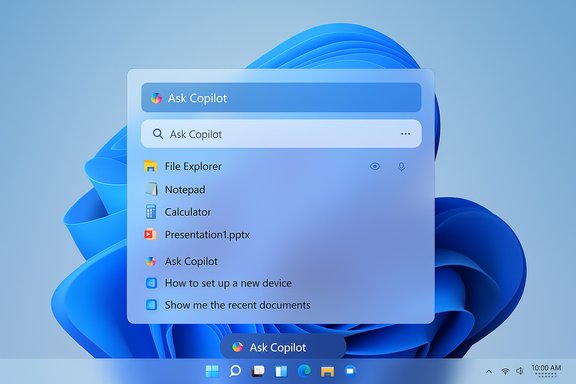
Overview of the new Ask Copilot taskbar experience
What you see and how it behaves
- A compact text box appears on the taskbar when enabled, showing Ask Copilot anything as placeholder text.
- Clicking the pill triggers a small ellipsis animation; the pill expands into a floating, centered search/chat field above the taskbar where typing begins to surface results instantly.
- Results are presented in a single, simplified column: local apps and files are listed first, followed by Ask Copilot suggestions (prompts that will open Copilot for a chat).
- Two icons—Vision (glasses/camera-like) and Voice (microphone)—sit in the taskbar prompt to launch Copilot Vision and Copilot Voice workflows directly from the taskbar.
- A “see more search results” option lets you fall back to the classic Windows Search pane if you need the older, expanded view.
How it’s enabled
- Install the appropriate Insider preview update where the feature is shipped.
- Open Settings → Personalization → Taskbar and toggle Ask Copilot on.
- Ensure the Copilot app is installed (and optionally set it to auto‑start to reduce app spin‑up delay).
Hands‑on impressions: what works well
Polished UI and fast, focused interactions
The floating search box feels intentionally restrained and modern. Animations on click are smooth, and the single-column results list is visually lighter and easier to scan than the old two‑column Windows Search pane. Typing produces immediate local results, and the UI emphasizes what most people want first: apps and files.Key usability wins:
- Cleaner, less cluttered results: By prioritizing local content at the top, the taskbar prompt reduces noisy web results that used to dominate some Windows Search queries.
- Direct access to Vision and Voice: One‑tap entry to multimodal Copilot features lowers the friction to try screen‑aware assistance or use voice without opening the full Copilot window.
- Quick fallback: The ability to jump back to the classic search pane via “see more search results” preserves compatibility with workflows that still rely on the older interface.
Multimodal convenience
Bringing typed prompts, voice activation, and screen sharing into one compact entry point is a strong design move. For quick tasks — like launching an app, opening a document, or asking Copilot to summarize a visible dialog — the Ask Copilot pill lets you stay in context and accomplish more without switching focus.Clear, permissioned model for screen sharing
The built‑in Copilot Vision flow is session‑based and explicitly user‑initiated: when you choose to share a window or region, the system prompts for confirmation before handing content to Copilot. That explicit consent model is the right approach for a feature that can access on‑screen content and extracts text via OCR.What still needs work
Fragmented search UI creates confusion
Right now you can access two different search experiences in Windows 11: the classic Windows Search pane (from the Start menu or the old search icon) and the new Ask Copilot pill on the taskbar. That redundancy is confusing for both users and admins, because they behave differently and are surfaced from different places. Until Microsoft consolidates these entry points, users may be unsure where to look, and IT teams will have more variables to manage across fleets.Clunky Copilot hand‑off
Ask Copilot does not fully embed a conversational Copilot UI inside the floating pane. Clicking an Ask Copilot suggestion launches the main Copilot app for the chat, and if Copilot isn’t already running it can take a noticeable beat for the app to start and the conversation to appear. That hand‑off interrupts the otherwise snappy taskbar experience and dilutes the “instant help” promise. Users and reviewers report that integrating chat inline — with an option to open the full app for extended sessions — would feel much more polished.Search reliability remains unchanged
Under the hood, taskbar results still rely on Windows’ existing search APIs and indexing framework. That means this update does not magically fix intermittent or incomplete search indexing problems that many users encounter. If Windows Search is unreliable on a device, the new Ask Copilot bar will show the same inconsistent results. The UI may be prettier, but it inherits the same backend limitations.Copilot app dependency and startup latency
The Ask Copilot prompt requires the Copilot app to be installed. If Copilot is not set to auto‑start, launching longer interactions forces the Copilot app to spin up, leading to a delay that contrasts with the instantaneous feel of the taskbar prompt. Making Copilot’s core chat functionality available inline (or pre‑warming the app when the pill is first clicked) would reduce friction.Privacy and discoverability tradeoffs
Placing AI front and center on the taskbar increases discoverability — and that’s deliberate — but it also encourages experimentation and accidental sharing. The Vision button’s one‑click convenience is powerful, but it raises the risk of reflexive sharing if users aren’t careful. Microsoft’s session‑based consent model mitigates this, but the increased visibility will require clearer prompts and better education to avoid unintended privacy slipups.Technical realities and constraints
What’s running where
- Local results (apps, files, settings) are surfaced using existing Windows Search APIs and the system index.
- Copilot’s generative responses and heavy reasoning run via Copilot’s cloud services (with some on‑device models available on Copilot+ hardware for lower latency tasks).
- Voice wake‑word detection (where supported) is handled by a local spotter to avoid continuous streaming; full voice processing occurs only after the wake word is detected and a session begins.
Gatekeeping and staged rollouts
Microsoft distributes the feature via Insider preview builds and further controls visibility with server‑side gating. That means even after installing the preview update, the Ask Copilot toggle may not immediately appear for all devices. This staged approach lets Microsoft test telemetry, account entitlements, and hardware compatibility before wider availability.Opt‑in and settings surface
The feature must be toggled on in Settings → Personalization → Taskbar. The Copilot app includes an Auto‑start on sign‑in setting to pre‑warm the service for faster hand‑offs. Enterprises can expect additional controls to be added (Group Policy, MDM settings) as the feature moves from preview toward broader release.Security, privacy, and enterprise considerations
Data scope and consent
Microsoft has emphasized that Copilot does not receive blanket access to local files just because the taskbar pill is enabled. Local search uses the same APIs it always has; Copilot receives content only with explicit user consent (for example, when sharing a window with Copilot Vision or when a user explicitly hands a document to the assistant). That consent‑based model is important, but it is only as effective as the UI and user awareness.Connector risk surface
Copilot can work with cloud connectors (OneDrive, Outlook, Gmail, Google Drive). Each connector expands functionality but also widens the data surface that Copilot can act on. Administrators should treat connectors like any enterprise integration: vet the scopes, require granular consent, and enable logging/auditing where possible.Governance and auditing needs
If Ask Copilot becomes a default entry point across a fleet, IT teams will need:- Audit trails for agentic actions taken on behalf of users.
- Configurable guardrails to block or restrict Copilot Actions or connectors in regulated environments.
- Clear incident response guidance for accidental disclosures initiated via Vision or agent workflows.
Misleading defaults and nudging
Even with opt‑in toggles, placing Copilot in the taskbar is a signaling choice — it nudges users toward AI interactions. That nudge can be positive for productivity, but it also increases the likelihood of casual or reflexive use. Enterprises should consider whether to allow the feature by default, restrict it, or prepare training for end users.Practical recommendations for enthusiasts and IT teams
For power users and Insiders
- If you prefer the fastest experience, set the Copilot app to auto‑start so that hand‑offs are near‑instant.
- If you rely on Start → typing for searches, note that the Ask Copilot pill currently isn’t reachable from the Start menu; enable the taskbar pill if you want this workflow.
- Treat the Vision and Voice buttons as explicit sharing tools — verify what will be shared before confirming.
For IT admins
- Evaluate whether to enable Ask Copilot on managed devices; default opt‑in may not be appropriate for all environments.
- Test connector behavior and auditing in a lab before deploying across regulated user bases.
- Use staged rollouts internally to gather usage telemetry and privacy incident patterns before broad enablement.
- Prepare end‑user guidance: explain Vision sharing, voice wake‑word behavior, and how to fall back to classic search.
Feature checklist: what the Ask Copilot taskbar delivers today
- Opt‑in taskbar pill labeled “Ask Copilot anything.”
- Floating, single‑column results list with local apps/files prioritized.
- Explicit Vision and Voice buttons for one‑click multimodal input.
- “See more search results” fallback to the classic Windows Search pane.
- Requires the Copilot app installed and may require auto‑start for best performance.
- Built on existing Windows Search indexing APIs — search reliability unchanged.
- Server‑side gating controls availability, even for Insider builds.
What we could reasonably expect next
- Inline chat integration: embedding a full Copilot conversation inside the floating pane would create a truly frictionless experience and remove the awkward app hand‑off.
- Consolidation of search entry points: Microsoft is likely to streamline Start and taskbar search behavior to avoid confusion between the two surfaces.
- Enterprise controls: Group Policy and MDM policies to toggle or restrict Ask Copilot, Copilot Actions, and connectors for managed environments.
- Performance tuning: pre‑warming Copilot in the background when the taskbar pill is first clicked or during sign‑in will reduce perceived latency.
- Better user education and clearer affordances for Vision sharing to reduce accidental or reflexive exposure.
Strengths, risks, and final verdict
Strengths
- Discoverability: Putting Copilot on the taskbar reduces friction and will increase trial and adoption for users who previously ignored the Copilot app.
- Multimodal convenience: One‑click access to voice and vision features alongside typed prompts shortens workflows and can increase productivity in many scenarios.
- Cleaner UI: The floating search box is visually lighter and easier to scan than the older two‑column search pane.
Risks
- Fragmented experience: Multiple search entry points with different behaviors increase cognitive load and complicate support.
- Unchanged backend reliability: Because results rely on existing Windows Search APIs, the update doesn’t solve systemic indexing or reliability issues.
- Privacy and governance exposure: Increased discoverability of AI features may lead to accidental sharing and expanded connector use without adequate enterprise controls.
Final verdict
Ask Copilot is a promising evolution of Windows’ discovery surface: the UI refinements and multimodal workflows represent thoughtful progress toward a PC that accepts voice and visual context as first‑class inputs. However, early implementations expose practical issues that matter more than aesthetics: inconsistent hand‑offs, duplicated search interfaces, and inherited search backend limitations. For power users and enthusiasts the feature is worthwhile to try (especially when Copilot is pre‑warmed); for enterprises the prudent path is staged evaluation with clear governance and testing of connector behavior.Microsoft’s experiment with a Copilot‑powered taskbar search box illustrates a broader tension in modern OS design: how to invite transformative AI experiences without creating fragmentation, confusion, or new privacy hazards. The Ask Copilot pill is a tasteful step toward making AI more accessible on the desktop, but real value will arrive only when the experience is fully integrated, consistently reliable, and governed by clear enterprise controls. Until then, it’s a polished preview with serious promise and some important tradeoffs to manage.
Source: Windows Central First look at Windows 11's new Copilot-powered Taskbar search box in action — better than the old search UI?


