

Assassin’s Creed Black Flag Resynced may fail to start offline on PC when Ubisoft Connect cannot validate the game, even after the required first online activation. This guide covers Windows 11 and Windows 10 installations purchased through Ubisoft Connect, Steam, or the Epic Games Store. It explains how to prepare offline mode correctly, repair local launcher data, and identify a Ubisoft service outage that cannot be fixed on the PC.
Ubisoft states that the PC version requires an internet connection for installation but that the main game experience is playable offline. Offline access still depends on completing activation, retaining valid local credentials, and using the same Ubisoft account that owns or is linked to the game.
Do not reinstall the game immediately. A Ubisoft Connect outage can prevent authentication and may also disrupt offline launches if the client cannot use its locally stored authorization.
If the game works after selecting offline mode but fails when Windows starts without internet access, the client may not be retaining its local session. Continue with the credential and cache checks.
Before disconnecting the PC:
Clearing the cache is a repair step, not a solution to a Ubisoft server outage. It may also remove information needed for the current offline session, so perform it only while you have a working internet connection and can sign in again.
Warning: Do not delete game installation or save folders. Rename only the launcher’s
Avoid adding broad inbound rules, disabling the Windows firewall, or exposing the PC through router port forwarding merely to troubleshoot offline play. Restore any temporary security change after testing.
Warning: Confirm that saves are synchronized or backed up before uninstalling the game or Ubisoft Connect. Do not assume cloud synchronization completed during an outage.
If offline mode still fails once Ubisoft Connect is fully operational, submit a Ubisoft support case with the purchase platform, exact error text, time of failure, Ubisoft Connect version, Windows version, and confirmation that the game completed its first online launch.
Ubisoft states that the PC version requires an internet connection for installation but that the main game experience is playable offline. Offline access still depends on completing activation, retaining valid local credentials, and using the same Ubisoft account that owns or is linked to the game.
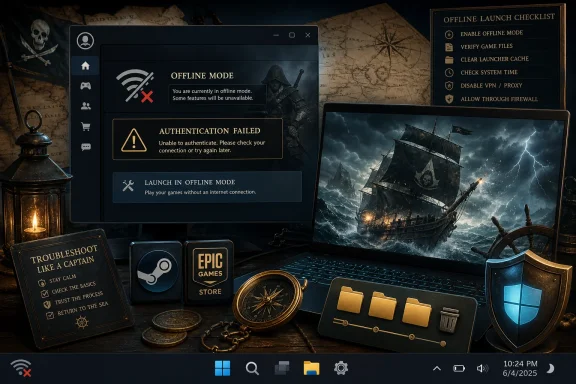 Check whether the problem is local or server-side
Do not reinstall the game immediately. A Ubisoft Connect outage can prevent authentication and may also disrupt offline launches if the client cannot use its locally stored authorization.- Confirm that other websites and internet-connected applications work.
- Open Ubisoft Connect PC normally.
- Note the exact error, particularly messages about:
- Ubisoft services being unavailable
- Ownership verification
- Activation
- Synchronizing cloud saves
- An expired or invalid session
- If Ubisoft Connect cannot sign in on more than one network or device, treat the problem as a possible service outage.
- If the launcher signs in but only Black Flag Resynced fails, continue with the local checks below.
Complete the required online activation
Offline mode cannot replace the game’s initial online installation and activation.- Connect the PC to the internet.
- Open the store client from which you purchased the game:
- Open Ubisoft Connect for a Ubisoft Store purchase.
- Open Steam for a Steam purchase.
- Open the Epic Games Launcher for an Epic Games Store purchase.
- Sign in to the store account that purchased the game.
- When prompted, sign in to the Ubisoft account originally linked to that purchase.
- Install all available updates for the game and Ubisoft Connect.
- Launch Assassin’s Creed Black Flag Resynced while online.
- Allow the game to reach its main menu.
- Load a saved game or begin a new game, then wait until normal gameplay starts.
- Exit to the main menu and close the game normally.
- Leave Ubisoft Connect open for a few minutes so that save and account synchronization can finish.
Test Ubisoft Connect offline mode correctly
Test offline access while the services and your internet connection are working. This gives Ubisoft Connect an opportunity to save the required credentials locally.- Open Ubisoft Connect and sign in while online.
- Make sure the client remembers the account if that option is offered. Do not sign out afterward.
- Open the Ubisoft Connect menu.
- Select the option to Go offline.
- Allow the client to restart in offline mode if prompted.
- Confirm that Assassin’s Creed Black Flag Resynced remains visible in the game library.
- Start the game from Ubisoft Connect.
- Verify that it reaches the main menu and can load a local save.
- Close the game.
- Disconnect Wi-Fi or unplug the Ethernet cable.
- Start Ubisoft Connect again and repeat the launch.
If the game works after selecting offline mode but fails when Windows starts without internet access, the client may not be retaining its local session. Continue with the credential and cache checks.
Keep the correct account session available
Offline mode usually depends on credentials previously stored on that Windows installation.Before disconnecting the PC:
- Sign in to the correct Ubisoft account.
- Avoid selecting Log out.
- Do not clear Ubisoft Connect application data after the successful activation.
- Do not use a Windows cleanup utility that deletes launcher caches or saved credentials.
- Do not change the Ubisoft account linked to Steam or Epic.
- Keep Windows date, time, and time zone correct.
- Complete any Ubisoft Connect update before going offline.
Correct the Windows date and time
Incorrect system time can invalidate authentication tokens and secure connections.Windows 11
- Open Settings.
- Select Time & language > Date & time.
- Turn on Set time automatically.
- Turn on Set time zone automatically, or select the correct time zone manually.
- Select Sync now under additional settings.
- Restart Ubisoft Connect.
Windows 10
- Open Settings.
- Select Time & Language > Date & time.
- Turn on Set time automatically.
- Confirm that the displayed time zone is correct.
- Select Sync now if the option is available.
- Restart Ubisoft Connect.
Fully close and restart the launcher chain
Closing a launcher window may leave its background processes running.- Exit Assassin’s Creed Black Flag Resynced.
- Right-click the Ubisoft Connect icon in the notification area and select Quit or Exit.
- Exit Steam or the Epic Games Launcher if that client owns the game.
- Press Ctrl + Shift + Esc to open Task Manager.
- Under Processes, end remaining Ubisoft Connect or Ubisoft Game Launcher processes.
- End remaining Steam or Epic Games Launcher processes only if their applications have already been closed.
- Restart Windows.
- Reconnect to the internet.
- Open the purchasing client first, then launch the game.
Clear a damaged Ubisoft Connect cache
A corrupted launcher cache can cause blank pages, repeated login requests, ownership errors, or failed offline transitions.Clearing the cache is a repair step, not a solution to a Ubisoft server outage. It may also remove information needed for the current offline session, so perform it only while you have a working internet connection and can sign in again.
Warning: Do not delete game installation or save folders. Rename only the launcher’s
cache folder.- Close the game and all store launchers.
- Open Task Manager and confirm that Ubisoft Connect is no longer running.
- Open File Explorer.
- Browse to the Ubisoft Connect installation folder. A common default location is:
C:\Program Files (x86)\Ubisoft\Ubisoft Game Launcher - Find the folder named:
cache - Rename it to:
cache_backup - Start Ubisoft Connect.
- Sign in to the correct account.
- Allow the launcher to rebuild its cache.
- Start Black Flag Resynced online and reach the main menu.
- Close the game, switch Ubisoft Connect to offline mode, and test again.
cache folder, then rename cache_backup back to cache to roll back the change.Verify the installed game files
Verification repairs missing or modified files without deleting the entire installation.Ubisoft Connect purchase
- Open Ubisoft Connect.
- Select Library.
- Select Assassin’s Creed Black Flag Resynced.
- Open the game’s Properties or management options.
- Select Verify files if available.
- Approve any requested repair download.
- Restart Ubisoft Connect after verification finishes.
Steam purchase
- Open Steam.
- Select Library.
- Right-click Assassin’s Creed Black Flag Resynced and select Properties.
- Select Installed Files.
- Select Verify integrity of game files.
- Wait for Steam to check and reacquire files.
- Launch the game online once before testing offline mode.
Epic Games Store purchase
- Open the Epic Games Launcher.
- Select Library.
- Select the three-dot menu beside the game.
- Select Manage.
- Select Verify.
- Wait for verification to complete.
- Launch the game online once before disconnecting.
Check Windows Security and third-party firewalls
Security software must allow Ubisoft Connect to authenticate and update while preparing offline mode. Do not permanently disable antivirus or firewall protection.- Open Windows Security.
- Select Firewall & network protection.
- Select Allow an app through firewall.
- Select Change settings.
- Look for Ubisoft Connect or Ubisoft Game Launcher entries.
- Allow them on the network types you actually use.
- Apply the change and restart Ubisoft Connect.
Avoid adding broad inbound rules, disabling the Windows firewall, or exposing the PC through router port forwarding merely to troubleshoot offline play. Restore any temporary security change after testing.
Test a different connection
A different connection helps distinguish a Ubisoft outage from filtering by the current router, DNS service, VPN, workplace network, or internet provider.- Close Ubisoft Connect.
- Disconnect any VPN or proxy.
- Connect the PC to another trusted network, such as a mobile hotspot.
- Open Ubisoft Connect and sign in.
- Launch the game once and reach the main menu.
- Switch the launcher to offline mode.
- Disconnect the alternate network and test the game.
Protect local saves before reinstalling
Reinstallation should be the final local repair because it can remove cached activation data and force another online sign-in.Warning: Confirm that saves are synchronized or backed up before uninstalling the game or Ubisoft Connect. Do not assume cloud synchronization completed during an outage.
- Close the game normally.
- Reconnect to the internet when Ubisoft services are operational.
- Open Ubisoft Connect and allow cloud synchronization to finish.
- Record any synchronization warning instead of automatically choosing a local or cloud version.
- Back up the relevant local save folder before uninstalling anything.
- Reinstall Ubisoft Connect only if cache repair, file verification, and account checks have failed.
- Sign in online and launch the game successfully before attempting offline mode again.
When the failure requires a Ubisoft fix
Stop changing the PC if all of the following are true:- The game was installed and launched successfully online before the incident.
- The correct Ubisoft account is still signed in.
- The game previously worked offline on the same Windows installation.
- Multiple users report Ubisoft Connect authentication failures at the same time.
- Ubisoft Connect cannot validate ownership even on another network.
- Re-entering offline mode fails only while Ubisoft services are unavailable.
If offline mode still fails once Ubisoft Connect is fully operational, submit a Ubisoft support case with the purchase platform, exact error text, time of failure, Ubisoft Connect version, Windows version, and confirmation that the game completed its first online launch.
References
- Primary source: Windows Central
Published: 2026-07-13T14:09:21+00:00
Assassin's Creed Black Flag Resynced's offline mode failure proves Ubisoft doesn't actually know what an offline mode is supposed to be | Windows Central
Don't ever let DRM stop you playing your games, right?www.windowscentral.com - Related coverage: tomsguide.com
Assassin’s Creed Black Flag Resynced review: The best pirate game gets even better | Tom's Guide
Black Flag Resynced gives the fan-favorite 2013 Assassin’s Creed game a complete overhaul. From the incredible visuals to some essential gameplay upgrades, stepping into the shoes of Edward Kenway has never looked or played this good.www.tomsguide.com - Related coverage: pcgamer.com
How to get all 32 Black Flag Resynced outfits | PC Gamer
Want some fresh fits? Here's how to get all the Assassin's Creed Black Flag Resynced outfits, as some of the locations have changed in the remake.www.pcgamer.com - Related coverage: creativebloq.com
Assassin's Creed Black Flag Resynced review: prettier, smoother, but still feels like it's 2013 at heart | Creative Bloq
A remake that brings back the swashbuckling charm, but is it the reset the series needs?www.creativebloq.com - Related coverage: tomshardware.com
Cracked version of Assassin’s Creed Black Flag Resynced leaked days prior to official release despite Denuvo DRM protection — Denuvo unable to stop crackers, with some finding ways to completely remove it from other titles | Tom's Hardwar
Crackers are now beating game studios and releasing pre-release copies of games before their official launch date.www.tomshardware.com - Related coverage: store.steampowered.com
Assassin's Creed Black Flag Resynced on Steam
The iconic solo pirate adventure returns. Sail the Caribbean as Edward Kenway during the Golden Age of Piracy in this faithfully enhanced remake featuring stunning visuals, upgraded gameplay, and new content.store.steampowered.com
