

I turned one tiny Windows 11 setting off the desktop—and it made my whole machine feel faster, quieter, and less cluttered.
Windows has always been opinionated about its desktop real estate. The taskbar is one of the most visible pieces of that design: it gives quick access to apps, shows notifications, and anchors system controls. With Windows 11, Microsoft rethought the taskbar’s look and behavior—centering icons by default, trimming customization options, and changing how system-tray icons behave. Those design choices make the taskbar more polished for many users, but they also reduced flexibility for people who want a minimal workspace or more granular control.
For power users, creatives, and anyone who spends hours looking at code, documents, or large canvases, that strip of persistent UI can feel like wasted space. The simple answer—auto-hide the taskbar—is built into Windows and requires only a few clicks. It’s unobtrusive, reversible, and (for most people) the quickest way to reclaim screen space and reduce visual distraction without installing third‑party tools.
If you prefer using the Settings app directly: open Settings → Personalization → Taskbar → Taskbar behaviors → enable Automatically hide the taskbar.
Beyond focus, there’s ergonomics and comfort. On smaller screens or laptops, those extra pixels give you an extra column for a browser or extra lines in your editor. On ultrawide displays, an uncluttered strip at the bottom helps preserve symmetry and gives the desktop a sense of calm.
Finally, the tweak is reversible and safely low‑risk. You don’t need to change your workflow or learn new shortcuts—Windows still exposes the taskbar exactly when you want it.
If you want deeper control—restoring classic behavior, moving the bar, or reclaiming old toolbars—there are solid third‑party options available. But those tools change the shell and should be used with forethought: back up first, test on non‑critical machines, and expect occasional compatibility work when Windows receives feature updates.
In short: try the setting for a week. Use keyboard shortcuts to complement the hidden taskbar. If it sticks, it may become one of those tiny customizations that, in aggregate, make your Windows machine feel significantly better.
Source: MakeUseOf I didn't expect this simple change to make Windows 11 so much better
 Background
Windows has always been opinionated about its desktop real estate. The taskbar is one of the most visible pieces of that design: it gives quick access to apps, shows notifications, and anchors system controls. With Windows 11, Microsoft rethought the taskbar’s look and behavior—centering icons by default, trimming customization options, and changing how system-tray icons behave. Those design choices make the taskbar more polished for many users, but they also reduced flexibility for people who want a minimal workspace or more granular control.For power users, creatives, and anyone who spends hours looking at code, documents, or large canvases, that strip of persistent UI can feel like wasted space. The simple answer—auto-hide the taskbar—is built into Windows and requires only a few clicks. It’s unobtrusive, reversible, and (for most people) the quickest way to reclaim screen space and reduce visual distraction without installing third‑party tools.
What I changed (and why it matters)
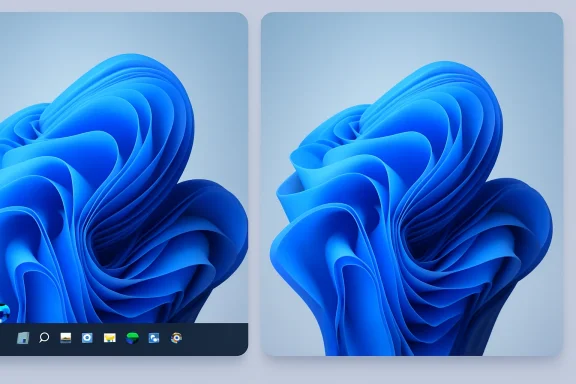
I enabled Windows 11’s “Automatically hide the taskbar” setting and then spent a full week with it on. The switch is small, but the effect is immediate:- A cleaner desktop and more usable vertical space in apps, especially useful on laptops and ultrawide monitors.
- Fewer accidental distractions from badges and icon animations.
- The desktop feels visually lighter, which reduces friction when focusing on a single task.
Overview: how to enable auto-hide (short, foolproof steps)
If you want to try this yourself, here’s the fastest, least error-prone sequence:- Right‑click an empty area of the taskbar and choose Taskbar settings.
- In Settings, scroll down and expand Taskbar behaviors.
- Check the box labeled Automatically hide the taskbar.
If you prefer using the Settings app directly: open Settings → Personalization → Taskbar → Taskbar behaviors → enable Automatically hide the taskbar.
Small refinements that amplify the effect
Turning on auto-hide is the base move. These subtle extra tweaks help the hidden taskbar behave more predictably and align with different workflows:- Change taskbar alignment to Left instead of Center. This restores a classic, left-aligned anchor while keeping the benefits of auto-hide.
- Disable badges and attention-seeking features if the taskbar keeps showing itself. Some apps flash badges or send persistent notifications that force the taskbar open.
- Use Windows keyboard shortcuts to replace reliance on visible icons: Win + 1..9 to launch or switch to pinned apps, Win + T to focus the taskbar, and Win + D to show the desktop instantly.
Troubleshooting: when auto-hide won’t behave
Auto-hide is convenient, but it isn’t flawless. Here are the most common problems and how to fix them—practical, step-by-step guidance so you won’t waste time hunting for answers.Symptom: The taskbar keeps appearing without you touching the edge
Possible causes:- An app in the notification area needs attention (a flashing icon or a pending toast).
- A system alert or background process is forcing visibility.
- A temporary explorer.exe glitch.
- Open the hidden system tray (click the up arrow) and check for apps needing attention. Clear or dismiss their notifications.
- Restart File Explorer:
- Press Ctrl + Shift + Esc to open Task Manager.
- Find Windows Explorer in the Processes list, right‑click it and choose Restart.
- Toggle auto-hide off and on again from Settings → Personalization → Taskbar → Taskbar behaviors.
- Disable taskbar badges (Taskbar behaviors) to avoid apps demanding attention.
- Perform a clean boot to rule out a startup app conflict.
- Run an SFC scan and DISM health checks to detect and repair corrupted system files:
- Open Command Prompt as an administrator.
- Run: SFC /scannow
- If issues remain, run DISM /Online /Cleanup-Image /CheckHealth, then /ScanHealth, then /RestoreHealth.
Symptom: The taskbar fails to reappear on a secondary monitor
Multi‑monitor setups sometimes have separate quirks. If auto-hide is enabled but the second monitor’s bar won’t show:- Ensure display scaling and resolution are configured consistently across monitors.
- Try toggling the taskbar visibility on the secondary screen by unplugging and replugging the monitor or turning off the secondary display and back on.
- Unpin seldom‑used icons from the second monitor’s taskbar; some pinned items can interfere.
- If you use third‑party shell customizers, temporarily disable them and test behavior to isolate compatibility issues.
Symptom: Auto-hide setting keeps resetting after sleep/restart
A subset of users report auto-hide being unchecked after sleep or restart. To mitigate:- Ensure Windows is fully updated and that drivers for display adapters and docking stations are current.
- Use a clean boot to find a conflicting process that might flip personalization settings.
- As a last resort, re-apply your personalization settings and create a restore point.
Advanced fixes (use with caution)
If the usual remedies fail, these advanced techniques can reset taskbar behavior—but they carry more risk and require care.- Re-register shell apps: Re-registering built-in shell packages can restore corrupted taskbar state. Run PowerShell as admin and execute the re-registration command for AppX packages. This resets multiple UI elements and may require time and a reboot.
- Registry tweaks: There are registry keys that control various taskbar behaviors. Editing the registry can fix edge cases but always back up the registry and create a system restore point first.
- Create a new user profile: If only one user account shows misbehavior, creating a fresh account isolates profile corruption.
Alternatives: when auto-hide isn’t enough
Auto-hide is the easiest non-invasive tweak, but some users want more: move the taskbar to a different edge, restore labels, use classic toolbars, or permanently remove the bar entirely. Third‑party tools exist to fill those gaps—but they come with tradeoffs.- ExplorerPatcher (open source) and StartAllBack (commercial) are two well-known tools that restore legacy Windows taskbar behaviors and add deeper customization. They can:
- Restore left‑aligned taskbar layout by default.
- Reintroduce labels and classic context menus.
- Allow repositioning of the taskbar to the top, left, or right.
- Add classic toolbars (Quick Launch, folders).
- Return features Microsoft removed.
- Greater control over multi‑monitor behavior and icon labeling.
- Often updated by their maintainers to support new Windows builds.
- These tools modify explorer behavior and can conflict with Windows updates.
- They are community or commercial projects, not Microsoft‑supported. Use with caution on work or mission‑critical systems.
- Updates to Windows can break compatibility temporarily, requiring tool updates or rolling back Windows updates.
- You should always create a full backup or system image before using such tools.
Accessibility, discoverability, and productivity tradeoffs
Auto-hide delivers a cleaner screen, but it’s not universally better for every user. Consider these tradeoffs before you flip the toggle:- Accessibility concerns: Users with mobility impairments or those who rely on large, always-visible targets may find an auto-hidden taskbar harder to use. If precise mouse control is a problem, keep the taskbar visible or rely on keyboard shortcuts.
- Discoverability: Novice users—people who are new to Windows or who prefer visual anchors—may not notice hidden apps or system signals when the taskbar is tucked away.
- Interaction friction: Dragging files to the taskbar or docking windows can accidentally trigger the bar’s reappearance. During drag-and-drop operations, the bar can pop up unexpectedly and break the flow.
Practical workflows: when to hide and when not to
Here are realistic scenarios and recommended settings based on common workflows:- Laptop on the couch / writing a long document: Enable auto-hide. The extra vertical space and lack of distraction help focus.
- Multi-monitor creative work (video editing, photo editing): Consider auto-hide on the primary editing display to maximize canvas area, but keep the secondary monitor taskbar visible for quick tool switching.
- Presentations or screen sharing: Yes—auto-hide keeps the shared screen clean and reduces accidental reveals.
- Shared machines or devices used by less‑technical users: Keep the taskbar visible. Familiarity beats minimalism when others depend on the system.
Safety checklist before you tweak UI behavior
Before making changes—especially advanced ones—follow this checklist to stay safe and reversible:- Create a System Restore point.
- Make a full disk image if you’re planning registry edits or installing third‑party shell mods.
- Note current settings (a quick screenshot of the Taskbar settings page is enough).
- If using third‑party software, download only from the project’s official distribution (verify checksums where offered) and read recent release notes for compatibility warnings.
- Keep your system updated, but if an update changes core shell behavior, wait for third‑party tool updates before applying updates to a production machine.
Why this tiny change matters more than you’d expect
There’s a psychology to visual clutter: our brains constantly scan edges and bright shapes. A persistent taskbar pulls a sliver of attention away from the main content area; auto-hide reduces that micro‑distraction. For creators, coders, or anyone who spends long stretches in full‑screen or near‑full‑screen windows, that reduction compounds into measurable time and focus gains.Beyond focus, there’s ergonomics and comfort. On smaller screens or laptops, those extra pixels give you an extra column for a browser or extra lines in your editor. On ultrawide displays, an uncluttered strip at the bottom helps preserve symmetry and gives the desktop a sense of calm.
Finally, the tweak is reversible and safely low‑risk. You don’t need to change your workflow or learn new shortcuts—Windows still exposes the taskbar exactly when you want it.
When to revert (and how to do it fast)
If you decide hiding the taskbar isn’t for you, revert in seconds:- Right‑click the taskbar and open Taskbar settings.
- Expand Taskbar behaviors and uncheck Automatically hide the taskbar.
Final verdict: a low-cost tweak with a high ROI
Hiding the Windows 11 taskbar is one of the highest‑return, lowest‑cost personalizations you can make. It’s quick to try, easy to undo, and delivers tangible benefits for focus and screen real estate. For most users, enabling auto-hide is a pragmatic first step toward a calmer desktop.If you want deeper control—restoring classic behavior, moving the bar, or reclaiming old toolbars—there are solid third‑party options available. But those tools change the shell and should be used with forethought: back up first, test on non‑critical machines, and expect occasional compatibility work when Windows receives feature updates.
In short: try the setting for a week. Use keyboard shortcuts to complement the hidden taskbar. If it sticks, it may become one of those tiny customizations that, in aggregate, make your Windows machine feel significantly better.
Source: MakeUseOf I didn't expect this simple change to make Windows 11 so much better
