

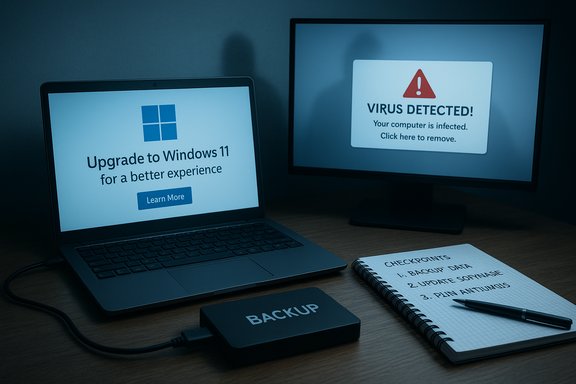
Microsoft’s latest upgrade push has turned into a cautionary tale: a combination of release‑pipeline bugs, confusing on‑screen messaging, and the ever‑present threat of scammy pop‑ups has left some users finding themselves on the wrong side of a Windows 11 installation without meaning to. The situation—amplified by a recent Forbes warning—is not a single glitch but a chain of overlapping problems: Microsoft’s update tooling briefly misbehaved, the update rollout sent offers to devices it shouldn’t have, and malicious web pop‑ups exploited the panic‑and‑click reflex that follows upgrade prompts. The upshot is simple and urgent: back up your data, don’t reflexively click “Upgrade” buttons or unknown pop‑ups, and understand exactly how Microsoft is offering Windows 11 to devices today.
Microsoft has patched and mitigated the most visible problems, and it has public guidance about what to do when you see “Coming soon: Upgrade to Windows 11” messages or when the MCT misbehaves. But vigilance remains essential: the threat landscape mixes legitimate engineering mistakes with opportunistic scams, and the combination is combustible at critical deadlines.
Source: Forbes https://www.forbes.com/sites/zakdof...oft-users-accidentally-upgrade-to-windows-11/
 Background
What triggered the headlines
As Windows 10 hit its end‑of‑support milestone, Microsoft’s messaging and tooling pushed more users toward Windows 11. At the same time, two technical issues dominated reporting: the Windows 11 Media Creation Tool (MCT) released in late September 2025 briefly failed when run from Windows 10 hosts, and Microsoft’s update systems, on multiple occasions, displayed upgrade offers to machines that did not meet Windows 11’s minimum requirements or were intentionally blocked by IT policies. Those two separate failures created confusion, failed upgrades, and, in some environments, unexpected upgrade offers.Why this matters now
Windows 10 reached its official end of support on October 14, 2025. After that date consumer editions no longer receive free security updates and Microsoft has actively encouraged eligible customers to migrate to Windows 11. That deadline increased the pressure to upgrade and, critically, magnified the consequences of any tooling or communication missteps. Users who were ambivalent about moving to Windows 11 suddenly faced a last‑minute decision—and attackers quickly leveraged that urgency.What actually happened: unpacking the failures
1) Media Creation Tool regression: the installer that wouldn’t run
Microsoft acknowledged that the Windows 11 Media Creation Tool version 26100.6584, released on September 29, 2025, “might not work as expected when used on Windows 10 devices,” describing symptoms where the tool could close immediately without an error. That regression removed a common, trusted path for creating installation media—exactly when many users needed it. Microsoft issued an update to the tool later in October to restore functionality, and the company pointed users toward ISO downloads and alternative upgrade paths while the fix was prepared. Independent outlets and community testing reproduced the crash behavior and offered workarounds (for example, using the Windows 11 Installation Assistant, downloading a raw ISO and writing it with 3rd‑party utilities, or running the MCT from a Windows 11 host).2) Upgrade offers sent to ineligible or blocked PCs
Separately, Microsoft’s release‑health and admin portals documented cases where upgrade offers were shown on systems that either didn’t meet hardware requirements or had been administratively blocked via Intune and other management tools. The company described these incidents as stemming from rollout and policy propagation issues; in many cases those devices could not complete the installation. Administrators and cautious consumers were understandably alarmed when devices flagged as ineligible suddenly displayed an “upgrade available” message. Microsoft’s own guidance stressed that affected users did not need to take action while fixes propagated.3) Scams and scareware: malicious pop‑ups exploiting the panic
Compounding the technical faults, online scourges—malicious ads, browser‑based scareware, and phishing pages—have used the Windows deadline and upgrade anxiety to trick users. Fake “Windows Update” alerts, browser pop‑ups claiming urgent security problems, and fraudulent tech‑support callouts direct victims to click links, download installers, or call numbers that lead to extortion. Law enforcement and security vendors repeatedly warn: avoid interacting with alarming browser pop‑ups or unsolicited dialogs, and never call numbers displayed in a pop‑up. These scams make accidental, harmful clicks more likely—exactly the moment when users are primed to click “Update now.”Verifiable technical facts and cross‑checks
- Windows 10 end of support: Microsoft’s official pages confirm that Windows 10 reached end of support on October 14, 2025. After that date Microsoft no longer provides free security updates to consumer editions of Windows 10. This is a firm lifecycle milestone, not a rumor.
- Media Creation Tool regression: Microsoft documented an MCT failure (build 26100.6584) that could exit unexpectedly on Windows 10 hosts; the company later updated the tool (resolution posted October 28, 2025). Independent outlets reproduced the symptom and recommended ISO or Installation Assistant workarounds.
- Upgrade offers to ineligible devices: Microsoft’s Release Health/known‑issues notes and multiple technology outlets reported that some systems were shown upgrade offers despite being ineligible or blocked by update policies; Microsoft characterized this as a rollout/policy propagation issue and implemented fixes.
The human and operational impact
Confusion for consumers
For the average home user, the visible effect was simple: a banner, a “Coming soon: Upgrade to Windows 11” message, or a download button. Without understanding the implications—hardware compatibility, app compatibility, or the need to preserve a working workflow—users can click through and find themselves in the middle of a feature update. In the worst cases the upgrade fails mid‑install because the device is ineligible, leaving the user with downtime and the potential for data loss if no recent backup exists. Microsoft’s messaging—“nothing requires your attention at the moment”—has been repeated to reduce panic, but it’s too late once someone has initiated an upgrade.Headaches for IT and admins
Enterprises and school districts that used Intune, WSUS or other third‑party management tools reported the update UI was sometimes ignoring policy controls and showing upgrade prompts to devices administrators had explicitly blocked. That creates helpdesk escalations, unexpected incompatible upgrades, and the need to audit and remediate affected fleets. Microsoft acknowledged these management propagation issues and issued targeted fixes, but incidents like this underscore how fragile large‑scale update plumbing can be at key calendar moments (like end‑of‑support deadlines).Scammers get leverage
When users see an urgent upgrade message or a blue screen claiming “Your PC needs to be upgraded,” scam pages substitute their own fake update UI. These pages pressure users into downloading what they think is Microsoft’s installer but is actually malware or a remote access trojan. The combination of legitimate Microsoft messages and criminal mimicry is a classic recipe for social‑engineering success. Law enforcement and cybersecurity vendors stress the same two points: never click on unsolicited update dialogs coming from the browser, and avoid calling numbers in pop‑ups.Practical guidance: how to avoid an accidental Windows 11 upgrade
The safest posture today is to assume that any unexpected upgrade prompt can lead to data loss or malware—until you verify otherwise. Follow these steps.- Back up first. Create a full system image or at minimum export personal documents, photos, and any critical configuration files to an external drive or cloud storage before you touch an upgrade action.
- Ignore browser pop‑ups. If a browser window shows a security warning or an “Update Windows” banner, do not click any buttons in that page. Close the tab or the browser, and scan your system with reputable anti‑malware software. Treat such pages as potential scareware.
- Use Windows Update inside Settings only. To check for legitimate upgrade offers go to Settings > Windows Update; Microsoft’s official “Coming soon: Upgrade to Windows 11” or “Check for updates” messages in Settings are the trustworthy paths. If you see an option in Settings and want to delay, do not click “Download and install.” Instead, verify compatibility using the PC Health Check or Microsoft’s Get Windows 11 guidance.
- Prefer official installers from Microsoft’s site. If you need installation media, download the ISO or Installation Assistant from Microsoft.com/software‑download/windows11 rather than third‑party mirrors. If the Media Creation Tool shows errors, use Microsoft’s raw ISO or the Windows 11 Installation Assistant as a fallback; Microsoft published those alternatives during the MCT regression window.
- For managed devices, confirm Intune/WSUS policies. Administrators who block feature upgrades should verify policy propagation from their management console and check Microsoft’s release‑health notes for active issues affecting policy enforcement. If blocked devices still show upgrade offers, escalate to Microsoft support and hold nonessential updates until admin tools reflect current policies.
- If an upgrade begins unexpectedly, stop and recover. If the upgrade starts and you did not authorize it, force a shutdown, disconnect from the network, and boot to recovery. Use Windows’ recovery options or restore from backup. Avoid attempting risky repair downloads recommended by browser pop‑ups or phone “support” numbers.
Technical and security analysis
Root causes: tooling, rollout, and human factors
The incidents are diagnostic of three interacting failures:- Release‑tool regression: a media creation tool regression validated how a single utility defect can disrupt many users’ upgrade paths.
- Rollout/policy propagation: large update infrastructures must reconcile cloud‑side rollout decisions with device‑level policies—when that reconciliation lags, users see offers they shouldn’t. Microsoft’s safeguard hold mechanisms exist to prevent upgrades to devices with known issues, but propagation and telemetry inaccuracies can still cause false positives.
- Social engineering surface: legitimate urgency (EOL) plus confusing on‑screen language makes users ripe for scams; malicious actors build fake update flows that look very similar to Microsoft’s and harvest clicks or credentials.
Security risks
- Data loss: failed or partial feature updates can corrupt user profiles and installed applications; without a backup, data recovery can be difficult.
- Malware distribution: fake installers and disguised remote‑support tools can give attackers persistent access, exfiltrate credentials, or deploy ransomware.
- Policy erosion: if management consoles and device‑side experiences are mismatched, IT controls may be circumvented unintentionally, exposing fleets to compatibility and security hazards.
Operational strengths and mitigations
Microsoft’s visible strengths are its response processes: when issues are found the company publishes Release Health updates and often provides targeted mitigations (Known Issue Rollback, updated MCT binaries, or guidance to use ISOs/Installation Assistant). The transparency of a Release Health page lets admins and savvy users confirm whether the behavior they see is an acknowledged problem or a new, unmanaged issue. Still, public messaging must be clearer during critical windows to reduce user panic.Recommendations for readers and administrators
- Home users
- Make backups now. If you plan to upgrade, do so only after a verified backup and checking compatibility with PC Health Check.
- Don’t click browser or ad‑network pop‑ups. Close them and run an anti‑malware scan.
- Use Settings > Windows Update or Microsoft’s official download page when you want to upgrade.
- Business and IT
- Audit update policies and confirm their current state in Intune, WSUS, or your chosen management plane.
- Communicate clearly to end users: “If you see an upgrade message outside Settings, do not click it.”
- Consider staged, monitored rollouts and leverage Microsoft’s Release Health telemetry to pause or accelerate feature update distribution.
- The cautious path
- If a device cannot meet Windows 11 requirements, either enroll it in Extended Security Updates (ESU) where eligible or prepare a hardware refresh plan. ESU and device replacement are preferable to unverified third‑party workarounds that jeopardize security.
Why this chapter matters for Windows stewardship
Software update systems are the plumbing of modern IT. When those pipes clog or leak—particularly during a massive lifecycle milestone—the damage goes beyond a single bug: trust erodes, attackers opportunistically exploit confusion, and administrators must triage at scale. Microsoft’s recent episode is a reminder that update experiences must be resilient, transparent, and easy to verify at the point of action. For users, the lesson is timeless: verify, don’t panic, and back up before you click.Microsoft has patched and mitigated the most visible problems, and it has public guidance about what to do when you see “Coming soon: Upgrade to Windows 11” messages or when the MCT misbehaves. But vigilance remains essential: the threat landscape mixes legitimate engineering mistakes with opportunistic scams, and the combination is combustible at critical deadlines.
Final verdict and risk summary
- Strengths: Microsoft’s Release Health transparency, rapid fixes for some tooling failures, and multiple upgrade paths (ISO, Installation Assistant, Windows Update) reduce single‑point failure risk.
- Weaknesses: rollout policy mismatches, tooling regressions at peak upgrade moments, and messaging that can be misinterpreted by nontechnical users.
- Risks to users: accidental data loss, unauthorized installs, and malware from fake update prompts.
- Practical bottom line: do not click upgrade prompts you haven’t verified; back up first; and use the official Settings page or Microsoft’s download portal for upgrade operations.
Source: Forbes https://www.forbes.com/sites/zakdof...oft-users-accidentally-upgrade-to-windows-11/
