

Android emulators remain the most practical way to run mobile apps and games on a Windows PC in 2026, especially after Microsoft ended Windows Subsystem for Android and removed the Amazon Appstore path from the Microsoft Store on March 5, 2025. That single date changed the story: Android-on-Windows is no longer a built-in Windows 11 promise, but a third-party ecosystem again. For gamers, testers, and people who simply want a phone-only app on a larger screen, the emulator market is now where the real action is. The catch is that “best free Android emulator” no longer means one thing; it means choosing the right compromise between speed, trust, compatibility, ads, and long-term maintenance.
For a brief moment, Windows 11 seemed to be pulling Android apps into the mainstream PC experience. The Windows Subsystem for Android was never perfect, and its Amazon Appstore dependency always made the catalog feel thinner than users expected, but it carried Microsoft’s implicit promise: Android apps could become a normal Windows workload.
That promise is gone. Microsoft’s retirement of WSA did not make Android apps on PCs impossible, but it did make them less official, less standardized, and more dependent on vendors whose priorities vary widely. The result is a market where BlueStacks, MuMu Player, LDPlayer, NoxPlayer, MEmu, Genymotion, and a few older names now define the experience more than Windows itself does.
That matters because Android emulation is not a simple utility category. An emulator has to virtualize hardware, map touch controls to a keyboard and mouse, expose graphics APIs, handle Google services, manage storage, and avoid becoming a malware delivery mechanism. A good emulator feels like a gaming platform or developer device lab; a bad one feels like a pop-up installer wearing a useful disguise.
The best choice therefore depends less on a tidy ranking and more on intent. A PUBG Mobile player chasing high frame rates has different needs from a developer testing screen density bugs, and both have different risk tolerance than someone trying to revive an old Windows 7 laptop for a messaging app.
For most users, BlueStacks is the safest starting point. It supports multi-instance use, keyboard and mouse mapping, gamepad support, and a relatively polished onboarding flow. If someone asks which emulator to try first for Android games on Windows 10 or Windows 11, BlueStacks is still the boring answer — and boring is often what you want from software that sits between your operating system and your Google account.
The trade-off is that BlueStacks has become heavy in the way mature platforms often become heavy. Its free tier is ad-supported, its interface pushes discovery and game promotion, and its feature set can feel excessive if all you want is one app in one window. The premium tier removes some of that friction, but the more important point is that BlueStacks assumes you are comfortable with an emulator that behaves like an ecosystem.
Its Eco Mode and Multi-Instance Manager are still genuinely useful. People who farm resources in mobile games, test multiple accounts, or run background automation can reduce the resource hit of idle instances. On a modern desktop with enough RAM, BlueStacks can feel stable and predictable; on a cramped laptop, it can remind you that “mobile” does not mean “lightweight” once virtualization enters the picture.
That emphasis matters because mobile games are no longer technically simple. Many competitive and gacha titles are graphically ambitious, aggressively updated, and increasingly tuned for specific chipsets and Android versions. An emulator stuck on an ancient Android image can launch old APKs beautifully while failing at the games users actually want to play today.
MuMu’s appeal is that it feels built for the current mobile game economy rather than dragged forward from the 2010s. If your priority is smooth animation, GPU acceleration, and compatibility with demanding titles, it belongs near the top of the shortlist. It is especially attractive for players who have already found BlueStacks too cluttered or too inconsistent on their hardware.
But the usual emulator warnings apply. High frame-rate marketing does not guarantee every game will run at 240 FPS, and some titles enforce their own caps, anti-cheat rules, or device checks. In practice, MuMu is best treated as a performance-oriented gaming emulator, not magic. It rewards users who are willing to adjust renderers, allocate CPU cores, and experiment with settings.
The strength of Nox is its gaming workflow. You can tune keyboard layouts, automate repetitive actions, and adapt mobile interfaces to desktop muscle memory. For games that depend on precision taps, swipes, and repeated grinding, those tools can make the difference between an emulator feeling like a gimmick and feeling like a viable way to play.
The weakness is trust and upkeep perception, which affects the whole emulator market but lands especially hard on tools that ask for deep system access. Users should download only from the official site, avoid bundled offers, and treat random “optimized” builds from file mirrors as hostile until proven otherwise. That advice sounds tedious, but Android emulators are exactly the kind of software category where convenience and risk often travel together.
Nox also sits in a crowded middle ground. It is less universally default than BlueStacks, less sharply performance-branded than MuMu, and less developer-focused than Genymotion. Its case is strongest when you know you want macros and mapping more than a polished store-like environment.
That makes MEmu interesting even if it is not always the flashiest option. It has historically emphasized compatibility across Intel and AMD processors and offers a reasonably approachable path for gaming without the full bloat of the largest players. For users with midrange or aging systems, that balance can matter more than headline frame-rate claims.
The ability to work with different Android versions is another practical advantage, though it should be understood carefully. Older Android images can help with legacy apps, but they can also mean older security assumptions and weaker compatibility with modern games. A user running a current banking app or anything sensitive inside an emulator should be far more cautious than someone running an offline puzzle game.
MEmu is therefore best seen as the sensible budget option: capable, flexible, and often smooth enough when the PC is not. It may not win the prestige contest, but it solves a real problem for the large population of Windows users who do not upgrade their machines every two years.
That makes Genymotion the most professional tool in the group. Its desktop edition has a free personal-use path, while commercial use belongs in paid plans. That distinction is important: a developer testing a hobby app at home is not in the same category as a company using emulator infrastructure in a release pipeline.
Where BlueStacks and MuMu try to make Android feel like a gaming platform on Windows, Genymotion tries to make Android feel like a lab. It lets developers see how an app behaves across screen sizes, device capabilities, and environmental conditions. For QA work, that is not a bonus feature; it is the point.
The downside is obvious. If you install Genymotion expecting a consumer-friendly gaming launcher with pre-tuned controls, you will probably be disappointed. Its value is in precision and reproducibility, not instant gratification.
For players of action games, RPGs, and competitive mobile titles, LDPlayer’s appeal is straightforward. It tries to get out of the way. The interface is less of a destination than a launcher for the games you already care about, and the emulator’s tuning options let users chase higher frame rates and smoother input.
That does not mean LDPlayer is automatically better than BlueStacks or MuMu. Emulator performance is deeply hardware-specific. GPU drivers, Windows virtualization settings, Hyper-V conflicts, CPU generation, RAM pressure, and even the particular game build can change the outcome. The same emulator that feels miraculous on one desktop can feel cursed on another.
Still, LDPlayer deserves its current reputation as a performance-first option. If BlueStacks feels too commercialized and MuMu does not behave well with a particular title, LDPlayer is the next serious test before giving up.
KoPlayer’s old appeal was simplicity. It targeted casual gamers who wanted a clean install, basic acceleration, and easy APK sideloading without drowning in settings. That remains an attractive idea, especially for users who do not want every emulator to become a content platform.
The problem is that Android emulation is a maintenance business. Games update, Google services change, Windows security models evolve, graphics drivers move, and anti-cheat systems become more aggressive. An emulator that is not actively maintained can go from useful to fragile quickly, even if the installer still exists somewhere online.
Droid4X is similar. Its smartphone-as-controller idea was clever: use the physical phone’s touchscreen and motion sensors as an input device for games running on a PC display. In an era before every accessory and launcher had a companion app, that felt inventive.
But clever old features do not outweigh maintenance concerns. Users should be wary of any emulator whose official presence, update cadence, or security posture is unclear. The more obscure the download source, the less attractive the software becomes, no matter how well it once worked.
Windroy is the most interesting historical artifact of the three. Its pitch was that it ran Android on the Windows kernel rather than behaving like a conventional virtualized emulator. That made it unusually light for old hardware, which explains why it still appears in roundups aimed at ancient PCs.
Yet that same historical appeal is also the warning. A lightweight emulator built for older Windows-era assumptions is not necessarily a good fit for modern Android apps, modern Google Play services, or modern security expectations. If the goal is experimentation on a disposable machine, fine. If the goal is a daily Android environment tied to personal accounts, look elsewhere.
This is especially important because Android emulators often ask for privileges that ordinary apps do not. They may install drivers, create virtual devices, require virtualization features, request Google sign-ins, sideload APKs, and interact deeply with graphics and input systems. That does not make them inherently unsafe, but it does mean the vendor’s reputation matters.
The cleanest rule is to keep sensitive activity out of consumer gaming emulators. Do not treat them as secure phones. Avoid banking apps, password managers, corporate authentication workflows, and anything governed by workplace policy unless your organization has approved the setup. The emulator may be legitimate, but the environment is still an extra abstraction layer with its own attack surface.
There is also a licensing and platform-policy angle. Some mobile games restrict emulator use or separate emulator players into different matchmaking pools. Some apps block virtualized environments outright. If an emulator advertises “bypass” features too loudly, that should make security-minded users pause rather than cheer.
BlueStacks may be the best all-rounder on one machine, while LDPlayer or MuMu feels dramatically faster on another. MEmu may rescue a low-end system from stutter, while Genymotion may be the only sane option for a developer who needs repeatable device profiles. There is no universal winner because the PC ecosystem itself is not universal.
Users should also check the Windows virtualization stack before blaming the emulator. Hyper-V, Windows Hypervisor Platform, Virtual Machine Platform, Core Isolation, and third-party virtualization software can affect performance and compatibility. Some emulators now coexist better with Hyper-V than they once did, but conflicts still happen.
Graphics APIs matter too. OpenGL, DirectX, and Vulkan modes can behave differently depending on drivers and game engines. If a game crashes or stutters, switching renderers is often more productive than uninstalling the emulator immediately.
But Google Play access is not a trivial checkbox. It involves Google Mobile Services, account authentication, app compatibility filters, SafetyNet or Play Integrity checks, and app developer restrictions. Some apps simply do not want to run in virtualized environments, and no emulator can guarantee universal compatibility.
This is where APK sideloading enters the conversation, and it is both useful and dangerous. Sideloading can help with apps unavailable in a region, older versions needed for testing, or software distributed outside the Play Store. It can also turn a casual emulator install into a malware incident.
The safest approach is boring: use the built-in Play Store when possible, download APKs only from sources you already trust, and avoid modified game clients or “premium unlocked” packages. Android malware does not become harmless because it is running on Windows.
BlueStacks is the default recommendation because it is mature, broadly compatible, and polished enough for non-technical users. MuMu Player is the high-frame-rate gaming candidate, especially for users chasing modern Android and smoother rendering. LDPlayer is the lean performance challenger. NoxPlayer is the macro and control-mapping workbench. MEmu is the budget-PC pragmatist.
Genymotion stands apart because it is not solving the same problem. Its value is testing, not winning matches. That makes it less exciting for a gaming roundup but more important for anyone who needs Android behavior to be predictable rather than merely playable.
The older trio deserves a different status: legacy options rather than primary recommendations. KoPlayer, Droid4X, and Windroy may still serve narrow use cases, but they should not be the first stop for most Windows 11 users in 2026. In emulator land, age without maintenance is not charm; it is liability.
The decision should start with use case, not brand loyalty.
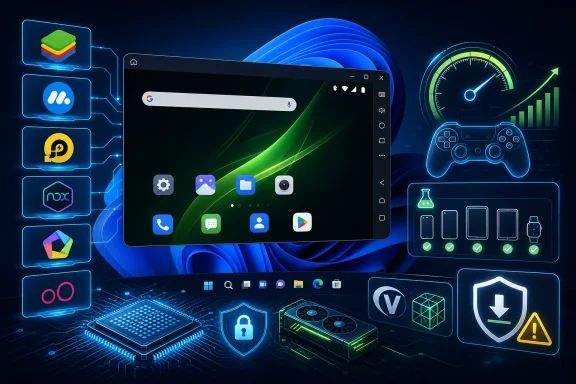 Microsoft Left the Door Open, but the Emulators Walked Through It
For a brief moment, Windows 11 seemed to be pulling Android apps into the mainstream PC experience. The Windows Subsystem for Android was never perfect, and its Amazon Appstore dependency always made the catalog feel thinner than users expected, but it carried Microsoft’s implicit promise: Android apps could become a normal Windows workload.That promise is gone. Microsoft’s retirement of WSA did not make Android apps on PCs impossible, but it did make them less official, less standardized, and more dependent on vendors whose priorities vary widely. The result is a market where BlueStacks, MuMu Player, LDPlayer, NoxPlayer, MEmu, Genymotion, and a few older names now define the experience more than Windows itself does.
That matters because Android emulation is not a simple utility category. An emulator has to virtualize hardware, map touch controls to a keyboard and mouse, expose graphics APIs, handle Google services, manage storage, and avoid becoming a malware delivery mechanism. A good emulator feels like a gaming platform or developer device lab; a bad one feels like a pop-up installer wearing a useful disguise.
The best choice therefore depends less on a tidy ranking and more on intent. A PUBG Mobile player chasing high frame rates has different needs from a developer testing screen density bugs, and both have different risk tolerance than someone trying to revive an old Windows 7 laptop for a messaging app.
BlueStacks Is Still the Default Because Defaults Matter
BlueStacks remains the first name most people encounter for a reason. It has survived multiple Android generations, Windows releases, and shifts in mobile gaming economics by becoming less of a bare emulator and more of a full desktop gaming launcher. That is both its strength and its irritation.For most users, BlueStacks is the safest starting point. It supports multi-instance use, keyboard and mouse mapping, gamepad support, and a relatively polished onboarding flow. If someone asks which emulator to try first for Android games on Windows 10 or Windows 11, BlueStacks is still the boring answer — and boring is often what you want from software that sits between your operating system and your Google account.
The trade-off is that BlueStacks has become heavy in the way mature platforms often become heavy. Its free tier is ad-supported, its interface pushes discovery and game promotion, and its feature set can feel excessive if all you want is one app in one window. The premium tier removes some of that friction, but the more important point is that BlueStacks assumes you are comfortable with an emulator that behaves like an ecosystem.
Its Eco Mode and Multi-Instance Manager are still genuinely useful. People who farm resources in mobile games, test multiple accounts, or run background automation can reduce the resource hit of idle instances. On a modern desktop with enough RAM, BlueStacks can feel stable and predictable; on a cramped laptop, it can remind you that “mobile” does not mean “lightweight” once virtualization enters the picture.
MuMu Player Is the Gamer’s Bet on Newer Android and Higher Frames
MuMu Player, particularly MuMu Player 12, has become one of the more compelling alternatives for people who care about modern mobile games. NetEase has leaned hard into the high-frame-rate pitch, with support claims around newer Android bases, Vulkan rendering, and refresh rates that appeal to players using high-Hz monitors.That emphasis matters because mobile games are no longer technically simple. Many competitive and gacha titles are graphically ambitious, aggressively updated, and increasingly tuned for specific chipsets and Android versions. An emulator stuck on an ancient Android image can launch old APKs beautifully while failing at the games users actually want to play today.
MuMu’s appeal is that it feels built for the current mobile game economy rather than dragged forward from the 2010s. If your priority is smooth animation, GPU acceleration, and compatibility with demanding titles, it belongs near the top of the shortlist. It is especially attractive for players who have already found BlueStacks too cluttered or too inconsistent on their hardware.
But the usual emulator warnings apply. High frame-rate marketing does not guarantee every game will run at 240 FPS, and some titles enforce their own caps, anti-cheat rules, or device checks. In practice, MuMu is best treated as a performance-oriented gaming emulator, not magic. It rewards users who are willing to adjust renderers, allocate CPU cores, and experiment with settings.
NoxPlayer Still Speaks the Language of Power Users
NoxPlayer has long appealed to users who want control. Its core audience is not the person who wants the prettiest launcher; it is the player who wants keymapping, macros, scripting, controller tweaks, and repeatable setups. That is a different personality from BlueStacks’ platform-first approach.The strength of Nox is its gaming workflow. You can tune keyboard layouts, automate repetitive actions, and adapt mobile interfaces to desktop muscle memory. For games that depend on precision taps, swipes, and repeated grinding, those tools can make the difference between an emulator feeling like a gimmick and feeling like a viable way to play.
The weakness is trust and upkeep perception, which affects the whole emulator market but lands especially hard on tools that ask for deep system access. Users should download only from the official site, avoid bundled offers, and treat random “optimized” builds from file mirrors as hostile until proven otherwise. That advice sounds tedious, but Android emulators are exactly the kind of software category where convenience and risk often travel together.
Nox also sits in a crowded middle ground. It is less universally default than BlueStacks, less sharply performance-branded than MuMu, and less developer-focused than Genymotion. Its case is strongest when you know you want macros and mapping more than a polished store-like environment.
MEmu Play Makes the Best Argument for Older and Cheaper PCs
MEmu Play’s pitch is refreshingly practical: many people want Android apps on PCs that are not gaming towers. They have older laptops, budget desktops, mixed Intel and AMD hardware, and limited patience for emulators that behave as if 16GB of RAM is the entry fee.That makes MEmu interesting even if it is not always the flashiest option. It has historically emphasized compatibility across Intel and AMD processors and offers a reasonably approachable path for gaming without the full bloat of the largest players. For users with midrange or aging systems, that balance can matter more than headline frame-rate claims.
The ability to work with different Android versions is another practical advantage, though it should be understood carefully. Older Android images can help with legacy apps, but they can also mean older security assumptions and weaker compatibility with modern games. A user running a current banking app or anything sensitive inside an emulator should be far more cautious than someone running an offline puzzle game.
MEmu is therefore best seen as the sensible budget option: capable, flexible, and often smooth enough when the PC is not. It may not win the prestige contest, but it solves a real problem for the large population of Windows users who do not upgrade their machines every two years.
Genymotion Is Not Trying to Win the Same Race
Genymotion belongs in this list, but not because it is the best way to play mobile games. It is here because developers, QA teams, students, and tinkerers need something different from gamers. They need device profiles, Android version coverage, sensor simulation, network behavior testing, GPS manipulation, and predictable environments.That makes Genymotion the most professional tool in the group. Its desktop edition has a free personal-use path, while commercial use belongs in paid plans. That distinction is important: a developer testing a hobby app at home is not in the same category as a company using emulator infrastructure in a release pipeline.
Where BlueStacks and MuMu try to make Android feel like a gaming platform on Windows, Genymotion tries to make Android feel like a lab. It lets developers see how an app behaves across screen sizes, device capabilities, and environmental conditions. For QA work, that is not a bonus feature; it is the point.
The downside is obvious. If you install Genymotion expecting a consumer-friendly gaming launcher with pre-tuned controls, you will probably be disappointed. Its value is in precision and reproducibility, not instant gratification.
LDPlayer Is the Performance Challenger That Refuses to Stay Niche
LDPlayer has grown into one of the most popular BlueStacks alternatives for serious Android gaming on Windows. Its reputation rests on speed, hardware acceleration, multi-instance support, and a relatively lightweight feel compared with some older, bulkier competitors.For players of action games, RPGs, and competitive mobile titles, LDPlayer’s appeal is straightforward. It tries to get out of the way. The interface is less of a destination than a launcher for the games you already care about, and the emulator’s tuning options let users chase higher frame rates and smoother input.
That does not mean LDPlayer is automatically better than BlueStacks or MuMu. Emulator performance is deeply hardware-specific. GPU drivers, Windows virtualization settings, Hyper-V conflicts, CPU generation, RAM pressure, and even the particular game build can change the outcome. The same emulator that feels miraculous on one desktop can feel cursed on another.
Still, LDPlayer deserves its current reputation as a performance-first option. If BlueStacks feels too commercialized and MuMu does not behave well with a particular title, LDPlayer is the next serious test before giving up.
KoPlayer, Droid4X, and Windroy Show the Problem With Old Favorites
The bottom of many emulator lists is where nostalgia and caution collide. KoPlayer, Droid4X, and Windroy all have recognizable names, and each once had a clearer reason to exist. In 2026, however, recommending them requires far more context than simply calling them “free.”KoPlayer’s old appeal was simplicity. It targeted casual gamers who wanted a clean install, basic acceleration, and easy APK sideloading without drowning in settings. That remains an attractive idea, especially for users who do not want every emulator to become a content platform.
The problem is that Android emulation is a maintenance business. Games update, Google services change, Windows security models evolve, graphics drivers move, and anti-cheat systems become more aggressive. An emulator that is not actively maintained can go from useful to fragile quickly, even if the installer still exists somewhere online.
Droid4X is similar. Its smartphone-as-controller idea was clever: use the physical phone’s touchscreen and motion sensors as an input device for games running on a PC display. In an era before every accessory and launcher had a companion app, that felt inventive.
But clever old features do not outweigh maintenance concerns. Users should be wary of any emulator whose official presence, update cadence, or security posture is unclear. The more obscure the download source, the less attractive the software becomes, no matter how well it once worked.
Windroy is the most interesting historical artifact of the three. Its pitch was that it ran Android on the Windows kernel rather than behaving like a conventional virtualized emulator. That made it unusually light for old hardware, which explains why it still appears in roundups aimed at ancient PCs.
Yet that same historical appeal is also the warning. A lightweight emulator built for older Windows-era assumptions is not necessarily a good fit for modern Android apps, modern Google Play services, or modern security expectations. If the goal is experimentation on a disposable machine, fine. If the goal is a daily Android environment tied to personal accounts, look elsewhere.
Free Is Not the Same as Cheap
The emulator market thrives on the word “free,” but the real costs show up elsewhere. There are ads, bundled recommendations, promoted games, resource usage, compatibility problems, and trust decisions. Users should not pretend those are minor details.This is especially important because Android emulators often ask for privileges that ordinary apps do not. They may install drivers, create virtual devices, require virtualization features, request Google sign-ins, sideload APKs, and interact deeply with graphics and input systems. That does not make them inherently unsafe, but it does mean the vendor’s reputation matters.
The cleanest rule is to keep sensitive activity out of consumer gaming emulators. Do not treat them as secure phones. Avoid banking apps, password managers, corporate authentication workflows, and anything governed by workplace policy unless your organization has approved the setup. The emulator may be legitimate, but the environment is still an extra abstraction layer with its own attack surface.
There is also a licensing and platform-policy angle. Some mobile games restrict emulator use or separate emulator players into different matchmaking pools. Some apps block virtualized environments outright. If an emulator advertises “bypass” features too loudly, that should make security-minded users pause rather than cheer.
The Best Emulator Is Really a Hardware Decision
One reason emulator rankings are so unstable is that Windows PCs vary wildly. A modern desktop with a discrete GPU, virtualization enabled in firmware, updated drivers, and 32GB of RAM is playing a different game from a five-year-old office laptop with integrated graphics and background enterprise security agents.BlueStacks may be the best all-rounder on one machine, while LDPlayer or MuMu feels dramatically faster on another. MEmu may rescue a low-end system from stutter, while Genymotion may be the only sane option for a developer who needs repeatable device profiles. There is no universal winner because the PC ecosystem itself is not universal.
Users should also check the Windows virtualization stack before blaming the emulator. Hyper-V, Windows Hypervisor Platform, Virtual Machine Platform, Core Isolation, and third-party virtualization software can affect performance and compatibility. Some emulators now coexist better with Hyper-V than they once did, but conflicts still happen.
Graphics APIs matter too. OpenGL, DirectX, and Vulkan modes can behave differently depending on drivers and game engines. If a game crashes or stutters, switching renderers is often more productive than uninstalling the emulator immediately.
Google Play Access Is the Feature Everyone Assumes Until It Breaks
One of the biggest advantages of dedicated emulators over Microsoft’s old WSA approach is access to the broader Google Play ecosystem. For ordinary users, that is the difference between a platform that technically runs Android apps and one that runs the Android apps people actually use.But Google Play access is not a trivial checkbox. It involves Google Mobile Services, account authentication, app compatibility filters, SafetyNet or Play Integrity checks, and app developer restrictions. Some apps simply do not want to run in virtualized environments, and no emulator can guarantee universal compatibility.
This is where APK sideloading enters the conversation, and it is both useful and dangerous. Sideloading can help with apps unavailable in a region, older versions needed for testing, or software distributed outside the Play Store. It can also turn a casual emulator install into a malware incident.
The safest approach is boring: use the built-in Play Store when possible, download APKs only from sources you already trust, and avoid modified game clients or “premium unlocked” packages. Android malware does not become harmless because it is running on Windows.
The Nine-Emulator Shortlist Is Really Three Shortlists
The most honest way to rank Android emulators is by user type. Gamers should start with BlueStacks, MuMu Player, LDPlayer, NoxPlayer, and MEmu. Developers should start with Genymotion and, depending on the need, Android Studio’s official emulator as a baseline even if it is not the focus of gaming-oriented lists. Tinkerers with old hardware may experiment with KoPlayer, Droid4X, or Windroy, but should do so with clear expectations and minimal trust.BlueStacks is the default recommendation because it is mature, broadly compatible, and polished enough for non-technical users. MuMu Player is the high-frame-rate gaming candidate, especially for users chasing modern Android and smoother rendering. LDPlayer is the lean performance challenger. NoxPlayer is the macro and control-mapping workbench. MEmu is the budget-PC pragmatist.
Genymotion stands apart because it is not solving the same problem. Its value is testing, not winning matches. That makes it less exciting for a gaming roundup but more important for anyone who needs Android behavior to be predictable rather than merely playable.
The older trio deserves a different status: legacy options rather than primary recommendations. KoPlayer, Droid4X, and Windroy may still serve narrow use cases, but they should not be the first stop for most Windows 11 users in 2026. In emulator land, age without maintenance is not charm; it is liability.
The Practical Choice After WSA’s Exit
The post-WSA Android-on-Windows world is messier, but it is also more capable for the people who know what they need. Microsoft’s built-in option was simpler in theory, yet limited in catalog and ultimately short-lived. Third-party emulators are less tidy, but they deliver the features users actually ask for: Play Store access, keymapping, multi-instance control, GPU tuning, sideloading, and developer simulation.The decision should start with use case, not brand loyalty.
- BlueStacks is the best first install for most users who want a mature, general-purpose Android gaming environment on Windows.
- MuMu Player and LDPlayer are the most compelling alternatives when high frame rates and modern game performance matter more than platform polish.
- NoxPlayer is strongest for players who want detailed keymapping, macros, and automation rather than a simplified launcher.
- MEmu Play is the emulator to try when the PC is older, cheaper, or less forgiving of resource-heavy software.
- Genymotion is the right answer for developers and testers, not for people who primarily want a mobile game console on their desktop.
- KoPlayer, Droid4X, and Windroy should be treated as legacy tools for narrow experiments, not everyday Android environments tied to important accounts.
References
- Primary source: thewincentral.com
Published: 2026-06-28T05:10:10.407864
Top Free Android Emulators for Windows 10, 11 & Old PCs (2026)
Looking for the best free Android emulator for PC? Here are the top options for Windows 11, 10, and low-end old PCs to play games today in 2026. thewincentral.com
- Official source: support.microsoft.com
Uninstall the Amazon Appstore and mobile apps on Windows | Microsoft Support
Learn how to uninstall the Amazon Appstore and mobile apps for Windows.support.microsoft.com - Related coverage: drwindows.de
Windows 11: Microsoft stellt das Windows Subsystem for Android im März 2025 ein - Dr. Windows
Kleiner Rundumschlag aus Redmond: Microsoft hat in einem neuen Eintrag auf der entsprechenden Supportseite bei Microsoft Learn die Einstellung vom Windows Subsystem for Android angekündigt. Bis das Feature aus Windows 11 verschwunden ist, wird es aber noch ein bisschen dauern, erst im 5. März...www.drwindows.de
- Related coverage: rozz.genymotion.com
Is Genymotion free?
Yes, Genymotion Desktop free edition is available for PC & Mac. The free edition has limitations, including no technical support and personal use only, per Genymotion conditions of use.rozz.genymotion.com - Related coverage: techyorker.com
Microsoft ceases support for Android subsystem in Windows 11
Microsoft ceases support for Android subsystem in Windows 11, stopping WSA updates—learn the March 5, 2025 timeline and what to do next for seamless access techyorker.com
- Related coverage: arstechnica.com
RIP to the Windows Subsystem for Android, which goes away in 2025 - Ars Technica
Amazon's inferior selection of Android apps meant WSA was never very useful.arstechnica.com
- Related coverage: bluestacks.com
BlueStacks Features
Explore hundreds of features BlueStacks provides to make mobile gaming on PC the best experience possible.www.bluestacks.com - Related coverage: chip.de
Genymotion: Android Emulator - Download - CHIP
Genymotion: Android Emulator 3.10.0 Personal Edition Englisch: Genymotion ist ein extrem schneller und kostenloser Android Emulator auf VirtualBox-Basis.www.chip.de - Related coverage: techradar.com
Microsoft stops breaking Windows 11 – instead it just made Phone Link even better with Android apps | TechRadar
Fed up of Android apps running in tiny windows? A solution is now inboundwww.techradar.com - Related coverage: windowscentral.com
Microsoft pulls the plug on Windows 11 23H2 — here’s what you need to do before November 11 | Windows Central
Windows 11 version 23H2 reaches end-of-life next month. If you’re still running it, it’s time to move to 24H2 or 25H2 to stay protected.www.windowscentral.com - Related coverage: tomshardware.com
Microsoft confirms Windows 11 26H1 will be for Arm devices only at launch — Snapdragon X2-powered devices officially shipping with 26H1 | Tom's Hardware
It's 24H2 all over again, but with the caveat that 26H1 will only support specific hardware for its entire lifecycle. Devices running 26H1 will not be able to upgrade to 26H2.www.tomshardware.com
