

If you’ve ever lost a crucial snippet—an address, a code fragment, or a carefully composed reply—because you copied something else, the five clipboard managers below will change how you work on Windows 11. This feature revisits a popular roundup and validates the biggest claims against primary sources, tests feature-by-feature trade-offs, and offers practical setup guidance so you can pick and deploy the best clipboard manager for Windows 11 in 2026 with confidence.
Windows 11 ships with a built‑in clipboard history (Win+V) that helps casual users recover a handful of recent items, but it’s intentionally conservative: a 25‑item cap, 4 MB per item limit, and limited tools for organization and automation. For any heavier workflow—developers, writers, customer support, data wrangling—third‑party clipboard managers replace the one‑slot clipboard with an extensible, searchable vault that can store text, images, files, and even run automated transformations. Microsoft documents the built‑in limits and sync behaviors, making the baseline clear before considering replacements. Third‑party managers take different approaches: some maximize history and speed (Ditto), others add scripting and text‑scrubbing automation (ClipboardFusion), a few focus on organization and multimedia (ClipClip), while open‑source, cross‑platform options (CopyQ) offer scripting and encrypted storage. For users who need extreme capacity and bundled extras (password safe, screenshot tools), Clipboard Master remains a heavyweight option. This article verifies those claims with vendor pages and independent reviews, then analyzes the practical benefits and risks of each choice.
A capable clipboard manager converts repeated friction into minutes saved and eliminates the petty disasters of lost snippets. For most Windows 11 users the ideal starting point is Ditto for its balance of speed, storage, and openness; if your work demands automation, rich organization, or cross‑platform consistency, the other finalists each offer clear advantages. Confirm installation sources, validate sync encryption, and treat clipboard history as a component of your data security posture—do that, and these tools will repay the modest learning investment many times over.
Source: How2shout 5 Best Free Clipboard Apps for Windows 11 to use in 2026
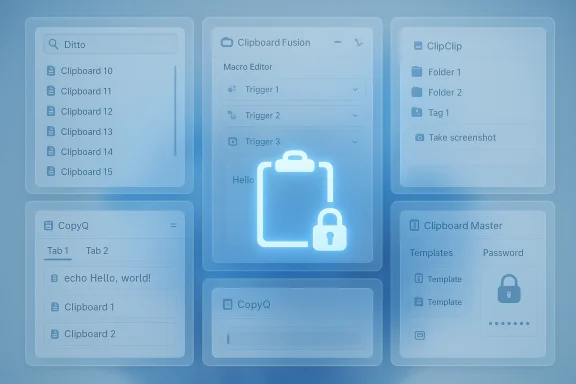 Background / Overview
Windows 11 ships with a built‑in clipboard history (Win+V) that helps casual users recover a handful of recent items, but it’s intentionally conservative: a 25‑item cap, 4 MB per item limit, and limited tools for organization and automation. For any heavier workflow—developers, writers, customer support, data wrangling—third‑party clipboard managers replace the one‑slot clipboard with an extensible, searchable vault that can store text, images, files, and even run automated transformations. Microsoft documents the built‑in limits and sync behaviors, making the baseline clear before considering replacements. Third‑party managers take different approaches: some maximize history and speed (Ditto), others add scripting and text‑scrubbing automation (ClipboardFusion), a few focus on organization and multimedia (ClipClip), while open‑source, cross‑platform options (CopyQ) offer scripting and encrypted storage. For users who need extreme capacity and bundled extras (password safe, screenshot tools), Clipboard Master remains a heavyweight option. This article verifies those claims with vendor pages and independent reviews, then analyzes the practical benefits and risks of each choice.How I verified key claims
- Verified product feature pages and developer repositories for each app (official docs and release/readme pages), cross‑checked with reputable third‑party reviews and community reports.
- Confirmed installation options and common package manager commands when available (winget, Chocolatey).
- Cross‑referenced major capacity/limit claims (1000 clips, 10,000 entries, Win+V limits) against vendor documentation and Microsoft support pages.
- Flagged any claims where no independent confirmation could be found and marked them as requiring extra caution.
The finalists — what each app brings to Windows 11
1) Ditto — the classic, open‑source workhorse
- Best for: power users and developers who want a reliable, fast, effectively unlimited local history.
- Unlimited or very large history: users report database sizes in gigabytes while remaining responsive.
- Open‑source transparency: code available for audit on GitHub; no black‑box cloud required.
- Lightweight and fast search: incremental filtering as you type makes retrieval instant.
- Hotkeys and per‑clip shortcuts: assign paste hotkeys to critical snippets.
- Ditto’s network sync is a LAN/local option; cross‑device cloud sync requires manual configuration or third‑party sharing. For cloud sync, examine encryption options and threat model before turning sync on.
- To install with winget (recommended for automation): run the winget command shown on community package pages. Example: winget install -e --id Ditto.Ditto (confirm the exact package id in your environment prior to mass deployment).
2) ClipboardFusion — automation and macros for text‑heavy workflows
- Best for: users who want to automate cleaning and transforming clipboard text (support engineers, web authors, data wranglers).
- Advanced macros and triggers: full .NET scripting enables powerful automations (e.g., strip formatting, convert encodings, pattern‑based replacements).
- Text scrubbing on copy: automatic plain‑text conversion or rule‑based sanitization.
- Pro sync options: if you rely on cloud sync across multiple devices and mobile clients, the Pro tier provides integrated services.
- Pro vs free trade‑off: advanced sync and mobile apps require a paid license (Binary Fortress offers lifetime licensing options; check current pricing and license terms before buying).
- Scripting risks: macros are powerful—only run trusted scripts and audit community macros before use.
3) ClipClip — organized clips, screenshots, and multimedia support
- Best for: users who value folder‑based organization, integrated screenshot/screen recording, and easy conversions.
- Folder and paste‑menu organization: ideal if you repeatedly reuse structured content (templates, signatures, canned replies).
- Integrated capture tools: screenshot + editor reduces context switching.
- Cloud drive integration and folder protection: good for users who need cross‑device access via Google Drive/OneDrive.
- Proprietary binary + cloud involvement: if you require open‑source transparency, ClipClip is closed‑source and relies on vendor sync options for cloud workflows.
- Large histories: though 1,000 clips will be sufficient for many, power users who want effectively unlimited archives will prefer Ditto or CopyQ.
4) CopyQ — cross‑platform power user choice
- Best for: users who need cross‑platform parity (Windows, macOS, Linux), advanced scripting, and encrypted storage.
- Cross‑platform: same tool across Windows, macOS, Linux.
- Encryption and portable builds: protect sensitive clipboard data with password‑based encryption.
- Powerful scripting and CLI: embed clipboard logic into automated workflows and scripts.
- Learning curve: the flexibility comes with configuration overhead; beginners may find the UI less opinionated.
- Sync via shared folders: synchronization through services like Dropbox works well but requires careful setup and attention to encryption if the folder is cloud‑backed.
5) Clipboard Master — maximum capacity with many extras
- Best for: users who want massive local capacity and bundled utilities (password safe, templates, screenshot tools).
- Huge capacity: up to 10,000 entries makes it feasible to keep months of copy history locally.
- Password safe and templates: integrated extras reduce the need for additional utilities.
- Extensive hotkey and paste formatting options.
- Feature density: the UI and breadth of features can be overwhelming; there’s a learning curve.
- Security model: the inclusion of a password safe is convenient, but any app that stores credentials needs careful vetting; verify whether the safe’s encryption meets your organization’s requirements.
Built‑in Windows clipboard (Win+V) — where it fits
The built‑in clipboard history in Windows 11 is convenient for casual use: no install required, accessible via Win+V, and supports pinning and basic device sync through your Microsoft account. But it’s intentionally limited: 25 items max, 4 MB per item, limited format support, and no advanced text scrubbing, macros, or organization features. For many casual users, Win+V is good enough; for power users, it’s the floor, not the ceiling. Microsoft’s support documentation outlines these limits and sync options.Practical comparisons (what matters in the real world)
- History capacity: Ditto ~ effectively unlimited (local DB), CopyQ ~ large and configurable (with optional encrypted storage), ClipClip ~ 1,000 clips, Clipboard Master ~ up to 10,000, Windows Win+V ~ 25.
- Searchability: All five support search; Ditto and CopyQ provide very fast incremental search and regex support for power users.
- Scripting & macros: ClipboardFusion (C#/VB macros), CopyQ (scripting/CLI), Clipboard Master (macros), Ditto (basic templates/edits), ClipClip (actions). If automation is central, ClipboardFusion and CopyQ lead.
- Cloud sync: ClipboardFusion Pro (vendor cloud), ClipClip (cloud drive integration), CopyQ (via shared folders), Ditto (LAN sync). For corporate sync, prefer solutions with encryption and enterprise‑friendly deployment options.
- Security: open‑source projects (Ditto, CopyQ) offer auditability; vendor apps with cloud sync need scrutiny of encryption at rest/transit and privacy policies. Windows built‑in sync also routes data through Microsoft’s cloud when enabled.
Security, privacy, and enterprise considerations
- Sensitive data handling
- Treat any persistent clipboard history as a potential leak vector. Do not copy passwords or highly sensitive PII unless the tool explicitly supports secure, encrypted entries and you’ve validated the encryption model.
- Use per‑app exclusions, avoid automatic cloud sync for sensitive environments, and use password managers for credentials instead of the clipboard. Windows documentation and third‑party vendors all note these trade‑offs.
- Open source vs closed source
- Open‑source tools (Ditto, CopyQ) allow for code review and community trust. Closed‑source vendors (ClipClip, Clipboard Master) may still be safe, but require attention to privacy policies and sync encryption.
- Cloud sync and compliance
- If your organization must comply with data residency or regulatory controls, avoid vendor cloud sync or insist on local/enterprise deployment models (CopyQ with shared folders or Ditto LAN sync are viable alternatives). Always confirm encryption in transit and at rest.
- Attack surface and macros
- Macro/scripting features increase productivity but also widen attack surface. Only run macros from trusted sources and apply principle of least privilege in corporate deployments. ClipboardFusion and CopyQ both document macro models—treat them like any other extensible automation.
Recommended setups by user type
- Developers and power users
- Primary: Ditto for local, unlimited history + fast search.
- If cross‑platform: CopyQ with encrypted storage and a synchronized tab via a secured shared folder.
- Hotkey plan: assign global paste hotkey for the manager + per‑snippet hotkeys for the top ten boilerplate entries.
- Writers, editors, and researchers
- Primary: ClipClip for folder organization, converters, and integrated screenshot tools. Use folder protection and cloud drive sync for cross‑device needs (inspect encryption).
- Support agents and office professionals
- Primary: ClipClip or Clipboard Master (templates, pinned folders). ClipboardFusion is useful when text needs consistent scrubbing. For extremely large historical archives of responses, Clipboard Master’s capacity is attractive.
- Enterprise / security‑sensitive teams
- Primary: CopyQ (encrypt history) or Ditto with LAN‑only sync. Avoid vendor cloud sync unless you can audit encryption and contractual controls.
Installation, housekeeping, and best practices
- Install via trusted channels
- Use vendor sites, Microsoft Store, or package managers (winget/choco/scoop) where available to ensure integrity. For Ditto, winget supports a Ditto package id for scriptable installs. Confirm the package id on your endpoint before mass deployment.
- Configure exclusions
- Exclude common password managers and banking apps from clipboard capture (most tools support window‑based or process‑based ignore rules). Test this after enabling.
- Limit or protect cloud sync
- If you enable cross‑device sync, use vendor encryption and two‑factor account protection. For critical workflows, prefer local sync options or encrypted shared folders.
- Periodic cleanups and retention policy
- Set sensible retention limits and clear histories for shared or public machines. Teach teams how to pin important entries instead of relying on indefinite retention where security policy forbids it.
- Audit macros and scripts
- Use code reviews for any community macros and maintain a signed library of approved scripts in corporate deployments.
Notable caveats and unverifiable claims
- “Unlimited” history is a practical description: many users report very large Ditto databases (multi‑GB) and vendors implement user‑tunable caps. However, absolute “unlimited” depends on disk space and performance trade‑offs—so treat “unlimited” as practically unconstrained rather than literally boundless. Community reports corroborate high capacities but are anecdotal; test in your environment for worst‑case performance.
- Vendor pricing and licensing models evolve. ClipboardFusion, ClipClip, and Clipboard Master have had varying licensing models and occasional promotions; always verify current pricing and license terms before purchasing for teams. The vendor pages show current product tiers but check before procurement.
Final verdict — which one should you pick?
- If you want a simple, auditable, free clipboard manager that scales: Ditto (start here). It’s the most broadly recommended, reliably fast, and local‑first option.
- If automation and text transformation are your workflow: ClipboardFusion (macros + triggers). Consider the paid Pro license for cloud/mobile sync.
- If organization, screenshots, and a modern UI matter more than raw capacity: ClipClip. Use its folder/paste features and converters for content work.
- If you need cross‑platform parity and encrypted histories: CopyQ. It’s scriptable, powerful, and integrates with shared folders for sync.
- If maximum local capacity plus an all‑in‑one toolset is your priority: Clipboard Master. It bundles templates, a password safe, and screenshot tools at the cost of a denser UI.
Next steps — hands‑on checklist for the first week
- Install your top choice from an official source or package manager (winget, Chocolatey, vendor installer). Verify checksums if provided.
- Configure a master hotkey, exclude password managers, and sync only if encryption and policy checks pass.
- Pin 5–10 critical clips you use daily (signatures, addresses, boilerplate). Try assigning hotkeys to 2–3 of them.
- Run a week‑long experiment: measure time saved (subjective) and log any false positives where sensitive data is captured. Adjust retention settings accordingly.
- For teams: pilot deployment on a small group, document macro usage, and define a retention and sync policy before wider rollout.
A capable clipboard manager converts repeated friction into minutes saved and eliminates the petty disasters of lost snippets. For most Windows 11 users the ideal starting point is Ditto for its balance of speed, storage, and openness; if your work demands automation, rich organization, or cross‑platform consistency, the other finalists each offer clear advantages. Confirm installation sources, validate sync encryption, and treat clipboard history as a component of your data security posture—do that, and these tools will repay the modest learning investment many times over.
Source: How2shout 5 Best Free Clipboard Apps for Windows 11 to use in 2026
