

Ubisoft Connect is Ubisoft’s mandatory Windows PC launcher, account layer, store, overlay, cloud-save service, and subscription gateway, and in 2026 a clean setup means installing the official client, signing in, securing the account, configuring saves and overlays, and linking any platform accounts before launching games.
That sounds like a routine installer chore, but it is really the front door to Ubisoft’s entire PC business. The launcher is no longer a sidecar that appears after you buy a game somewhere else; it is the entitlement system, the save broker, the rewards ledger, and the switchboard for Ubisoft+. For Windows users, the practical lesson is simple: treat Ubisoft Connect less like a disposable game launcher and more like a small identity-and-content platform living on your PC.
Ubisoft Connect exists because the old PC model became too fragmented for publishers that wanted persistent accounts, subscriptions, cross-progression, rewards programs, and direct sales under one roof. Uplay, Ubisoft Club, and the Ubisoft Store were folded into Ubisoft Connect in October 2020, and the merger made the account more important than the local installation.
That matters in 2026 because most Ubisoft PC games still expect Connect to be present even when the purchase happens through Steam or the Epic Games Store. The player may think they are launching from Steam, but Ubisoft’s own client still verifies the license, signs into the account, and manages platform-specific features behind the curtain.
This is the same bargain PC gaming has been making for years: more convenience if everything works, more friction if one layer breaks. Cloud saves, cross-progression, subscription access, rewards, and social features are useful. But they also mean a corrupted cache, a stale login token, or a blocked updater can stop a legally purchased game from opening.
The best Ubisoft Connect setup, then, is not just “click next until it finishes.” It is a short hardening exercise: install from the official source, run the installer with the permissions it expects, let the client update cleanly, secure the account, and decide which background features you actually want.
On Windows 10 and Windows 11, Ubisoft Connect should be installed with administrator rights. The client writes into Program Files, installs or repairs supporting runtime components, creates services and shortcuts, and later patches itself. Running the installer without elevation is one of those small mistakes that can produce disproportionately confusing failures.
The default installation directory is usually the least interesting and most reliable choice. Installing the client under
The client itself is modest compared with modern Ubisoft games, but it should still have breathing room. A launcher that needs to patch, cache web content, process game manifests, and stage downloads can behave badly on a nearly full system drive. The first real requirement is not a monster GPU; it is a boring, healthy Windows installation with enough free disk space and current runtime libraries.
The quick preflight check is still worth doing.
Visual C++ Redistributable packages are the recurring villain in PC launcher troubleshooting. The Ubisoft installer may bundle what it needs, but Windows feature updates, partial removals, and enterprise images can leave runtimes in a broken state. If multiple Ubisoft games fail at launch with missing DLL or access violation errors, repairing the Microsoft Visual C++ 2015–2022 x64 redistributable is often more effective than reinstalling every game.
This is also where managed PCs become awkward. Ubisoft Connect is consumer software, and it assumes the user can approve installation, write to local application directories, and allow outbound traffic. On locked-down corporate machines, the right answer is usually not another workaround; it is that the machine is doing exactly what IT policy asked it to do.
Firewall and antivirus suites are the common culprits when the client opens to a black window, stalls during update, or loops before the login screen. Microsoft Defender is usually not the issue. Third-party security tools with HTTPS inspection, behavior blocking, or aggressive quarantine rules are more likely to interfere with a self-updating launcher.
The fix is not to disable security permanently. It is to check quarantine history, restore falsely flagged files when appropriate, and add narrowly scoped exclusions for the Ubisoft Connect executable and installation directory. If a security product silently removes part of a launcher after every patch, reinstalling the launcher only resets the timer on the next failure.
The other avoidable mistake is installing from or into a synced folder. OneDrive, Google Drive, Dropbox, and similar tools can lock files while the installer is trying to replace them. A cloud drive is fine for documents; it is a poor place for a self-updating game launcher.
Two-factor authentication should be considered part of setup, not an optional security flourish. A Ubisoft account can contain years of purchases and progression, and gaming accounts remain attractive targets for credential stuffing because many users reuse passwords across old forums, stores, and launchers.
Authenticator-app 2FA is preferable to SMS where possible. SMS is better than nothing, but it is more exposed to SIM-swap and number-porting attacks. Backup codes should go into a password manager or another durable location, because losing 2FA access can turn a five-minute login problem into a multi-day support case.
Region selection also deserves more attention than users tend to give it. Store pricing, subscription availability, age ratings, and some release timing details can vary by country. For Australian users, that means creating and maintaining the account as an Australian account if that is where purchases and support will happen.
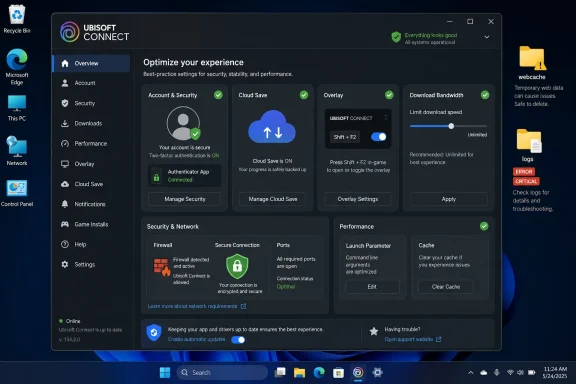
By default, the overlay uses Shift+F2. That is a reasonable shortcut until it collides with a game, a capture tool, a keyboard macro, or another overlay from Steam, Discord, NVIDIA, AMD, or MSI Afterburner. Modern Windows gaming rigs often run several pieces of software that all want to draw on top of the game.
When games crash on launch, display a black screen, lose focus, or refuse to show the overlay, the right troubleshooting move is subtraction. Disable competing overlays, try borderless windowed mode instead of exclusive fullscreen, and change the Ubisoft shortcut before assuming the game itself is broken.
Competitive players may reasonably disable the Ubisoft overlay entirely. That can reduce one source of input conflicts and overlay instability, though it also removes achievement pop-ups and some convenience features. The broader point is that Ubisoft Connect should be configured for the machine in front of it, not left at defaults out of habit.
The dangerous moment is the conflict prompt. If a machine has been offline, if two devices have been used in parallel, or if a game crashed before a clean sync, Ubisoft Connect may ask whether to keep the local or cloud save. Clicking through that dialog without reading timestamps is how progress disappears.
The safest habit is to back up local saves before resolving an ambiguous conflict. The local Ubisoft save directory is not a place to casually delete during cache cleanup. Cache folders can be rebuilt; saves represent hours, sometimes hundreds of hours, of player time.
Not every older Ubisoft title supports cloud saves or modern cross-progression equally. That inconsistency is not unique to Ubisoft, but it is a reminder that “Ubisoft Connect support” does not mean every feature applies to every game. The newer the game, the more likely it is to behave like part of a unified platform rather than a legacy executable with a launcher bolted on.
The practical answer is to link accounts deliberately before the first launch. Steam, Epic Games, Xbox, PlayStation Network, and other platform links are not cosmetic; they determine where entitlements, rewards, progression, and identity checks meet. A messy linking history can become painful later when a user changes email addresses, replaces a console, or discovers that an old Ubisoft account is attached to the wrong platform profile.
Steam integration is particularly important because many Ubisoft PC players still prefer Steam as their library front end. That preference does not remove Ubisoft Connect from the chain. It simply means Connect becomes a background dependency rather than the place where the user clicked Play.
The same logic applies to Ubisoft+ and console-linked benefits. If a subscription tier or platform bundle depends on a linked account, the link should be verified in account management before trying to troubleshoot missing games from inside the launcher. Many “my game is missing” problems are really “my accounts are not connected the way I thought they were” problems.
That can be a good deal for the right player. Someone who plays a new Ubisoft release at launch, finishes the campaign in a month or two, and does not care about permanent ownership may spend less through a subscription than through full-price purchases and season passes. Someone who plays slowly, replays games over years, or only wants one title may not.
The confusing part is overlap. Ubisoft-related libraries can appear through Ubisoft+ Premium on PC, Ubisoft+ Classics through PlayStation subscription bundles, and Ubisoft titles included in other services such as Game Pass arrangements. The names are similar enough that a household can easily pay twice for access to broadly similar back-catalog content.
That is why subscription setup belongs in a Ubisoft Connect configuration guide. Before subscribing, users should audit what they already receive through console subscriptions or PC bundles. The premium direct subscription makes most sense when day-one Ubisoft releases are the point, not when the user merely wants occasional access to older titles.
Clearing cache and webcache folders is therefore a legitimate maintenance step. The crucial distinction is between disposable cache data and save or settings data. Deleting the wrong directory can turn a launcher cleanup into a data-loss event.
Background resource use is not catastrophic, but it is real. On a modern system, a few hundred megabytes of idle RAM is a shrug. On an 8GB Windows laptop with browser tabs, chat clients, RGB software, cloud sync, and other launchers resident, it is another small cut in a death by background processes.
Disabling “launch at Windows startup” is the easiest optimization for users who do not play Ubisoft games daily. A launcher does not need to live in the tray forever just because it can. Let it start when a game needs it, and Windows has one less resident application to babysit.
Australian users often blame the publisher when evening downloads slow down, but the bottleneck may be closer to home. NBN congestion, ISP routing, Wi-Fi quality, and household traffic all matter. Changing DNS can sometimes improve CDN routing, but it will not turn a congested access network into an uncongested one.
Ubisoft Connect does provide bandwidth limiting, which is more useful than it sounds. A capped game download can run in the background without ruining video calls, remote work, or streaming for everyone else in the house. That matters more in real homes than benchmark peak speeds do.
The missing feature is still a proper download scheduler. Users who want overnight downloads must work around the client with Windows scheduling habits or manual discipline. In a world of 100GB games, launchers should be better at respecting time-of-day bandwidth realities.
Authentication and availability errors usually point first to network path problems. That includes Ubisoft service outages, DNS weirdness, firewall rules, VPN interference, or security software intercepting traffic. The right order is to check service status, test without VPN, flush DNS if necessary, and confirm the client is allowed through the firewall.
Missing DLL errors point back to runtimes. VCRUNTIME messages are not an instruction to download a random DLL from the web; they are a signal to repair or reinstall Microsoft’s official Visual C++ redistributable. Downloading individual DLLs from third-party sites is one of the oldest bad habits in Windows troubleshooting.
Crashes at game launch are where overlays, drivers, and permissions overlap. GPU driver updates, temporarily disabling competing overlays, and testing one administrator launch can narrow the problem quickly. If the launcher works but a specific game does not, verifying game files is less destructive than reinstalling the entire client.
Logs are also what support teams will ask for when the usual fixes fail. A saved
There is a cultural lesson here for PC gaming. Launchers have become complex enough that troubleshooting them now resembles troubleshooting productivity software. They have caches, embedded browsers, identity tokens, update channels, local databases, runtime dependencies, and telemetry.
That complexity is not going away. The best we can do is approach launcher failures methodically instead of treating each error dialog as a unique disaster. The failure modes are repetitive because the architecture is repetitive.
The biggest Linux problem is not always the launcher itself. Anti-cheat systems, multiplayer restrictions, video codecs, launch arguments, and per-game DRM expectations can be the real blockers. A single-player Ubisoft title may run acceptably through Proton while a competitive multiplayer game fails because its anti-cheat path is not supported.
macOS is even less straightforward. Apple Silicon has made the hardware interesting again, but Ubisoft’s PC launcher strategy remains centered on Windows. CrossOver, Parallels, and Apple’s Game Porting Toolkit can be useful for enthusiasts, but they are not the same thing as a supported native client.
For many Mac users, cloud gaming is the more realistic route to Ubisoft titles. That answer will annoy purists, but it reflects the current market: if the publisher does not ship a native client and the game is graphically demanding, streaming can be less painful than maintaining a Windows compatibility stack.
This is not just a Ubisoft problem. Steam is the exception only because it is so entrenched and comparatively polished; Epic, EA, Battle.net, Riot, Rockstar, and others all impose their own versions of the same pattern. The modern PC is an ecosystem of launchers, each convinced it is the primary one.
Ubisoft’s version is more defensible than it used to be. The old Uplay reputation was grim, and Ubisoft Connect has gradually become more coherent as a cross-platform account system. Cloud saves, rewards, cross-progression, and subscription access are real user-facing benefits, not just publisher control mechanisms.
But the trade remains visible. The more Ubisoft Connect does, the more it can break. A launcher that merely launches is easy to ignore; a launcher that mediates identity, ownership, saves, subscriptions, and in-game overlays becomes infrastructure.
The larger story is that Ubisoft Connect has become a compact example of where Windows gaming is headed: more account-bound, more service-driven, more cross-platform, and more dependent on launchers that do far more than launch. Users can resent that shift, and often with reason, but they still have to live with it. The best 2026 setup is the one that acknowledges Ubisoft Connect as infrastructure, locks it down, trims what is unnecessary, and leaves the games themselves as the only complicated part.
That sounds like a routine installer chore, but it is really the front door to Ubisoft’s entire PC business. The launcher is no longer a sidecar that appears after you buy a game somewhere else; it is the entitlement system, the save broker, the rewards ledger, and the switchboard for Ubisoft+. For Windows users, the practical lesson is simple: treat Ubisoft Connect less like a disposable game launcher and more like a small identity-and-content platform living on your PC.
 Ubisoft Turned a Launcher Into a Tollbooth
Ubisoft Connect exists because the old PC model became too fragmented for publishers that wanted persistent accounts, subscriptions, cross-progression, rewards programs, and direct sales under one roof. Uplay, Ubisoft Club, and the Ubisoft Store were folded into Ubisoft Connect in October 2020, and the merger made the account more important than the local installation.That matters in 2026 because most Ubisoft PC games still expect Connect to be present even when the purchase happens through Steam or the Epic Games Store. The player may think they are launching from Steam, but Ubisoft’s own client still verifies the license, signs into the account, and manages platform-specific features behind the curtain.
This is the same bargain PC gaming has been making for years: more convenience if everything works, more friction if one layer breaks. Cloud saves, cross-progression, subscription access, rewards, and social features are useful. But they also mean a corrupted cache, a stale login token, or a blocked updater can stop a legally purchased game from opening.
The best Ubisoft Connect setup, then, is not just “click next until it finishes.” It is a short hardening exercise: install from the official source, run the installer with the permissions it expects, let the client update cleanly, secure the account, and decide which background features you actually want.
The First Mistake Is Treating the Installer Like Any Other Download
The safest installation path starts with Ubisoft’s official PC download page, not a third-party software mirror. This is especially important for launchers because they sit in a privileged position: they update themselves, launch executables, store authentication tokens, and handle payment-adjacent account sessions.On Windows 10 and Windows 11, Ubisoft Connect should be installed with administrator rights. The client writes into Program Files, installs or repairs supporting runtime components, creates services and shortcuts, and later patches itself. Running the installer without elevation is one of those small mistakes that can produce disproportionately confusing failures.
The default installation directory is usually the least interesting and most reliable choice. Installing the client under
C:\Program Files (x86)\Ubisoft\Ubisoft Game Launcher\ may look old-fashioned, especially because the folder name still carries legacy baggage, but older Ubisoft titles and support scripts often expect that structure. Moving the game library to another drive is sensible; moving the launcher into a cloud-synced or unusual directory is asking for trouble.The client itself is modest compared with modern Ubisoft games, but it should still have breathing room. A launcher that needs to patch, cache web content, process game manifests, and stage downloads can behave badly on a nearly full system drive. The first real requirement is not a monster GPU; it is a boring, healthy Windows installation with enough free disk space and current runtime libraries.
Windows Compatibility Is the Quiet Gatekeeper
Ubisoft Connect is not demanding in the way Avatar: Frontiers of Pandora or Assassin’s Creed Shadows is demanding. The client will run on far weaker hardware than the games it manages. But that distinction can mislead users into blaming the launcher when the real problem is an unsupported Windows build, broken Visual C++ runtime, old graphics driver, or security tool interfering with updates.The quick preflight check is still worth doing.
winver confirms whether Windows is on a supported modern build. dxdiag confirms DirectX support, driver model, memory, and GPU driver age. These are basic tools, but they remain the fastest way to separate a launcher problem from a machine problem.Visual C++ Redistributable packages are the recurring villain in PC launcher troubleshooting. The Ubisoft installer may bundle what it needs, but Windows feature updates, partial removals, and enterprise images can leave runtimes in a broken state. If multiple Ubisoft games fail at launch with missing DLL or access violation errors, repairing the Microsoft Visual C++ 2015–2022 x64 redistributable is often more effective than reinstalling every game.
This is also where managed PCs become awkward. Ubisoft Connect is consumer software, and it assumes the user can approve installation, write to local application directories, and allow outbound traffic. On locked-down corporate machines, the right answer is usually not another workaround; it is that the machine is doing exactly what IT policy asked it to do.
The Self-Updater Is Part of the Installation, Not an Afterthought
A fresh Ubisoft Connect install is rarely the final version of Ubisoft Connect. The first launch commonly triggers a client update, and users should treat that update as part of setup rather than an optional extra. Interrupting it because the splash screen looks stuck can corrupt manifests and create the sort of half-installed state that later masquerades as an authentication or store problem.Firewall and antivirus suites are the common culprits when the client opens to a black window, stalls during update, or loops before the login screen. Microsoft Defender is usually not the issue. Third-party security tools with HTTPS inspection, behavior blocking, or aggressive quarantine rules are more likely to interfere with a self-updating launcher.
The fix is not to disable security permanently. It is to check quarantine history, restore falsely flagged files when appropriate, and add narrowly scoped exclusions for the Ubisoft Connect executable and installation directory. If a security product silently removes part of a launcher after every patch, reinstalling the launcher only resets the timer on the next failure.
The other avoidable mistake is installing from or into a synced folder. OneDrive, Google Drive, Dropbox, and similar tools can lock files while the installer is trying to replace them. A cloud drive is fine for documents; it is a poor place for a self-updating game launcher.
The Account Is the Product’s Real Center of Gravity
Once the client launches, the Ubisoft account becomes the anchor. Licenses, Units, achievements, cloud saves, subscriptions, linked platform accounts, and many cross-progression features live with the account, not with the PC. That is convenient when moving to a new machine and unnerving when an account is compromised.Two-factor authentication should be considered part of setup, not an optional security flourish. A Ubisoft account can contain years of purchases and progression, and gaming accounts remain attractive targets for credential stuffing because many users reuse passwords across old forums, stores, and launchers.
Authenticator-app 2FA is preferable to SMS where possible. SMS is better than nothing, but it is more exposed to SIM-swap and number-porting attacks. Backup codes should go into a password manager or another durable location, because losing 2FA access can turn a five-minute login problem into a multi-day support case.
Region selection also deserves more attention than users tend to give it. Store pricing, subscription availability, age ratings, and some release timing details can vary by country. For Australian users, that means creating and maintaining the account as an Australian account if that is where purchases and support will happen.
The Overlay Is Useful Until It Becomes the Suspect
The Ubisoft Connect overlay is one of those features that divides users into two camps: people who rely on it for achievements, friends, invites, challenges, and store prompts, and people who disable every overlay on sight. Both instincts are defensible.By default, the overlay uses Shift+F2. That is a reasonable shortcut until it collides with a game, a capture tool, a keyboard macro, or another overlay from Steam, Discord, NVIDIA, AMD, or MSI Afterburner. Modern Windows gaming rigs often run several pieces of software that all want to draw on top of the game.
When games crash on launch, display a black screen, lose focus, or refuse to show the overlay, the right troubleshooting move is subtraction. Disable competing overlays, try borderless windowed mode instead of exclusive fullscreen, and change the Ubisoft shortcut before assuming the game itself is broken.
Competitive players may reasonably disable the Ubisoft overlay entirely. That can reduce one source of input conflicts and overlay instability, though it also removes achievement pop-ups and some convenience features. The broader point is that Ubisoft Connect should be configured for the machine in front of it, not left at defaults out of habit.
Cloud Saves Are a Safety Net With Sharp Edges
Cloud saves are one of Ubisoft Connect’s most valuable features, particularly for players who move between a desktop, laptop, handheld PC, or console. When everything works, a game closes on one device and resumes somewhere else with no ceremony. That is the version of cross-device gaming people actually want.The dangerous moment is the conflict prompt. If a machine has been offline, if two devices have been used in parallel, or if a game crashed before a clean sync, Ubisoft Connect may ask whether to keep the local or cloud save. Clicking through that dialog without reading timestamps is how progress disappears.
The safest habit is to back up local saves before resolving an ambiguous conflict. The local Ubisoft save directory is not a place to casually delete during cache cleanup. Cache folders can be rebuilt; saves represent hours, sometimes hundreds of hours, of player time.
Not every older Ubisoft title supports cloud saves or modern cross-progression equally. That inconsistency is not unique to Ubisoft, but it is a reminder that “Ubisoft Connect support” does not mean every feature applies to every game. The newer the game, the more likely it is to behave like part of a unified platform rather than a legacy executable with a launcher bolted on.
Steam Purchases Still Lead Back to Ubisoft’s Door
For many PC users, the most confusing Ubisoft Connect experience begins with a Steam purchase. The user buys a Ubisoft game on Steam, presses Play, and then discovers that Ubisoft Connect is still required. From Ubisoft’s perspective, this is account continuity and license enforcement. From the player’s perspective, it can feel like a launcher nested inside a launcher.The practical answer is to link accounts deliberately before the first launch. Steam, Epic Games, Xbox, PlayStation Network, and other platform links are not cosmetic; they determine where entitlements, rewards, progression, and identity checks meet. A messy linking history can become painful later when a user changes email addresses, replaces a console, or discovers that an old Ubisoft account is attached to the wrong platform profile.
Steam integration is particularly important because many Ubisoft PC players still prefer Steam as their library front end. That preference does not remove Ubisoft Connect from the chain. It simply means Connect becomes a background dependency rather than the place where the user clicked Play.
The same logic applies to Ubisoft+ and console-linked benefits. If a subscription tier or platform bundle depends on a linked account, the link should be verified in account management before trying to troubleshoot missing games from inside the launcher. Many “my game is missing” problems are really “my accounts are not connected the way I thought they were” problems.
Ubisoft+ Makes the Launcher a Subscription Gate
Ubisoft+ is where Ubisoft Connect stops being just a client and becomes a business model. The PC launcher is the access point for Ubisoft’s subscription pitch: pay monthly, get a rotating or expanded catalog, and in the Premium tier receive access to major Ubisoft releases without buying them outright.That can be a good deal for the right player. Someone who plays a new Ubisoft release at launch, finishes the campaign in a month or two, and does not care about permanent ownership may spend less through a subscription than through full-price purchases and season passes. Someone who plays slowly, replays games over years, or only wants one title may not.
The confusing part is overlap. Ubisoft-related libraries can appear through Ubisoft+ Premium on PC, Ubisoft+ Classics through PlayStation subscription bundles, and Ubisoft titles included in other services such as Game Pass arrangements. The names are similar enough that a household can easily pay twice for access to broadly similar back-catalog content.
That is why subscription setup belongs in a Ubisoft Connect configuration guide. Before subscribing, users should audit what they already receive through console subscriptions or PC bundles. The premium direct subscription makes most sense when day-one Ubisoft releases are the point, not when the user merely wants occasional access to older titles.
Performance Problems Usually Come From the Web Layer
Ubisoft Connect, like most modern launchers, is part native client and part web application. The store, news feed, library art, account prompts, and rewards pages depend heavily on cached web content. When those pieces go stale or corrupt, the launcher can feel slow, blank, or broken even though the games themselves remain intact.Clearing cache and webcache folders is therefore a legitimate maintenance step. The crucial distinction is between disposable cache data and save or settings data. Deleting the wrong directory can turn a launcher cleanup into a data-loss event.
Background resource use is not catastrophic, but it is real. On a modern system, a few hundred megabytes of idle RAM is a shrug. On an 8GB Windows laptop with browser tabs, chat clients, RGB software, cloud sync, and other launchers resident, it is another small cut in a death by background processes.
Disabling “launch at Windows startup” is the easiest optimization for users who do not play Ubisoft games daily. A launcher does not need to live in the tray forever just because it can. Let it start when a game needs it, and Windows has one less resident application to babysit.
Downloads Expose the Difference Between Ubisoft’s Servers and the User’s ISP
Large Ubisoft games are now big enough that installation planning matters. Recent open-world releases can occupy tens or even hundreds of gigabytes once base games, texture packs, patches, and DLC are included. A launcher that installs quickly can still become a long evening of downloading.Australian users often blame the publisher when evening downloads slow down, but the bottleneck may be closer to home. NBN congestion, ISP routing, Wi-Fi quality, and household traffic all matter. Changing DNS can sometimes improve CDN routing, but it will not turn a congested access network into an uncongested one.
Ubisoft Connect does provide bandwidth limiting, which is more useful than it sounds. A capped game download can run in the background without ruining video calls, remote work, or streaming for everyone else in the house. That matters more in real homes than benchmark peak speeds do.
The missing feature is still a proper download scheduler. Users who want overnight downloads must work around the client with Windows scheduling habits or manual discipline. In a world of 100GB games, launchers should be better at respecting time-of-day bandwidth realities.
The Error Codes Are Less Mysterious Than They Look
Most Ubisoft Connect failures cluster around a few causes: blocked network access, broken runtime libraries, corrupted cache, insufficient permissions, overlay conflicts, or save sync disagreement. The error text may differ, but the underlying pattern is familiar to anyone who has administered Windows desktops.Authentication and availability errors usually point first to network path problems. That includes Ubisoft service outages, DNS weirdness, firewall rules, VPN interference, or security software intercepting traffic. The right order is to check service status, test without VPN, flush DNS if necessary, and confirm the client is allowed through the firewall.
Missing DLL errors point back to runtimes. VCRUNTIME messages are not an instruction to download a random DLL from the web; they are a signal to repair or reinstall Microsoft’s official Visual C++ redistributable. Downloading individual DLLs from third-party sites is one of the oldest bad habits in Windows troubleshooting.
Crashes at game launch are where overlays, drivers, and permissions overlap. GPU driver updates, temporarily disabling competing overlays, and testing one administrator launch can narrow the problem quickly. If the launcher works but a specific game does not, verifying game files is less destructive than reinstalling the entire client.
Logs Are Where Guesswork Ends
Ubisoft Connect writes logs, and advanced users should not ignore them. The log directory under the Ubisoft Game Launcher installation path can reveal whether the client is failing during authentication, update, entitlement checks, overlay initialization, or game launch handoff. Searching for “ERROR,” “CRITICAL,” and “FATAL” is crude but effective.Logs are also what support teams will ask for when the usual fixes fail. A saved
dxdiag report plus the relevant launcher log gives a support agent something concrete to work with. Without logs, the user is often trapped repeating generic reinstall advice.There is a cultural lesson here for PC gaming. Launchers have become complex enough that troubleshooting them now resembles troubleshooting productivity software. They have caches, embedded browsers, identity tokens, update channels, local databases, runtime dependencies, and telemetry.
That complexity is not going away. The best we can do is approach launcher failures methodically instead of treating each error dialog as a unique disaster. The failure modes are repetitive because the architecture is repetitive.
Linux and macOS Remain Outside Ubisoft’s Main Lane
Ubisoft Connect is fundamentally a Windows PC client. Linux users can often run it through Wine-based tools such as Lutris or Heroic, and Valve’s Proton ecosystem has made many Windows games more practical on Linux than they used to be. But unofficial compatibility is not the same as official support.The biggest Linux problem is not always the launcher itself. Anti-cheat systems, multiplayer restrictions, video codecs, launch arguments, and per-game DRM expectations can be the real blockers. A single-player Ubisoft title may run acceptably through Proton while a competitive multiplayer game fails because its anti-cheat path is not supported.
macOS is even less straightforward. Apple Silicon has made the hardware interesting again, but Ubisoft’s PC launcher strategy remains centered on Windows. CrossOver, Parallels, and Apple’s Game Porting Toolkit can be useful for enthusiasts, but they are not the same thing as a supported native client.
For many Mac users, cloud gaming is the more realistic route to Ubisoft titles. That answer will annoy purists, but it reflects the current market: if the publisher does not ship a native client and the game is graphically demanding, streaming can be less painful than maintaining a Windows compatibility stack.
The Setup Ritual Reveals the State of PC Gaming
The most revealing thing about Ubisoft Connect setup is how much non-game work now surrounds playing a game. The user must manage accounts, regions, runtime libraries, platform links, overlay conflicts, cloud-save choices, subscriptions, firewall rules, and storage paths before the first mission loads.This is not just a Ubisoft problem. Steam is the exception only because it is so entrenched and comparatively polished; Epic, EA, Battle.net, Riot, Rockstar, and others all impose their own versions of the same pattern. The modern PC is an ecosystem of launchers, each convinced it is the primary one.
Ubisoft’s version is more defensible than it used to be. The old Uplay reputation was grim, and Ubisoft Connect has gradually become more coherent as a cross-platform account system. Cloud saves, rewards, cross-progression, and subscription access are real user-facing benefits, not just publisher control mechanisms.
But the trade remains visible. The more Ubisoft Connect does, the more it can break. A launcher that merely launches is easy to ignore; a launcher that mediates identity, ownership, saves, subscriptions, and in-game overlays becomes infrastructure.
The 12-Step Install Is Really a 12-Step Risk Reduction Plan
The most useful way to think about a Ubisoft Connect setup in 2026 is not as a checklist for getting an icon onto the desktop. It is a sequence that removes predictable failure points before they become 2 AM forum posts. Do the dull work upfront, and the launcher becomes mostly invisible.- Install Ubisoft Connect only from Ubisoft’s official download source, and avoid third-party mirrors that may bundle unwanted software or stale installers.
- Run the installer with administrator rights, use a normal local installation path, and keep the launcher out of cloud-synced folders.
- Let the client complete its first self-update before signing in or launching games, because interrupting that stage can corrupt the installation.
- Enable two-factor authentication immediately, preferably with an authenticator app, because the Ubisoft account carries licenses, saves, rewards, and subscriptions.
- Configure cloud saves, overlays, startup behavior, download paths, and bandwidth limits before installing very large games.
- When troubleshooting, clear cache carefully, repair Visual C++ runtimes, verify game files, and read logs before resorting to full reinstalls.
The larger story is that Ubisoft Connect has become a compact example of where Windows gaming is headed: more account-bound, more service-driven, more cross-platform, and more dependent on launchers that do far more than launch. Users can resent that shift, and often with reason, but they still have to live with it. The best 2026 setup is the one that acknowledges Ubisoft Connect as infrastructure, locks it down, trims what is unnecessary, and leaves the games themselves as the only complicated part.
References
- Primary source: tech-insider.org
Published: 2026-06-21T15:22:09.717677
Ubisoft Connect Setup 2026: Install & Configure in 12 Steps
Set up Ubisoft Connect on Windows in 12 steps. Fix common errors, enable cloud saves, configure the overlay, and manage Ubisoft+ subscriptions in Australia.tech-insider.org - Related coverage: gamesradar.com
Ubisoft admits Assassin's Creed Shadows' story didn't land "as we hoped," so its final update is trying to fix it | GamesRadar+
I hope the community is satisfied with where we leave our two protagonistswww.gamesradar.com - Related coverage: newsroom.ubisoft-press.com
Assassin's Creed Shadows: CGI-Spot veröffentlicht
Düsseldorf, 12. März 2025 - Am 20. März erscheint Assassin's Creed Shadows, der neueste Teil der bekannten Assassin's Creed-Reihe. Zur Einstimmung...newsroom.ubisoft-press.com - Related coverage: news.ubisoft.com
Ubisoft Connect – The Next Generation of Ubisoft Services
Find out more about Ubisoft Connect and what it means for your gaming experience in our interview with Ubisoft Connect’s Creative Director and VP of Online Services.news.ubisoft.com - Related coverage: pushsquare.com
- Related coverage: techradar.com
Ubisoft confirms new Assassin's Creed, Far Cry, and Ghost Recon games are in the works and will launch by March 2029, alongside the 'first playable Generative AI experience' | TechRadar
Ubisoft has shared plans to release more Assassin's Creed games and new Far Cry and Ghost Recon titles by March 2029.www.techradar.com
- Related coverage: ubistatic-a.ubisoft.com
