Windows 11’s best quality-of-life upgrades in 2026 are not a single headline feature but a layered collection of settings, built-in apps, AI tools, security defaults, file-management changes, and optional Microsoft utilities spread across the operating system. That dispersion is the point: Microsoft has turned Windows improvement into a scavenger hunt. The reward is a desktop that can feel faster, calmer, safer, and more personal—but only if users know where the switches are buried.
For years, Windows releases were sold around the obvious: a new Start menu, a new taskbar, a new browser, a new visual language. Windows 11 still arrived with plenty of visible disruption, most famously the centered taskbar and simplified Start menu. But the operating system’s more durable story has become less theatrical.
Microsoft is no longer waiting for a single giant Windows release to make the desktop better. It is shipping smaller changes through apps, cumulative updates, Microsoft Store components, optional packages, and Copilot+ PC experiences. That makes Windows 11 harder to summarize, but it also makes it more interesting than the old “new version, new shell” model.
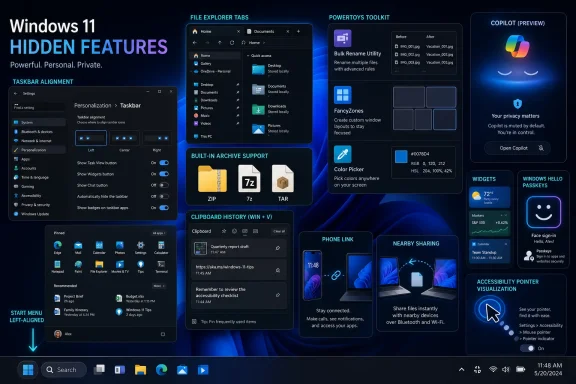
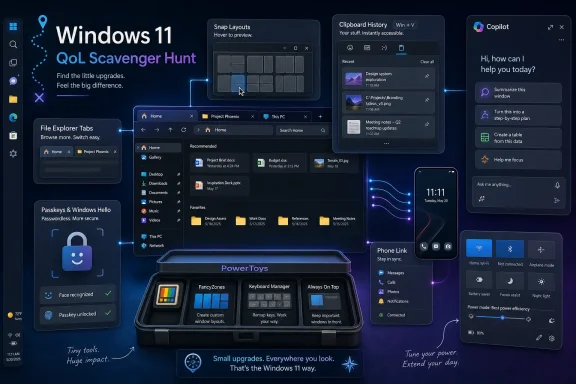
The result is an operating system that often hides its best work. Clipboard history, Nearby Sharing, Snap Layouts, passkeys, File Explorer tabs, native archive support, Phone Link, PowerToys, Windows Backup, Focus Sessions, and accessibility pointer controls are not obscure in the sense that Microsoft has concealed them. They are obscure because Windows has become too wide for its own front door.
That is why lists of “hidden features” resonate. They are not just tips. They are evidence of a larger Windows problem: the platform has accumulated a serious productivity layer, but Microsoft still struggles to teach normal users that it exists.
That setting matters because muscle memory matters. Windows is not just software; for many people it is the physical choreography of work. A Start button in the lower-left corner is not nostalgia for its own sake. It is decades of pointer travel, peripheral vision, and reflex.
Microsoft’s compromise is revealing. The company pushed a centered layout by default but left an escape hatch for people who want the older arrangement. That is the healthiest version of Windows modernization: change the default, but do not punish the users who built their workflows around the previous default.
The same logic applies to the Start menu’s pinned apps, folders, recommendations, and full app list. Windows 11 initially made some tasks feel farther away than they were in Windows 10, but its customization options have matured. Users can pin apps, create Start folders, adjust what appears in the Recommended area, add shortcuts for Settings and File Explorer, and use the app list more efficiently.
The Start menu still has an identity problem. It wants to be a launcher, a document resurfacing tool, a recommendation engine, and now a phone companion surface. But the more Microsoft lets users tune it, the less that identity crisis matters.
PowerToys is where Microsoft puts the ideas too niche, too experimental, or too power-user-oriented for the default setup. Bulk file renaming, image resizing, custom window layouts, color picking, keyboard remapping, text extraction, always-on-top windows, mouse utilities, launcher tools, and multi-PC control are exactly the sort of features that experienced users expect from a mature desktop operating system. They are also exactly the sort of features that could overwhelm casual users if switched on by default.
This creates a useful division of labor. Windows 11 tries to stay approachable. PowerToys lets the rest of us make it sharper.
The important thing about PowerToys is not any single utility. It is the cadence. Microsoft keeps adding and refining tools, which means PowerToys has become a living argument for Windows as an adaptable workspace. For users who complain that Windows 11 removed or simplified too much, PowerToys is often the counterpoint: the customization did not disappear; some of it moved into a separate toolbox.
That does not absolve Microsoft of discoverability. A feature that requires knowing PowerToys exists is, by definition, invisible to much of the user base. But for enthusiasts and IT pros, installing PowerToys is now close to mandatory.
The fix lives in Settings under Apps and Startup, and also in Task Manager. Disable what does not need to run at sign-in. Nothing about this is new in principle, but Windows 11 makes the setting approachable enough that more users should treat it as routine maintenance.
This is where Microsoft’s polish-over-spectacle phase becomes useful. Not every improvement needs to be a feature launch. Sometimes the operating system gets better because it gives users a clearer view of existing friction.
Battery usage is another example. Windows 11’s power and battery reporting gives laptop users a more legible account of which apps are draining power. That matters in a world where many PCs are no longer desk-bound and where background sync, chat clients, browsers, and Electron apps compete for battery life.
The same philosophy appears in sound settings. Windows 11’s audio device controls are more complete and less dependent on ancient Control Panel pathways. Pairing speakers, microphones, headsets, and other devices is still not as clean as it should be, but it is much less archaeological than it used to be.
This is the kind of Windows feature that has an outsized effect because it meets users inside repetitive work. Support agents, writers, developers, students, administrators, and anyone filling forms can benefit from a clipboard that remembers more than the last thing copied.
It also reflects a broader Windows 11 pattern: Microsoft is increasingly building features for flow. Snap Layouts reduce window arrangement friction. File Explorer tabs reduce desktop clutter. Focus Sessions reduce interruption. Nearby Sharing reduces the need to detour through cloud storage. None of these features is spectacular alone, but together they reduce the number of little pauses that make a workday feel heavier than it should.
The challenge is that many of these improvements are shortcut-first or settings-first. If users do not stumble across Windows+V, Windows+Z, Windows+Shift+S, or Windows+A, the operating system never teaches them the faster path. Windows has the features. It still lacks the coaching.
This matters more as screens get wider, laptops gain higher-resolution displays, and users juggle browsers, chat, documents, terminals, dashboards, and media apps. The desktop is still Windows’ strongest form factor. Snap Layouts recognize that the operating system should help manage complexity rather than merely tolerate it.
Virtual desktops complement the same idea. They are not new, and many users still ignore them, but Windows 11 makes them friendlier with easier creation, rearrangement, app movement, and separate wallpapers. That last touch may sound cosmetic, but visual context helps users keep mental boundaries between work, personal tasks, projects, and meetings.
Title Bar Shake belongs in the same family, even if it feels like a relic from an earlier Windows era. Turn it on, grab a window by its title bar, shake it, and the rest of the desktop minimizes. It is silly, tactile, and useful. Windows needs more of that.
The risk is that Microsoft keeps layering window-management features without a unified tutorial or command center. Snap Layouts, Task View, virtual desktops, shake-to-minimize, keyboard snapping, PowerToys FancyZones, and Game Bar overlays all solve adjacent problems. Power users can combine them. Normal users may never realize the toolbox exists.
Explorer tabs reduce the sprawl of windows that accumulates during real work. Moving between folders inside one window feels natural because browsers trained everyone to think in tabs. Dragging files between tabs is not as obvious as it should be, but once learned, it becomes part of the rhythm.
The simplified command bar is more divisive. Microsoft removed some of the old ribbon density in favor of cleaner buttons for common actions. For casual users, that is probably a win. For experts who knew where everything lived, it may feel like another case of Windows hiding power behind extra clicks.
Native archive support is the more consequential change. Windows 11’s support for formats beyond ZIP, including 7z, TAR, and RAR handling in modern releases, reduces dependence on third-party archive tools for everyday tasks. Dedicated utilities still matter for advanced compression workflows, encryption choices, split archives, repair scenarios, and edge cases, but basic archive work now feels less like Windows is stuck in 2006.
AI actions in File Explorer are a newer and more contentious layer. Context-menu actions such as background removal for images or document summarization point to a future where Explorer becomes less a file cabinet and more an action surface. That future could be useful, but only if Microsoft keeps it predictable, fast, and respectful of local context. A cluttered right-click menu is one of Windows’ oldest sins; AI must not become its newest excuse.
Windows has to interoperate with phones it does not control. Phone Link is Microsoft’s attempt to make that less painful.
The basics are already valuable. Users can see phone notifications on the PC, respond to texts, make calls, and connect Android devices more deeply. Depending on device support, Android users can run phone apps, use a phone as a hotspot or webcam, access phone files through File Explorer, and move content across devices more easily.
The newer mobile device panel in Start is a sign that Microsoft wants the phone to become part of the Windows shell rather than a separate app users remember to open. That is the right instinct. Cross-device features work best when they appear where users already are.
The weakness is consistency. Android integration is stronger than iPhone integration, and features vary by handset, region, app version, Windows build, and account state. Microsoft can narrow Apple’s ecosystem gap, but it cannot fully erase the fragmentation tax of the Windows hardware and Android device worlds.
Still, Phone Link is one of the most practical upgrades many Windows 11 users can make without buying anything. If Microsoft keeps improving it, Windows becomes less isolated from the device people actually touch most often.
A passkey ties authentication to a device and uses Windows Hello methods such as face recognition, fingerprint, or PIN. The user experience is simpler than password management, and the security model is stronger against phishing because there is no reusable password to type into a fake site.
This is the rare security improvement that can be easier and safer at the same time. That combination matters because security features fail when they ask users to do more work indefinitely. A passkey login feels like less work.
Windows 11’s role here is as a platform participant. Websites, apps, identity providers, browsers, and device ecosystems all have to support passkeys well for the transition to feel complete. But Windows Hello gives Microsoft a strong foundation, especially in business environments where biometric or PIN-backed sign-in is already normalized.
For IT administrators, passkeys are part of a broader shift from memorized secrets to device-bound identity. That shift will be messy, especially for account recovery and cross-platform use. But it is directionally correct, and Windows 11 is now aligned with it.
That diffusion is both powerful and exhausting. On the useful side, Copilot can help draft text, summarize documents, explain images, generate pictures, assist with code, and provide conversational help. Voice activation and screen-aware assistance, including Copilot Vision-style experiences, suggest a more natural support model than the old “search the web and hope” routine.
On the risky side, Microsoft has repeatedly had to recalibrate how aggressively AI appears in Windows. Users do not want every corner of the operating system to become a prompt box. They want help at the moment of need, not a permanent feeling that the desktop is narrating itself.
Copilot+ PCs complicate the story further. These machines add hardware requirements, especially neural processing capability, and unlock features that ordinary Windows 11 PCs may not receive. Recall, Click to Do, semantic search, image tools, Live Captions enhancements, and Windows Studio Effects represent Microsoft’s clearest argument that AI belongs on the client device, not only in the cloud.
Recall remains the lightning rod. Its premise—letting users search and return to previous activity—addresses a real problem. Its history also shows why privacy, opt-in behavior, encryption, filtering, and administrative control are not implementation details but the feature’s entire legitimacy.
The right way to understand Copilot in Windows is not as a finished product. It is Microsoft’s attempt to redefine what assistance means inside an operating system. The company’s challenge is to make that assistance feel earned.
Widgets put weather, calendars, tasks, news, traffic, sports, stocks, and third-party cards into a glanceable panel. The usefulness depends heavily on curation. A clean widget board can be helpful. A noisy one feels like a portal homepage that escaped from 2003.
Focus Sessions take the opposite approach. Instead of bringing more information to the user, they create a protected interval for work. Built through the Clock app, the feature is modest, but it acknowledges that attention is now a system resource. Notifications, chats, meetings, and feeds are not peripheral to computing; they are central obstacles.
Windows Backup is Microsoft’s consumer recovery argument. Save files, settings, apps, credentials, and Wi-Fi information through a Microsoft account and OneDrive, then restore them on a new PC. The pitch is obvious: replacing a Windows machine should feel less like moving house and more like signing in.
The trade-off is account gravity. The better Windows Backup becomes, the more the Microsoft account and OneDrive become the assumed path. That will suit many users. Others will see it as another example of Windows making the cloud feel less optional.
For IT pros, the consumer backup story is not a substitute for enterprise-grade deployment, imaging, policy, or endpoint management. But it does matter for small businesses, families, and unmanaged machines. Windows’ out-of-box recovery experience has historically lagged the expectations set by phones. Windows Backup is an attempt to close that gap.
Accessibility features often become universal productivity features because they solve real interaction problems. A pointer that is easier to find helps users with visual impairments, but it also helps anyone using multiple monitors, high-resolution displays, remote sessions, presentations, or bright backgrounds. Mono audio helps users with hearing differences, but it also helps anyone using one earbud or a single speaker.
Windows 11’s improved touch gestures matter for the same reason. Convertible PCs and tablets still occupy an awkward middle ground between desktop and mobile computing, but better gestures reduce the penalty for leaving the keyboard and mouse. Four-finger Task View, three-finger minimize gestures, and edge swipes are part of making Windows less brittle across form factors.
The operating system’s future depends on this flexibility. Windows must work on gaming desktops, corporate laptops, handheld PCs, tablets, foldables, virtual machines, cloud PCs, and accessibility setups. The more interaction modes Microsoft supports coherently, the less Windows feels trapped in the assumptions of the beige-box era.
Paint is the most obvious comeback story. Once treated as a nostalgic toy, it now includes AI-assisted image creation and editing capabilities that make it surprisingly useful for quick tasks. Photos can remove backgrounds and objects. Designer adds prompt-based image generation. These are not replacements for professional creative tools, but they reduce the need to open a browser for basic edits.
Sound Recorder is another modest improvement. Replacing the old Voice Recorder with a cleaner waveform interface and multiple output formats makes Windows better for quick capture. It still lacks serious editing tools, but it no longer feels like an afterthought from another decade.
Media Player’s replacement of Groove also matters, if only because local media still exists. Streaming won the mainstream, but users continue to keep music and video files, especially in enthusiast, archival, and offline contexts. A less awkward media app is not revolutionary. It is table stakes Windows neglected for too long.
Game Bar sits somewhere between app and overlay, and it has expanded beyond gaming. Screen recording, performance stats, audio controls, and social features make it useful even for non-gamers. That dual-use nature is important: gaming remains one of Windows’ strongest consumer advantages, but the tools built for gaming often help creators, testers, support staff, and power users too.
The problem is not that these shortcuts are hard. The problem is that Windows still does not socialize them well enough. A modern operating system should not require users to read tip articles to discover the layer that makes it efficient.
Quick Settings is a case study. Splitting quick controls from notifications was a sensible Windows 11 design move. Network, sound, battery, Bluetooth, projection, airplane mode, accessibility, and other controls belong in a fast panel. In newer Windows 11 versions, the panel’s behavior has changed further, with scrolling and rearrangement replacing some earlier customization patterns.
That evolution shows Microsoft tuning the shell for real use. Users want quick controls that are predictable, especially on laptops. But again, the best version of the feature is the one people learn to summon instantly.
The same is true of casting, projecting to a PC, and wireless display features. Windows can receive a projected screen from another device if the optional Wireless Display feature is installed and configured. That is powerful in classrooms, support scenarios, labs, conference rooms, and home setups. It is also invisible unless someone knows to look for it.
Some of this is unavoidable. Windows serves too many audiences to expose every control at once. A home user, a gamer, a developer, a domain administrator, a student, a designer, and a retiree do not need the same interface density.
But Microsoft has sometimes used that complexity as an excuse for weak onboarding. Settings search helps. Tooltips help. The Get Started app helps in theory. But Windows still relies on external media, community forums, YouTube channels, and IT departments to explain how to use Windows well.
This creates a strange imbalance. Microsoft can spend years building features that reduce friction, then lose much of the benefit because users never encounter them. Windows 11 is more capable than its reputation among skeptics suggests. It is also less self-explanatory than it should be.
For WindowsForum readers, that gap is an opportunity. Enthusiasts and administrators become translators. They turn scattered features into workflows, defaults into policy choices, and optional utilities into standard build recommendations. The hidden-feature economy exists because Windows remains configurable enough to reward expertise.
A sensible first hour with a new Windows 11 PC now looks different than it did a few years ago. Align the taskbar if the centered layout slows you down. Remove unnecessary startup apps. Turn on clipboard history. Configure Snap Layouts and virtual desktops. Install PowerToys if you are a power user. Pair your phone if cross-device work matters. Set up passkeys where available. Review battery usage. Tune Quick Settings. Decide how much Copilot you actually want.
That last point matters. Windows 11 is increasingly an opinionated operating system, but it is still flexible enough to push back. Users can embrace AI tools, ignore them, or selectively use the parts that help. They can lean into OneDrive and Windows Backup or maintain more local workflows. They can make Start more phone-aware or strip it down to a launcher.
The best Windows setup is no longer the default Windows setup. It is the one that reflects how a person actually works.
Windows 11’s hidden features make the operating system better because they show Microsoft doing the unglamorous work: reducing friction, modernizing old utilities, improving security, filling workflow gaps, and adapting the PC to a world of phones, cloud accounts, AI assistants, and hybrid work. The danger is that too much of this progress remains scattered and underexplained, leaving users to discover through articles what the OS should teach on its own. If Microsoft’s next phase of Windows is truly about polish, the company’s most important feature may not be another Copilot button or Start menu redesign, but a desktop that finally knows how to reveal its own depth.
 Microsoft’s Quiet Windows Strategy Is Working Better Than Its Loud One
For years, Windows releases were sold around the obvious: a new Start menu, a new taskbar, a new browser, a new visual language. Windows 11 still arrived with plenty of visible disruption, most famously the centered taskbar and simplified Start menu. But the operating system’s more durable story has become less theatrical.Microsoft is no longer waiting for a single giant Windows release to make the desktop better. It is shipping smaller changes through apps, cumulative updates, Microsoft Store components, optional packages, and Copilot+ PC experiences. That makes Windows 11 harder to summarize, but it also makes it more interesting than the old “new version, new shell” model.
The result is an operating system that often hides its best work. Clipboard history, Nearby Sharing, Snap Layouts, passkeys, File Explorer tabs, native archive support, Phone Link, PowerToys, Windows Backup, Focus Sessions, and accessibility pointer controls are not obscure in the sense that Microsoft has concealed them. They are obscure because Windows has become too wide for its own front door.
That is why lists of “hidden features” resonate. They are not just tips. They are evidence of a larger Windows problem: the platform has accumulated a serious productivity layer, but Microsoft still struggles to teach normal users that it exists.
The Start Menu Fight Was Always a Proxy War
The centered Start button remains the symbolic grievance of Windows 11. It is not the most consequential change Microsoft made, but it is the one that told long-time Windows users the company was willing to move familiar furniture for aesthetic reasons. The fix is simple: right-click the taskbar, open Taskbar settings, and set taskbar alignment back to the left.That setting matters because muscle memory matters. Windows is not just software; for many people it is the physical choreography of work. A Start button in the lower-left corner is not nostalgia for its own sake. It is decades of pointer travel, peripheral vision, and reflex.
Microsoft’s compromise is revealing. The company pushed a centered layout by default but left an escape hatch for people who want the older arrangement. That is the healthiest version of Windows modernization: change the default, but do not punish the users who built their workflows around the previous default.
The same logic applies to the Start menu’s pinned apps, folders, recommendations, and full app list. Windows 11 initially made some tasks feel farther away than they were in Windows 10, but its customization options have matured. Users can pin apps, create Start folders, adjust what appears in the Recommended area, add shortcuts for Settings and File Explorer, and use the app list more efficiently.
The Start menu still has an identity problem. It wants to be a launcher, a document resurfacing tool, a recommendation engine, and now a phone companion surface. But the more Microsoft lets users tune it, the less that identity crisis matters.
PowerToys Is the Windows Settings App for People Who Outgrew Settings
If Windows 11 has a secret handshake, it is PowerToys. Microsoft’s free utility suite has become the unofficial pro edition of the Windows desktop, not because it replaces core features, but because it fills the gaps that core Windows leaves behind.PowerToys is where Microsoft puts the ideas too niche, too experimental, or too power-user-oriented for the default setup. Bulk file renaming, image resizing, custom window layouts, color picking, keyboard remapping, text extraction, always-on-top windows, mouse utilities, launcher tools, and multi-PC control are exactly the sort of features that experienced users expect from a mature desktop operating system. They are also exactly the sort of features that could overwhelm casual users if switched on by default.
This creates a useful division of labor. Windows 11 tries to stay approachable. PowerToys lets the rest of us make it sharper.
The important thing about PowerToys is not any single utility. It is the cadence. Microsoft keeps adding and refining tools, which means PowerToys has become a living argument for Windows as an adaptable workspace. For users who complain that Windows 11 removed or simplified too much, PowerToys is often the counterpoint: the customization did not disappear; some of it moved into a separate toolbox.
That does not absolve Microsoft of discoverability. A feature that requires knowing PowerToys exists is, by definition, invisible to much of the user base. But for enthusiasts and IT pros, installing PowerToys is now close to mandatory.
The Fastest Windows Upgrade Is Still Turning Things Off
One of the least glamorous Windows 11 improvements is also one of the most practical: startup app control. Applications still love to nominate themselves for launch at sign-in, and the cumulative effect is predictable. The desktop arrives slowly, the notification area fills with icons, background processes consume memory, and users blame Windows.The fix lives in Settings under Apps and Startup, and also in Task Manager. Disable what does not need to run at sign-in. Nothing about this is new in principle, but Windows 11 makes the setting approachable enough that more users should treat it as routine maintenance.
This is where Microsoft’s polish-over-spectacle phase becomes useful. Not every improvement needs to be a feature launch. Sometimes the operating system gets better because it gives users a clearer view of existing friction.
Battery usage is another example. Windows 11’s power and battery reporting gives laptop users a more legible account of which apps are draining power. That matters in a world where many PCs are no longer desk-bound and where background sync, chat clients, browsers, and Electron apps compete for battery life.
The same philosophy appears in sound settings. Windows 11’s audio device controls are more complete and less dependent on ancient Control Panel pathways. Pairing speakers, microphones, headsets, and other devices is still not as clean as it should be, but it is much less archaeological than it used to be.
Clipboard History Is Small Enough to Miss and Useful Enough to Change Habits
Clipboard history is one of those features that sounds minor until it becomes muscle memory. Pressing Windows+V to retrieve recently copied text and images turns copy and paste from a one-item buffer into a short-term workbench. Pinning frequently used snippets makes it even more valuable.This is the kind of Windows feature that has an outsized effect because it meets users inside repetitive work. Support agents, writers, developers, students, administrators, and anyone filling forms can benefit from a clipboard that remembers more than the last thing copied.
It also reflects a broader Windows 11 pattern: Microsoft is increasingly building features for flow. Snap Layouts reduce window arrangement friction. File Explorer tabs reduce desktop clutter. Focus Sessions reduce interruption. Nearby Sharing reduces the need to detour through cloud storage. None of these features is spectacular alone, but together they reduce the number of little pauses that make a workday feel heavier than it should.
The challenge is that many of these improvements are shortcut-first or settings-first. If users do not stumble across Windows+V, Windows+Z, Windows+Shift+S, or Windows+A, the operating system never teaches them the faster path. Windows has the features. It still lacks the coaching.
Snap Layouts Show the Desktop Still Has Room to Evolve
Snap Layouts may be the most successful example of Windows 11 taking an old idea and making it feel contemporary. Window snapping has existed for years, but the hover menu over the maximize button gives users a visual way to build arrangements without memorizing drag zones.This matters more as screens get wider, laptops gain higher-resolution displays, and users juggle browsers, chat, documents, terminals, dashboards, and media apps. The desktop is still Windows’ strongest form factor. Snap Layouts recognize that the operating system should help manage complexity rather than merely tolerate it.
Virtual desktops complement the same idea. They are not new, and many users still ignore them, but Windows 11 makes them friendlier with easier creation, rearrangement, app movement, and separate wallpapers. That last touch may sound cosmetic, but visual context helps users keep mental boundaries between work, personal tasks, projects, and meetings.
Title Bar Shake belongs in the same family, even if it feels like a relic from an earlier Windows era. Turn it on, grab a window by its title bar, shake it, and the rest of the desktop minimizes. It is silly, tactile, and useful. Windows needs more of that.
The risk is that Microsoft keeps layering window-management features without a unified tutorial or command center. Snap Layouts, Task View, virtual desktops, shake-to-minimize, keyboard snapping, PowerToys FancyZones, and Game Bar overlays all solve adjacent problems. Power users can combine them. Normal users may never realize the toolbox exists.
File Explorer Is Finally Becoming a Modern Workbench Again
File Explorer has spent much of the last decade feeling simultaneously essential and neglected. Windows 11 did not fix that overnight, but recent changes have made Explorer more credible as a modern file workspace. Tabs are the most obvious upgrade.Explorer tabs reduce the sprawl of windows that accumulates during real work. Moving between folders inside one window feels natural because browsers trained everyone to think in tabs. Dragging files between tabs is not as obvious as it should be, but once learned, it becomes part of the rhythm.
The simplified command bar is more divisive. Microsoft removed some of the old ribbon density in favor of cleaner buttons for common actions. For casual users, that is probably a win. For experts who knew where everything lived, it may feel like another case of Windows hiding power behind extra clicks.
Native archive support is the more consequential change. Windows 11’s support for formats beyond ZIP, including 7z, TAR, and RAR handling in modern releases, reduces dependence on third-party archive tools for everyday tasks. Dedicated utilities still matter for advanced compression workflows, encryption choices, split archives, repair scenarios, and edge cases, but basic archive work now feels less like Windows is stuck in 2006.
AI actions in File Explorer are a newer and more contentious layer. Context-menu actions such as background removal for images or document summarization point to a future where Explorer becomes less a file cabinet and more an action surface. That future could be useful, but only if Microsoft keeps it predictable, fast, and respectful of local context. A cluttered right-click menu is one of Windows’ oldest sins; AI must not become its newest excuse.
Phone Link Is Microsoft’s Best Answer to Apple’s Ecosystem Gravity
Phone Link is one of the most strategically important Windows 11 features because it addresses a weakness Microsoft cannot solve by making a better PC alone. Apple’s advantage is not merely that macOS is polished. It is that iPhone, iPad, Mac, AirPods, Messages, FaceTime, Photos, and iCloud reinforce one another.Windows has to interoperate with phones it does not control. Phone Link is Microsoft’s attempt to make that less painful.
The basics are already valuable. Users can see phone notifications on the PC, respond to texts, make calls, and connect Android devices more deeply. Depending on device support, Android users can run phone apps, use a phone as a hotspot or webcam, access phone files through File Explorer, and move content across devices more easily.
The newer mobile device panel in Start is a sign that Microsoft wants the phone to become part of the Windows shell rather than a separate app users remember to open. That is the right instinct. Cross-device features work best when they appear where users already are.
The weakness is consistency. Android integration is stronger than iPhone integration, and features vary by handset, region, app version, Windows build, and account state. Microsoft can narrow Apple’s ecosystem gap, but it cannot fully erase the fragmentation tax of the Windows hardware and Android device worlds.
Still, Phone Link is one of the most practical upgrades many Windows 11 users can make without buying anything. If Microsoft keeps improving it, Windows becomes less isolated from the device people actually touch most often.
Passkeys Mark the Security Shift Users Can Actually Feel
Windows security improvements often happen below the waterline: kernel hardening, virtualization-based security, TPM requirements, driver rules, credential protections, and enterprise policy changes. Passkeys are different because users can see and feel the shift away from passwords.A passkey ties authentication to a device and uses Windows Hello methods such as face recognition, fingerprint, or PIN. The user experience is simpler than password management, and the security model is stronger against phishing because there is no reusable password to type into a fake site.
This is the rare security improvement that can be easier and safer at the same time. That combination matters because security features fail when they ask users to do more work indefinitely. A passkey login feels like less work.
Windows 11’s role here is as a platform participant. Websites, apps, identity providers, browsers, and device ecosystems all have to support passkeys well for the transition to feel complete. But Windows Hello gives Microsoft a strong foundation, especially in business environments where biometric or PIN-backed sign-in is already normalized.
For IT administrators, passkeys are part of a broader shift from memorized secrets to device-bound identity. That shift will be messy, especially for account recovery and cross-platform use. But it is directionally correct, and Windows 11 is now aligned with it.
Copilot Is Both Feature and Weather System
Copilot is no longer a single Windows feature. It is a weather system moving across the Microsoft product landscape. Sometimes it appears as an app. Sometimes it appears in the taskbar. Sometimes it appears in Edge, Microsoft 365, Settings, Paint, Photos, File Explorer, or a Copilot+ PC feature such as Recall, Click to Do, or improved semantic search.That diffusion is both powerful and exhausting. On the useful side, Copilot can help draft text, summarize documents, explain images, generate pictures, assist with code, and provide conversational help. Voice activation and screen-aware assistance, including Copilot Vision-style experiences, suggest a more natural support model than the old “search the web and hope” routine.
On the risky side, Microsoft has repeatedly had to recalibrate how aggressively AI appears in Windows. Users do not want every corner of the operating system to become a prompt box. They want help at the moment of need, not a permanent feeling that the desktop is narrating itself.
Copilot+ PCs complicate the story further. These machines add hardware requirements, especially neural processing capability, and unlock features that ordinary Windows 11 PCs may not receive. Recall, Click to Do, semantic search, image tools, Live Captions enhancements, and Windows Studio Effects represent Microsoft’s clearest argument that AI belongs on the client device, not only in the cloud.
Recall remains the lightning rod. Its premise—letting users search and return to previous activity—addresses a real problem. Its history also shows why privacy, opt-in behavior, encryption, filtering, and administrative control are not implementation details but the feature’s entire legitimacy.
The right way to understand Copilot in Windows is not as a finished product. It is Microsoft’s attempt to redefine what assistance means inside an operating system. The company’s challenge is to make that assistance feel earned.
Widgets, Focus, and Backup Reveal the Consumer Windows Microsoft Wants
Widgets, Focus Sessions, and Windows Backup may seem unrelated, but they point to the same ambition: Microsoft wants Windows to feel less like a bare operating system and more like a managed personal environment. That is not inherently bad. It is just a different Windows than the old blank desktop and Start menu.Widgets put weather, calendars, tasks, news, traffic, sports, stocks, and third-party cards into a glanceable panel. The usefulness depends heavily on curation. A clean widget board can be helpful. A noisy one feels like a portal homepage that escaped from 2003.
Focus Sessions take the opposite approach. Instead of bringing more information to the user, they create a protected interval for work. Built through the Clock app, the feature is modest, but it acknowledges that attention is now a system resource. Notifications, chats, meetings, and feeds are not peripheral to computing; they are central obstacles.
Windows Backup is Microsoft’s consumer recovery argument. Save files, settings, apps, credentials, and Wi-Fi information through a Microsoft account and OneDrive, then restore them on a new PC. The pitch is obvious: replacing a Windows machine should feel less like moving house and more like signing in.
The trade-off is account gravity. The better Windows Backup becomes, the more the Microsoft account and OneDrive become the assumed path. That will suit many users. Others will see it as another example of Windows making the cloud feel less optional.
For IT pros, the consumer backup story is not a substitute for enterprise-grade deployment, imaging, policy, or endpoint management. But it does matter for small businesses, families, and unmanaged machines. Windows’ out-of-box recovery experience has historically lagged the expectations set by phones. Windows Backup is an attempt to close that gap.
Accessibility Features Are Productivity Features Wearing a Better Name
The mouse pointer setting that changes color against the background is nominally an accessibility feature. So are pointer size controls, mono audio, captions, touch gestures, and many visual adjustments. But framing them only as accessibility undersells them.Accessibility features often become universal productivity features because they solve real interaction problems. A pointer that is easier to find helps users with visual impairments, but it also helps anyone using multiple monitors, high-resolution displays, remote sessions, presentations, or bright backgrounds. Mono audio helps users with hearing differences, but it also helps anyone using one earbud or a single speaker.
Windows 11’s improved touch gestures matter for the same reason. Convertible PCs and tablets still occupy an awkward middle ground between desktop and mobile computing, but better gestures reduce the penalty for leaving the keyboard and mouse. Four-finger Task View, three-finger minimize gestures, and edge swipes are part of making Windows less brittle across form factors.
The operating system’s future depends on this flexibility. Windows must work on gaming desktops, corporate laptops, handheld PCs, tablets, foldables, virtual machines, cloud PCs, and accessibility setups. The more interaction modes Microsoft supports coherently, the less Windows feels trapped in the assumptions of the beige-box era.
The Built-In Apps Are Becoming Less Embarrassing
Windows’ bundled apps have long been a punchline. Some were underpowered. Some were redundant. Some existed mainly to push Microsoft services. Windows 11 has not erased that reputation, but it has made several inbox apps more credible.Paint is the most obvious comeback story. Once treated as a nostalgic toy, it now includes AI-assisted image creation and editing capabilities that make it surprisingly useful for quick tasks. Photos can remove backgrounds and objects. Designer adds prompt-based image generation. These are not replacements for professional creative tools, but they reduce the need to open a browser for basic edits.
Sound Recorder is another modest improvement. Replacing the old Voice Recorder with a cleaner waveform interface and multiple output formats makes Windows better for quick capture. It still lacks serious editing tools, but it no longer feels like an afterthought from another decade.
Media Player’s replacement of Groove also matters, if only because local media still exists. Streaming won the mainstream, but users continue to keep music and video files, especially in enthusiast, archival, and offline contexts. A less awkward media app is not revolutionary. It is table stakes Windows neglected for too long.
Game Bar sits somewhere between app and overlay, and it has expanded beyond gaming. Screen recording, performance stats, audio controls, and social features make it useful even for non-gamers. That dual-use nature is important: gaming remains one of Windows’ strongest consumer advantages, but the tools built for gaming often help creators, testers, support staff, and power users too.
The Shortcut Layer Is Where Windows 11 Gets Fast
Windows 11 is dramatically better when driven from the keyboard. Windows+V opens clipboard history. Windows+Z opens Snap Layouts. Windows+A opens Quick Settings. Windows+W opens Widgets. Windows+K opens casting. Windows+G opens Game Bar. Windows+Shift+S launches screen capture.The problem is not that these shortcuts are hard. The problem is that Windows still does not socialize them well enough. A modern operating system should not require users to read tip articles to discover the layer that makes it efficient.
Quick Settings is a case study. Splitting quick controls from notifications was a sensible Windows 11 design move. Network, sound, battery, Bluetooth, projection, airplane mode, accessibility, and other controls belong in a fast panel. In newer Windows 11 versions, the panel’s behavior has changed further, with scrolling and rearrangement replacing some earlier customization patterns.
That evolution shows Microsoft tuning the shell for real use. Users want quick controls that are predictable, especially on laptops. But again, the best version of the feature is the one people learn to summon instantly.
The same is true of casting, projecting to a PC, and wireless display features. Windows can receive a projected screen from another device if the optional Wireless Display feature is installed and configured. That is powerful in classrooms, support scenarios, labs, conference rooms, and home setups. It is also invisible unless someone knows to look for it.
The Hidden Feature Story Is Really a Discoverability Failure
The phrase “hidden features” is flattering to Windows because it implies treasure. It is also an indictment. When dozens of useful capabilities require guides, right-click spelunking, keyboard lore, optional installs, or version-specific knowledge, the operating system has a teaching problem.Some of this is unavoidable. Windows serves too many audiences to expose every control at once. A home user, a gamer, a developer, a domain administrator, a student, a designer, and a retiree do not need the same interface density.
But Microsoft has sometimes used that complexity as an excuse for weak onboarding. Settings search helps. Tooltips help. The Get Started app helps in theory. But Windows still relies on external media, community forums, YouTube channels, and IT departments to explain how to use Windows well.
This creates a strange imbalance. Microsoft can spend years building features that reduce friction, then lose much of the benefit because users never encounter them. Windows 11 is more capable than its reputation among skeptics suggests. It is also less self-explanatory than it should be.
For WindowsForum readers, that gap is an opportunity. Enthusiasts and administrators become translators. They turn scattered features into workflows, defaults into policy choices, and optional utilities into standard build recommendations. The hidden-feature economy exists because Windows remains configurable enough to reward expertise.
The Windows 11 Tuning Guide Microsoft Should Have Shipped
The practical lesson is not that every user should enable every feature. It is that Windows 11 improves most when users make a deliberate pass through the system instead of accepting the defaults as destiny. The operating system is full of small switches that change the daily experience.A sensible first hour with a new Windows 11 PC now looks different than it did a few years ago. Align the taskbar if the centered layout slows you down. Remove unnecessary startup apps. Turn on clipboard history. Configure Snap Layouts and virtual desktops. Install PowerToys if you are a power user. Pair your phone if cross-device work matters. Set up passkeys where available. Review battery usage. Tune Quick Settings. Decide how much Copilot you actually want.
That last point matters. Windows 11 is increasingly an opinionated operating system, but it is still flexible enough to push back. Users can embrace AI tools, ignore them, or selectively use the parts that help. They can lean into OneDrive and Windows Backup or maintain more local workflows. They can make Start more phone-aware or strip it down to a launcher.
The best Windows setup is no longer the default Windows setup. It is the one that reflects how a person actually works.
The Settings Worth Finding Before Windows Finds Them for You
Windows 11’s scattered improvements become clearer when reduced to concrete decisions. The point is not to memorize all 34 tricks; it is to recognize the categories Microsoft is quietly improving and choose which ones deserve a place in your daily workflow.- Move the Start button back to the left if decades of muscle memory make the centered taskbar slower rather than cleaner.
- Install PowerToys if you routinely manage files, windows, screenshots, colors, keyboard shortcuts, or multi-monitor workflows.
- Disable unnecessary startup apps before blaming Windows 11 for slow sign-ins or heavy background resource use.
- Turn on clipboard history, Snap Layouts, File Explorer tabs, and Nearby Sharing if you want immediate productivity gains without buying software.
- Use passkeys, Windows Hello, and Windows Backup where appropriate, but understand the account and cloud assumptions behind them.
- Treat Copilot and Copilot+ PC features as optional workflow layers, not mandatory proof that a PC is modern.
Windows 11’s hidden features make the operating system better because they show Microsoft doing the unglamorous work: reducing friction, modernizing old utilities, improving security, filling workflow gaps, and adapting the PC to a world of phones, cloud accounts, AI assistants, and hybrid work. The danger is that too much of this progress remains scattered and underexplained, leaving users to discover through articles what the OS should teach on its own. If Microsoft’s next phase of Windows is truly about polish, the company’s most important feature may not be another Copilot button or Start menu redesign, but a desktop that finally knows how to reveal its own depth.
References
- Primary source: PCMag
Published: None
These 34 Hidden Features Make Windows 11 So Much Better | PCMag
Windows 11 is packed with powerful features and hidden settings that many users overlook. Discover these lesser-known tools and tweaks to customize your experience, boost performance, and strengthen your PC's security.www.pcmag.com - Related coverage: windowscentral.com
Microsoft accidentally made a better Surface by failing its own AI requirements | Windows Central
The new budget-friendly 8GB Surface Pro and Surface Laptop aren't Copilot+ PCs, and that might be a blessing in disguise.www.windowscentral.com - Official source: learn.microsoft.com
Microsoft PowerToys - Windows Utilities for Power Users | Microsoft Learn
Microsoft PowerToys includes 25+ free Windows utilities including FancyZones, PowerToys Run, Color Picker, PowerRename, and more. Boost productivity for power users on Windows 10/11.learn.microsoft.com - Official source: support.microsoft.com
- Related coverage: pcworld.com
Windows 11's new Start menu adds a nifty 'phone companion' panel | PCWorld
The new Start menu is expected to roll out next month, along with several AI-driven features.www.pcworld.com - Related coverage: windowslatest.com
Hands on: Windows 11's Start menu feature lets you send files to Android phone
Windows 11's Start menu has a new feature called "Send files", which allows you to drag and drop files to your Android phone. www.windowslatest.com
- Official source: microsoft.com
Copilot+ PCs and AI Features for Businesses | Microsoft
Discover Microsoft Copilot+ PCs for your business. Learn how these AI-powered computers and laptops deliver business solutions with Copilot+ PC AI features that streamline work.www.microsoft.com
- Related coverage: tomshardware.com
Microsoft launches Recall to Windows 11 general availability — Click to Do and Improved Search also coming | Tom's Hardware
It's been a long road, but the long-awaited — and maligned — AI feature is finally here.www.tomshardware.com - Official source: news.microsoft.com