

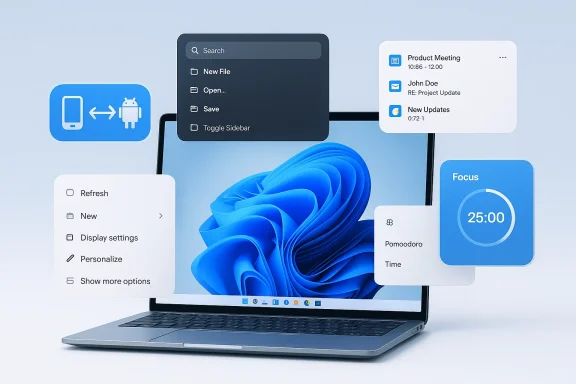
Windows 11 in 2026 still rewards the user who is willing to go beyond the default toolkit. Microsoft has improved parts of the experience, but the operating system still leaves obvious gaps in file transfer, launchers, context menus, notification control, and time tracking, which is exactly why a new generation of lightweight utilities remains so relevant. The best apps on this kind of list do not just add features; they smooth over friction that Windows still has not fully solved.
That matters even more now because the Windows ecosystem has shifted toward modular, cloud-aware, and cross-platform workflows. Some of the most interesting tools are no longer purely “Windows apps” in the old sense, but bridges between Windows 11 and iPhone, Android, macOS, web services, or enterprise environments. Others are small local utilities that take on jobs Microsoft either only partly addresses or handles in a way that is good enough for casual users but not power users.
Windows has always had a long tradition of utility apps that become indispensable precisely because they fix the rough edges around the core OS. In the Windows 7 and Windows 10 eras, that often meant shell tweaks, quick launchers, and better window management. In Windows 11, the same pattern continues, but the pain points have changed: the redesigned context menu, the heavier emphasis on notifications, the more constrained system UI, and the increasing need to move files and information across devices.
Microsoft has not ignored these areas. The company continues to invest in notification management, screen-time controls through Family Safety, and PowerToys-style productivity enhancements. But native tools still reflect broad consumer defaults rather than the granular workflows many users want, and that leaves room for third-party apps to thrive. Windows 11’s own context-menu architecture, for example, is extensible by design, but the company has also admitted that older flows were being refined specifically to reduce friction and keep app integration manageable.
That opening is why utility software remains one of the healthiest categories in the Windows world. A good app here does not need to be flashy. It just needs to save seconds repeatedly, or remove recurring irritation, or provide a capability Microsoft has not yet made first-class. When one small app can reduce the number of clicks in a daily workflow, it can quickly become more valuable than a huge feature update that only looks impressive in a demo.
It is also important to note how much the market has changed. Cross-platform support now matters because many users live in mixed-device households and workplaces. A Windows PC may sit beside an iPhone, a MacBook, a Galaxy phone, a work laptop, or a pair of Bluetooth earbuds originally designed for a different platform. The best Windows utilities in 2026 are increasingly the ones that make those combinations feel less awkward.
And that is the real theme behind this year’s crop of useful apps: they are not trying to replace Windows, but to make Windows more adaptable. Some are deeply practical. Some are quietly elegant. A few are just plain fun. Together, they show that the Windows utility ecosystem is still one of the platform’s strongest assets.
There is also a strategic angle. Microsoft has improved several built-in experiences, but many improvements arrive slowly and unevenly across versions, feature sets, and regions. Third-party developers can move faster, experiment more freely, and target user pain points with almost no ceremony. The result is an ecosystem where the best apps feel like the missing layer between Windows and the way people actually use computers.
That gap is where utility apps shine. They do not need to be everything to everyone. They just need to do one thing better than the default. That is why apps like PowerToys Run have become so sticky for power users, and why tiny tools that clean context menus or remap notifications can become surprisingly valuable.
The same is true for audio accessories, file transfer, and launchers. A good utility in 2026 is often less about “unlocking Windows” and more about making Windows behave sensibly beside everything else you own. That is a much more modern software value proposition.
The appeal is obvious. File transfer is one of those tasks that feels trivial until you are doing it constantly. When the process is fast, local, and predictable, it disappears into the background. When it is slow or dependent on a remote upload, the entire workflow becomes annoying again.
The broader significance is that Windows still lacks a native AirDrop equivalent that feels equally simple across ecosystems. Microsoft has improved sharing in Windows 11, and app developers can extend share flows, but the platform still does not give users the same “it just appears” magic that Apple users enjoy. That leaves room for tools like Blip to become everyday staples.
This is also why the best transfer apps are judged less by flashy features and more by consistency. If a tool reliably sends a file in a few taps, it becomes trusted. If it is flaky, users quickly fall back to email or USB drives, which are slower but familiar.
The practical value here is not just convenience. It is about making expensive hardware more useful. When a device is designed around another ecosystem, the Windows experience can feel second-rate. MagicPods narrows that gap enough to matter in daily use.
MagicPods also reflects a broader trend in utility software: the best third-party tools increasingly fill the compatibility voids left by hardware vendors. That is especially true when a manufacturer optimizes primarily for Apple or Android and leaves Windows with a thinner companion experience. The MagicPods driver even documents additional capabilities such as noise-cancellation control, accurate battery levels, button customization, ear detection improvements, and accessibility settings.
Still, the market reality is clear. A lot of Windows users do not want to replace good hardware just because it was designed with a different primary platform in mind. Tools like MagicPods help extend the life and usefulness of that hardware.
This matters because the launcher is often the first app a power user opens and the last one they close. If it is fast and reliable, it becomes the front door to the entire system. If it is clumsy, every task feels slightly heavier than it should.
The app is especially compelling because it is not just a launcher in the old sense. It is modular, expandable, and designed around an ecosystem of commands and workflows. In that respect, it competes as much with PowerToys-style productivity tools as it does with classic launch bars.
That creates an interesting dynamic. Raycast brings a polished, opinionated workflow with a growing ecosystem, while PowerToys Run offers a more Microsoft-native, open-source path. For many users, the choice may come down to whether they want a broader productivity platform or a leaner built-in-ish tool.
This is not just a cosmetic issue. The more shell extensions you accumulate, the more the context menu can become a performance and usability problem. A simple right-click should feel instant. When it does not, users notice.
That design choice helps compatibility, but it also means the system remains vulnerable to extension bloat. A context-menu manager is therefore not about rebellion. It is about maintenance.
The same logic applies to system load and perceived responsiveness. Even if a context-menu manager does not change raw benchmark numbers, it can change how fast the desktop feels in day-to-day use. That alone is enough to justify its existence.
This sits in the same family as notification customization tools like TopNotify, which lets users change where notifications appear, make them transparent, or enable click-through behavior. These are niche tweaks, but niche is not the same thing as unimportant. On large monitors, in games, or in multi-display setups, notification placement can become a real productivity and comfort issue. Windows itself supports notification priority and do-not-disturb behavior, but it does not offer this level of placement control natively.
That kind of interaction matters because desktops are still visual organizing spaces for a lot of people. Even in a world of virtual desktops and tabs, the desktop remains a staging ground. Any tool that makes it easier to briefly clear the stage has real value.
TopNotify sits exactly in that gap. It treats notifications as a spatial problem as much as a software one. For some people, that is the difference between staying focused and constantly being nudged out of flow.
This category has endured because repetition never really goes away. Even in an AI-assisted world, people still paste, reuse, and standardize text constantly. Automating that work remains one of the cleanest productivity wins available on Windows.
Espanso is particularly attractive because it is cross-platform and open source. Its official site positions it as a privacy-first, open-source text expander, and that combination is especially appealing to users who do not want their typed snippets tied to a proprietary cloud service.
Still, this is exactly the sort of app that becomes more valuable over time. The more snippets you build, the more time it saves. The more repetitive your work, the more noticeable the return.
This is one of the more important apps on the list because it addresses a problem many users do not realize they have until they start measuring it. Screen time is not just a parental-control issue. For adults, it is often a productivity and attention-management issue.
That difference matters. One tool is for oversight. The other is for self-awareness. Scolect is closer to the latter.
That also makes the app useful for freelancers, remote workers, students, and anyone who wants to understand how their time breaks down between work, browsing, and idle distractions. The goal is not guilt; it is visibility.
The opportunity for developers is equally clear. If Microsoft leaves a gap in a high-frequency workflow, there is room for a utility to become indispensable. The best of these apps can build loyal followings because they turn small frustrations into solved problems.
There is also a support risk. Many of these apps are tiny projects or indie tools, which is part of the appeal, but it also means users may not get the same level of documentation, enterprise testing, or long-term guarantees that they would from a major vendor.
We should also expect Microsoft to keep absorbing some of these ideas into the platform over time. That is what happens when utilities prove durable: the best ideas eventually get formalized into system features. But even then, third-party tools usually keep an edge because they move faster and take more design risks.
Source: Neowin Top 10 cool and useful apps for Windows 11 in 2026
That matters even more now because the Windows ecosystem has shifted toward modular, cloud-aware, and cross-platform workflows. Some of the most interesting tools are no longer purely “Windows apps” in the old sense, but bridges between Windows 11 and iPhone, Android, macOS, web services, or enterprise environments. Others are small local utilities that take on jobs Microsoft either only partly addresses or handles in a way that is good enough for casual users but not power users.
 Background
Windows has always had a long tradition of utility apps that become indispensable precisely because they fix the rough edges around the core OS. In the Windows 7 and Windows 10 eras, that often meant shell tweaks, quick launchers, and better window management. In Windows 11, the same pattern continues, but the pain points have changed: the redesigned context menu, the heavier emphasis on notifications, the more constrained system UI, and the increasing need to move files and information across devices.Microsoft has not ignored these areas. The company continues to invest in notification management, screen-time controls through Family Safety, and PowerToys-style productivity enhancements. But native tools still reflect broad consumer defaults rather than the granular workflows many users want, and that leaves room for third-party apps to thrive. Windows 11’s own context-menu architecture, for example, is extensible by design, but the company has also admitted that older flows were being refined specifically to reduce friction and keep app integration manageable.
That opening is why utility software remains one of the healthiest categories in the Windows world. A good app here does not need to be flashy. It just needs to save seconds repeatedly, or remove recurring irritation, or provide a capability Microsoft has not yet made first-class. When one small app can reduce the number of clicks in a daily workflow, it can quickly become more valuable than a huge feature update that only looks impressive in a demo.
It is also important to note how much the market has changed. Cross-platform support now matters because many users live in mixed-device households and workplaces. A Windows PC may sit beside an iPhone, a MacBook, a Galaxy phone, a work laptop, or a pair of Bluetooth earbuds originally designed for a different platform. The best Windows utilities in 2026 are increasingly the ones that make those combinations feel less awkward.
And that is the real theme behind this year’s crop of useful apps: they are not trying to replace Windows, but to make Windows more adaptable. Some are deeply practical. Some are quietly elegant. A few are just plain fun. Together, they show that the Windows utility ecosystem is still one of the platform’s strongest assets.
Why These Apps Matter Now
The strongest reason to pay attention to this class of software is simple: Windows 11 still has a surprisingly large number of small workflow gaps. Users who notice them every day are the same ones who benefit most from utilities that solve one narrow problem extremely well. That makes this category especially relevant in 2026, when more people work across multiple devices and expect the OS to feel less like a fixed appliance and more like a configurable workspace.There is also a strategic angle. Microsoft has improved several built-in experiences, but many improvements arrive slowly and unevenly across versions, feature sets, and regions. Third-party developers can move faster, experiment more freely, and target user pain points with almost no ceremony. The result is an ecosystem where the best apps feel like the missing layer between Windows and the way people actually use computers.
The gap between “built in” and “best in class”
Windows has native answers for many of the tasks on this list, but native does not always mean optimal. Family Safety can handle screen time limits, but not every user wants the full parental-control stack. Task Manager can show running processes, but it is not a historical monitoring tool. The OS can show notifications, but it gives you limited placement and presentation control. The platform can share files, but it still lacks a truly universal AirDrop-style story.That gap is where utility apps shine. They do not need to be everything to everyone. They just need to do one thing better than the default. That is why apps like PowerToys Run have become so sticky for power users, and why tiny tools that clean context menus or remap notifications can become surprisingly valuable.
A more fragmented device world
Mixed-platform households are now normal, not exceptional. A Windows desktop may coexist with an iPhone at home, a Mac at work, and Android devices in pockets and cars. That fragmentation is awkward for vendors but excellent for utility developers, because users want a single tool that reduces friction across ecosystems.The same is true for audio accessories, file transfer, and launchers. A good utility in 2026 is often less about “unlocking Windows” and more about making Windows behave sensibly beside everything else you own. That is a much more modern software value proposition.
- Cross-platform compatibility matters more than it did five years ago.
- Users expect local performance, not cloud dependency, for everyday tasks.
- Small tools can create outsized productivity gains.
- Power users increasingly want custom workflows instead of one-size-fits-all UI.
- The best utilities often replace multi-click navigation with a single shortcut.
File Transfer Without the Friction
One of the most practical problems in everyday computing is still moving files between devices quickly. Windows has had various answers over the years, but none have become as universally elegant as AirDrop on Apple devices. That is why Blip stands out: it is pitched as a cross-platform, local-first file transfer app that works across Windows, iPhone, Mac, Android, and other devices, while avoiding the awkwardness of email attachments, cloud links, or full sync setups.The appeal is obvious. File transfer is one of those tasks that feels trivial until you are doing it constantly. When the process is fast, local, and predictable, it disappears into the background. When it is slow or dependent on a remote upload, the entire workflow becomes annoying again.
Blip’s value proposition
Blip is especially interesting because it focuses on both local Wi‑Fi transfer and internet-based transfer, which means it tries to handle more than just people sitting on the same network. Its usefulness expands if you frequently move work files between a phone and a PC, or if you need to send something to a contact without setting up a larger sharing system. The app’s design goal is the opposite of ceremony: fewer steps, less waiting, and less friction.The broader significance is that Windows still lacks a native AirDrop equivalent that feels equally simple across ecosystems. Microsoft has improved sharing in Windows 11, and app developers can extend share flows, but the platform still does not give users the same “it just appears” magic that Apple users enjoy. That leaves room for tools like Blip to become everyday staples.
Why local transfer still wins
There is a reason local transfer remains attractive even in a cloud-heavy era. It is fast, it avoids upload limits, and it does not force users to think about accounts or storage quotas. For large files, that can be the difference between a workflow that feels instant and one that feels like a waiting game.This is also why the best transfer apps are judged less by flashy features and more by consistency. If a tool reliably sends a file in a few taps, it becomes trusted. If it is flaky, users quickly fall back to email or USB drives, which are slower but familiar.
- Works across Windows, iPhone, Mac, and Android.
- Supports both local Wi‑Fi and remote transfer.
- Avoids cloud-link overhead for many everyday use cases.
- Makes multi-device workflows feel more natural.
- Best for users who move files often, not occasionally.
Apple Accessories on Windows
Windows users with AirPods or Beats headphones often live with compromises that macOS users never see. That is where MagicPods earns its place on the list. It brings battery tracking, ear detection behavior, shortcut customization, and other accessory-friendly features to Windows PCs, making Apple audio gear feel much less foreign on Microsoft’s platform.The practical value here is not just convenience. It is about making expensive hardware more useful. When a device is designed around another ecosystem, the Windows experience can feel second-rate. MagicPods narrows that gap enough to matter in daily use.
Why accessory apps matter
For many users, headphone battery indicators should not be a niche feature. They should be basic system information. If you wear earbuds through long workdays, the ability to see battery levels clearly and control behaviors like auto-pausing or audio switching becomes part of the operating system experience, not just a companion app perk.MagicPods also reflects a broader trend in utility software: the best third-party tools increasingly fill the compatibility voids left by hardware vendors. That is especially true when a manufacturer optimizes primarily for Apple or Android and leaves Windows with a thinner companion experience. The MagicPods driver even documents additional capabilities such as noise-cancellation control, accurate battery levels, button customization, ear detection improvements, and accessibility settings.
The practical ceiling on compatibility
There is a catch, of course. Many of these features depend on vendor-specific behavior, driver support, or Windows security settings, and that means the experience may vary by model or update. It is the classic tradeoff of third-party compatibility software: tremendous convenience when it works, occasional friction when platform rules shift.Still, the market reality is clear. A lot of Windows users do not want to replace good hardware just because it was designed with a different primary platform in mind. Tools like MagicPods help extend the life and usefulness of that hardware.
- Battery tracking on Windows for Apple and selected other brands.
- Audio behavior controls that mimic richer mobile ecosystems.
- Better use of premium earbuds on a PC.
- Small upfront cost, high day-to-day payoff.
- Most valuable for users who switch between platforms.
Launchers and Fast Access
The launcher category is having a quiet renaissance on Windows 11, and the most interesting example here is Raycast. The app’s arrival on Windows in public beta is notable because Raycast built its reputation on macOS as a fast command center for apps, files, calculations, commands, and AI-assisted workflows. On Windows, it brings that same philosophy to a platform whose built-in search and launcher experience has often frustrated power users.This matters because the launcher is often the first app a power user opens and the last one they close. If it is fast and reliable, it becomes the front door to the entire system. If it is clumsy, every task feels slightly heavier than it should.
Raycast’s Windows arrival
Raycast’s Windows beta arrived in late 2025 and is positioned as a productivity layer for users who want a faster way to reach apps, files, commands, and AI prompts. The company describes it as a way to cut through clutter, and that framing makes sense on Windows, where the native search experience still inspires frequent complaints from advanced users.The app is especially compelling because it is not just a launcher in the old sense. It is modular, expandable, and designed around an ecosystem of commands and workflows. In that respect, it competes as much with PowerToys-style productivity tools as it does with classic launch bars.
PowerToys Run as the native counterpoint
Microsoft’s own PowerToys Run is the obvious comparison point. It already offers a quick launcher for apps, files, calculator functions, and system commands, all accessible through a simple keyboard shortcut. Microsoft documents it as a fast utility for power users, and that makes it the closest native answer to the “type to do things” model that Raycast popularized.That creates an interesting dynamic. Raycast brings a polished, opinionated workflow with a growing ecosystem, while PowerToys Run offers a more Microsoft-native, open-source path. For many users, the choice may come down to whether they want a broader productivity platform or a leaner built-in-ish tool.
Why launchers stay relevant
Launchers solve a real problem: users know what they want, but Windows often makes them work too hard to get it. A good launcher compresses the time between intent and action. That is why they remain so durable even as taskbars, search boxes, and Start menus evolve.- Raycast brings a polished, cross-platform productivity model to Windows.
- PowerToys Run remains the native benchmark for quick access.
- Both tools reduce search friction and mouse-heavy navigation.
- AI prompts and command execution are now part of the launcher story.
- The best launcher is the one that becomes invisible through repetition.
Context Menus and System Clean-Up
Few parts of Windows 11 inspire as much quiet irritation as the right-click menu. Microsoft redesigned it to be cleaner and more modern, but many users still find it slower, less complete, or cluttered by extensions they do not need. That is why utilities like a Windows 11 Context Menu Manager matter so much: they help users strip out unnecessary third-party entries and regain control of one of the most frequently used UI surfaces. Microsoft itself acknowledges that the context menu is one of the most important shell-extension surfaces in Windows.This is not just a cosmetic issue. The more shell extensions you accumulate, the more the context menu can become a performance and usability problem. A simple right-click should feel instant. When it does not, users notice.
Why the menu still feels bloated
Windows 11 did a lot to simplify the default menu, but the ecosystem around it is messy. Many applications still add their own entries, and some are genuinely useful while others are leftover clutter from installers, drivers, or old integrations. Microsoft’s own blog on the redesigned menu stressed that “Show more options” preserves access to the older menu for legacy verbs and that the goal was refinement rather than removal.That design choice helps compatibility, but it also means the system remains vulnerable to extension bloat. A context-menu manager is therefore not about rebellion. It is about maintenance.
The case for third-party cleanup tools
Apps that manage context menus fit a familiar Windows tradition: they expose control points that the OS offers only indirectly. For power users, that is often worth more than a new feature. If you can remove redundant entries in a few clicks, you can make everyday file handling feel much cleaner.The same logic applies to system load and perceived responsiveness. Even if a context-menu manager does not change raw benchmark numbers, it can change how fast the desktop feels in day-to-day use. That alone is enough to justify its existence.
- Removes third-party clutter from right-click menus.
- Restores a cleaner, more predictable workflow.
- Can improve perceived speed and reduce menu lag.
- Best for users with many installed utilities and drivers.
- Helps turn Explorer into a more deliberate tool, not a junk drawer.
Desktop Convenience and Notification Control
Small usability fixes often have the biggest emotional payoff, and PeekDesktop is a perfect example. Inspired by macOS Sonoma’s desktop-click behavior, it lets users click the desktop to hide all windows and click again to restore them. That sounds tiny, but for people who keep files or shortcuts on the desktop, it can be surprisingly handy. The fact that it was developed by Microsoft engineer Scott Hanselman only adds to the charm.This sits in the same family as notification customization tools like TopNotify, which lets users change where notifications appear, make them transparent, or enable click-through behavior. These are niche tweaks, but niche is not the same thing as unimportant. On large monitors, in games, or in multi-display setups, notification placement can become a real productivity and comfort issue. Windows itself supports notification priority and do-not-disturb behavior, but it does not offer this level of placement control natively.
Desktop clicks and attention management
PeekDesktop is valuable because it reduces friction for users who work with many open windows and a cluttered desktop. Rather than hunting for the tiny show-desktop button or using keyboard shortcuts, the user can simply click the wallpaper and return to the workspace later. It is a gesture that feels natural very quickly.That kind of interaction matters because desktops are still visual organizing spaces for a lot of people. Even in a world of virtual desktops and tabs, the desktop remains a staging ground. Any tool that makes it easier to briefly clear the stage has real value.
Notifications as a design problem
Windows notifications have improved, but they still create tension between visibility and interruption. Microsoft’s own support documentation shows that users can tune banners, notification center behavior, priority, and do-not-disturb settings. That is useful, but it still leaves room for a more personalized arrangement, especially on ultrawide displays and gaming setups.TopNotify sits exactly in that gap. It treats notifications as a spatial problem as much as a software one. For some people, that is the difference between staying focused and constantly being nudged out of flow.
Where these tools fit best
These are not universal must-haves. They are quality-of-life tools, and their value rises with screen size, app count, and user preference. If you spend long hours in front of Windows 11, micro-conveniences can become macro benefits.- PeekDesktop makes hiding and restoring windows feel effortless.
- TopNotify adds spatial control to notification behavior.
- Large monitors benefit the most from notification repositioning.
- Click-through notifications can help in games and focus sessions.
- Microsoft’s defaults are decent, but not as customizable as some users want.
Text Expansion and Repetition Killers
If you type the same phrases over and over, Espanso is one of those tools that quickly feels essential. It is a cross-platform, open-source text expander that turns short triggers into longer snippets, whether that means dates, email templates, code fragments, emojis, or reusable text blocks. The utility is simple to explain and hard to live without once it is part of your muscle memory.This category has endured because repetition never really goes away. Even in an AI-assisted world, people still paste, reuse, and standardize text constantly. Automating that work remains one of the cleanest productivity wins available on Windows.
What text expanders actually save
A text expander does not just save keystrokes. It preserves attention. Instead of remembering the exact wording of a disclaimer, response, or code snippet, you type a short command and move on. That matters in support roles, sales workflows, development environments, and administrative work.Espanso is particularly attractive because it is cross-platform and open source. Its official site positions it as a privacy-first, open-source text expander, and that combination is especially appealing to users who do not want their typed snippets tied to a proprietary cloud service.
The tradeoff: power versus polish
The main downside is also familiar to utility veterans: the more powerful the tool, the more configuration it tends to require. Espanso is very capable, but users may need to learn syntax and edit configuration files rather than rely on a glossy GUI. That is not a deal-breaker, but it does shape the audience.Still, this is exactly the sort of app that becomes more valuable over time. The more snippets you build, the more time it saves. The more repetitive your work, the more noticeable the return.
- Replaces repetitive typing with short triggers.
- Great for dates, signatures, templates, and code snippets.
- Open source and cross-platform.
- Privacy-friendly for users wary of cloud sync.
- Best suited to people who write a lot every day.
Time Tracking and Focus
Windows 11 still does not ship with a straightforward, app-specific screen-time dashboard in the way some users expect, which is why Scolect lands so well for productivity-minded users. The app tracks time spent in applications, creates reports, supports exports, and adds features like categories, productivity labels, focus modes, alerts, break reminders, and Pomodoro-style support. It is a very clear answer to the question: “Where did my day go?” The company also says the data stays local.This is one of the more important apps on the list because it addresses a problem many users do not realize they have until they start measuring it. Screen time is not just a parental-control issue. For adults, it is often a productivity and attention-management issue.
Why screen-time tracking is still missing
Microsoft does have screen-time and activity-reporting capabilities through Family Safety, and those tools work across Windows, Xbox, and Android in a family context. But that is not the same thing as a personal, app-level productivity tracker for independent users. Microsoft positions Family Safety as a cross-device management tool, not a local analytics dashboard for adults managing their own focus.That difference matters. One tool is for oversight. The other is for self-awareness. Scolect is closer to the latter.
Focus tools are becoming more personal
There is a growing appetite for tools that help people notice patterns rather than just block distractions. Categories, productivity labels, trend lines, and reminder systems can be more effective than hard restrictions because they encourage behavior change without feeling punitive.That also makes the app useful for freelancers, remote workers, students, and anyone who wants to understand how their time breaks down between work, browsing, and idle distractions. The goal is not guilt; it is visibility.
What makes Scolect compelling
Scolect stands out because it is not trying to be a giant suite. It focuses on a specific productivity loop: observe usage, interpret it, and then nudge better habits. That keeps the app easier to understand than broader digital-wellbeing platforms.- Tracks app usage and screen time.
- Supports categories and productivity labels.
- Provides reports and export options.
- Includes break reminders and focus mode.
- Helps users turn intuition into measurable patterns.
Strengths and Opportunities
These apps share one crucial advantage: they are close to the user’s daily pain points. That makes them sticky, because they improve workflows that happen dozens or hundreds of times a week. They also show how Windows 11’s biggest strengths often come from flexibility rather than the stock interface alone.The opportunity for developers is equally clear. If Microsoft leaves a gap in a high-frequency workflow, there is room for a utility to become indispensable. The best of these apps can build loyal followings because they turn small frustrations into solved problems.
- They target real, repeated annoyances rather than abstract feature wishes.
- They improve cross-platform life, which is increasingly normal.
- They can often be adopted incrementally, without changing the whole workflow.
- They fit both consumer and enthusiast use cases.
- They often work well alongside Microsoft’s own tools.
- They create room for personalization in a platform that still defaults to broad assumptions.
- They are easy to recommend because their value is concrete, not theoretical.
Risks and Concerns
The biggest risk with utility apps is that they can become dependencies on unofficial behavior. The more a tool hooks into the shell, notifications, audio drivers, or launch experience, the more exposed it is to Windows updates, policy changes, or compatibility quirks. That is especially true in 2026, when Microsoft continues to evolve Windows 11’s UI layers and extension points.There is also a support risk. Many of these apps are tiny projects or indie tools, which is part of the appeal, but it also means users may not get the same level of documentation, enterprise testing, or long-term guarantees that they would from a major vendor.
- Shell-integrated apps can break after Windows updates.
- Background utilities can introduce stability or performance concerns.
- Driver-based tools may face signing or permission friction.
- AI-heavy launchers may raise privacy and policy questions.
- Some tools require configuration comfort that casual users may not have.
- Cross-platform tools can be excellent, but they may still feel less native than Windows-only apps.
- Small projects can vanish, leaving users to migrate settings and habits.
Looking Ahead
The next wave of Windows utilities will likely be defined by three forces: more cross-platform living, more modular workflows, and more demand for local control. The apps on this list already hint at that future. They are not trying to make Windows look like macOS or Android; they are trying to make Windows more fluent in a multi-device world.We should also expect Microsoft to keep absorbing some of these ideas into the platform over time. That is what happens when utilities prove durable: the best ideas eventually get formalized into system features. But even then, third-party tools usually keep an edge because they move faster and take more design risks.
What to watch next
- More launcher apps blending search, automation, and AI.
- Better Windows support for cross-platform file transfer.
- Continued pressure to simplify context menus and shell extensions.
- More accessory utilities for headphones, webcams, and peripherals.
- Screen-time tools that move beyond family settings into personal analytics.
- Notification customization that goes beyond simple on/off controls.
- New utilities designed specifically for Windows 11’s modern shell model.
Source: Neowin Top 10 cool and useful apps for Windows 11 in 2026
Last edited:
