

Snap Layouts is quietly becoming one of the most effective productivity features in Windows 11, turning chaotic desktops into organized, task-focused workspaces with a single hover or a quick keyboard press.
Windows has long offered ways to “snap” windows to screen edges, but Windows 11’s Snap Layouts elevates that basic idea into a visual, template-driven system that’s optimized for modern displays and multitasking workflows. Instead of dragging and resizing windows by hand, users can hover over the maximize button or press a single shortcut to choose from predefined grids — two-up, three-column, four-way, and wider templates for ultrawide monitors — and then fill the slots with running apps. This reduces fiddly resizing and makes it far easier to reproduce the same workspace multiple times a day.
Snap Layouts works together with a family of features — Snap Assist, Snap Groups, and Virtual Desktops — to help Windows remember configurations and switch contexts quickly. For power users who rely on consistent screen arrangements (developers, researchers, streamers, and hybrid workers), that ability to restore a multi-window layout in one click is a real time-saver.
At the same time, forum reports and troubleshooting threads show that third-party utilities, display driver issues, and feature toggles across Windows builds are the most common reasons users don’t immediately benefit. That means practical rollout should include a troubleshooting checklist and clear instructions for enabling Snap windows in Settings > System > Multitasking.
Snap Layouts turns messy desktops into deterministic workspaces quickly and with minimal learning curve. Combined with Snap Assist, Snap Groups, and PowerToys’ FancyZones for custom needs, it forms a practical multitasking toolkit — one that can genuinely shorten the time between context switches and keep focus where it belongs: on the work.
Source: livemint.com Snap Layouts is turning busy Windows 11 users into multitasking pros - find out how to make it work for you | Mint
 Background / Overview
Windows has long offered ways to “snap” windows to screen edges, but Windows 11’s Snap Layouts elevates that basic idea into a visual, template-driven system that’s optimized for modern displays and multitasking workflows. Instead of dragging and resizing windows by hand, users can hover over the maximize button or press a single shortcut to choose from predefined grids — two-up, three-column, four-way, and wider templates for ultrawide monitors — and then fill the slots with running apps. This reduces fiddly resizing and makes it far easier to reproduce the same workspace multiple times a day.Snap Layouts works together with a family of features — Snap Assist, Snap Groups, and Virtual Desktops — to help Windows remember configurations and switch contexts quickly. For power users who rely on consistent screen arrangements (developers, researchers, streamers, and hybrid workers), that ability to restore a multi-window layout in one click is a real time-saver.
Why Snap Layouts matters today
Modern productivity is contextual: you might be writing a report while referencing spreadsheets, monitoring Slack, and keeping a video call open. On a single 27–34" monitor or an ultrawide panel, manual window sizing wastes minutes per task and breaks concentration. Snap Layouts addresses three problems:- Speed: layout selection is immediate and reproducible; no pixel nudging required.
- Consistency: Snap Groups lets Windows remember arrangements so you can restore a whole workspace from the taskbar.
- Scalability: layouts adapt to display size; wider screens may show more layout choices.
What’s included: the Snap toolbox
Snap Layouts (the visual flyout)
Hover over the restore/maximize button or press Win + Z to open the Snap flyout and choose a layout. The flyout shows layout thumbnails and highlights where the current window will dock. Depending on screen size and resolution, you’ll see different sets of templates.Snap Assist
After snapping the first window, Snap Assist displays thumbnails of other open apps to fill the remaining zones. Click thumbnails to populate slots quickly, or continue snapping additional windows manually.Snap Groups
Once multiple windows are arranged in a layout, Windows groups them into a Snap Group. Hovering over a taskbar thumbnail reveals the group, and clicking it restores the entire layout in one go — ideal when you repeatedly switch away for a meeting or a quick reference task.Virtual Desktops
Use Virtual Desktops in tandem with Snap Layouts to create named workstations (e.g., “Research”, “Meetings”, “Creative”) and keep tasks compartmentalized. Snap Layouts + Virtual Desktops = reproducible, context-specific setups.PowerToys FancyZones (for custom layouts)
If you need nonstandard or persistent tiling (uneven columns, multi-monitor templates, or saved workspaces), PowerToys FancyZones provides advanced zone editors and keyboard control. FancyZones is a separate utility in Microsoft PowerToys and can be configured to override Windows Snap for even finer control. Note: FancyZones can require running PowerToys as Administrator to control elevated windows.Who gets Snap Layouts — and where it differs
- Windows 11: Snap Layouts, Snap Assist, and Snap Groups are built into the OS. The visual flyout and Restore/Maximize hover behavior are native to Windows 11.
- Windows 10: classic snapping (drag to edges/corners) remains available, but the Windows 11-style visual flyout is not a native part of Windows 10. Similar functionality can be achieved using third-party tools such as PowerToys FancyZones, which runs on Windows 10 and Windows 11 and offers custom zones. Claims that Windows 10 is receiving the exact Windows 11 flyout via PowerToys are overstated; PowerToys provides comparable, but separate, capabilities. Flag: this distinction is important when advising Windows 10 users.
Step-by-step: master Snap Layouts (quickstart)
- Open the applications you want to arrange.
- Hover the cursor over the maximize/restore button in the window’s title bar or press Windows + Z to open the layout flyout.
- Pick a layout from the previews. Larger displays may show more templates.
- Click the zone where you want the active window to snap; Snap Assist will display thumbnails for the remaining areas. Click thumbnails to fill them.
- Resize borders by dragging the dividers to fine-tune — adjacent panes will adjust automatically.
- Press Win + Z to open the flyout, use arrow keys (or numbers where supported) to select a layout, and press Enter to confirm. Standard snapping shortcuts like Win + Left/Right/Up/Down remain available for incremental movement.
Practical workflows and templates
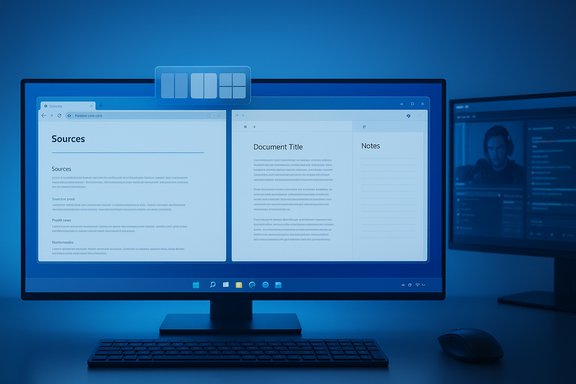
Below are practical layout templates optimized for common roles. Each short paragraph explains a suggested arrangement and why it works.- Knowledge worker / researcher: 3-column — browser with sources (left), PDF reader or dataset (center), note-taking app or Word (right). This keeps reference, data, and composition visible at once.
- Developer: 60/20/20 split (or FancyZones custom layout) — primary editor in a wide central zone, preview/browser in a narrow right zone, terminal/logs stacked below or in a second narrow column. FancyZones can save this custom split for reuse.
- Streamer / content creator: Large editor + smaller obs/chat + reference — dedicate the largest zone to editing software or game window, with OBS and live chat in sidebars. Snap Groups makes switching between “editing” and “streaming” modes easy.
- Meeting multitasker: Two-up — video call on one half, document or notes on the other. Use Virtual Desktops to keep meeting setups separate from deep-work desktops.
Power-user tips and keyboard sequences
- Use Win + Z to summon layouts quickly and keep your hands on the keyboard.
- Snap a primary app with Win + Left/Right, then Alt+Tab to the second app and Win + Right/Left to place it — this sequence can be faster than using the flyout for simple two-window setups.
- To move a snapped window between monitors, use Win + Shift + Left/Right.
- Combine Snap Layouts with Virtual Desktops: build a dedicated desktop per project and restore the same multi-window arrangement each session.
- Create uneven columns, saved multi-monitor layouts, or layouts that span monitors. Assign layouts to hotkeys to apply them with a press. Run PowerToys as Administrator if you need to snap elevated apps like Task Manager.
Troubleshooting: what goes wrong and how to fix it
- Snap flyout doesn’t appear: confirm you’re on Windows 11, then open Settings > System > Multitasking and ensure Snap windows is enabled. Some OEM builds or older Windows 11 versions may not show the feature until updated.
- Shortcuts not working: third‑party window managers or shell customizers can intercept or block Windows hotkeys. Disable conflicting apps and update GPU/display drivers if snapping behaves strangely.
- FancyZones can’t snap elevated windows: run PowerToys as Administrator so it can control elevated applications. This is a documented requirement for FancyZones to manipulate windows running with higher privileges.
- Off‑screen or stuck windows: focus the app via Alt+Tab and use Win + Arrow to bring it back into view. Classic window movement shortcuts (Alt + Space → Move) still apply for stubborn cases.
- Layouts appear different on ultrawide displays: the flyout offers more templates on larger or higher-resolution displays — choose the one that best matches your monitor aspect ratio. If layout previews look wrong, check scaling and display driver settings.
Strengths — what Snap Layouts does exceptionally well
- Reduces friction: visually picking a layout is faster than repeated manual resizing. Users report real time savings during repetitive workflows.
- Restorable groups: Snap Groups simplify context switching; you can return to a complex multi-app workspace with a single click on the taskbar.
- Accessible by keyboard: Win + Z and arrow keys allow keyboard-first workflows for speed and accessibility.
- Extensible: PowerToys FancyZones fills the gap for custom, persistent layouts and multi-monitor setups, giving power users a way to save and launch bespoke workspaces.
Risks, limitations, and privacy/security considerations
- Feature fragmentation across Windows versions: the Windows 11 flyout is not identical to anything in Windows 10; PowerToys can approximate but not replace the native Snap Layouts experience. Advising users to expect parity between versions is risky without clarifying these differences.
- Dependency on display configuration: layouts and the number of templates vary by resolution and scaling. Users on smaller laptops will see fewer layout options than those on large monitors. This makes “one-size-fits-all” advice unreliable.
- Third-party conflicts and reliability: some tools and window managers intercept hotkeys or window events, which can disable or degrade snapping behavior. Users should audit background utilities if Snap behaves inconsistently.
- Elevated-app control and security trade-offs: running PowerToys as Administrator to enable FancyZones to control elevated apps carries security implications. The Microsoft documentation explicitly warns about the risk of always running processes as administrator; do this only when necessary and understand the security trade-offs.
- Unverifiable rollout claims: some articles and forum posts say Snap Layouts text prompts or extra flyout features arrived with specific preview builds or KB updates (for example, references to KB5046716 in some community threads). While Microsoft’s documentation confirms Win + Z and the flyout behavior, claims about exact build numbers, experimental text-based tutorials, or their delivery timelines can vary between Insider and stable channels and should be treated cautiously unless validated against the official Windows release notes or an update changelog. Flag: verify against your device’s current Windows build and Microsoft release notes before assuming availability.
How to adopt Snap Layouts at scale — tips for teams and IT admins
- Standardize on Windows versions: choose a Windows 11 baseline (21H2 or later) and document the expected Snap behavior for team machines. Push updates via Windows Update or your management tooling.
- Train with quick cheat-sheets: distribute concise keyboard-focused guides (Win + Z, Win + Arrow, Win + Shift + Arrow) to reduce onboarding friction.
- Use PowerToys where needed: for developers and designers who require persistent custom layouts, standardize a PowerToys configuration and, if necessary, use admin privileges carefully to enable FancyZones for elevated windows. Warn users about privilege implications.
- Build workspace templates: document and share recommended layouts for common roles (research, dev, meetings). Encourage use of Virtual Desktops in combination with Snap Layouts for separation of contexts.
Real-world observations from users and community guides
Windows enthusiasts and productivity writers consistently highlight Snap Layouts as an understated but highly practical productivity gain. Community guides emphasize keyboard shortcuts, combining Snap Layouts with Virtual Desktops, and introducing FancyZones for complex, reproducible setups. The consensus: Snap transforms the friction of window management into a predictable, repeatable task — but its real power appears when combined with other tools and process changes.At the same time, forum reports and troubleshooting threads show that third-party utilities, display driver issues, and feature toggles across Windows builds are the most common reasons users don’t immediately benefit. That means practical rollout should include a troubleshooting checklist and clear instructions for enabling Snap windows in Settings > System > Multitasking.
Final verdict: is Snap Layouts worth adopting?
For nearly every knowledge worker, Snap Layouts is a low-friction productivity multiplier. It is:- Easy to adopt — the interface is discoverable (hover/Win+Z) and configurable in Settings.
- Flexible — works for basic two-window splits up to multi-pane research or creative setups; FancyZones fills gaps for power users.
- Time-saving — Snap Groups and quick layout recall cut repeated setup time, restoring workflows with minimal friction.
Quick reference: checklist to get started (two-minute setup)
- Verify you’re on Windows 11 (or install PowerToys on Windows 10 for FancyZones).
- Open Settings > System > Multitasking and enable Snap windows (and its sub-options).
- Open two or more apps, hover the maximize button or press Win + Z, and pick a layout.
- For custom, saved layouts, install Microsoft PowerToys and configure FancyZones, running as Administrator only if you need to control elevated windows.
Snap Layouts turns messy desktops into deterministic workspaces quickly and with minimal learning curve. Combined with Snap Assist, Snap Groups, and PowerToys’ FancyZones for custom needs, it forms a practical multitasking toolkit — one that can genuinely shorten the time between context switches and keep focus where it belongs: on the work.
Source: livemint.com Snap Layouts is turning busy Windows 11 users into multitasking pros - find out how to make it work for you | Mint
