

Windows 11 can feel polished and modern out of the box, but the real productivity and personalization gains arrive when you add a handful of focused, free apps from the Microsoft Store. The right mix of utilities—clipboard managers, audio controls, quick-preview tools, lightweight editors, and creative suites—removes friction, restores missing features, and turns everyday tasks into smoother, faster workflows. This feature collects the top free Microsoft Store apps you should consider installing today, explains what they do, verifies key claims across independent reports, and flags the realistic trade-offs so you can decide which ones belong on your machine.
Microsoft’s Store is the simplest route to extend Windows 11 safely: signed packages, automatic updates, and easier discovery than random downloads. That convenience doesn’t guarantee perfection—apps vary in quality, telemetry, and resource use—so the curated list below focuses on free Store apps that repeatedly appear across trusted community roundups and Windows‑focused reporting as effective, well-maintained choices. Many of these utilities directly address persistent Windows 11 friction points: per‑app audio control, fast file previews, richer PDF handling, and the need for quick creative tools. Community threads and multiple independent roundups confirm these apps’ utility and popularity.
Why install it:
Why install it:
Why install it:
Why install it:
Why install:
Why install it:
Why install:
Why install:
Why install:
Why install:
Why install:
Why install:
Why install:
Why install:
Why install:
Installing a few free, high‑quality Store apps transforms Windows 11 from “serviceable” to truly tailored. Whether you want to speed up everyday tasks, create visuals quickly, or regain familiar UI behavior, these well‑reviewed utilities deliver practical wins with low upfront cost. Apply the installation checklist, enable only the features you use, and monitor background resource use—do that, and your Windows 11 setup will feel significantly smarter and more responsive by the end of the day.
Source: Analytics Insight Top Free Microsoft Store Apps to Upgrade Your Windows 11 Experience
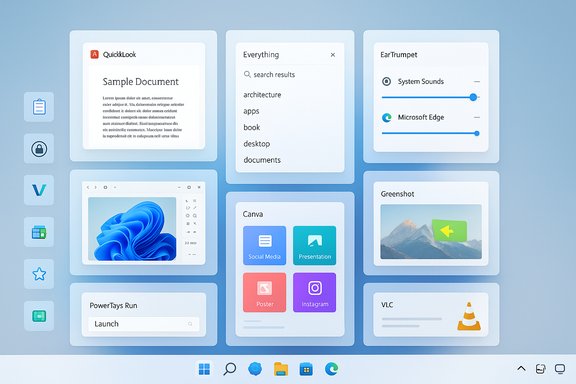 Background / Overview
Microsoft’s Store is the simplest route to extend Windows 11 safely: signed packages, automatic updates, and easier discovery than random downloads. That convenience doesn’t guarantee perfection—apps vary in quality, telemetry, and resource use—so the curated list below focuses on free Store apps that repeatedly appear across trusted community roundups and Windows‑focused reporting as effective, well-maintained choices. Many of these utilities directly address persistent Windows 11 friction points: per‑app audio control, fast file previews, richer PDF handling, and the need for quick creative tools. Community threads and multiple independent roundups confirm these apps’ utility and popularity.Creativity Tools: Fast, friendly editing without the learning curve
Microsoft Paint (modernized) and Paint 3D — the first stop for quick edits
Windows’ built‑in Paint is no longer the tiny pixel editor of decades past. Recent Windows 11 updates have accelerated Paint toward genuinely useful creative features—layers, opacity controls, an editable project container (.paint), and AI-driven helpers such as background removal and image generation in some channels—making it a viable quick‑edit tool for social assets, screenshots, and rough mockups. These additions reduce the need to juggle multiple simple utilities when you just need to crop, remove a background, or save a layered project for later edits. Community testing notes that the native project format and per‑tool opacity slider work as advertised in Insider builds, though advanced artists will still prefer more capable editors for heavy work.Why install it:
- Instant availability on any Windows 11 PC.
- Edits remain local and integrate with the OS update channel.
- Layers and a .paint container make iterative work practical.
Canva (Store edition) — templates-first design for non-designers
Template‑driven design tools like Canva are targeted at users who need quick, polished visuals without learning complex tools. The Microsoft Store edition brings Canva’s templates, drag‑and‑drop editor, and export options into a native app wrapper, letting casual creators produce social posts, presentations, and banners faster than in traditional editors. Community profiles and app roundups routinely list Canva as an excellent choice for non‑designers who want speed over granular control. Cross‑checking community guides shows Canva and lightweight photo editors rank highly for social and presentation workflows.Why install it:
- Massive template library for social, business, and educational content.
- Intuitive interface; minimal learning curve.
- Exports for PNG, JPG, and common formats.
Productivity Essentials: clipboard, search, previews
QuickLook — macOS-style file preview in a heartbeat
QuickLook brings the Mac-style spacebar preview to Windows Explorer: press a hotkey and you get a fast, no‑friction preview of images, text, PDFs, and media without launching full apps. Users repeatedly cite the speed and convenience of QuickLook in daily workflows—perfect for hunters of files, designers checking exports, and anyone who needs to triage multiple assets quickly. Multiple community roundups list QuickLook as a must‑have Store app for better file browsing and fast previews.Why install it:
- Instant previews for a wide range of file types.
- Saves time over opening full apps or switching windows.
- Lightweight and responsive.
Everything — instant file search that feels like a local search engine
For anyone who wastes minutes hunting a document, Everything replaces slow Explorer searches with near‑instant filename results across NTFS volumes. It indexes quickly, updates in real time, and supports filters and boolean queries. Community reporting consistently ranks Everything as the fastest local search tool and an essential productivity download.Why install it:
- Extremely fast filename searches with tiny resource footprint.
- Useful filters and bookmarkable searches.
- Great for admins, developers, and power users.
Clipboard managers: Ditto, CopyQ and ClipShelf — never lose copied content again
A persistent clipboard history is one of the most impactful productivity upgrades you can make. Tools like CopyQ and ClipShelf keep multi‑item histories, let you pin snippets, search past copies, and paste formatted or plain text with hotkeys. Clipboard managers are repeatedly recommended for serious multitaskers and content creators. Validate your privacy needs: most store history locally, but check sync settings if a cloud backup is available.Why install:
- Recover lost text, links, and tiny images.
- Reduce repetitive typing with snippets and templates.
- Enables one‑key pasting in complex workflows.
System Utilities: fill the small but aggravating gaps
EarTrumpet — the missing per‑app volume control done right
Per‑application audio control is often cited as a natural expectation that Windows buries behind menus. EarTrumpet puts independent volume sliders, device routing, and per‑app device selection directly in a compact flyout from the system tray. It’s fast, integrates with the system audio stack, and repeatedly tops community lists as one of the most useful free utility installs for Windows 11. Multiple community reports corroborate its utility for instantly balancing music, communication apps, and notification volume.Why install it:
- Immediate control of app sound levels without navigating Settings.
- Device routing per app (when supported by drivers).
- Lightweight and stable.
Microsoft PowerToys — a Swiss Army knife for power users
PowerToys is Microsoft’s official open‑source toolkit for Windows power users. The suite includes utilities such as FancyZones (window layouts), PowerToys Run (quick launcher), Image Resizer, and many small time-savers that are actively maintained. Community roundups highlight PowerToys as one of the highest‑value free downloads for improving daily productivity and desktop organization.Why install:
- Official Microsoft project with frequent updates.
- Multiple small utilities that compound into larger productivity gains.
- Highly configurable and open source.
Battery Flyout & Battery Percentage — restore missing battery UX
Several small utilities restore battery percentage displays, Bluetooth device battery indicators, and more informative flyouts that Windows 11 simplified. For laptop users, having a visible taskbar percentage or a richer battery flyout improves situational awareness and prevents sudden shutdowns. Community reviews confirm utility for mobile users frustrated by default quick settings.Why install:
- Quick glance battery percentage from the taskbar.
- Bluetooth device battery monitoring and simple alerts.
Twinkle Tray — multi‑monitor brightness made simple
If you run multiple monitors, changing brightness on each device individually is a pain. Twinkle Tray gives a system tray slider to adjust brightness per monitor, supporting both DDC/CI and software-level changes. It’s especially useful for photography, mixed‑hardware desks, and late‑night workflows. Community writeups single it out as an elegant fix for a real annoyance.Why install:
- Per‑monitor brightness control with a familiar UI.
- Schedules and hotkeys available in many builds.
Multimedia and Screenshots: capture, annotate, and playback
VLC Media Player — the dependable universal player
For playing almost any media format without codec headaches, VLC remains the go‑to. It’s open source, widely supported, and appears as a recommended media player in community roundups for users who want robust playback without subscription baggage.Why install:
- Plays nearly any audio/video container and codec.
- Lightweight and frequently updated.
ShareX & Greenshot — screenshot power and annotation
Screen capture and quick annotation tools are indispensable for documentation, bug reports, and tutorial creation. Greenshot and ShareX provide easy region capture, annotation, and upload options. Community lists show Greenshot as a top replacement for Snipping Tool when you need editing and fast sharing.Why install:
- Advanced capture modes (annotate, crop, scrolling windows).
- Direct upload/sharing integrations in ShareX.
File Management & Archiving
Files (modern File Explorer alternative) and File utilities
Third‑party Explorer replacements such as Files add tabs, tags, and a more modern UI that matches Windows 11 design cues. They streamline multi‑folder workflows and improve navigation with fluid animations and tabbed browsing. Community reporting highlights Files as a strong Store‑friendly alternative for those who need tabs and tagging.Why install:
- Tabs, tagging, and modern UI.
- Better for multitasking with many open folders.
WinRAR / K‑Lite / Codecs — keep your archives and codecs under control
Even with built‑in compression, many heavy users still rely on WinRAR, K‑Lite codec packs, or Media Player Classic components to ensure compatibility with obscure archives and media formats. Community lists recommend them for broad compatibility, but note licensing and trial behavior where applicable.Why install:
- Broad format support for archives and media.
- Stable, familiar toolchains for heavy file handlers.
Security, Privacy, and Maintenance
KeePass and VeraCrypt — offline password and encryption options
For users who prefer local control over passwords and container encryption, KeePass and VeraCrypt remain free, strong options. They’re recommended by security‑minded community members and appear in multiple Windows utility roundups as essential privacy tools. Verify plugin behavior and backup strategies before migrating existing credentials.Why install:
- Local, encrypted credential storage; no cloud lock‑in.
- Strong community vetting and auditability.
PatchMyPC and updater tools — keep third‑party apps patched
Automated updaters that manage dozens or hundreds of common apps reduce exposure to known vulnerabilities. PatchMyPC and equivalent tools are repeatedly recommended for enthusiasts and small admins to keep apps current without manual checks. Use with caution in corporate environments—verify which updates are allowed.Why install:
- Automates updates across many common apps.
- Saves time for regularly updated software suites.
How to Choose and Install Safely (quick checklist)
- Identify the exact friction you want to fix (e.g., fast previews, audio mixing, clipboard history).
- Verify the app’s Store listing and recent update cadence—active maintenance is key.
- Read privacy settings during install—disable telemetry or cloud sync if local‑only storage is desired.
- Enable only the modules you need (PowerToys, for example) and close trial/intro screens that add background services.
- Keep a simple rollback plan: create a restore point or export settings before making broad changes.
Notable Strengths — where these apps shine
- Immediate productivity wins: Clipboard managers, QuickLook, and Everything produce measurable time savings.
- Low friction of the Microsoft Store: signed apps, automatic updates, and discoverability reduce the risk profile compared with random downloads. Community roundups consistently recommend Store apps for everyday users who prefer simplicity.
- Elegant fills for Windows gaps: per‑app audio (EarTrumpet), battery and brightness flyouts, and simple creative workflows in Paint and Canva are often faster than navigating built‑in settings.
- Free, often open‑source options: Many top recommendations—PowerToys, VLC, QuickLook—are free and either open source or community‑driven, encouraging transparency and community review.
Potential Risks and Trade‑offs — what to watch for
- Resource footprint: running many background utilities (clipboard managers, updaters, and monitoring tools) can creep up on system resources, especially on low‑RAM devices. Enable only what you need.
- Privacy considerations: clipboard history and cloud‑backed sync features can unintentionally expose sensitive data. Use local‑only or encrypted storage for critical content.
- Compatibility quirks: system‑level utilities that interact with drivers (audio routing, monitor brightness, or battery reporting) can behave inconsistently across OEM hardware. Test before committing.
- Store vs vendor packaging: not every app offers identical features between a vendor installer and the Store package—occasionally the Store build is sandboxed with fewer capabilities. Confirm Store descriptions and update notes to ensure the Store edition meets your needs.
Quick Recommendations — curated by use case
- For fast file triage and previews: QuickLook and Everything.
- For audio control and conferencing: EarTrumpet, paired with your usual conferencing app.
- For screenshots and documentation: ShareX or Greenshot.
- For lightweight creative tasks: Paint (modernized) for editing + Canva for templated design.
- For system power users: Microsoft PowerToys, Files (Explorer replacement), and Twinkle Tray for multi‑monitor brightness.
- For media: VLC Media Player and K‑Lite codec support where needed.
- For security: KeePass and VeraCrypt for local encryption and credentials.
Final notes and verification checklist
- Claims about feature additions in built‑in apps (for example, Paint gaining layers, an opacity slider, and a native project file) are corroborated by multiple community and technical writeups that examined Insider builds and Microsoft release notes; verify availability on your channel (Stable vs Insider) before expecting every feature.
- Recommendations in this feature intersect with many community roundups and Windows‑focused reporting; readers should treat the Microsoft Store as a safer first stop but still verify privacy settings and module lists for each app before making it part of a production workflow.
- If a recommended app relies on specific hardware features (e.g., DDC/CI brightness control, audio routing to USB DACs), test on your own hardware and consult vendor docs for any required driver updates.
Installing a few free, high‑quality Store apps transforms Windows 11 from “serviceable” to truly tailored. Whether you want to speed up everyday tasks, create visuals quickly, or regain familiar UI behavior, these well‑reviewed utilities deliver practical wins with low upfront cost. Apply the installation checklist, enable only the features you use, and monitor background resource use—do that, and your Windows 11 setup will feel significantly smarter and more responsive by the end of the day.
Source: Analytics Insight Top Free Microsoft Store Apps to Upgrade Your Windows 11 Experience
